Wasabi is a member of Veeam's cloud partner ecosystem and has worked closely with Veeam to offer both a seamless implementation and a smooth transition to cloud storage. Veeam with Wasabi Solution Overview provides more information on the Wasabi-Veeam partnership and solutions.
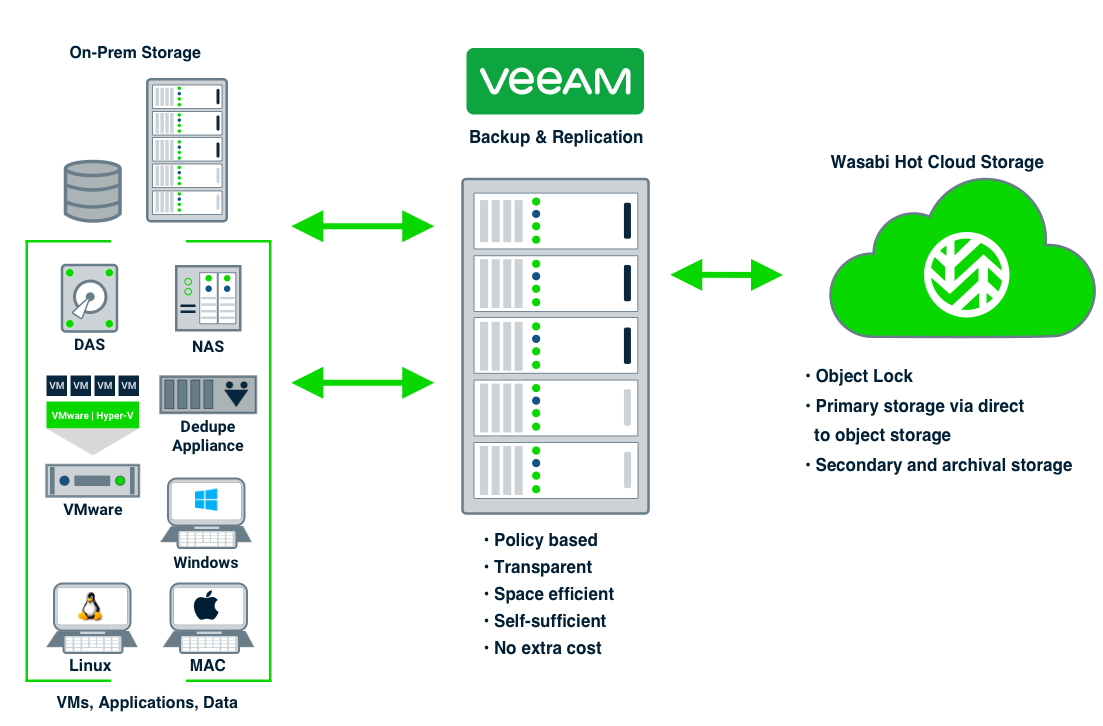
Veeam's Backup and Replication software version 13 provides direct to Wasabi object storage functionality for backup and backup copy jobs. For customers using on-premise storage to store the first copy of their backups and are wanting to keep a second copy in the cloud, the Scale-out backup repository (SOBR) is the best way to achieve this. This article details the procedure to create a backup job using a SOBR to write the first copy on local storage and the second copy to Wasabi object storage.
The data restoration process is handled by your specific backup software application. As there are many potential variables that will affect your unique environment, Wasabi strongly recommends that you seek the guidance of your backup software's technical support team in the event that you encounter difficulty or have application-specific inquiries.
If you are going to leverage immutable Veeam backups, follow the steps in Object Lock: Enabling. Enabling bucket versioning only is not a proper configuration for immutable Veeam backups and can cause problems. If you are simply going to use regular Veeam backups with Wasabi buckets, bucket versioning is not required.
Requirements
Active Wasabi Storage account.
Wasabi bucket created and the access and secret keys available.
Veeam Backup and Replication version 13 software installed and licensed. This solution was most recently tested with v13.1. For other major release versions, refer to Veeam With Wasabi.
A valid Veeam license that supports capabilities for object storage.
Virtual machines to be backed up added to the Veeam B&R application.
Since the Veeam web user interface (UI) does not yet support creating object storage repositories, you must use the Veeam Windows client. If you’re using the Veeam Software Appliance, this is downloadable from your Veeam Software Appliance login page by clicking “Download Windows-based backup console for full experience” as shown in the following screenshot.
One Linux-based virtual machine (VM) runs the Veeam Software Appliance, and another Windows-based VM (or any Windows computer) runs the client software.
.png)
Architecture Diagram
Creating a Local Performance Tier Repository
To use the Scale-out backup repository, you will need a local repository to store the backups and to send copies of the backups to the Wasabi Object storage repository (which will act as a Capacity Tier repository). This section outlines the steps to create a Local Performance Tier Repository to store your initial backups.
On the Backup Infrastructure tab, click Backup Repositories.
Click Add Repository to open the Add Backup Repository window.

Click Direct attached storage to select a local disk.

Click Windows or Linux to select the operating system. The Linux (Hardened Repository) option may also be used. (The example below uses the Veeam v13 Linux server, so Linux was selected.)
.png)
Enter a name and, optionally, a description of the repository.
Click Next.

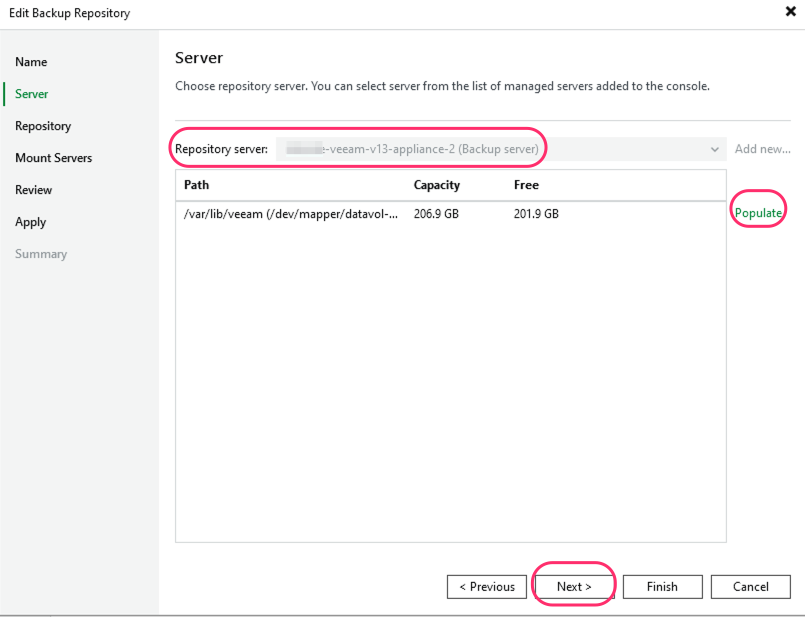
In the Server tab, the default server is selected. Click Populate to see the capacity and free space of the available path.
Click Next.
Click Browse to select a path.

Click New Folder.
.png)
Enter the name of the new folder. It will now appear in the directory listing. Click OK.

Click Populate to show the capacity for the selected folder.
Click Next.

Leave the default settings for Mount Servers. Click Next.

On the Review page, click Apply to continue.

On the Apply page, click Next.

On the Summary page, click Finish to complete the repository creation.

Creating Wasabi as an Object Repository
In Veeam version 13, Veeam Backup and Replication software can back up to Wasabi cloud object storage as the Capacity Tier of a SOBR. You will need to have already created a Wasabi bucket for this repository. See Creating a Bucket for details. You will also need the Access key and the Secret key to access the Wasabi bucket. For information on Access and Secret keys, see Creating a New Access Key.
Follow the steps below to add Wasabi as an object storage repository in Veeam.
On the Backup Infrastructure tab, click Backup Repositories. Click Add Repository to open the Add Backup Repository wizard.
Click Object storage to select the backup repository type.

Click Additional Providers.

Click Wasabi Cloud Storage under Additional Providers.

Enter a name and, optionally, a description for the object storage repository.
Click Next.

Input the Region. Click Add to input the Access and Secret keys.
This configuration example discusses the use of Wasabi's us-east-1 storage region. Use the region your bucket is located in. For a list of regions, see Available Storage Regions.

Input your Wasabi Access key and Secret key credentials. Click OK.

Click Next to continue.

Click Browse beside the Bucket field to choose an existing Wasabi bucket. Click Browse beside the Folder field. To create a new folder, click New Folder in the folder window, enter a name, and click OK. Select the following options if desired. It is highly recommended to make backups immutable.
Limit object storage consumption—Defines a soft limit that can be exceeded temporarily for your object storage consumption. Provide the value in TB or PB.
Immutable Backups—To create immutable backups, click the checkbox “Make recent backups immutable” (recommended). By default, the minimum immutability period is the entire retention period, but it must be changed for a SOBR Capacity Tier. Click the entire retention period to change it.

Select For the minimum immutability period only.
Set the minimum immutability duration (30 days in our example) and click OK.
.png)
Click Next.

In the Mount Server tab, keep the default values and click Next.

In the Review tab, click Apply.

In the Apply tab, click Next.

Review the Summary. Click Finish to create the Wasabi repository.
.png)
To view the newly created Object repository, click Backup Repositories in the Backup Infrastructure tab.

Creating a Scale-out Backup Repository
This section lists the steps to create a Scale-Out Backup Repository (SOBR). In Veeam terms, this is a combination of a Performance Tier Repository and a Capacity Tier Repository. They work in conjunction as follows: First, the backups are created directly to the Performance Tier Repository. Once the backups are created, they are copied or moved over to your Capacity Tier Repository, depending on your settings.
You must always have sufficient storage space in your Performance Tier Repository to meet your backup requirements.
From the Backup Infrastructure tab, click Scale-out Repositories.
Click Add Scale-out Repository.

Enter a name and, optionally, a description.
Click Next.

In the Performance Tier section, click Add.

Check the box next to the previously created local storage repository. Click OK. In this instance, we previously created a Local Repository, and that box was checked.
.png)
You will not be able to continue if you select Default Backup Repository. This is the default repository where Veeam keeps its local configuration backups. For this reason, we created a new local repository earlier.
Click Next to continue.

Leave the default values for the Placement Policy. Click Next.

On the Capacity Tier configuration page, check Extend scale-out backup repository capacity with object storage.
Click Choose.

Select the Wasabi repository that was previously created as a Capacity Tier repo. Click OK.

Select one or both of the following options, depending on your requirements.
Copy backups to object storage as they are created—Checking this box will immediately copy any backups made into Wasabi Hot Cloud Storage.
Move backups to object storage as they age out of the operational restore window and change the days to fit your needs—Checking this box will move backups off local storage after the active backup chain has been sealed and the backup files are older than X days. Selecting this option alone will not immediately move files or adjust the days to fit your needs. First, create an Active Full Backup or a Synthetic Full Backup, wait for the operational window to pass, and run the SOBR Offload Job.
Encrypt data uploaded to object storage—By checking this, Veeam will apply its own third-party encryption before sending objects to Wasabi.

Click Next when you are done making configuration choices.

Click Apply.

Review the Summary page. Click Finish.
.png)
Creating a Backup Job
From the Home tab, click Backup Job.
Click Virtual Machine.
This example creates a backup job for a virtual machine. Select the appropriate option from the list.

Enter a name for the backup job and, optionally, a description. Click Next.

Select the virtual machine by clicking Add and selecting the VM from the list. You can also search for a VM in the search box at the bottom.
Once the VM is selected, click Add.

.png)
Click Next to continue.

Select the SOBR repository that was created above from the list and set the retention policy. Click Next to continue. Optionally, configure backup storage settings.
Keep certain full backups longer for archival purposes—checking this option enables you to configure GFS (Grandfather/Father/Son) backups, which are kept in addition to your backups governed by the retention policy. For more information, review Long-Term Retention Policy.
Configure secondary destinations for this job—Checking this will enable you to assign this backup to be backed up by a Backup Copy Job. A Backup Copy Job is a separate job that makes copies of an existing Backup Job when it runs. In order to check this box, you will need to have already created an existing Backup Copy Job. For more information, review Backup Copy - Veeam Backup & Replication User Guide.
The Retention Policy here determines the number of days for which your backup jobs will be retained after their successful completion.

Click Next to continue with default settings. Optionally, configure Guest Processing Options.
To read about the Veeam-specific guest procession options, review Veeam’s Guest Processing documentation.

Configure the Scheduling settings to run the backup job automatically, then click Apply.
To read about the Veeam-specific scheduling options, review Step 11. Define Job Schedule.

On the Summary page, check Run the job when I click Finish to initiate the backup job. Click Finish.

Select the Home tab.
Click Last 24 Hours to see the backup job running and the SOBR Tiering to Wasabi. Select the backup job offload to view details.

Once the SOBR tiering job completes, confirm the backup data in your Wasabi bucket by going to the Wasabi Console, clicking Buckets, then clicking your bucket name.

Click on folders in your bucket until you verify the data is there.
