A Sub-Account is a child storage account provisioned under a Control Account or Channel Account that provides storage usage tracking, billing visibility, and account management, while remaining centrally managed by the parent account.
Whether you sign in as a Wasabi Admin or a WACM Control Account Admin, the Sub-Account components link to the same pages.
Data storage usage includes the following components:
Usage
Buckets
Invoices
Usage
The Usage page provides visibility into storage consumption and activity for the selected Sub-Account.
Sub-Account Summary Data
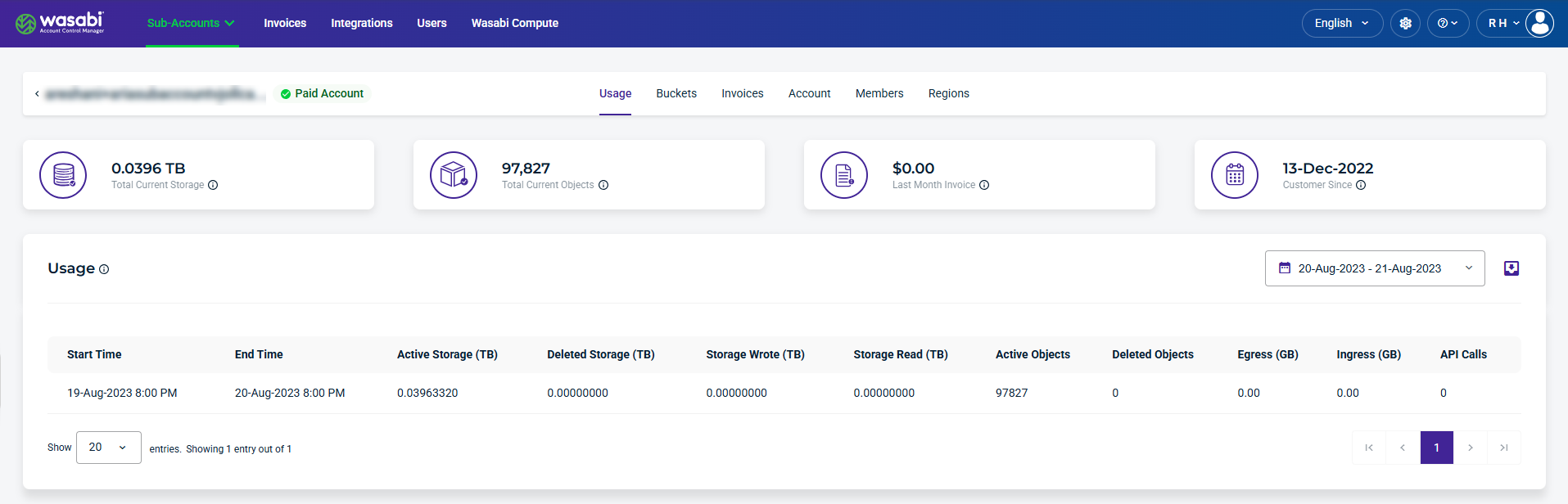
The top section of the page summarizes account and storage information.
View Storage Object Usage
The summary data cards provide an overview of storage and object usage for the Control Account and its Sub-Accounts for the selected date.

Total Current Storage—The total storage used by this Sub-Account.
Total Current Objects—The total number of objects, including active and deleted objects.
Last Month Invoice—Total storage cost based on the list price.
Customer Since—The date the Sub-Account converted from a Trial Account to a Paid Account.
Usage Details and Metrics
The following details and metrics are included:
Start Time/End Time—Start and end time of the utilization record. Each record represents a single day.
Active Storage (TB)—Total amount of data (files/objects) you currently have stored and available.
Deleted Storage (TB)—Amount of data (files/objects) deleted from the storage system, which may still be tracked for a period of time before it is fully removed.
Storage Wrote (TB)—Amount of data that has been uploaded or written into storage.
Storage Read (TB)—Total volume of data that has been accessed/downloaded or pulled out of storage.
Active Objects—Count of all stored files/objects that currently exist in your storage.
Deleted Objects—Count of files that have been deleted from your storage.
Egress (GB)—Amount of data transferred out of your storage to another location.
Ingress (GB)—Amount of data transferred into your storage.
API Calls—Number of times an application or system interacts with the WACM API.
Calendar Tool
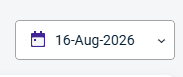
The calendar dropdown lets you select a date to view historical data.
Export Tool
The Export tool lets you filter results and export data to CSV, JSON, or Excel formats.

Buckets
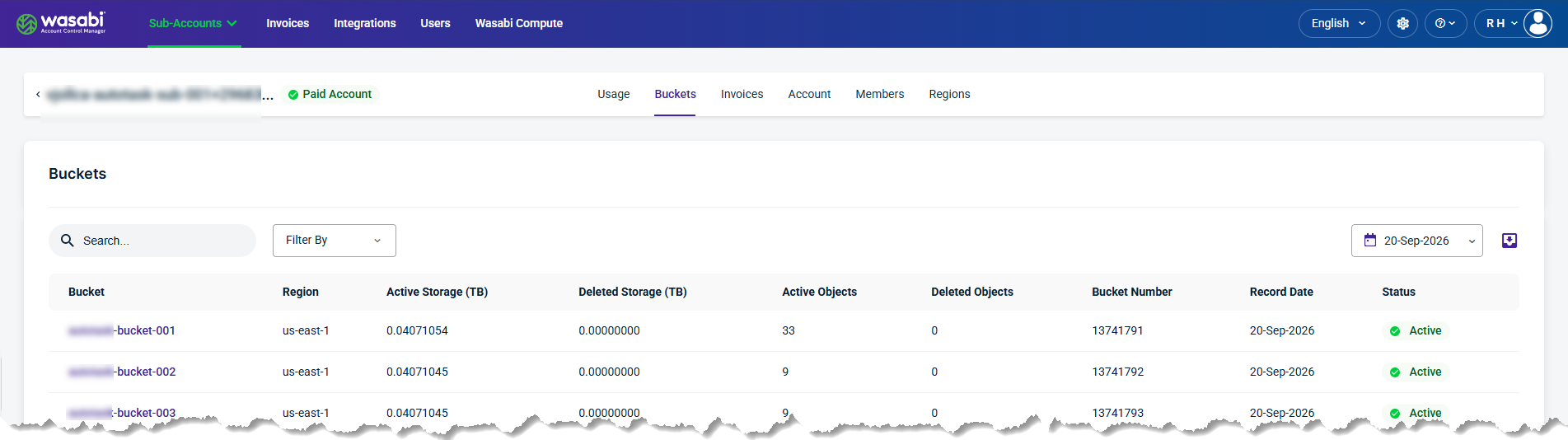
The Buckets page lets you view details and metrics for each bucket.
Bucket Details and Metrics
The following details and metrics are included:
Bucket—Label used to identify and access a specific bucket.
Region—Data center location assigned to a bucket.
Active Storage (TB)—Total size of data currently stored, broken down by each bucket.
Deleted Storage (TB)—Total size of data removed from each bucket, shown separately for each bucket.
Active Objects—Per-bucket count of how many files currently exist.
Deleted Objects—Per-bucket count of how many files have been removed.
Bucket Number—Unique number associated with the bucket.
Record Date—Date a particular metric or piece of data was recorded.
Status—Active status means the bucket is in use and can store data. Inactive status means the bucket is not currently in use or may be disabled, empty, or no longer actively managed.
Find and Refine Control Accounts
Use the Search, Filter By, and Calendar tools to find and refine account data displayed on the page. You can also use the Export tool to export account data for reporting or further analysis.

Search and Filter By
Use the Search field to find a specific bucket, and use the Filter By menu to filter by details using the dropdown.
The following Filter By menu options are available:
Region—Filter on one or more regions from the list.
Bucket Number—Filter one or more bucket numbers from the list.
Status—Filter accounts that are Active or Deactivated.
Calendar Tool
The calendar dropdown lets you select a date to view historical data.
Export Tool
The Export tool lets you filter results and export data to CSV, JSON, or Excel formats.
Invoices
The Invoices page provides visibility into invoice billing periods and usage metrics for a Sub-Account.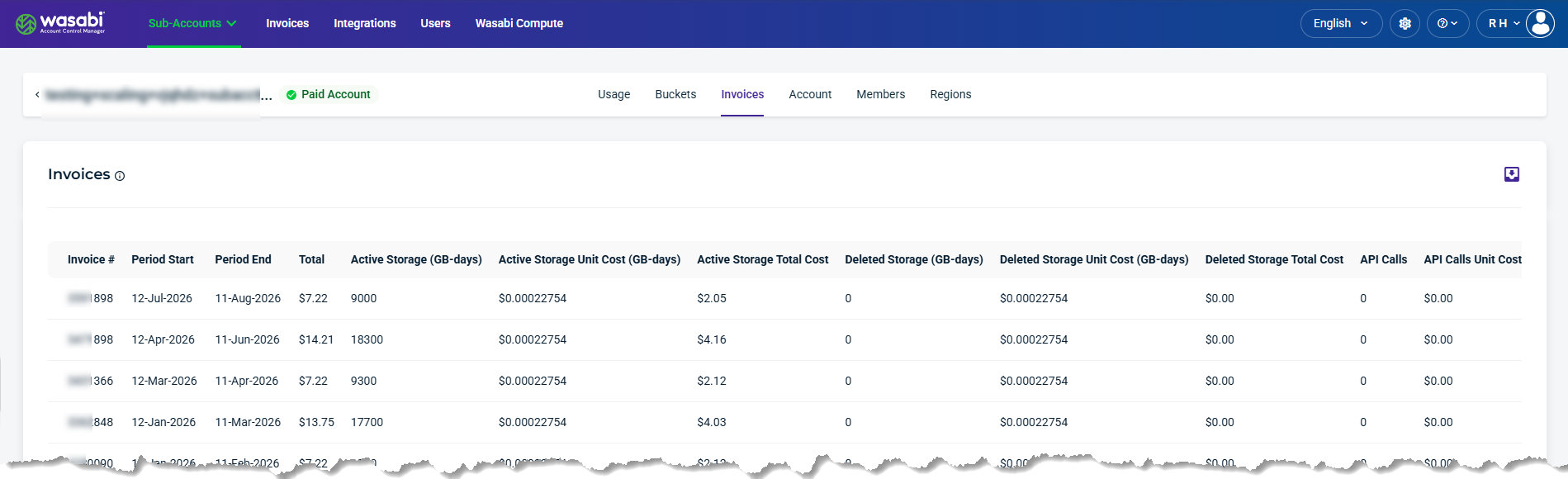
Invoice Details and Metrics
The following details and metrics are included:
Invoice #—The unique number used to identify and track a particular bill.
Period Start—The date when the billing period begins.
Period End—The date when the billing period ends.
Total—The total charges owed for the billing period, which is the sum of Active Total Storage Cost, Deleted Total Storage Cost, and Minimum Active Storage Total Cost, based on list price.
Active Storage (GB-days)—Total volume of currently stored (active) data during the billing period.
Active Storage Unit Cost (GB-days)—Rate charged per unit of active storage.
Active Storage Total Cost—Total charges for all active storage used during the billing period.
Deleted Storage (GB-days)—Total volume of data that was deleted during the billing period.
Deleted Storage Unit Cost (GB-days)—Rate charged per unit of deleted storage.
Deleted Storage Total Cost—Total charges for deleted storage usage during the billing period.
API Calls—The number of API requests made during the billing period.
API Calls Unit Cost—Cost per individual API request.
API Calls Total Cost—Total charges for all API requests.
Ingress (GB)—Total amount of data uploaded into storage.
Ingress Unit Cost (GB)—Cost per unit of ingressed (uploaded) data.
Ingress Total Cost—Total charges for data uploads.
Egress (GB)—The amount of data downloaded from storage.
Egress Unit Cost (GB)—Cost per unit of egress (downloaded) data.
Egress Total Cost—Total charges for data downloads.
Minimum Active Storage—Minimum billable amount of active storage required.
Minimum Active Storage Unit Cost—Cost per unit applied to the minimum storage requirement.
Minimum Active Storage Total Cost—Total charges based on the minimum storage requirement.
Export Tool
The Export tool lets you filter results and export data to CSV, JSON, or Excel formats.