Public access makes a folder available to any Internet user. This includes the ability to read objects from the bucket. Make sure there is no sensitive data in a folder that you make public.
Certain paid accounts (not trial accounts) can change this with the Public Access Override setting for a bucket if the Wasabi account was established before March 13, 2023. Accounts created after this date cannot enable public access using the Console or CLI. Wasabi recommends that you use another option, such as presigned URLs, to share your documents. If you require public bucket access, contact Wasabi Support for assistance.
You can set public access in two ways:
Defining a policy, as described below
Using Settings features for Making a Folder(s) Public or Private and Making a File(s) Public or Private
Defining a Public Access Policy
The following is a sample policy that allows for public access to a folder. Change the bucket and folder name in the Resource section (arn:aws:s3:::bucket-public/myfolder, shown in the example below) to reflect your resource name.
{
        "Version": "2012-10-17",
        "Statement": [
        {
        "Sid": "AllowPublicRead", "Effect": "Allow", "Principal": {
        "AWS": ""
        },
        "Action": [ "s3:GetObject", "s3:ListBucket"
        ],
        "Resource": "arn:aws:s3:::bucket-public/myfolder/*"
        }]
        }
Note that the following are the general formats for ARNs:
arn:aws:service:account-id:resource-id
arn:aws:service:account-id:resource-type/resource-id
arn:aws:service:account-id:resource-type:resource-id
After defining the policy, you can access files directly via either of these URLs:
YOURBUCKETNAME.s3.wasabisys.com/FILENAME<FolderName>
s3.wasabisys.com/YOURBUCKET/<FolderName>/FILENAME
Making a Folder(s) Public or Private
By default, public use of a bucket, folder, or file is allowed only by certain paid (not trial) accounts. If your account does not have access to this feature, contact Wasabi Support (support@wasabi.com) for assistance.
When you make a folder public, all files in the folder are made publicly available so that anyone can access it through the Internet without permission from these URLs:
[bucketname].[serviceURL]/[path/filename]
[serviceURL]/[bucketname]/[path/filename]Refer to the Wasabi Knowledge Base for service URLs for different regions.
The Public Access feature is intended as a one-time setting, which overrides the status settings for individual files within the folder. If files are later uploaded into the folder, they are automatically uploaded as private. You may want to consider using a bucket policy to automatically set the status of files to be public (Bucket Policy).
In the Objects list, click the folder icon
 . On the Folder Details panel, slide to enable/disable the Make Folder Public option.
Or:
In the Objects list, click in the Actions column to the right of an individual folder name. Select Make Public or Make Private.
Or:
Click to select one or multiple folders. Then, click the More Options button:
and select Make Public or Make Private.
A message indicates that making large quantities of objects public (or private) can be inefficient. If you plan to modify more than 10,000 objects, Wasabi recommends that you use a bucket policy or update ACLs using the CLI. Click Continue after considering this warning.
If you are making the folder(s) public, another warning is displayed. It indicates that the selected objects will be public and accessible by anyone who has Read permissions. Click OK to accept this condition.
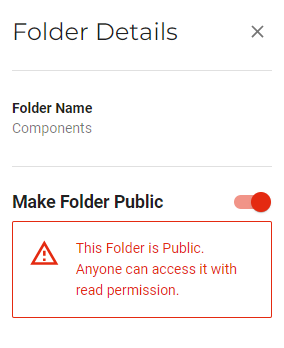
When a folder is public, the Folder Details appear as:
Making a File(s) Public or Private
By default, public use of a bucket, folder, or file is allowed only by certain paid (not trial) accounts. If your account does not have access to this feature, contact Wasabi Support (support@wasabi.com) for assistance.
In the Objects list, click anywhere (except
) in the row of the file. On the File Details panel, slide to enable/disable the Make Folder Public option.
Or:
In the Objects list, click in the Actions column to the right of an individual file name. Select Make Public or Make Private.
Or:
Click to select one or multiple files. Then, click the More Options button:and select Make Public or Make Private.
If you are making the file(s) public, a warning indicates that the selected objects will be public and accessible by anyone who has Read permissions. If required, click OK to accept this condition.
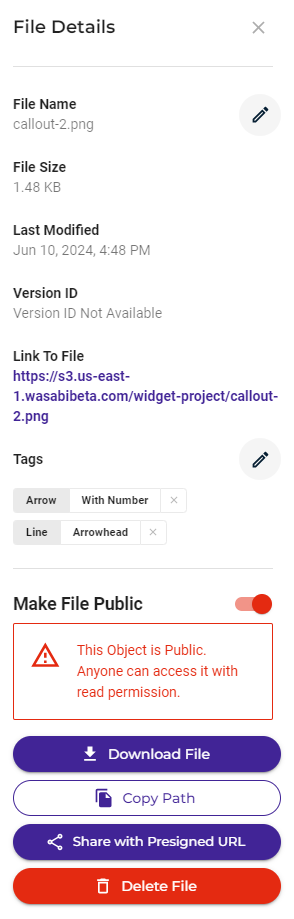
When a file is public, the File Details appear as:
Linking to a File and Copying the File Path
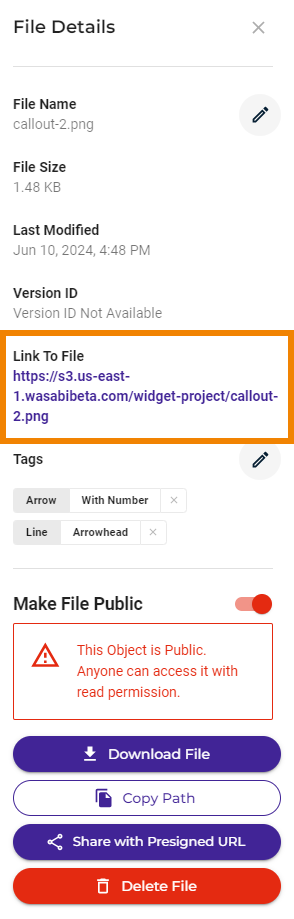
When a file is public, you can click the Link To File path to access the file. In addition, you can copy the path, such as to provide access to someone.