Wasabi recommends renaming a file that has a non-ASCII character (4-byte UTF-8 character, such as an emoji) in the file name. Wasabi does not support these characters and will return a 400 error message to an application that tries to write a file with a 4-byte UTF-8 character in the file name.
Automating Removal of 4-Byte UTF-8 Encodings From File Names
You can rename files to remove the 4-byte UTF-8 encodings using the Python script shown below (and attached at the end of this article). This script will crawl the directory in which it is placed, find all files in that directory, including subdirectories, and rename any file that contains 4-byte UTF-8 encodings in its name.
import os

        # Get current working directory
        current_dir = os.getcwd()

        # List of all files in parent directory including subdirectories
        listOfFiles = list()
        for (dirpath, dirnames, filenames) in os.walk(current_dir):
        listOfFiles += [os.path.join(dirpath, file) for file in filenames]


        # Function that removes 4-byte UTF-8 encodings
        def emojiRemovalTool():
        for file in listOfFiles:
        if file.isascii() is False:
        try:
        print(f"Found the following file with UTF-8 4-byte encodings: {file}")
        string_unicode = file
        string_encode = string_unicode.encode("ascii", "ignore")
        string_decode = string_encode.decode()
        os.rename(string_unicode, string_decode)
        print(f" {string_unicode} has been successfully renamed to : {string_decode}")
        except OSError:
        print(f"The following error occurred: {OSError}")


        if __name__ == "__main__":
        emojiRemovalTool()
Running the Script
Make sure you have downloaded and installed Python on your system. You can do so by visiting Python Official.
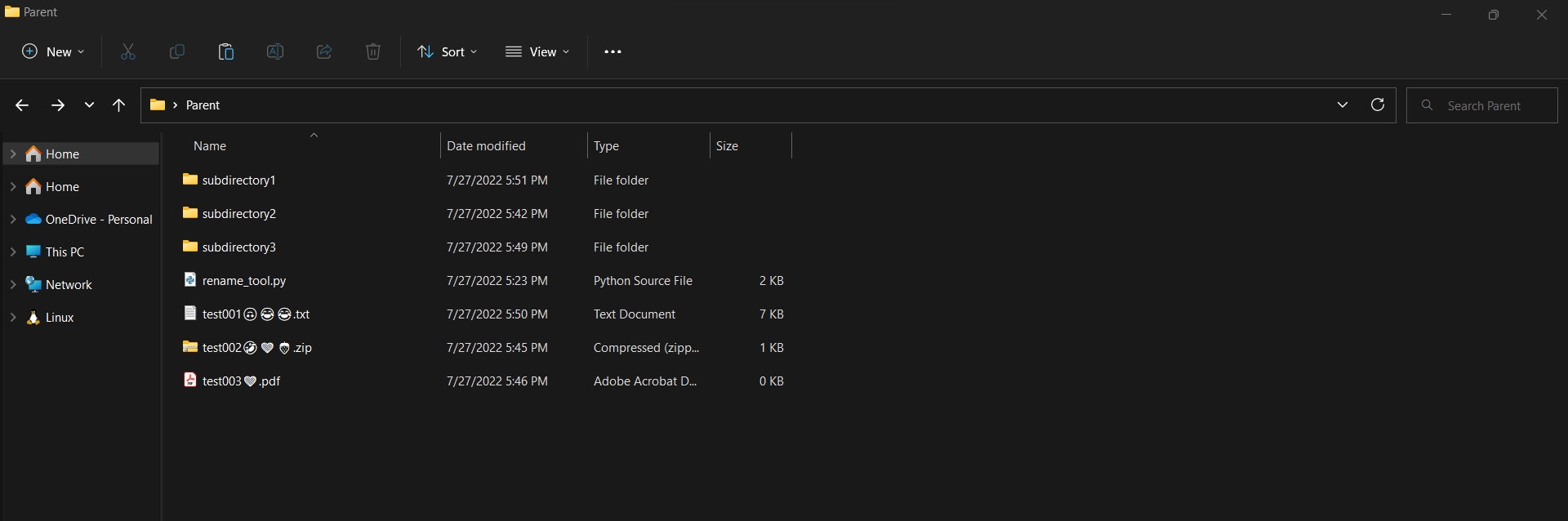
Copy the script to the parent directory where you have your files, as shown below:
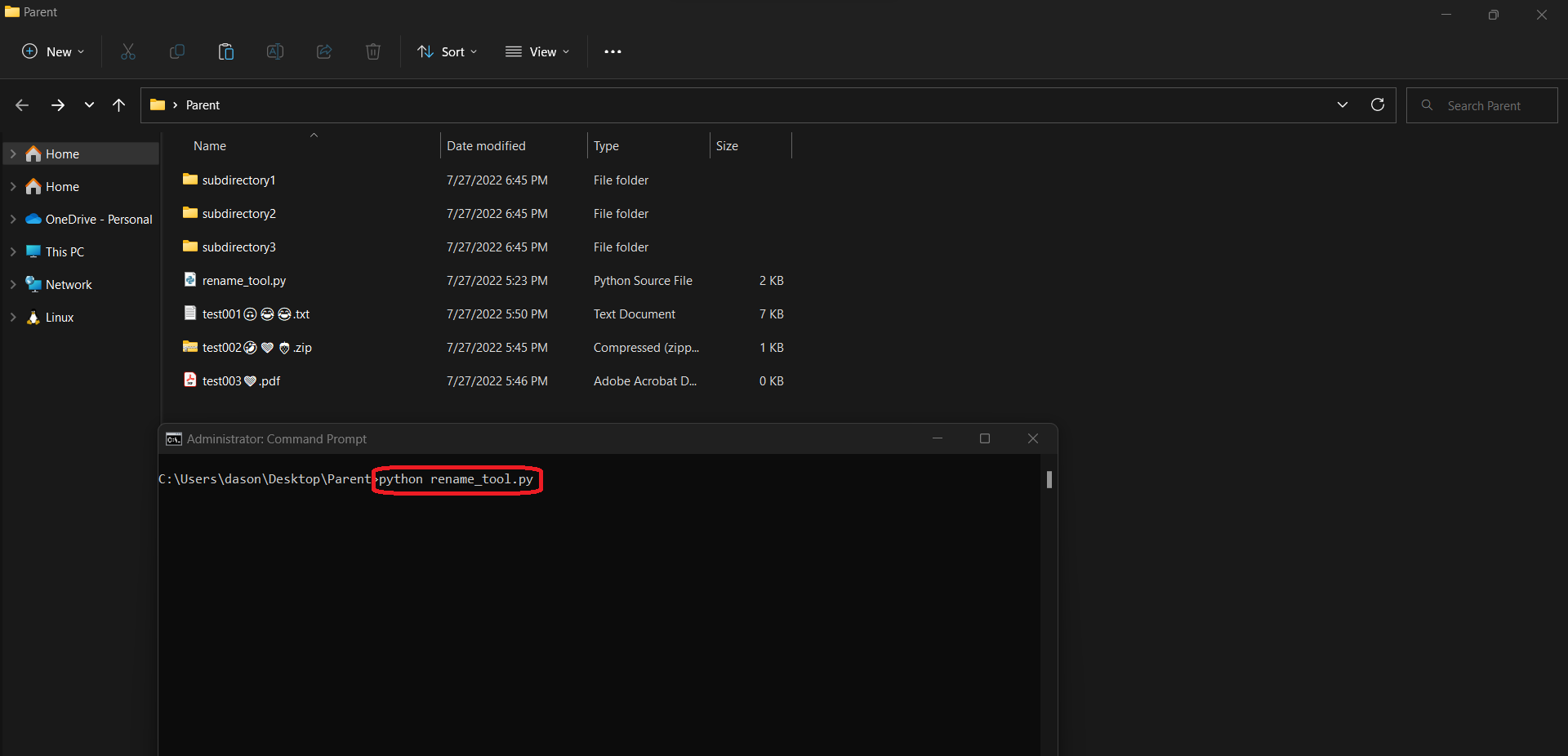
Open CMD in the parent directory where you have your files, and run the command:
$ python rename_tool.py
Results before:
Results after:
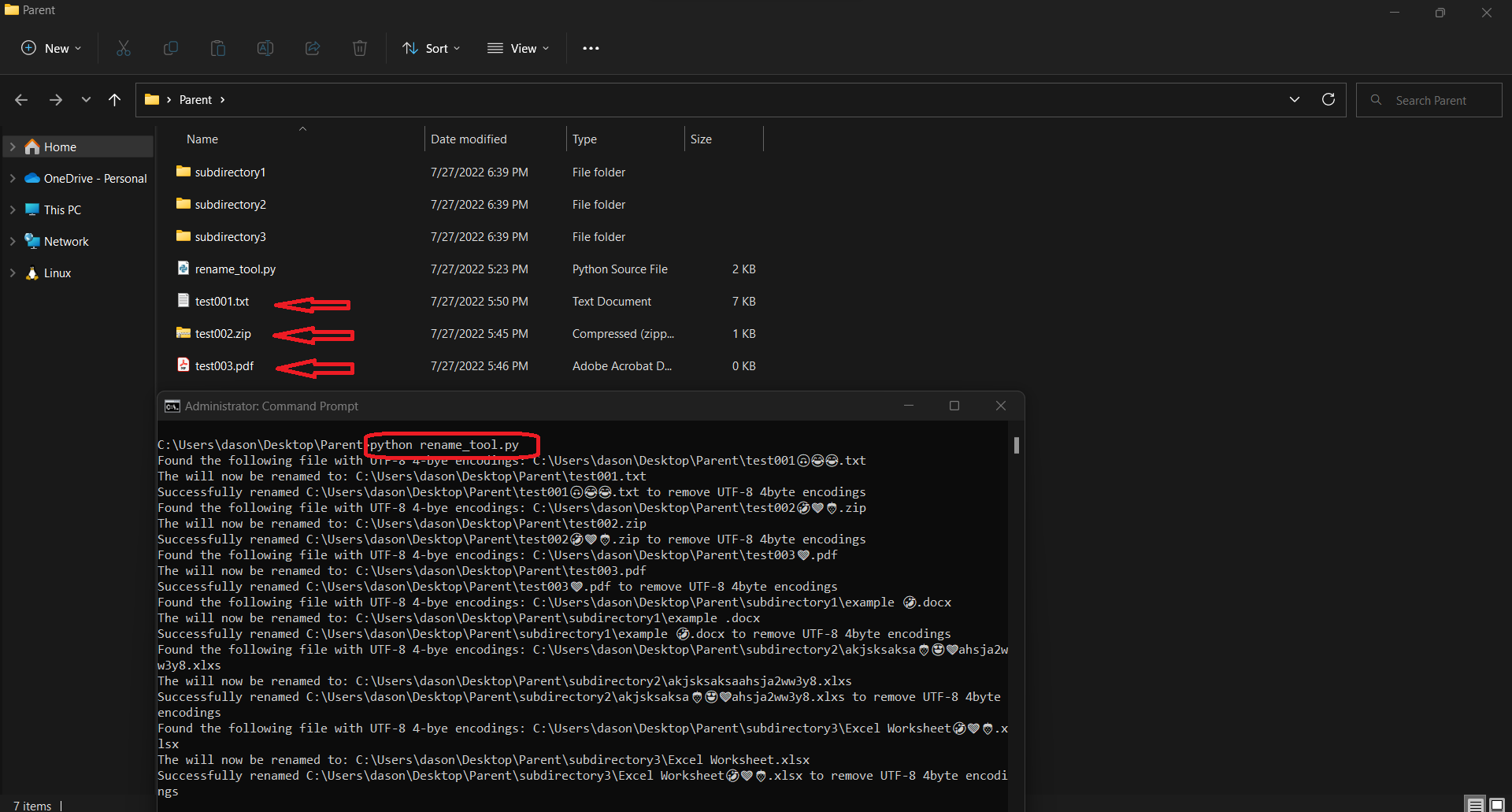
Once the script has completed successful execution, all non-ASCII characters that are 4-byte UTF-8 encoded will be removed from file names within the parent and subdirectories.