Wasabi has been validated for use with CubeBackup. CubeBackup is a Google Workspace backup application to secure your company data across the entire domain. To learn more about the CubeBackup - Wasabi joint solution, refer to our solution brief. To use this product with Wasabi, follow the instructions below.
Requirements
Cubebackup v4.2 and later installed
An active Wasabi account
Configuring CubeBackup
Log in to the Wasabi Console.
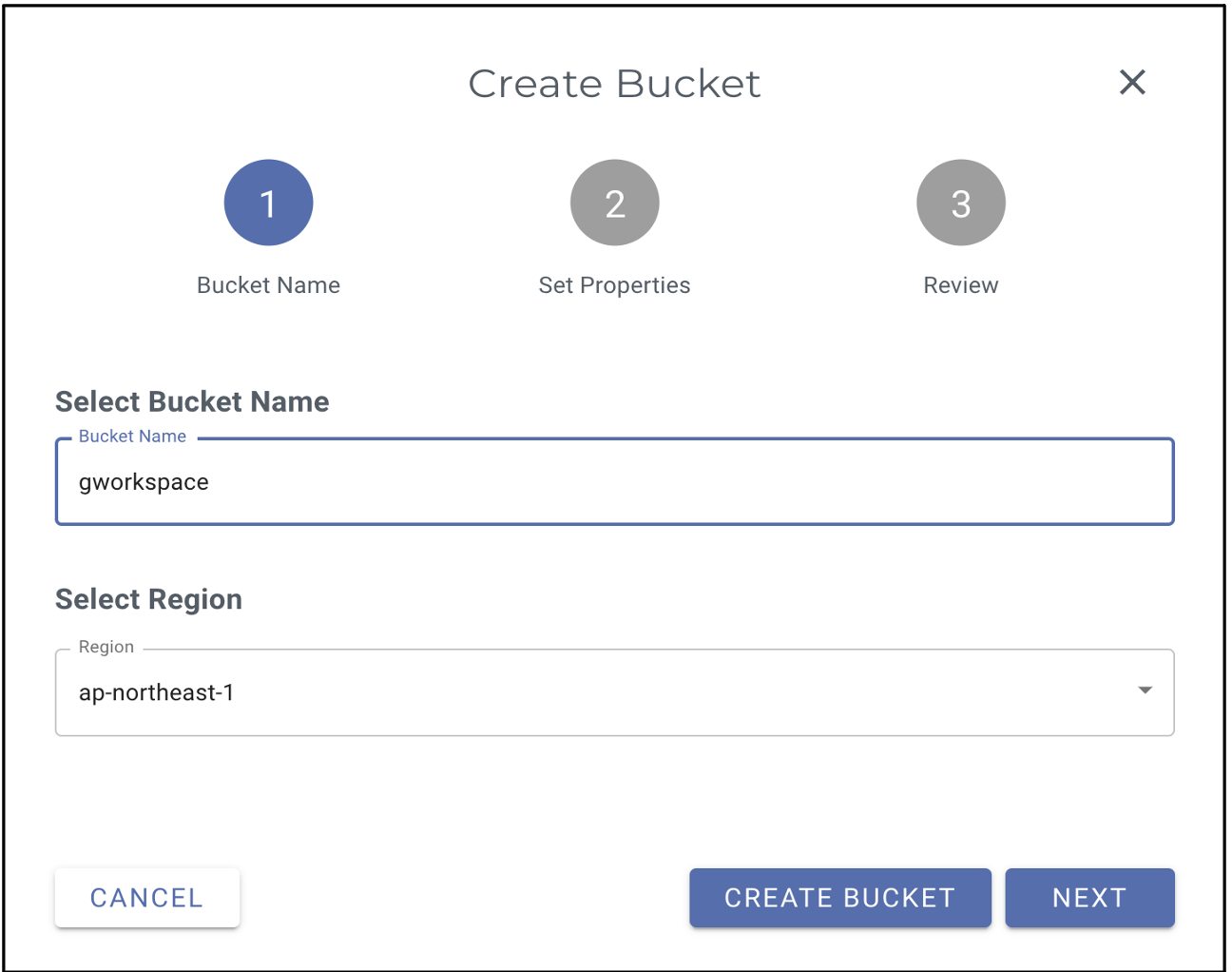
Click CREATE BUCKET.
In the pop-up dialog, input a bucket name and select a region based on your location.
Click CREATE BUCKET.
Leave Bucket Versioning, Bucket Logging, and Object Locking disabled, as CubeBackup has its own version control and logging systems.
Start the CubeBackup configuration wizard.
When starting CubeBackup for the first time, the initial configuration wizard will pop up. Select Amazon S3 compatible storage as the Storage type and provide the corresponding information for the storage bucket created in Steps 2—4.
Data Index path (For performance reasons, CubeBackup needs to keep some metadata on local disk when backing up Google Workspace data.)
The data index is the metadata for the backups, and its access speed is crucial to backup performance. We strongly recommend that you store the data index on a local SSD. See what the data index is for more information.
Endpoint (Service endpoint URL for the region in which the bucket was created. In our example, s3.ap-northeast-1.wasabisys.com.)
Bucket
Access Key ID
Secret Access Key
.png)
This configuration example uses Wasabi’s ap-northeast-1 storage region. To use other Wasabi storage regions, use the appropriate Wasabi service URL as described in Service URLs for Wasabi’s Storage Regions.
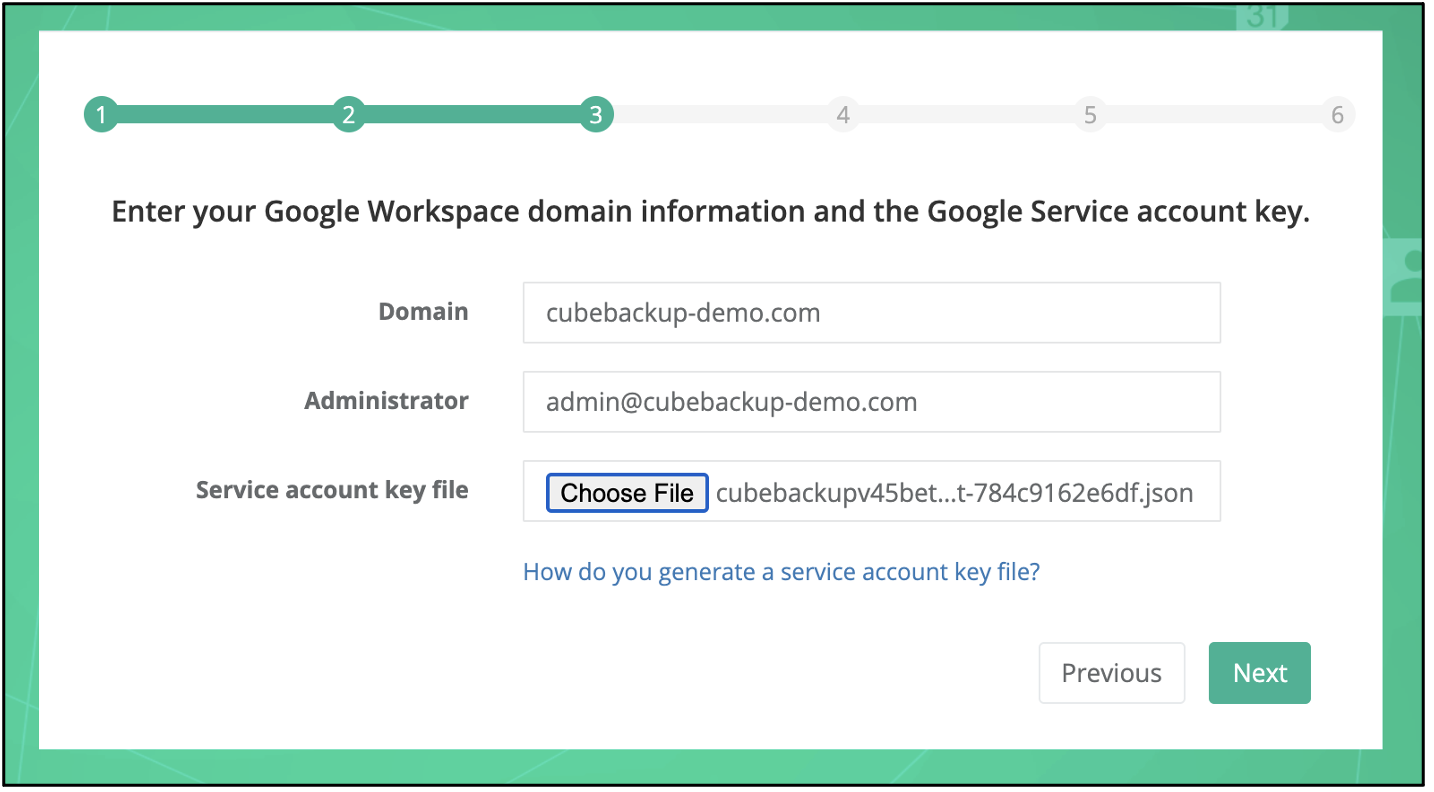
In the next step, you need to enter the domain name and the administrator account of your Google Workspace, as well as the Google Service account key file. For more information, follow the CubeBackup configuration guide Create Google Service account.
Once the configuration is complete, your Google Workspace data will be automatically backed up to the Wasabi bucket you have created.
Data backup and restore histories are available on the history page in the CubeBackup console. If any error occurs, click the number in the Errors column to get detailed information.
.png)