GoodSync is a multi-platform file backup and synchronization application that has been validated for use with Wasabi. It can be used to backup and sync files between Windows, Linux, MacOS, NAS, and Mobile Devices. For additional documentation on the GoodSync application, refer to Backup/Synchronization.
Requirements
Wasabi Hot Cloud Storage account
Wasabi Access/Secret Key (see Creating a User Account and Access Key)
Wasabi bucket (see Creating a bucket)
GoodSync application installed (v12.x as of this article)
GoodSync software license (see Buy GoodSync)
Configuring GoodSync With Wasabi
Launch the GoodSync application.
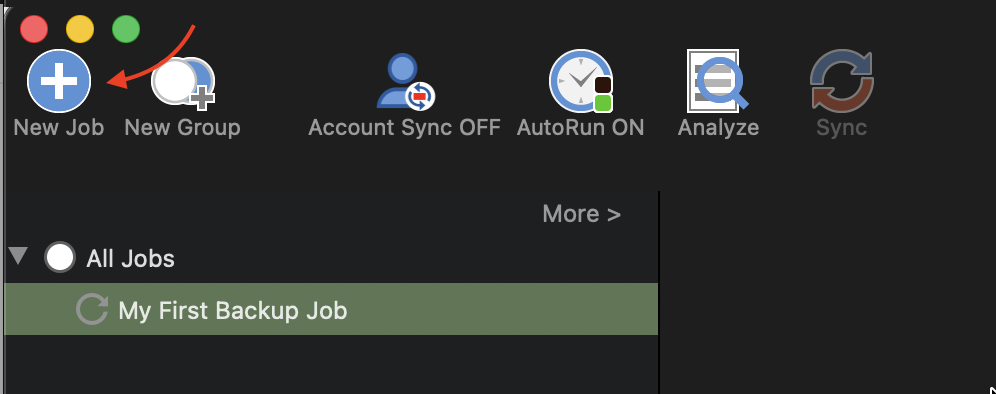
Click New Job.
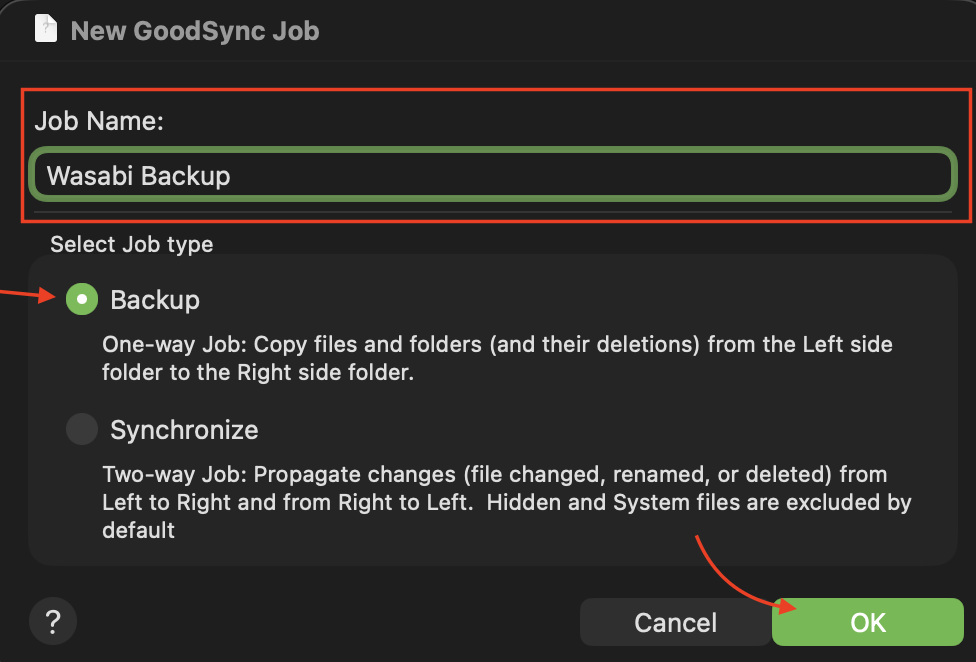
Enter a Job Name and select your job type.
Click OK.
Click one of the folders at the top of the page to open the folder selection panel.

On the left side of the panel, use the directory tree to navigate to your backup source folder.
On the right side of the panel, scroll to find the Wasabi Connector for the backup destination.
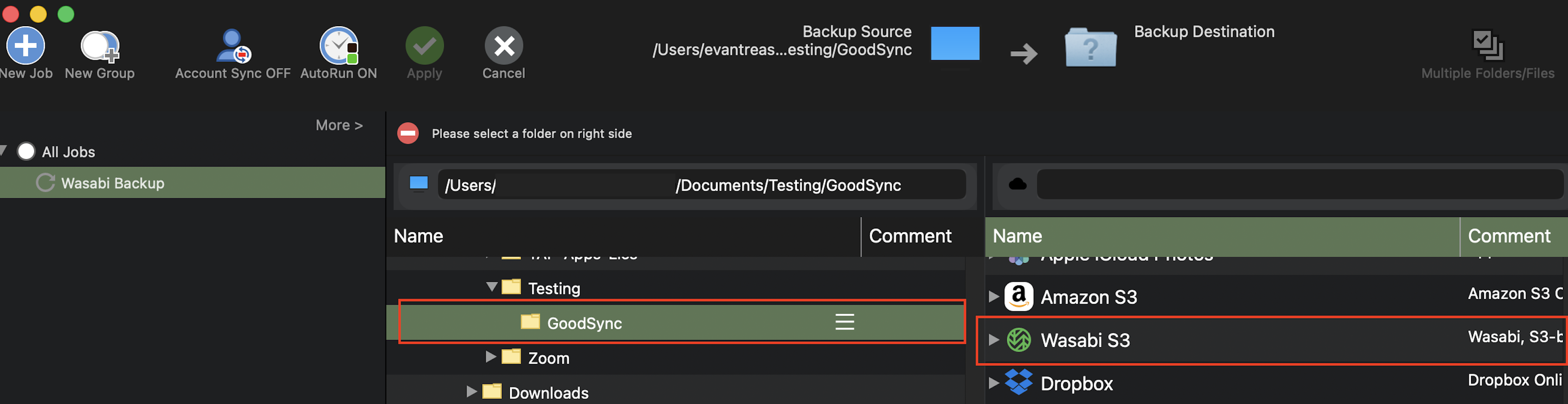
Select the Wasabi Connector. You will be presented with a dialog box.
Enter your Access & Secret Key.
Click Test.
Click Save.
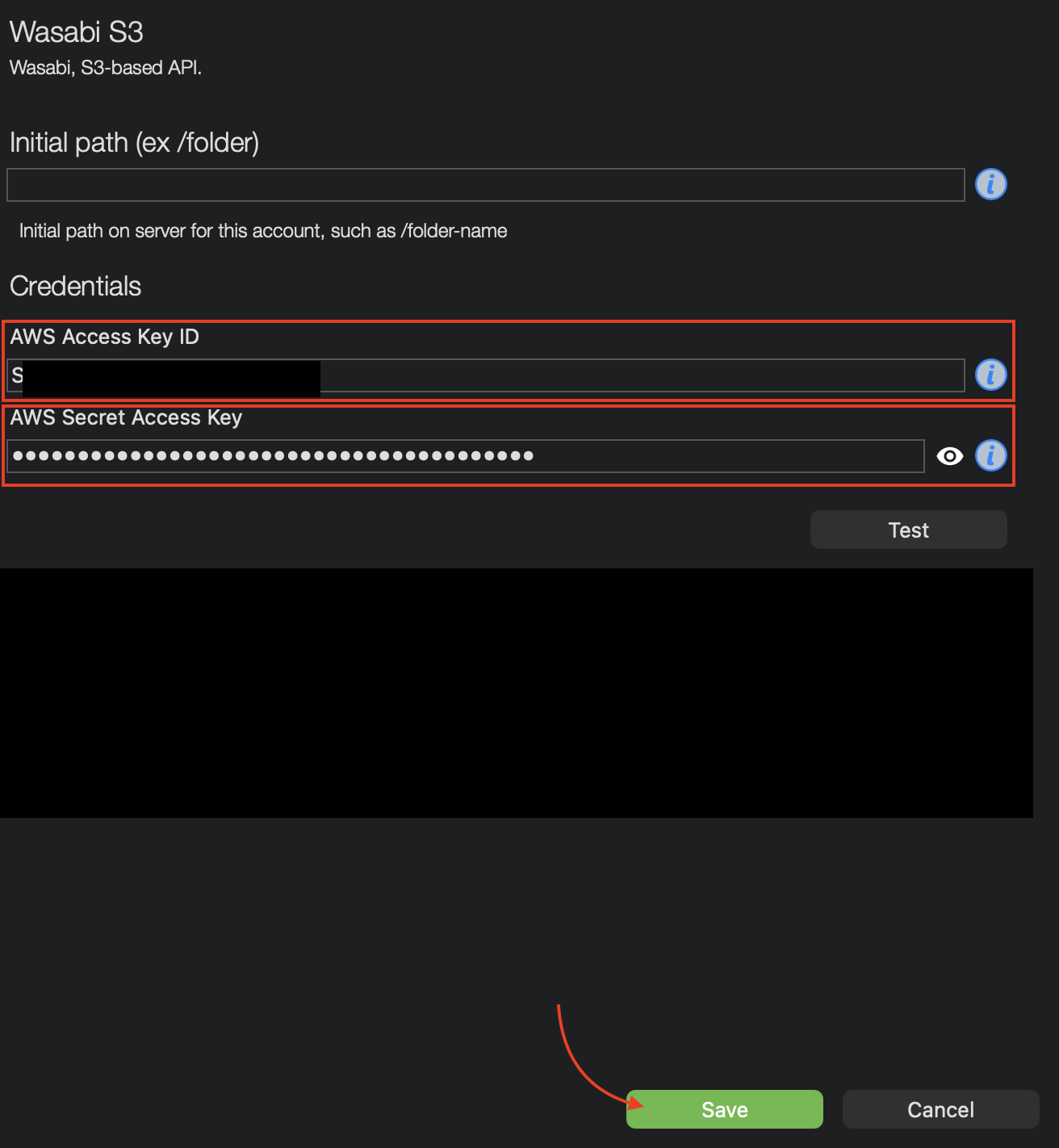
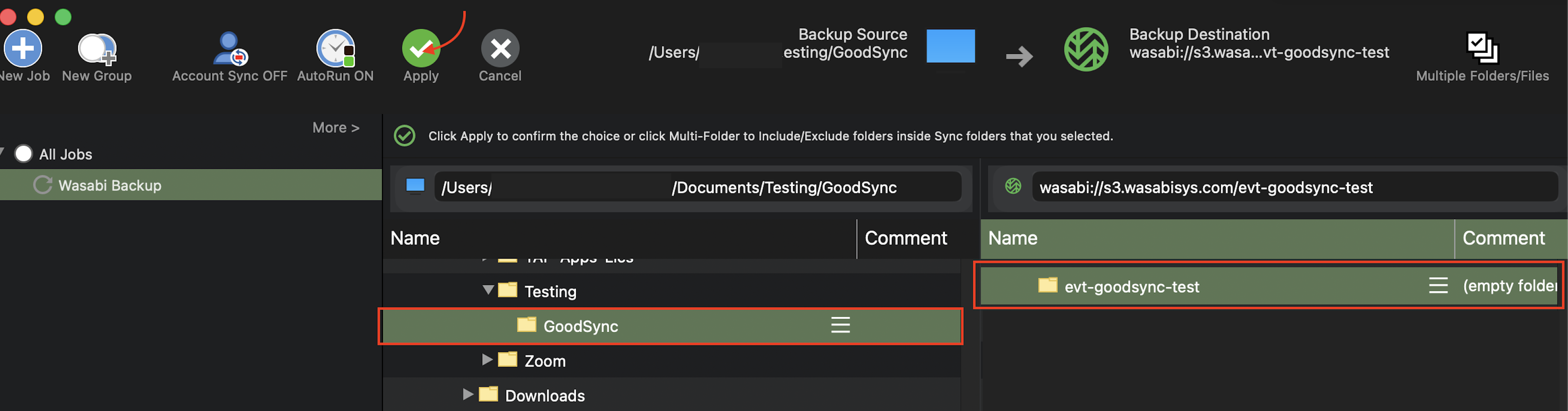
Once you have saved your Wasabi credentials, GoodSync will be able to list the buckets in your Wasabi account. Choose the appropriate bucket as your backup destination.
Click Apply.
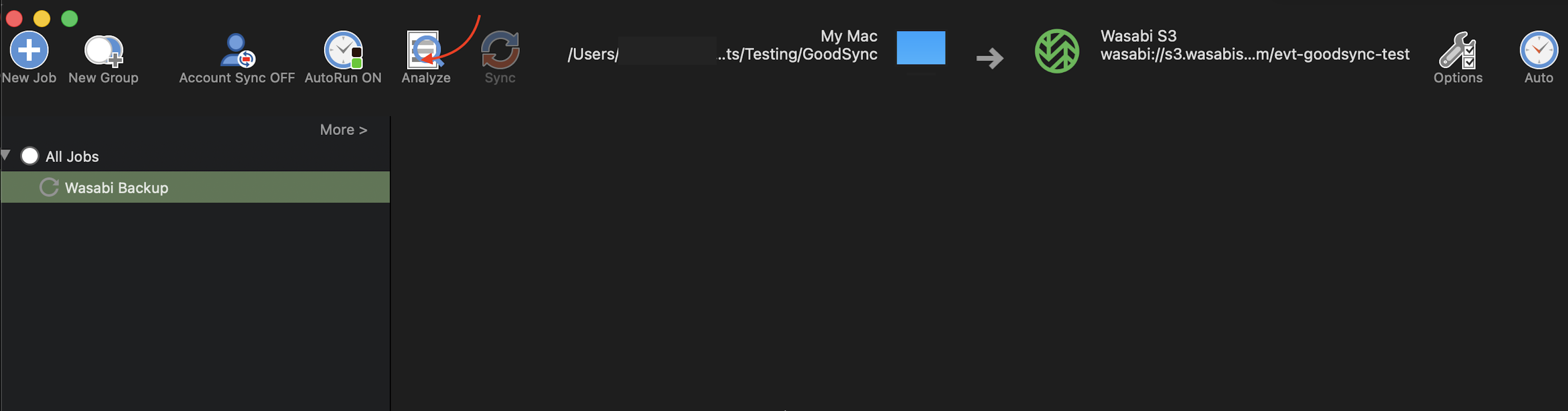
Click Analyze.
GoodSync will scan the directory for files and prepare to sync content. Click Sync.
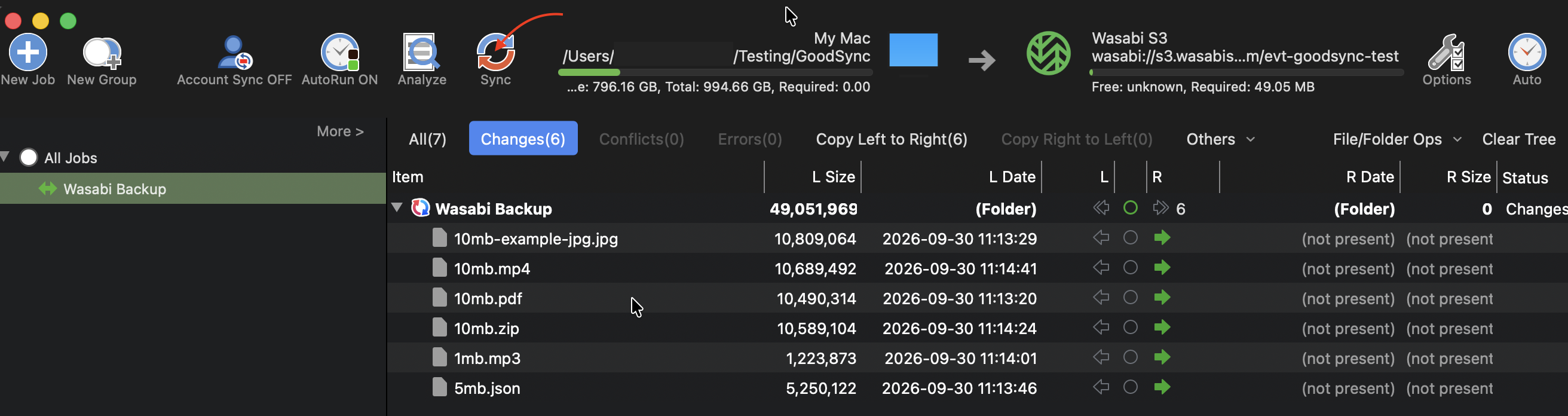
When the sync completes, you will see your files written to the backup destination on the right panel.
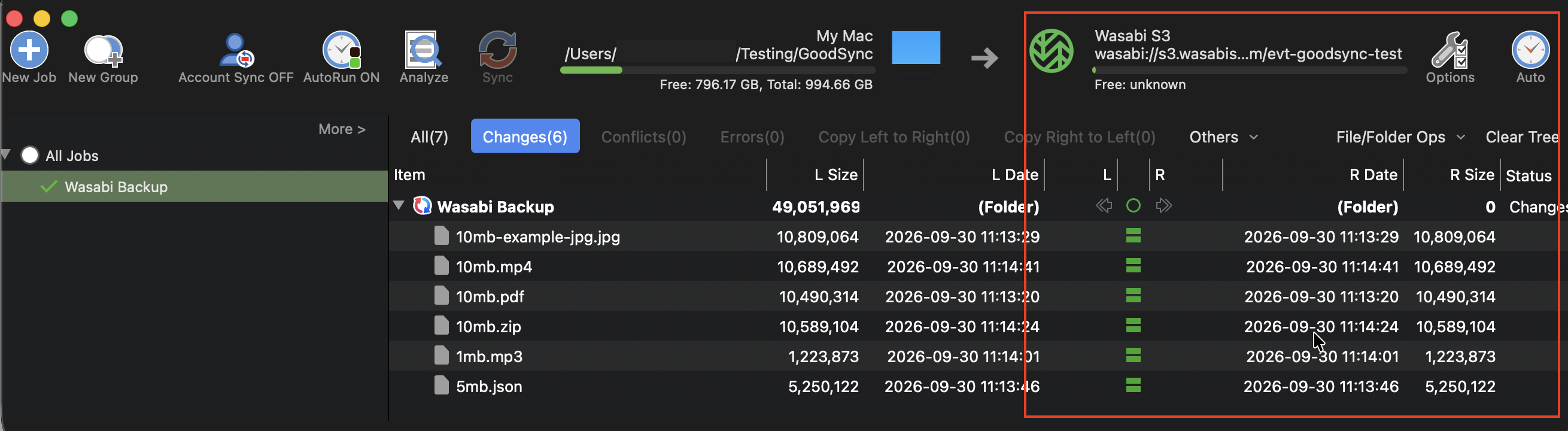
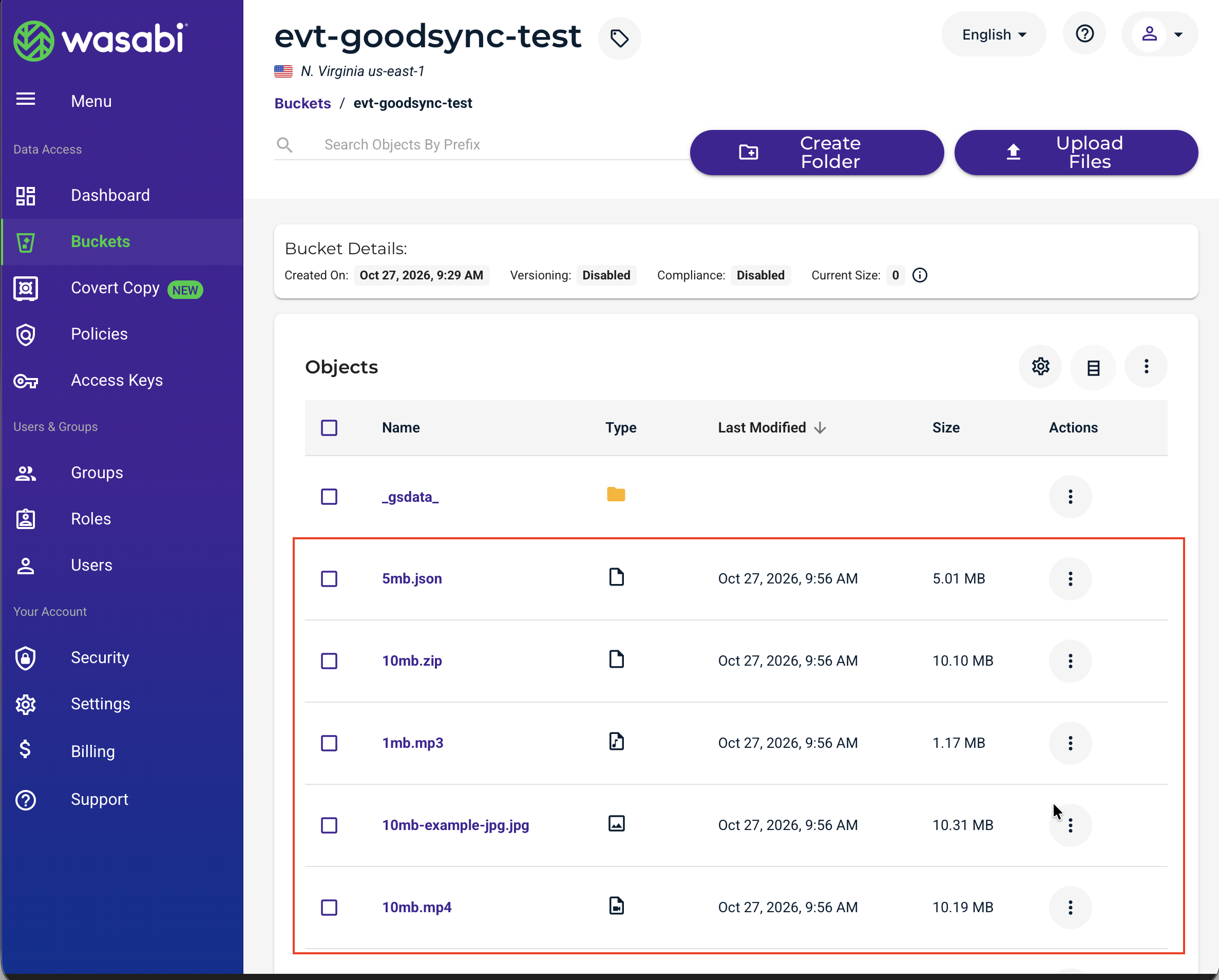
Confirm the files have been written by visiting the Wasabi Console. You should see your files in the target bucket.
Automating Sync With GoodSync
Launch the GoodSync application.
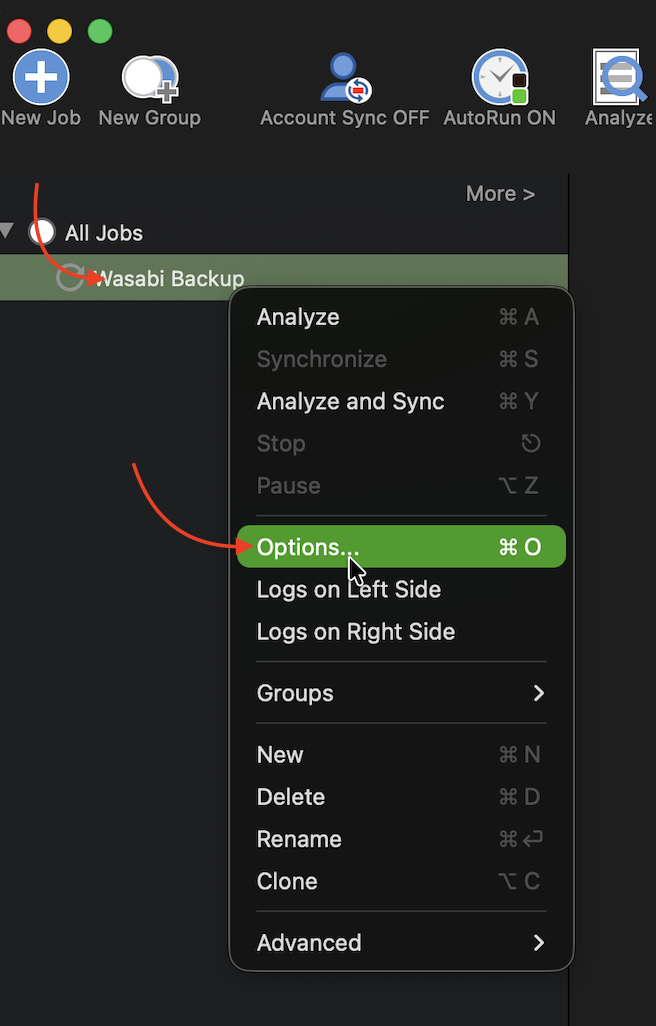
Right-click your sync job.
Select Options.
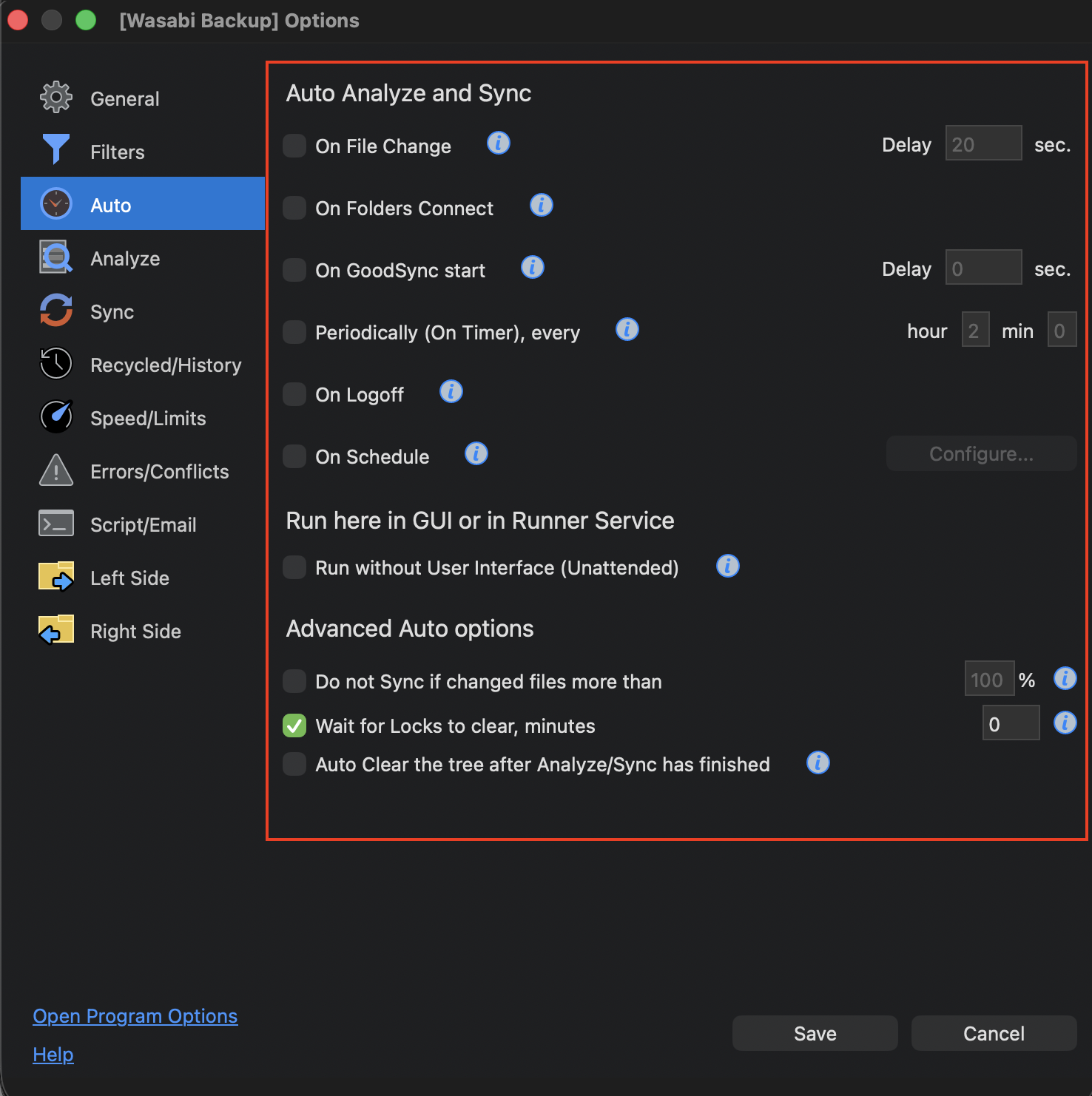
Click Auto.
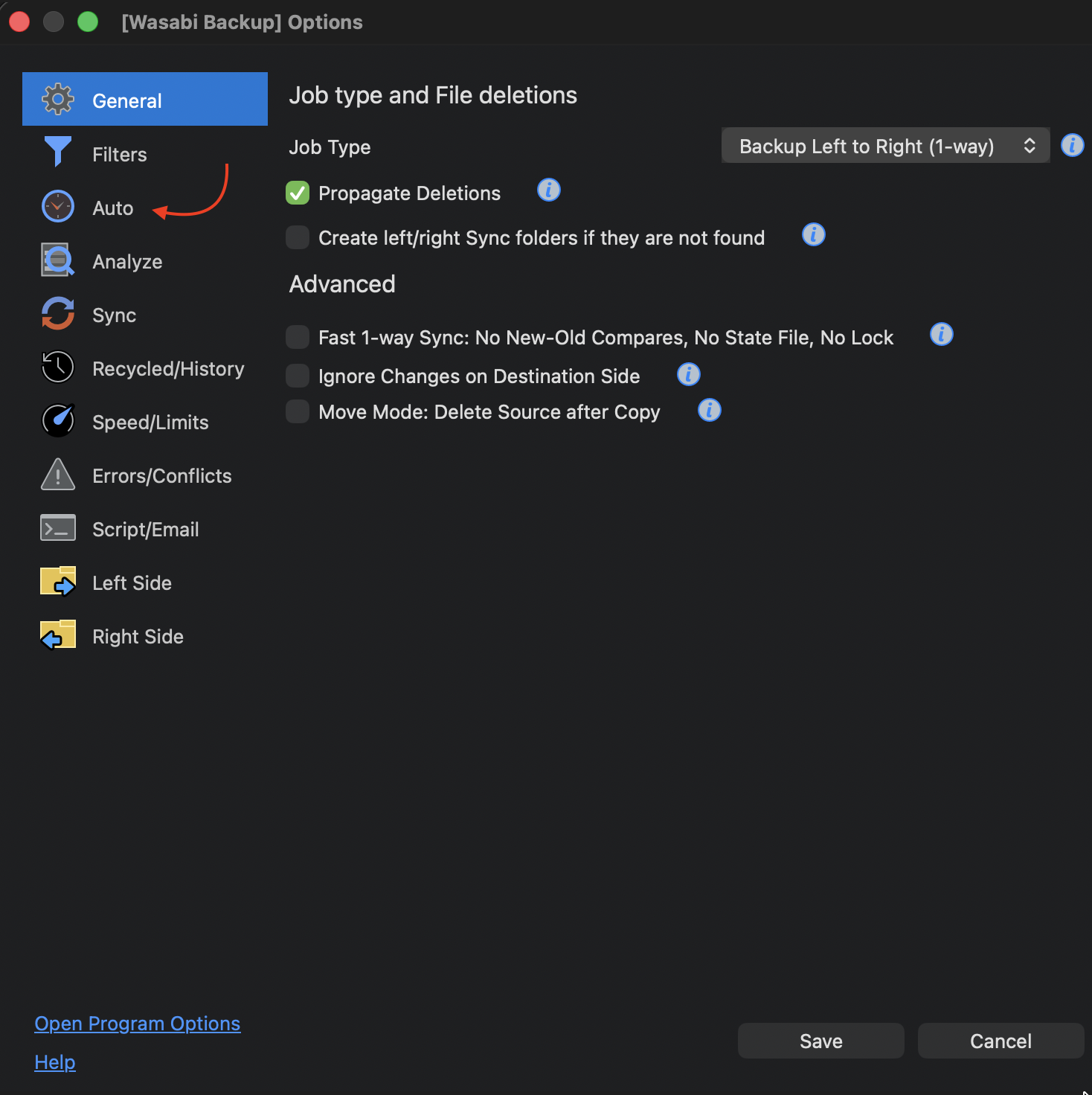
The Auto page of the options dialog contains various options for automating sync operations. You can set action-based sync (such as bwhen something changes, when the application launches, when you log off, and so on), periodic sync, or scheduled sync options here. Select an option(s). For more information about sync options, see GoodSync Job Options.
Click Save.