The Jobs page enables you to view and monitor your Wasabi-managed transfers (migration jobs). The Transfers tab displays all active and historical jobs with information about:
 Job status (successful or canceled)
 Job name
 Source storage
 Target storage
 Total cost of the transfer
 Total transferred data
 Processing time
 Length of the job
 Job initiation date and time
 Job completion date and time
The Dry Runs tab lists test transfers run by WCSM, if applicable. A dry run test scans the source bucket to determine the amount and type of data needed for transfer. Dry runs do not transfer data but rather estimate a potential job.
.png)
You can sort each column of data by alphabetical or numerical order. By default, all jobs are listed in reverse chronological order based on completion date. To sort a column, select the column heading.
Viewing Job Details
On the navigation panel, select Jobs.
Select a job from the list to view more details.
The upper left panel reports the following information.
Job status—Success or Canceled.
Size—Amount of data transferred in the job.
Files—Number of files transferred in the job.
Cost—Total cost of the transfer job.
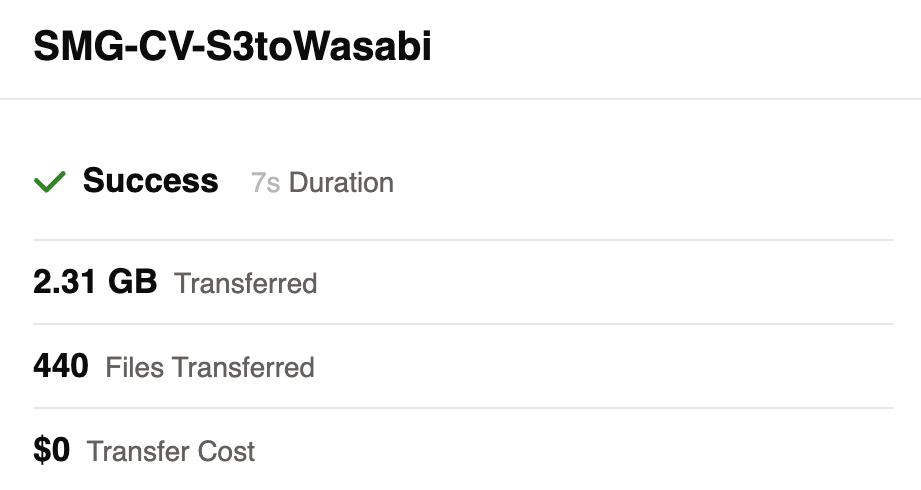
The Details panel provides information about:
Initiated at—Date and time that Wasabi began the job.
Account—Your WCSM account.
File—The CSV log file for the job. Select the link to launch a download of the file.
Expiration—Date and time that the log file is removed from the WCSM Portal.
Errors—Number of errors that occurred during the transfer.
Warnings—Number of warnings that occurred during the transfer.
File—The CSV log file detailing the alerts. Select the link to launch a download of the file.
Expiration—Date and time that the alerts log file is removed from WCSM Portal.
.png)
On the right panel, the following tabs report:
Transfer—Reports the hierarchal file structure (such as the source path, root folder, subfolders, and so on) of the job.
Rules—Parameters applied to the selection of source files (for example, move all files with the .mov extension). Rules are defined prior to running the scheduled job.
Conflicts—Parameters that define how to manage data during incremental migrations. For example, if the base migration has been completed but the source files have been updated, an incremental migration may need to be performed. If the files exist in the target bucket, configure a conflict rule to skip or override specific files. Conflicts are defined prior to running the scheduled job.
Failure—Reports a failure(s) that may have occurred during migration. Failures do not stop migration.
Settings—Reports group, user, and tags information for the job (if applicable). The reported validation method (default: Recommended) is used to ensure that the source and target storage are compatible.
Browsing Transfer Data
On the right panel, select the Transfer tab.
Select the root folder to navigate through the subfolders and files transferred in the job.
(1).png)
As you select folders and files, the search bar populates with the path.
.png)
Click
 to copy the path to the clipboard.