In the event of a server or hard drive failure, WSC enables you to restore your metadata and archived footage to your on-premise hardware. Disaster Recovery (DR) can be performed in the event of:
Failed storage—Local recording storage is unavailable (described below).
Both failed storage and server—Missing recording server. For more information, refer to Recovering a Failed Recording Drive.
The DR process below describes the steps to add new storage, format the new volume and recording storage location, connect the new location to the existing cloud storage, restore the data, and rebuild the VMS database.
If the hard drive used to store your archived footage fails, be sure to replace the bad hard drive, install and configure the VMS software, then install the WSC software on the new machine before setting up a new source for the disaster recovery (DR).
Storage extension must be enabled to perform DR.
To perform a DR restoral for standard VMS profiles:
Click Wasabi Surveillance Cloud.
Click Add Source.
Select the new drive and folder to restore your metadata or footage.
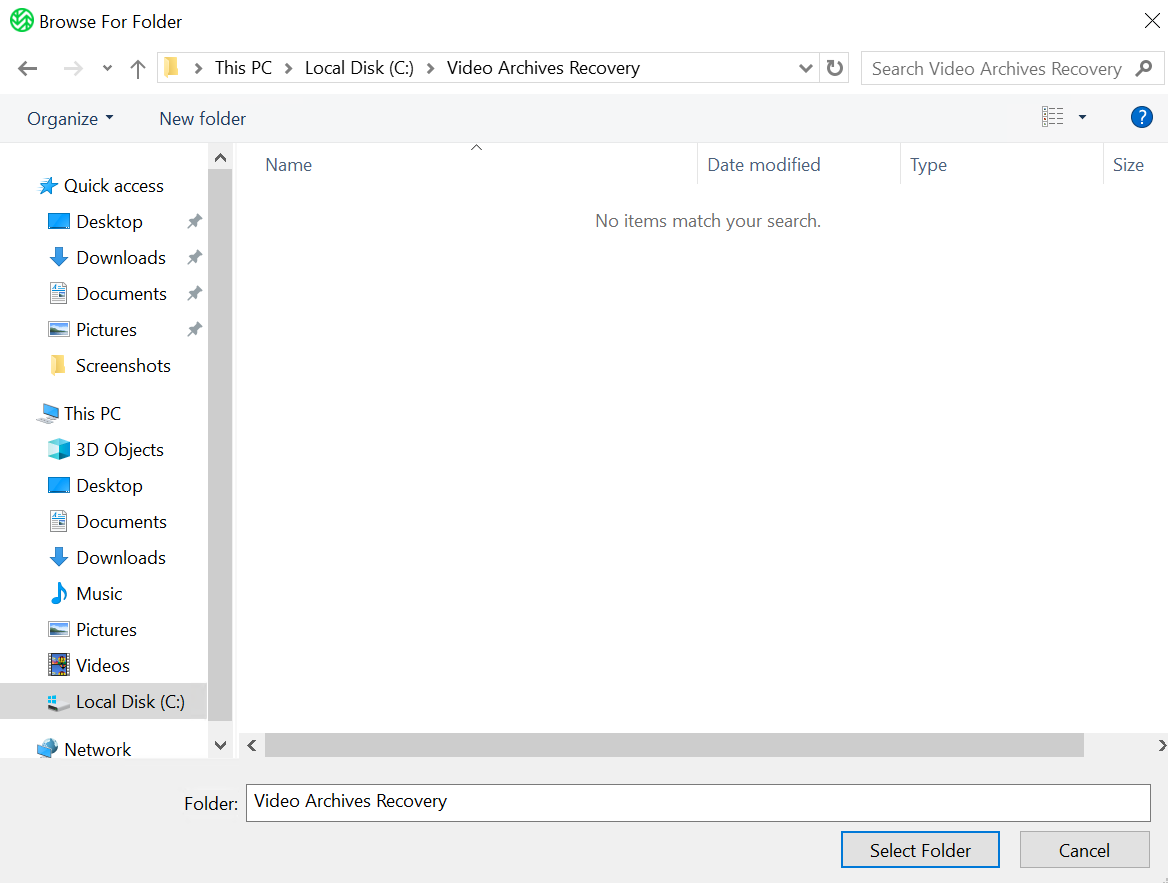
Enter the following Wasabi credentials.
Source path
Target name
Region
Server URL (Auto-populates based on selected region.)
Access key
Secret key
Bucket (Select the bucket where your recordings were stored.)
Click Apply.
When performing a DR restoral, you will be presented with the following options to perform on any existing data in the target. Select an action.
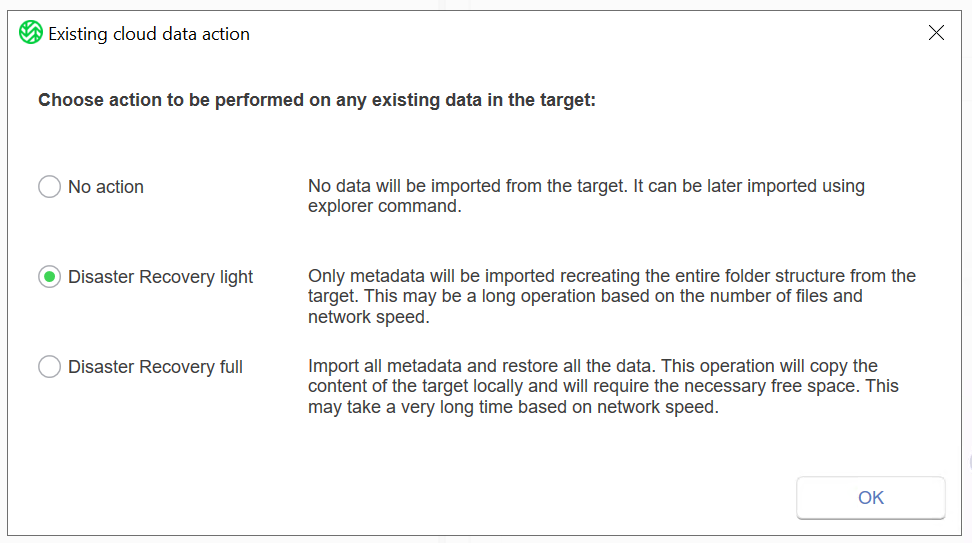
Click OK.
A message will confirm that the changes were successfully applied. The disaster recovery procedure has begun. Click OK.
To resume WSC operations, click Wasabi Surveillance Cloud.
Depending on the number of cameras, folders, and recordings stored, the time to reindex all of your metadata or footage may vary depending on the size/amount of files and/or the speed of your ISP.
Click Resume.
You will see your existing folder structure created.
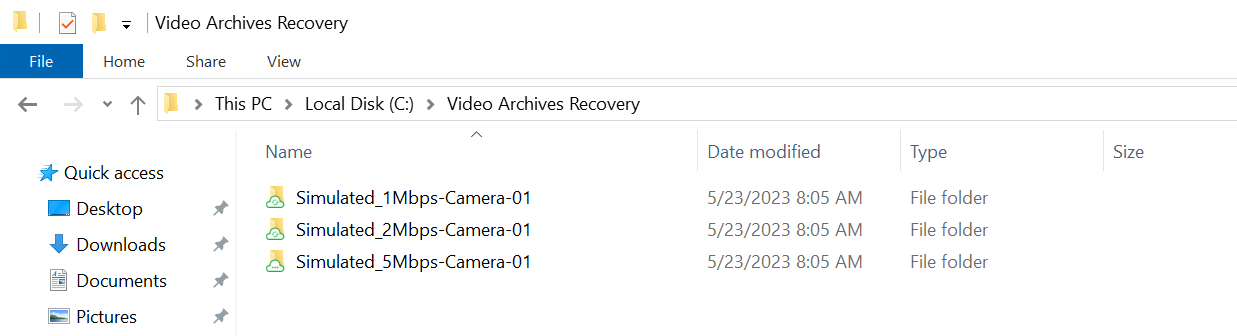
All existing stub files will be reindexed to your file system.
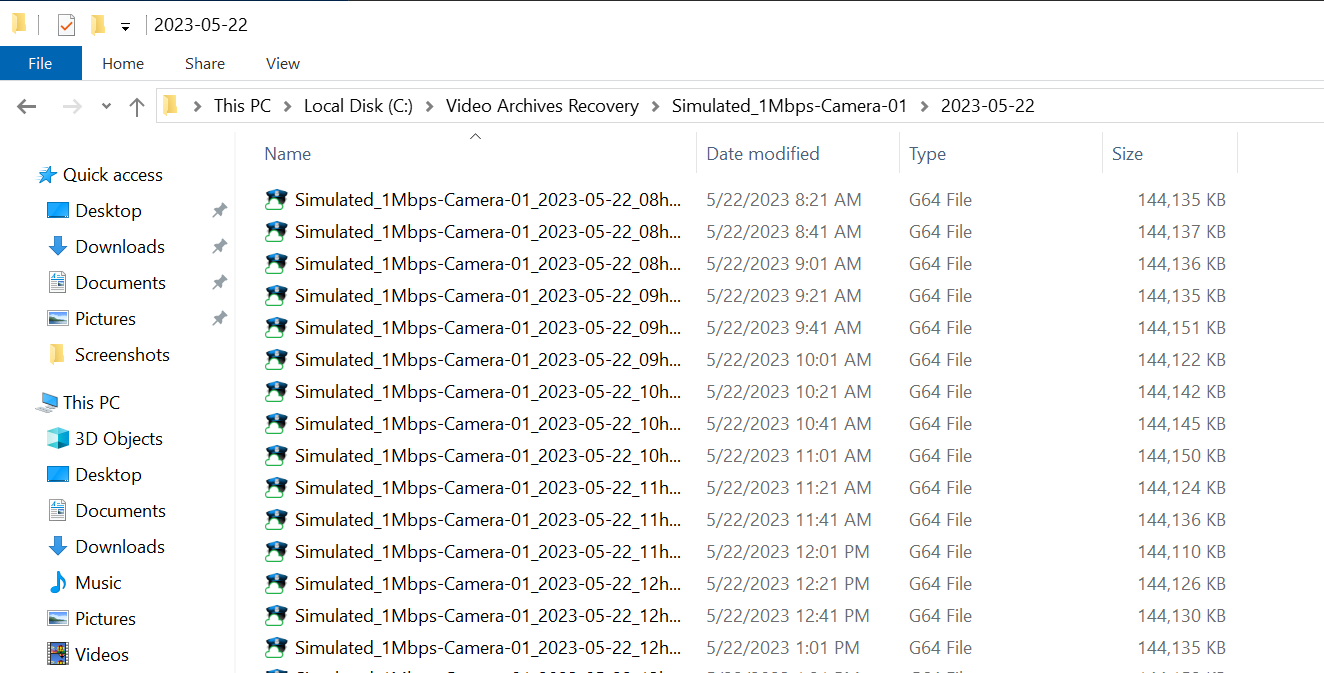
Depending on your VMS, upon restoring your metadata and/or archived footage, you may be required to reindex the video files to the VMS database either directly through your VMS software or by using the SQL database.
Additional Notes:
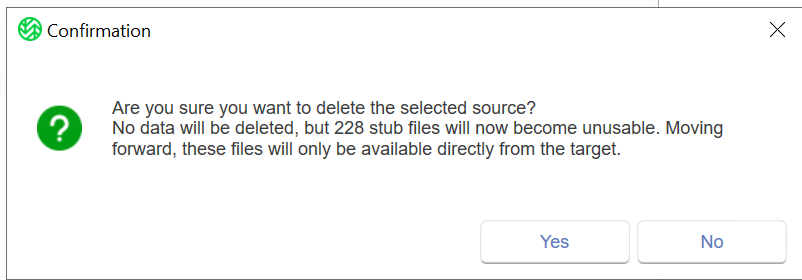
Deleting an active source will prompt you to confirm the action. The prompt will also provide the amount of stub files that will become unusable.