BackupAssist ER has been validated for use with Wasabi. For more information on how BackupAssist ER works with Wasabi, review BackupAssist.
This article describes the procedure to use Wasabi Object Replication to replicate objects from one region to another within the same continent. This can be used to recover from natural disasters or other events in a region.
The data restoration process is handled by your specific backup software application. As there are many potential variables that will affect your unique environment, Wasabi strongly recommends that you seek the guidance of your backup software's technical support team in the event that you encounter difficulty or have application-specific inquiries.
Requirements
BackupAssist ER installed and licensed. This solution was tested with version 1.5.0.
Active Wasabi Cloud Storage account.
Active BackupAssist ER backup job pointing to a Wasabi bucket.
Existing backups reside in a Wasabi non-Object-Locked (non-immutable) "source" bucket.
The password for your backups.
High-Level Steps
Follow the high-level steps below to implement Object Replication from a source bucket to a destination bucket in another region with BackupAssist ER. These are detailed further in the sections below.
Sign up for notifications to be sent to your account email address.
Create a Wasabi "destination" bucket where the source bucket will be replicated to.
Configure an object replication job on the source bucket pointing to the destination bucket.
In the case of a disaster, a recovery may be performed from the destination bucket.
Signing Up for Object Replication Notifications
Signing up for notifications will allow you to receive information about any object replication failures.
Log in to the Wasabi Console (https://console.wasabisys.com/login).
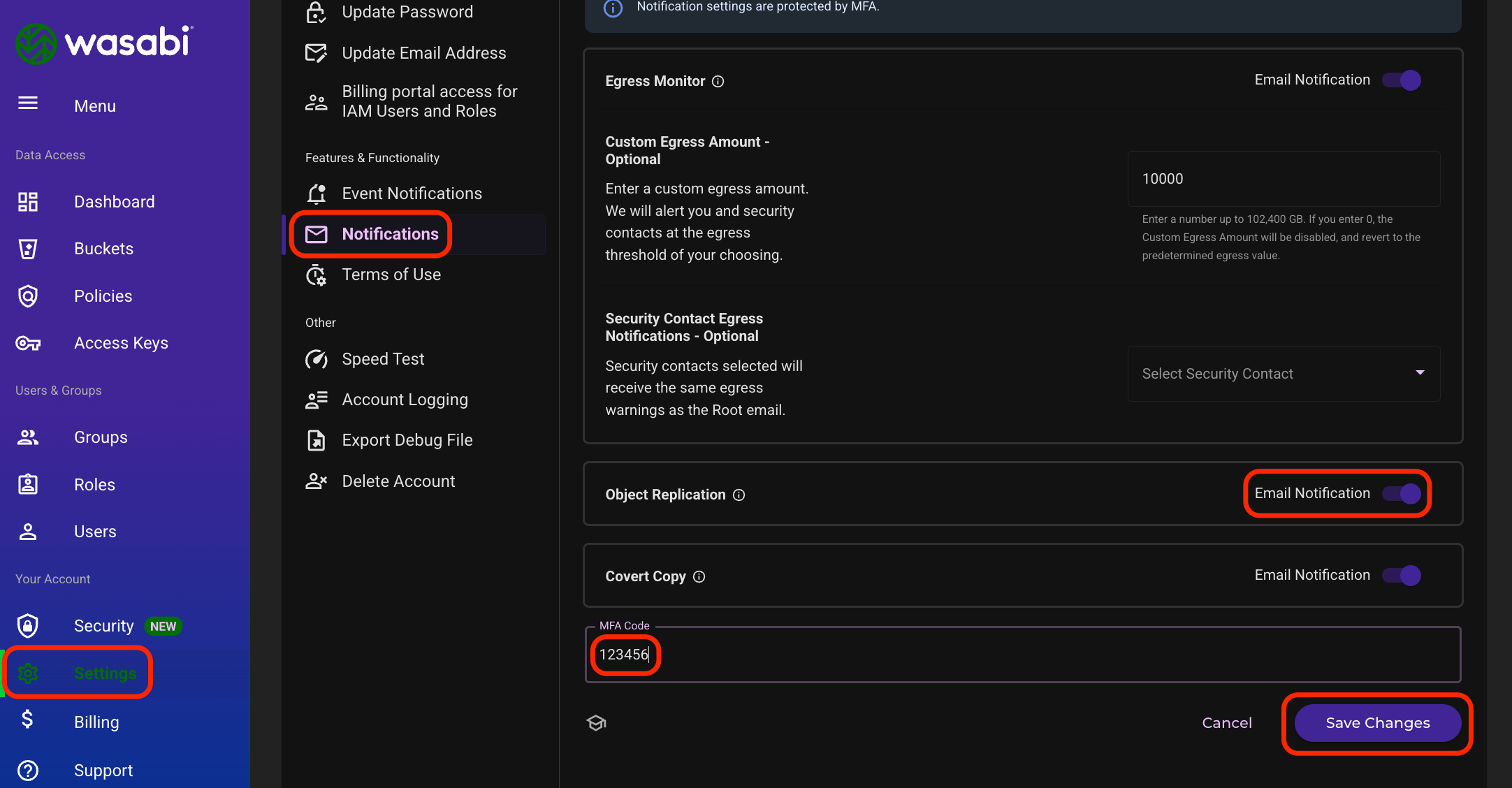
Navigate to Settings, then click Notifications. Next to Object Replication, enable Email Notification. Enter your MFA code and click Save Changes.
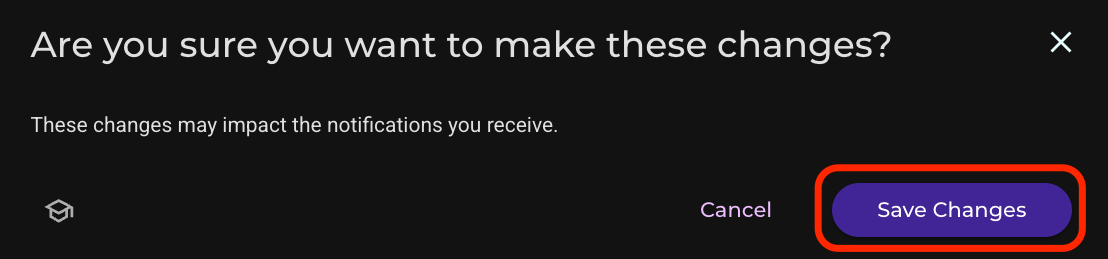
Click Save Changes.
Creating the Wasabi Destination Bucket
The destination bucket is the bucket that the source bucket will replicate to.
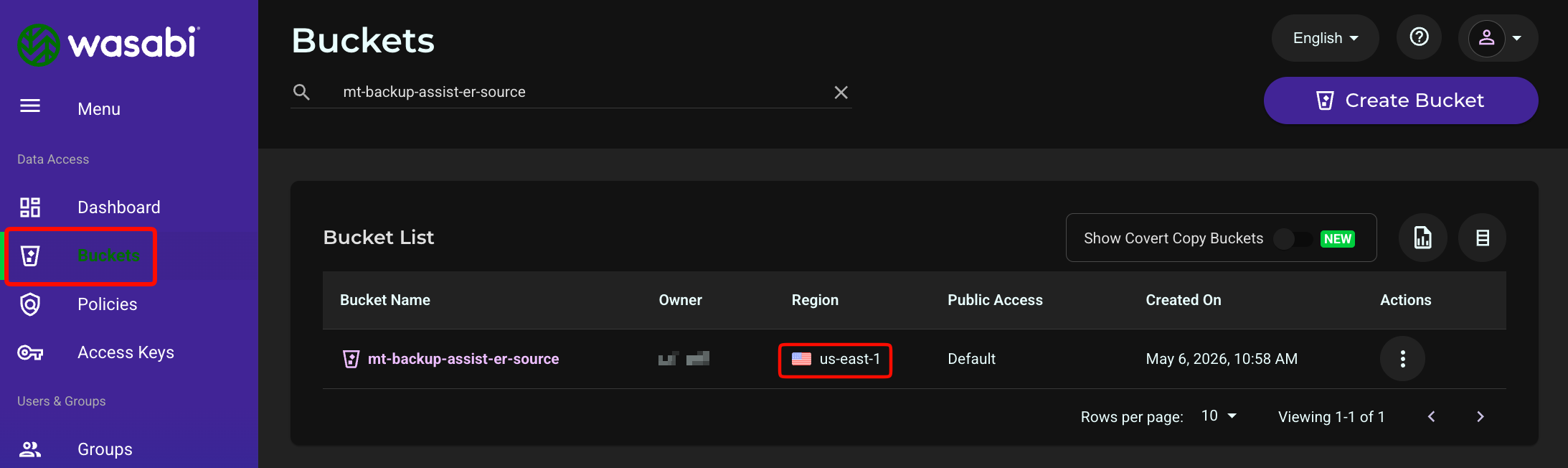
Navigate to Buckets and locate the source bucket. Note the region where the source bucket is located.
Choose a region within the same continent for the destination bucket.
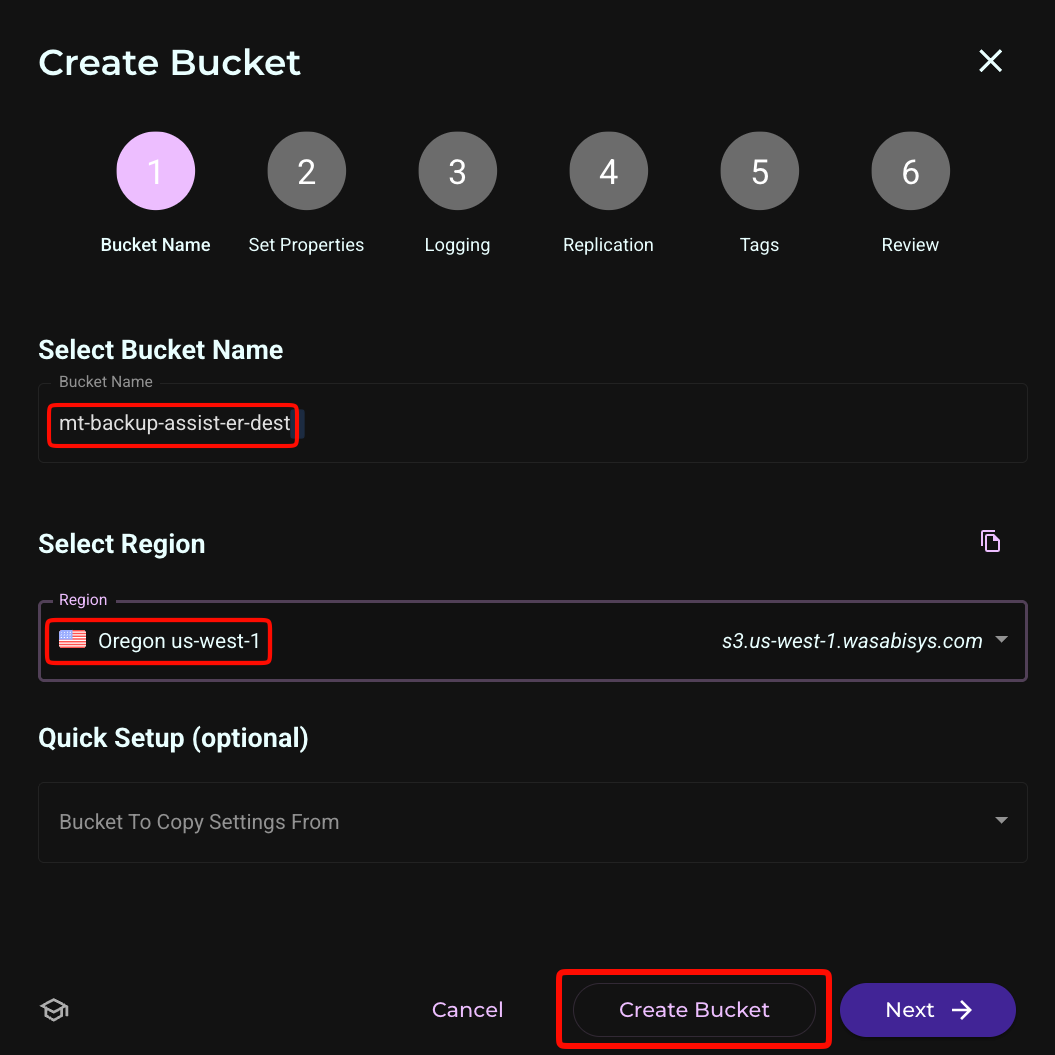
This configuration example uses Wasabi’s us-east-1 storage region for the source and us-west-1 for the destination. For a list of regions, see Available Storage Regions.
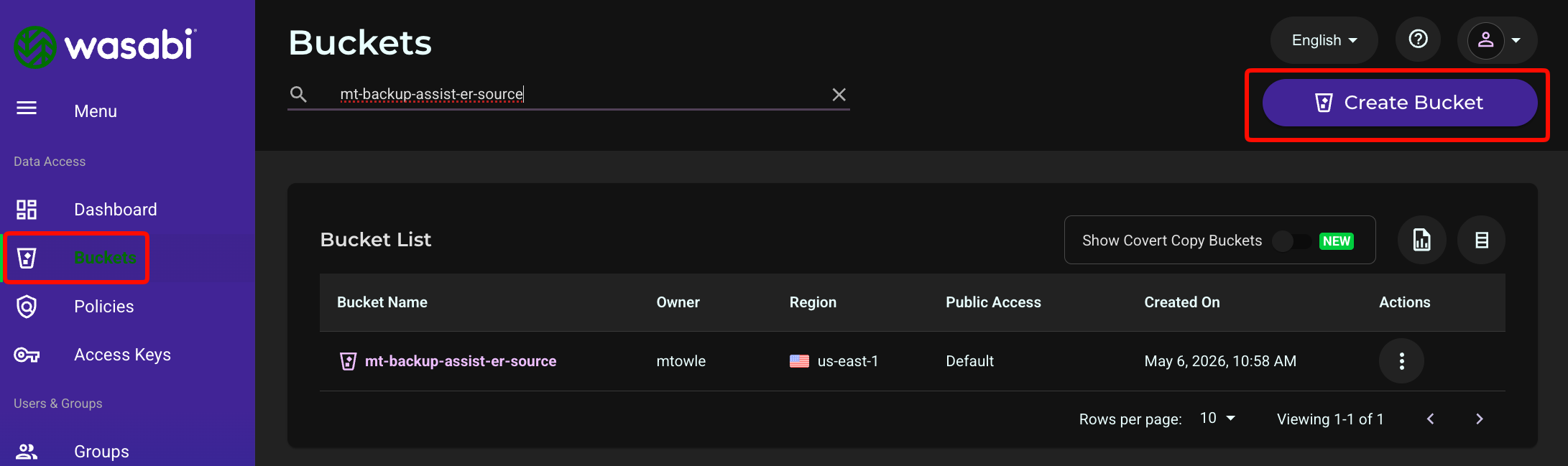
Navigate to Buckets. Click Create Bucket.
Enter the destination bucket name, and select the region for the bucket. Click Create Bucket.
Leave Object Replication disabled (default). The replication will be configured later on the source bucket.
Creating an Object Replication Job
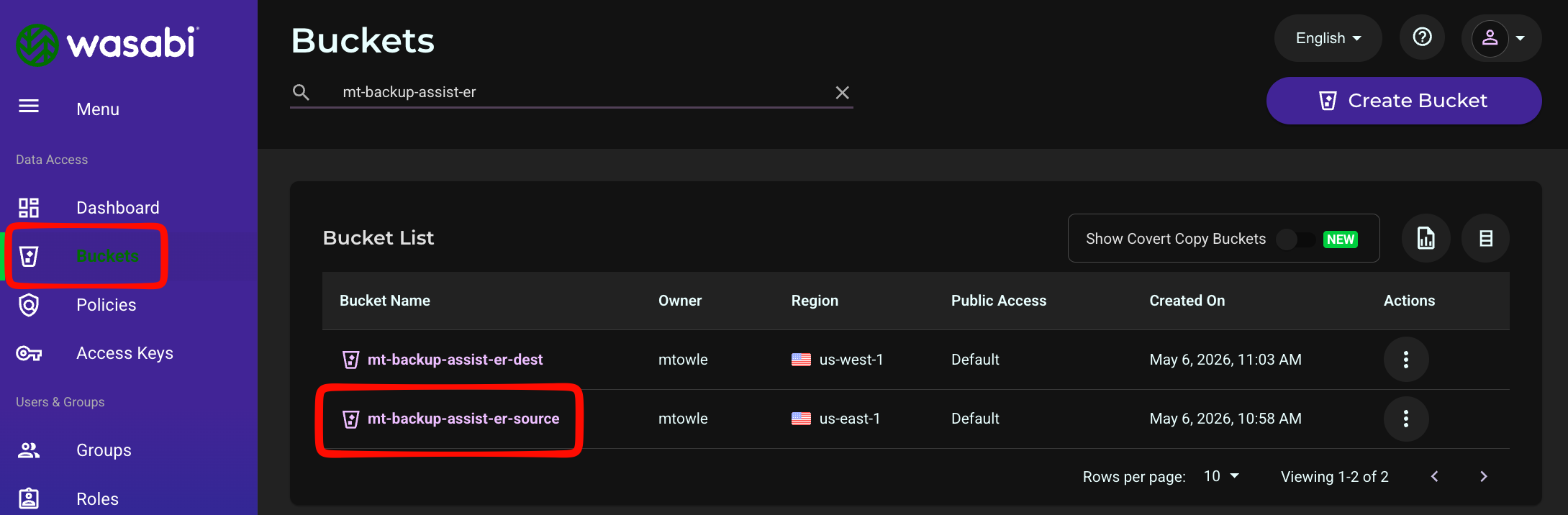
Navigate to Buckets and select the SOURCE bucket name.
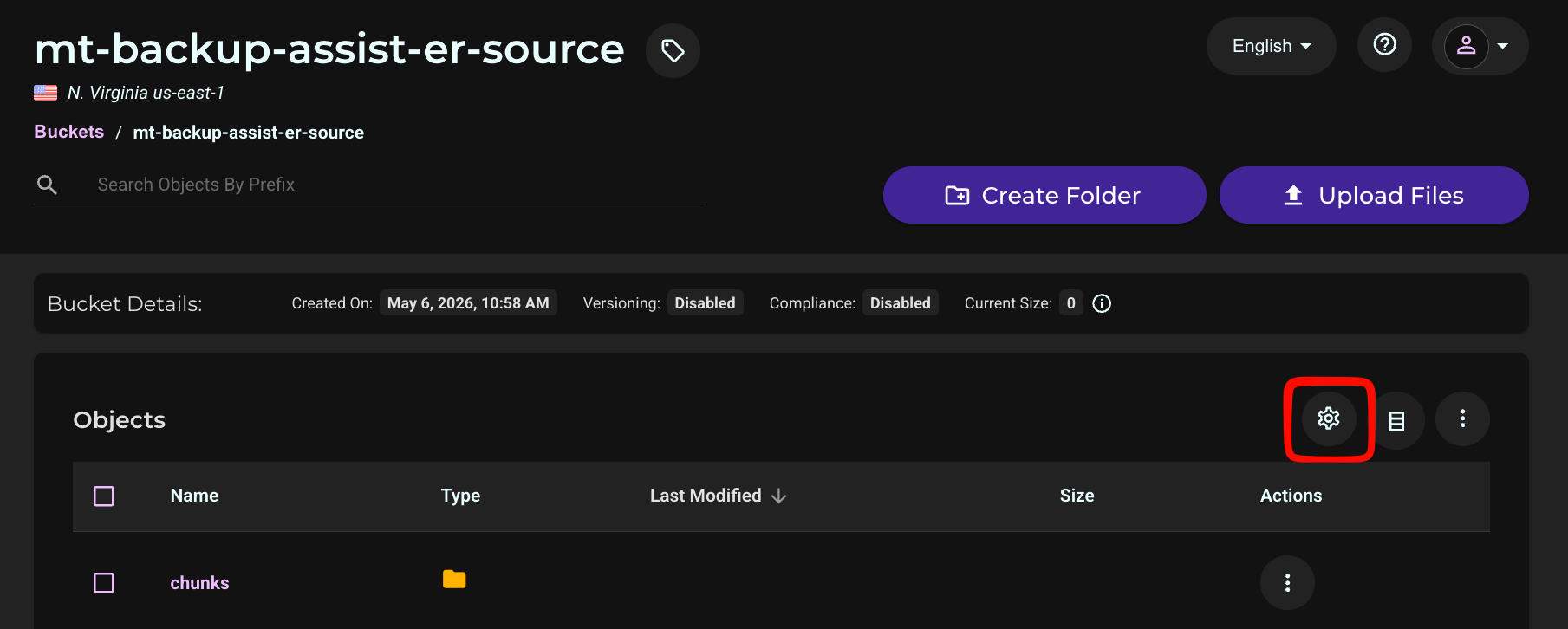
Click Settings.
Click the Object Replication tab. Click Create Replication Job.
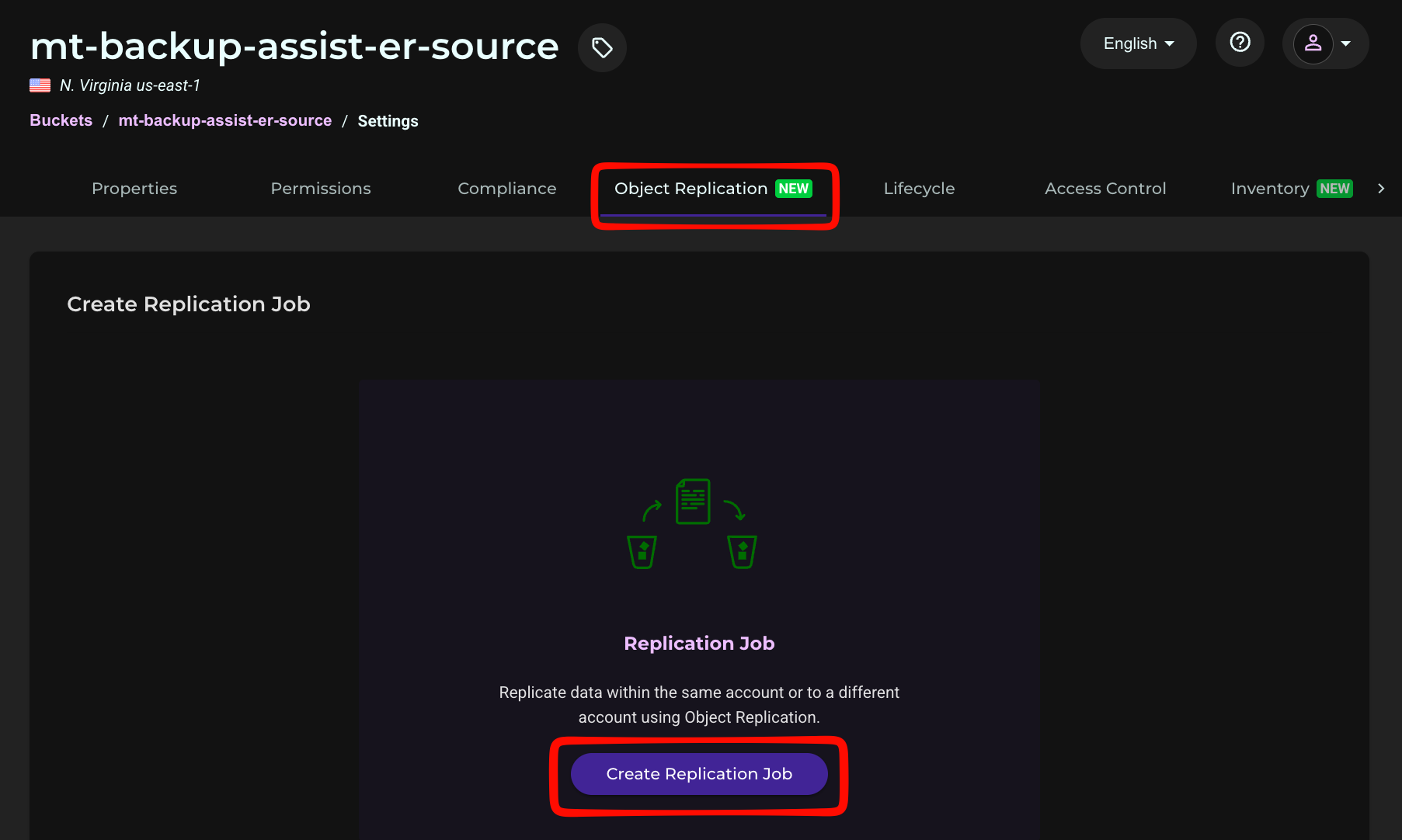
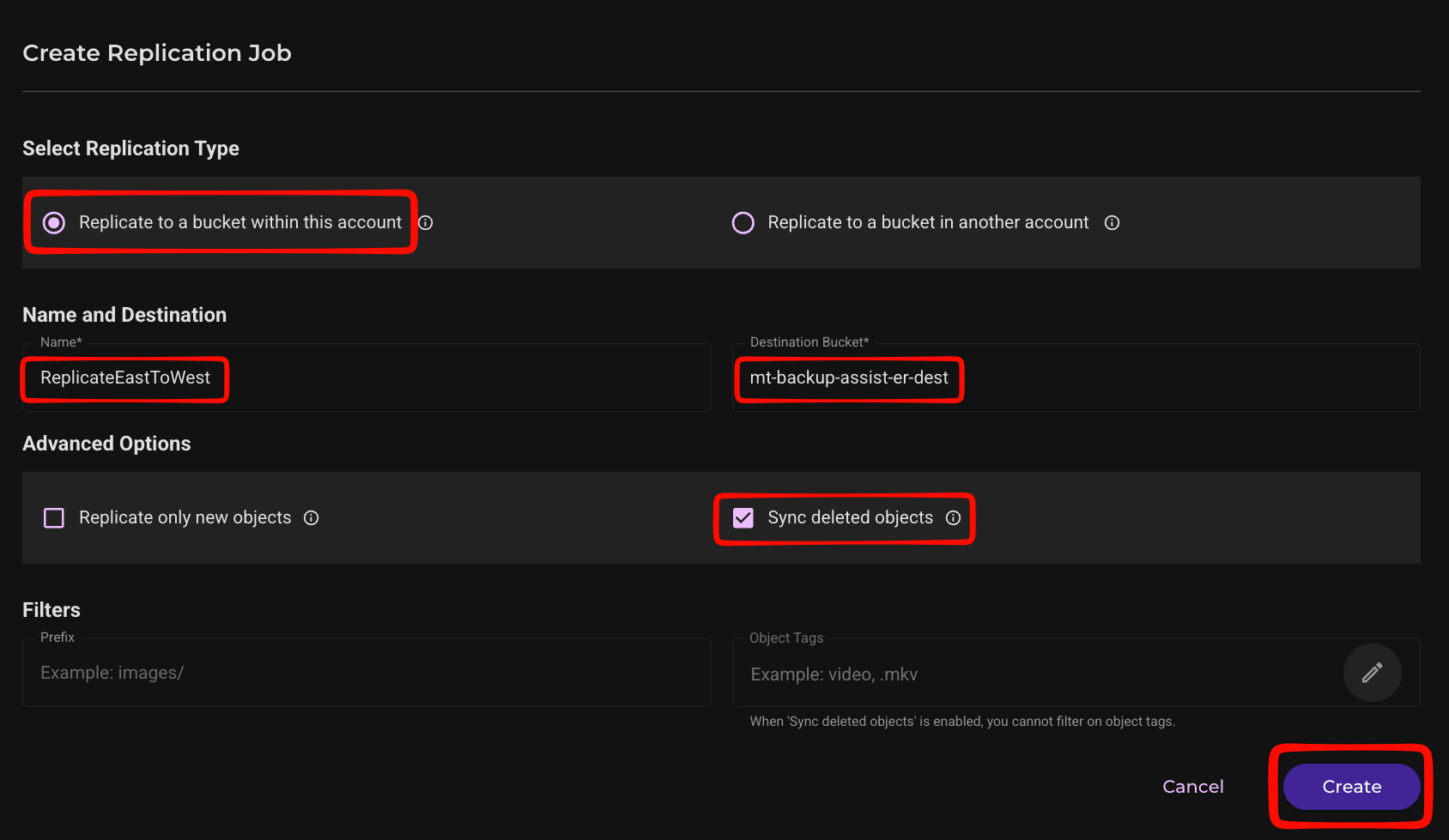
Select the Replication Type. For this example, we are selecting Replicate to a bucket within this account. Give the job a name, and click in the Destination Bucket text field to select the destination bucket. Click the checkbox next to Sync Deleted Objects. This allows BackupAssist to control the backup lifecycle of the source bucket, and older backups that BackupAssist deletes from the source bucket will also be deleted from the destination bucket. Click Create.
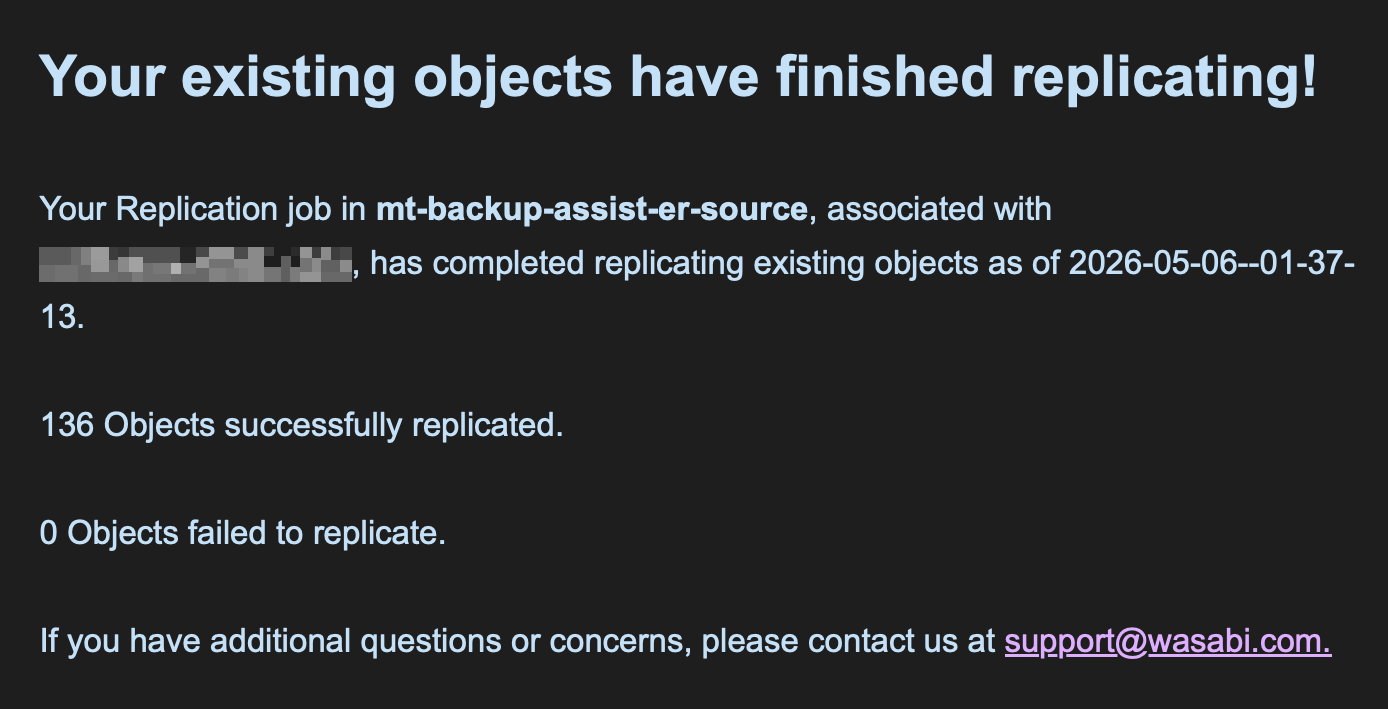
The objects in the source bucket will now begin to replicate to the destination. There is no ETA for completion, as it depends on many factors, such as the number of objects, the frequency of backups, and so on. You will receive an email confirming that replication has begun, and another when all existing objects have been replicated, as shown below.
Appendix A - In Case of a Disaster
If a disaster affects your source bucket, proceed with this section.
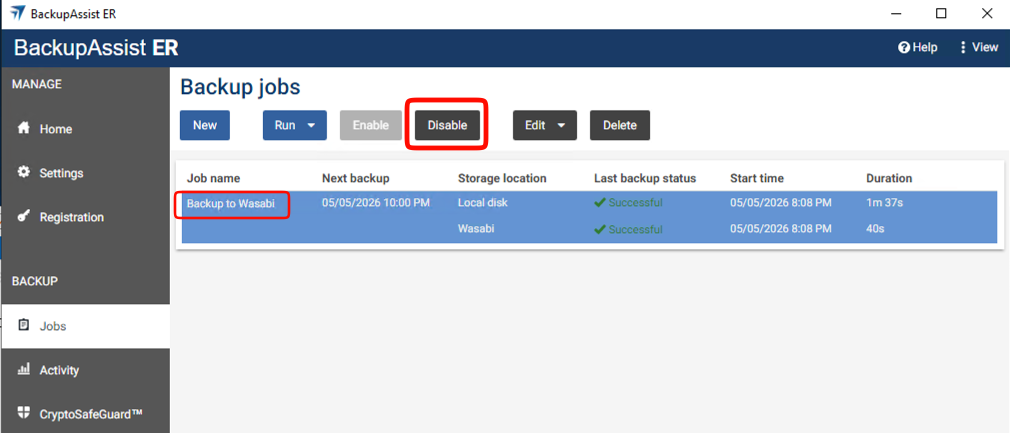
In the BackupAssist ER client, navigate to Jobs, disable the backup job by selecting it and clicking Disable.
Log in to the Wasabi Console (https://console.wasabisys.com/login). Navigate to Buckets and select the SOURCE bucket name.
.png)
Click Settings.
Click Object Replication. Click the 3 vertical dots under Action next to your replication job.
.png)
Click Pause.
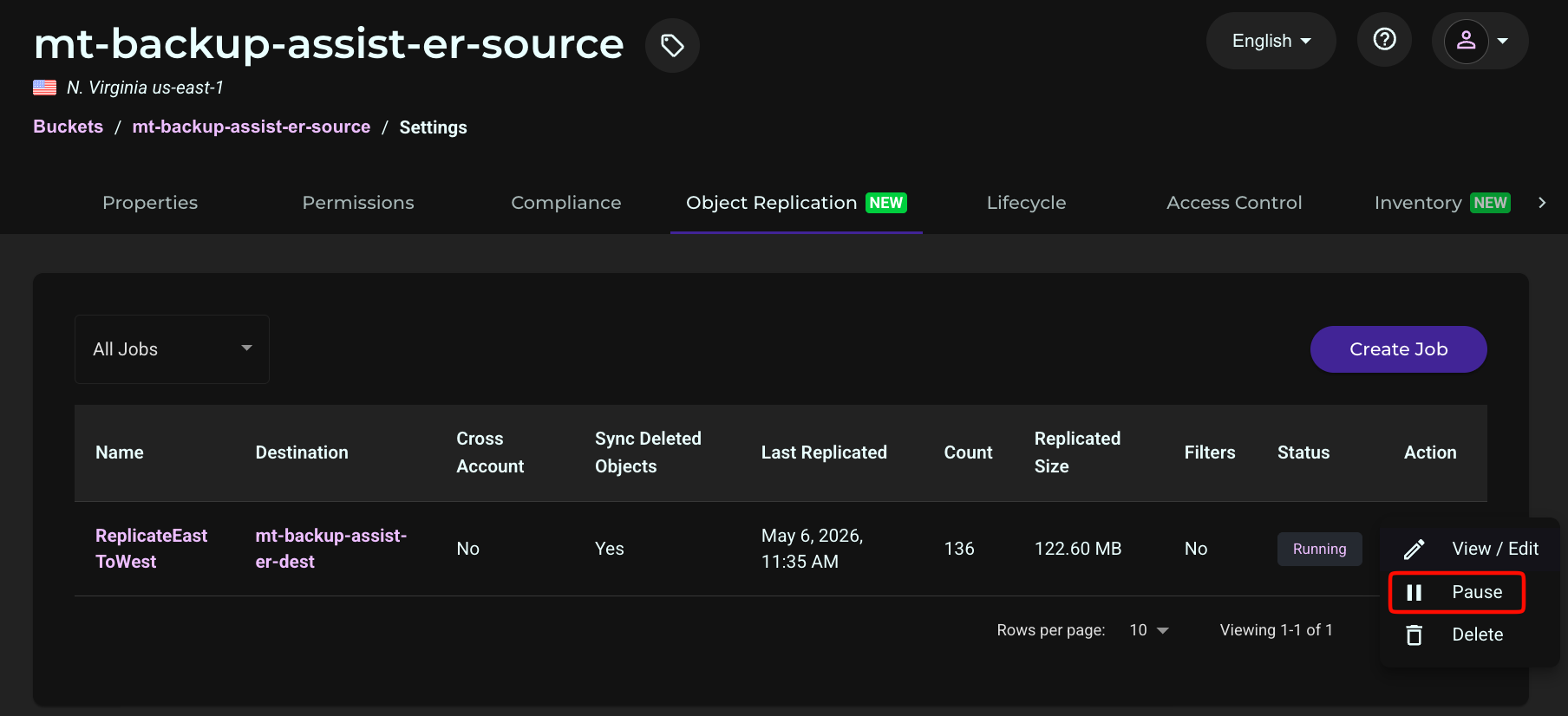
Click Pause again on the pop-up window.

In the BackupAssist ER client, under RECOVER click Available backups. Click Locate backup.

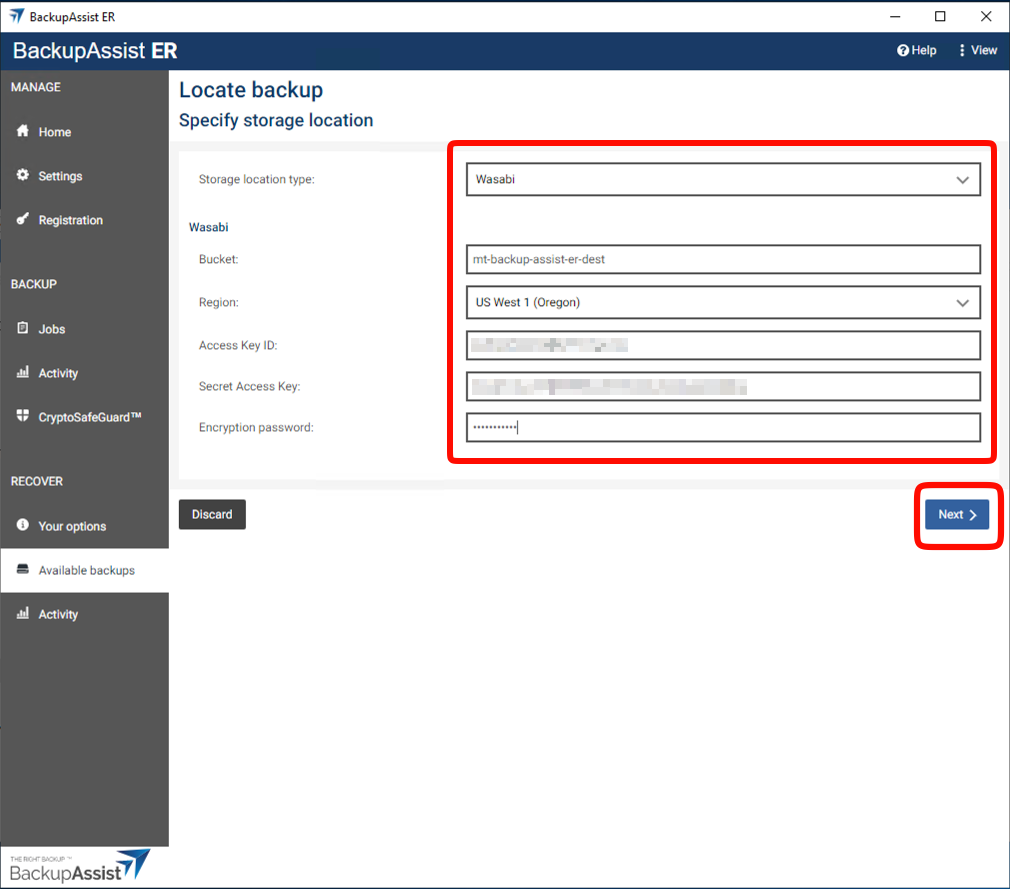
Select Wasabi as the Storage location type. Enter the name and region for your DESTINATION bucket, along with your Access and Secret Keys and encryption password. Click Next.
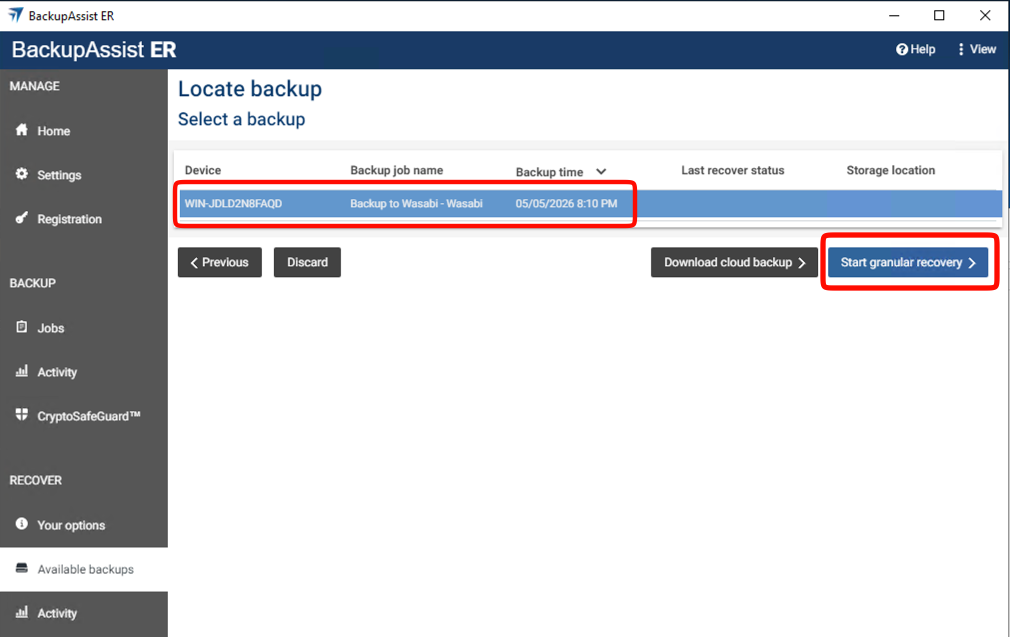
Select the appropriate backup. Click Start granular recovery.
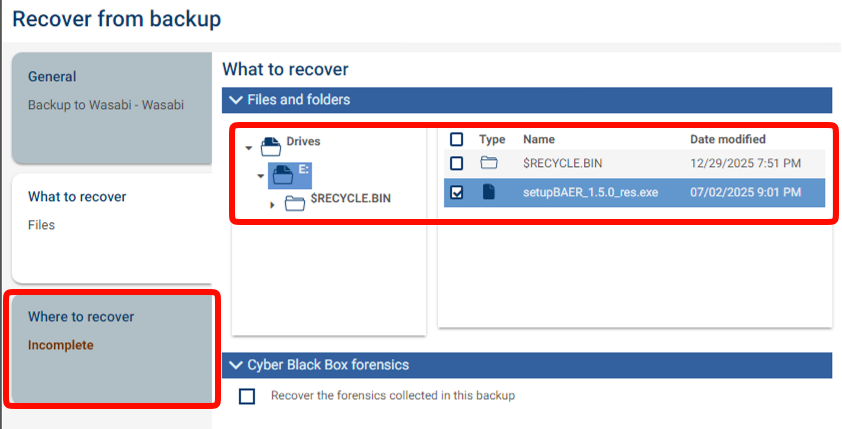
Click the What to recover tab.
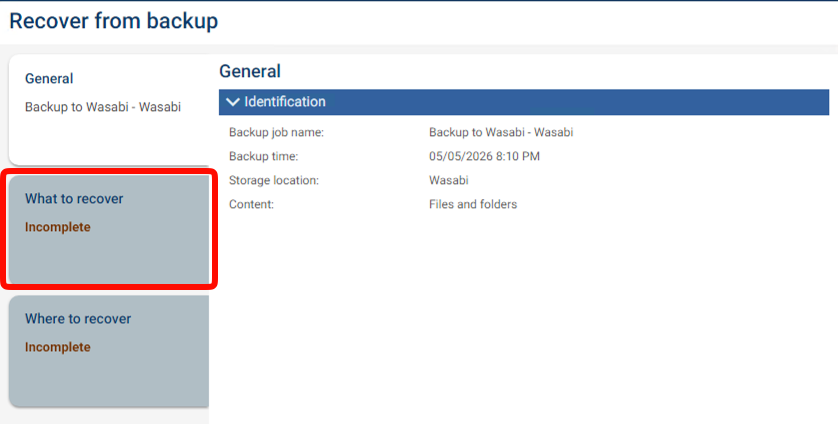
Select the files and folders to recover and click the Where to recover tab.
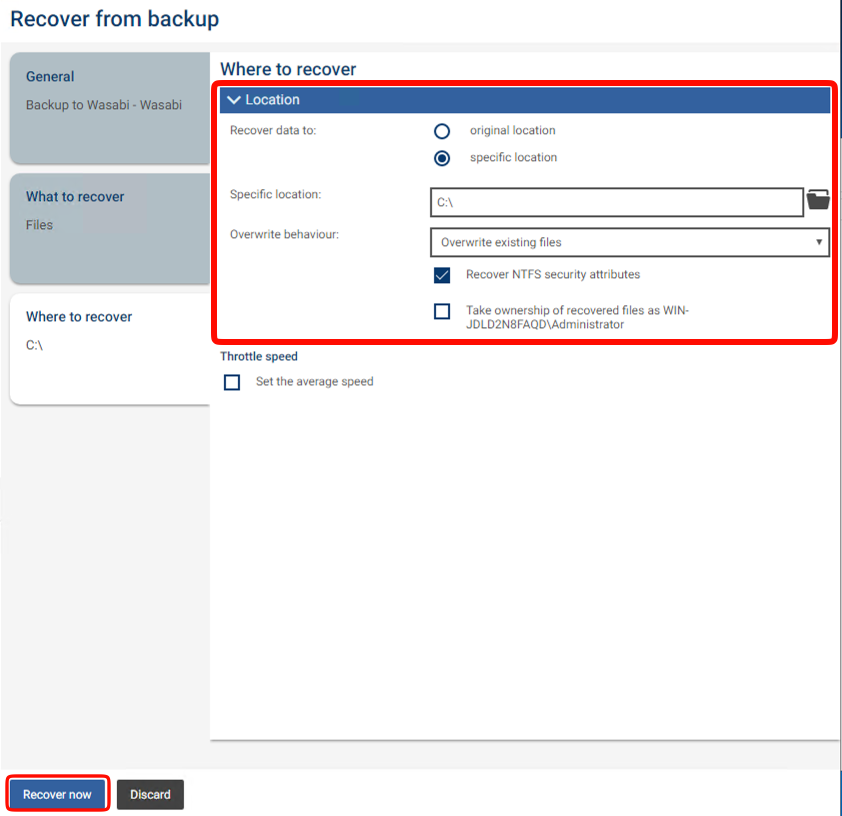
Select the appropriate location and options to recover your files/folders. Click Recover now.
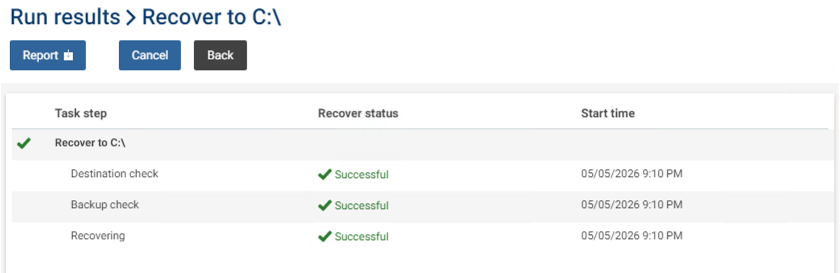
Each task step should show Successful as the Recover status.