Your Profile is a self-scoped view for Account Governance users (admin, staff, or viewer). This is the default view in My Profile.
Profile Page
The Profile page provides a centralized view of user account settings and personal preferences. From this page, users can view and manage their account information, update contact details, enable Sub-Account deletion notifications, generate a WACM Connect API key, update their password, and enable multi-factor authentication (MFA) to enhance account protection.
Be sure to click Update (in the upper-right corner) to apply any changes made on this page.
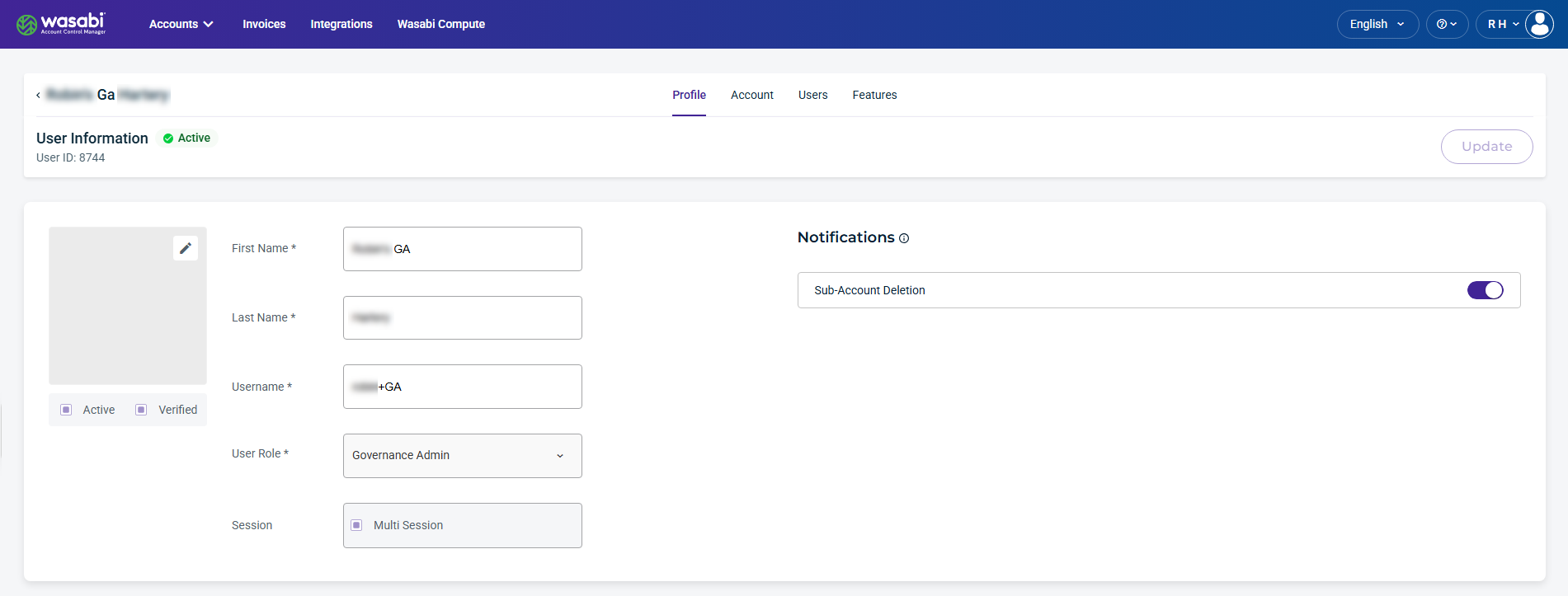
The Profile page displays the following sections:
User Information—The account user information, status, and the assigned role.
Notifications—Allow you to enable notifications when Sub-Account deletion is enabled.
WACM Connect API Key—Allows you to generate an API key for accessing the WACM Connect API.
Contact Information—Allows you to update the account's address and contact information.
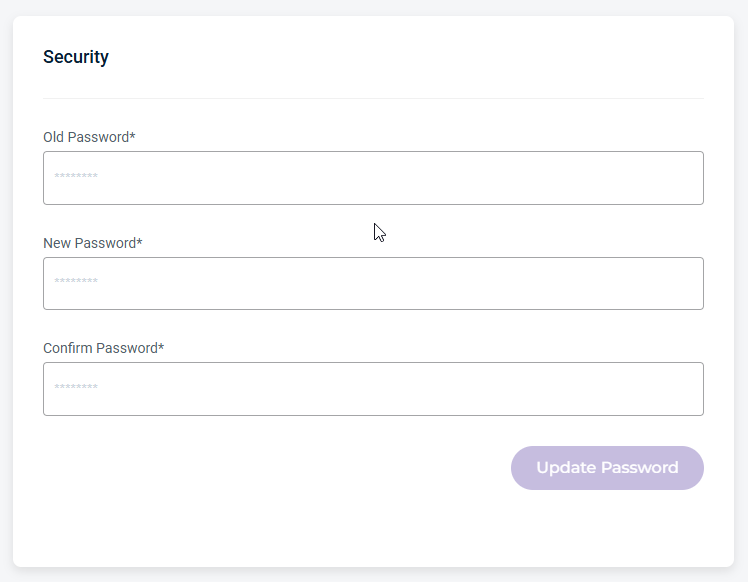
Security Information (password)—Allows you to update your password.
MFA (multi-factor authentication)—Enables the multi-step account login process.
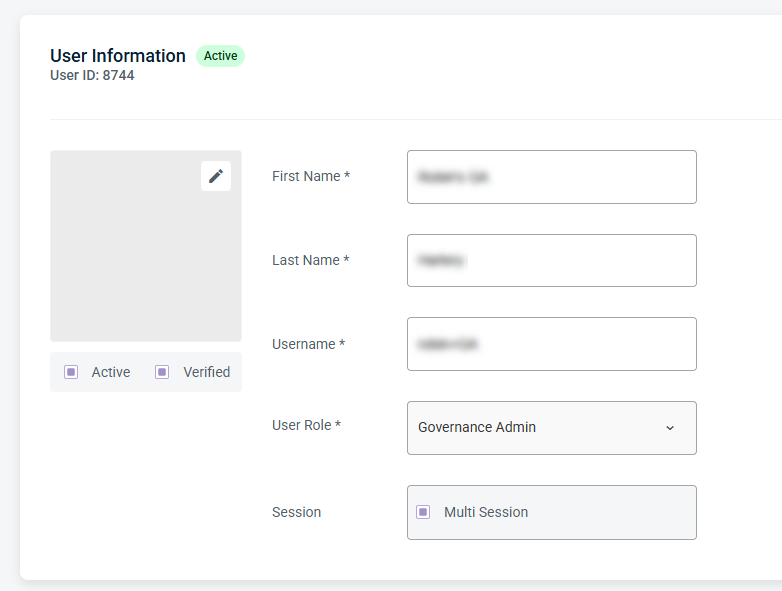
User Information
Displays the user’s basic account details and profile information. From this page, you can update the name and username fields and change the user role.
Notifications
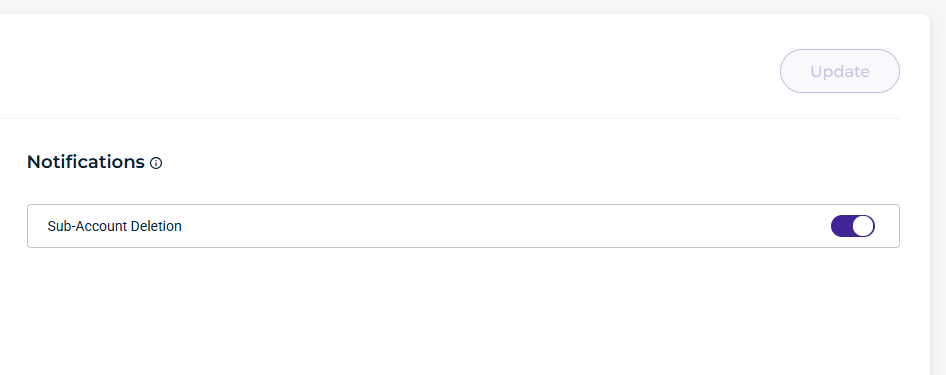
By default, Admin users have notifications enabled to receive email updates about important account activity and usage. All other users can optionally enable them.
Sub-Account Deletion
Enable Sub-Account Deletion to receive email notifications related to Sub-Account deletion. Notifications are sent when:
A Sub-Account is scheduled for deletion.
A user cancels a Sub-Account scheduled for deletion within the Delay Window.
A Sub-Account is deleted once the delay window has elapsed.
WACM Connect API Key
The WACM Connect API key lets you access WACM data for automation and can be rotated or deleted as needed for security purposes.

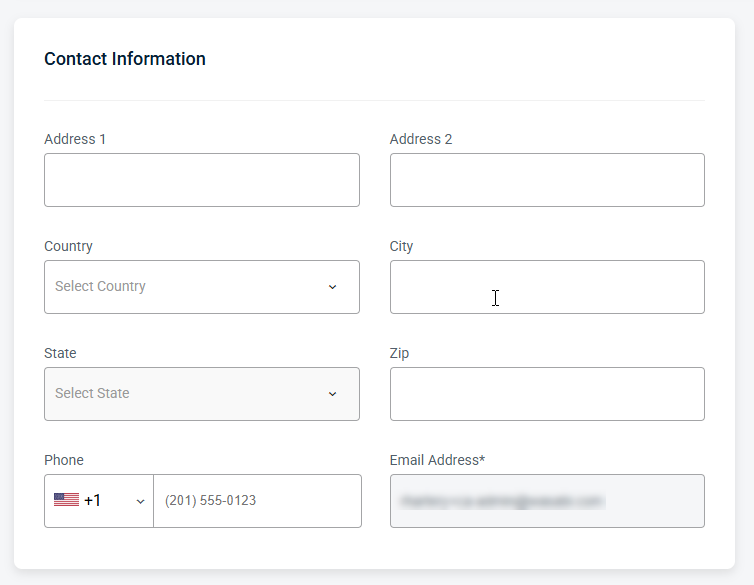
Contact Information
Provides editable fields for the user’s contact details, including the email address and other associated contact information.
Security Information
Allows you to manage password settings, including resets.
MFA (Multi-Factor Authentication)
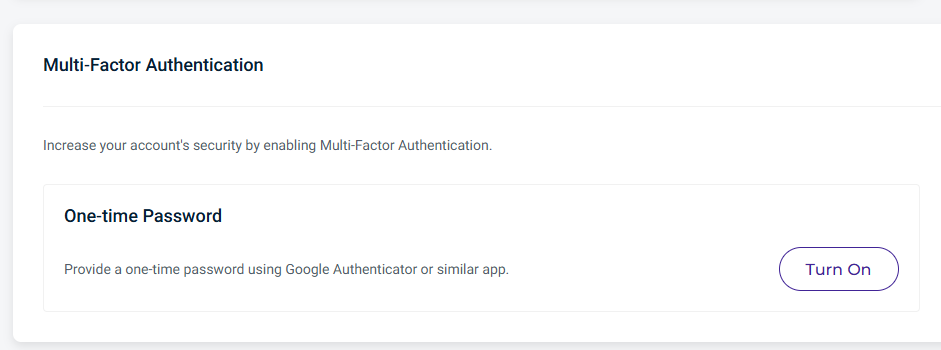
MFA increases your account's security. You can enable this feature using a one-time password.
Click Turn On to enable the one-time password as your authentication method.
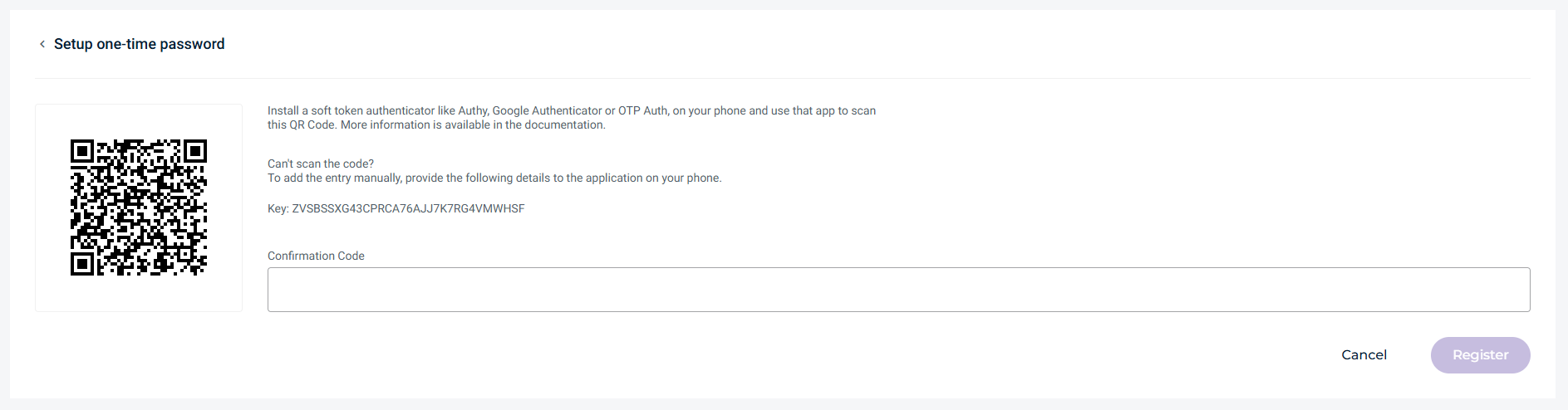
Scan the displayed QR code using an authenticator app, such as Google Authenticator.
Enter the generated verification code into the Confirmation Code field, then click Register.
Going forward, you must enter a new verification code every time you log in to your Wasabi account.