CI HUB Connector Professional connects your DAM, MAM, PIM and Wasabi Hot Cloud Storage to Adobe Creative Cloud, Microsoft 365, Canva, Figma, ChatGPT, Claude and more – so your teams can find and use the right content without leaving their applications. CI HUB Drive can be used to mount a Wasabi bucket as a local drive to give your teams easy access to their content from their desktops. This article details how to configure both CI HUB Connector Professional and CI HUB Drive to work with Wasabi.
Requirements
Active Wasabi Hot Cloud Storage account.
A Wasabi bucket (see Creating a Bucket for details).
Access to the Wasabi Console.
An active CI HUB account and subscription.
Configuring Wasabi
Log in to the Wasabi Console as the account root user or a user with admin permissions.
Configure a policy for a “ci-hub” user (that will be created in the next step) using the following policy. Change YOUR_WASABI_BUCKET_NAME to your own Wasabi bucket name. See Creating a Policy for instructions on how to create a policy.
{
  "Version": "2012-10-17",
  "Statement": [
    {
      "Effect": "Allow",
      "Action": "s3:ListAllMyBuckets",
      "Resource": "arn:aws:s3:::*"
    },
    {
      "Effect": "Allow",
      "Action": "s3:*",
      "Resource": [
        "arn:aws:s3:::YOUR_WASABI_BUCKET_NAME",
        "arn:aws:s3:::YOUR_WASABI_BUCKET_NAME/*"
      ]
    }
  ]
}
Create a “ci-hub” user and attach the previously created policy to it. Use the following settings for the user. For more information, see Creating a User.
Allow programmatic-only access, not console access.
Do not require Multi-Factor Authentication (MFA).
It is not necessary to assign the user to a group.
Save the access and secret keys in a secure location.
Configuring CI HUB
The configuration for the CI HUB Drive and CI HUB Connector Professional is identical other than how the configuration panels are accessed. CI HUB Drive is accessed from the Mac menu bar, whereas CI HUB Connector Professional is accessed from within an application such as Adobe Creative Cloud.
Log in to CI HUB from the panel.
,
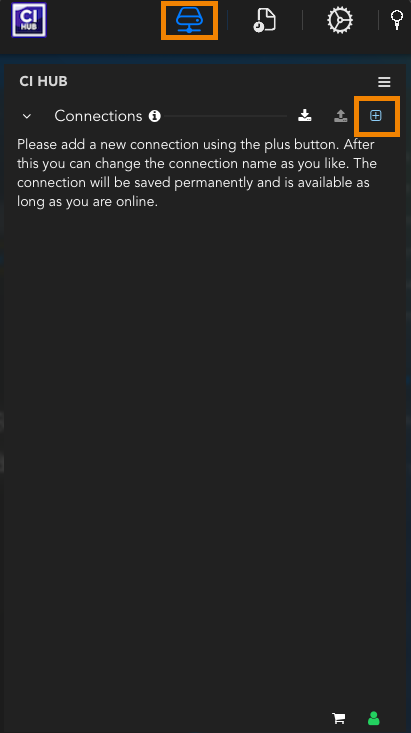
Click the Connections icon.
Click + to add a new connection.
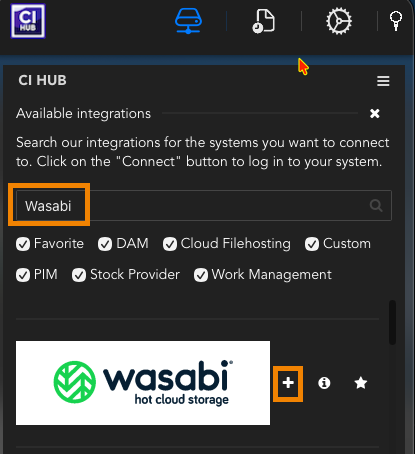
Search for Wasabi.
Click +.
This will take you to a page in your browser. Enter the following information.
Access Key ID—Your Wasabi Access Key (created earlier).
Secret Access Key—Your Wasabi Secret Key (created earlier).
Bucket Name—Your Wasabi bucket name.
Region—The region your bucket is in (for example, us-east-2).
It is recommended to leave Use high-resolution thumbnails unchecked. Enabling it requires downloading the full file upon any type of access, such as listing a directory. Be aware of and follow Wasabi’s Free Egress Policy.
This configuration example uses Wasabi’s us-east-2 storage region. To use another Wasabi storage region, use the appropriate region for your bucket as described in Available Storage Regions.
Click Connect.
.png)
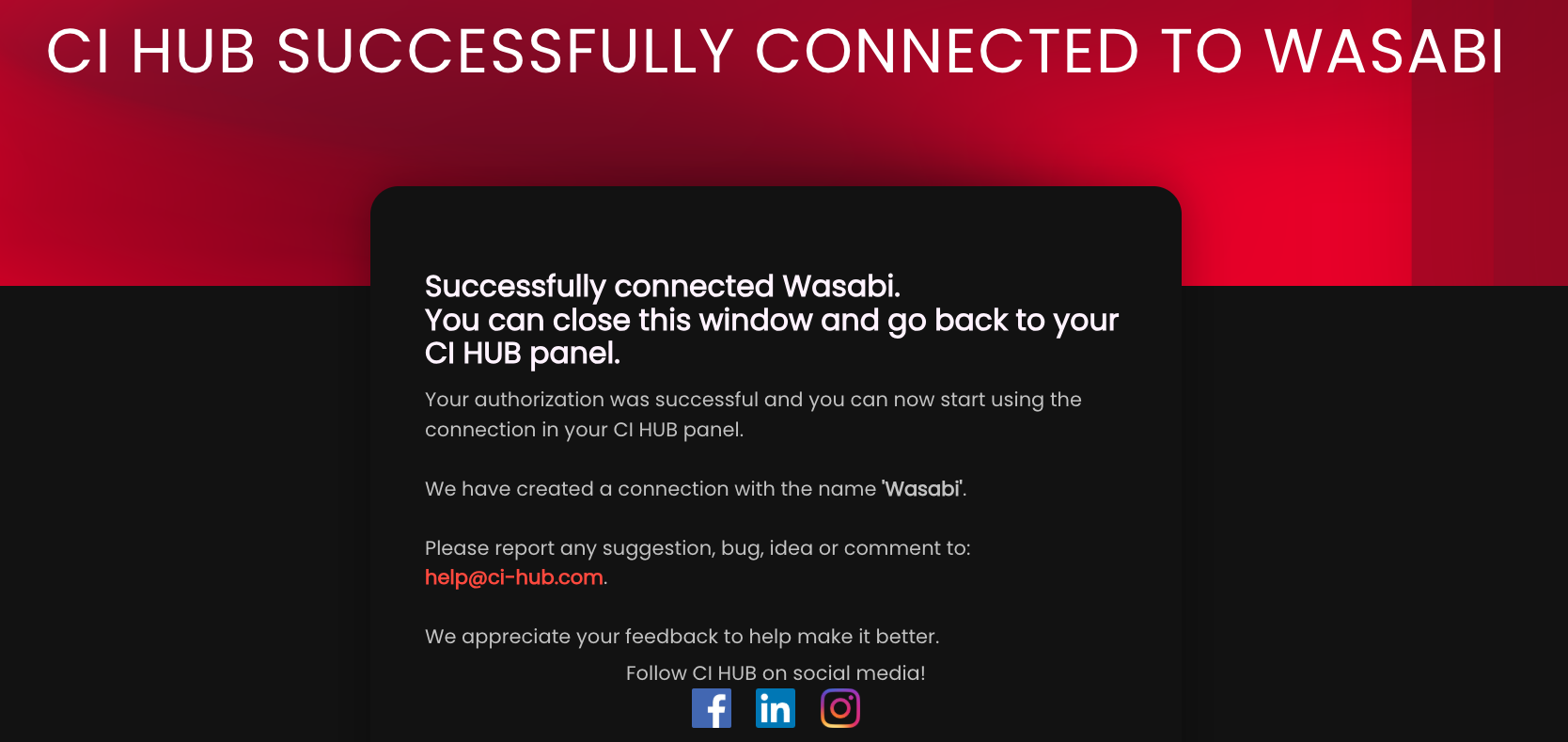
You will see a window confirming the connection was successful.
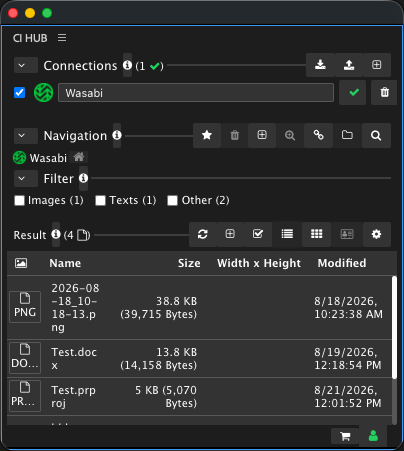
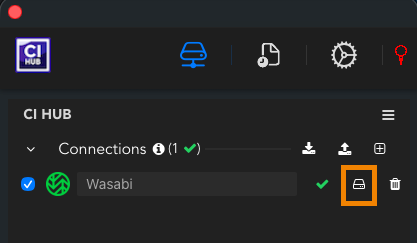
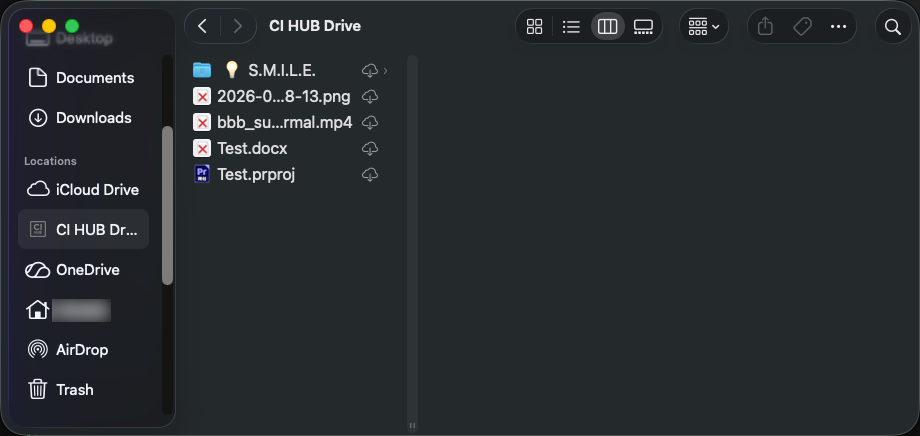
You will now see Wasabi in the CI HUB panel. For CI HUB Drive, click the disk icon to see the drive in the Locations sidebar of the Mac Finder.
In CI HUB Connector Professional, your Wasabi connection will be displayed along with the files in your bucket.