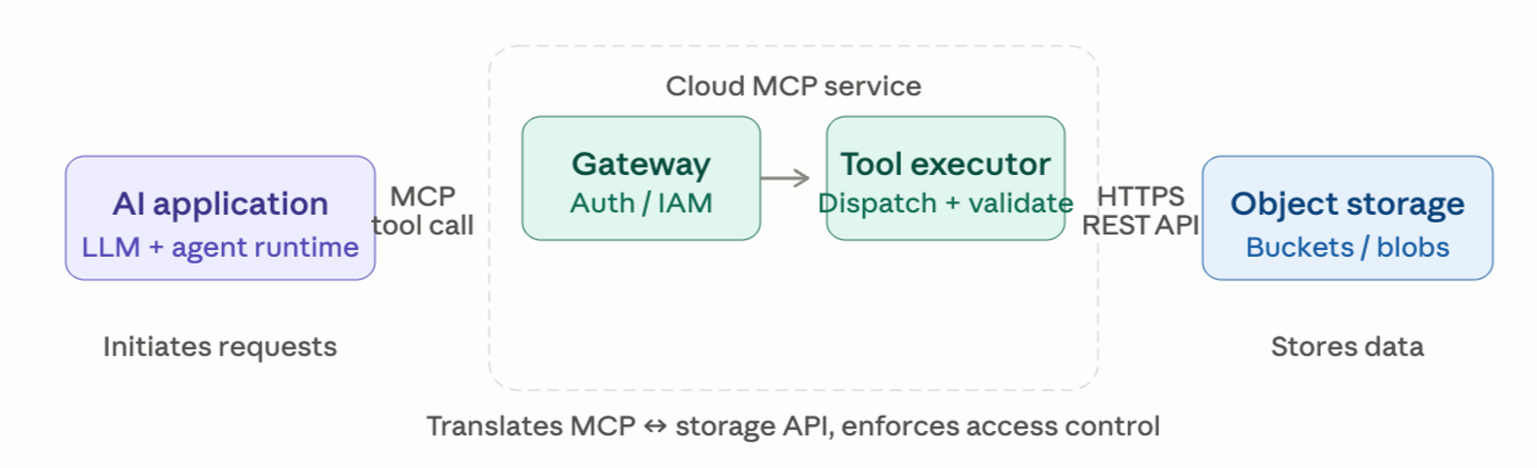
Wasabi MCP is an OAuth-protected Model Context Protocol (MCP) server that lets an AI client operate your Wasabi account (S3, IAM/STS, WACM) without ever receiving your Wasabi access keys. The client gets a short-lived, scoped OAuth token; your Wasabi credentials stay encrypted on the server.
Wasabi’s MCP service is currently in beta and may be subject to changes, limitations, or occasional instability. Report any issues you encounter to Wasabi Support (support@wasabi.com).
Reference Architecture
Requirements
Active Wasabi storage account
Access and Secret Key Pair (see Creating a User Account and Access Key)
Access to a Claude account
Configuring Claude for Wasabi MCP
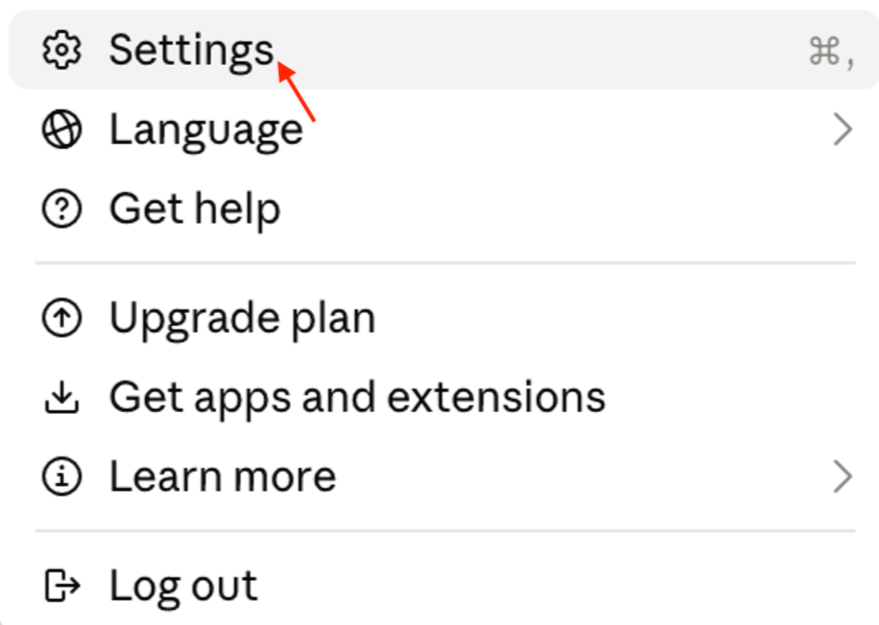
Log in to Claude and click Settings.
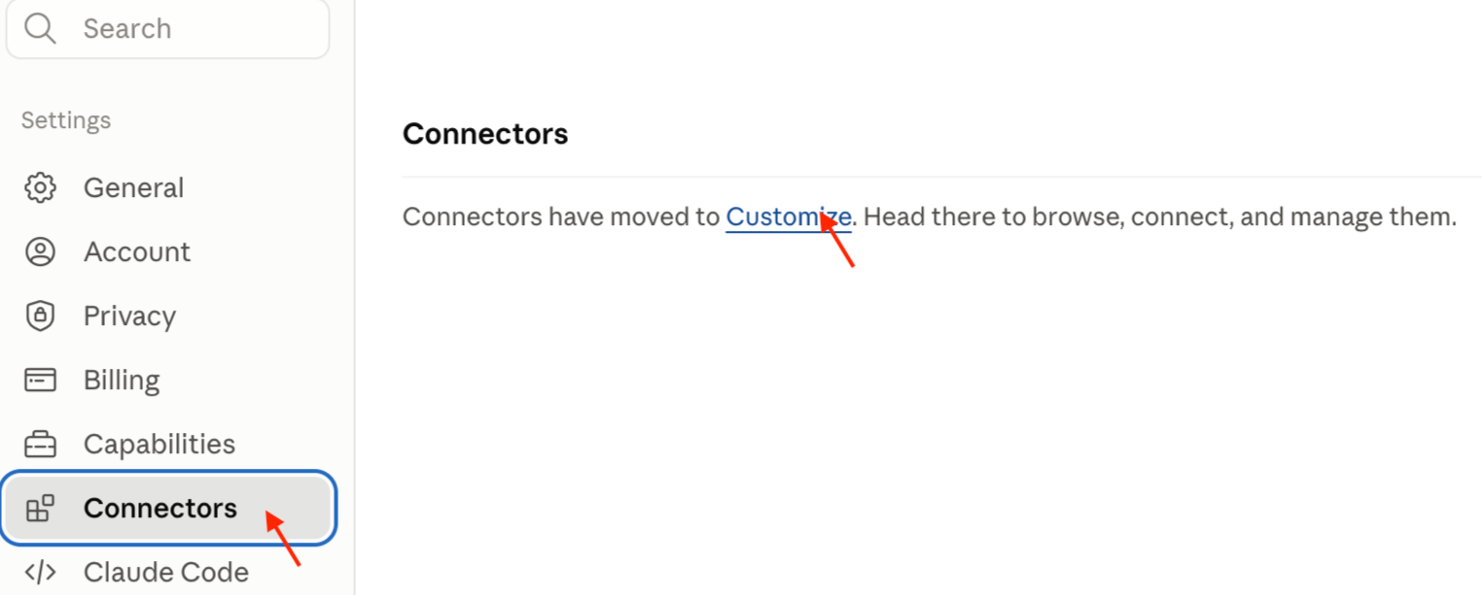
Navigate to Connectors and click Customize.
On the Connectors page, click Add custom connector.
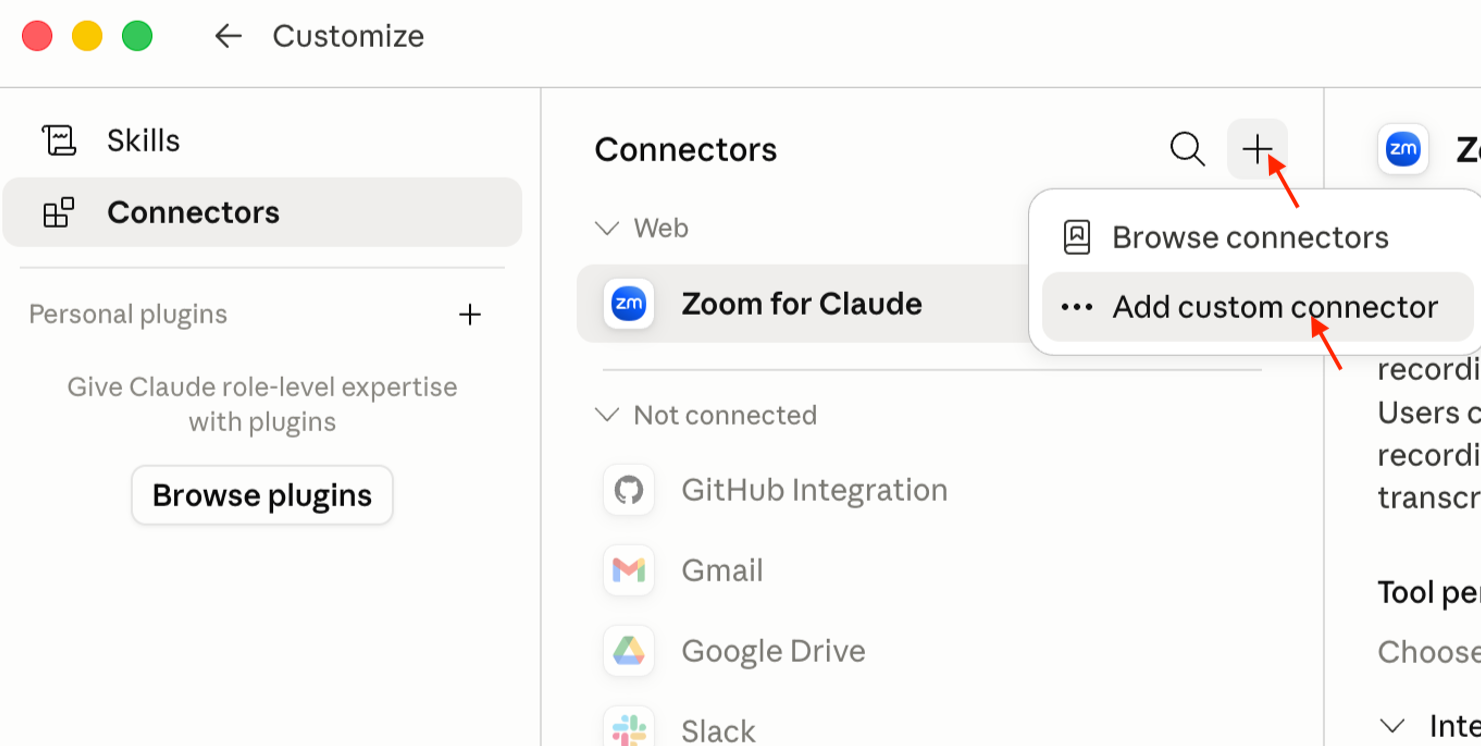
In the Add Custom Connector dialog box, provide the following details and click Add.
Name for the connector (in our example, it is Wasabi S3)
URL of the MCP server (https://mcp.wasabisys.dev/s3)
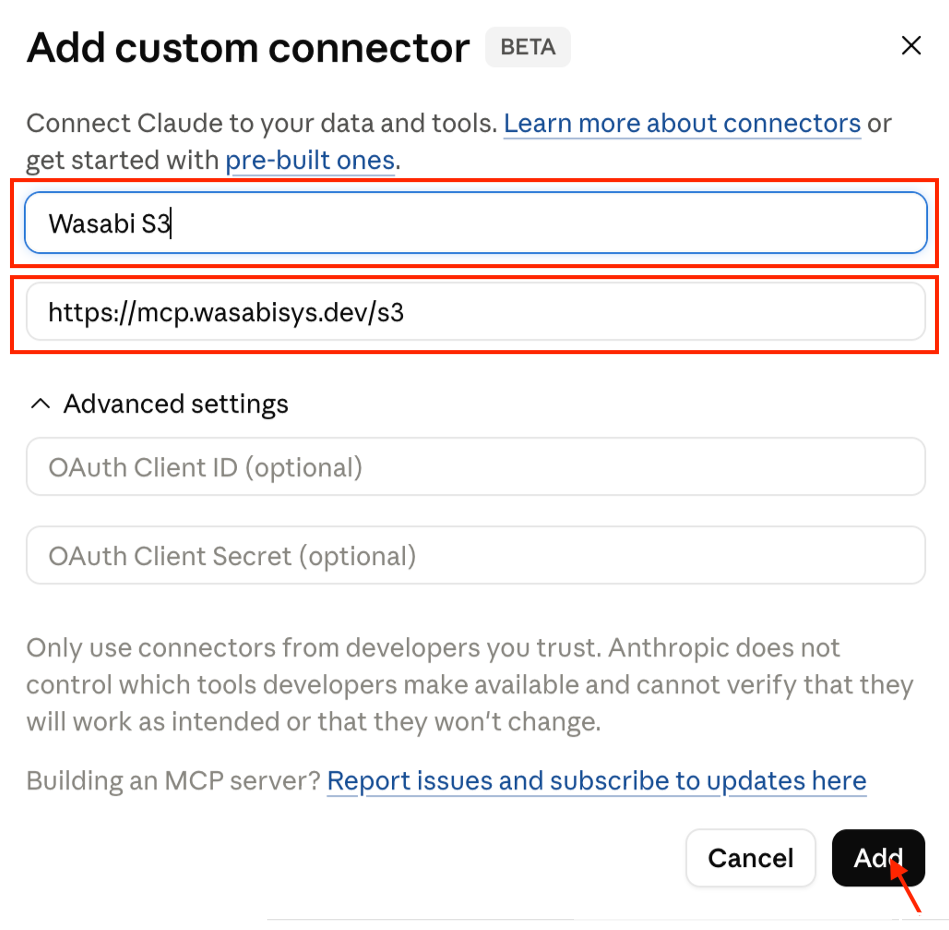
Click Connect.
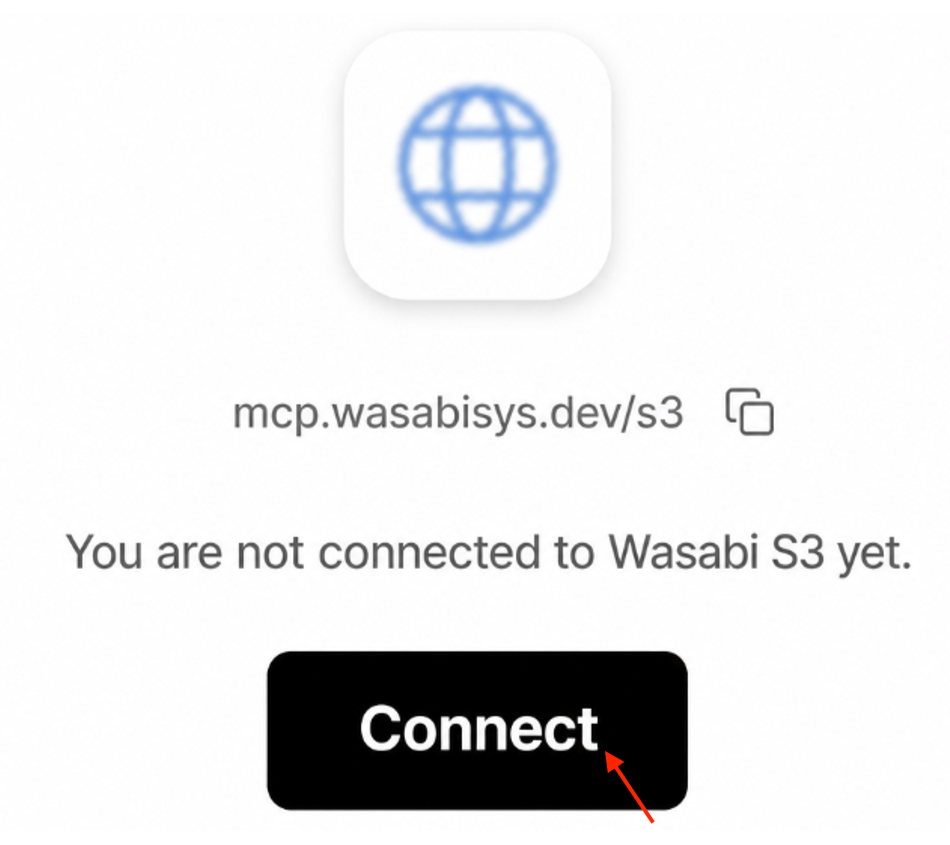
You will be directed to the mcp.wasabisys.dev/s3 URL. Click Sign in to Wasabi.
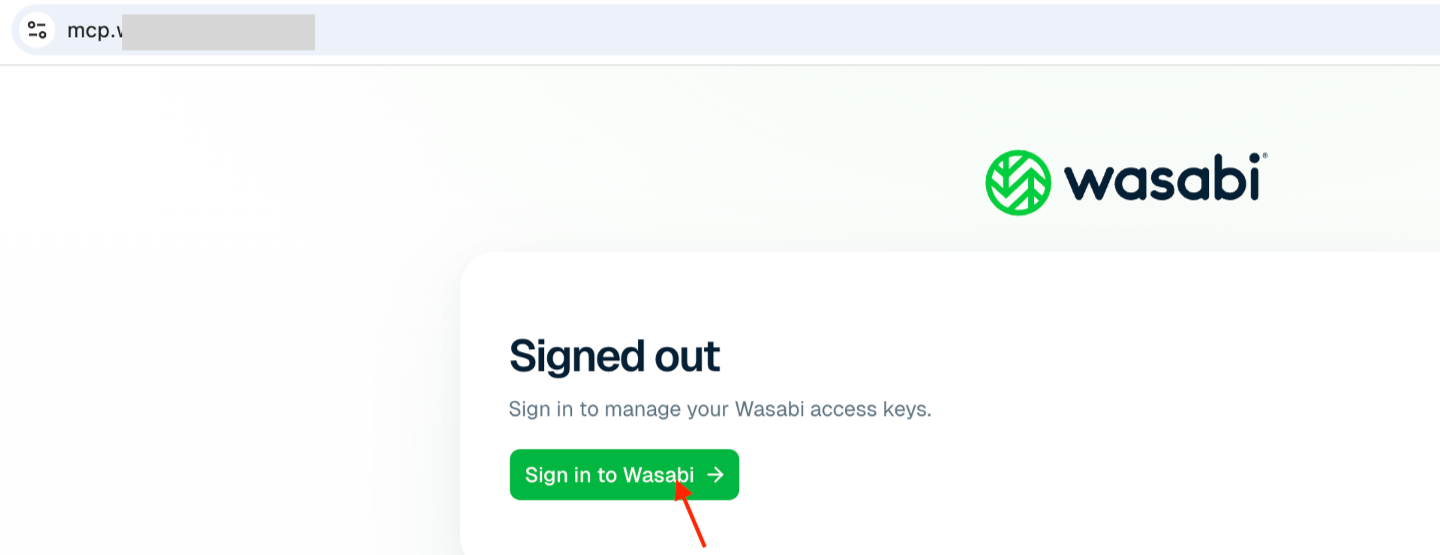
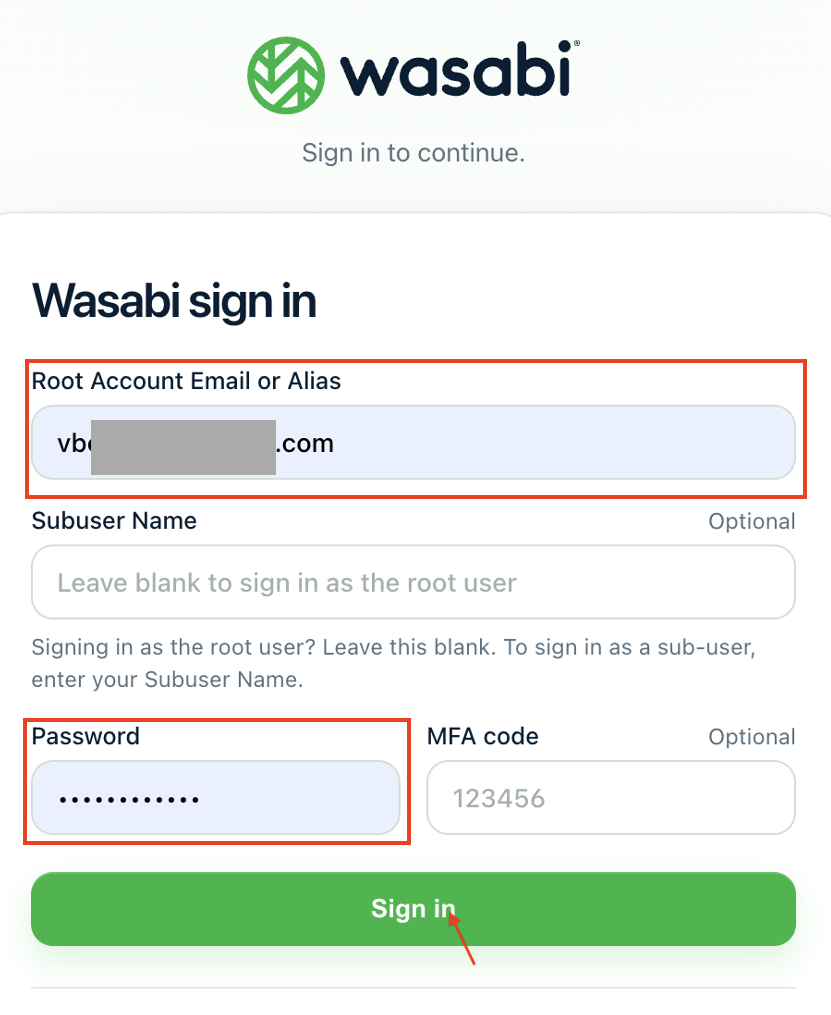
Provide the following details and click Sign in.
Wasabi account email address
Wasabi account password
MFA code (optional)
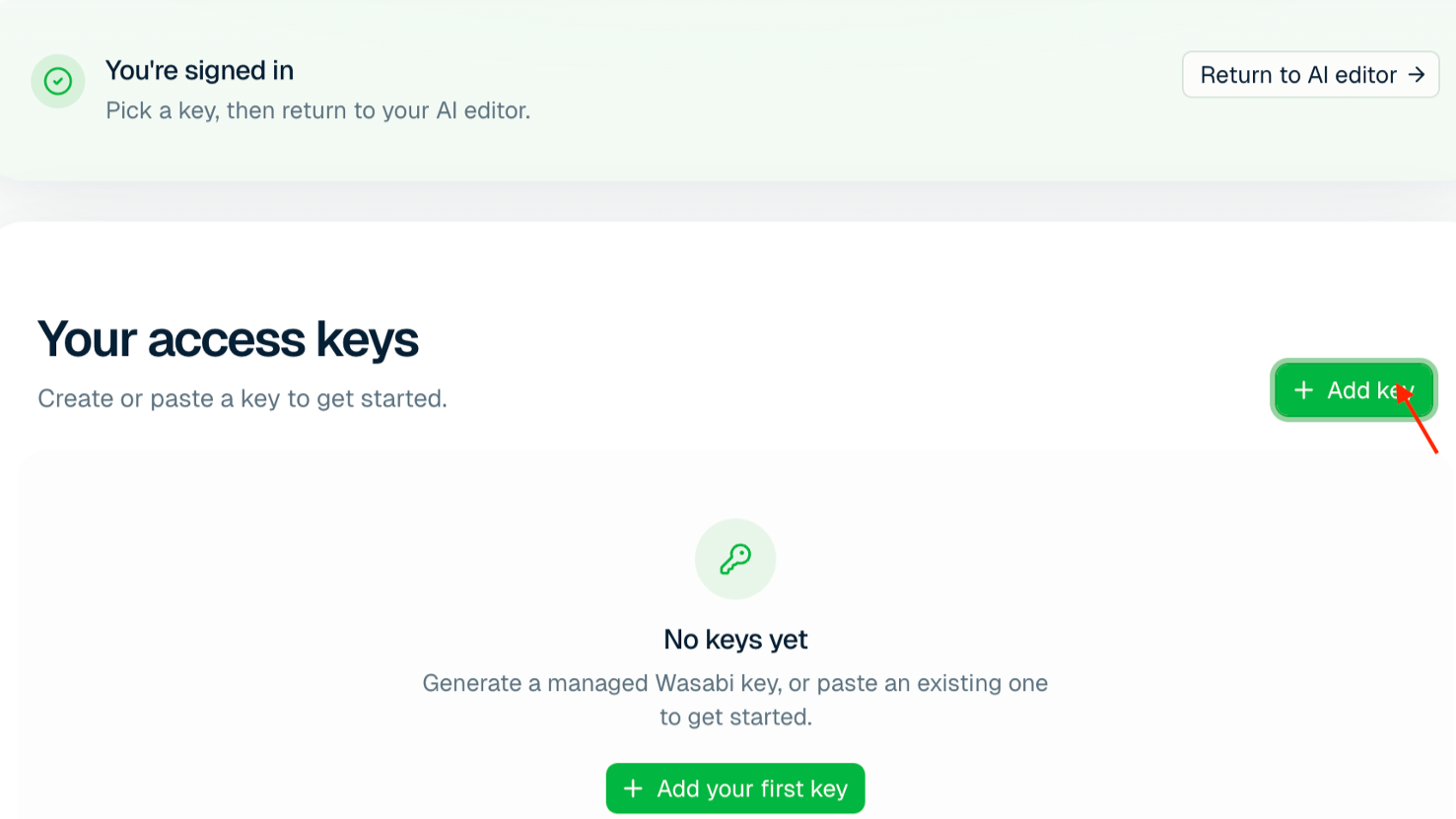
Once signed in, click Add key to add your Wasabi access keys.
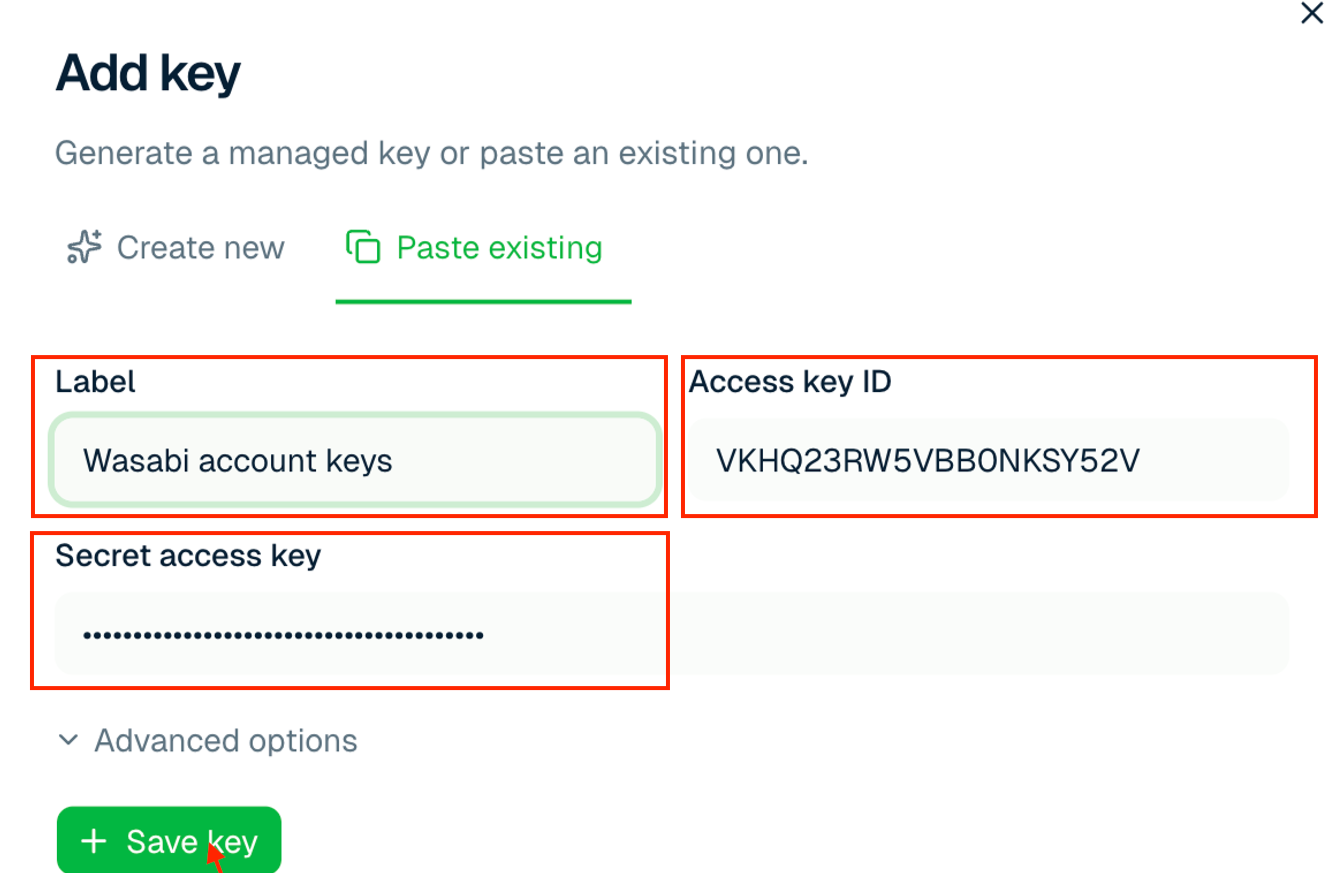
Provide the following details and click Save key.
Label—name for the keys
Access key ID—Wasabi access key
Secret access key—Wasabi secret key
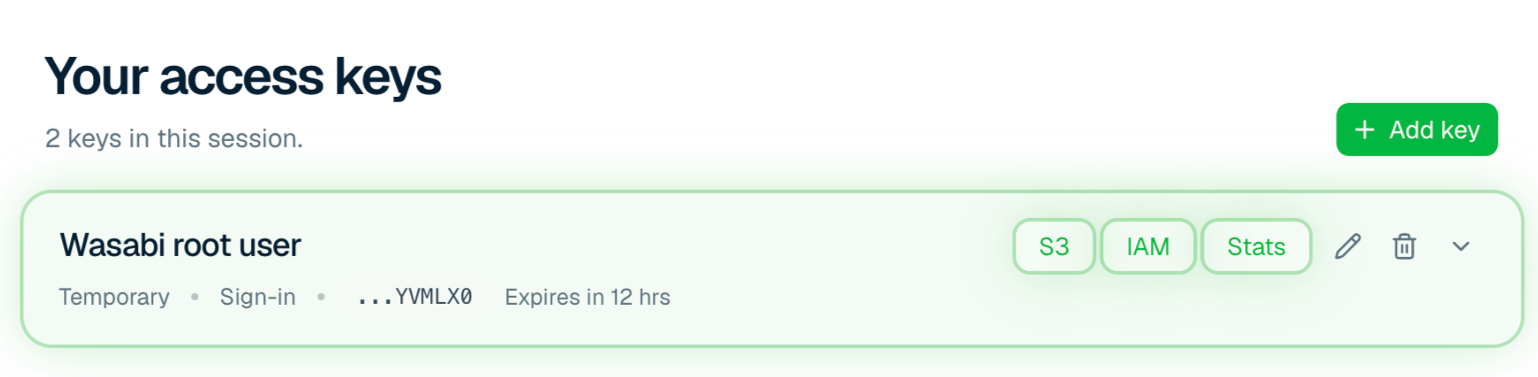
Once the keys are added, ensure S3, IAM, and Stats are highlighted in green (indicating they are enabled). Click Return to AI editor.
Under Tool permissions, change Read-only tools and Write/delete tools from Needs approval to the desired action—Blocked, Always Allow, or Custom.
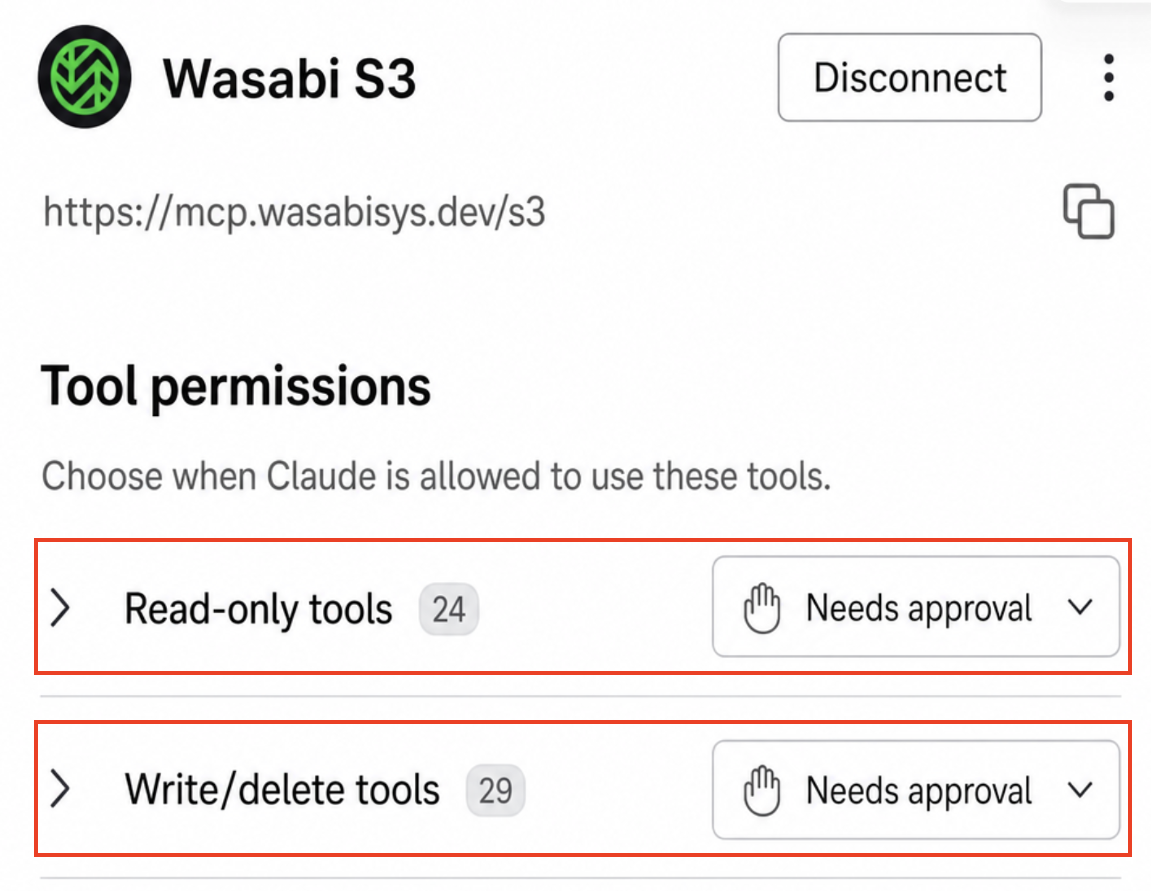
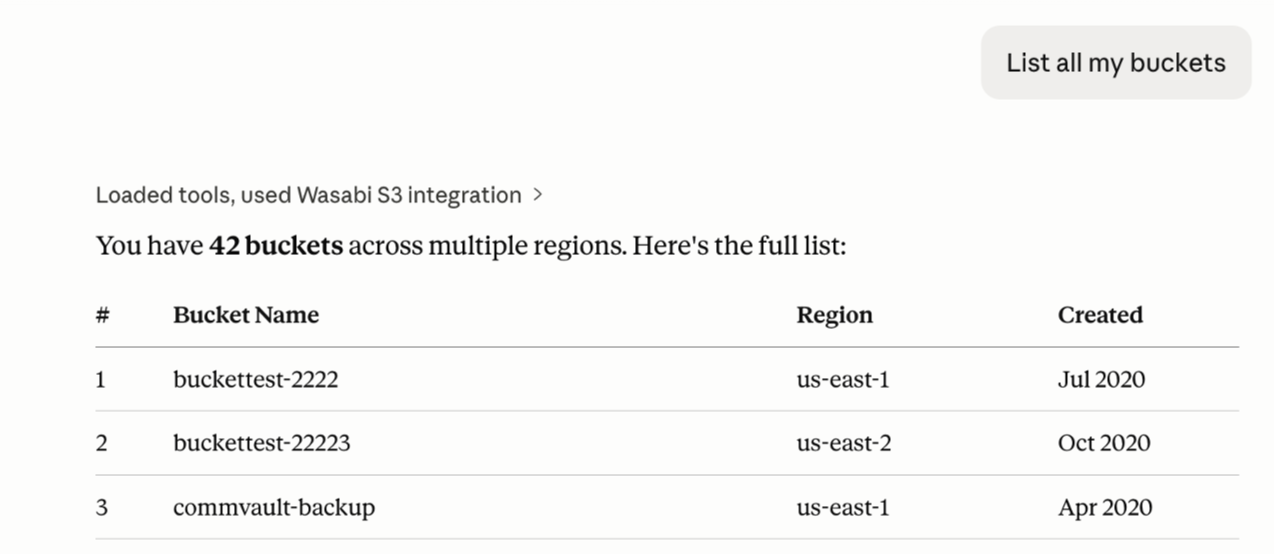
You successfully connected your Wasabi storage account with Wasabi’s MCP service. You can test it by using the prompt List all my buckets and your buckets will be listed.