Cohesity DataProtect is a high-performance, secure backup and recovery solution. Wasabi is validated for use as an External Target for Cohesity DataProtect. This article provides instructions to add a Wasabi bucket as an External Target to backup Microsoft 365 (M365) and recover M365 items from Wasabi.
Requirements
Active Wasabi Hot Cloud Storage account.
Wasabi Bucket (see Working With Buckets and Objects). (Wasabi recommends that you use a bucket that has Object Lock enabled so your data will be immutable.)
Access and Secret Key pair (see Creating a User Account and Access Key).
Cohesity DataProtect is installed and licensed. This solution was most recently tested with version 7.3.1.
Microsoft 365 was added as a source in DataProtect.
Adding Wasabi as an External Target
Log in to your Cohesity System.
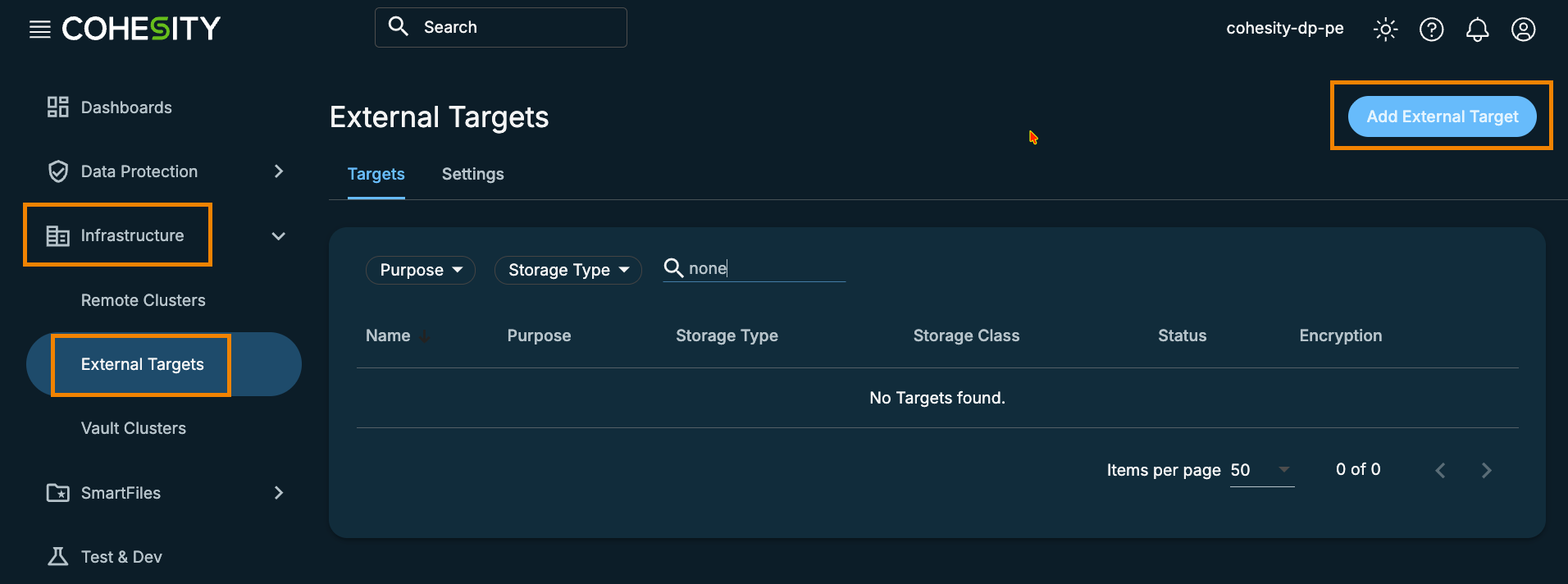
Select Infrastructure and then External Targets. Click Add External Target.
Select Archival.
Click the Storage Type drop-down to select S3 Compatible.
Click the Storage Class drop-down to select Regular.
Enter the following details.
Bucket Name—Name of your Wasabi bucket.
Access Key ID—Wasabi access key.
Secret Access Key—Wasabi secret key.
Endpoint—This will vary depending on your bucket region.
Secure Connection (HTTPS)—Enabled.
External Target Name—Name for the external target that is being added.
This configuration example uses Wasabi’s us-east-2 storage region. To use other Wasabi storage regions, use the appropriate Wasabi service URL for your bucket region, as described in Service URLs for Wasabi's Storage Regions.
.png)
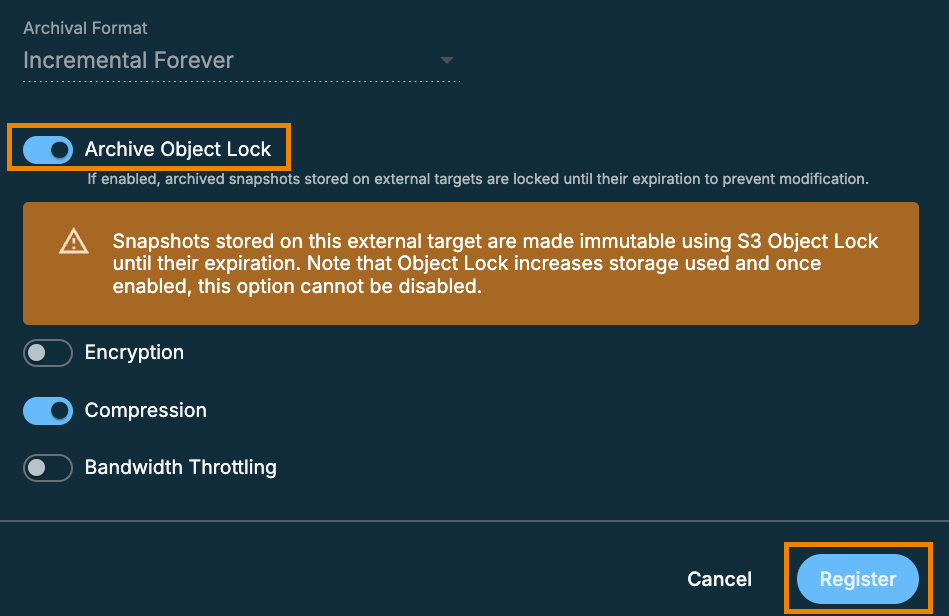
Scroll down. Set Archival Format to the default Incremental Forever. (Wasabi recommends that you enable Archive Object Lock to prevent accidental or malicious deletion or modification of data. Object Lock must have been enabled upon bucket creation.)
Optionally, enable Encryption. Data in Wasabi is always encrypted at rest and in transit since HTTPS is enabled.
Click Register.
Configuring Data Protection
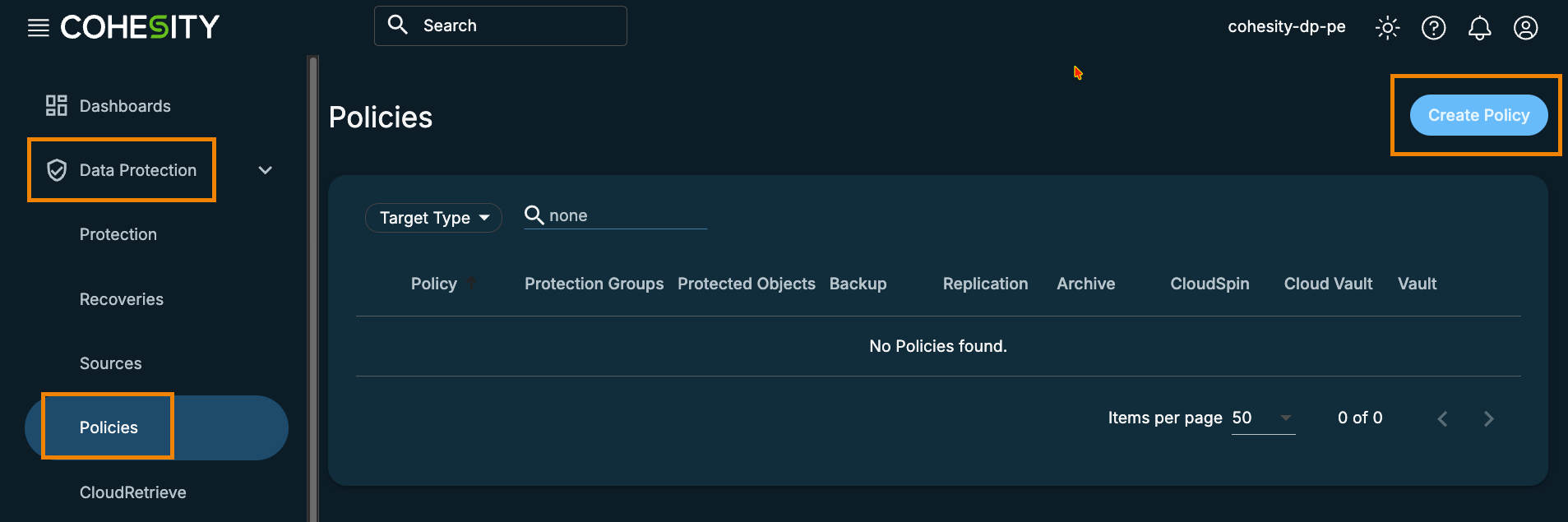
Click Data Protection.
Select Policies.
Click Create Policy.
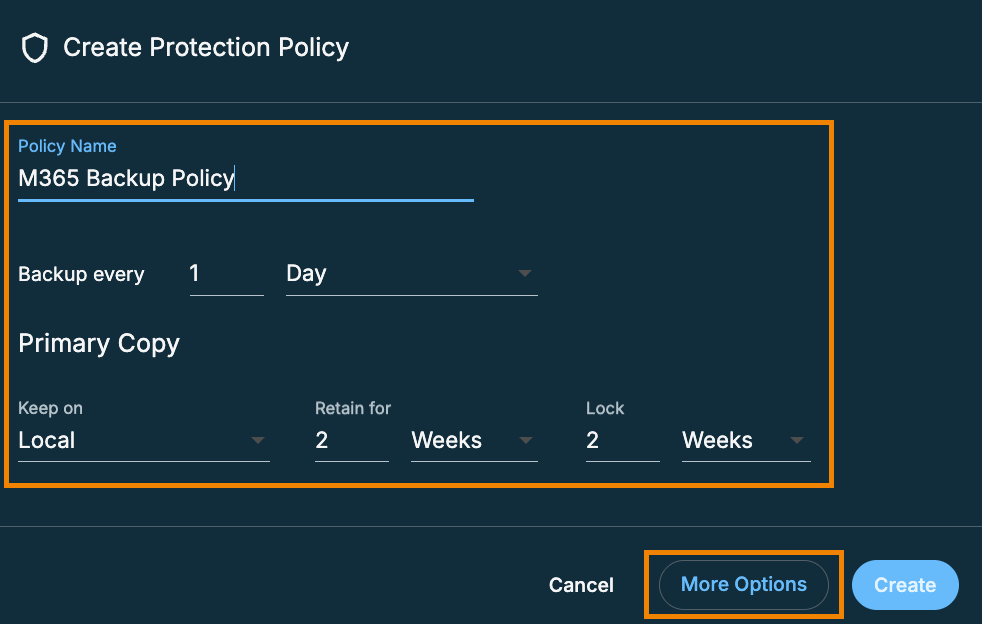
Enter a name for the policy and how often backups are performed.
For the Primary Copy, click the Keep on drop-down to select Local.
Select the appropriate retention and lock times for your organization.
Click More Options.
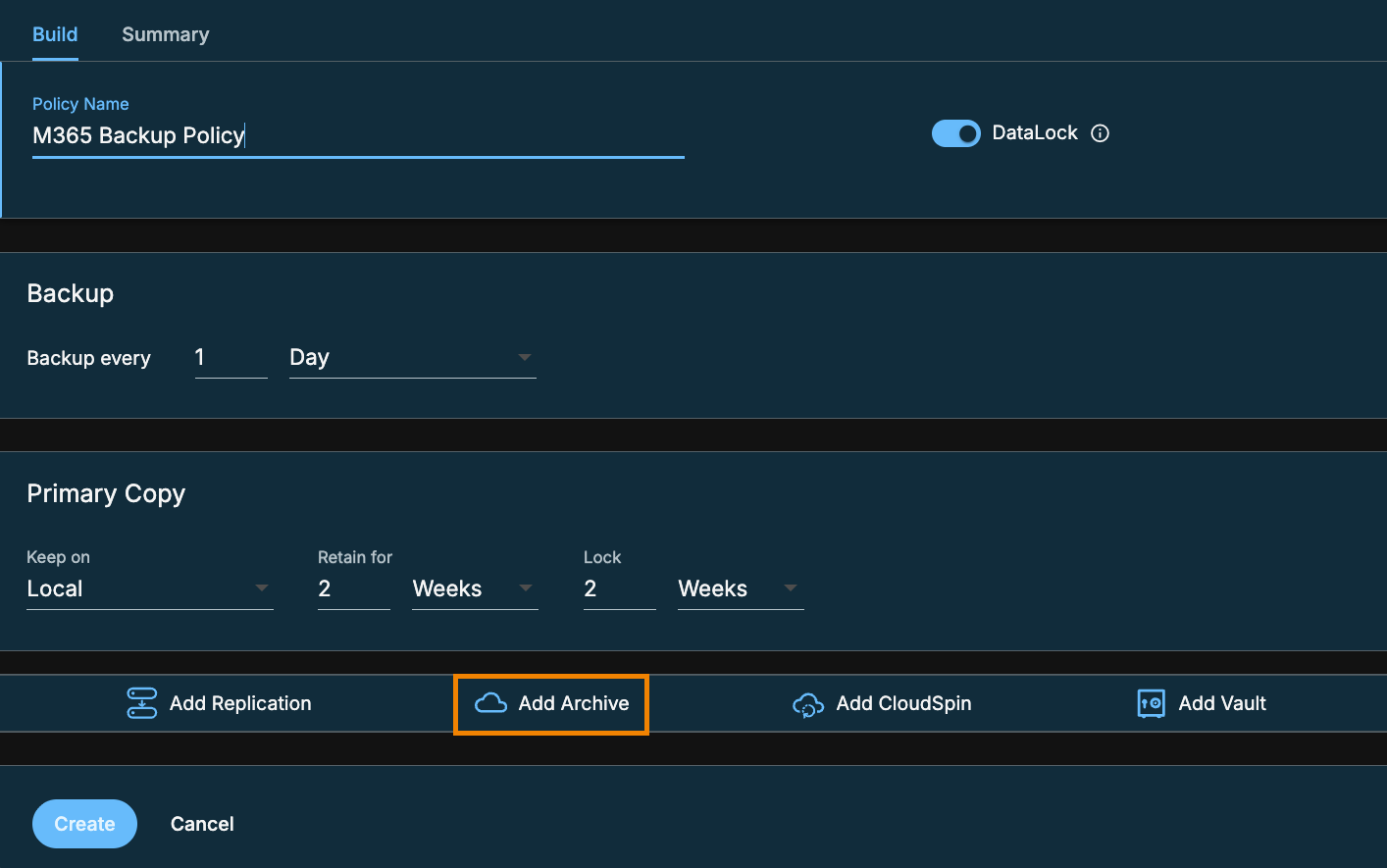
Click Add Archive.
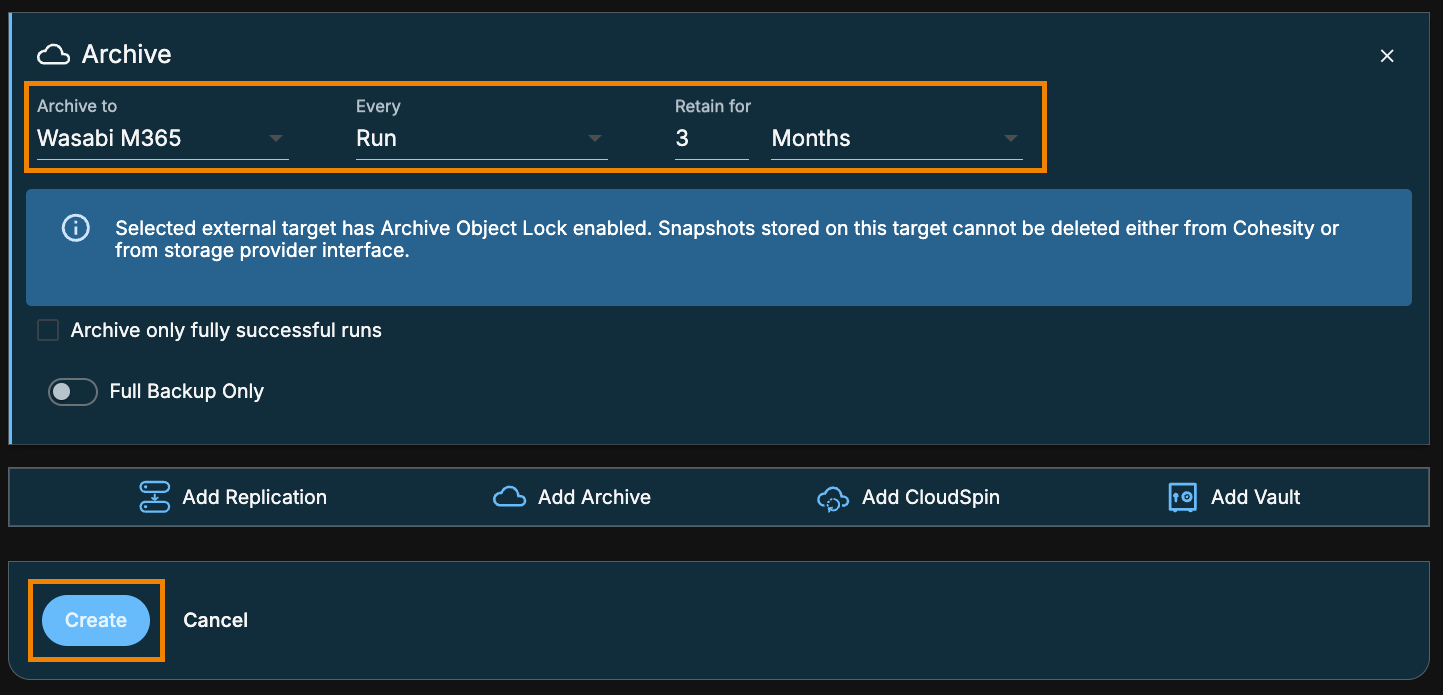
Click the Archive drop-down and select your Wasabi external target.
Select Run from the Every menu and set a retention period appropriate for your organization.
Click Create.
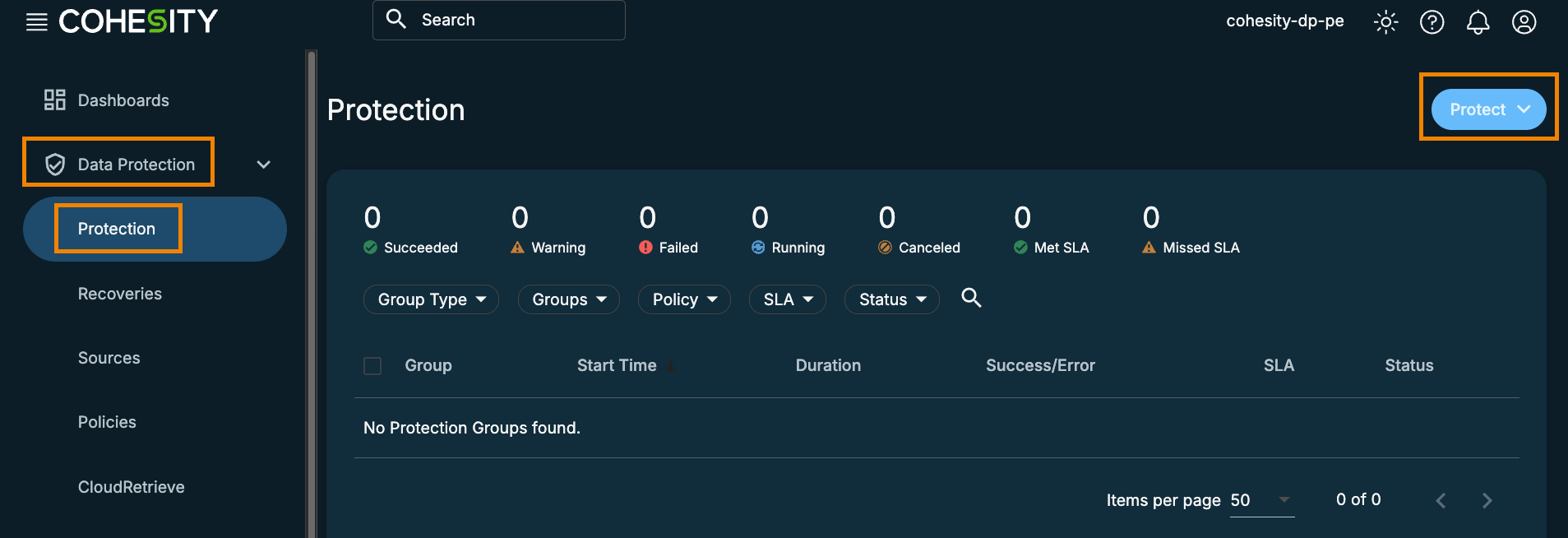
Under Data Protection, click Protection.
Click the Protect drop-down menu.
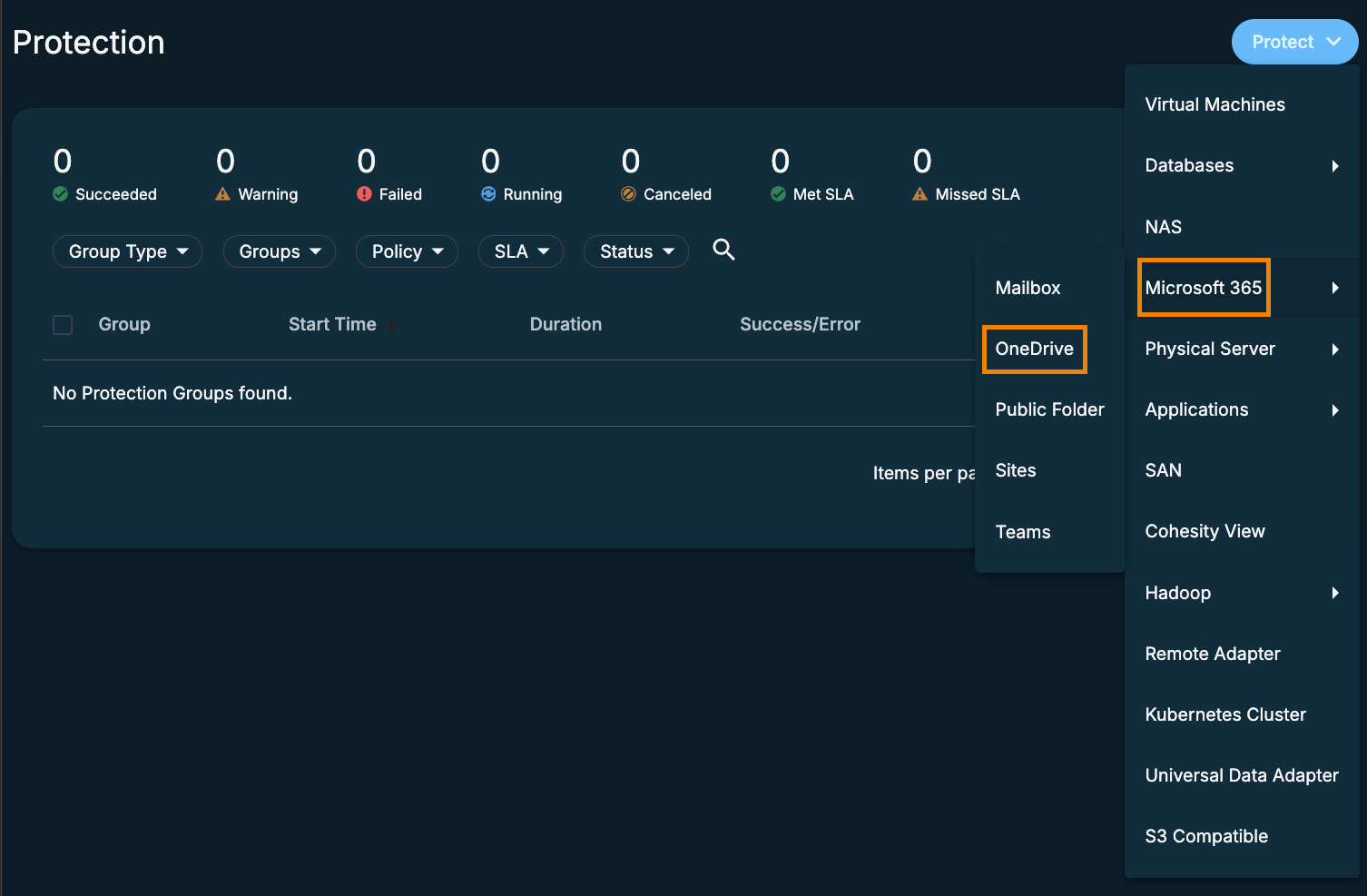
Select Microsoft 365, then select the appropriate item to back up. (In our example, we are backing up OneDrive.)
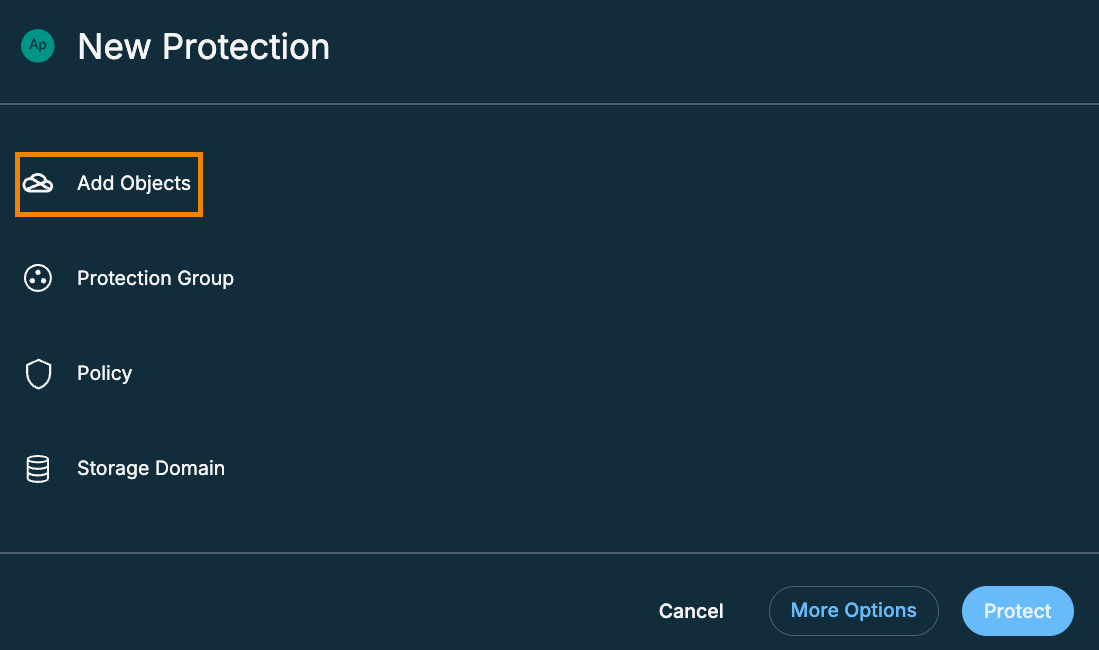
Click Add Objects.
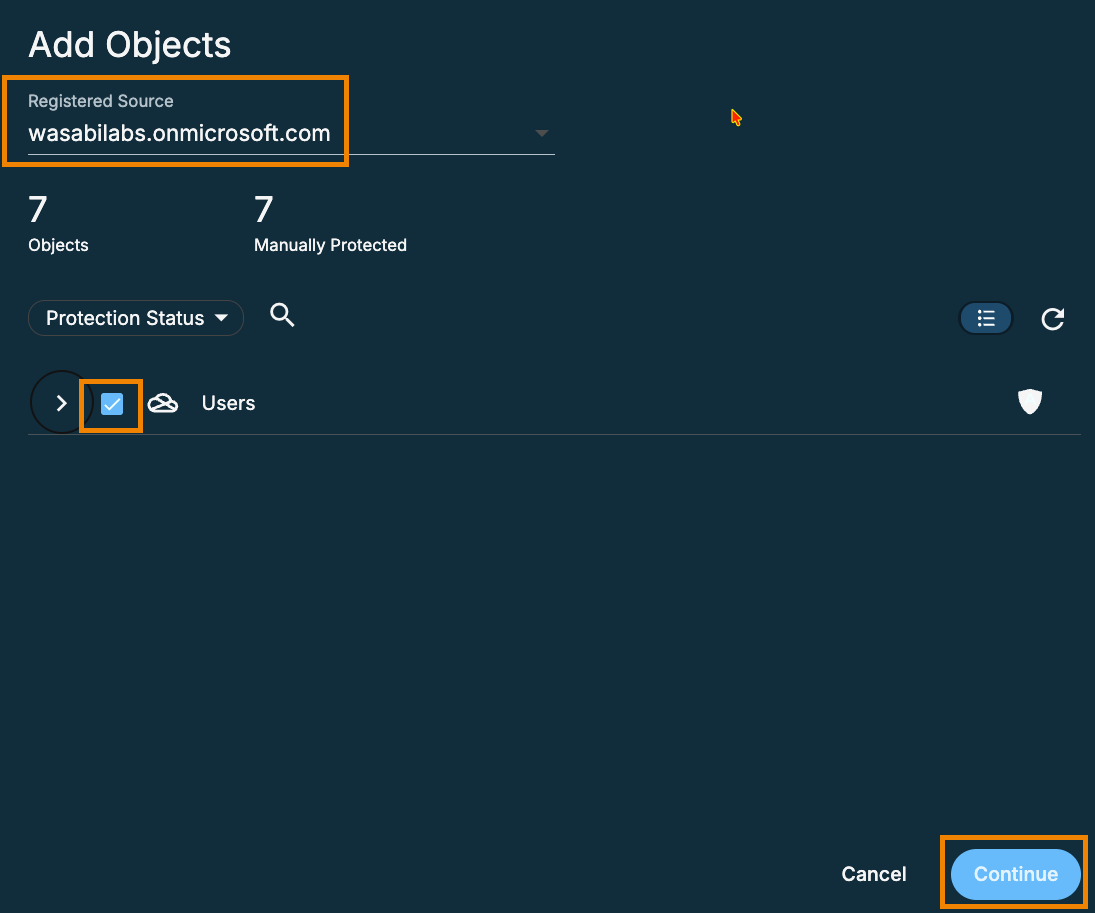
Select your registered Microsoft 365 source from the drop-down menu. Click the checkbox to select the user(s) to back up. (We selected all users)
Click Continue.
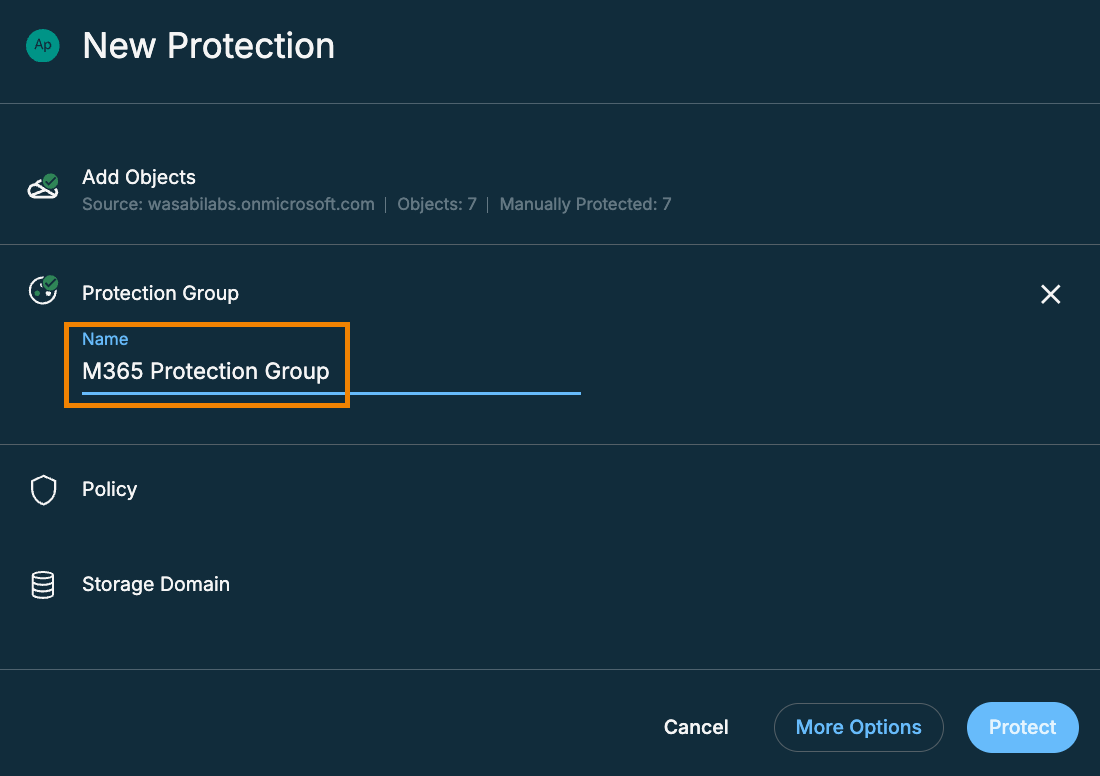
Click Protection Group and give the group a name.
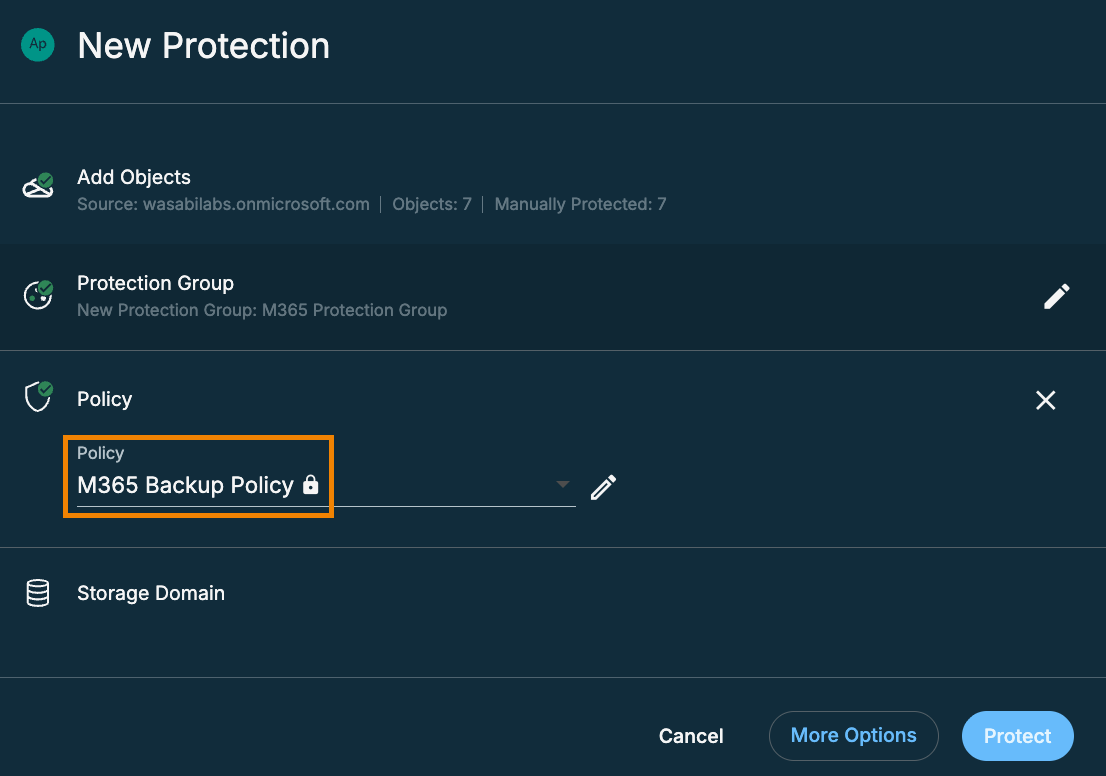
Click Policy and select the previously created policy.
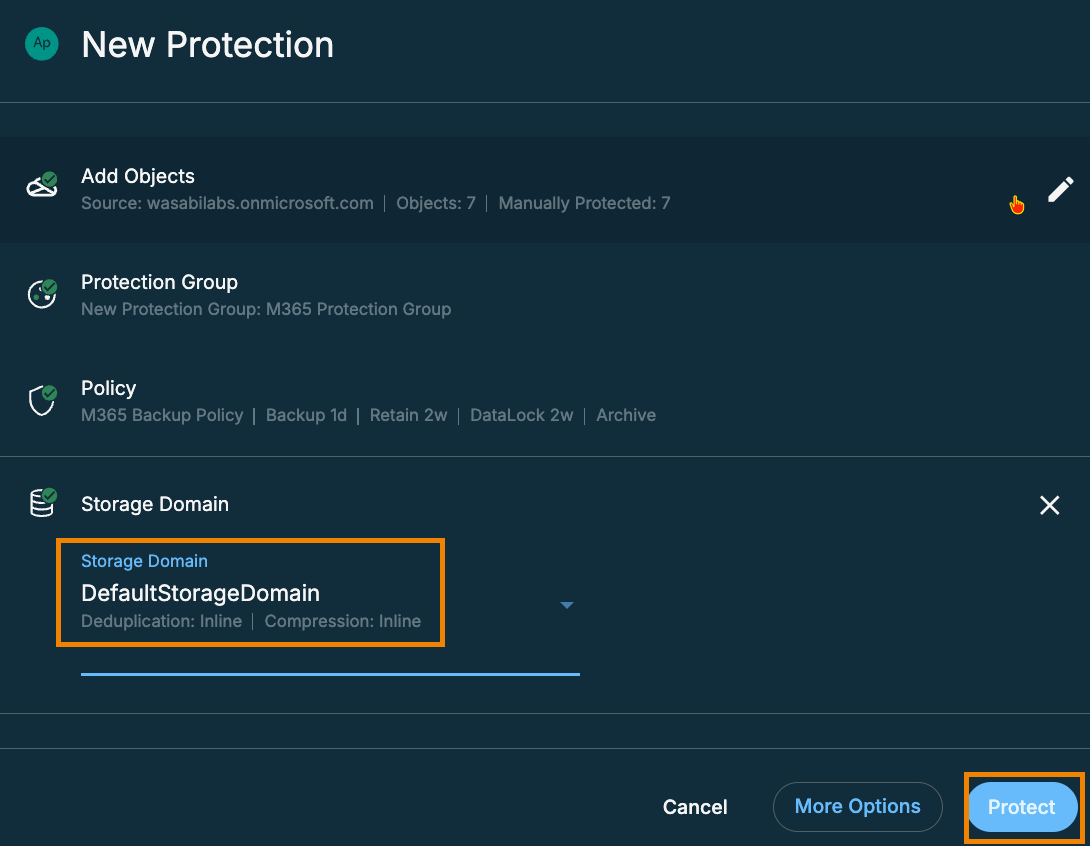
Click Storage Domain and select the appropriate domain. (We selected the default.)
Click Protect.
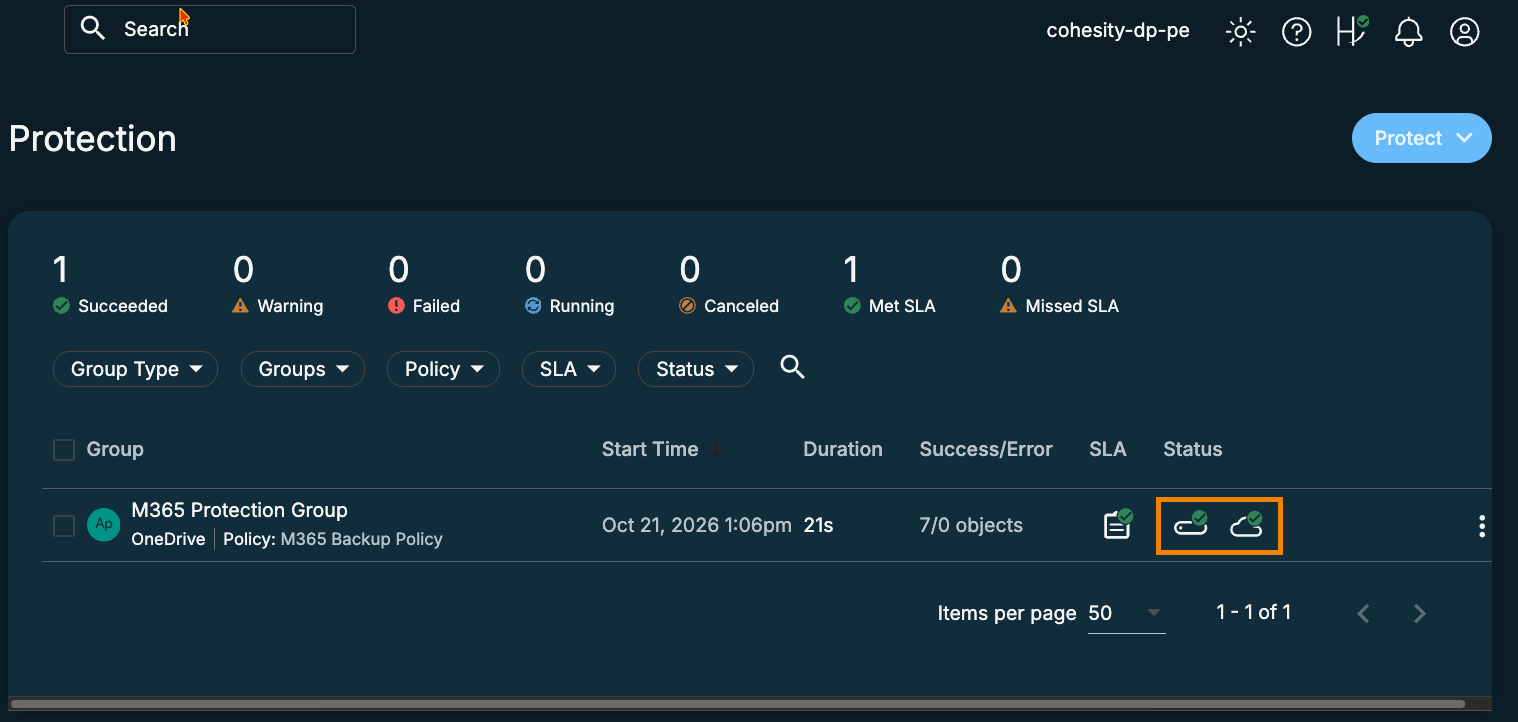
Under Protection, both the local disk and cloud icons will display green checkmarks when the local and Wasabi backups have completed successfully. You may have to refresh the page to see an updated status, which can take time to complete depending on the size of the items being backed up.
Verifying Data in Wasabi
Log in to the Wasabi Console.
Click Buckets in the left navigation.
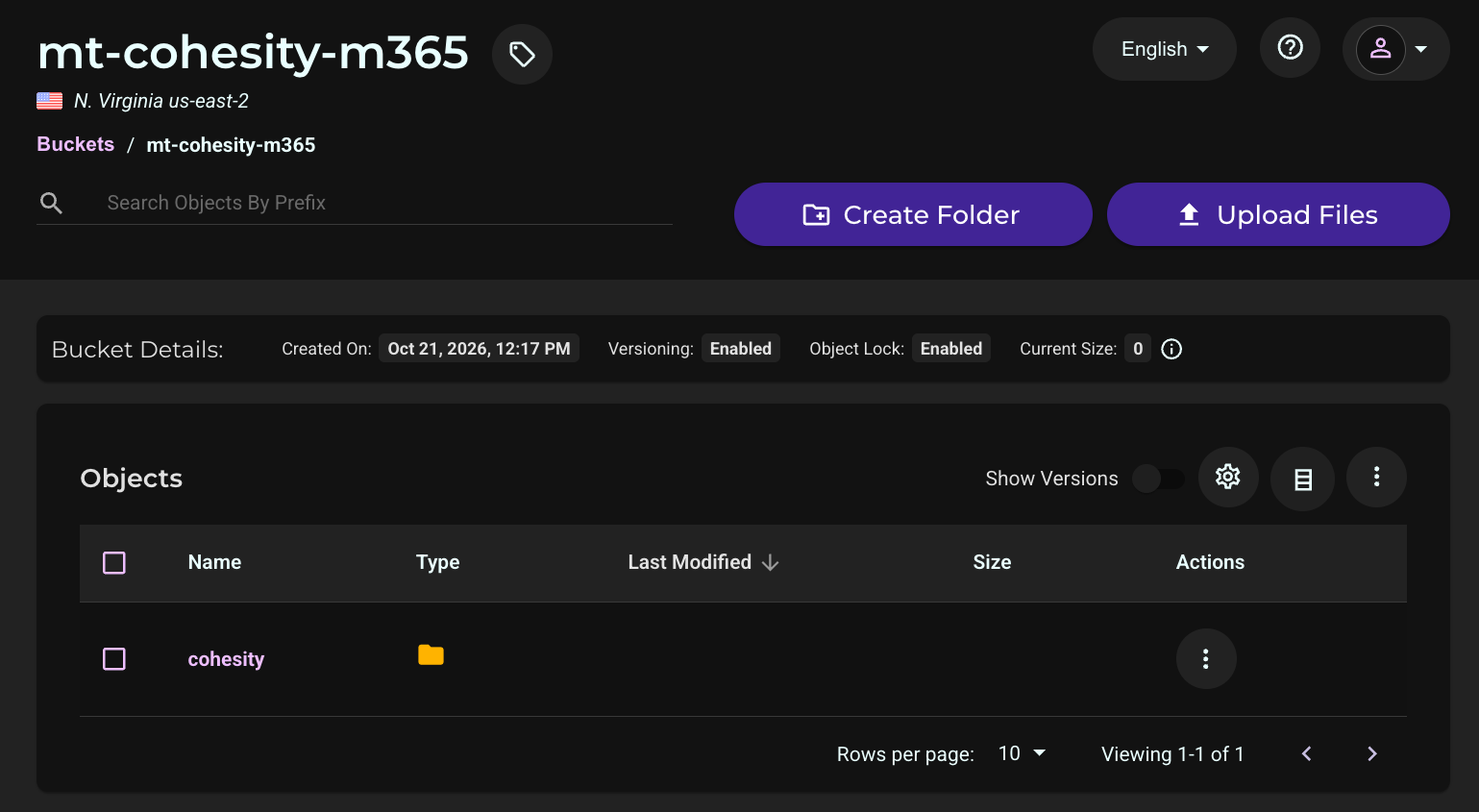
Select your bucket name.
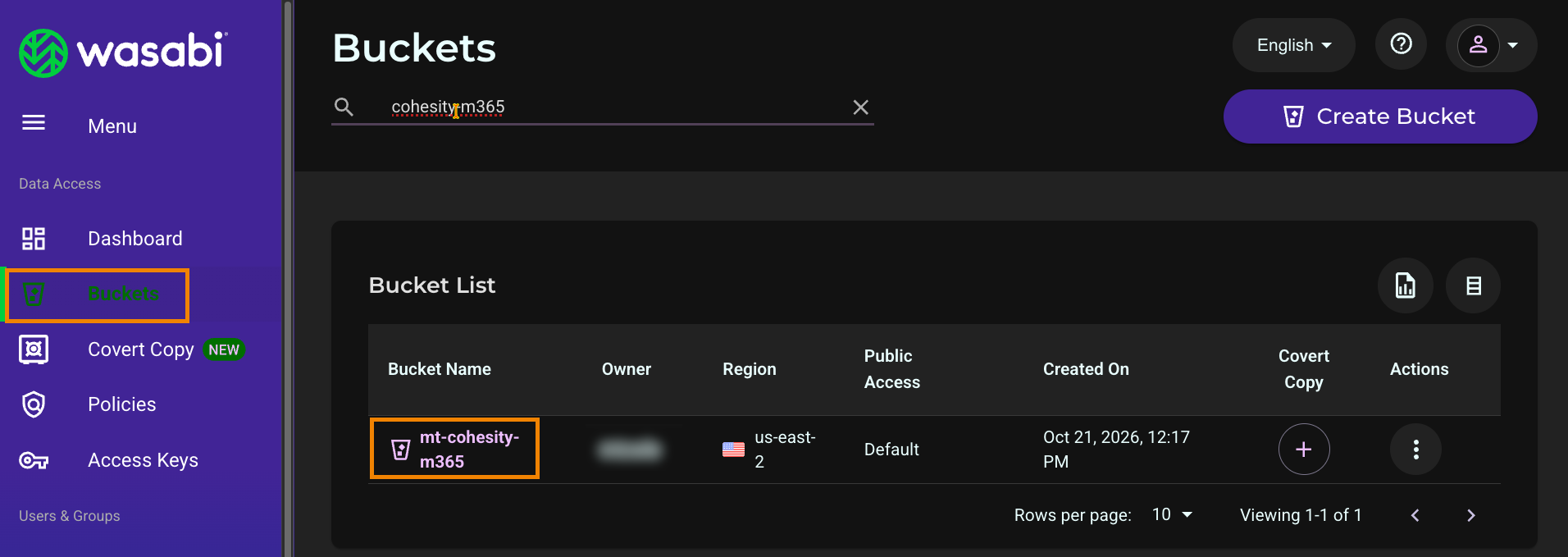
Verify your backup data exists in your bucket.
Performing a Test Recovery from Wasabi
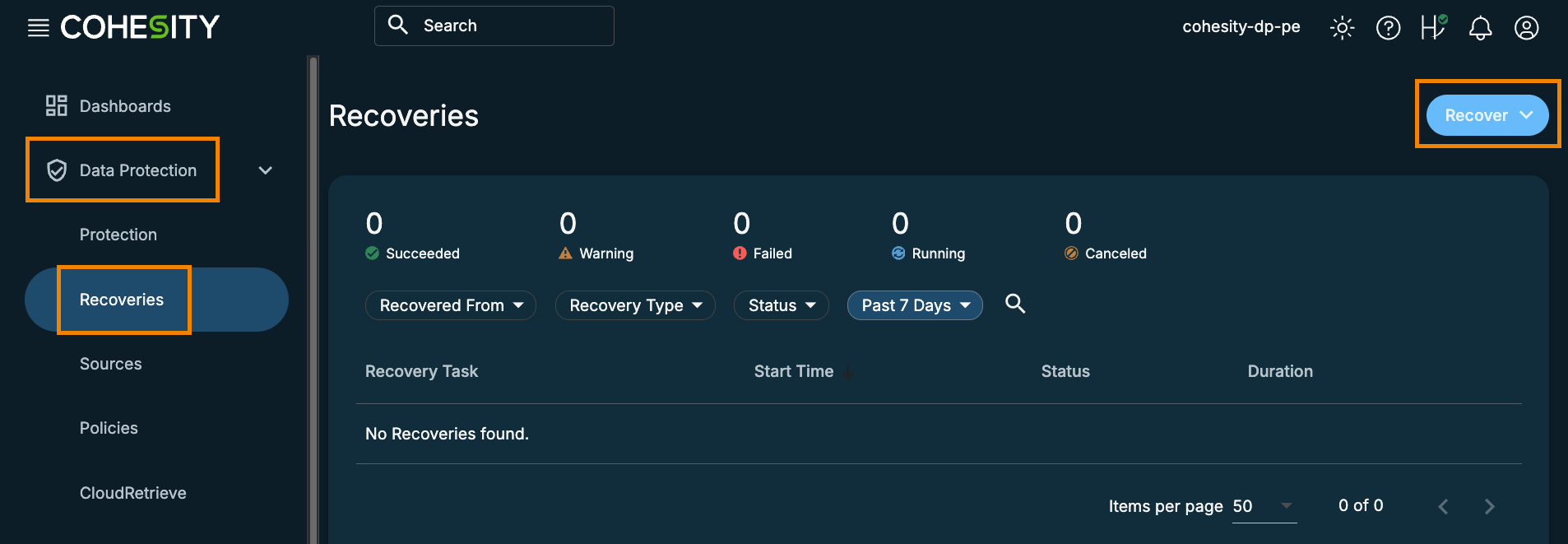
Under Data Protection, select Recoveries.
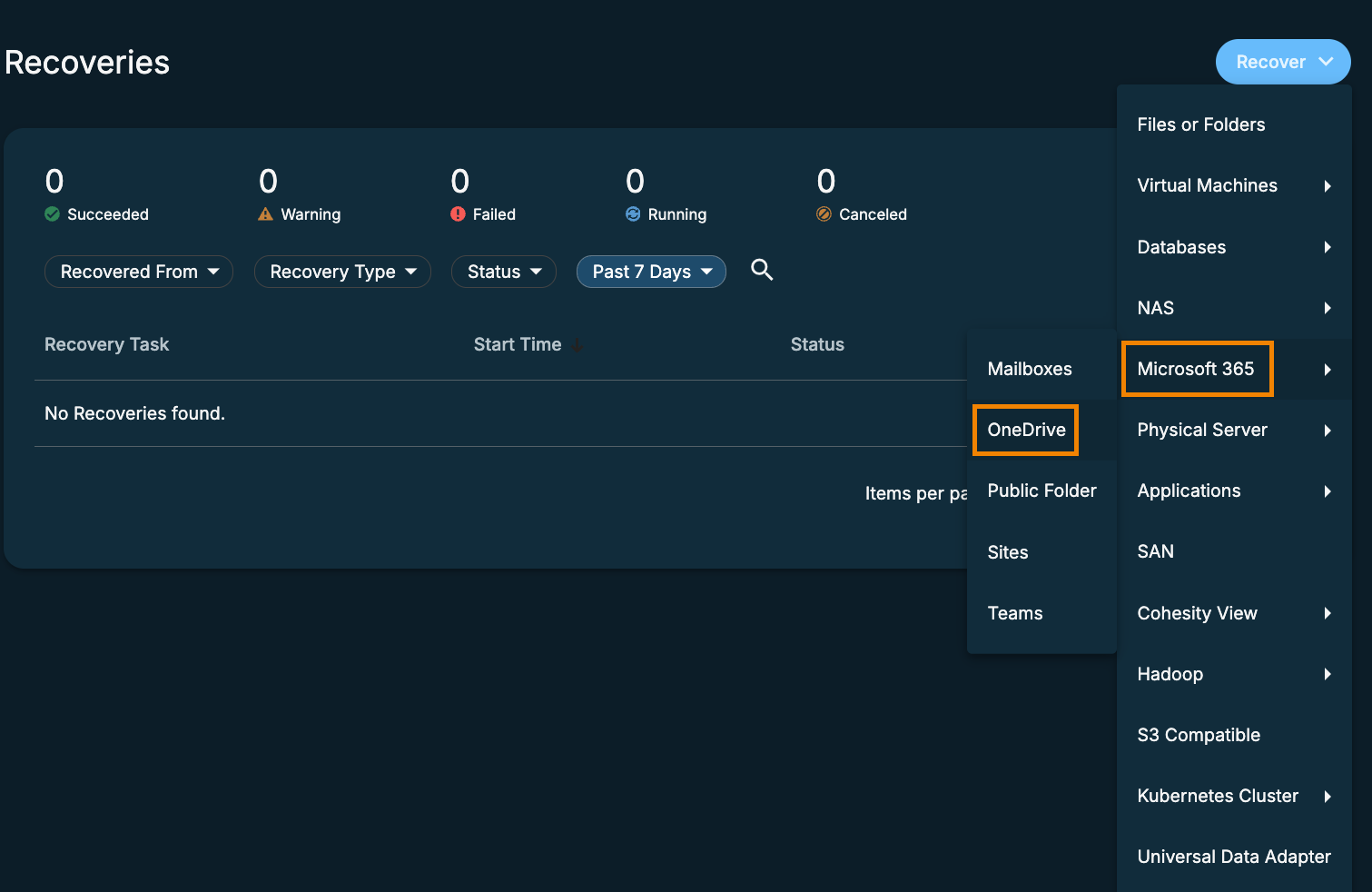
Click the Recover drop-down menu.
Select Microsoft 365 and select the type of item to recover. (In our example, OneDrive.)
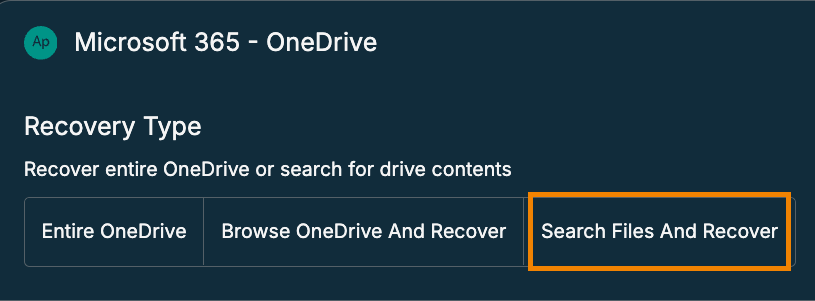
Select the type of recovery to perform. (In our example, we selected Search Files and Recover.)
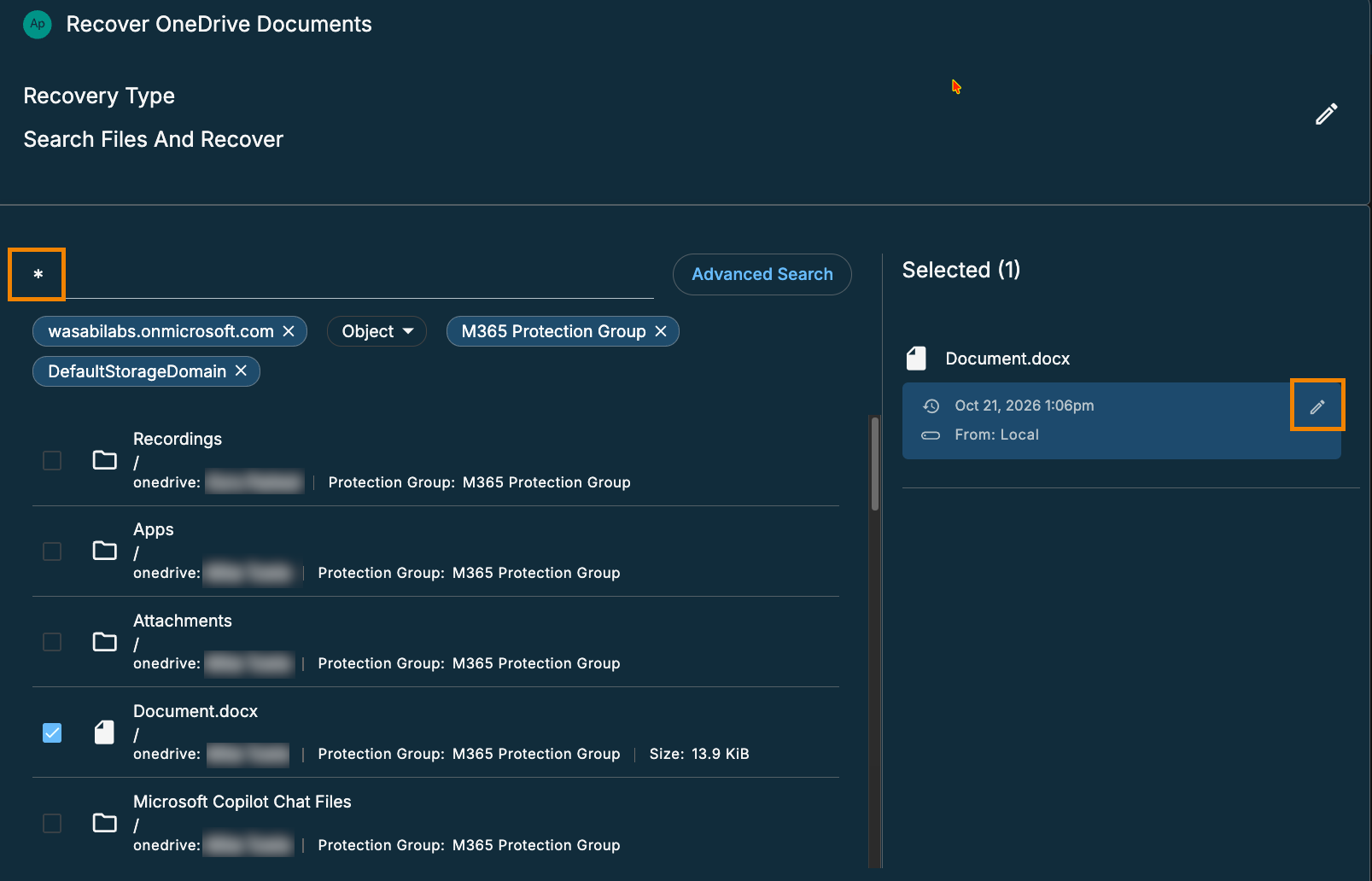
Search for the item to recover. (We used an asterisk as a wildcard.) Click the pencil icon on the right.
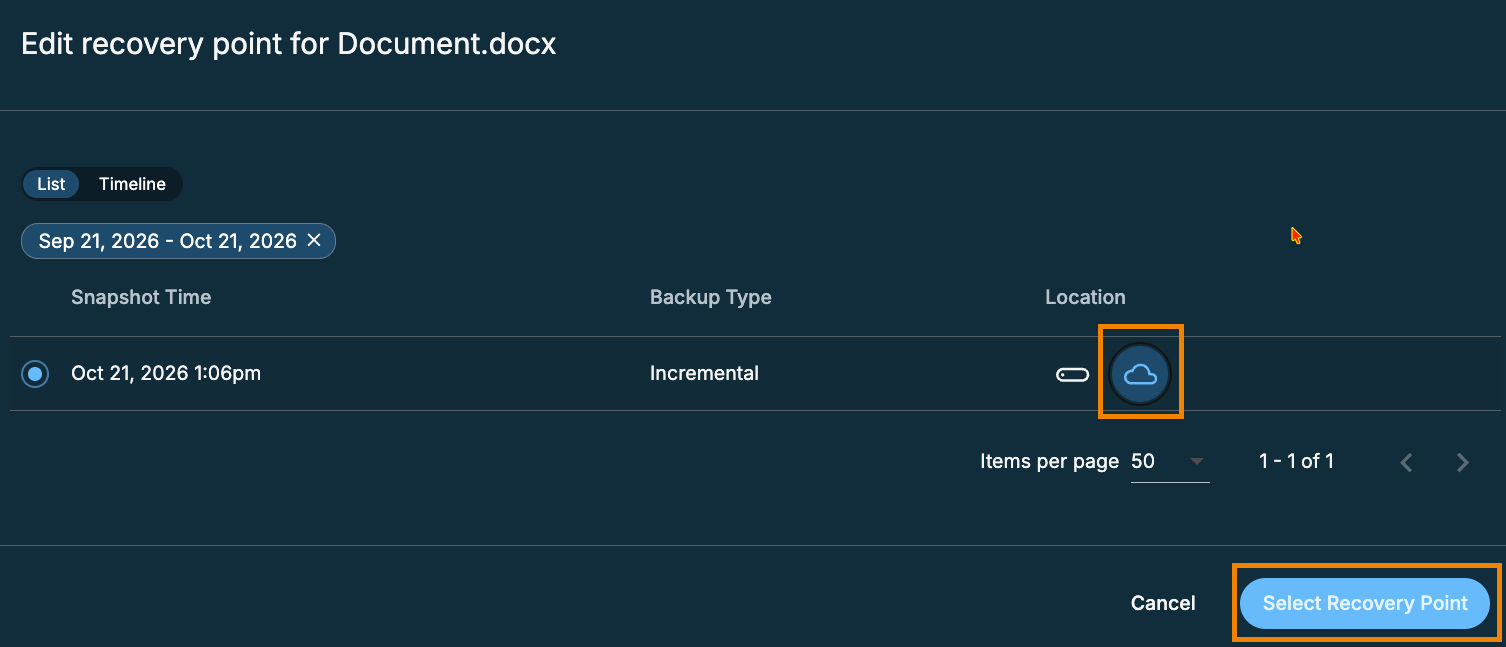
Select the cloud icon under Location.
Click Select Recovery Point.
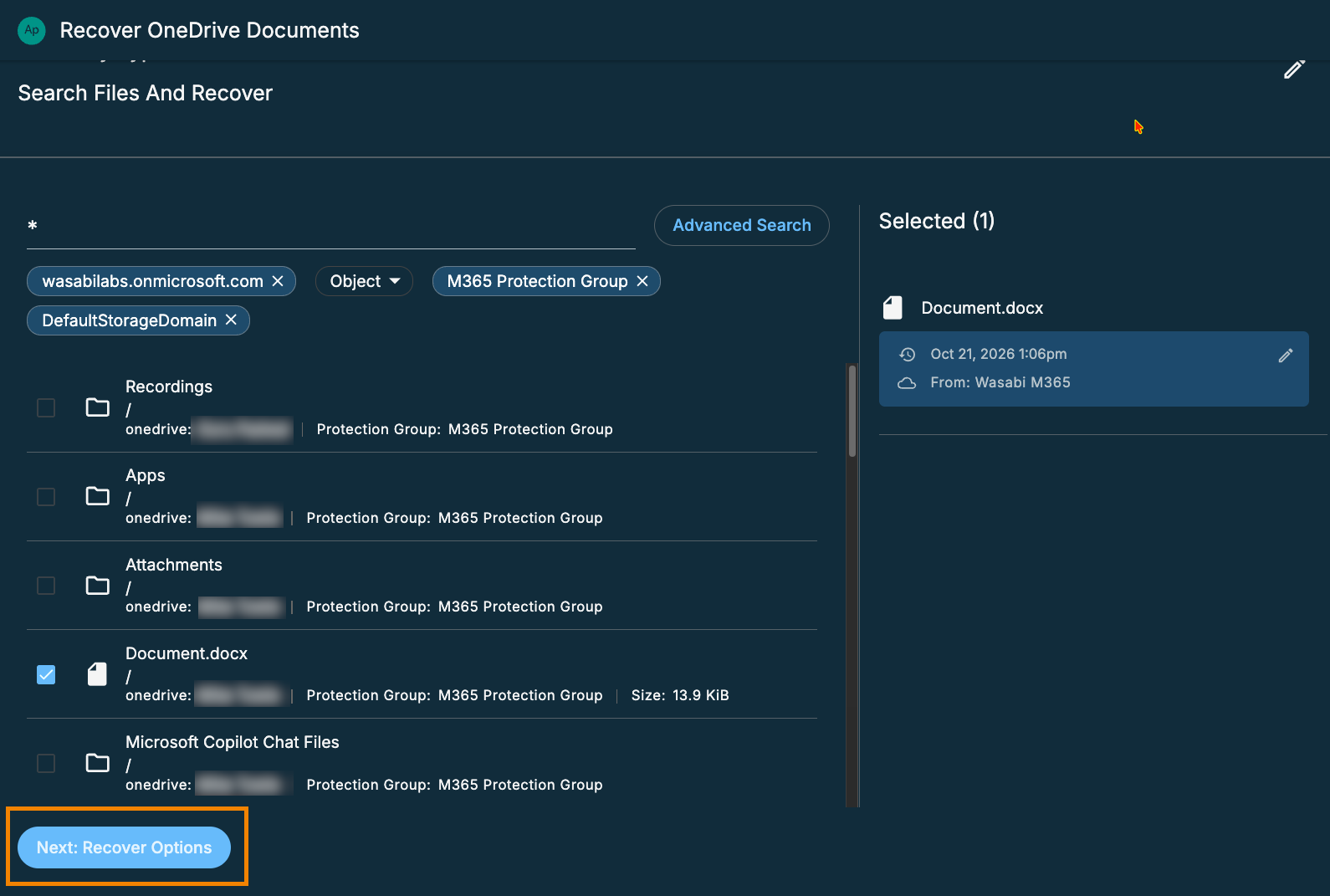
Click Next: Recover Options.
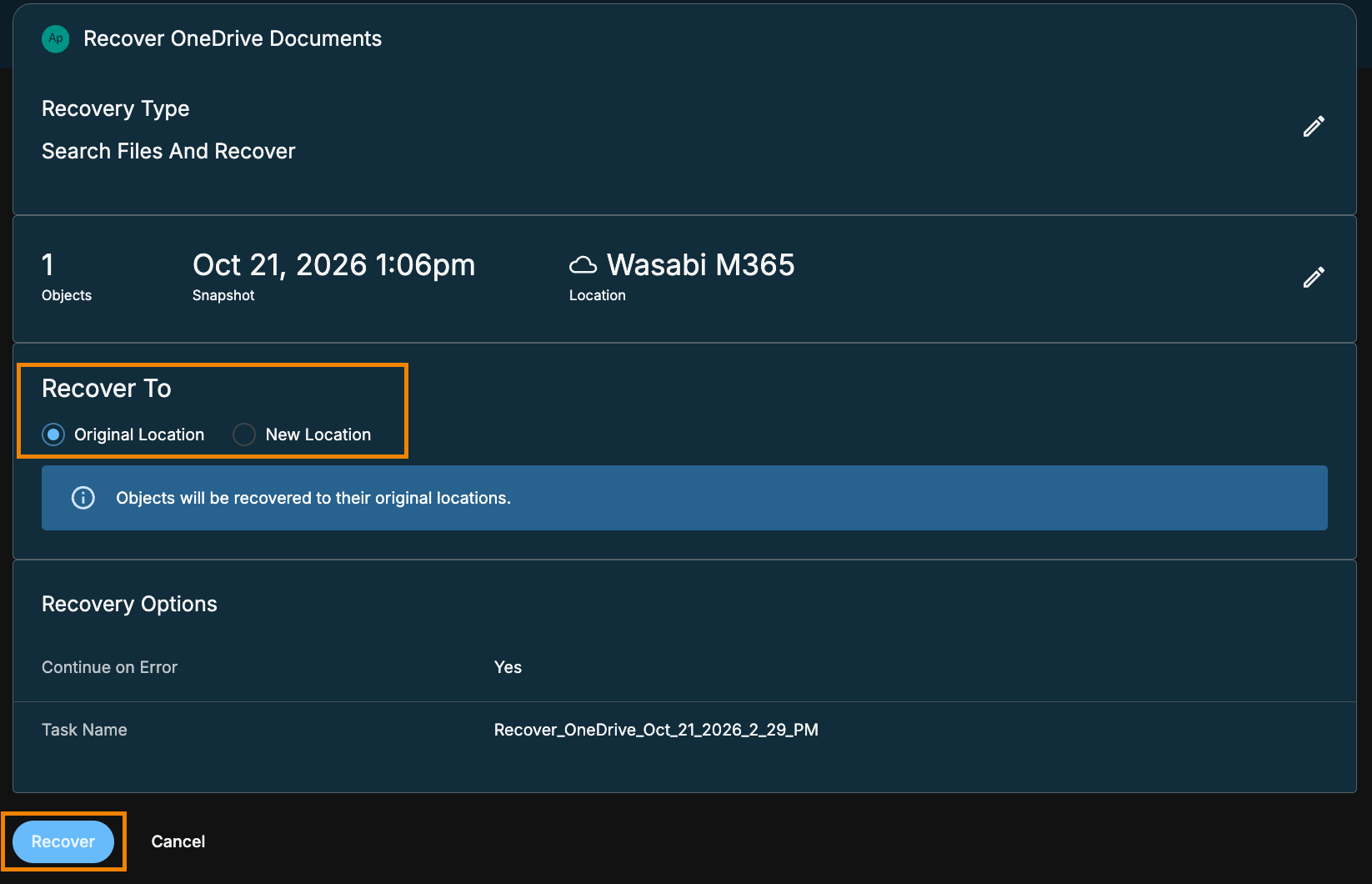
Select the Recover To location.
Click Recover.
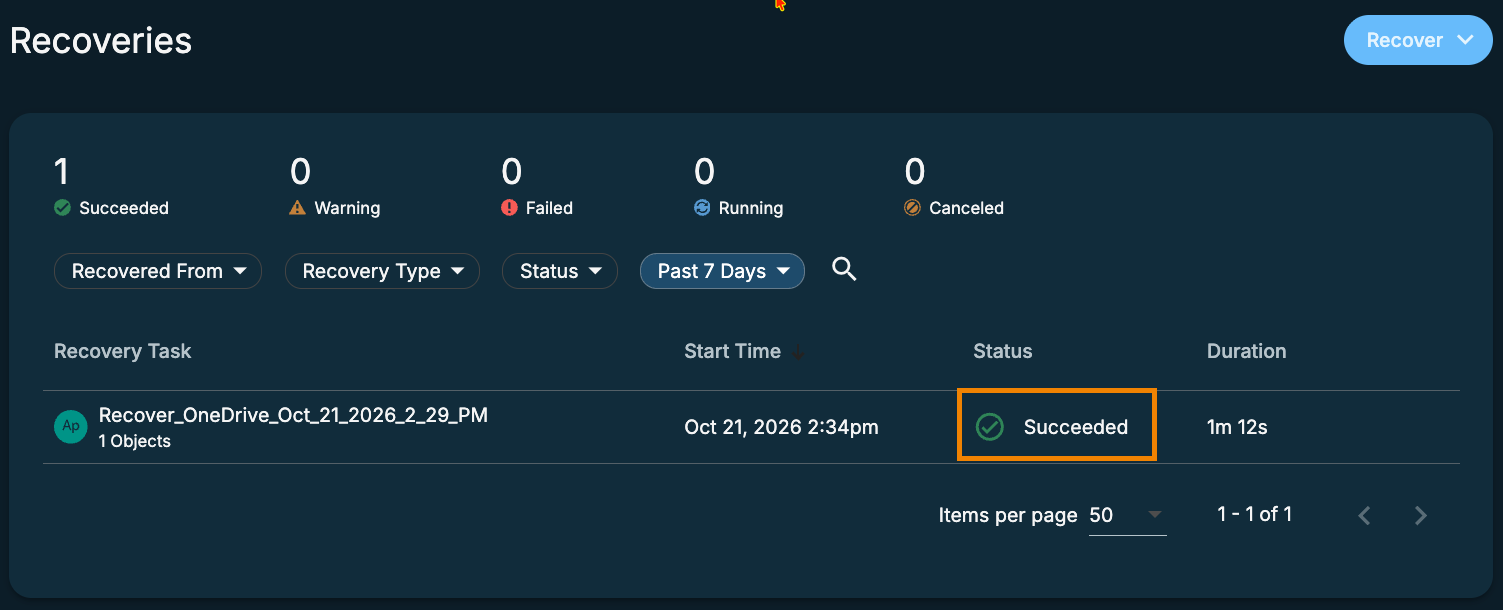
When the recovery is complete, the status will show as Succeeded. You may need to refresh the page to see an updated status.