Once the installation of the WSC software is complete, you will be presented with the Account Configuration Details screen to configure the ObjectScale account for activation, as shown below.
Activation and Configuration
In the WSC Account Configuration Details dialog, enter the account configuration details for Dell ObjectScale, which are provided below.
Email Address—Email address of the account.
VMS location–Select the local folder where the video recordings are located.
Wasabi Service URL—Enter one of the following service URLs, based on your proximity.
United States, East 1 (N. Virginia):
https://s3.us-east-1-dell-obs.wasabisys.com:9021United States, West 2 (California):
https://s3.us-west-2-dell-obs.wasabisys.com:9021United Kingdom, EU West 1 (United Kingdom):
https://s3.eu-west-1-dell-obs.wasabisys.com:9021
Access Key—Paste your access key.
Secret key—Paste your secret key.
Bucket Name—Enter a unique bucket name to create a new bucket in your account.
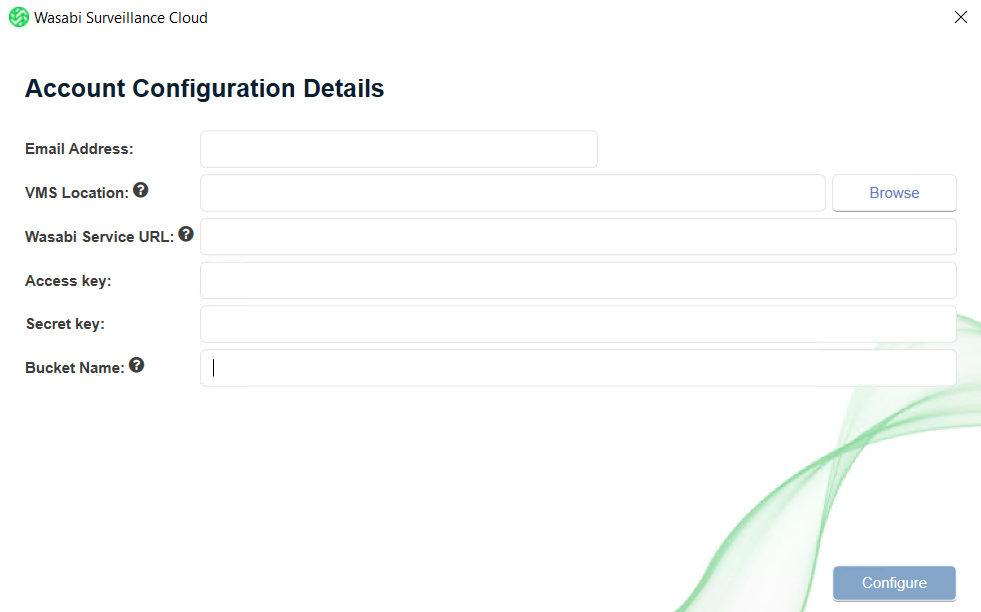
Click Configure.
Once the configuration is successfully applied, you will be presented with a Configuration Summary confirming the changes. Click Finish.
WSC is now configured and activated to replicate data.

Configuring Storage Extension Settings
To configure the storage extension and add additional sources, refer to Policies for Wasabi Surveillance Cloud.