Refer to the cautionary information in Bucket Management: Deleting.
Click
 to access options for the bucket you want to delete.
Click Delete. In this example, we will delete widget-project-logs.
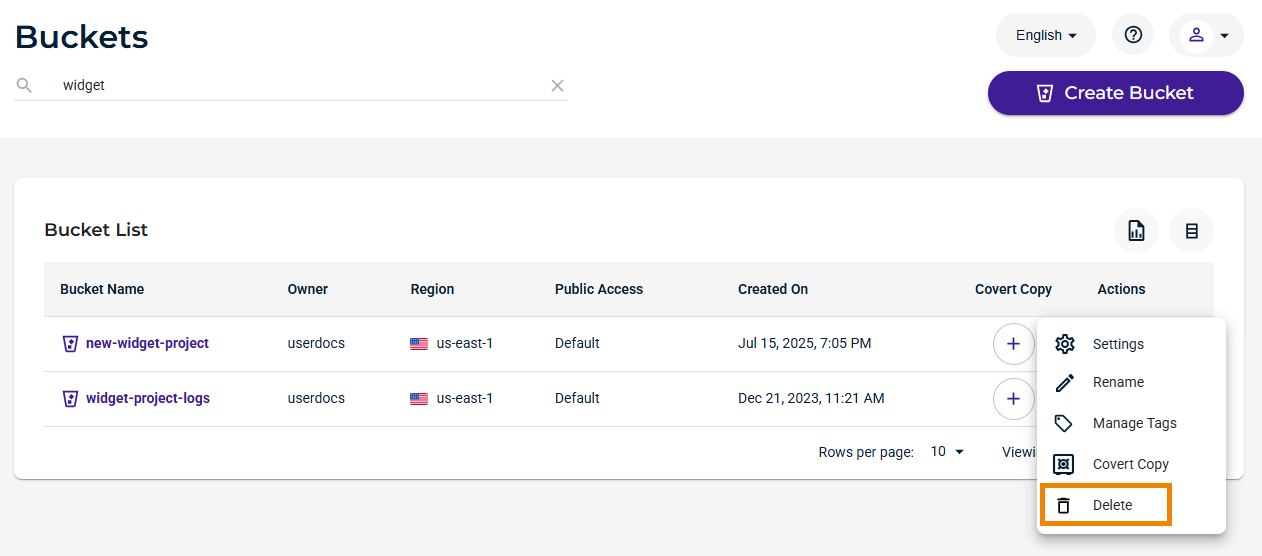
A message asks you to confirm that you want to delete the bucket. Do so cautiously because deleting a bucket removes all objects stored in the bucket. Type the name of the bucket to proceed.
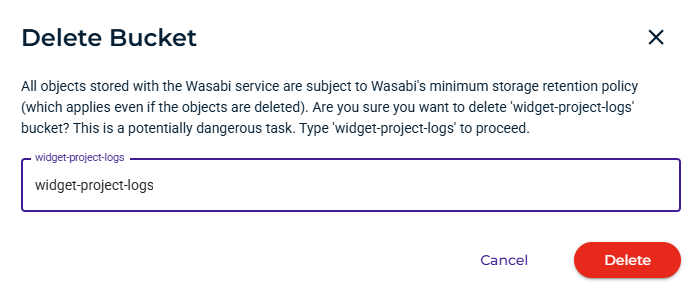
Click Delete if you are sure you want to delete the bucket (otherwise, click Cancel).
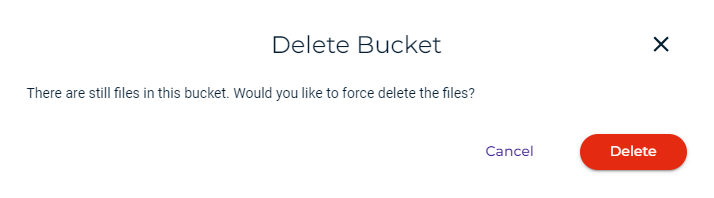
If there are still files in the bucket, a message requests that you click Delete if you want to delete all of the files.
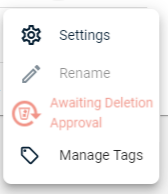
If the Multi-User Authorization (MUA) feature has been set for your account, a bucket deletion triggers a notification to a security contact who will need to approve the deletion within 15 minutes. In this case, the Delete option for the bucket changes to Awaiting Deletion Approval. Once approved, the bucket will be deleted.
If you attempt to delete a bucket that contains any object that has object enabled, this alert is displayed:
