Dell PowerScale is supported for use with Wasabi with Dell ObjectScale. Wasabi integrates with PowerScale using the CloudPools feature. CloudPools provides policy-based automated tiering, allowing you to seamlessly integrate with Wasabi as an additional storage tier for your PowerScale cluster. To utilize PowerScale with Wasabi with Dell ObjectScale, follow the instructions in this article.
Use case: Long-term retention in the cloud.
Requirements
The PowerScale external network is publicly routable.
Outbound port 9021 needs to be open to send traffic to Wasabi With Dell ObjectScale.
Select the appropriate Wasabi With Dell ObjectScale service URL, depending on your region.
Minimum PowerScale software release 8.0. and above is needed. Check with your Dell representative on the recommended release for CloudPools.
A CloudPool license for your PowerScale OneFS is needed.
An active Wasabi With Dell ObjectScale storage account is needed.
A Wasabi bucket is needed with a user for accessing the bucket using access and secret keys.
Configuring PowerScale OneFS
Once you log in to the PowerScale cluster, click File System. Then, click Storage Pools.
.png "Screenshot 2024-05-16 at 3.00.14 PM(1).png")
Click the CloudPools tab.

Click Create a Cloud Storage Account.

In the Create a cloud storage account window, input the required fields:
Name or alias—Enter a name for the cloud storage account to be used within the PowerScale Cluster.
Type—Select Dell EMC ECS Appliance.
URI—Set the URL to https://s3-nns.us-east-1-dell-obs.wasabisys.com:9021. To use a different Wasabi storage region, use the appropriate service URL.
User name—Set your Wasabi user access key as your User name.
Key (password)—Set your Wasabi user secret key as your Key (password).
Proxy—Select a proxy if you are using one; otherwise, leave this as the default No value.
Click Connect Account.
.png)
To create a CloudPool to point to Wasabi, click Create a CloudPool.

In the Create a CloudPool window, enter the following:
Name—Enter a name for the CloudPool.
Type—Select Dell EMC ECS Appliance from the list.
Vendor—Enter Wasabi.
Description—Enter a description for the CloudPool
Accounts in CloudPool—Select the cloud storage account that was created above.
Click Create a CloudPool.
.png)
Once the cloud pool account is created, create a file pool policy to move the desired files to Wasabi.
Click File pool policies. Click Create a file policy.

Enter the details for creating the file pool policy:
Policy name—Enter a name for the policy.
Description—Enter an appropriate description.
File matching criteria—In the example below, the criteria are applied to a specific path and files accessed older than 30 days. This is essentially any file in the given path that has not been accessed for the last 30 days and will be moved to the CloudPool.

Scroll to the bottom of the File policy screen and select Move to cloud storage. Set the value to wasabi.
Optionally, you can choose to encrypt or compress the data before transfer. Refer to your PowerScale OneFS guide for more information about these features.
Configure data caching and retention period in the cloud. For more details on local data cache and data retention for CloudPools, refer to the PowerScale OneFS guide for more information.
Click Create policy.
.png "Screenshot 2024-06-26 at 10.58.38 AM(1).png")
PowerScale OneFS, by default, is configured to run the smart pools job every day at 10 PM. To manually invoke a data transfer to the CloudPool, navigate to Cluster management. Select Job operations.

Click Job types.

Scroll down to Smart Pools and click Start job to manually invoke an upload to Wasabi.

To edit the CloudPool job schedule, click View/Edit and configure the schedule.

Viewing CloudPool Data on Wasabi and PowerScale
Below are two ways to confirm PowerScale CloudPool data has been uploaded to Wasabi.
Example One
PowerScale creates two buckets, one for metadata and a second bucket for data. The bucket that starts with the name "d00" contains the data. The bucket that starts with the name "m00" contains metadata.
Metadata bucket:

Data bucket:

Contents from the data bucket:

Example Two
From the PowerScale command line, you can run a get command to view details of the directory path that was added in the file pool policy:wasabi-98-1# isi get -DD /ifs/home/cp-test2 | more
Expected output is:
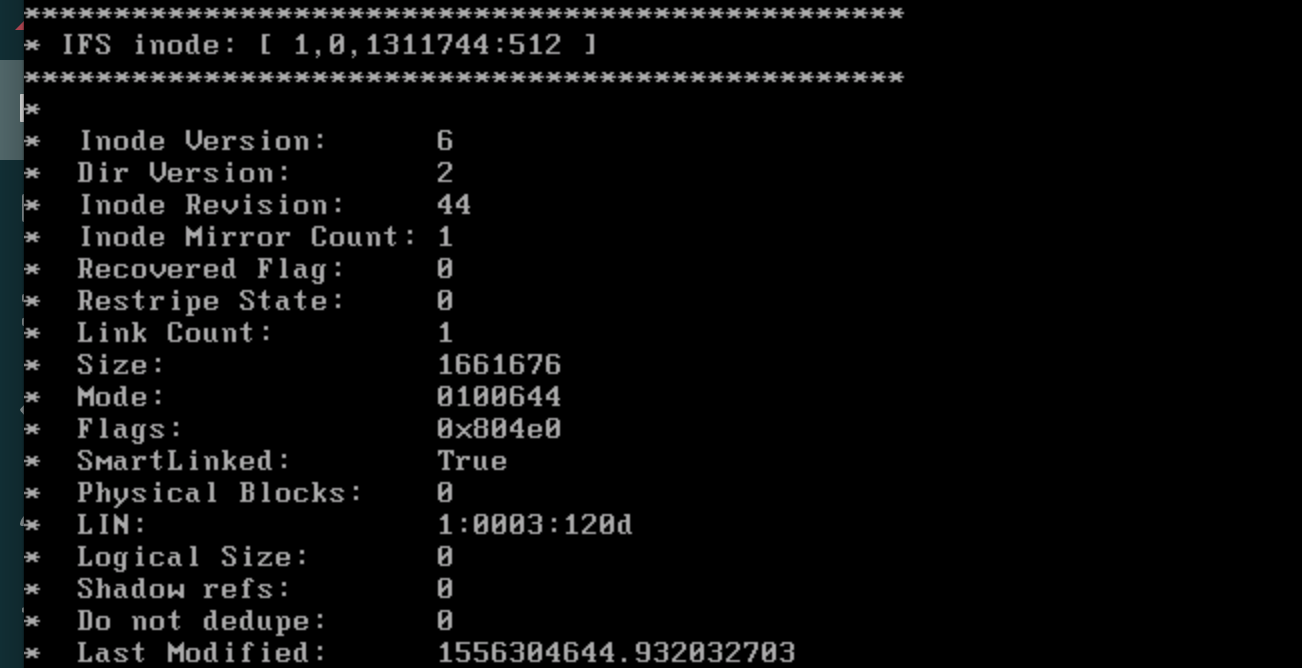
If the value is set to True in SmartLinked, the file data has been stubbed and uploaded to Wasabi.