Panzura Symphony is a data services platform designed to manage and orchestrate unstructured data across hybrid multi-cloud environments, with capabilities central to both AI readiness and active archiving. Wasabi has been validated for use with Symphony. Symphony is a data insight, mobility, and metadata extraction software solution that provides granular control of on-prem and cloud-based unstructured datasets. To use this product with Wasabi, follow the instructions below.
Requirements
Symphony version 2025.1u1
Active Wasabi Cloud Storage Account
Wasabi Object Lock Enabled Bucket — See our Bucket Creation Guide
Access and Secret Key Pair — See our Access Keys Guide
Reference Architecture Diagram
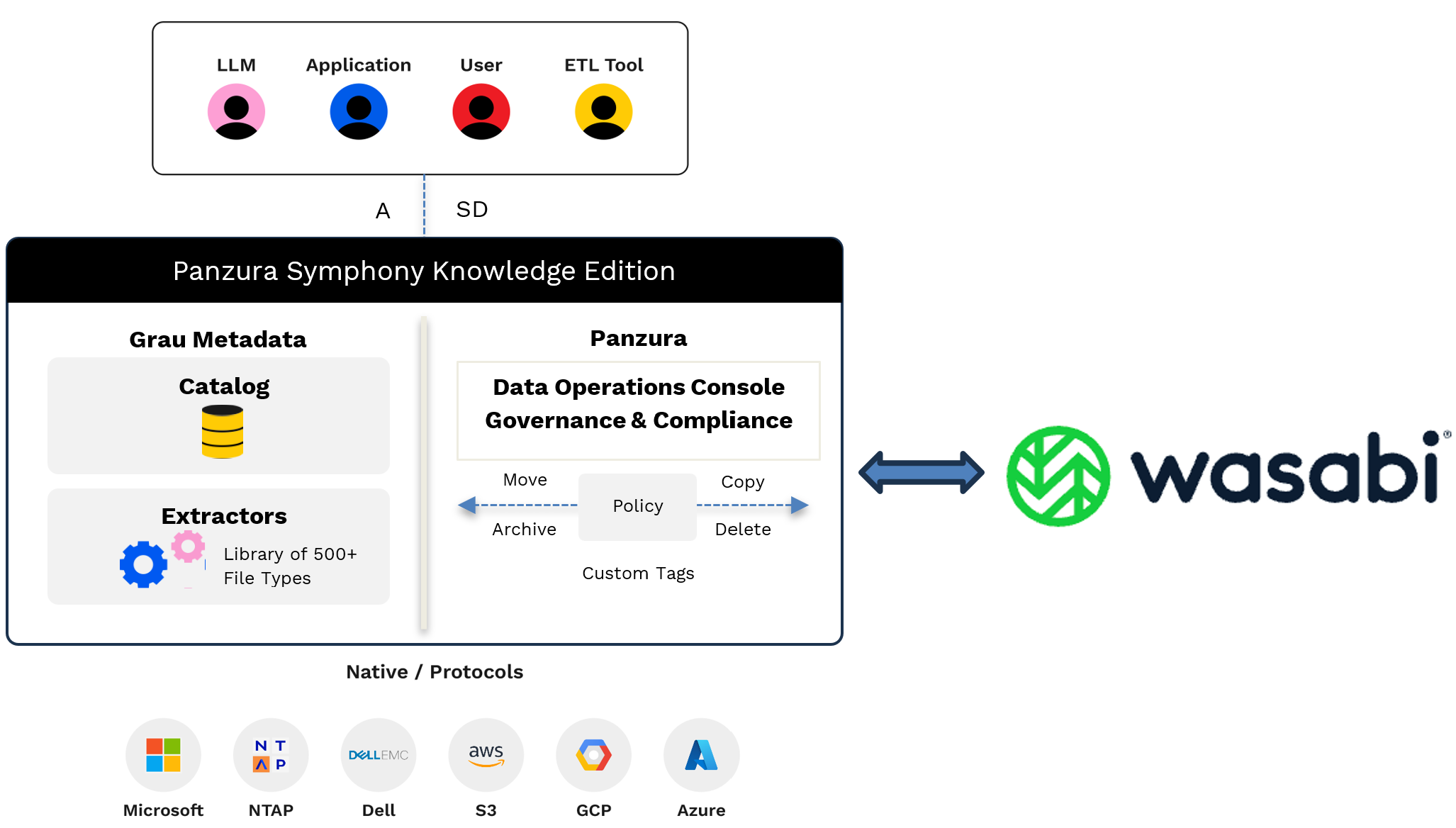
System Overview
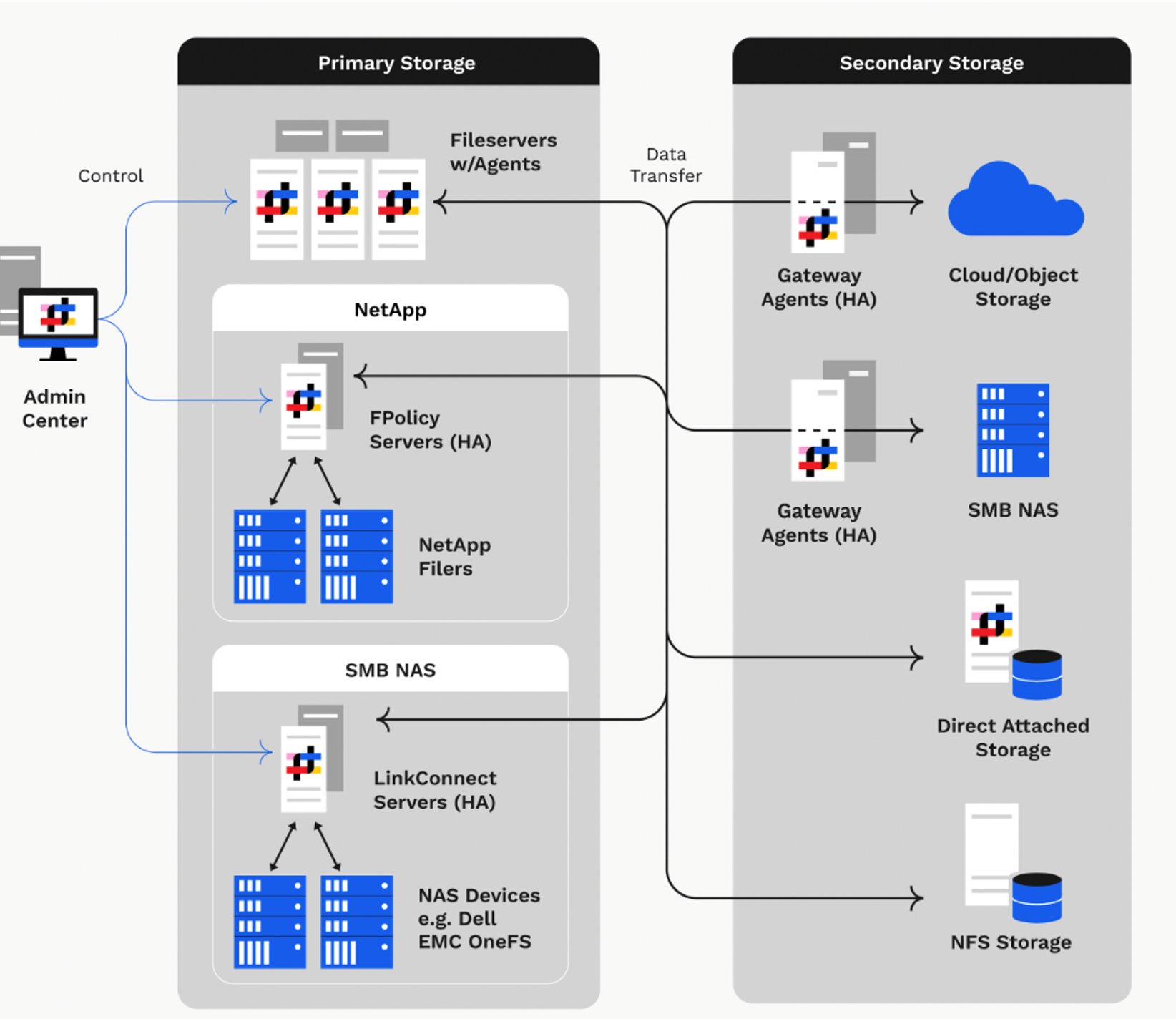
Configuration
The steps outlined below are current as of version 2025.1u1 and may change in future releases. For the most up-to-date information, refer to the Administration Guide available at https://know.panzura.com/symphony/administration-guide.
Enable S3 plugin on the gateway
Log in to the Symphony Admin Center. Navigate to the Servers tab and click  to expand the Server Details pane.
Click  (the Configuration icon).
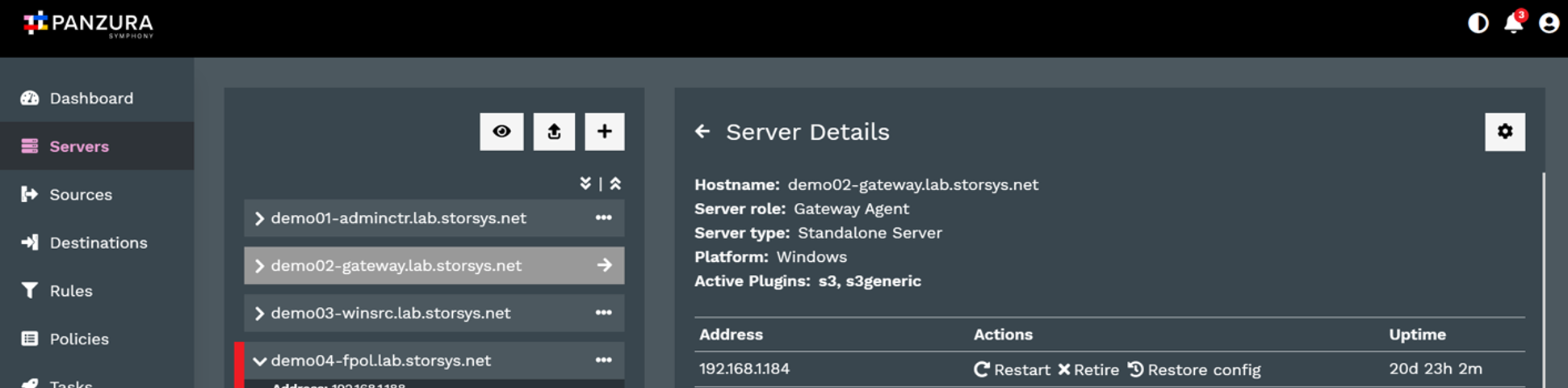
Expand the Available Plugins tab and select Wasabi Object Storage.
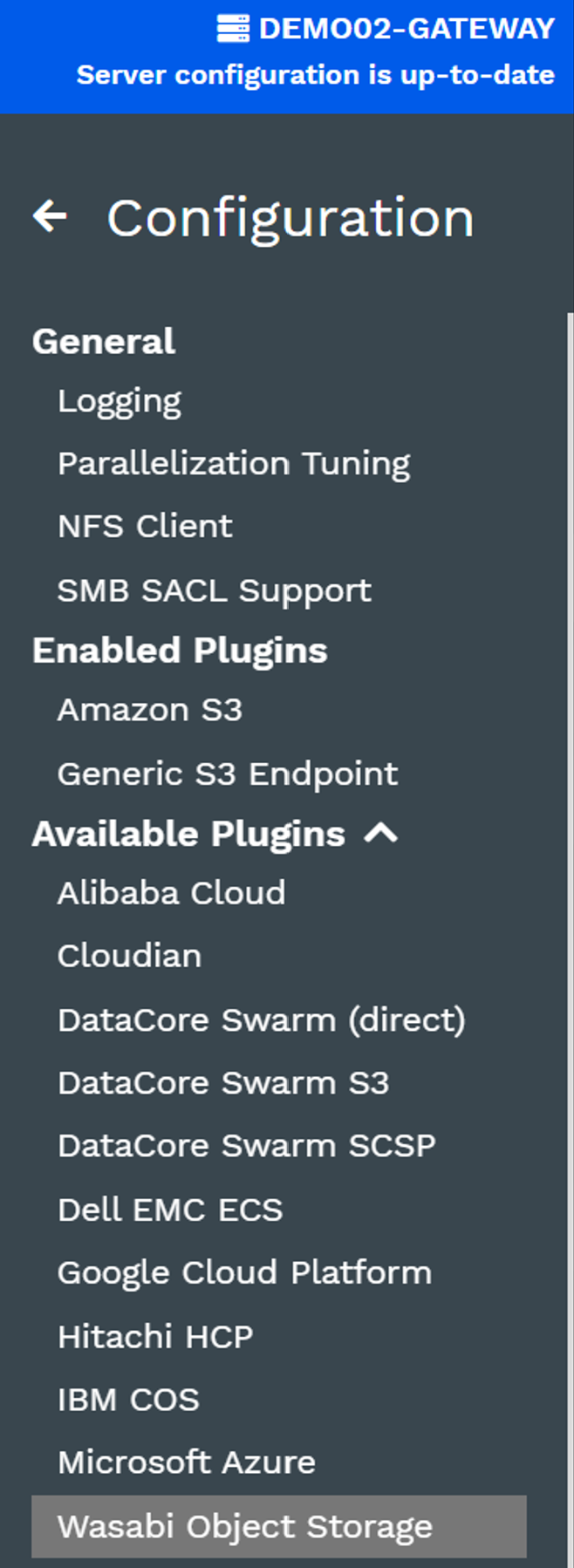
Enter the appropriate details in Plugin Configuration and Encryption.
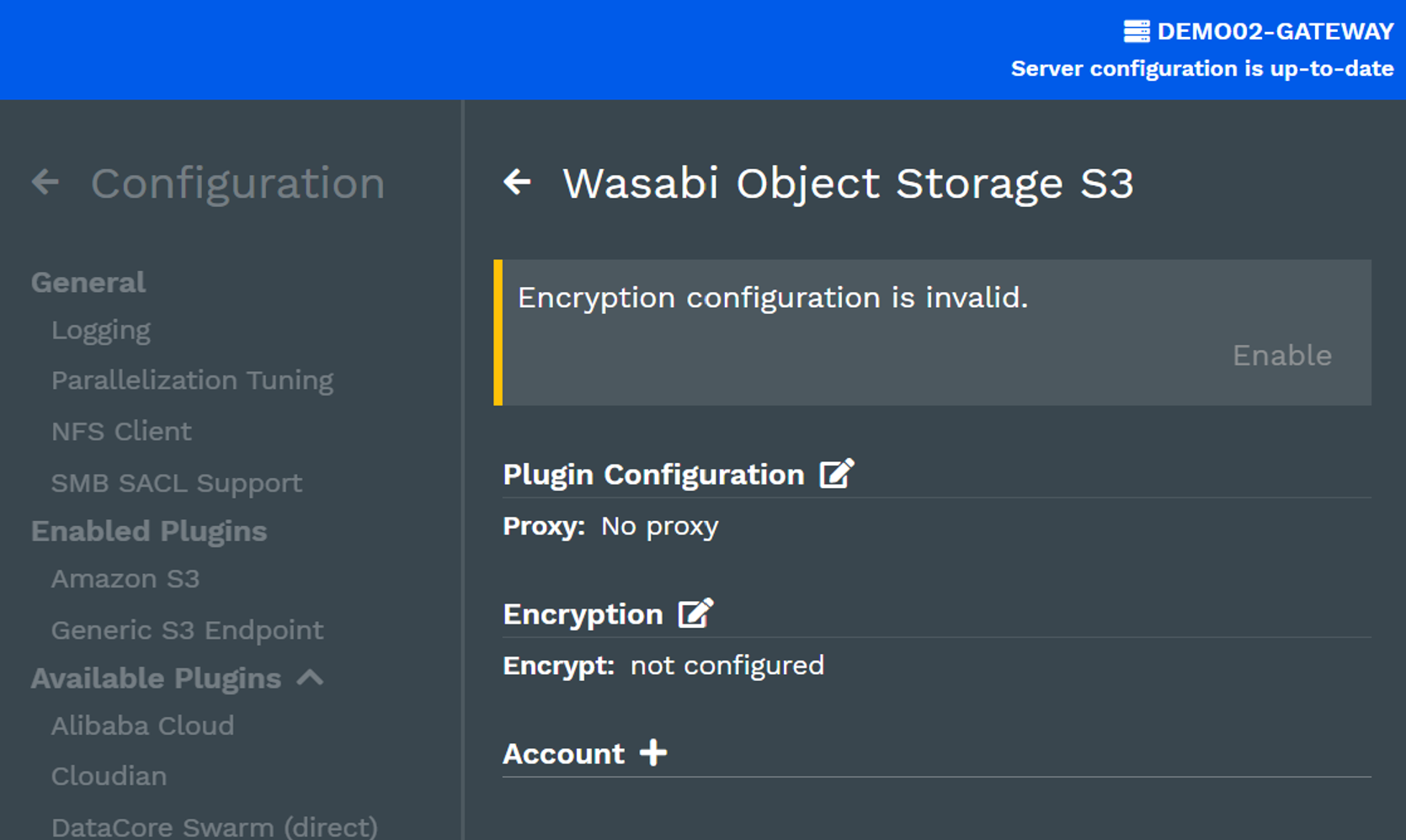
If an outbound Proxy is required, enter it under Plugin configuration. Then, configure Encryption to safeguard your data in the cloud.
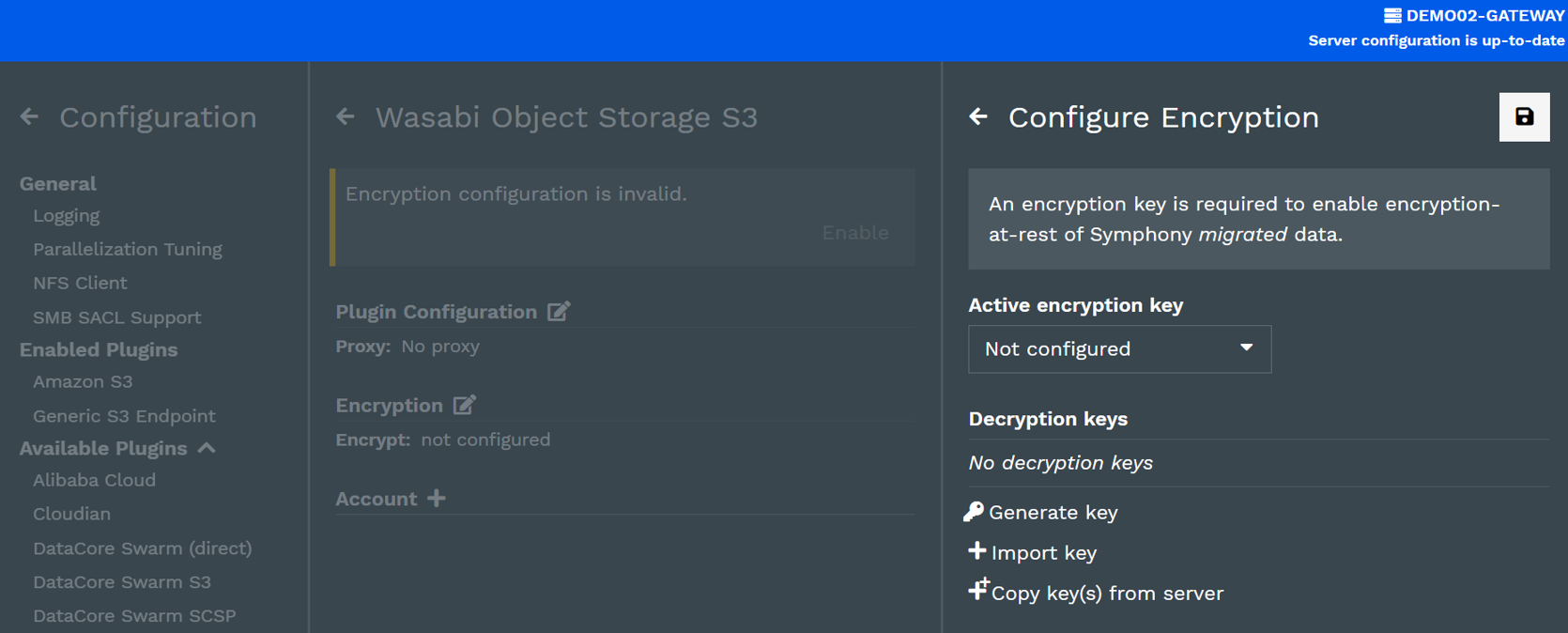
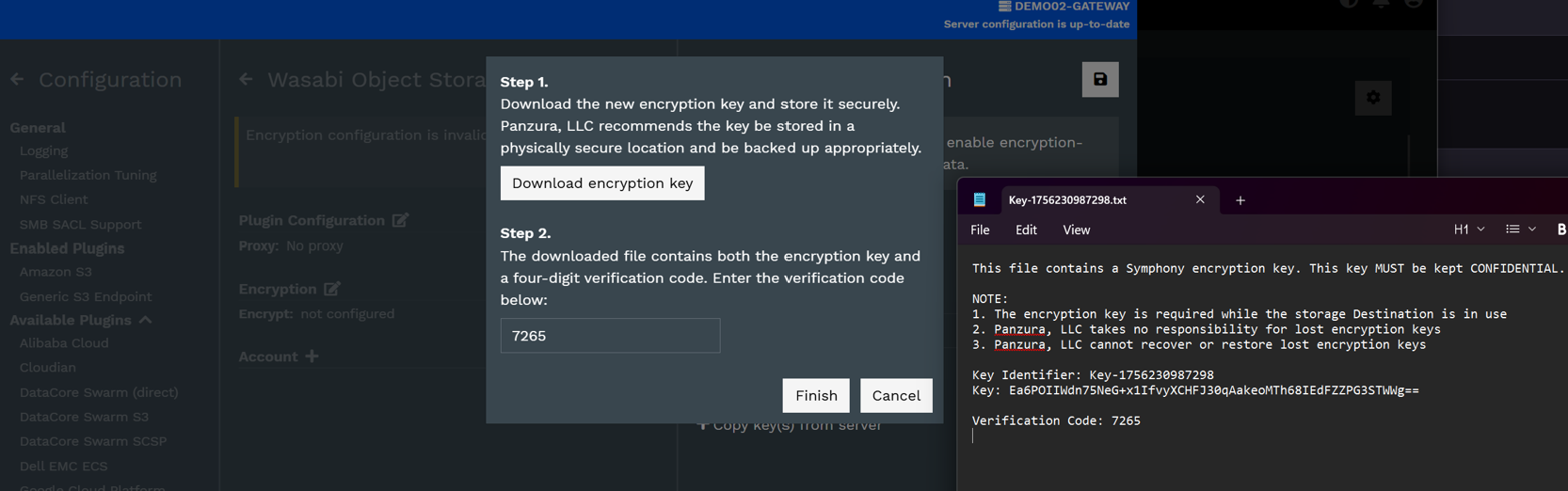
Select Generate Keys and follow the instructions.
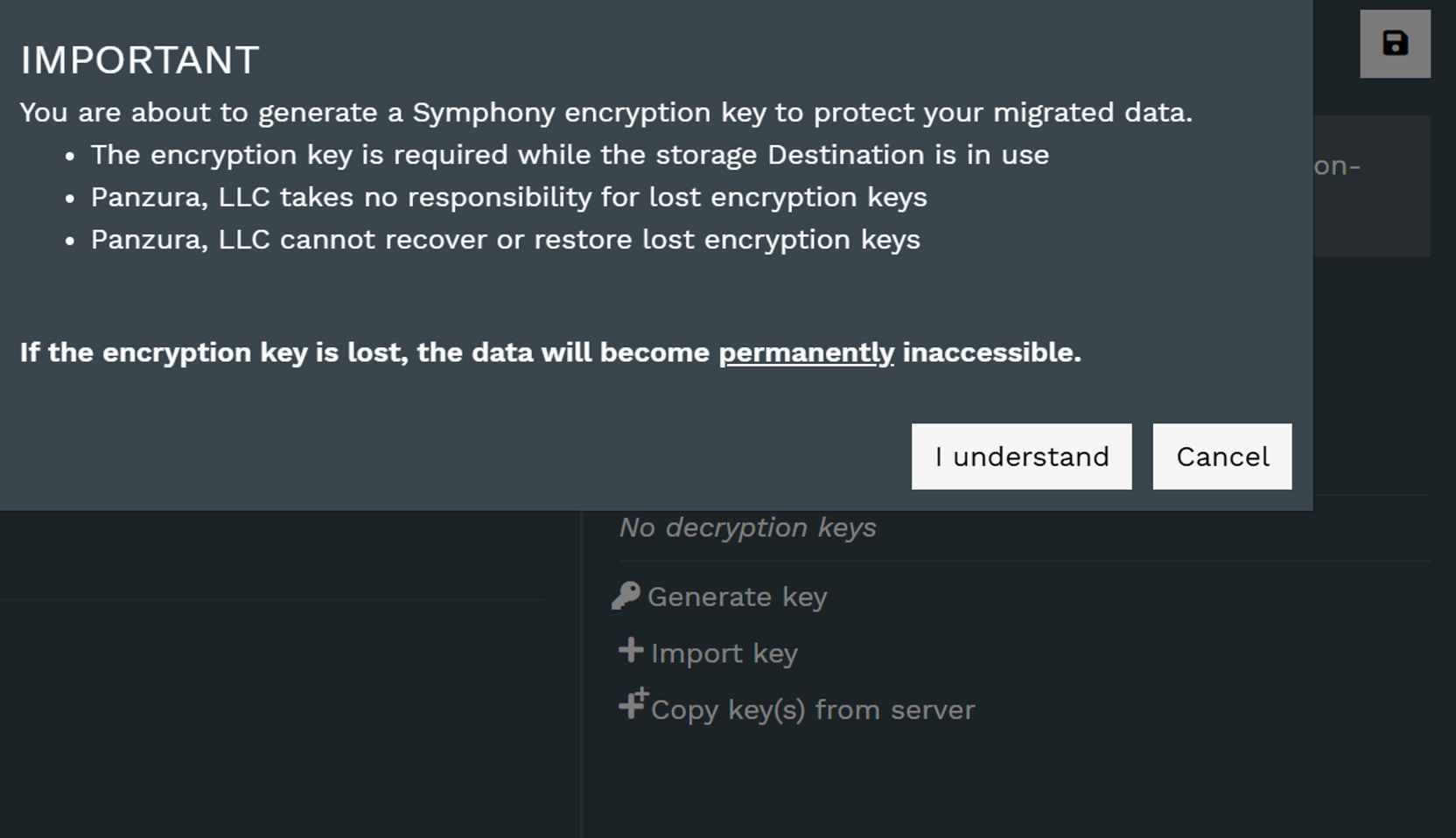
It is paramount that the provided Key file is safeguarded. It will be needed if you need to reinstall Symphony. Without it, all data becomes useless. Panzura cannot provide a decryption key if you lose it!
Copy the Verification Code from the Key-File and click Finish.
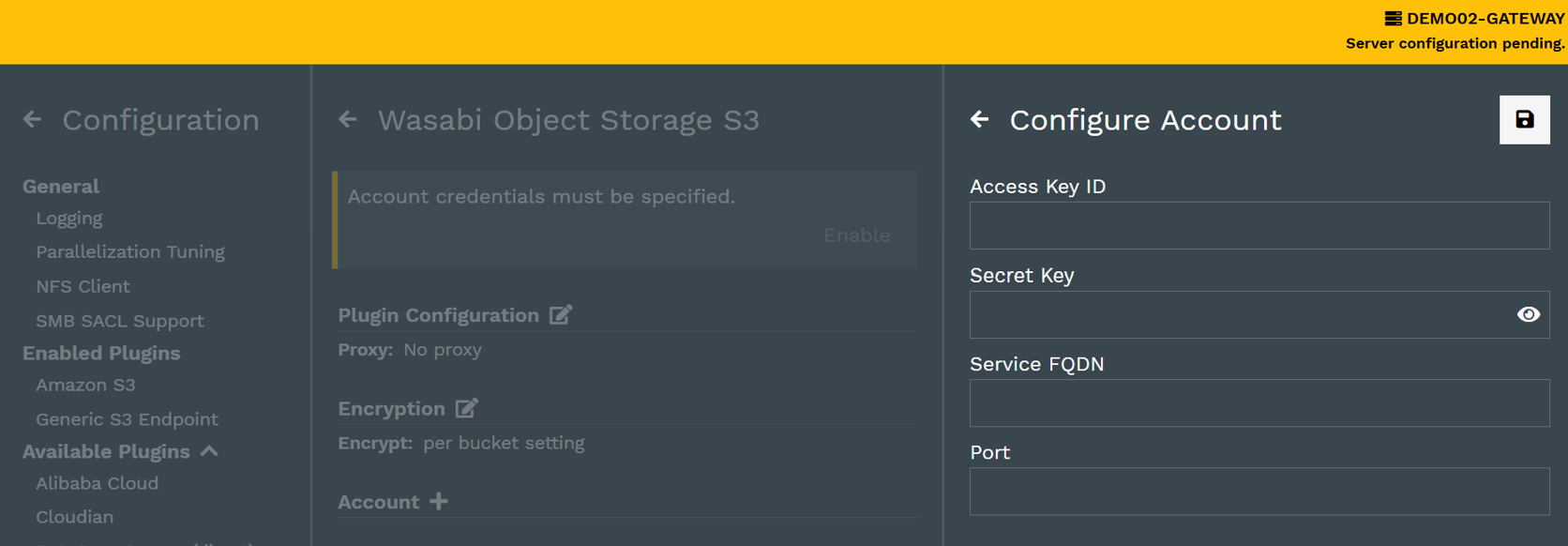
Enter the Wasabi connection details under Account.
Access Key ID—Input your Wasabi Access Key
Secret Key—Input your Wasabi Secret Key
Service FQDN—Input the Wasabi Service Region URL where you created your bucket
Port—Set the port to 443
Save the settings by clicking the Save icon. A server restart will be required at this point.
Configure Wasabi as a Destination
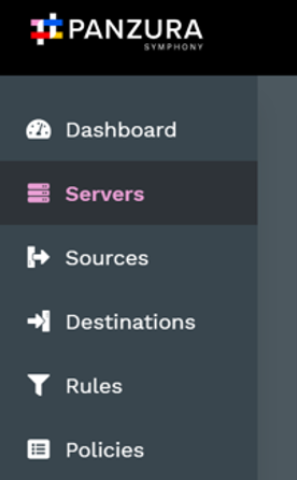
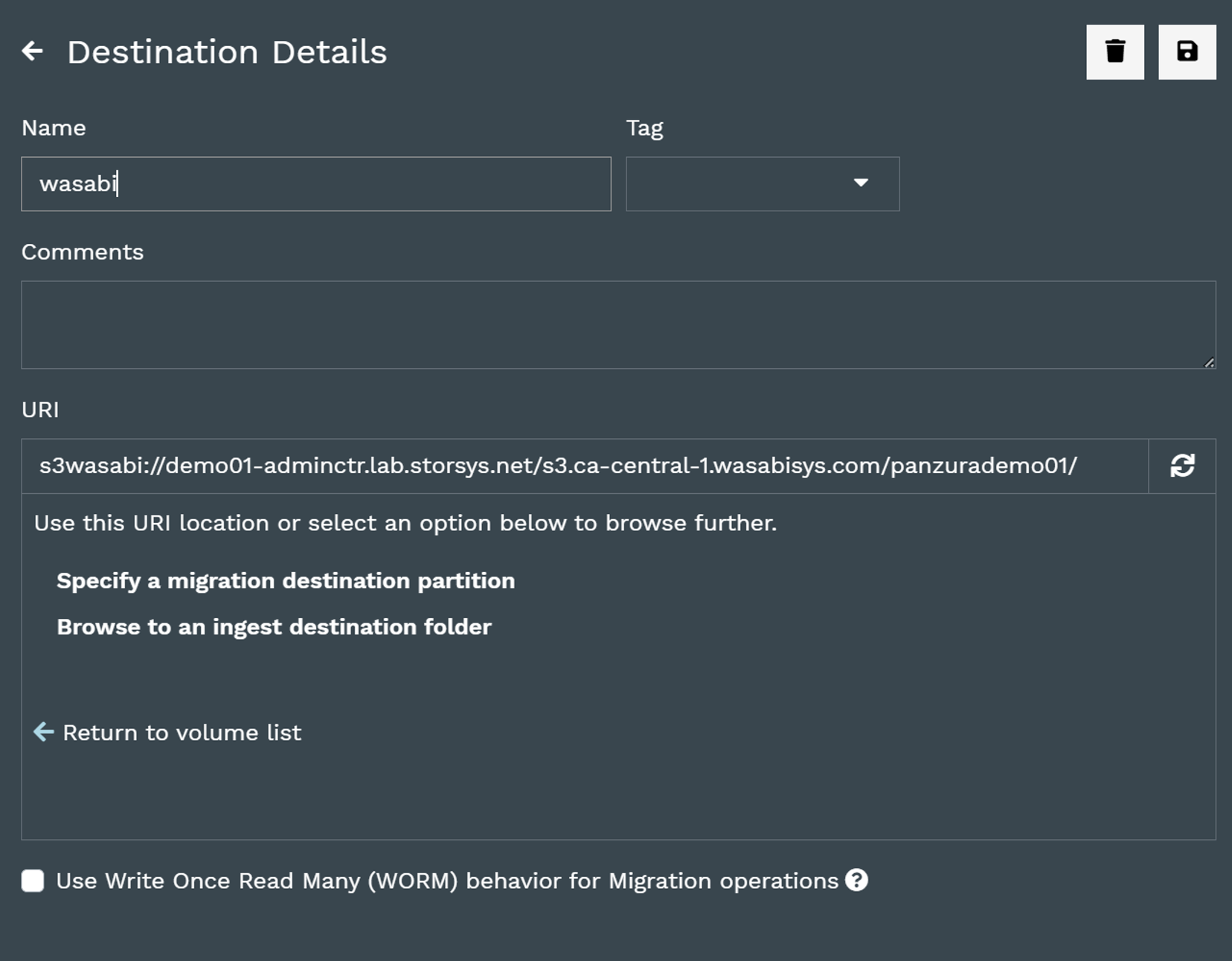
To configure a Wasabi Destination, select the destination tab in Symphony Admin Center and then the + to add a new Destination.
Enter a Name for the Destination and select s3wasabi for the URI.
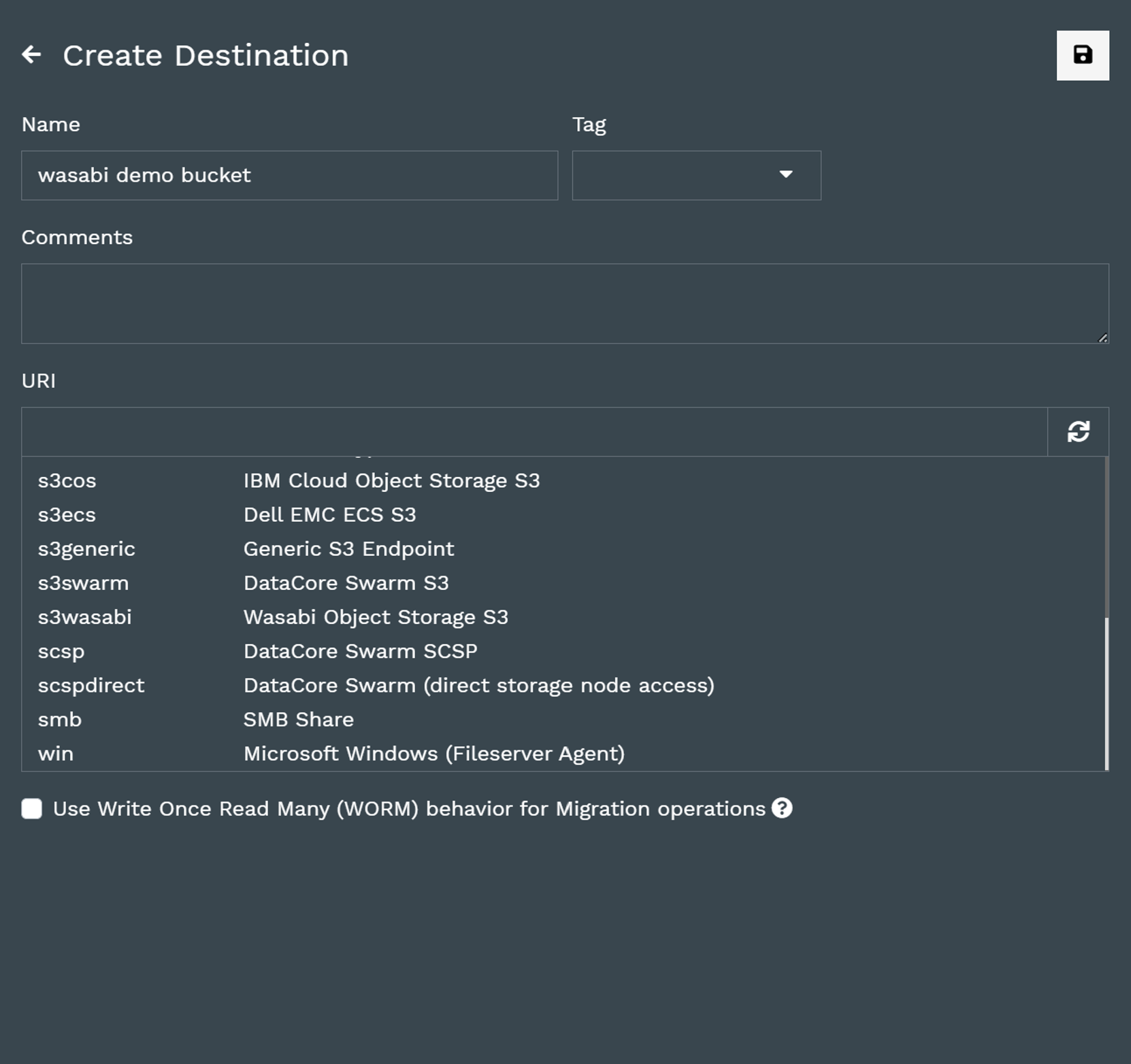
The URL field is populated with s3wasabi:// and needs to be completed with the FQDN of the Gateway Agent with the S3 plugin, the FQDN of the service endpoint, and the desired Wasabi bucket name in the format below
s3wasabi://gatewayagentfqdn//wasabiserviceendpointfqdn/bucketname/
For example:
s3wasabi://mwdemo-ch2.mwdemo.local/s3.eu-central-1.wasabisys.com/mw-sddemo-test/
Save the definition.
Configure a Tiering Operation
To archive data, you need to specify rules and policies.
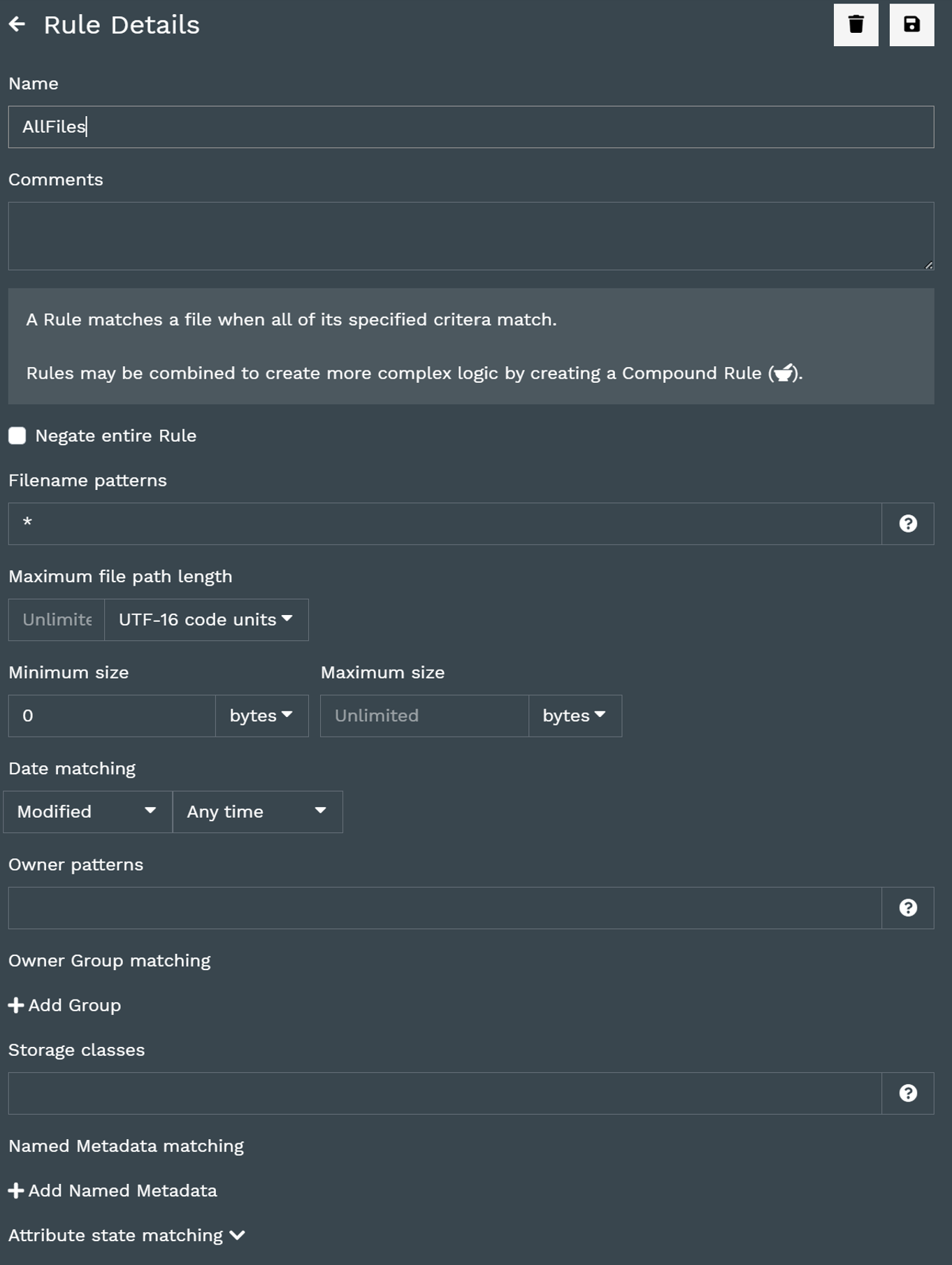
To add a rule, select the Rules tab in Admin Center and then the plus sign to add a new Rule.
Define the set of files you want to manipulate (for example, all files older than 6 months, all PDFs larger than 1GB).
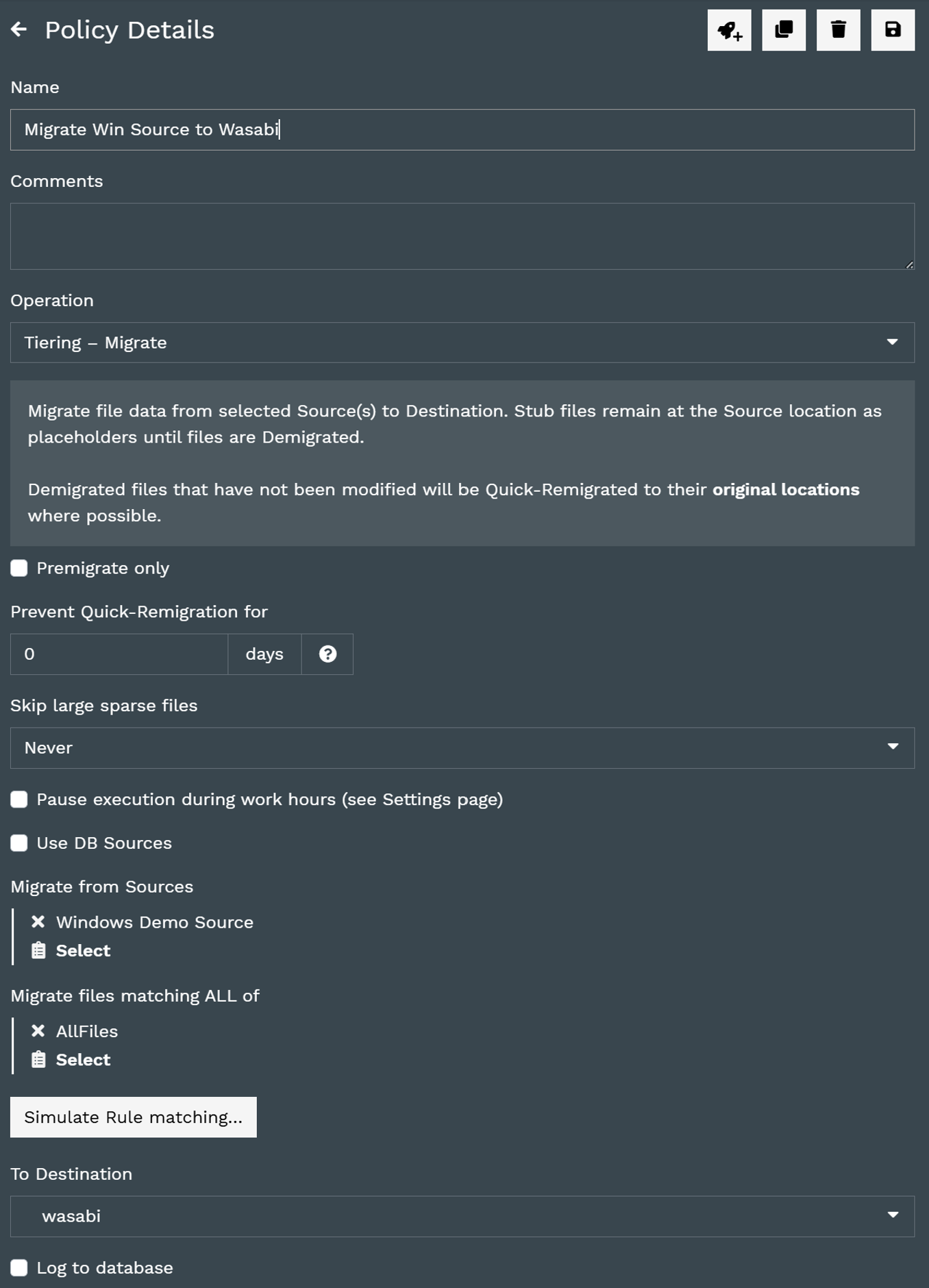
Select the Policies tab and then the + to add a new Policy. Select from the provided list of Operations (most commonly used are migrate and copy).
Create a task to execute the Policy at scheduled intervals or on an ad hoc basis.
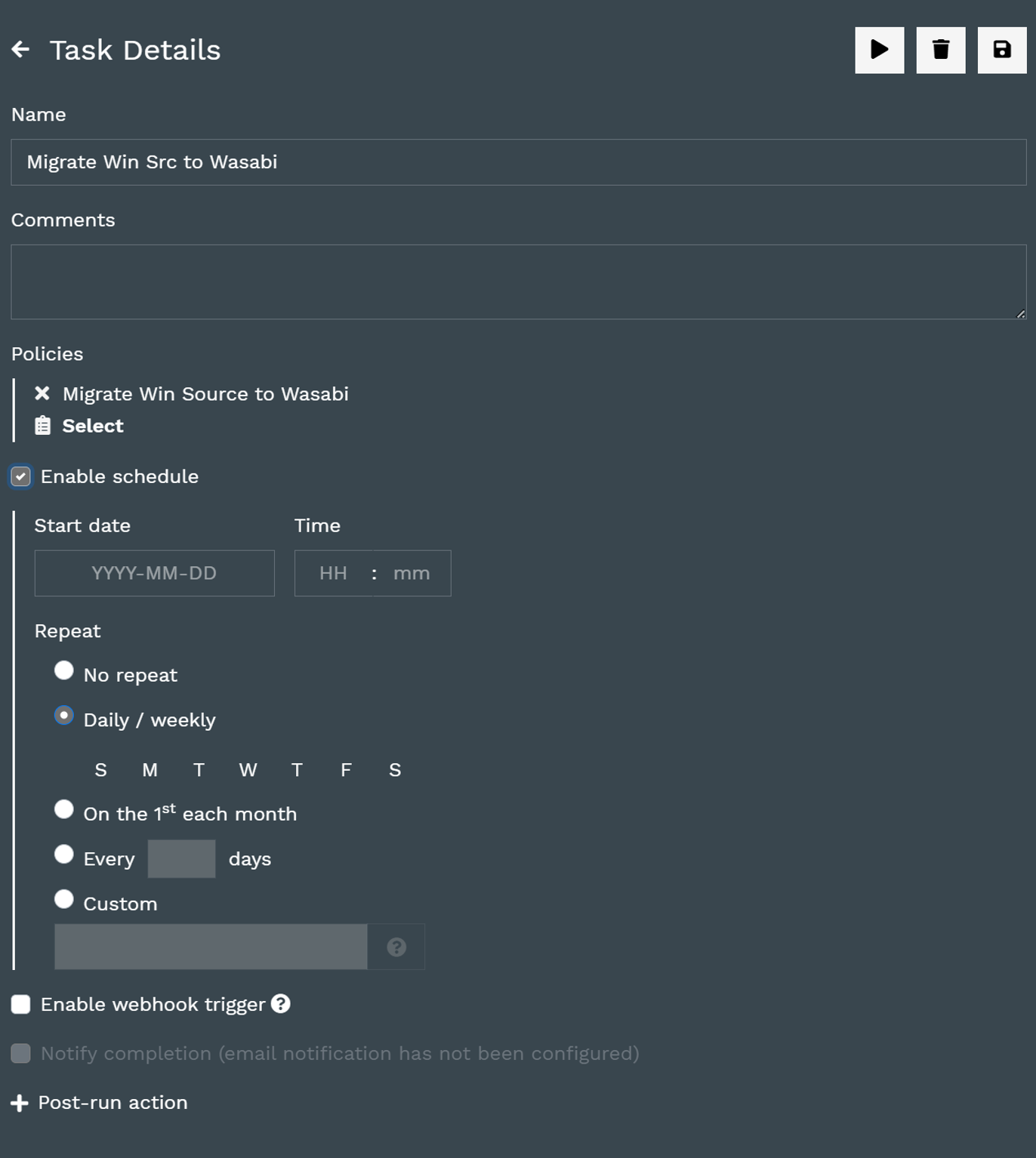
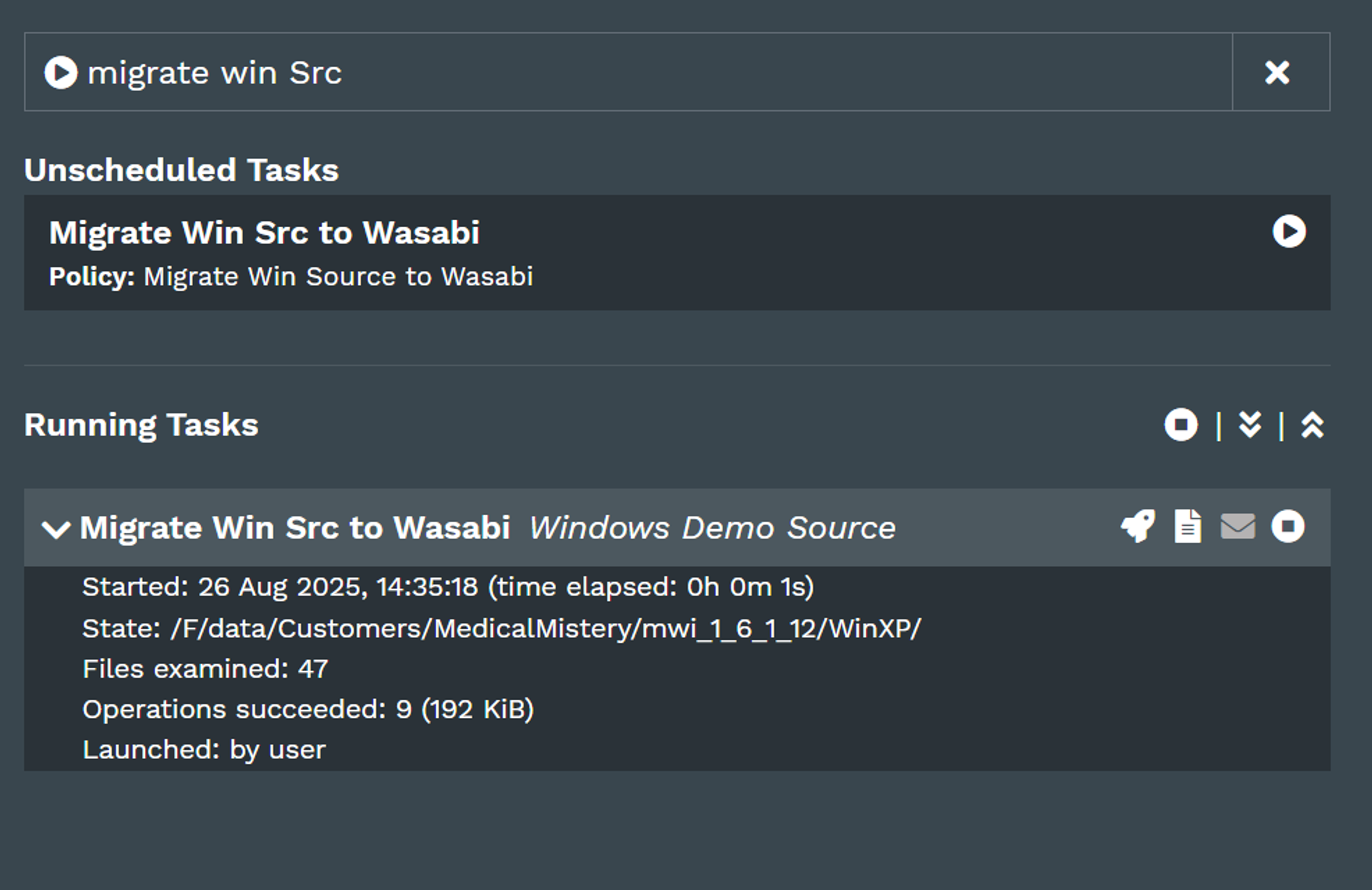
Tasks can be run at scheduled intervals or ad hoc from the Dashboard’s Running Tasks Widget.
Select the Task and watch your data archive to Wasabi.