Overwatch by Logic Insight is an on-premise observability appliance that provides unified monitoring, alerting, and analytics for Nutanix hyperconverged infrastructure and Wasabi Hot Cloud Storage, delivering real-time visibility into Wasabi bucket utilization, API activity, IAM posture, and contract compliance from a single pane of glass.
This article describes the procedure for configuring Overwatch to work with Wasabi Hot Cloud Storage.
Requirements
Active Wasabi Cloud Storage Account.
Overwatch v2025.01 or later. The Wasabi engine collector is included in all Overwatch appliance builds and requires no additional installation. Runs on Ubuntu 24.04 LTS as a Docker-based microservice.
A Wasabi IAM Access Key and Secret Key with read permissions (ListBuckets, GetBucketTagging, GetBucketVersioning, GetObjectLockConfiguration, and access to the Wasabi Stats API and IAM API).
Network connectivity from the Overwatch appliance to Wasabi S3 endpoints (s3.{region}.wasabisys.com), Stats API (stats.wasabisys.com), Billing API (billing.wasabisys.com), and IAM endpoint (iam.wasabisys.com) over HTTPS TCP port 443.
Configuring Overwatch
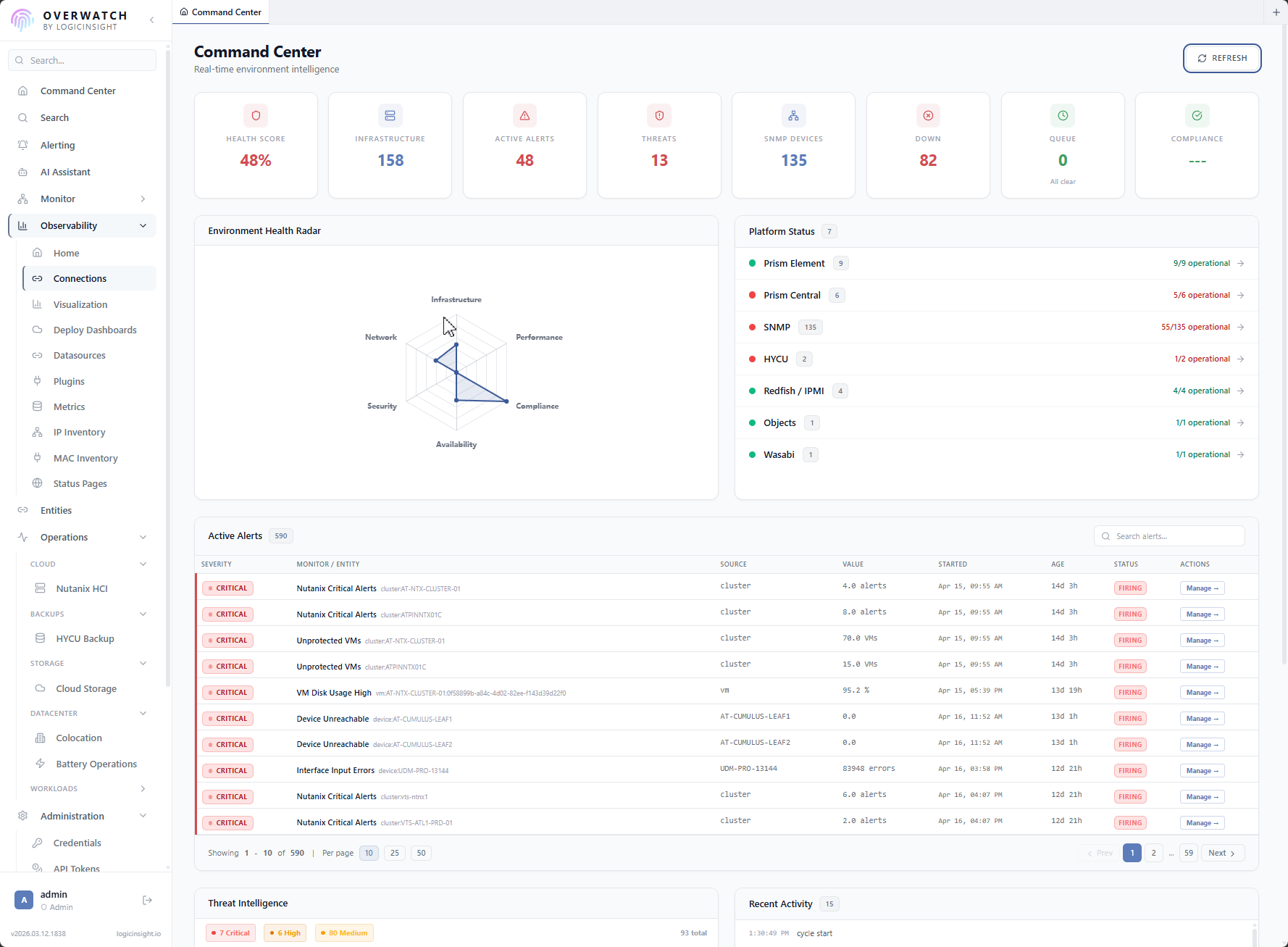
The Overwatch Overview page shows all registered infrastructure at a glance. Wasabi Storage appears under the Infrastructure section showing 1 account Online with 0 Issues.
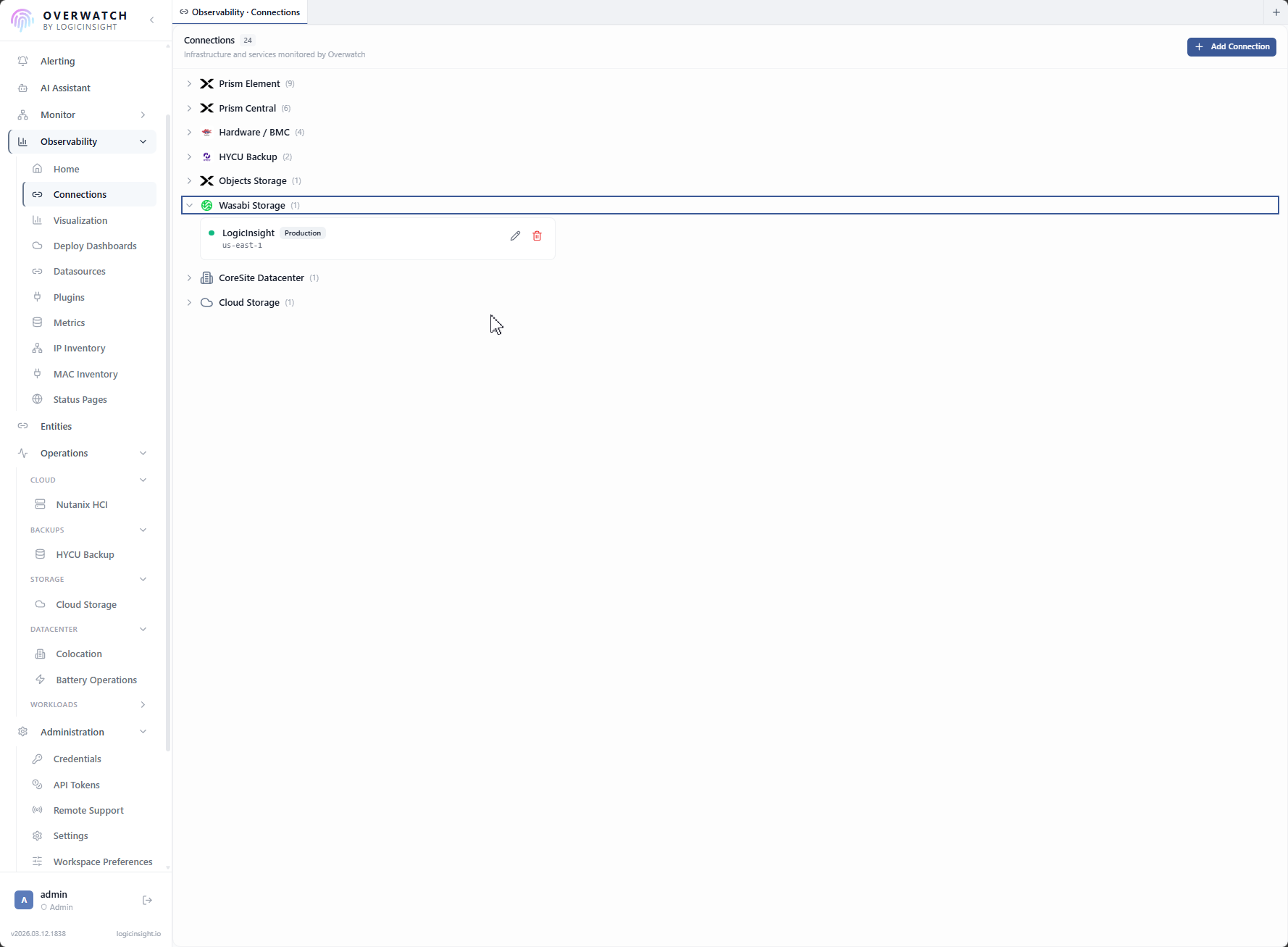
Navigate to Observability > Connections. The Connections page lists all registered infrastructure grouped by type. Wasabi Storage (1) is visible in the list alongside Nutanix, Hardware/BMC, HYCU, and Objects Storage connections.
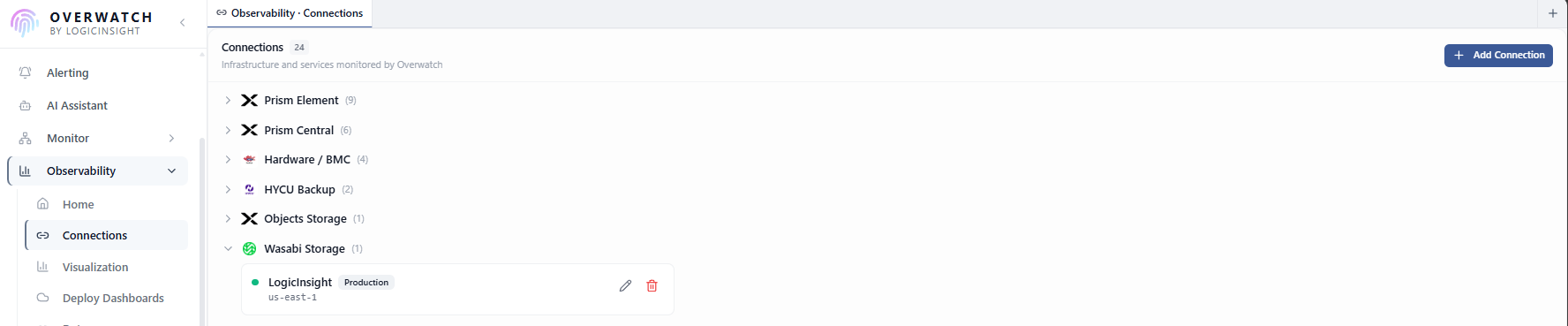
Click to expand the Wasabi Storage section to show the registered account (Logic Insight) in the Production environment with region us-east-1. Edit and delete actions are available per account.
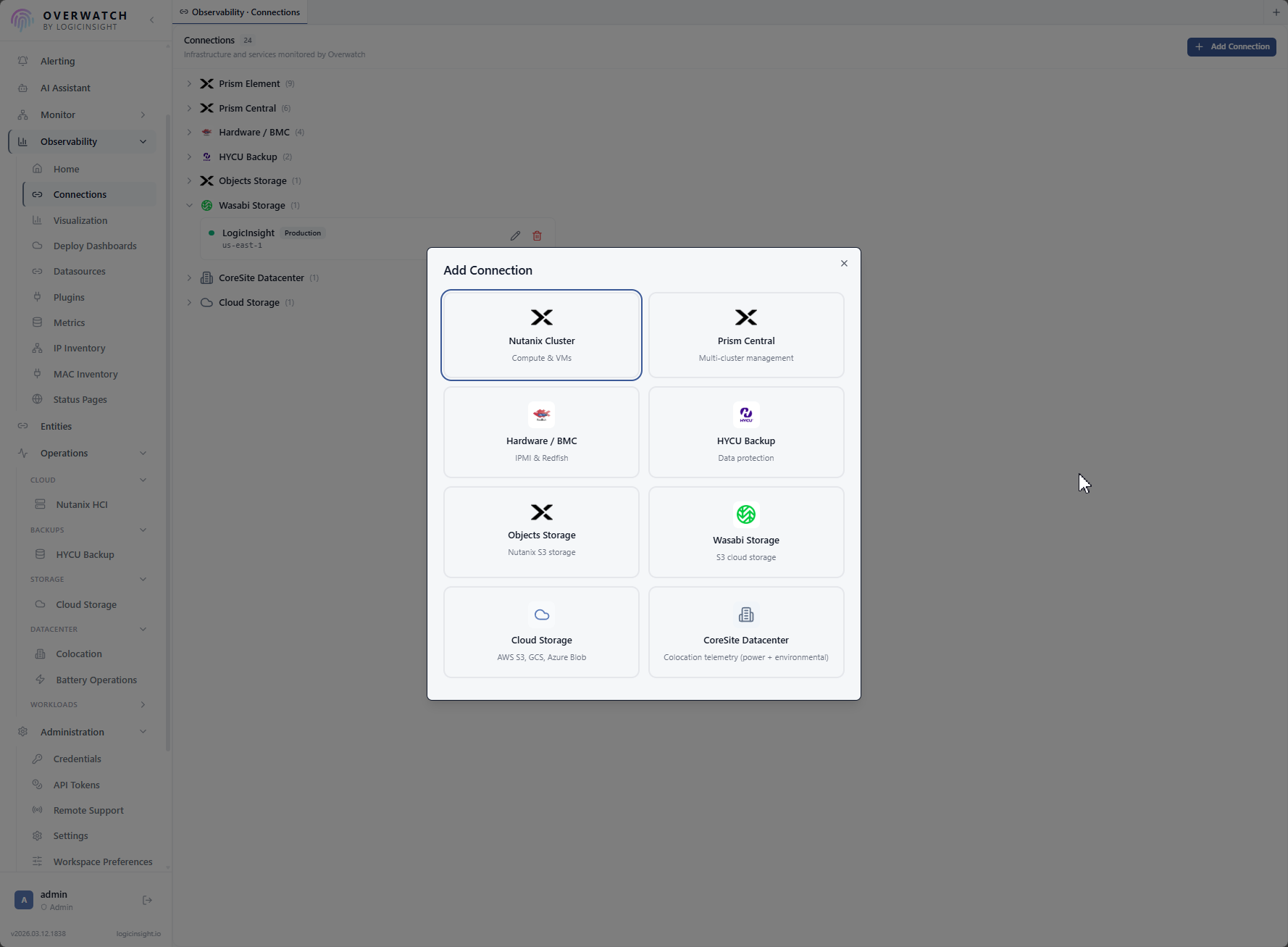
Click Add Connection to open the connection type wizard. Wasabi Storage is one of six supported connection types, each with a dedicated icon and description.
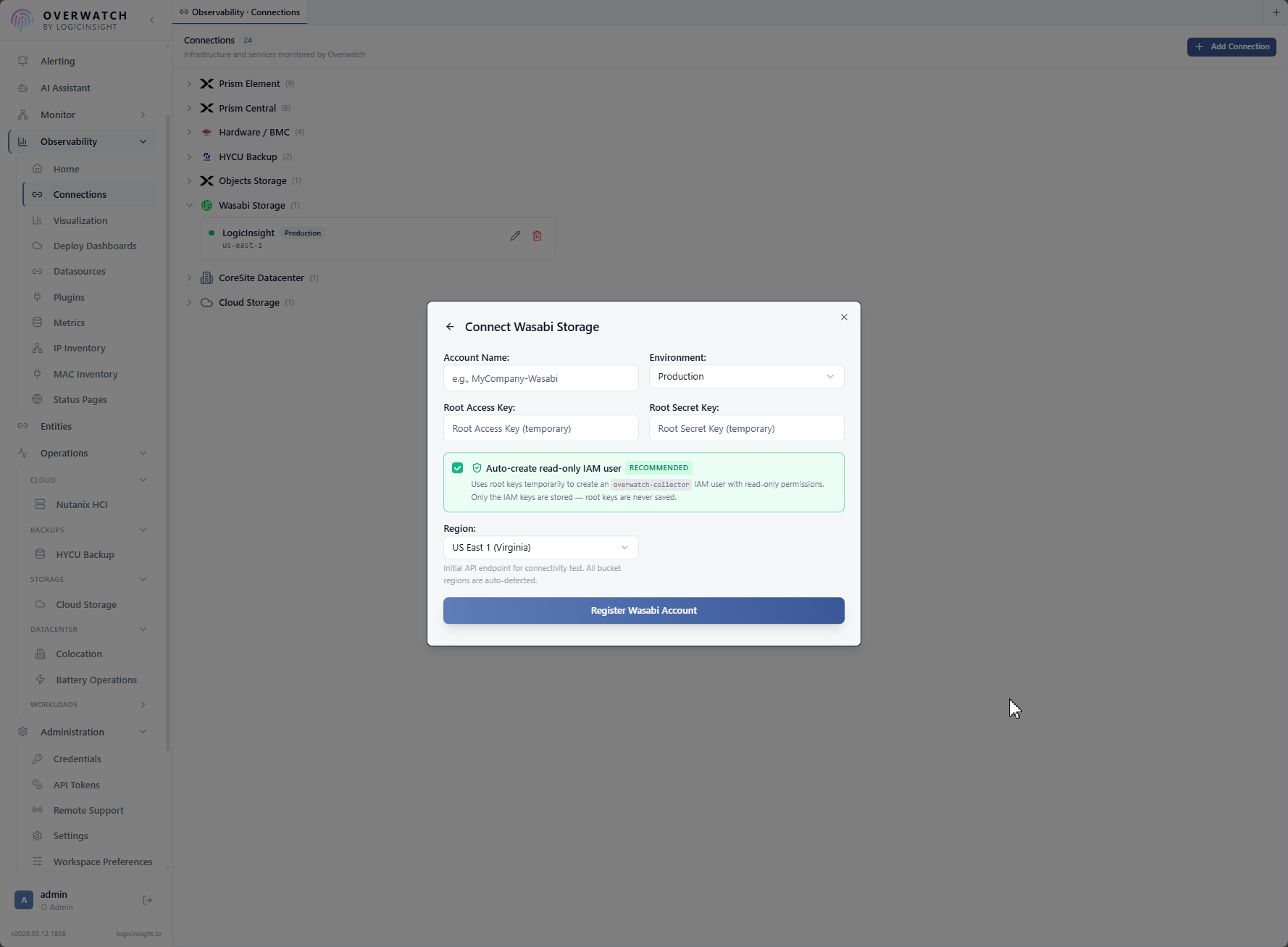
The Wasabi registration form collects account name, environment (Production/Staging/Development), access key, secret key, and region. Credentials are validated against the Wasabi API before registration. All credentials are encrypted with Fernet encryption before storage.
Viewing Your Wasabi Account
The Visualization page lists all available dashboards organized by solution. Filter by “Wasabi” to show the Wasabi | Storage Intelligence dashboard with bucket and target intelligence, capacity tracking, and storage posture analysis.
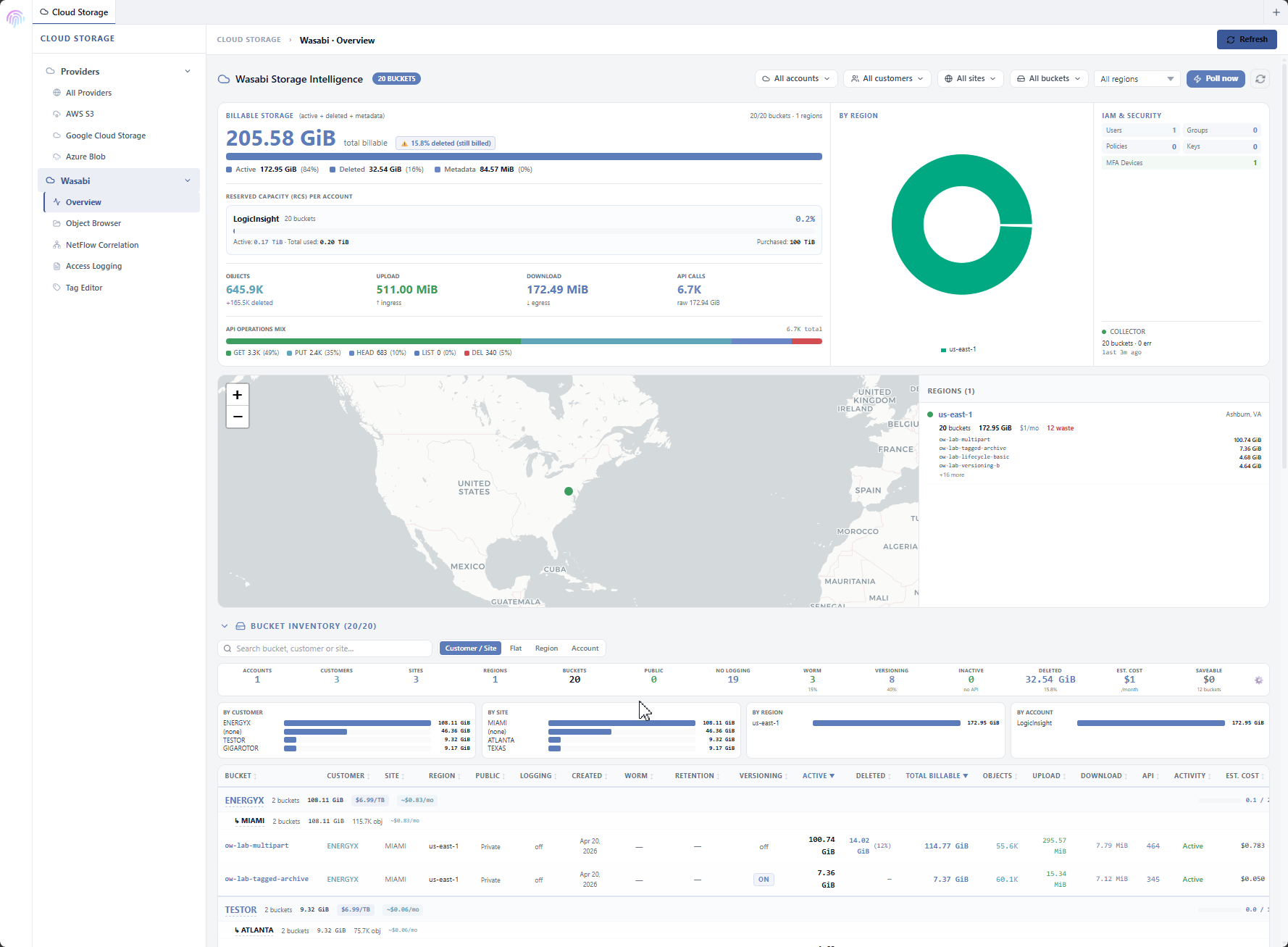
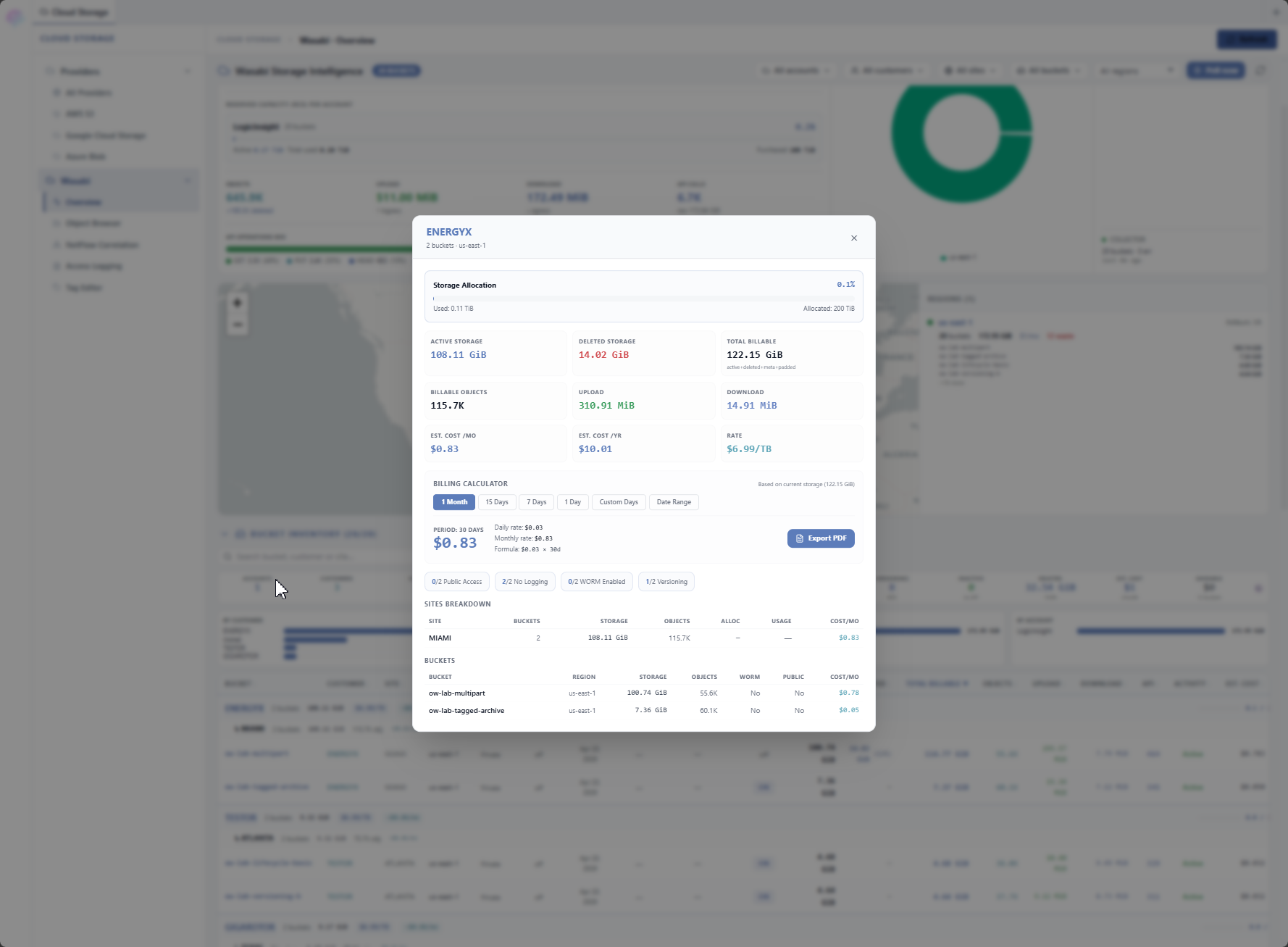
The Wasabi Storage Intelligence dashboard is the primary observability view for Wasabi Cloud Storage. The Bucket Inventory section organizes buckets hierarchically by Customer and Site using bucket tags. Each customer group header displays the the following information.
Number of buckets
Total active storage
Estimated monthly cost
Storage allocation bar showing usage against contracted capacity
Site sub-headers show per-site storage totals and cost breakdowns. This view enables MSPs to quickly assess storage consumption and billing per customer.
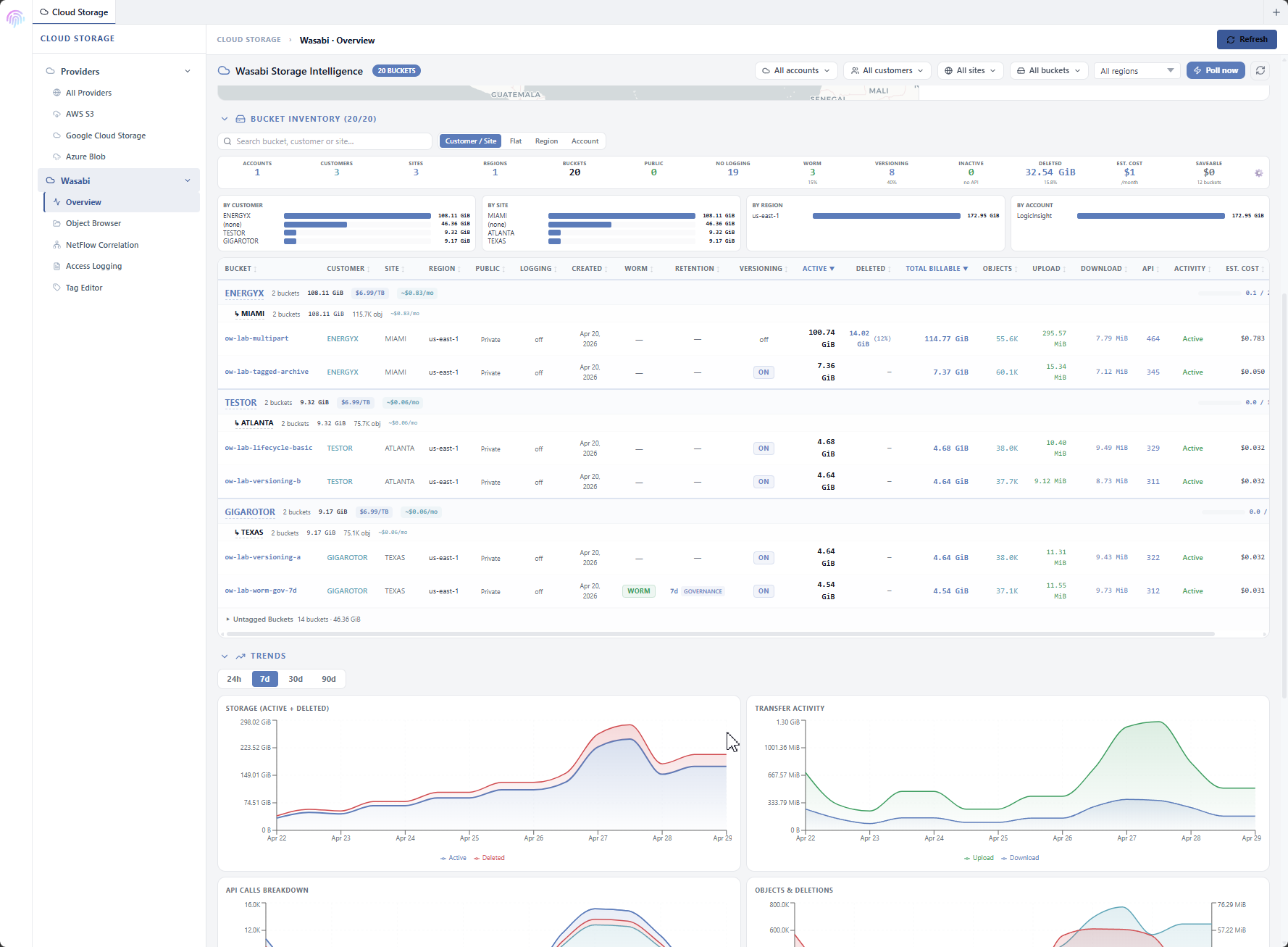
Switch to the Flat view to display all buckets in a single sortable table, with columns for:
Bucket Name
Customer
Site
Region
Active Storage
Deleted Storage
Objects
Versioning
WORM (Object Lock) status
Public Access
Logging
Created date
Estimated Cost
Below the inventory, the Trends section shows historical storage consumption (Active + Deleted) and Transfer Activity (Upload + Download) over configurable time ranges (for example, 24h, 7d, 30d, 90d). Wasabi updates billing data daily and Overwatch uses forward-fill queries to maintain continuous trend lines.
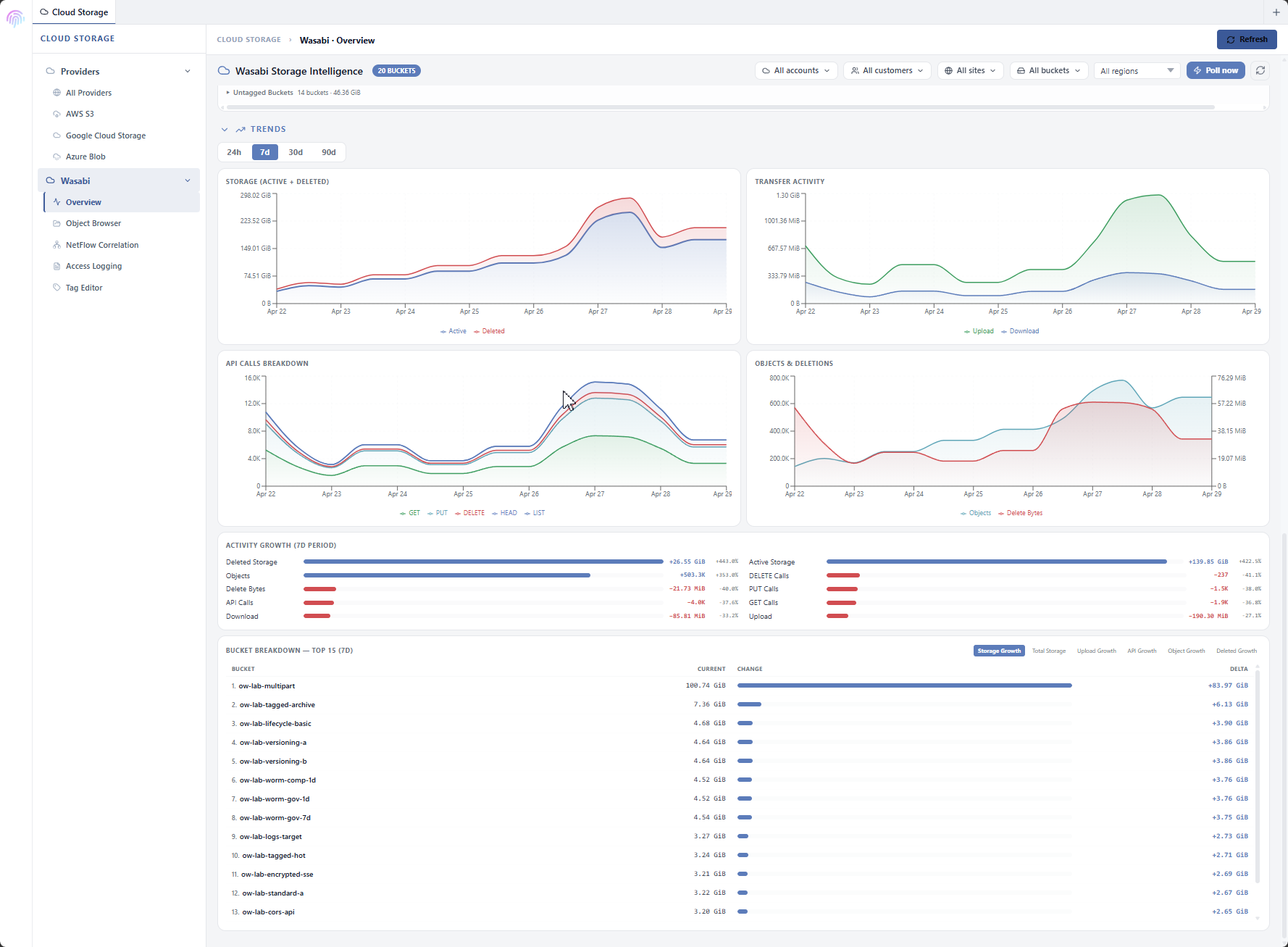
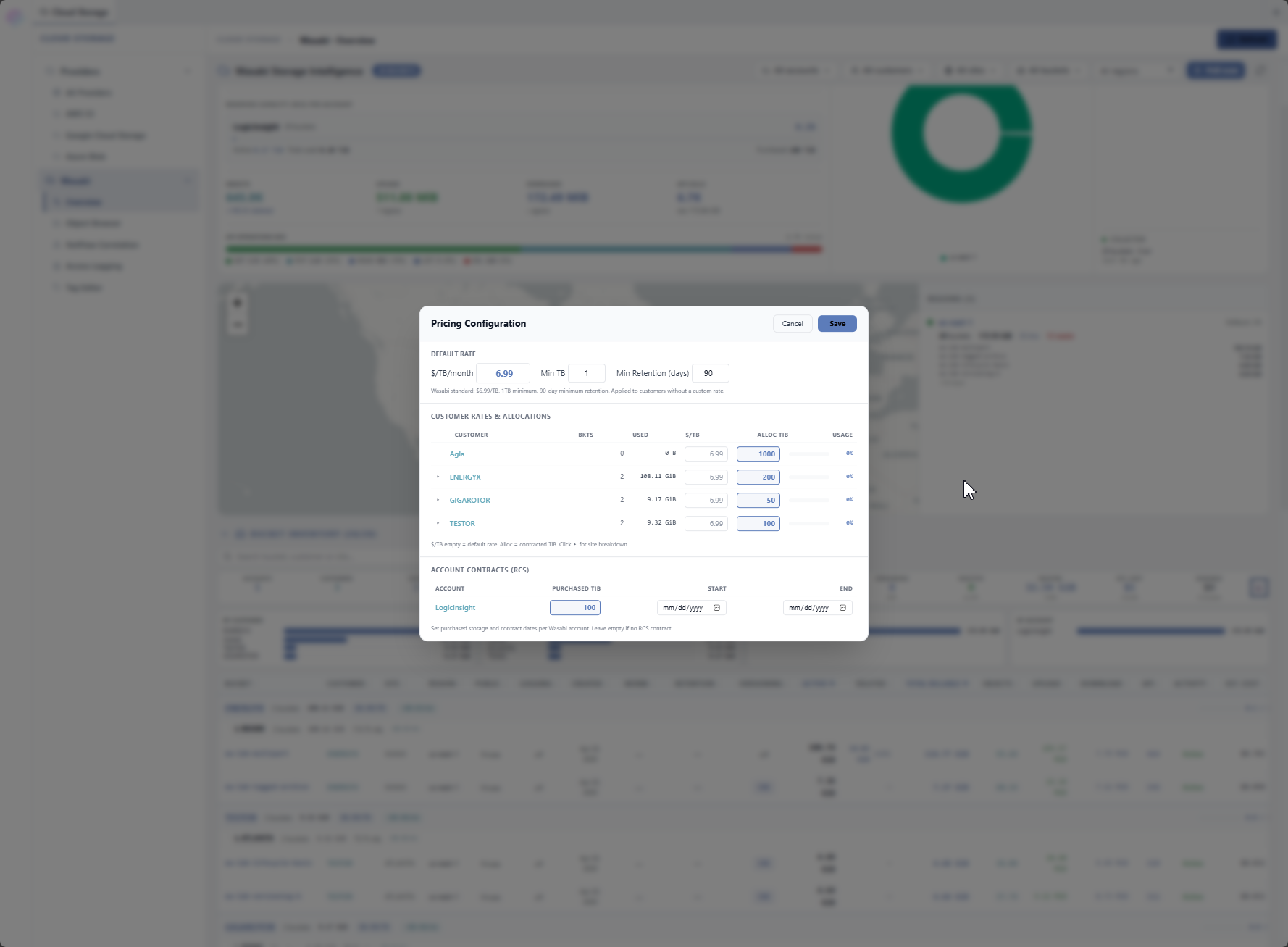
The full Wasabi Storage Intelligence dashboard provides a comprehensive single-page view including:
Billable Storage breakdown (Active, Deleted, Metadata, Padded) with a stacked bar
Reserved Capacity (RCS) status per account that shows the following.
Usage percentage against purchased storage
Sub-metrics (Objects, Upload, Download, API Calls)
API Operations Mix (GET/PUT/HEAD/LIST/DELETE proportions)
Storage by Region donut chart
IAM & Security summary (Users, Groups, Policies, Keys, MFA Devices)
Collector health status
Geographic Region Map showing Wasabi datacenter locations with bucket counts and status indicators
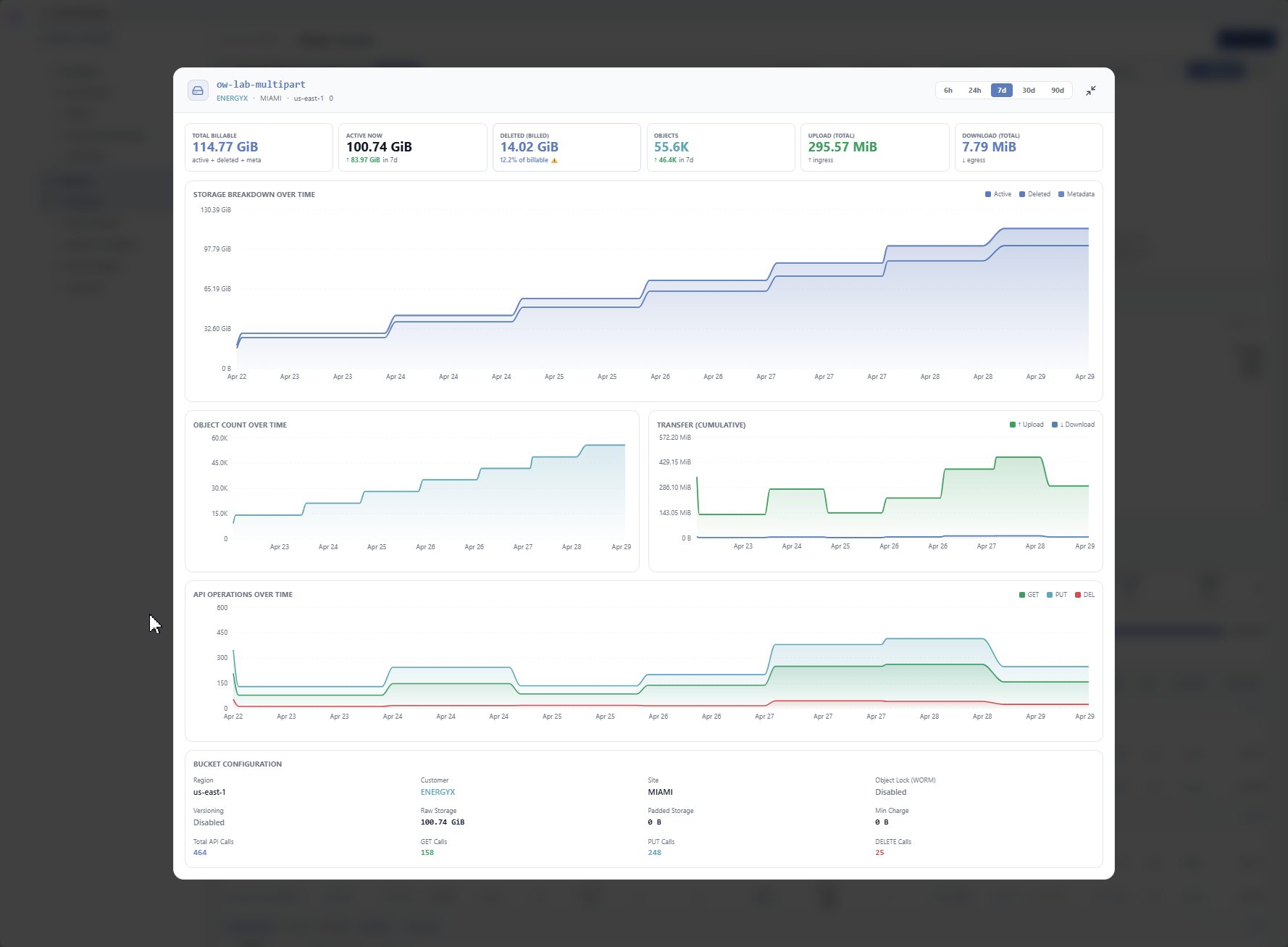
Select any bucket in the inventory to open a detailed modal with historical time-series charts for:
Storage Over Time
Object Count Over Time
Bandwidth (Upload/Download)
API Calls Over Time
Configurable time ranges (for example, 6h, 24h, 7d, 30d, 90d) allow drilling into specific periods. Below the charts, the Bucket Configuration section shows the following metadata.
Region
WORM (Object Lock) Mode
Retention Days
Versioning
Object Count
This view helps identify growth patterns, activity spikes, and configuration details per bucket.
Viewing Logs and Objects
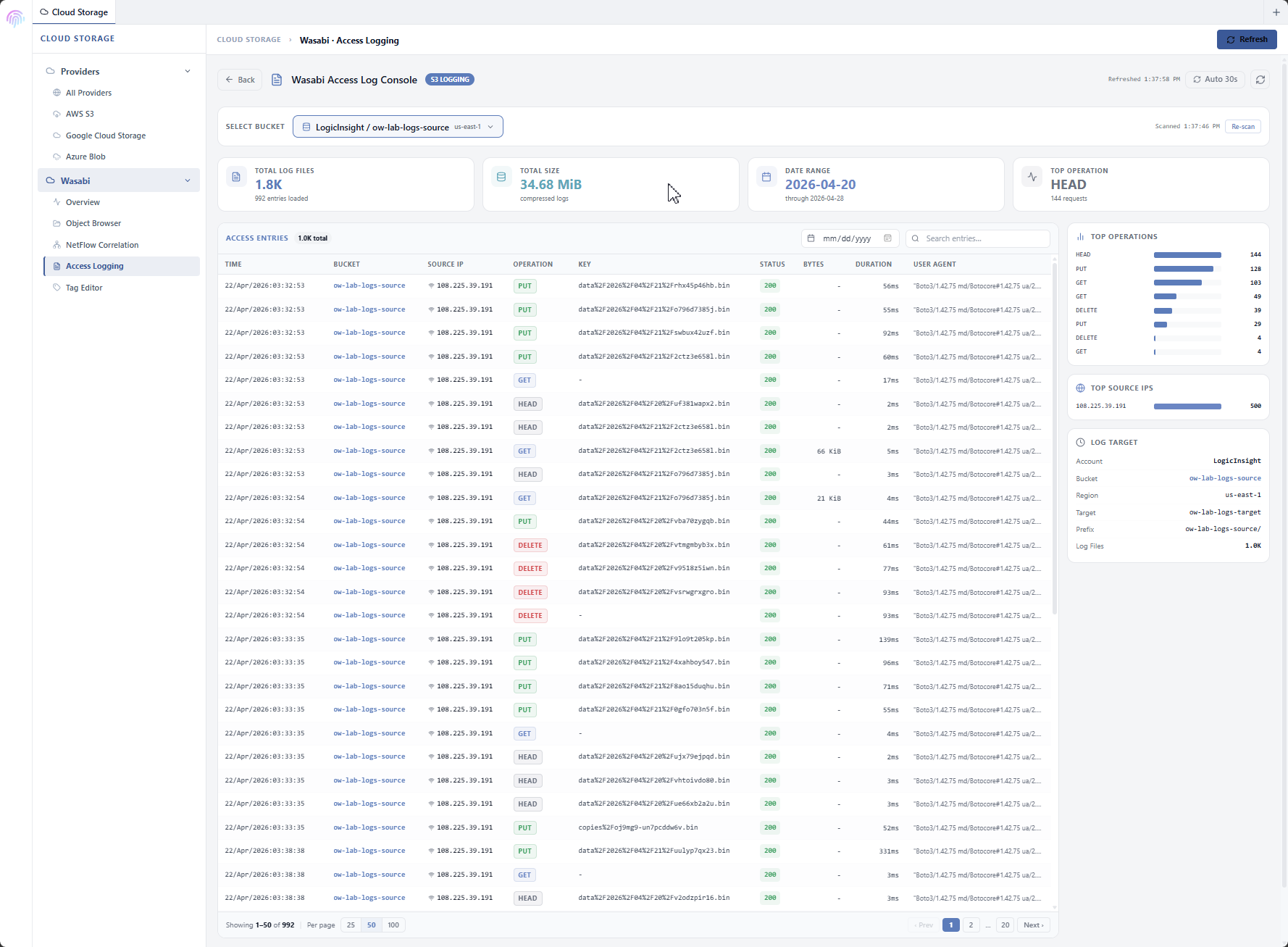
The Access Log Console provides a dedicated interface for browsing Wasabi server access logs. When a bucket has S3 access logging enabled, Overwatch can fetch, parse, and display the log entries in a structured table with columns for Time, Bucket, Source IP, Operation (GET/PUT/DELETE/HEAD/LIST), Key, HTTP Status, Bytes, Duration, and User Agent. The sidebar displays Top Operations and Top Source IPs as ranked bar charts. Results are cached for instant subsequent loads, with a Re-scan button to refresh the bucket discovery. Date filtering and full-text search help narrow results to specific events.
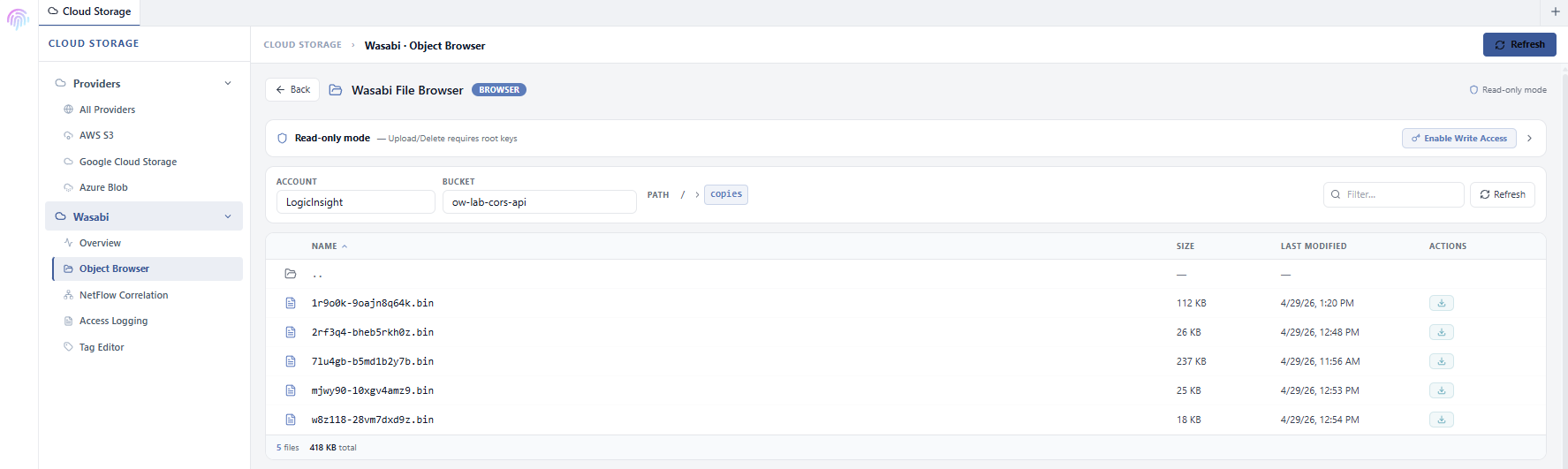
The Wasabi File Browser provides direct Wasabi object navigation within Overwatch. Select an account and bucket then navigate the folder structure using breadcrumb navigation. The file listing shows Name, Size, Last Modified date, and available Actions (Download, Delete). The browser operates in read-only mode (default) using the overwatch-collector IAM user credentials. For write operations (Upload, Delete), root credentials can be provided temporarily (with an option to remember them in the browser's local storage for convenience). Files can be downloaded via presigned URLs and uploads support drag-and-drop. This eliminates the need for separate management tools for basic file operations.