Everpure FlashBlade (formerly Pure Storage) has been validated for use with Wasabi. For more information on using Wasabi and Everpure, refer to Everpure’s Wasabi Technology Partnership. To use this product with Wasabi, follow the instructions below.
The data restoration process is handled by your specific backup software application. As there are many potential variables that will affect your unique environment, it is strongly recommended that you seek the guidance of your backup software's technical support team in the event that you encounter difficulty, or have application-specific inquiries.
Creating an S3 Target Connection
Log in to the FlashBlade GUI.
Navigate to Storage. Click Array.
Click + to the right of S3 Target Connections.
Enter the following information.
Name
Address
Click Connect.
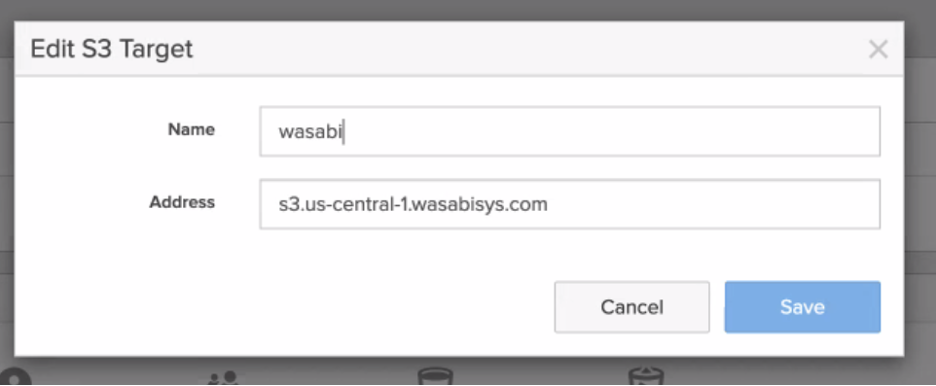
This example discusses using Wasabi’s us-central-1 storage region. To use other Wasabi storage regions, use the appropriate Wasabi service URL as described in Service URLs for Wasabi's Storage Regions
Adding Remote S3 Credentials
Navigate to Protection, then to Object Replica Links.
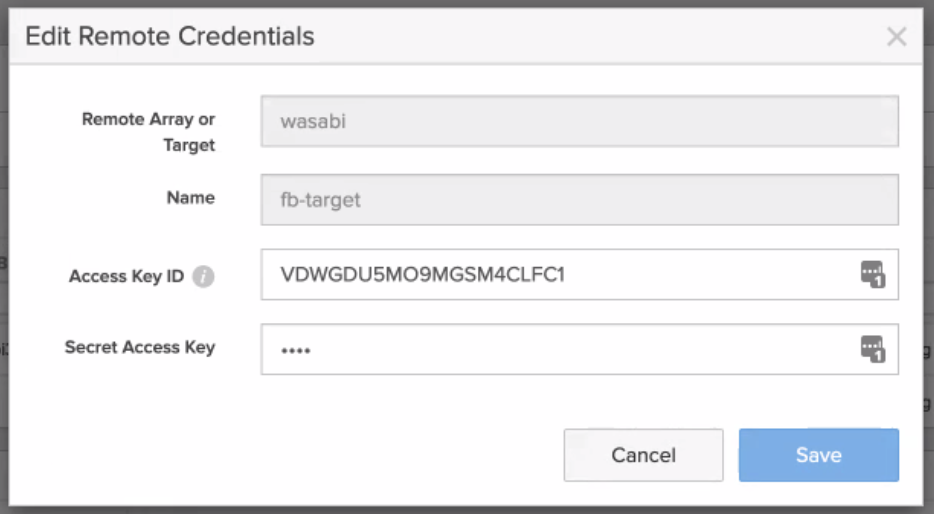
Click + to the right of Remove Credentials for Object Replication.
Select WASABI_S3 for Remote Array.
Name the connection (for example, WASABI_Creds).
Paste the Access Key and Secret Key from your Wasabi account.
Click Create.
Setting Up Bucket Replication to Wasabi
Navigate to Protection. Click Object Replica Links.
Click + to the right of Object Replica Links.
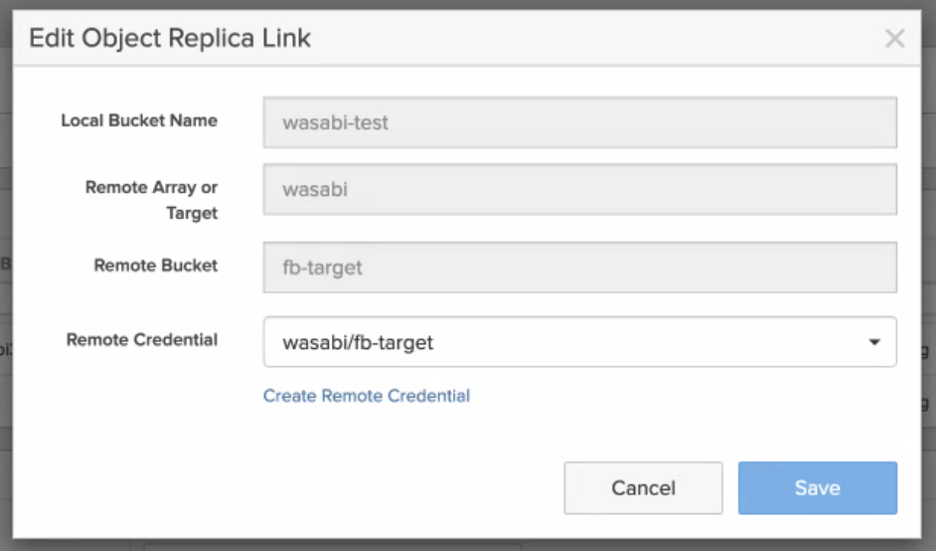
Select the local bucket to replicate.
Select either WASABI_S3 or your target connection.
In the Remote Bucket field, enter the name of the bucket you created in Wasabi S3.
Select either the WASABI_Creds or the credentials you created earlier.
Click Create.
Testing Replication
Write a test file to your FlashBlade bucket.
Wait a couple of minutes.
Check the bucket in Wasabi Console to verify your file exists.