Everpure FlashArray (formerly Pure Storage) has been validated for use with Wasabi. To use this product with Wasabi, follow the instructions below.
The data restoration process is handled by your specific backup software application. As there are many potential variables that will affect your unique environment, it is strongly recommended that you seek the guidance of your backup software’s technical support team in the event that you encounter difficulty or have application-specific inquiries.
Requirements
Active Wasabi Cloud Storage Account
Wasabi bucket (see Working With Buckets and Objects)
Access and Secret key pair (see Creating a User Account and Access Key)
Everpure FlashArray running Purity ver. 6.4.9
Everpure Offload App enabled
Configuring Wasabi as a Target
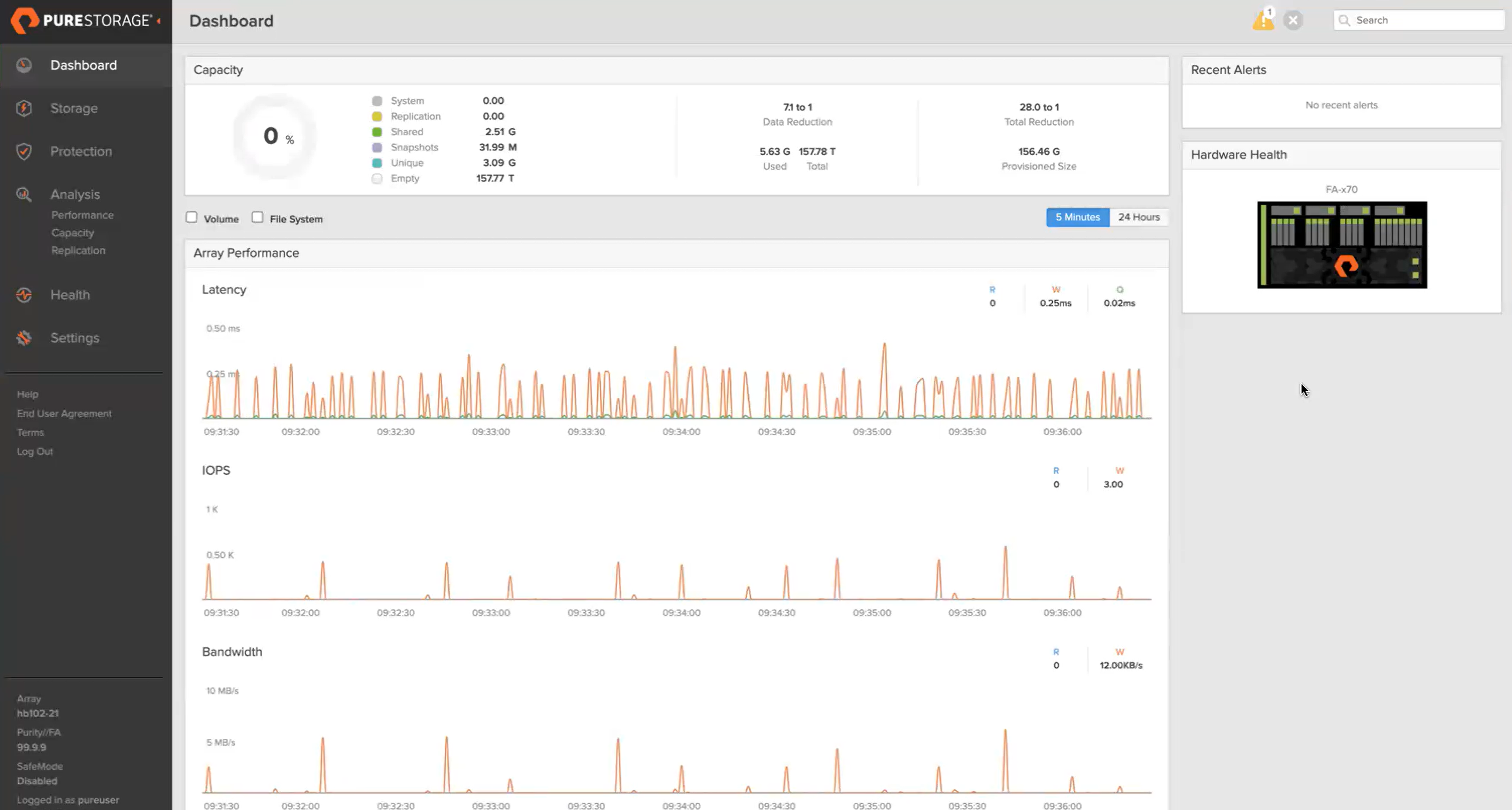
Log in to your Everpure FlashArray management console.
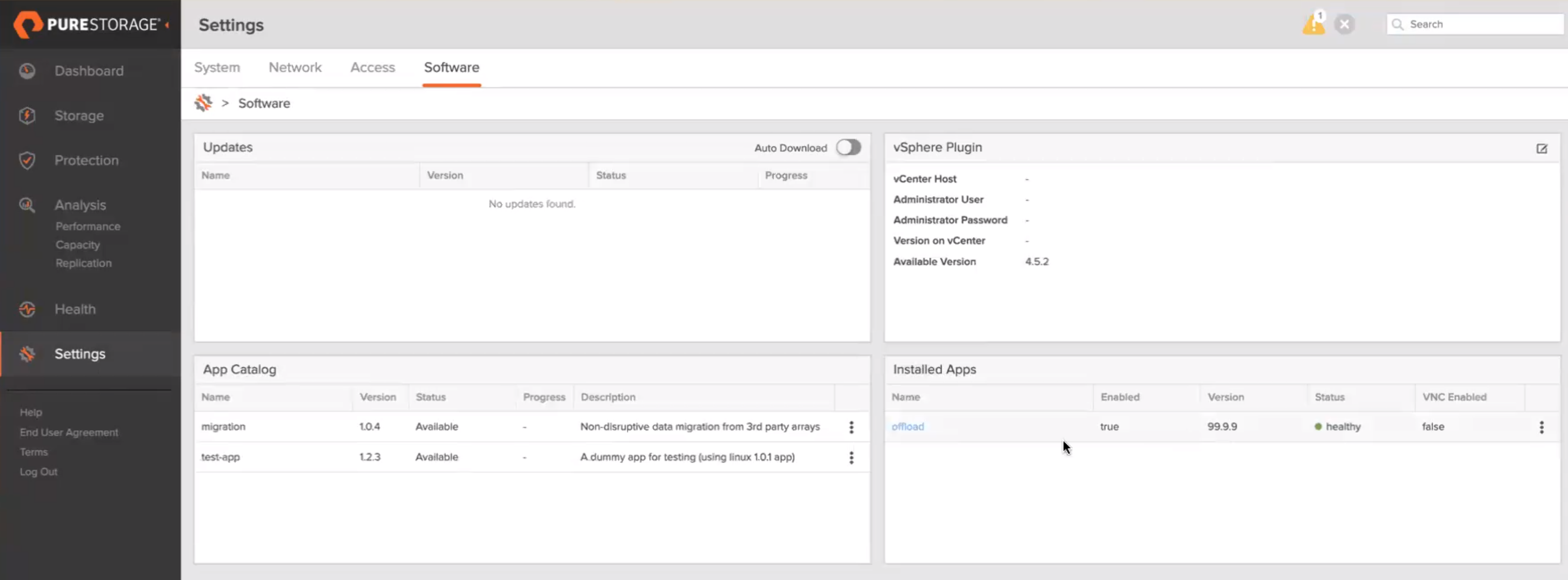
Verify that the Offload App has been installed and enabled by clicking on Settings, then Software. Under Installed Apps, you will see it listed. If you do not see it, refer to Everpure Support.
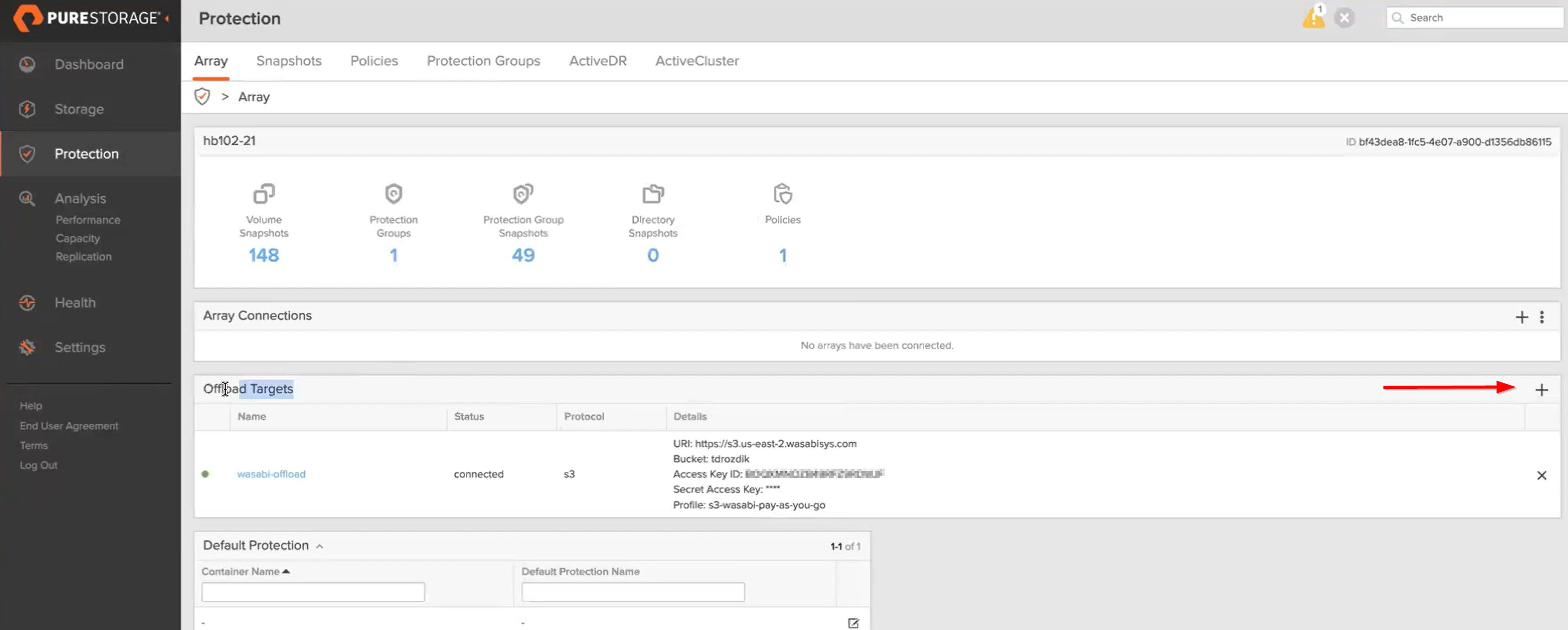
Select Protection to add your Offload target.
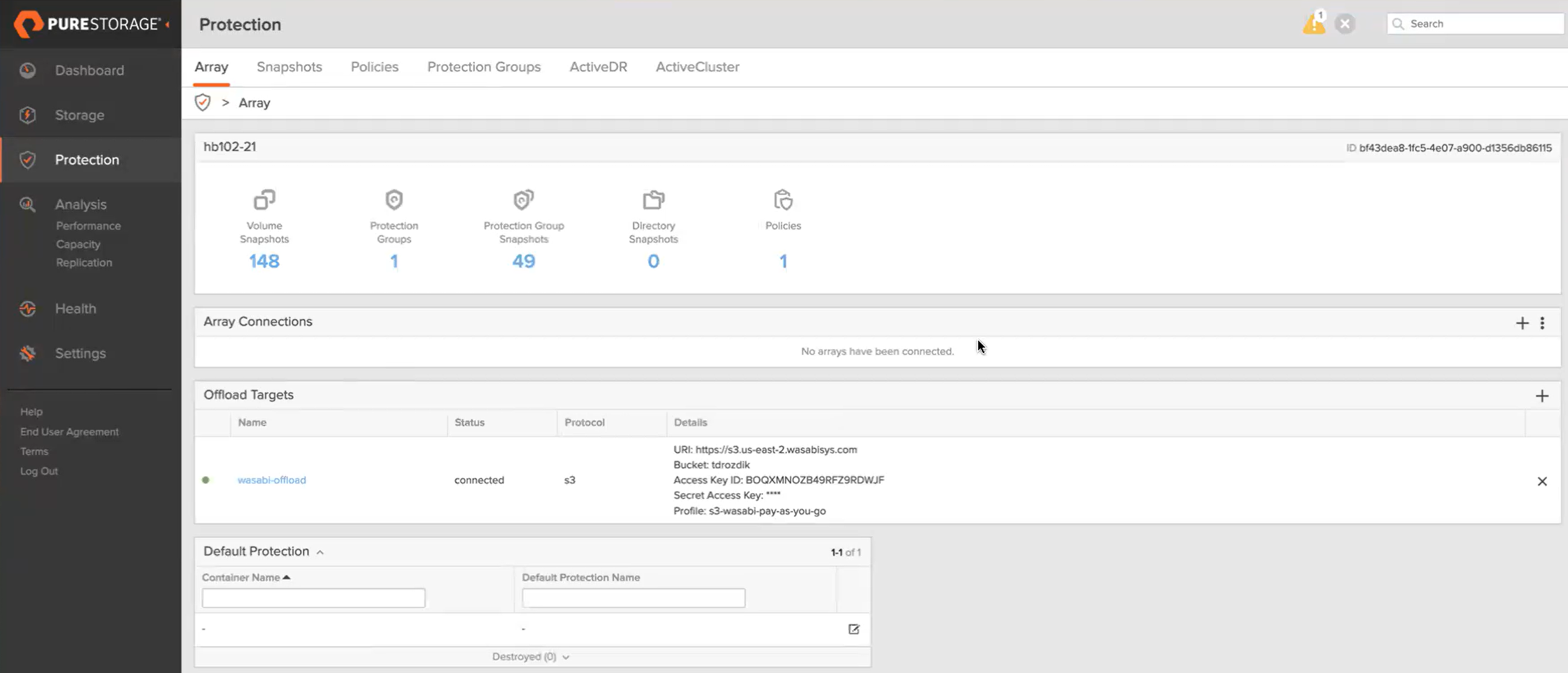
Click + to create a new offload target.
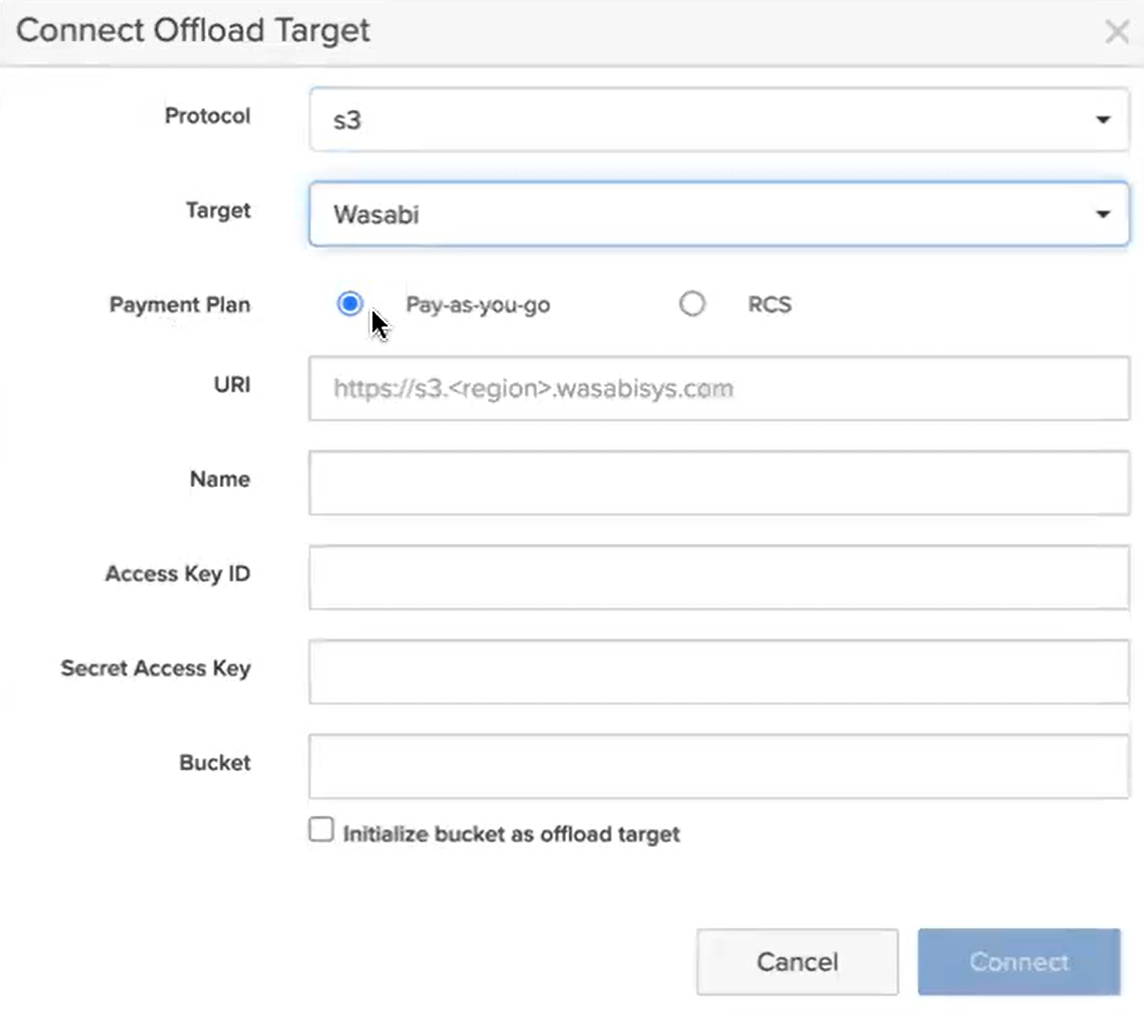
Enter the following information.
Protocol—Select s3 from the drop-down menu.
Target—Select Wasabi from the drop-down menu.
Payment Plan—Select the payment plan that you have established with Wasabi for your buckets.
URL—Specify the Wasabi Datacenter URL to store your data. For more information, review Service URLs for Wasabi’s Storage Regions.
Name—Provide a connection name specific to Wasabi.
Access Key ID—Wasabi Access Key.
Secret Access Key—Wasabi Secret Key.
Bucket—Name of the bucket you created.
When passing the Wasabi region to the URL, you must pass in the us-east-1 like https://s3.us-east-1.wasabisys.com to the URL, even though the URL https://s3.wasabisys.com points to the same location.
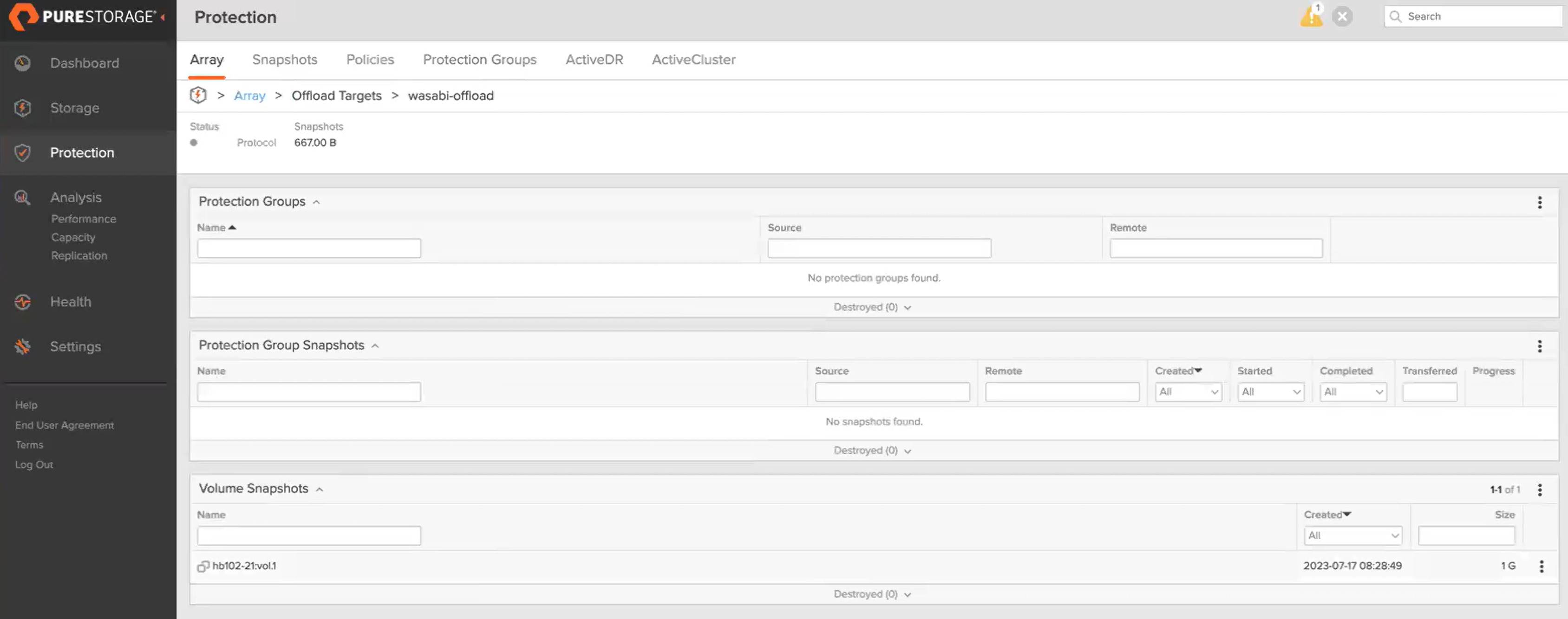
Once created, select the Offload target to view its details.
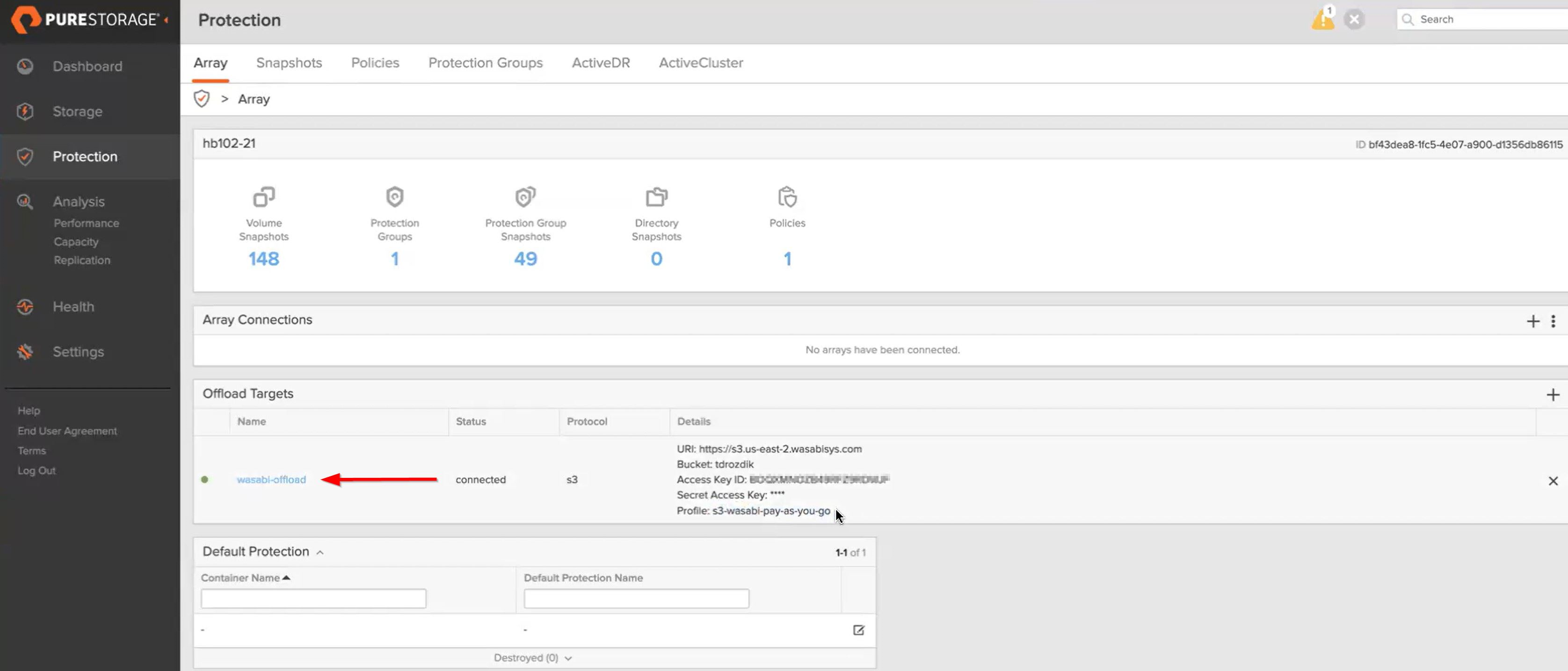
You can see what Protection Groups are assigned or what volumes have been backed up via Snapshots.