Wasabi has been certified for use as Primary Storage with Arctera Enterprise Vault. For more information, refer to the Enterprise Vault Compatibility charts. Follow the steps outlined below to configure Wasabi as a cloud storage target.
Requirements
Arctera Enterprise Vault software version 14.1
Arctera Enterprise Vault software installed and configured
An active Wasabi account.
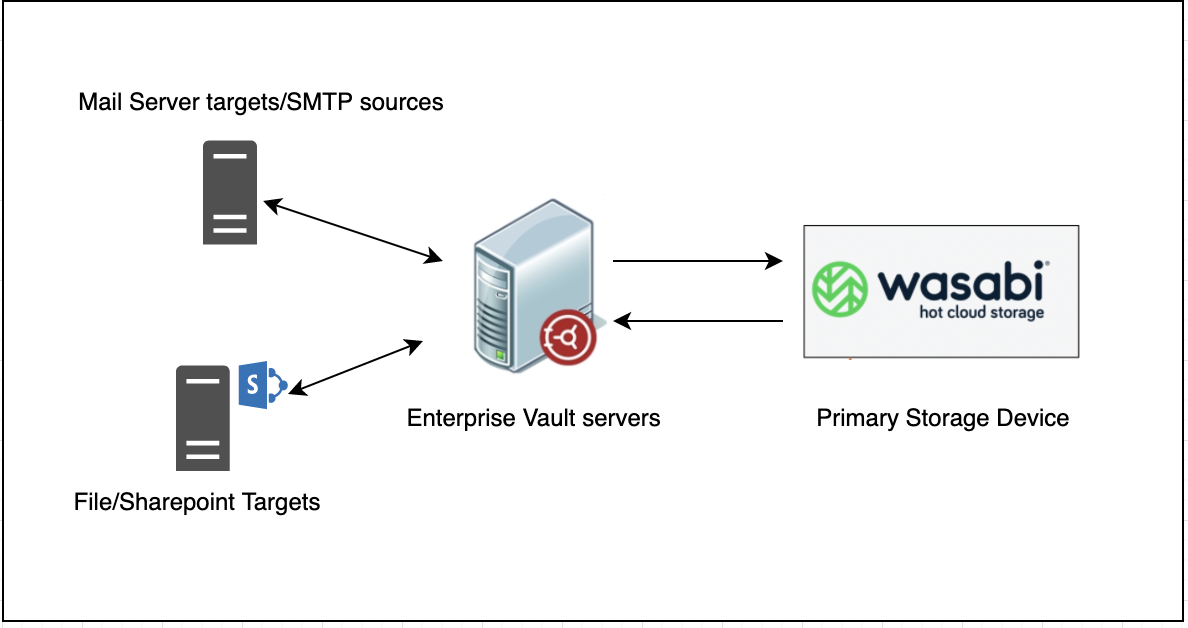
Reference Architecture
Launch the Enterprise Vault Administration Console.
.png)
To add a new partition with Wasabi as the primary storage, navigate to the required vault store in the Vault Store Group. Expand the vault store, right-click on Partitions and select New, then Partition… .
.png)
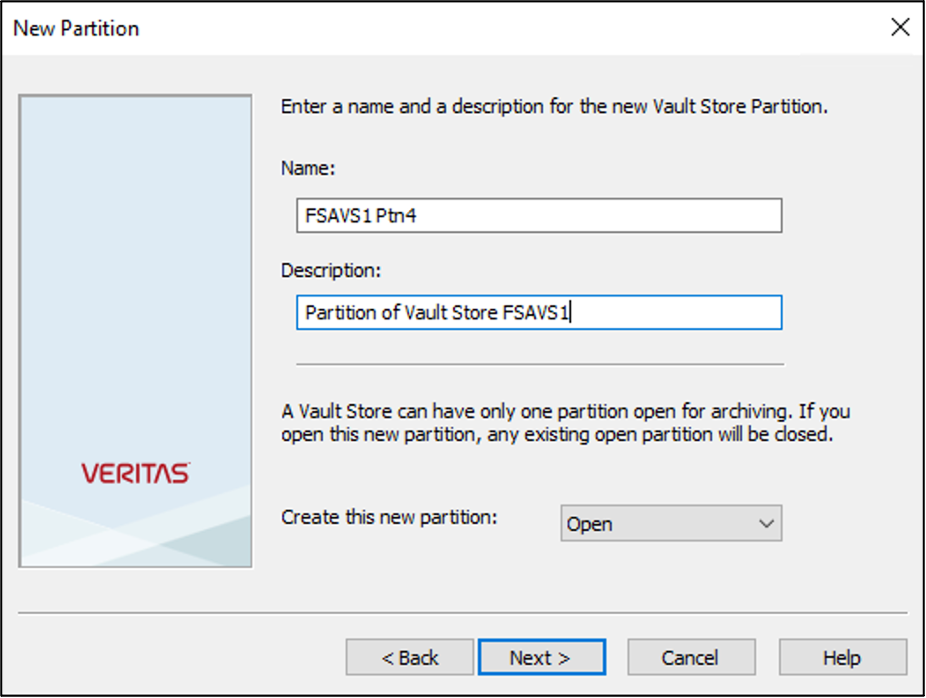
The New Partition window is displayed. Provide the required details and click Next.
Under Storage type, expand the dropdown menu and select Wasabi Hot Cloud Storage (S3).
.png)
.png)
Click Next.
In the Wasabi Hot Cloud Storage (S3) connections settings window, provide the following details.
- Access Key ID
- Secret Key ID
- Service hostname—s3.us-east-1.wasabisys.com
- Bucket name—Name of the target bucket
- Bucket region—us-east-1
.png)
Note: This config example uses Wasabi’s us-east-1 storage region. To use other Wasabi storage regions, use the appropriate Wasabi service URL as described in Service URLs for Wasabi's Storage Regions.
Click Test to test the connection to the Wasabi account. The Wasabi Hot Cloud Storage (S3) connection test succeeded message is displayed if the connection succeeds. Click OK and click Next.
.png)
On the replication page, select the second option-When archived files exist on the storage-and click Next.
.png)
Note - The option–When archived files are replicated on the storage, is not supported with Wasabi.
The summary page displays the partition configuration information. Click Finish.
.png)
The new vault store partition has been created with Wasabi as the primary storage.
.png)
With this configuration, you can archive, restore, and search data in Enterprise Vault with Wasabi as the primary storage.