This article explains how to use CyberDuck to back up your Time Machine to Wasabi. Cyberduck has been validated for use with Apple’s Time Machine to back up your Time Machine to the cloud.
Requirements
macOS 12+ (Tested on macOS 15.5)
CyberDuck installed on your machine (Configuration of CyberDuck)
Sufficient disk space (recommended: >1.5x used system space)
Wasabi account with bucket created (Bucket Creation Guide)
Access Key and Secret Key from Wasabi (Access Keys Guide)
Please note: you may use a physical external drive or space in your onboard hard drive if your drive has enough storage.
1. Prepare a Time Machine-Compatible Mount Drive
You can use any mounted drive that satisfies Time Machine’s requirements:
External storage device connected to Mac
Mac shared as a network backup destination
Network-attached storage (NAS) device
AirPort Extreme Base Station or AirPort Time Capsule
A virtual disk image, such as a sparse bundle. Please note that to create a sparse bundle, you will need to use the terminal. dfg
1.1. To create a sparsebundle (optional):
Recommended Disk Size: >1.5x used system space
hdiutil create -size <disk-size> -type SPARSEBUNDLE -fs HFS+J -volname "<volume-name>" <path-to-sparsebundle>.sparsebundle Command variables:
<disk-size-in-GB>: Size of the virtual disk in GB (e.g., 500)<volume-name>: The name shown in /Volumes/ (e.g., TimeMachineDisk)<path-to-folder>: Folder where the sparsebundle will be saved (e.g., ~/)<sparsebundle-name>: Name of the sparsebundle file (e.g., TimeMachineDisk)
Example:
hdiutil create -size 500g -type SPARSEBUNDLE -fs HFS+J -volname "TimeMachineDisk" ~/TimeMachineDisk.sparsebundle1.2. Mount the Drive (if virtual):
hdiutil attach <path-to-sparsebundle>.sparsebundle Command variables:
<path-to-folder>: Folder where the sparsebundle will be saved (e.g., ~/)
Example:
hdiutil attach ~/TimeMachineDisk.sparsebundleThe volume will be mounted under /Volumes/<volume-name>.
2. Set Time Machine to Use the Mounted Drive
sudo tmutil setdestination /Volumes/<volume-name>Command Variables:
<volume-name>: The name shown in /Volumes/ (e.g., TimeMachineDisk)
Example:
Time Machine will now treat this mount as a backup disk.
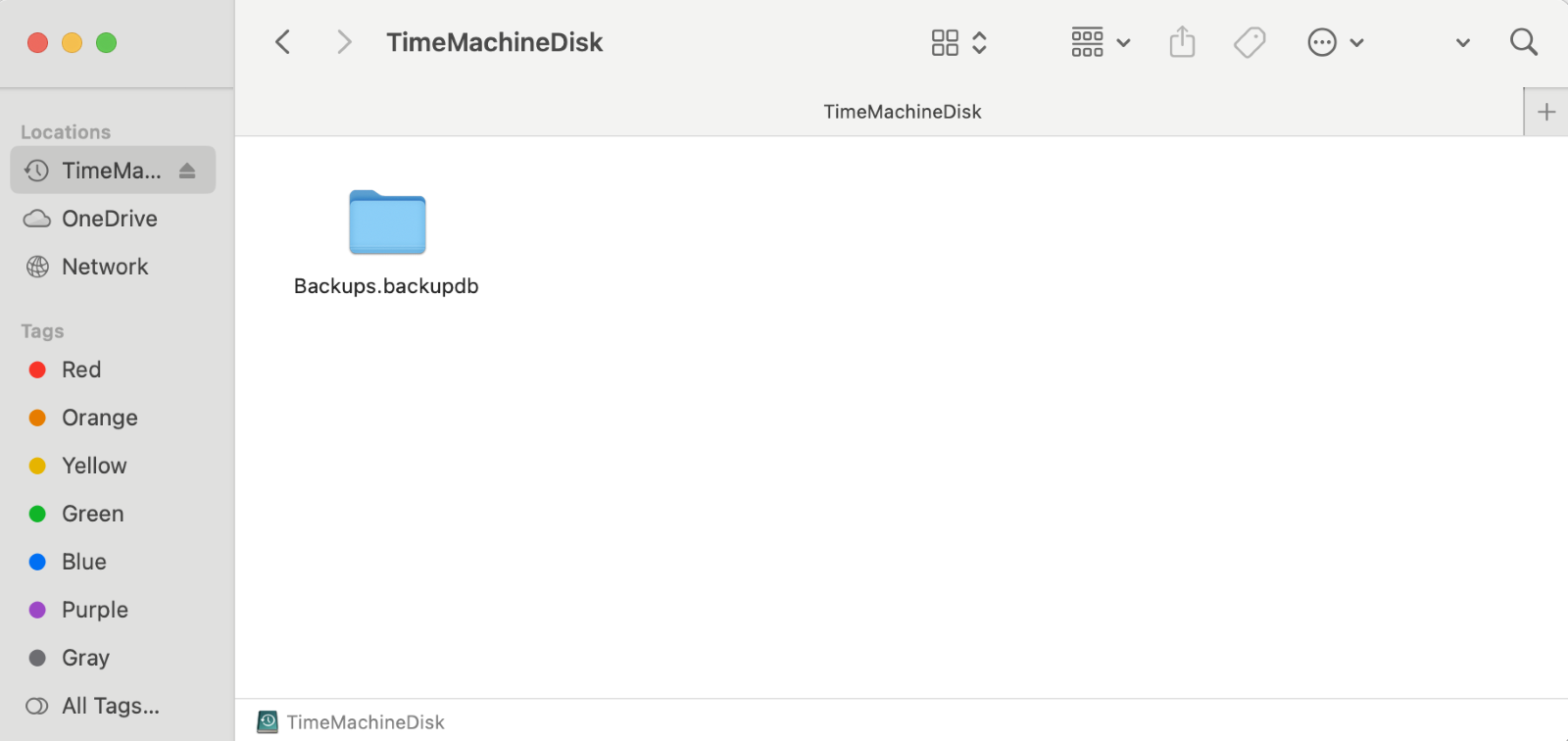
3. Run the Initial Time Machine Backup
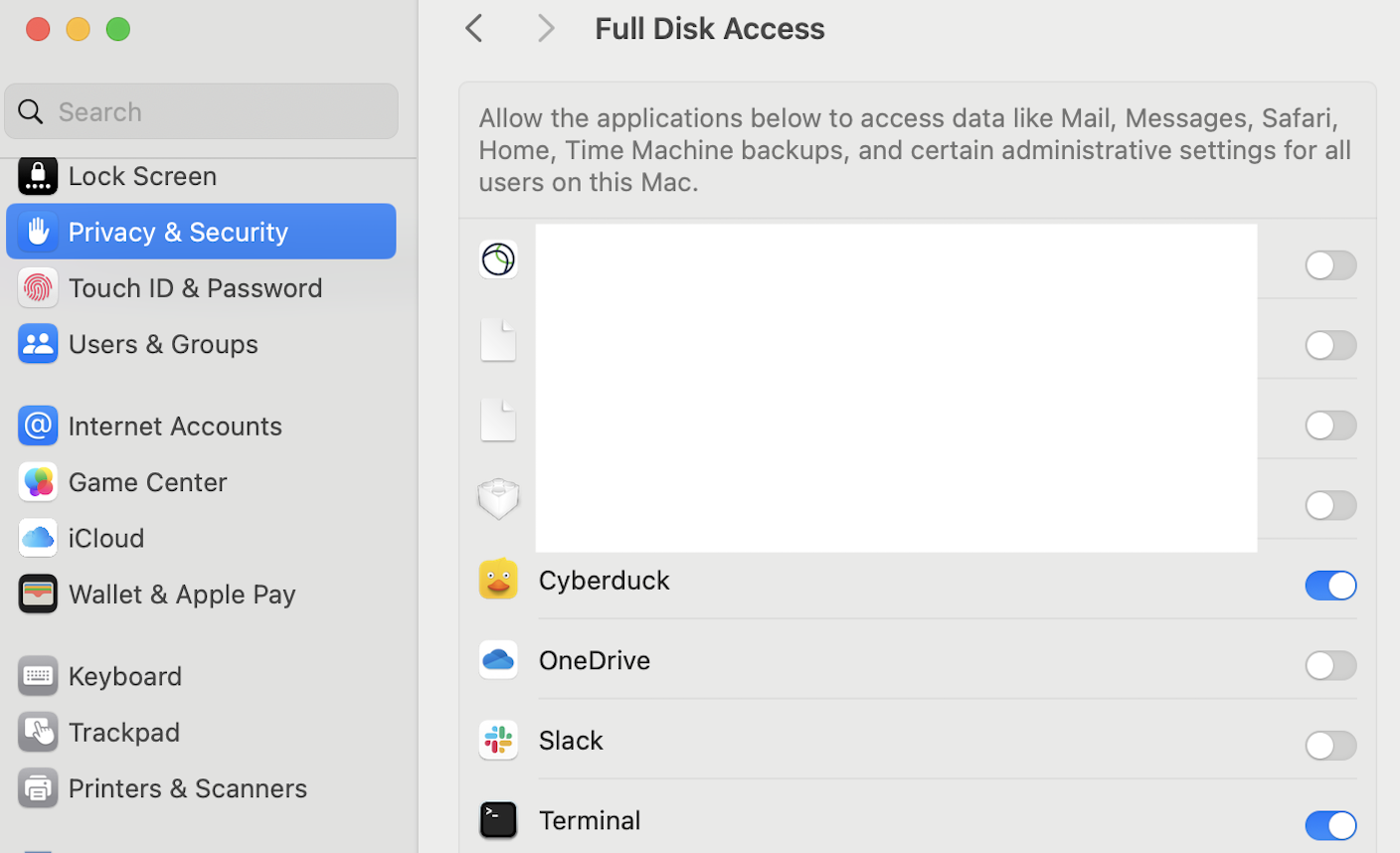
3.1. Time Machine to complete a full system backup. (System Settings > Privacy & Security > Full Disk Access)
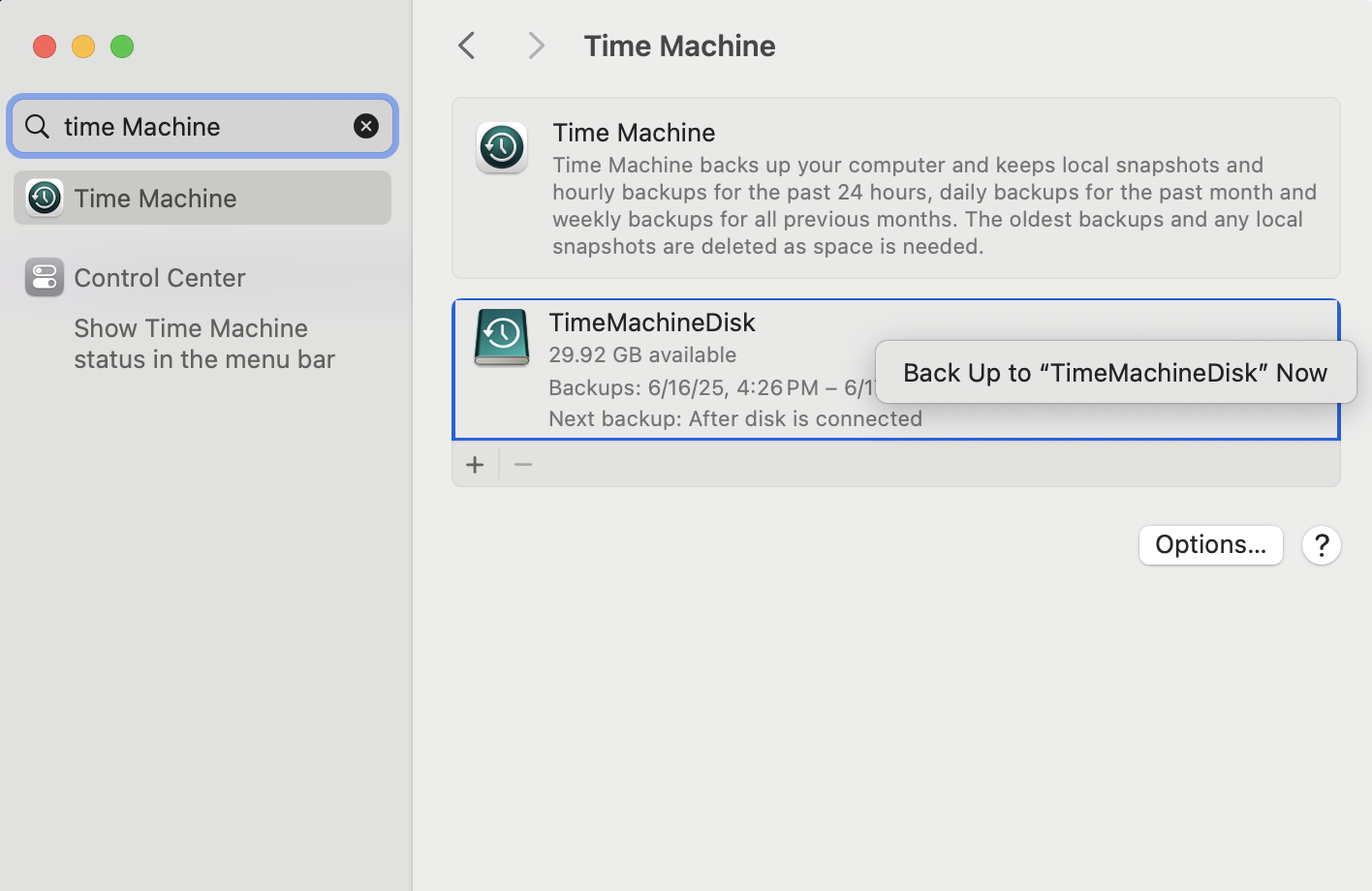
3.2 Back Up: This may take several hours depending on system size. (System Settings > Time Machine > Right Click the Mounted Drive)
4. Connect to CyberDuck using your Wasabi Credentials
Choose your desired Wasabi bucket
Ensure you are using the correct Service URL for your desired region
Ensure you have an Access Key & Secret Key with API permissions enabled
Once in Cyberduck and in the correct storage bucket, navigate to file, then select upload
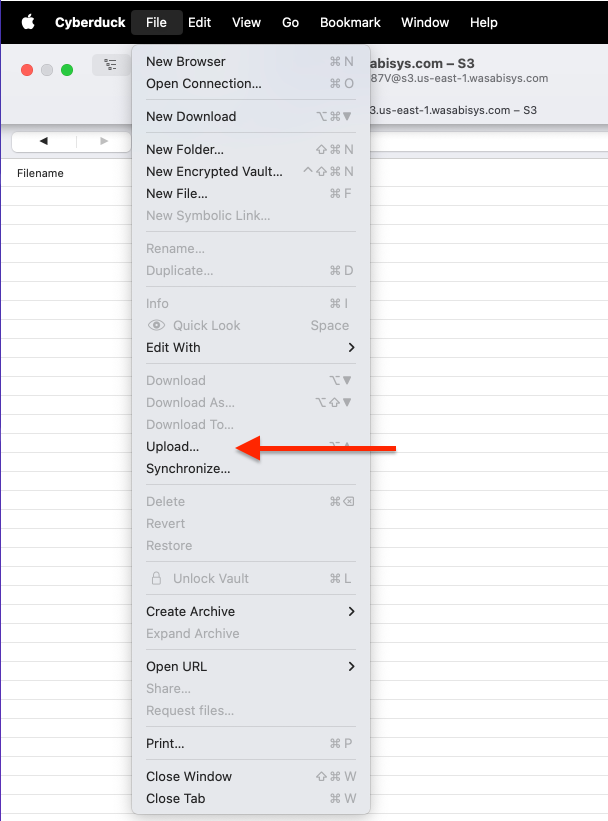
Go to your Time Machine Drive in locations
And press upload
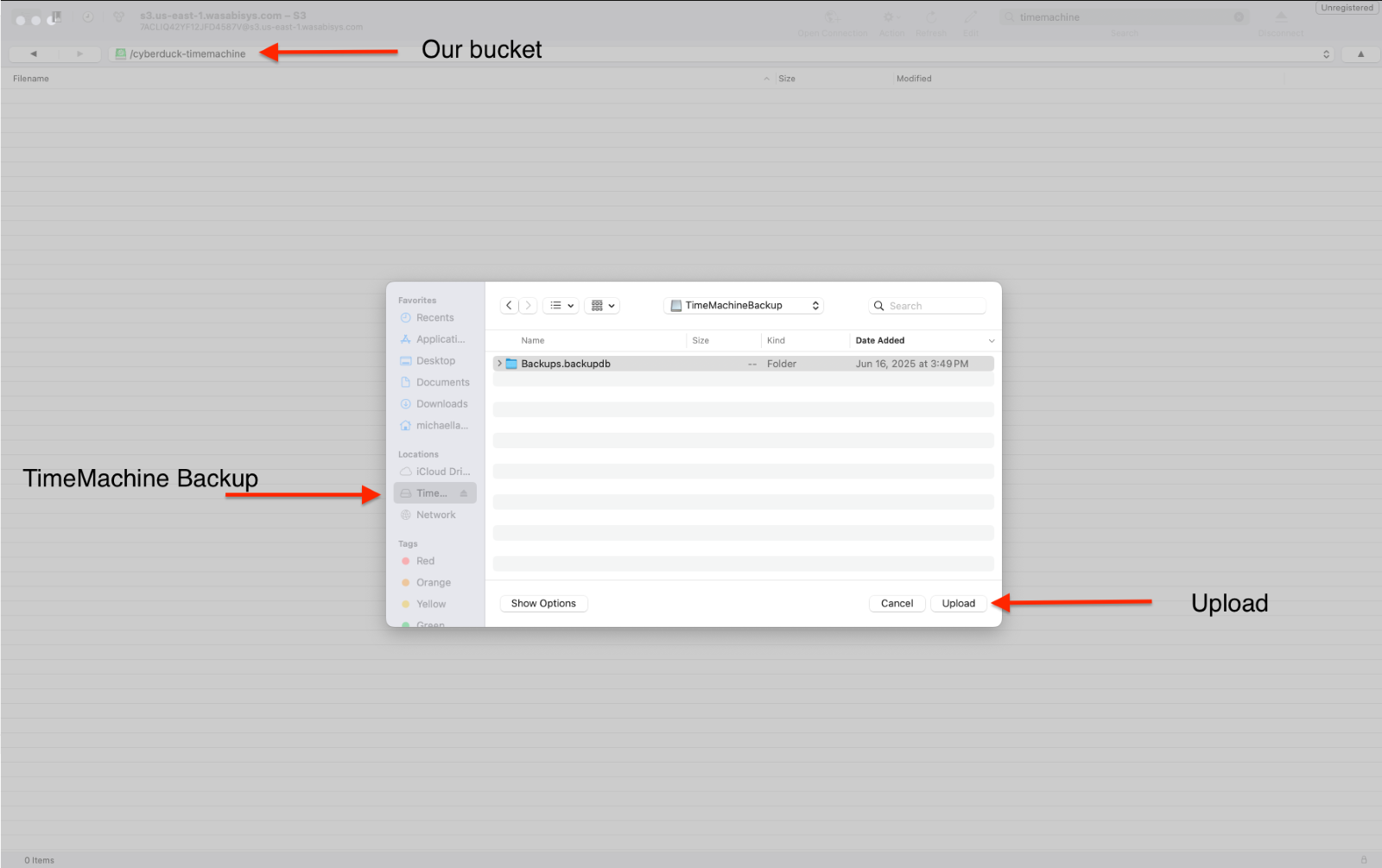
When complete, you will see an upload complete in your transfers in CyberDuck.

5. Automate the Sync with Cyberduck (Optional)
5.1. Find the full path of duck.
which duckExample Output:
/usr/local/bin/duck5.2. Create a scheduled sync task using duck mirror.
Cyberduck supports --mirror for syncing a local folder with remote storage.
Example: Daily sync at 6 PM
0 18 * * * /usr/local/bin/duck --mirror ~/TimeMachineDisk.sparsebundle s3://<your-bucket-name>/ --upload
Example: Weekly sync at 6 PM every Friday
0 18 * * 5 /usr/local/bin/duck --mirror ~/TimeMachineDisk.sparsebundle s3://<your-bucket-name>/ --uploadIn your crontab command:
<minute>: Minute of the hour (e.g.,0means :00)<hour>: Hour in 24-hour format (e.g.,18means 6 PM)<day-of-month>: Use*for any day<month>: Use*for any month<day-of-week>:0= Sunday,1= Monday, ...,5= Friday<path-to-folder>: e.g.,~/<sparsebundle-name>: e.g.,TimeMachineDisk<remote-name>: The name you assigned in rclone config<bucket-name>: The Wasabi bucket name
5.3. Edit the crontab:
crontab -e
5.4. Use crontab to schedule regular syncs:

5.5. Save and Exit Crontab
If using nano:
Press
Ctrl + Oto savePress
Enterto confirmPress
Ctrl + Xto exit
If using vi:
Press
EscType
:wqPress
Enter
Tips:
If encountering
Permission denied, check.sparsebundleownership and run withsudoYou may compress
.sparsebundleto.dmgor.zipfor other backup methods