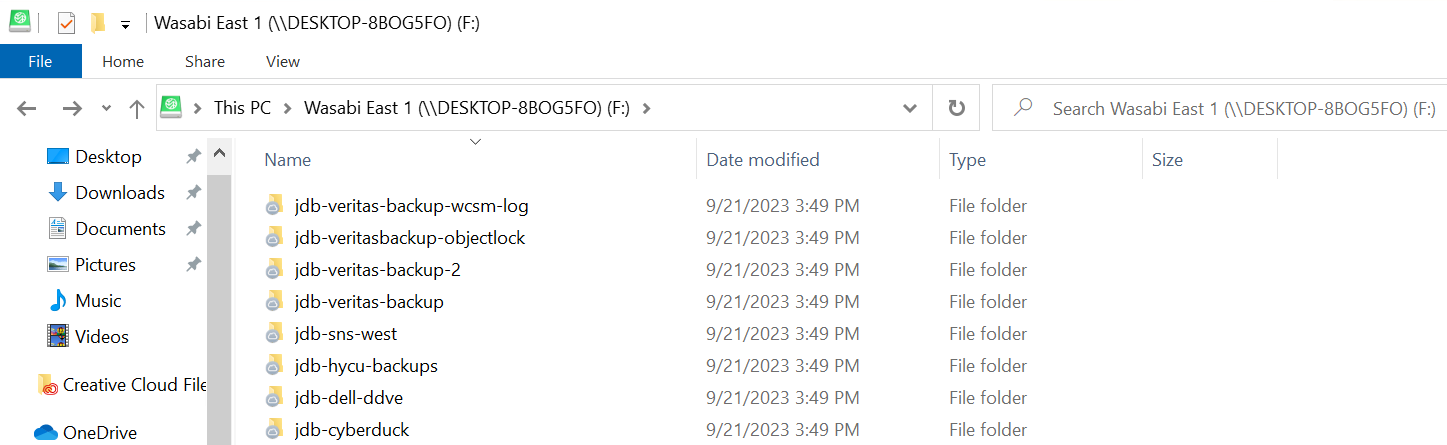
Cyberduck and Mountain Duck have been certified for use with Wasabi. Cyberduck is a cloud storage browser for Mac and Windows. To use these products with Wasabi, follow the configuration tips below.
Requirements
Active Wasabi Cloud Storage account
Wasabi bucket (see Working With Buckets and Objects)
Access & Secret Key Pair (see Creating a User Account and Access Key)
Cyberduck version 8.6.3 (40040) or Mountain Duck version 4.14.4 (21440)
Configuring CyberDuck
Open Cyberduck.
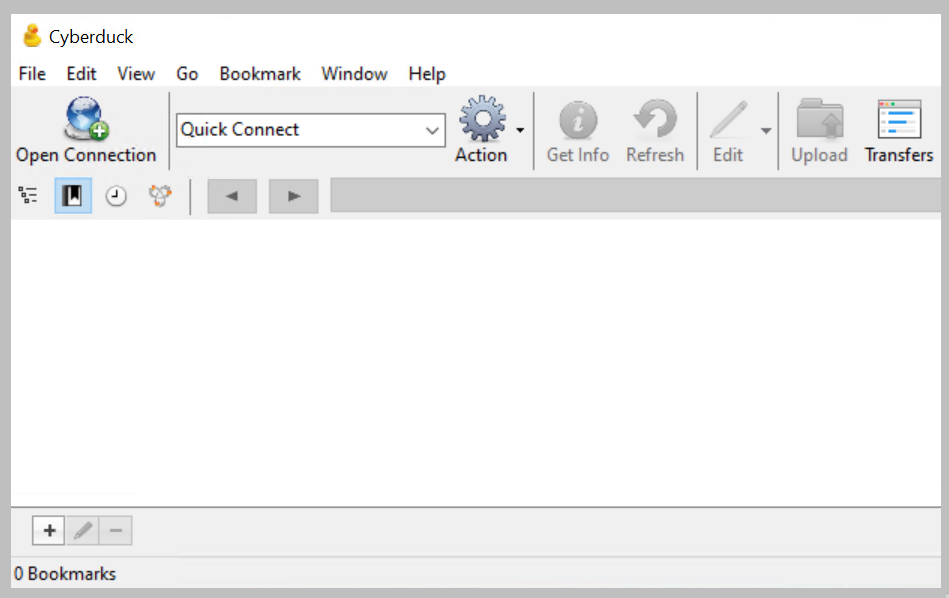
Click Edit.
Click Preferences.
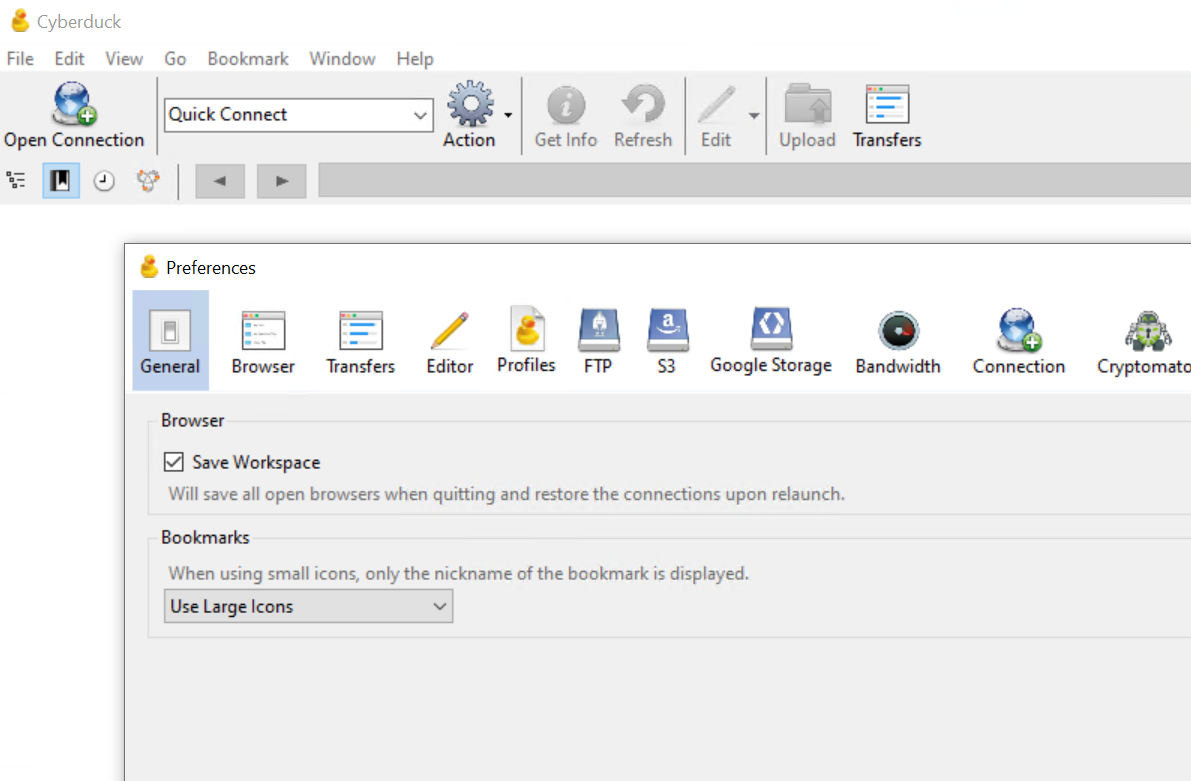
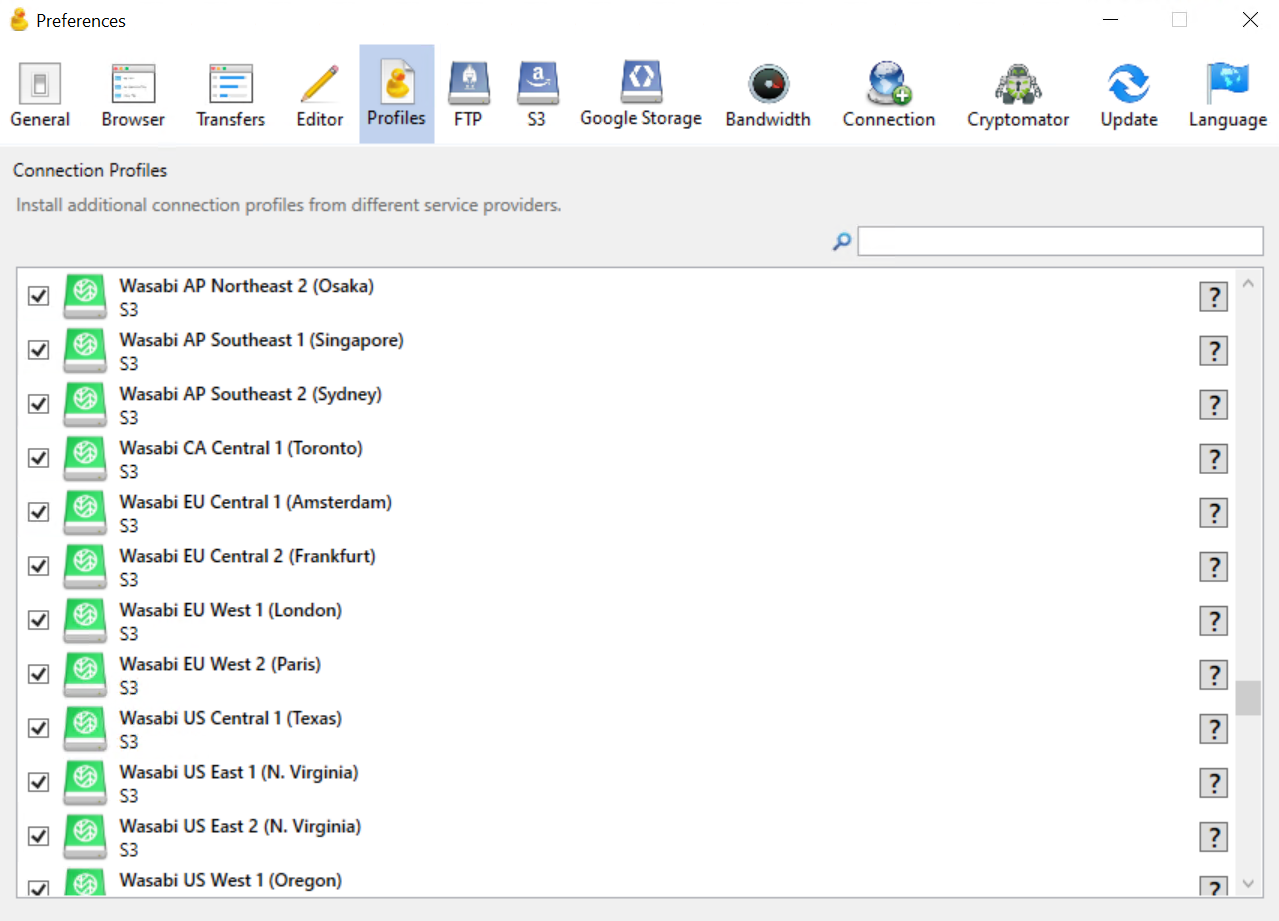
Click Profiles.
Either scroll down or search for Wasabi and select all of the regions that you need to utilize.
Close out of the Preferences window.
Click Open Connection.
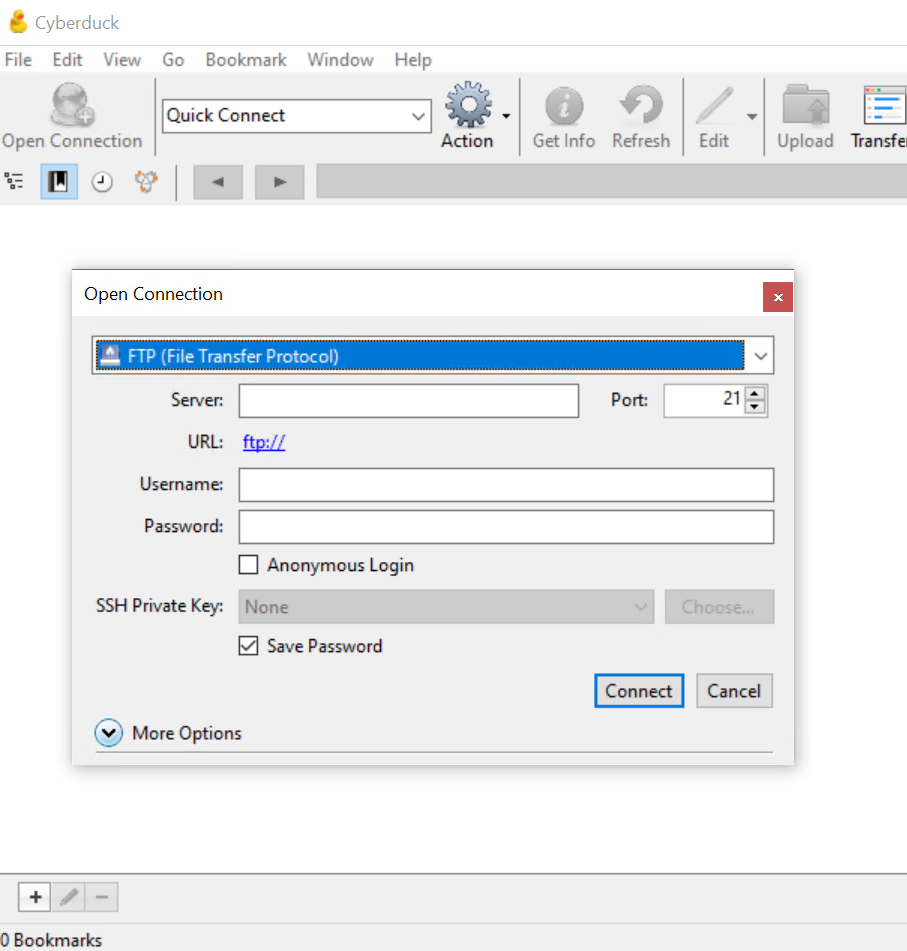
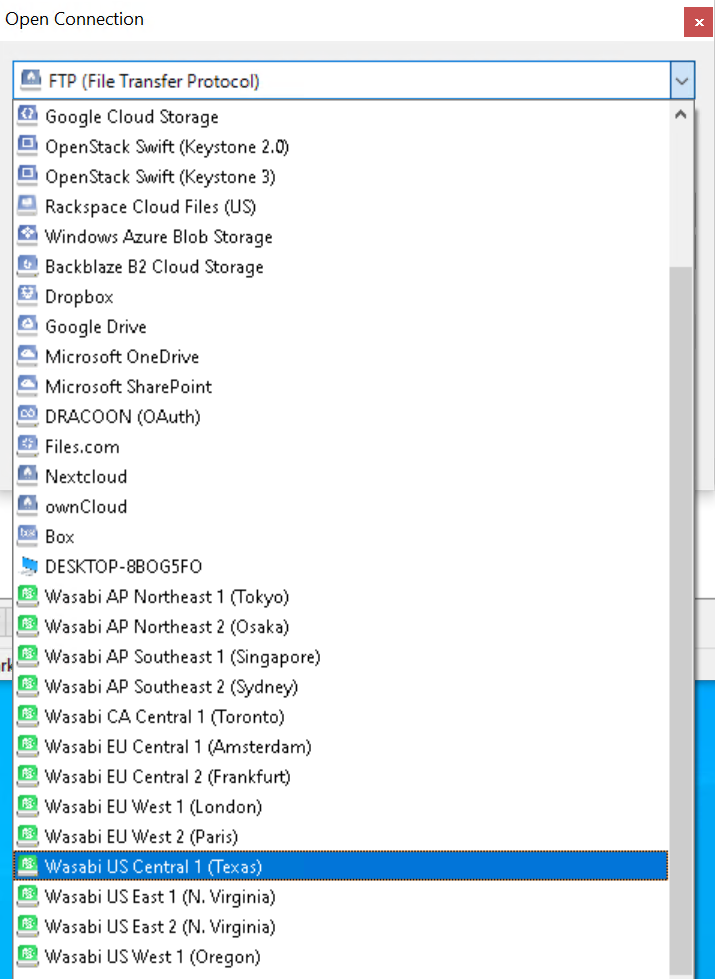
Click the drop-down menu and scroll down to select from the Wasabi Service Regions.
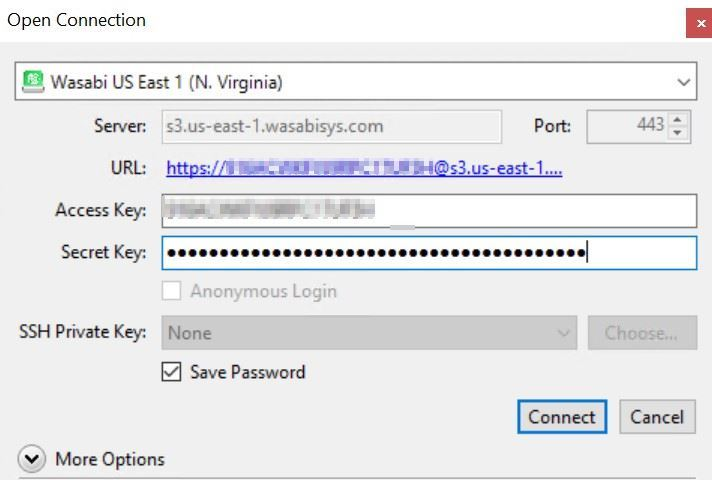
Enter your Wasabi Access Key and Secret Key.
Click Connect.
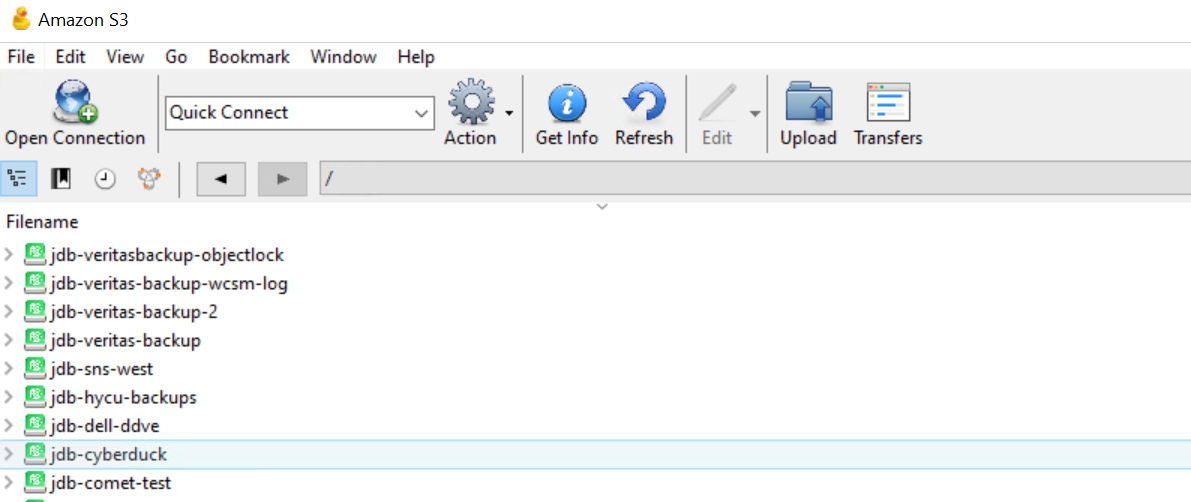
You will now see all of your buckets listed that are being stored in that Wasabi region.
Configuring Mountain Duck
Open Mountain Duck.
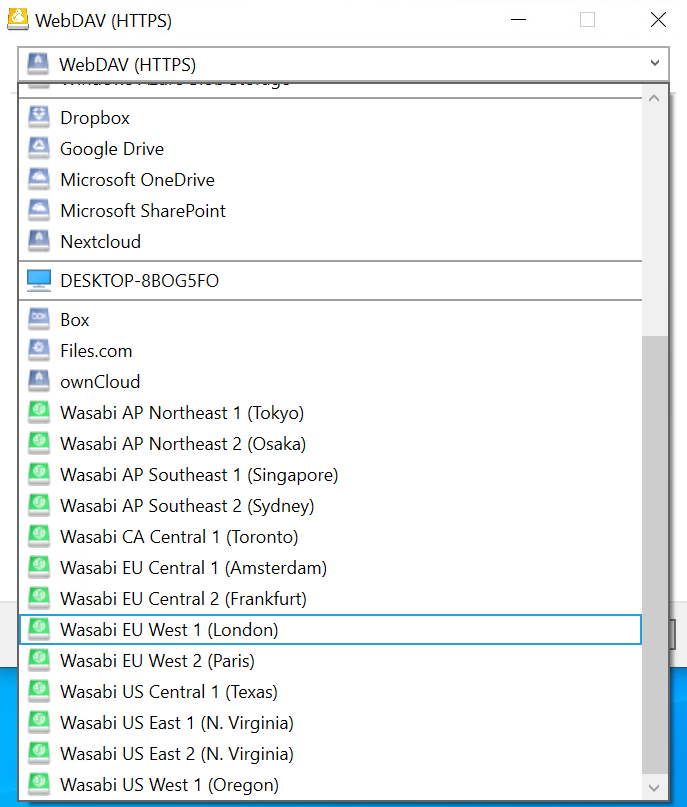
Click the drop-down menu to select the Wasabi service region to use. If you do not see Wasabi service regions listed, refer to the Steps 2—6 in Configuring Cyberduck.
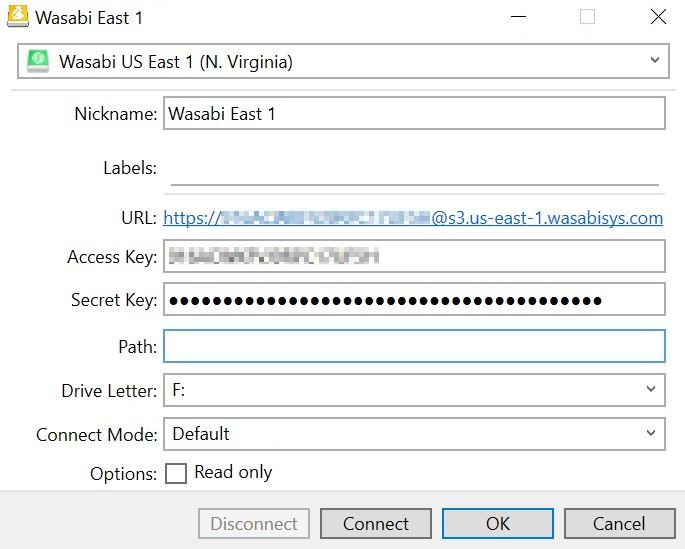
Enter the following information.
Nickname—Give the Drive a specific name
Labels—(optional)
Access Key—Enter your Wasabi Access Key
Secret Key—Enter your Wasabi Secret Key
Path—Leave blank to list all of your buckets or enter in a specific bucket name
Drive Letter—Leave as Auto or choose a specific Drive Letter
Click Connect.
A file explorer window will pop up listing all of your buckets for that specific region.