JetBackup for WordPress has been validated for use with Wasabi. JetBackup for WordPress allows you to easily back up your WordPress sites to a Wasabi bucket. To use this product with Wasabi, follow the guidelines below. For additional information, refer to JetBackup Documentation.
Requirements
Wasabi Hot Cloud Storage Account
Wasabi Bucket - See Creating a Bucket
Be sure to note the bucket name, storage region, and your access key and secret Key, as you will need them later in the guide.
JetBackup Plugin Installed (as of Testing - JetBackup WordPress Version 3.1.18.10)
JetBackup Paid License at Pro 1 tier or higher - See JetBackup Pricing
Installing JetBackup Plugin
Log in to your WordPress installation.
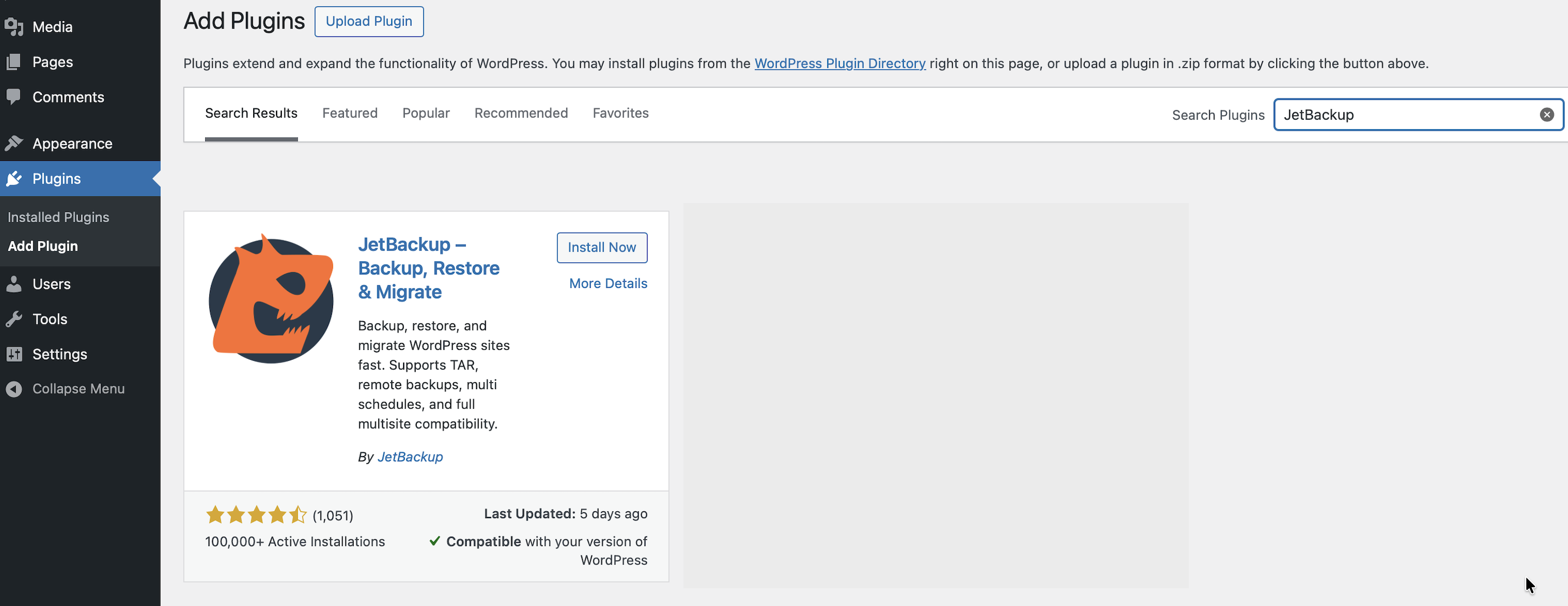
Click Plugins then search for JetBackup, and finally click Install Now on the JetBackup tile.
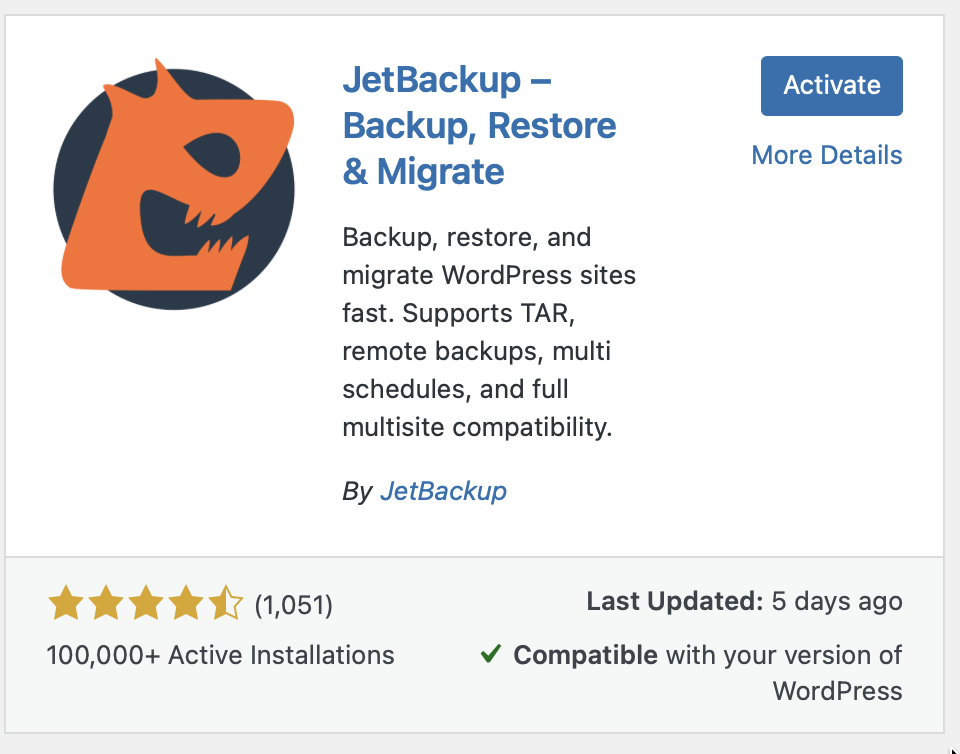
When the plugin finishes installing, click Activate.
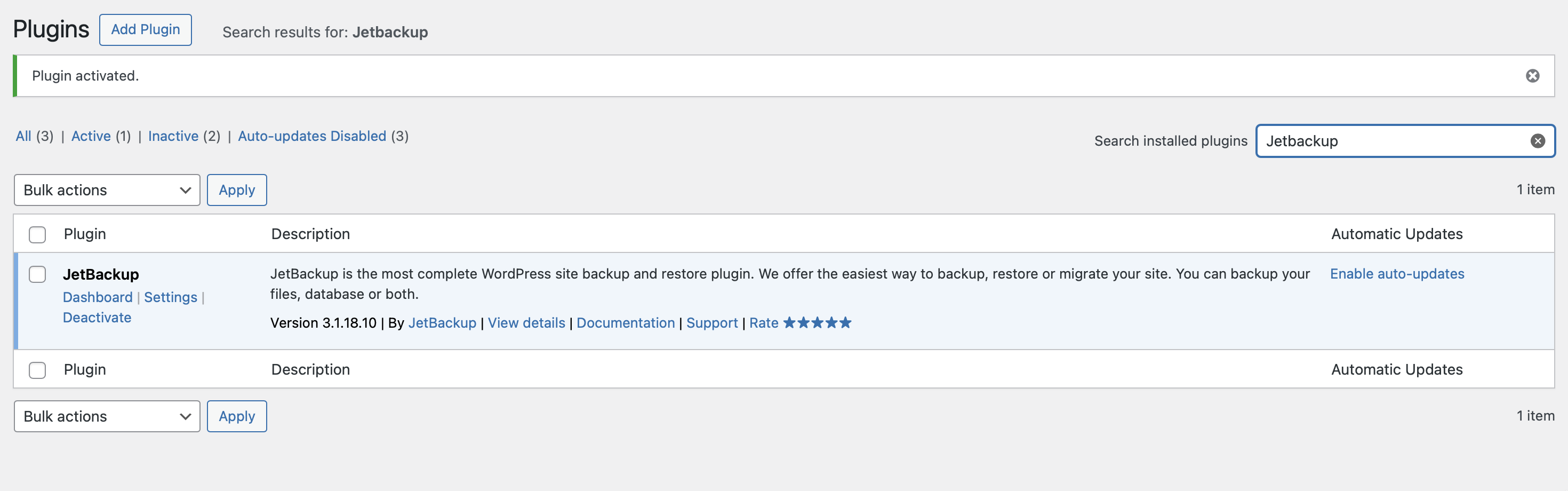
You will now see the JetBackup plugin on your WordPress Plugins page. Click Settings to proceed to the configuration screen.
Configuring Wasabi Destination
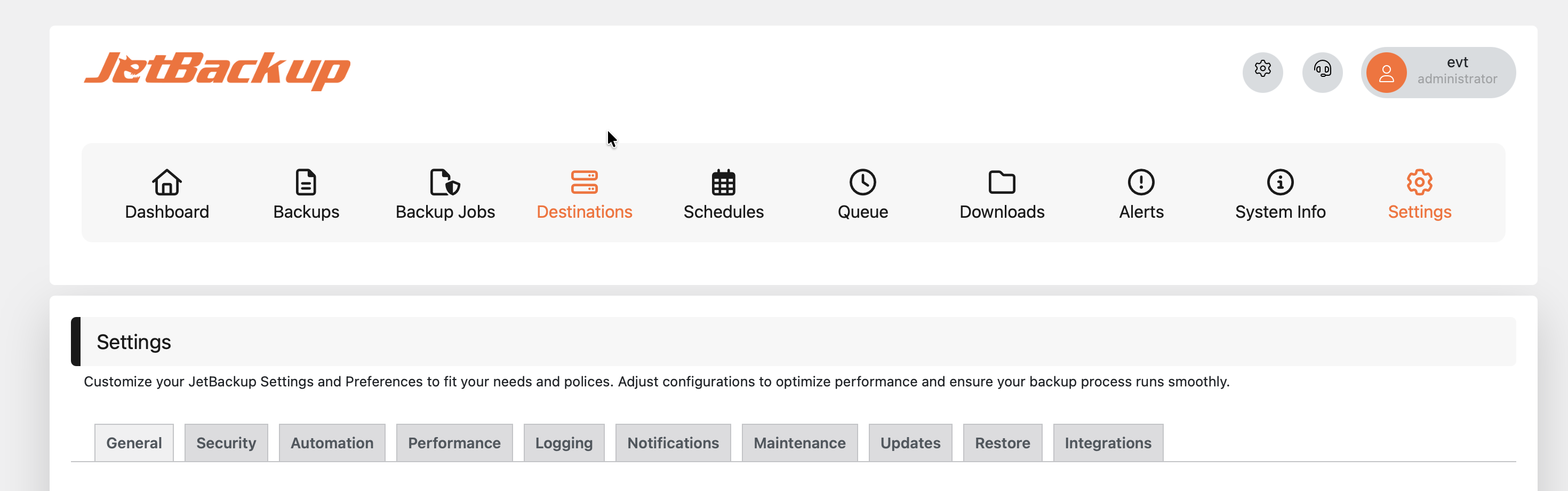
Click Destinations to begin configuring JetBackup.
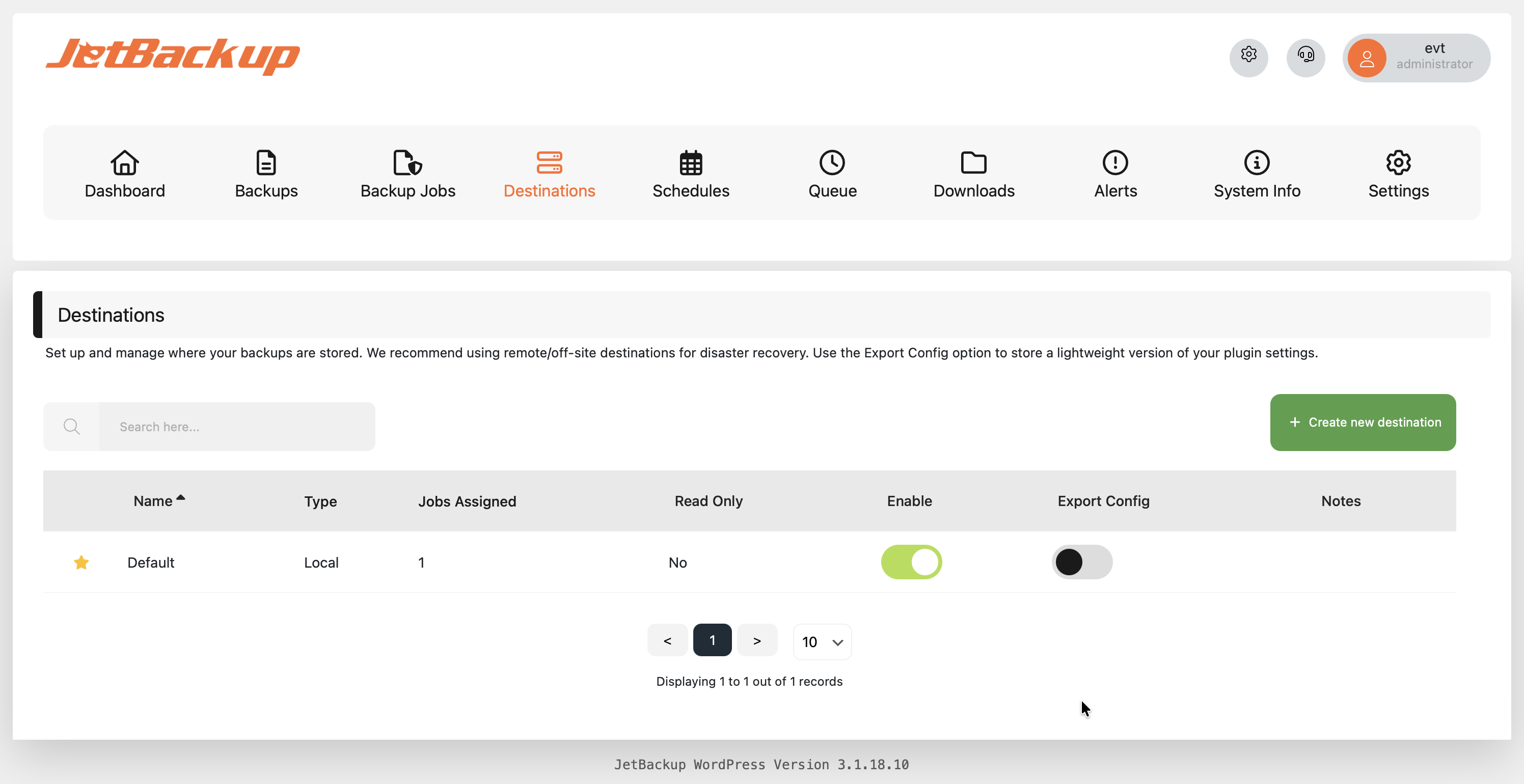
On the Destinations Page, click + Create New Destination.
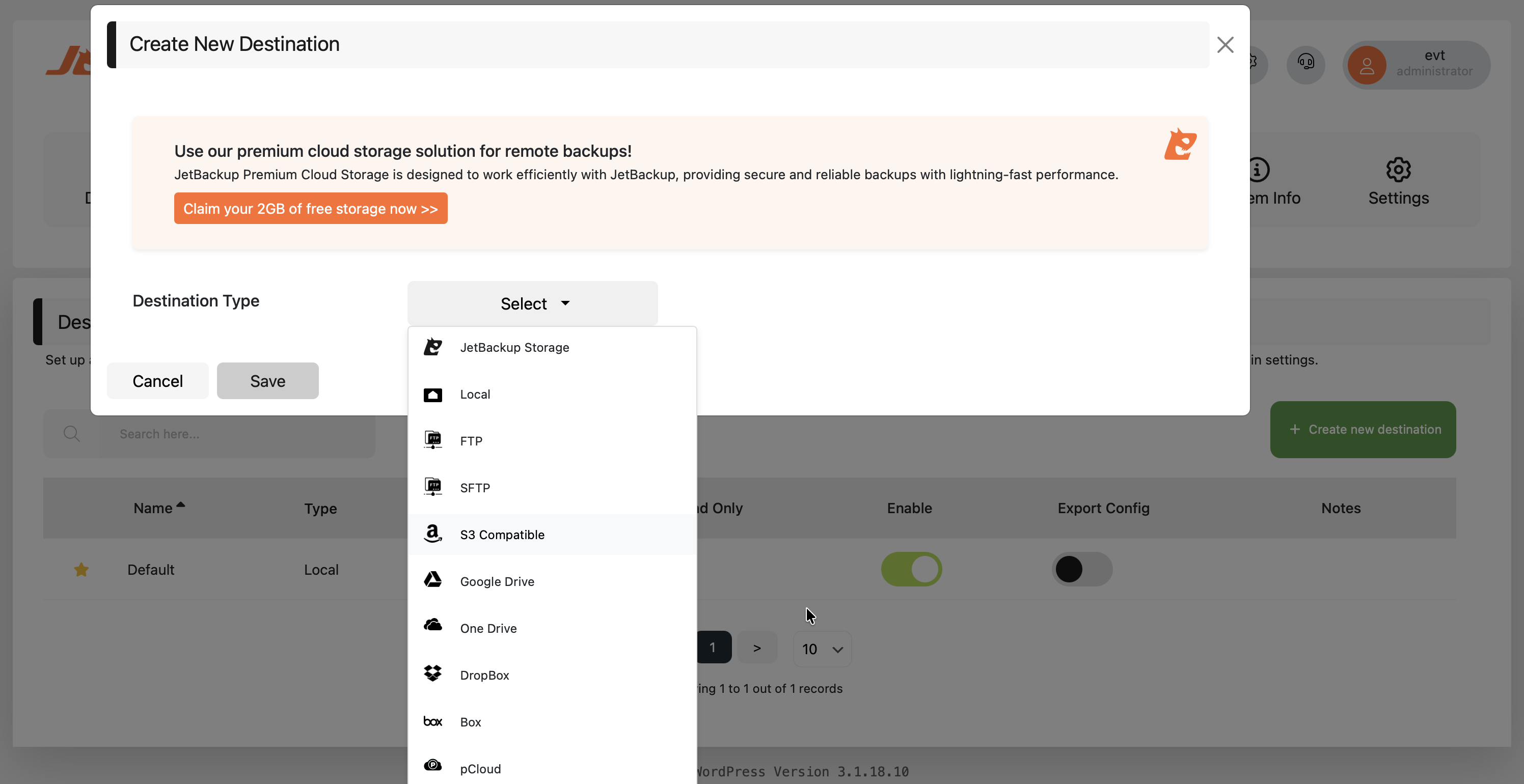
Select S3 Compatible from the Destination Type drop-down.
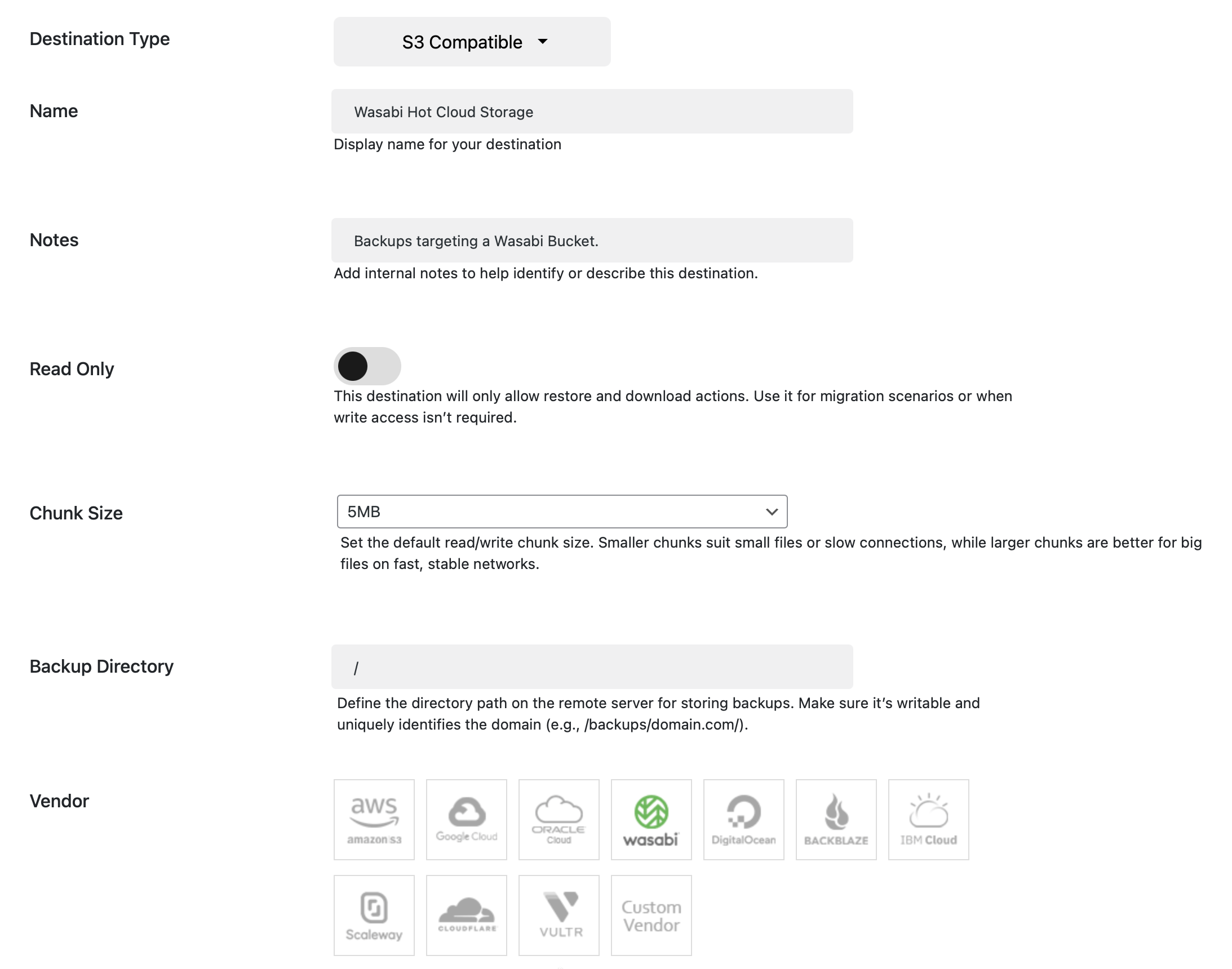
Input the following information.
Display Name to identify the destination later.
Notes/Description (Optional).
Read Only - Leave this set to Off.
Chunk Size (Will depend on your Connection - Default 5MB).
Backup Directory (Recommended if you are backing up multiple buckets to the same bucket).
Vendor (Click the Wasabi Logo).
Choose the Wasabi Region for your bucket in the dropdown (in this example, us-east-1).
Your Wasabi Access Key.
Your Wasabi Secret Key.
The name of the Wasabi Bucket you created.
Verify SSL - Leave this set to On.
Retries/Timeout/Keepalive (Can Leave these as default).
Click Save.
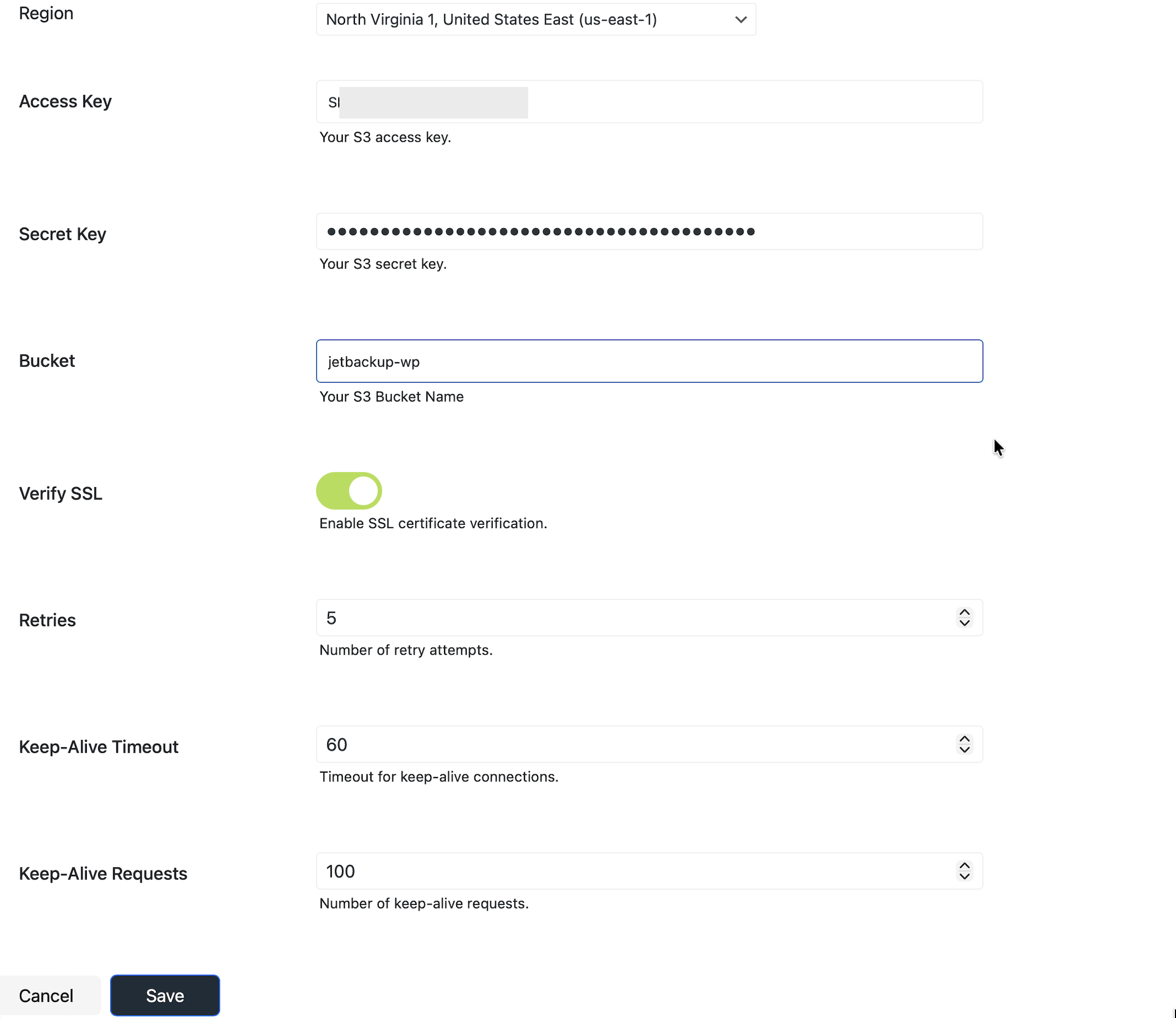
This configuration example
e uses Wasabi’s us-east-1 storage region. Use the region where your bucket is located. For a list of regions, see Service URLs for Wasabi’s Storage Regions.
You will now see the Wasabi destination on the Destinations Page.
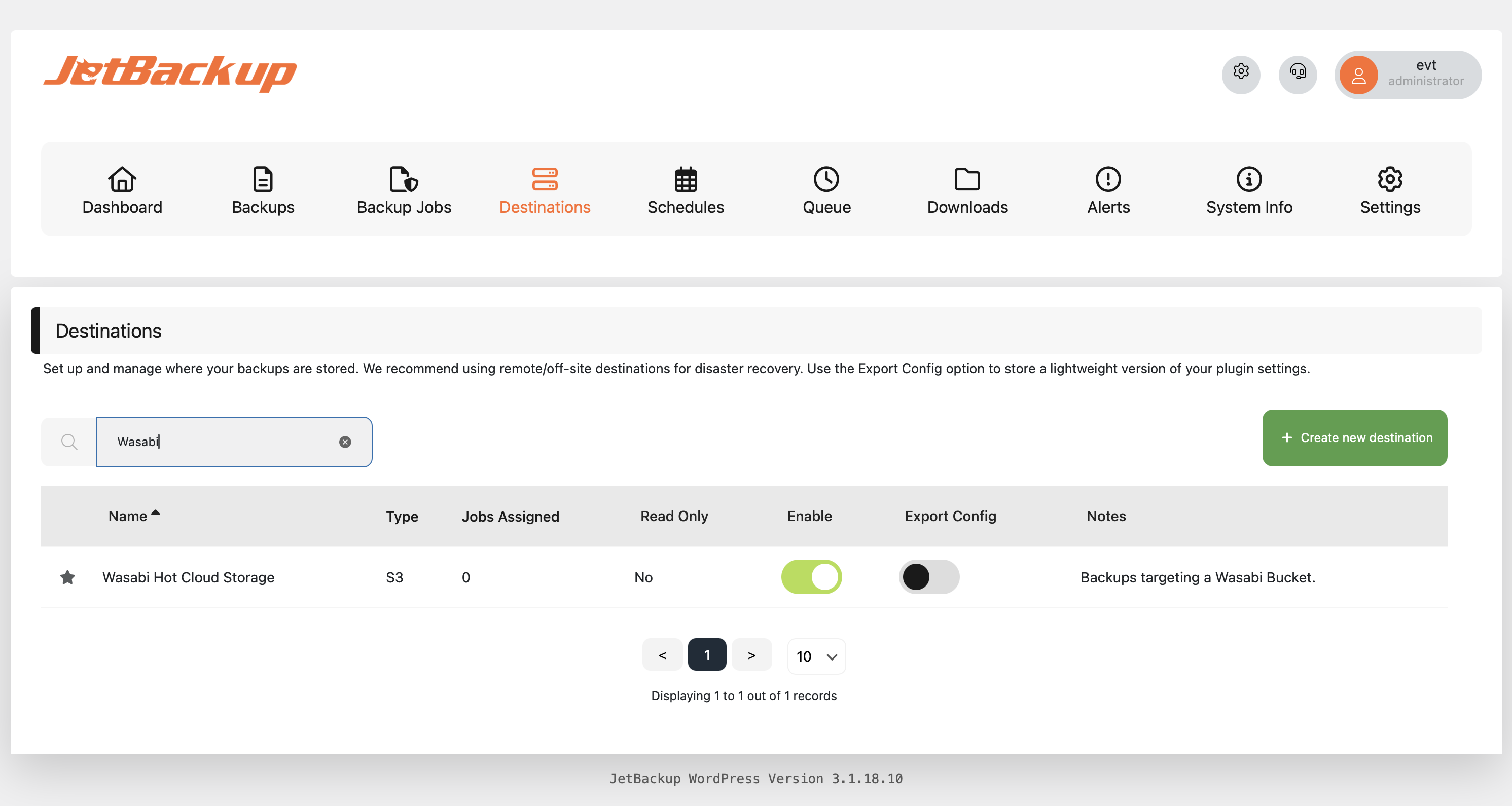
Configuring a Backup Job
Click the Backup Jobs, then click + Create New Job.
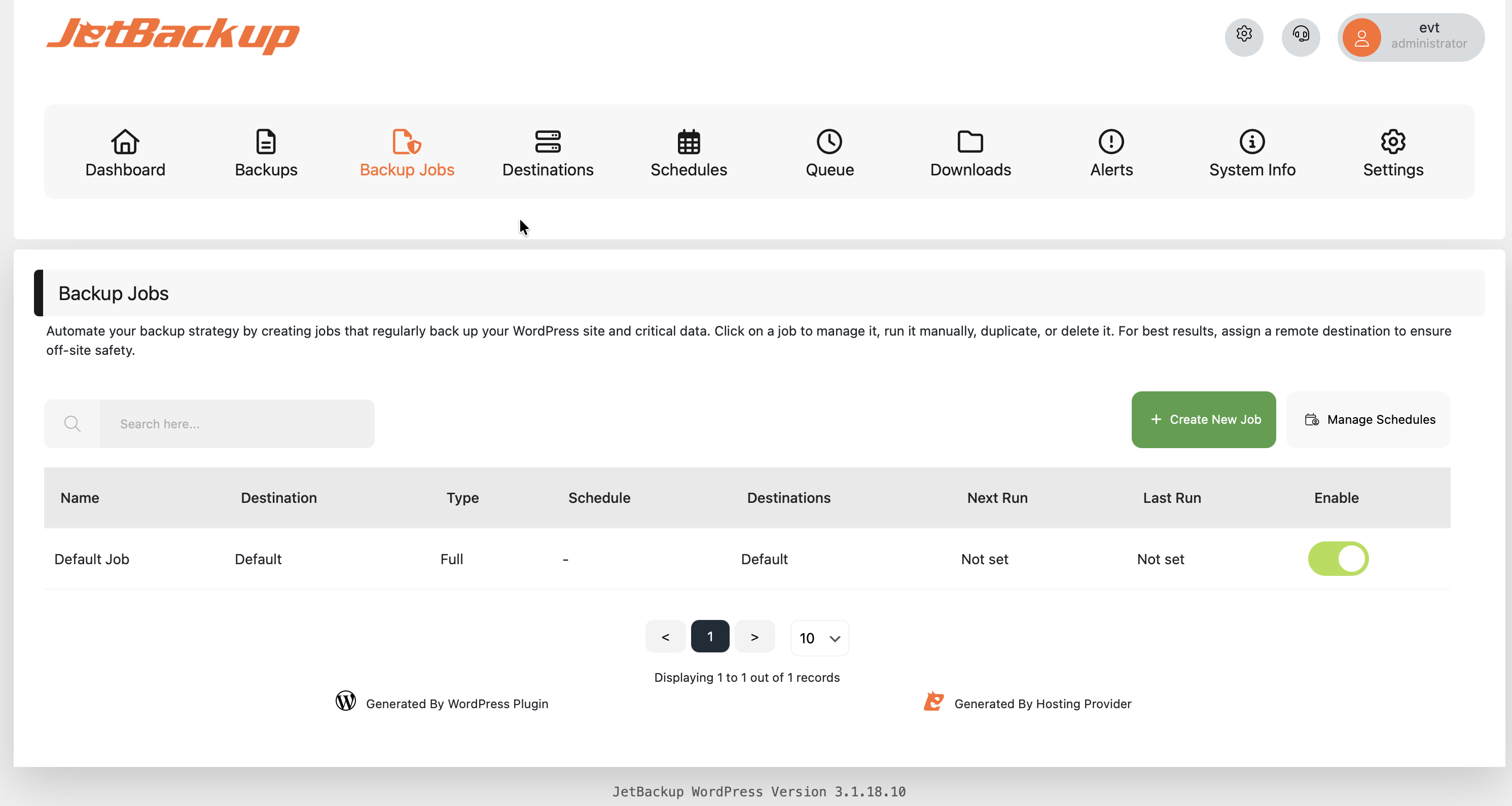
Input the following settings.
Name the Job.
Click the toggle for the Wasabi destination.
Choose which aspects of your Wordpress to back up (optionally exclude certain directories).
Set a Schedule and Retention for backups
Choose a backup time.
Optionally, enable notifications if backups aren’t completed for a specified number of days.
Finally, click Save.
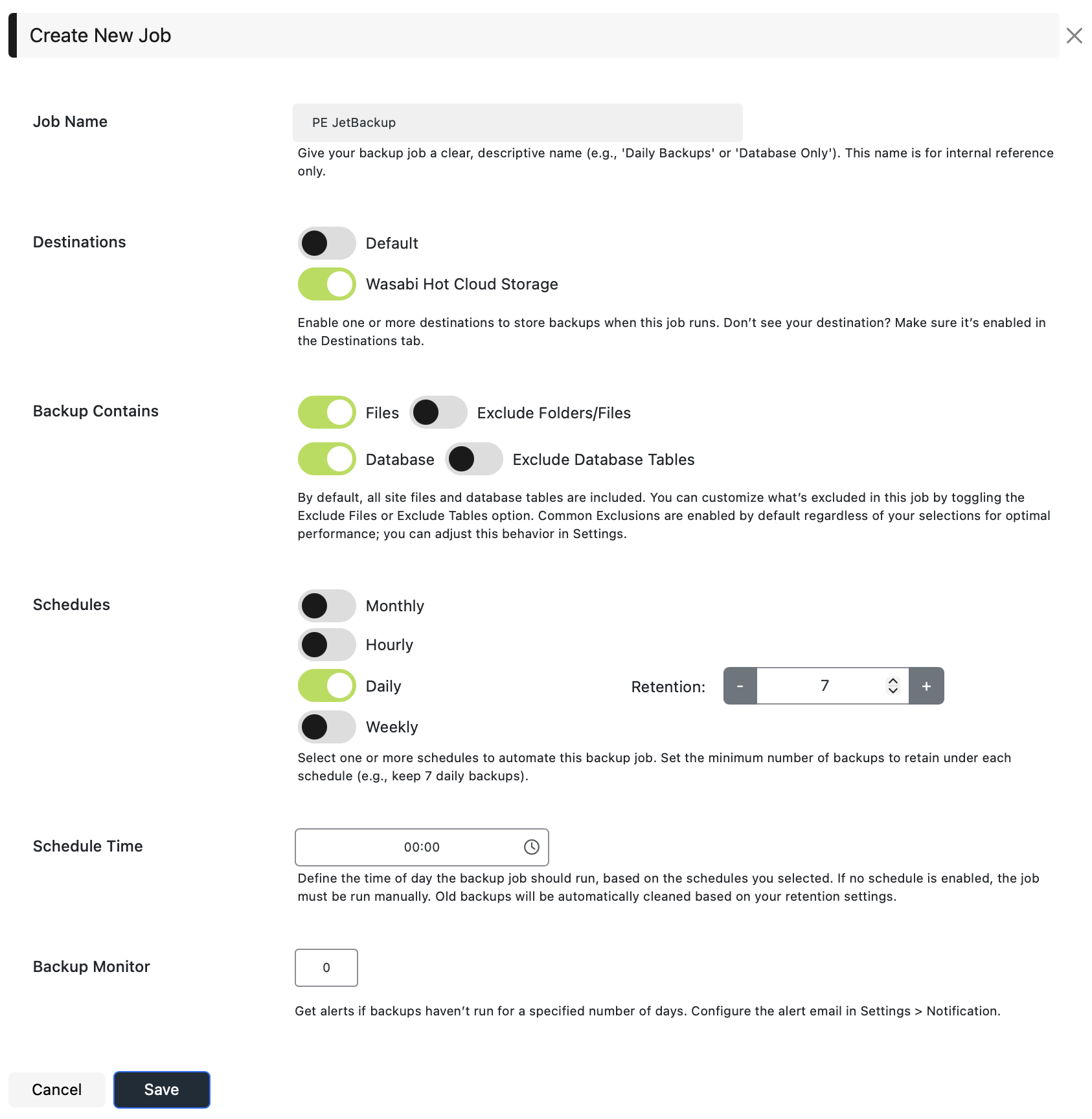
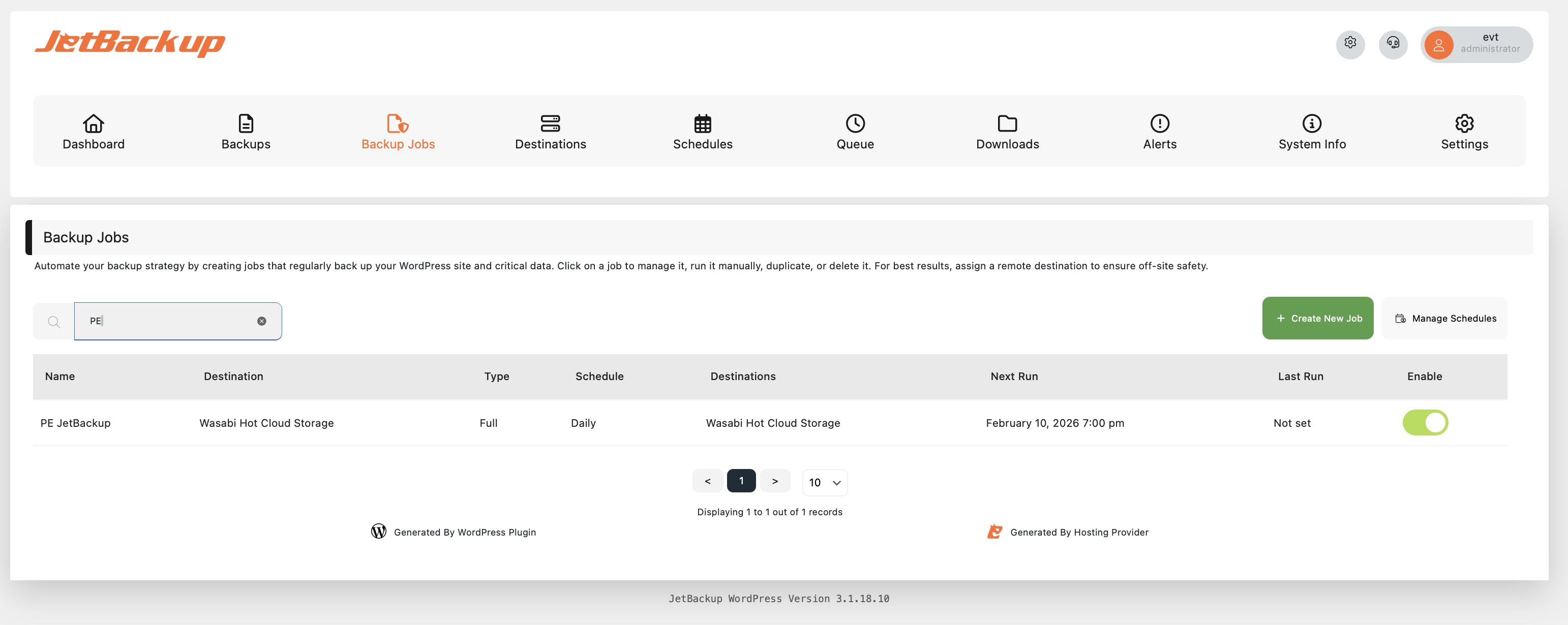
Your new Backup Job will appear on the Backup Jobs page.
Running Your First Backup
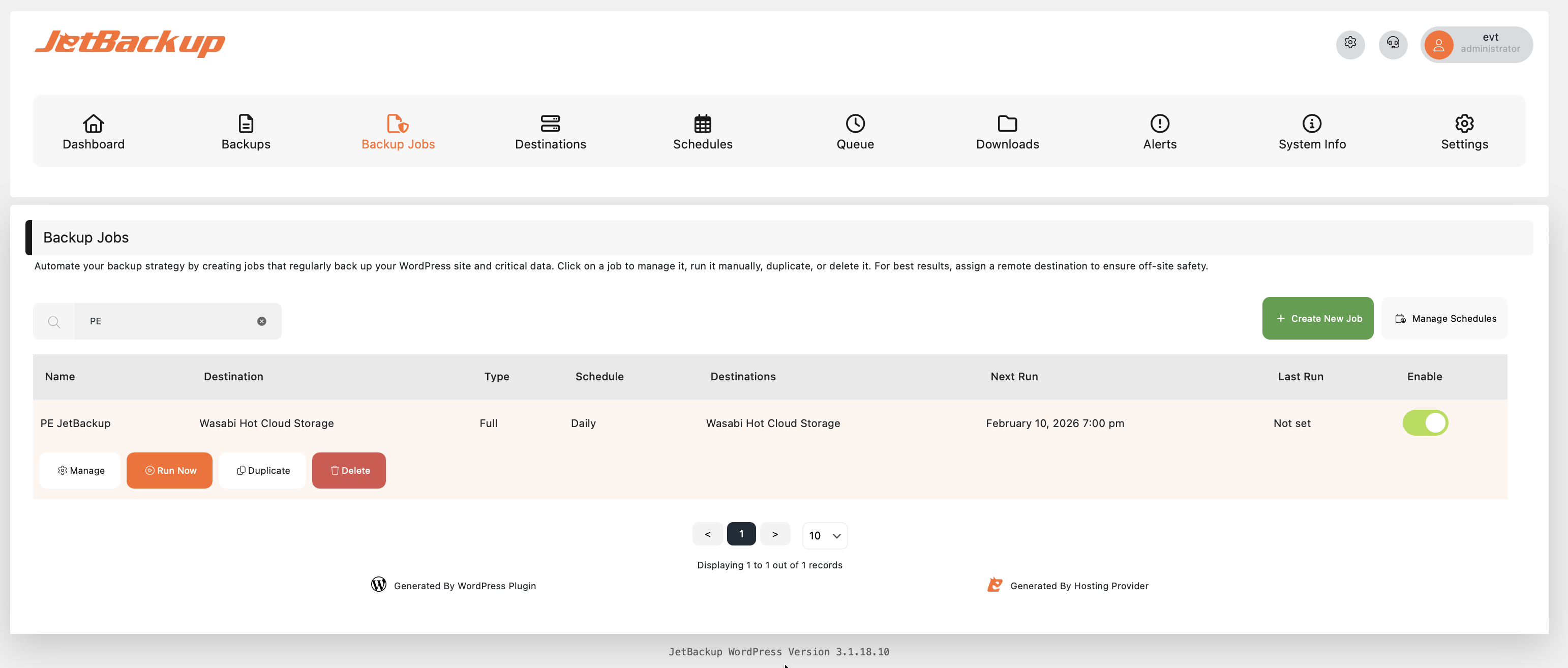
On the Backup Jobs page, click the row that represents your Backup Job to Wasabi, then click Run Now.
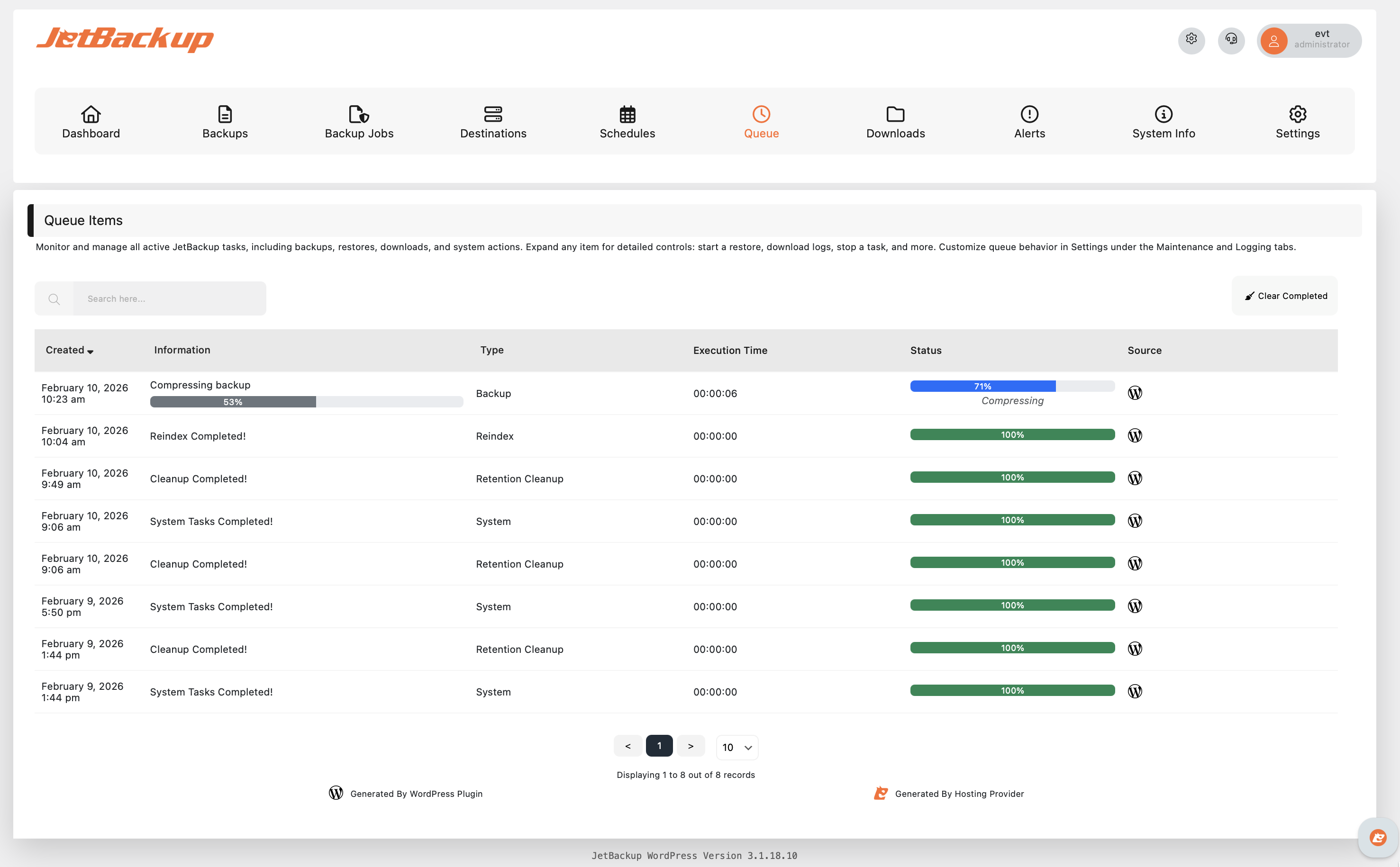
2. As soon as the backup starts, you will be taken to the Queue page, showing the backup progress.
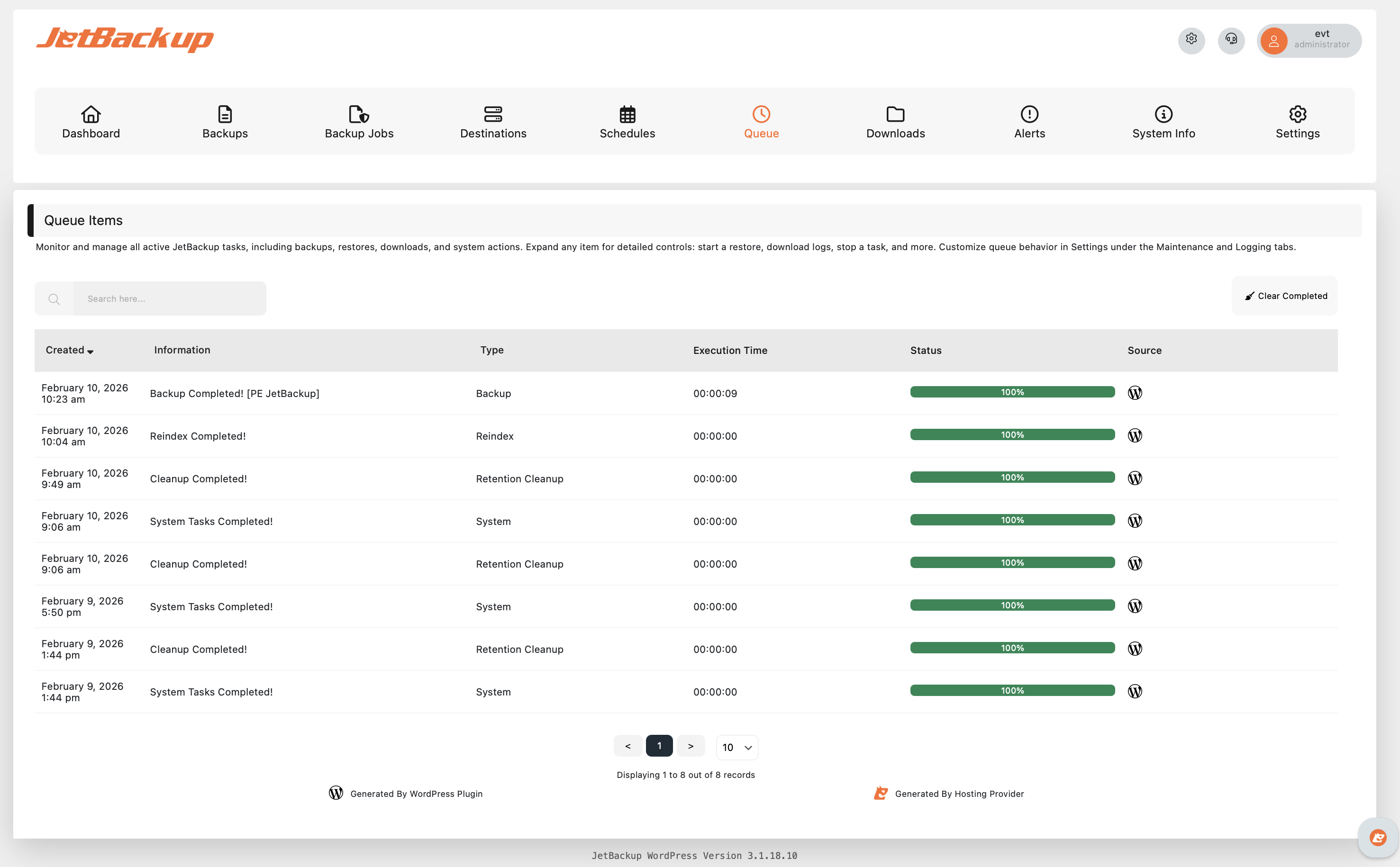
Once the Backup Job has completed, you will see an entry indicating it, along with the name of your destination.
Verifying Data
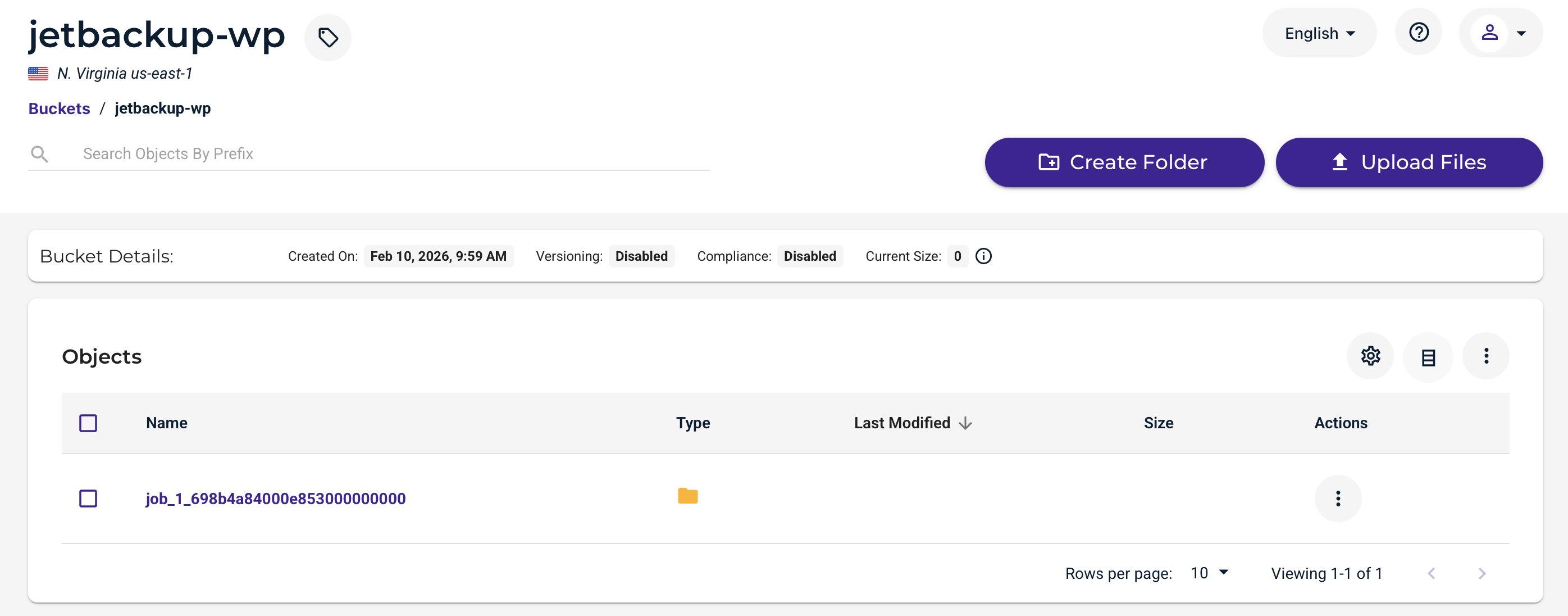
Log in to your Wasabi Console and navigate to the bucket you have set as your JetBackup Destination. You will see an entry for your Backup Job.
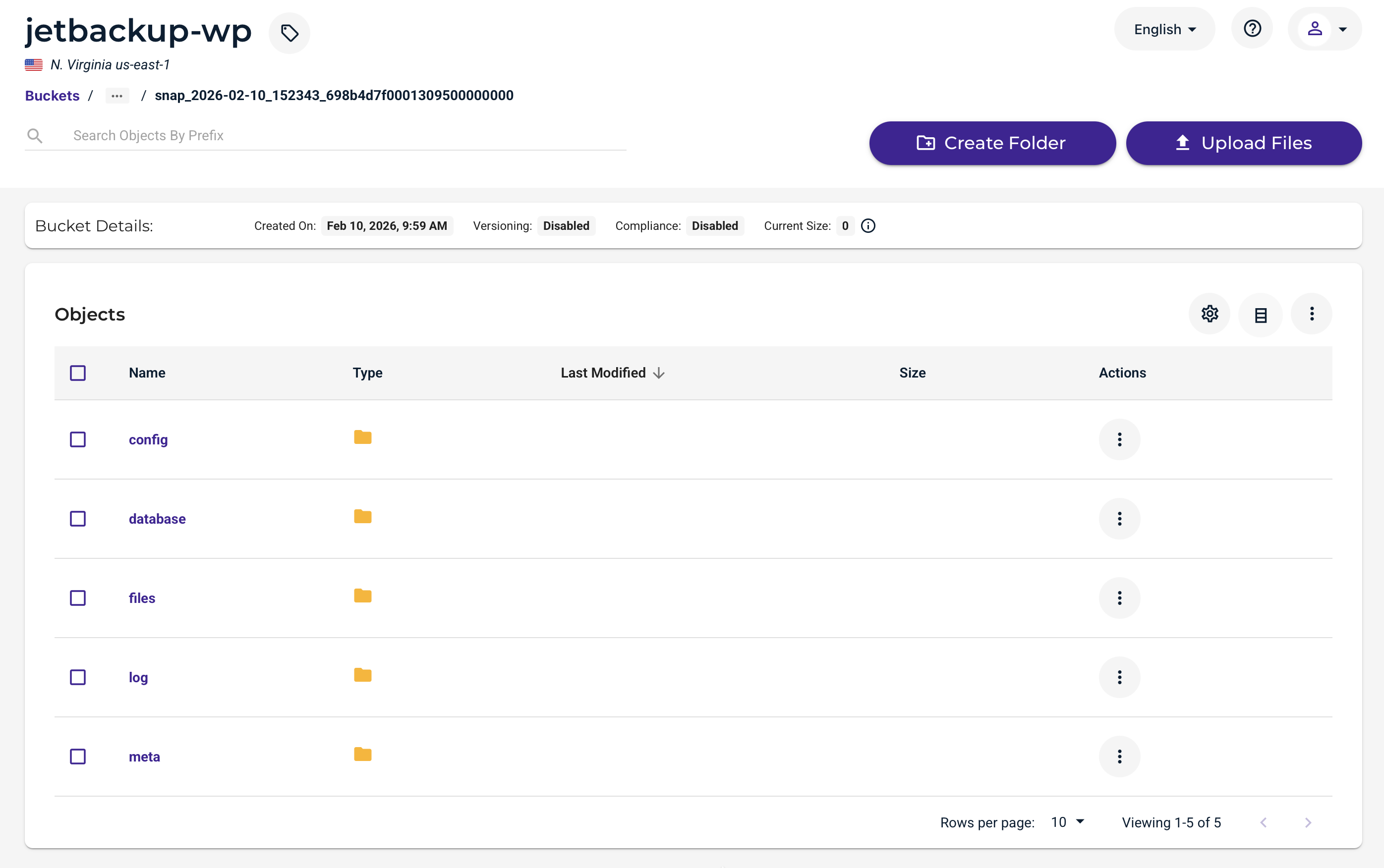
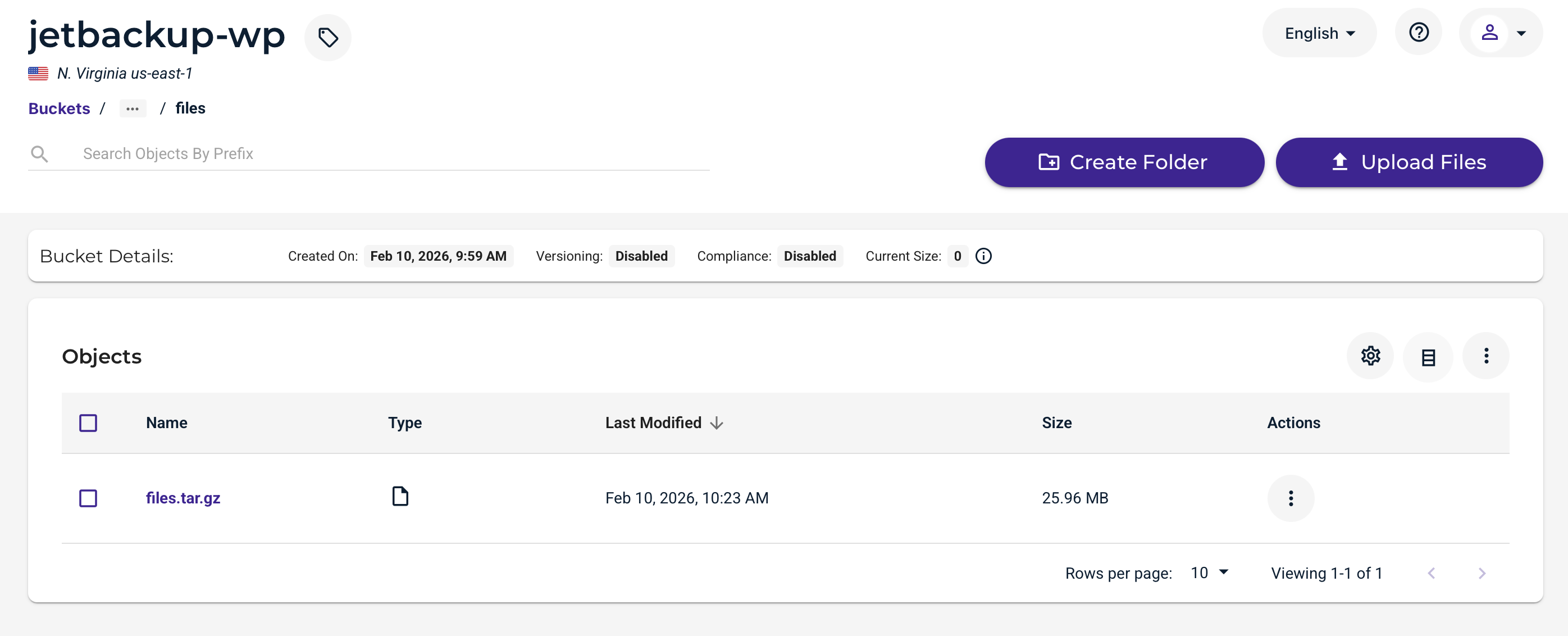
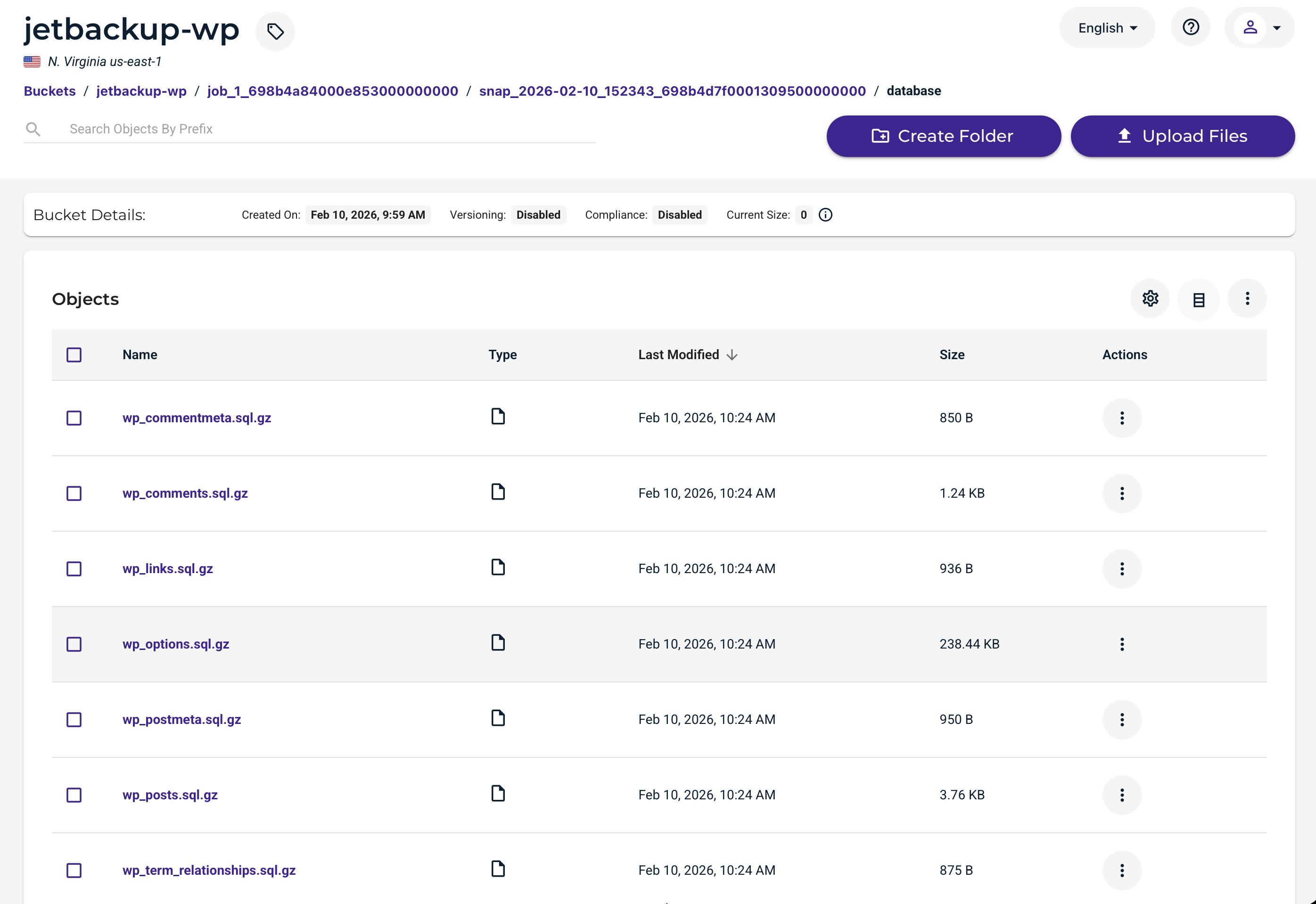
By navigating deeper into the directory structure, you will see that JetBackup stores the WordPress site as normal files (note that some directories are compressed).
Restoring a Backup
The data restoration process is handled by your specific backup software application. As there are many, potential variables that will affect your unique environment, Wasabi strongly recommends that you seek the guidance of your backup software's technical support team in the event that you encounter difficulty or have application-specific inquiries.
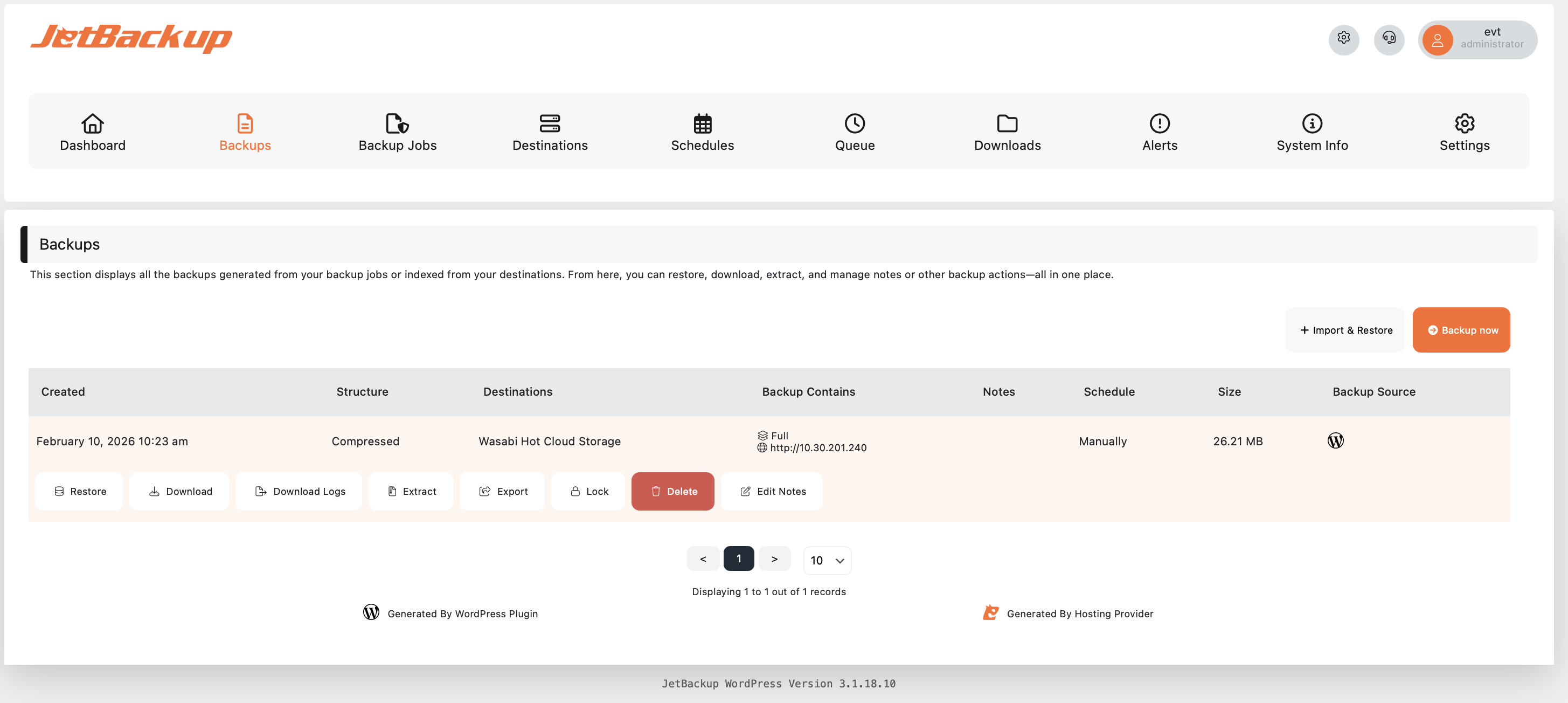
Click Backups on your JetBackup Dashboard.
Click the entry for the relevant backup.
Click Restore.
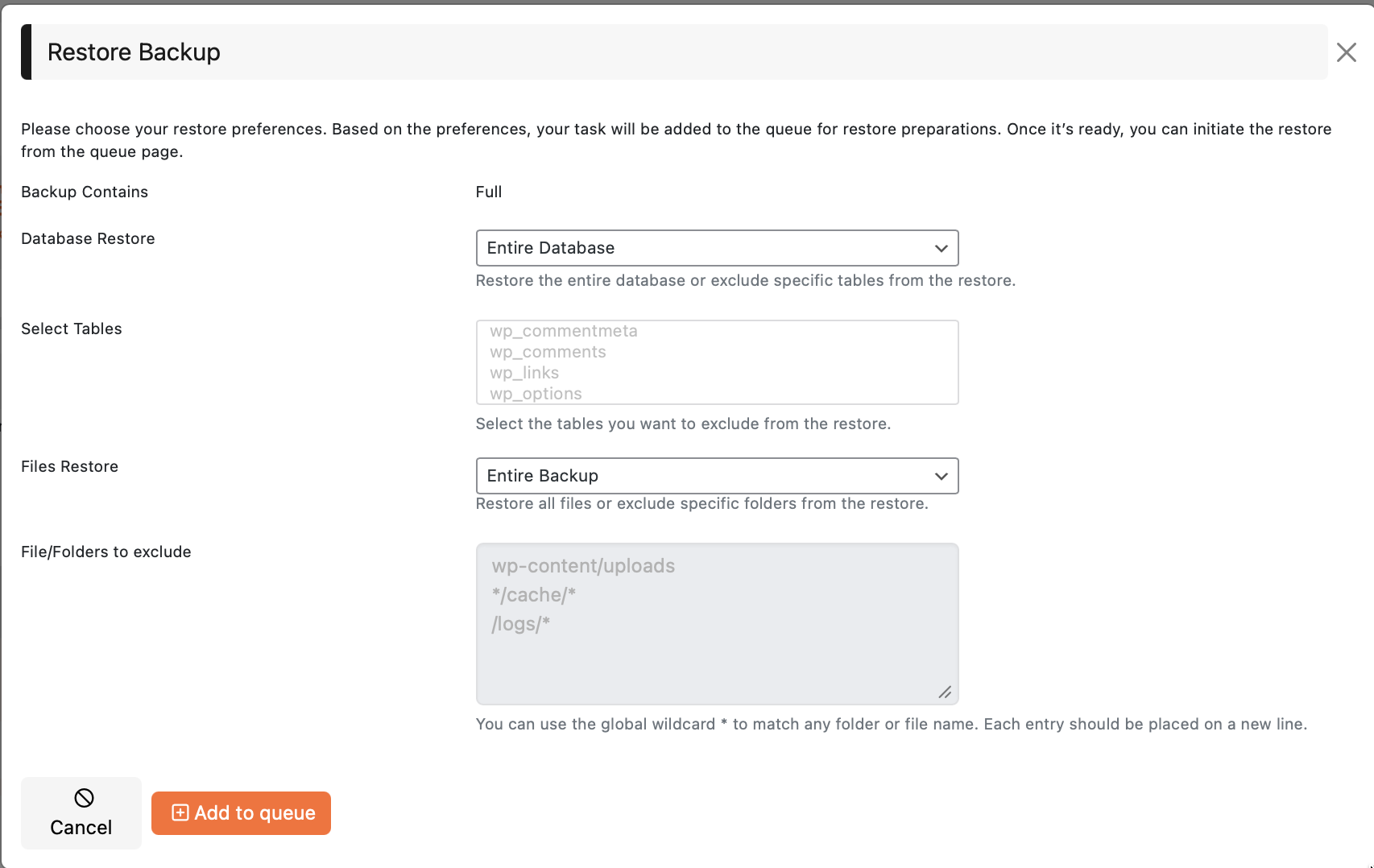
2. Choose whether to restore the whole Database Backup (or just certain tables), to restore certain files (or the whole site directory), then click + Add to Queue.
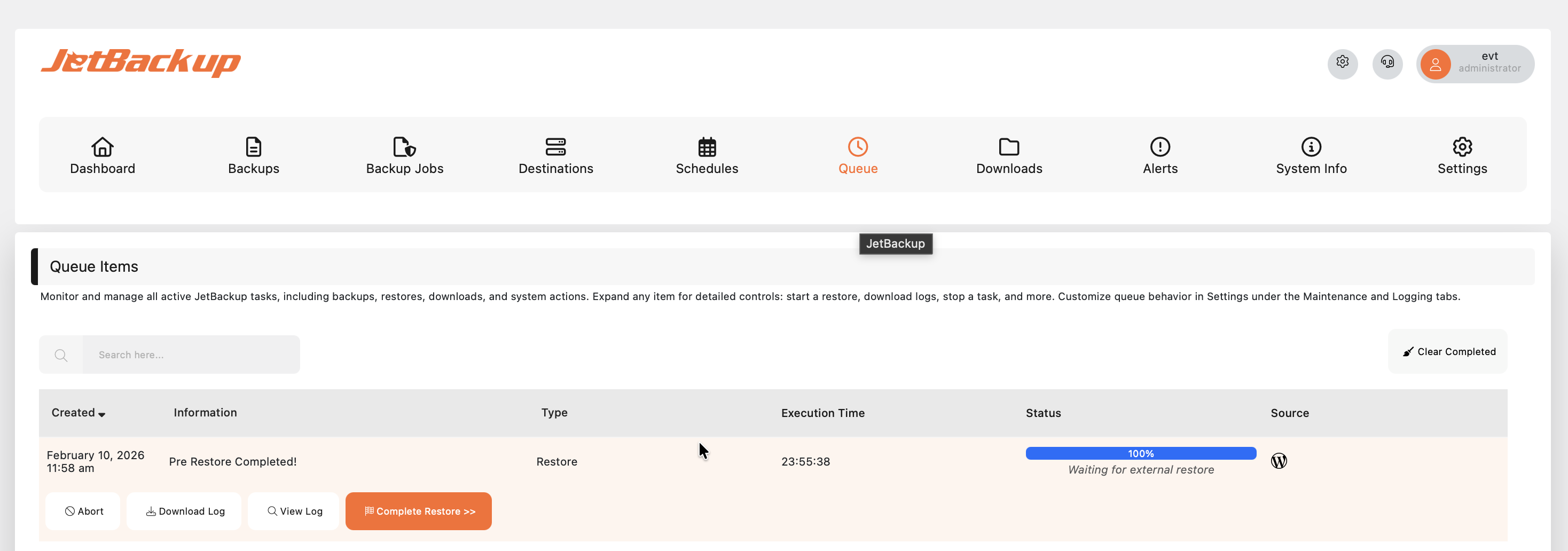
On the Queue page, you’ll see the pre-restore progress. Once the pre-restore completes, click Complete Restore to finalize the restore process.
You will then be taken to the Restore Progress page. Once this restore completes, click Complete Restore to be taken back to your WordPress site.