GRAU Data’s MetadataHub is a platform and service that enables organizations to extract richer understanding from the metadata embedded in their unstructured documents, images, and other data sources. Acting as a unified hub, it consolidates, enhances, and adds context to metadata spanning an organization's entire data landscape, eliminating data silos through capabilities such as data cataloging, lineage tracking, and data quality monitoring, so that unstructured files and data assets become easily searchable and primed for AI use.
The use of this application in the configuration below may result in data egress, depending on the types of additional optional extractors used to analyze objects in a given bucket. For example, the MD5 extractor will need to egress the entire object in order to compute the MD5 sum of the object. Be sure to reach out to GRAU support prior to running your metadata analysis, to confirm how it may impact your data egress from Wasabi.
Requirements
A Wasabi Hot Cloud Storage Account
A Wasabi Bucket (see Creating a Bucket)
Access & secret key pair
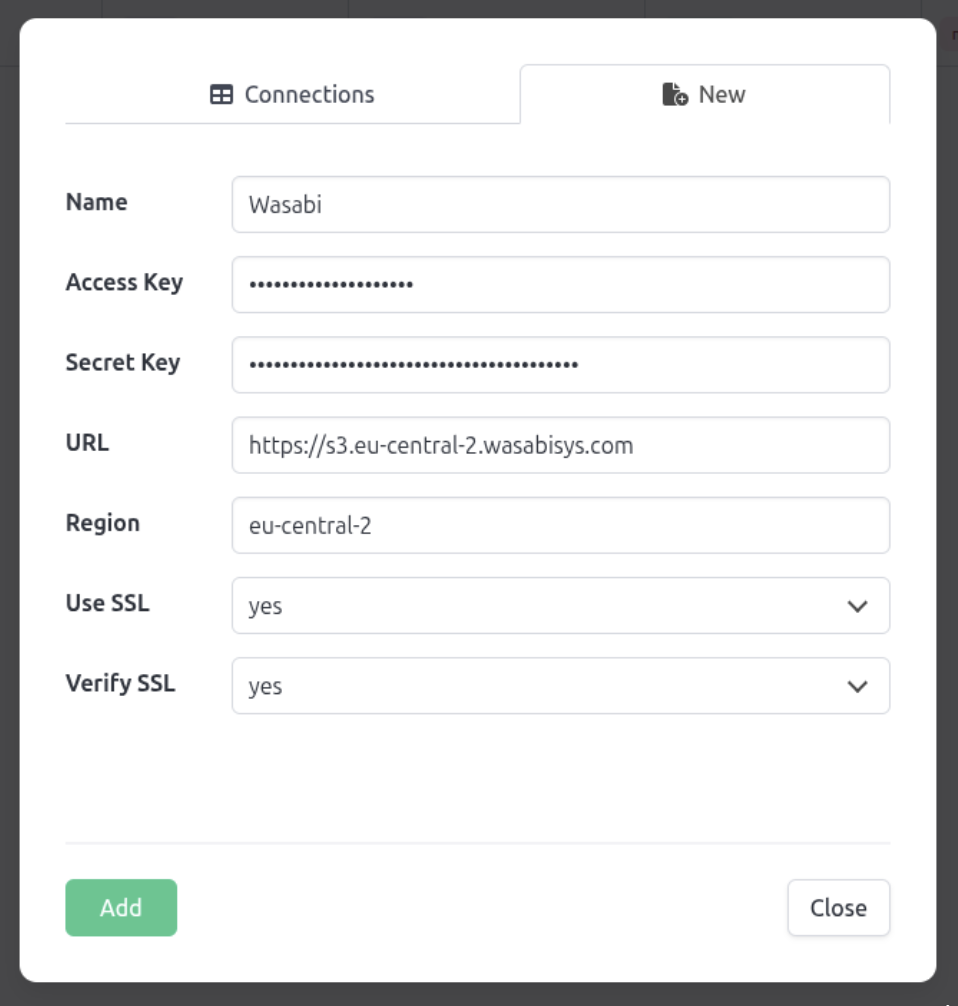
Be sure to note your bucket name, storage region URL, and Access & Secret Key, as you will need these for later steps.
Access to the MetadataHub Registry
A valid MetadataHub License
Docker (Compose) & s3fs installed
Configuring MetadataHub With Wasabi
The example below uses a test bucket containing 10 image files.
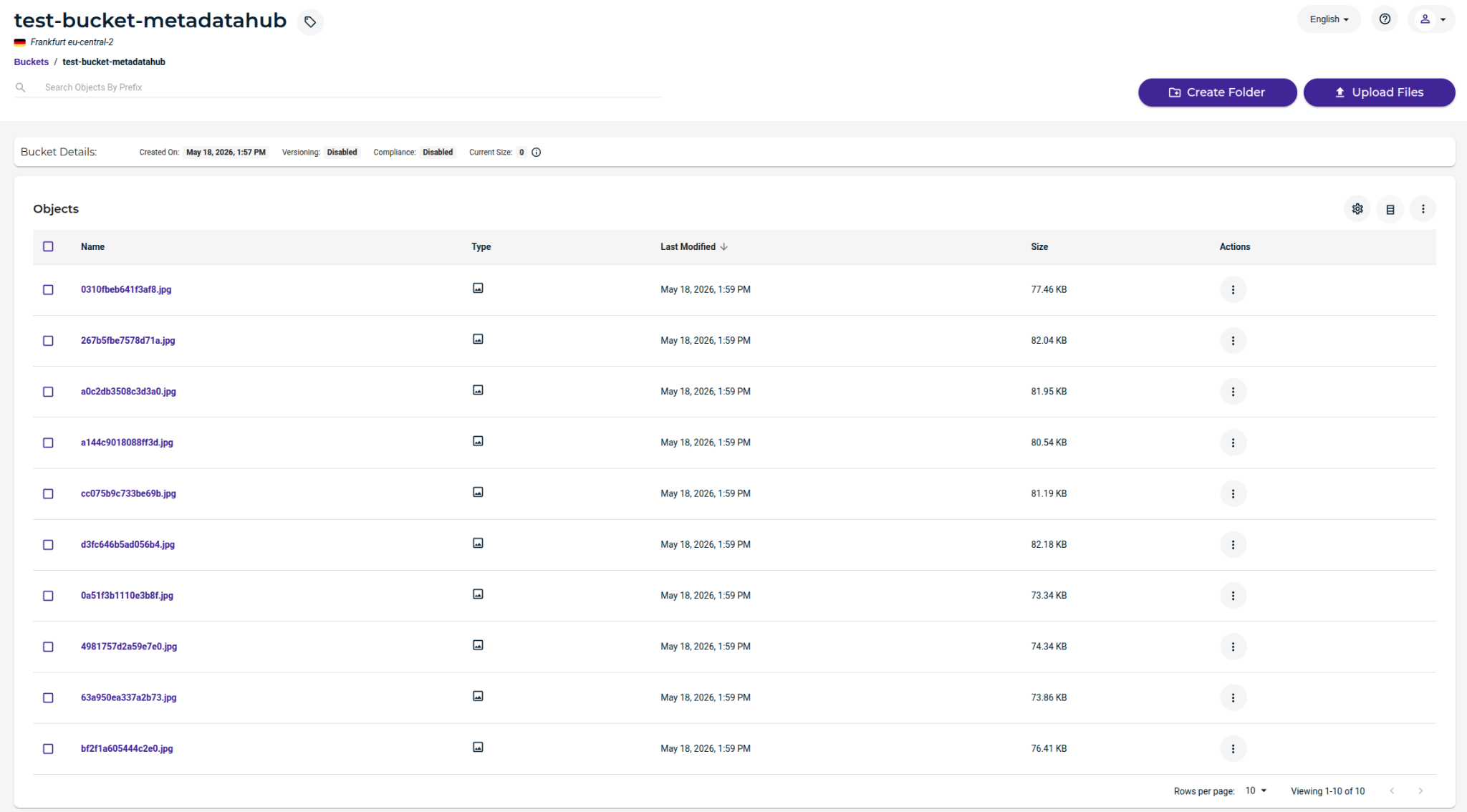
Create a new directory with the following structure.
.credentials—Stores the S3 access/secret key.env—Stores configuration values for the Compose filecompose.yml—Defines the MetadataHub servicesdata/test-bucket-metadatahub—Mount point for the Wasabi bucket
Mount the S3 test bucket using s3fs so MetadataHub Core can access the files.
This configuration example uses Wasabi's eu-central-2 storage region. Use the region your bucket is located in. For a list of regions, see Service URLs for Wasabi's Storage Regions(opens in new tab).
s3fs \
    test-bucket-metadatahub \
    ./data/test-bucket-metadatahub/ \
    -o subtype=s3 \
    -o use_path_request_style \
    -o ro \
    -o fsname=https://s3.eu-central-2.wasabisys.com/test-bucket-metadatahub \
    -o endpoint=s3.eu-central-2.wasabisys.com \
    -o url=https://s3.eu-central-2.wasabisys.com \
    -o passwd_file=./credentials \
    -o allow_other \
    -o umask=0022 \
    -o noexec
Configure
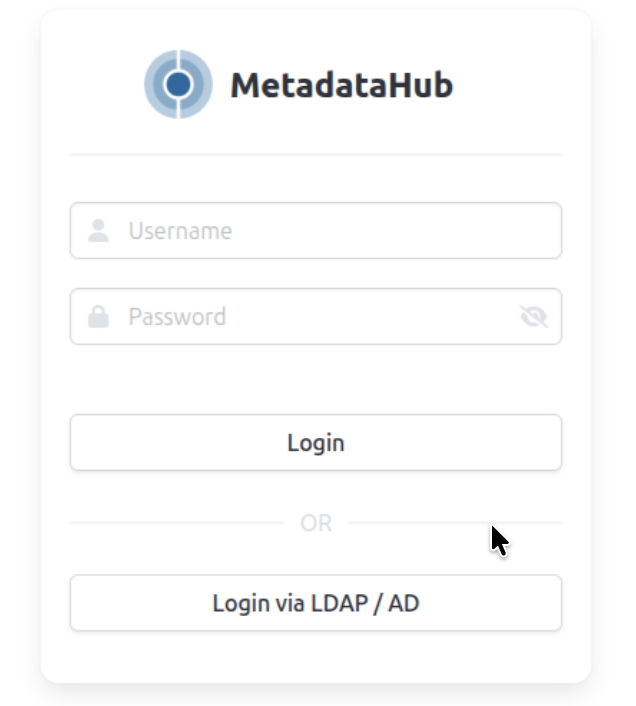
compose.ymlwith a minimal MetadataHub setup. This includes one Core, one Hub, and a Postgres database. Fill in the required values in.envand start the services.services: mdh-wasabi-core: image: registry.metadatahub.de/main/core:3.8 container_name: mdh-wasabi-core depends_on: mdh-wasabi-db: condition: service_healthy environment: MDH_CONFIG_DATABASE_HOST: mdh-wasabi-db MDH_CONFIG_DATABASE_PASSWORD: ${MDH_CONFIG_DATABASE_PASSWORD} MDH_CONFIG_CREDENTIAL_USER: ${MDH_CONFIG_CREDENTIAL_USER} MDH_CONFIG_CREDENTIAL_ADMIN: ${MDH_CONFIG_CREDENTIAL_ADMIN} MDH_CONFIG_SERVER_APP_SSL: false MDH_CONFIG_SERVER_APP_SSL_VERIFY: NO_VERIFY MDH_CONFIG_HARVESTER_SHARE_O_NAME: test-bucket-metadatahub MDH_CONFIG_HARVESTER_SHARE_O_HOST: /home/mdh/wasabi/data/test-bucket-metadatahub MDH_CONFIG_INSTANCE_NAME: mdh-wasabi-core MDH_CONFIG_DATABASE_NAME: wasabi-core volumes: - ./data/test-bucket-metadatahub:/var/opt/mdh-core/harvester/filesystem/test-bucket-metadatahub:ro mdh-wasabi-hub: image: registry.metadatahub.de/main/hub:3.8 container_name: mdh-wasabi-hub environment: HUB_TIMEZONE: Europe/Berlin HUB_ADMIN_NAME: ${HUB_ADMIN_NAME} HUB_ADMIN_FIRST_NAME: ${HUB_ADMIN_FIRST_NAME} HUB_ADMIN_LAST_NAME: ${HUB_ADMIN_LAST_NAME} HUB_ADMIN_EMAIL: ${HUB_ADMIN_EMAIL} HUB_ADMIN_PASSWORD: ${HUB_ADMIN_PASSWORD} HUB_SSL: false HUB_SSL_VERIFY: NO_VERIFY HUB_HTTP_COOKIE_SECURE: false volumes: - mdh-wasabi-hub-db:/app/database ports: - 127.0.0.1:9001:8000 mdh-wasabi-db: image: postgres:18 container_name: mdh-wasabi-db environment: POSTGRES_DB: postgres POSTGRES_USER: metadatahub POSTGRES_PASSWORD: ${MDH_CONFIG_DATABASE_PASSWORD} healthcheck: test: ["CMD-SHELL", "pg_isready -U metadatahub -d postgres"] interval: 5s timeout: 3s retries: 5 start_period: 10s volumes: - mdh-wasabi-postgres-db:/var/lib/postgresql volumes: mdh-wasabi-hub-db: mdh-wasabi-postgres-db:Open the Hub URL in your browser and log in. Use the credentials set by HUB_ADMIN_NAME / HUB_ADMIN_PASSWORD.
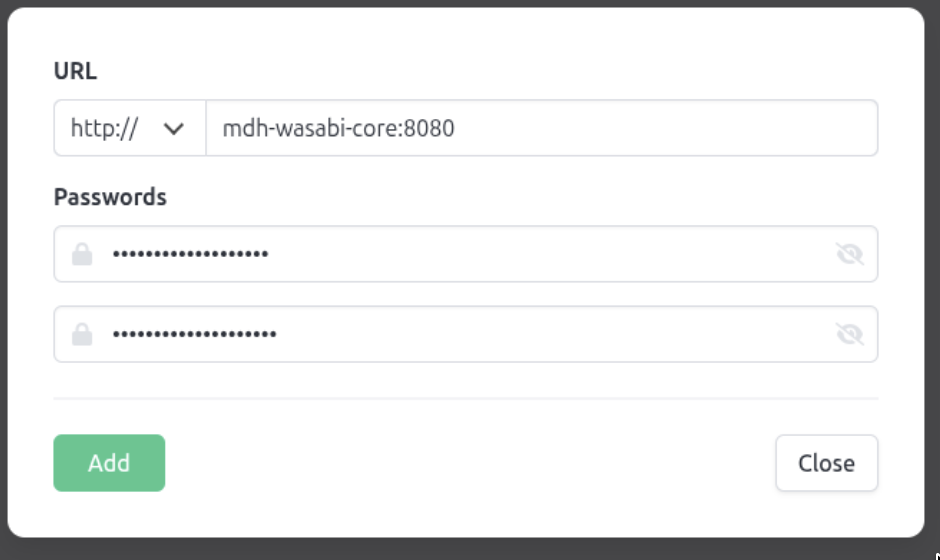
To add the Core, navigate to Instances.
Select Actions.
Click Add.
To create a harvest task, click Menu.
Click Harvest.
Click Tasks.
Click Actions.
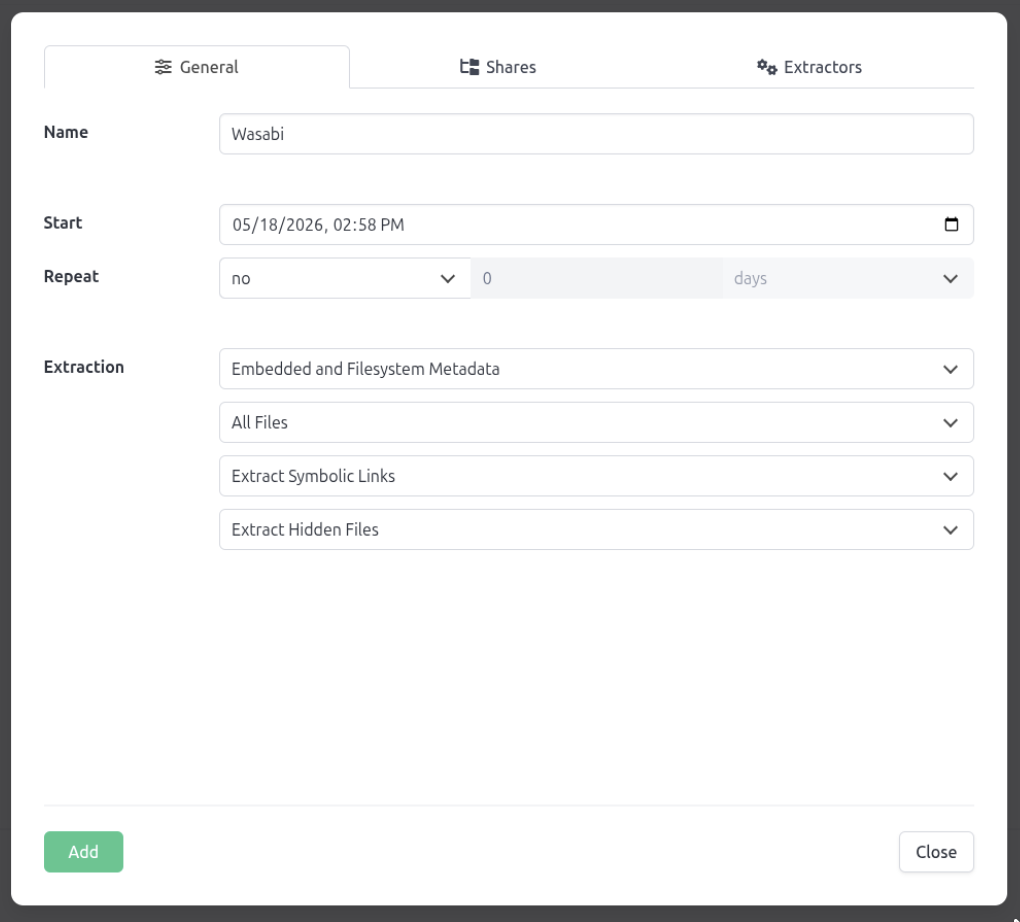
Click Add Task.
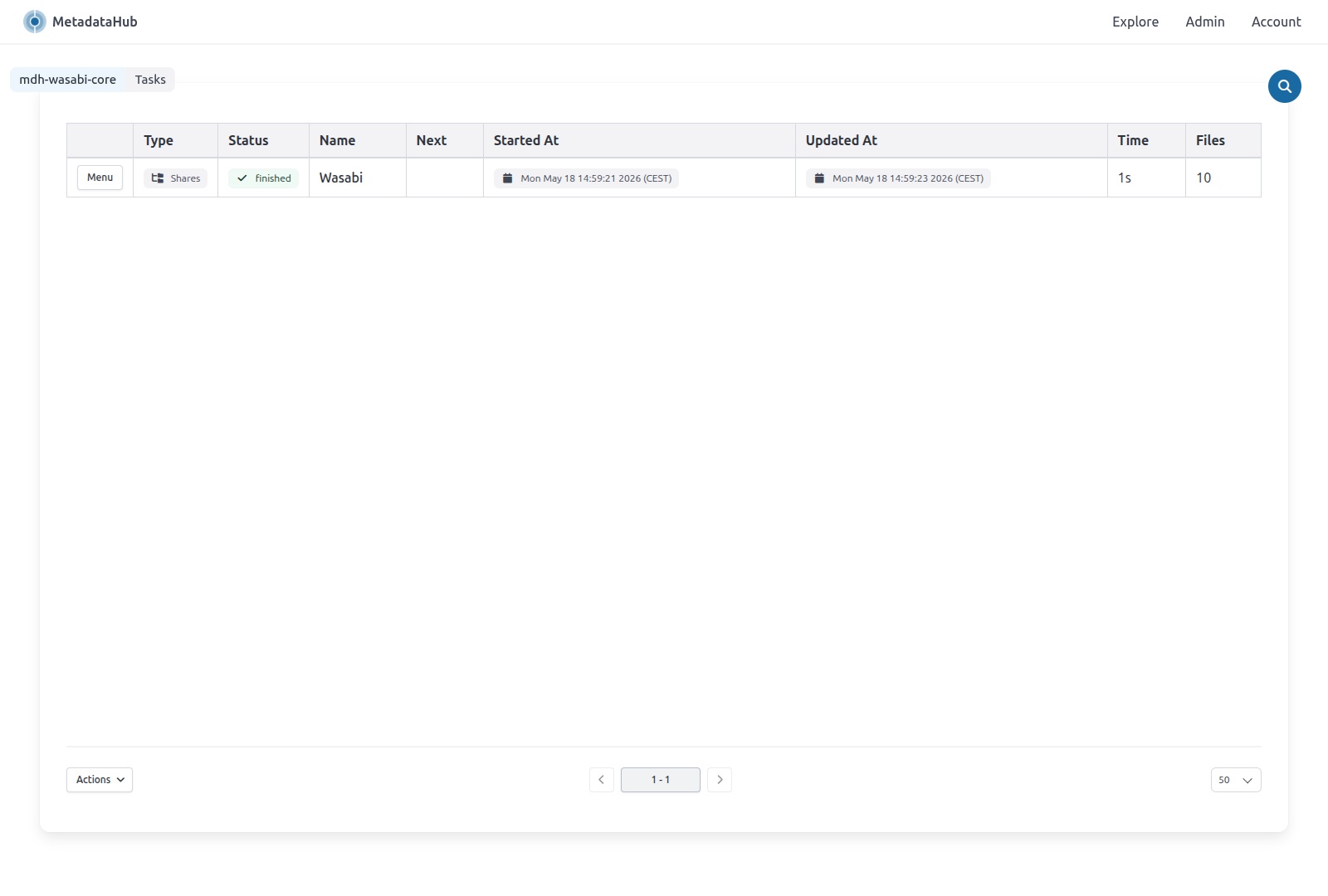
In the Shares panel, select the test-bucket-metadatahub share. This creates a new harvest task called Wasabi that will extract files from the bucket.
S3 Metadata
Optionally, to extract S3-specific metadata, register the S3 extractor for Wasabi before running the harvest task. Enable it in the Extractors panel when configuring the task.