The latest version of the Milesight plugin now supports integration with Wasabi Hot Cloud Storage. By connecting to a designated Wasabi storage pool (bucket), the plugin utilizes the Nx Storage SDK to store recorded video data in Wasabi Hot Cloud Storage via the S3 protocol. This enables users to benefit from scalable, secure, and cost-effective cloud storage for their video recordings, ensuring data is safely archived and easily accessible.
This article provides details on installing the Milesight storage plugin and configuring Wasabi Hot Cloud Storage integration with Nx Witness for efficient cloud storage for your video recordings.
Requirements
Wasabi Hot Cloud Storage Account
Wasabi bucket (see Creating A Bucket)
Be sure to note the name of the bucket, the storage region, and your access/secret Key, as you will need these later in the guide.
Nx Witness & Plugin For Milesight (see Milesight Downloads Page)
[Supported Nx Witness version]—Network Optix Witness VMS v 5.1 or above.
[Supported Operating Systems]
Linux: Ubuntu 20.04, 22.04
Windows: 10, 11
Installing Plugin for Windows
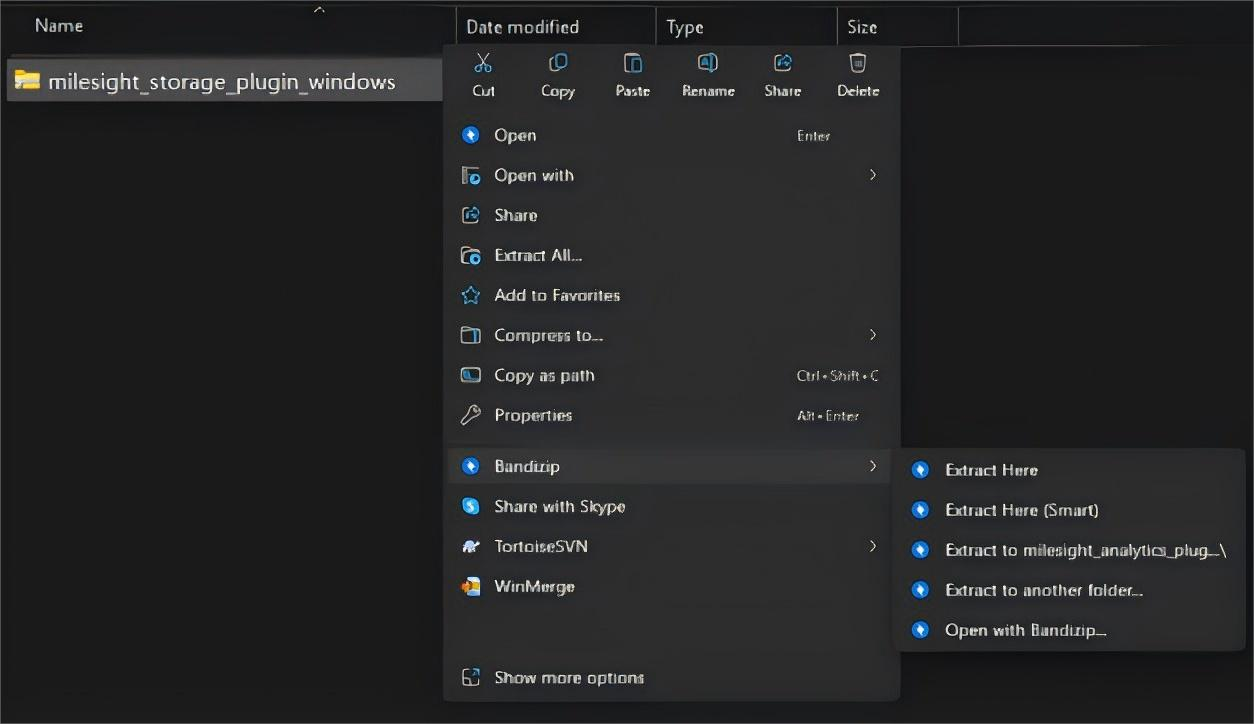
Extract milesight_storage_plugin.zip into a folder.
Configure Local Buffer.
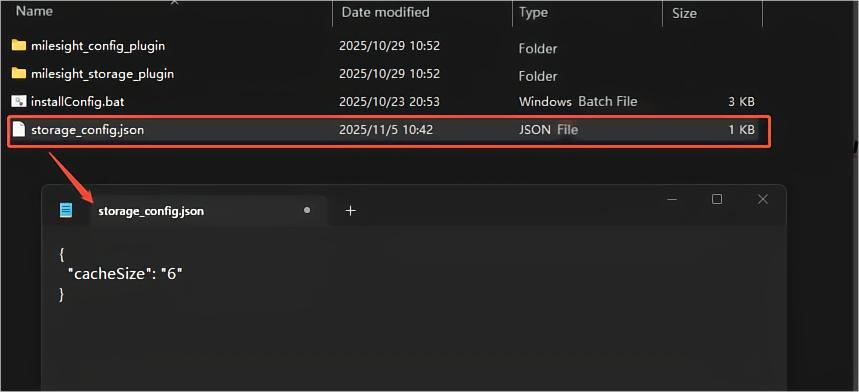
Before installing the plugin, please configure the local buffer in the storage.config file provided in the installation package. Local buffering temporarily stores video data on the device and uploads it asynchronously when network or bandwidth issues occur. This helps prevent data loss and enhances users’ data security. The default value is 6GB, but users can adjust it according to their actual needs.
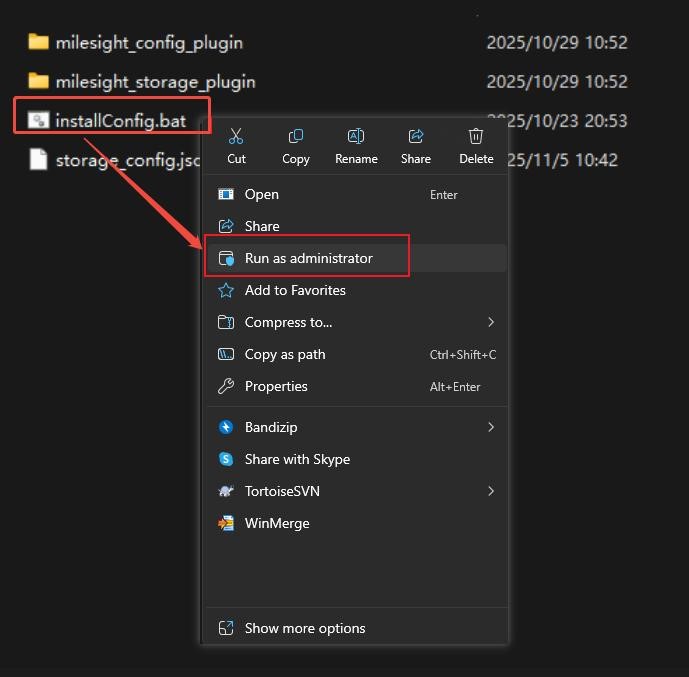
Right-click on installConfig.bat and select Run as administrator to finish the installation of the plugin.
Launch the Nx Witness and configure Server Storage. Right-click the Server and choose Server Settings.
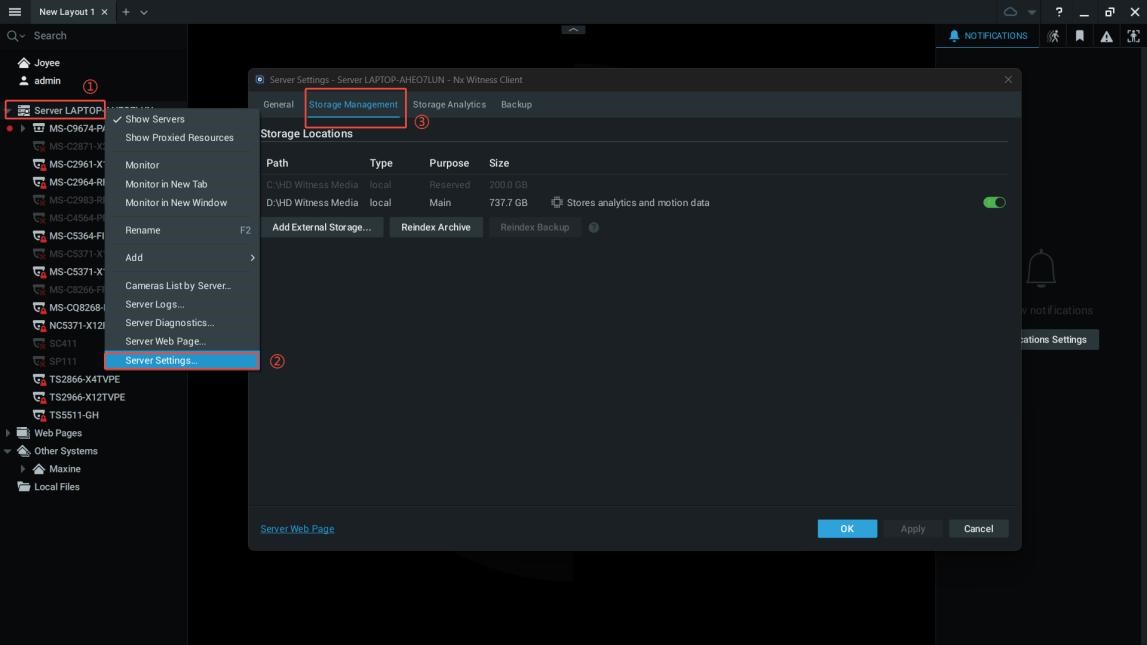
On the Storage Manage page, click Add External Storage.
In the pop-up creation window, select S3 as the default protocol from the drop-down menu.
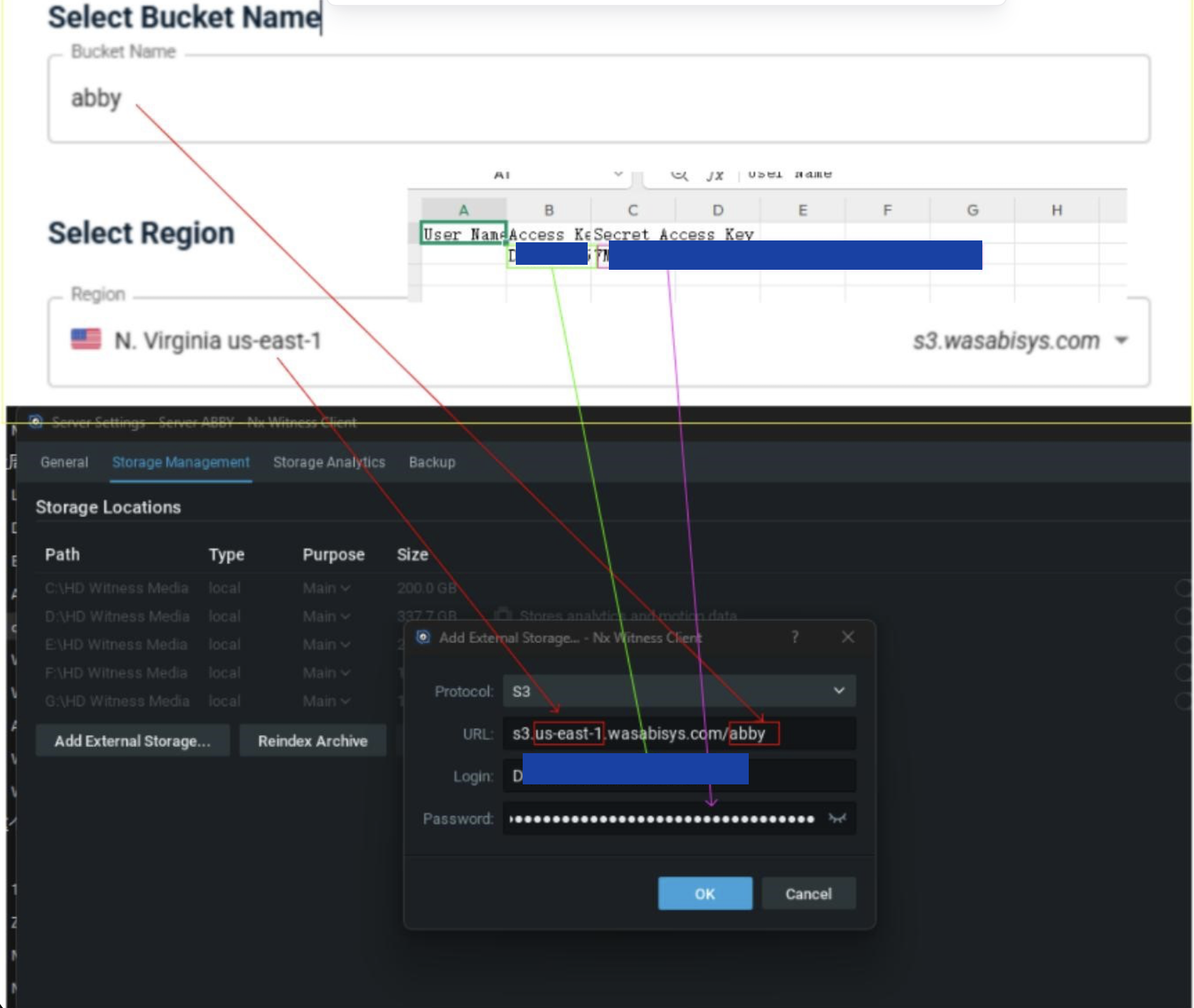
Enter the Access Key and Secret Key in the Login and Password fields.
In the URL field, provide the region and endpoint information of your bucket.
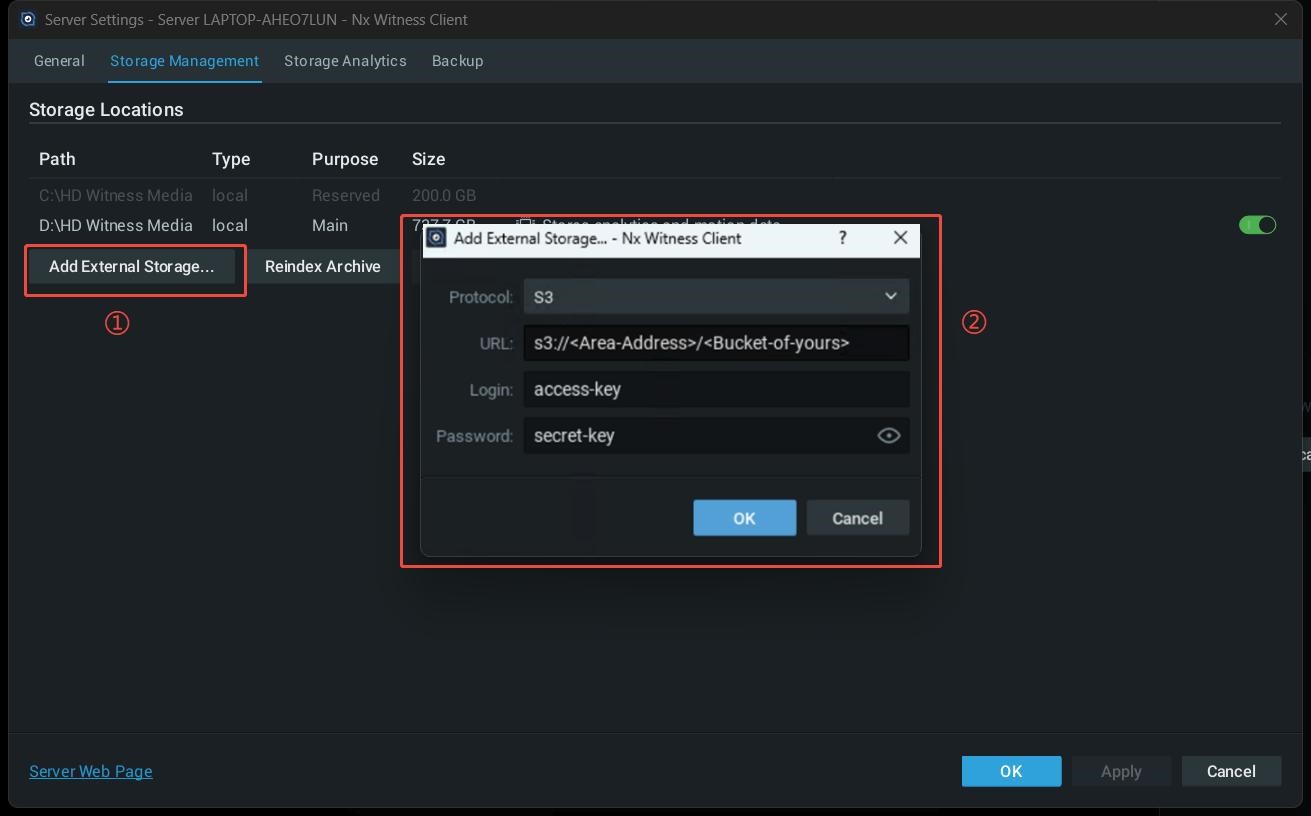
The completed information should match as shown below.
This configuration example discusses the use of Wasabi's us-east-1 storage region. Use the region your bucket is located in. For a list of regions, see Service URLs for Wasabi's Storage Regions.
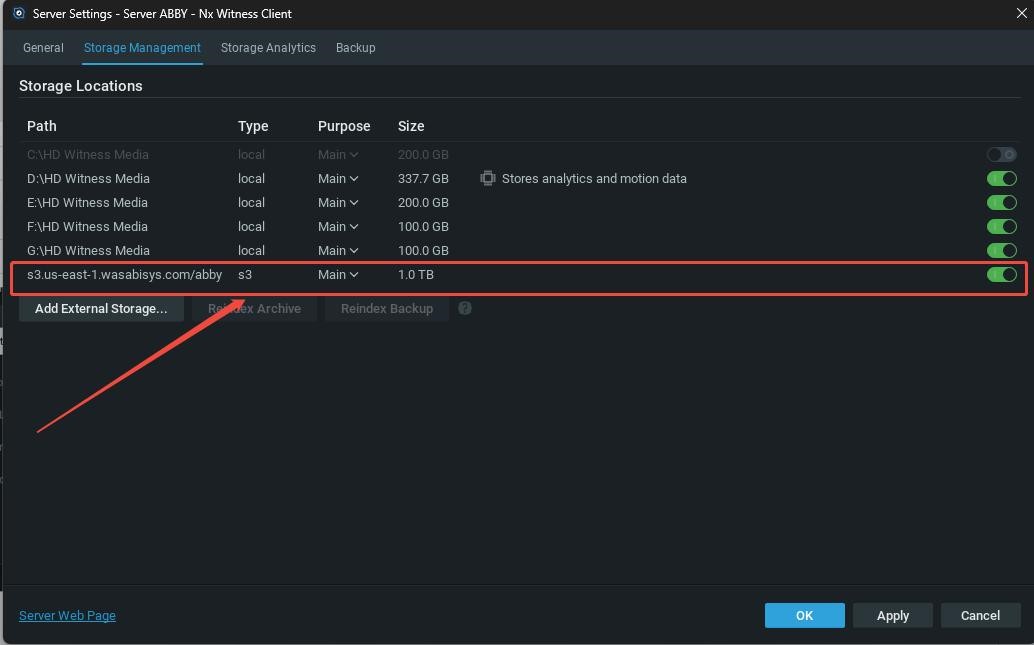
If the Nx license is invalid, the Protocol field will display as UNKNOWN.
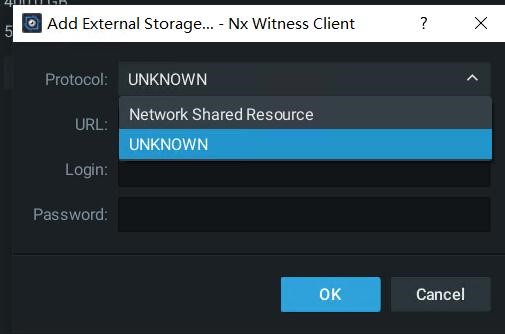
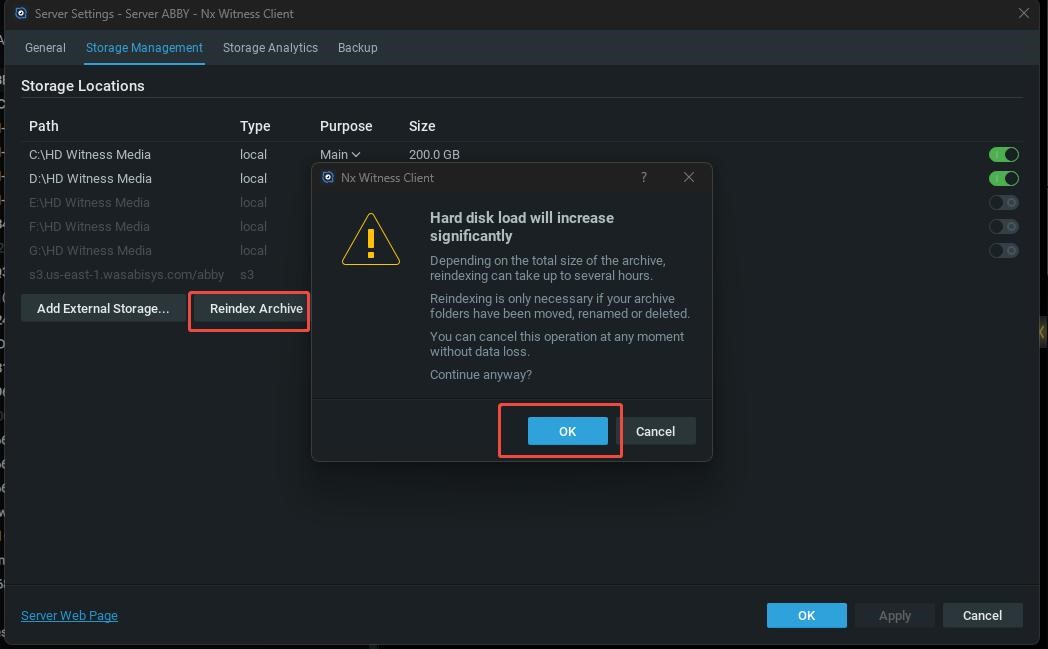
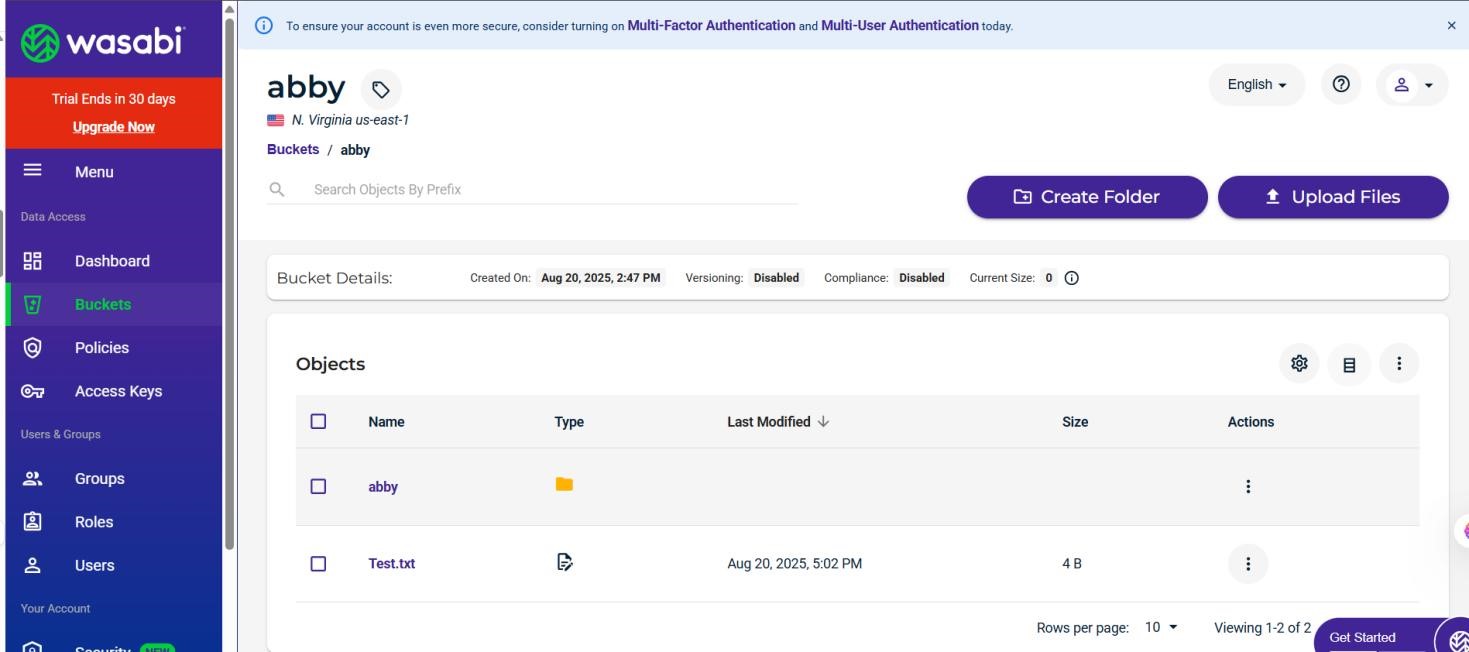
After configuring the cloud storage, click Reindex Archive. Check Wasabi to confirm the video file has been uploaded.
Setting Bucket Storage Quota
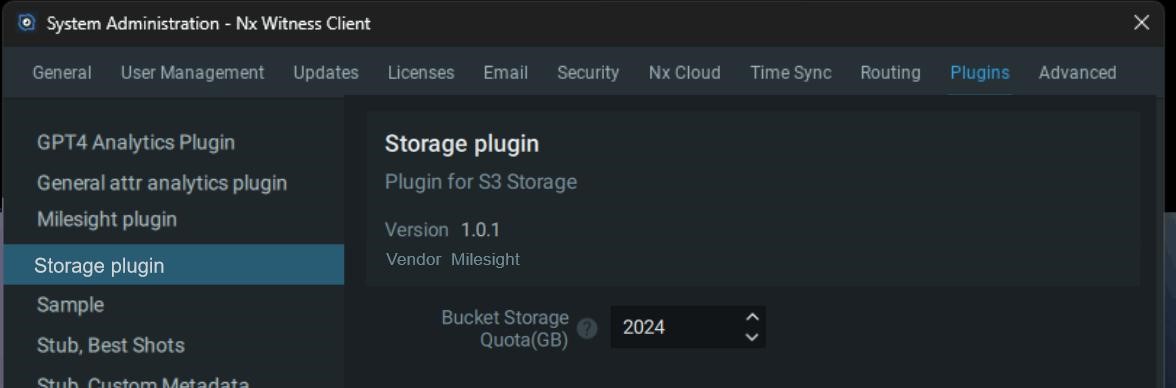
Users can configure cloud account quotas on the Storage Plugin page. The Bucket Storage Quota (GB) specifies the total storage capacity available for the cloud account in Nx. When the uploaded recording data reaches the configured quota, the plugin will begin overwriting older recordings. The default value is 1024 GB.
Additional Instructions & Linux Installation Steps
For additional information about installing and configuring the Milesight Storage Plugin, refer to the Milesight external Installation and Operating Guide, shown below.