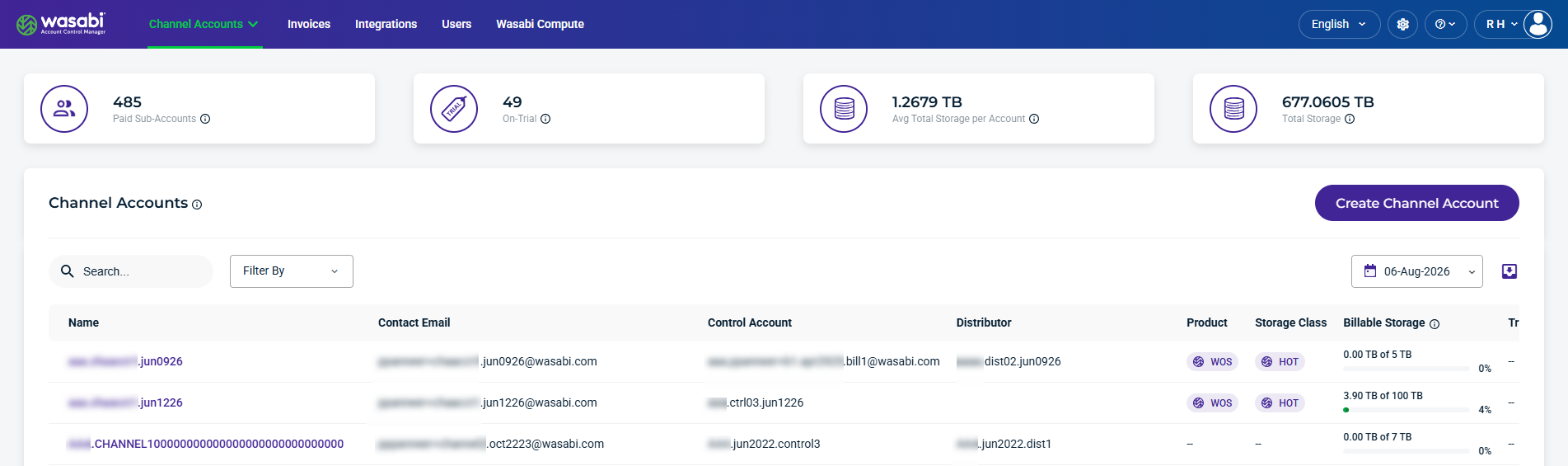
When you sign in to WACM as a Wasabi Admin, select Accounts from the navigation bar, then select Channel Accounts from the dropdown menu. For each Channel Account, the table displays account information, storage details, and usage metrics. You can also search and filter table attributes, select a date to view historical data, export data, and create a Channel Account.
Summary Data Cards
The top section of the dashboard summarizes account and storage information.

Paid Sub-Accounts—The number of paying Sub-Accounts, including suspended paid accounts.
On-Trial—The number of Sub-Accounts in a trial period, including suspended trial accounts.
Average Total Storage per Account—The average amount of storage used per Sub-Account.
Total Storage—The total amount of storage used for active and deleted Sub-Accounts.
Channel Account Details and Metrics
This section lists the details and metrics for each Channel Account.
Name—The name of the Channel Account. This is based on the name you assign when filling out the Create Channel Account form.
Contact Email—The contact email used for the Channel Account.
Control Account—The name of the related Control Account, if applicable.
Distributor—The name of the related Distributor Account, if applicable.
Product—The product storage type for the account, such as Wasabi Cloud NAS (WCN), Wasabi Object Storage (WOS), or Wasabi Surveillance Cloud (WSC).
Storage Class—The storage tier assigned to the account, such as CHILL, FIRE, or HOT.
Billable Storage—The total billable storage for this account, excluding storage from trial accounts.
Trial Storage—The total storage used by the trial account.
Features Enabled—Displays the features currently enabled for the account.
CCC Enabled—Indicates whether Custom Cloud Console (CCC) is Enabled or Disabled. When enabled, it allows MSPs and Resellers to white-label their Wasabi cloud object storage service.
Delay Delete Enabled—Indicates whether Delay Delete is enabled or disabled. When enabled, this feature provides a grace period during which a scheduled account deletion can be canceled before the account is permanently deleted.
Hard Quota Enabled—Indicates whether a Channel Account has Hard Quota enabled for its parent Control Account. When enabled, Hard Quota prevents storage usage from exceeding the configured storage quota.
Enabled Integrations—Lists the third-party integrations currently enabled for the account.
MUA Enabled—Indicates whether Multi-User Authorization (MUA) is enabled or disabled for the account.
Number of Sub-Accounts—The number of Sub-Accounts under this Channel Account.
Creation Date—The date the Sub-Account was created.
Quota Start Date—The selected start date to begin tracking the object storage used.
Quota End Date—The selected end date to stop tracking object storage used.
Quota Dates Remaining—The number of days remaining for the time period selected to track the object storage used.
Quota Date Status—Indicates whether the object tracking period is set.
Status—Indicates the account status of Active or Deactivated.
Record Date—The date the details and metrics were recorded for the Channel Account.
Find and Filter Channel Accounts
Use the Search, Filter By, and calendar tools to find Channel Accounts, filter details, and view data for a selected date. Use the export tool to download data for reporting or further analysis.

Search and Filter Channel Accounts
Use the Search field to find specific Channel Accounts and use the Filter By menu to narrow the list based on account status, enabled features, and other criteria.
The following Filter By menu options are available:
Control Account—Filters accounts by selecting Control Accounts from the list.
Distributor—Filters accounts by selecting Distributors from the list.
Product—Filters by the storage product assigned to the Sub-Account, such as WCN, WOS, or WSC.
Storage Class—Filters by storage class, such as CHILL, FIRE, or HOT.
Status—Filters accounts that are Active or Deactivated.
Quota Date Status—Filters on the quota date status of Active, Expired, or Not set.
Has quota start date—Filters based on whether the quota start date is set to True or False.
Has quota end date—Filters based on whether a quota end date is set to True or False.
Enabled Integrations—Filters based on whether accounts have partner integrations enabled, such as Acronis or Sharlic.
Features Enabled— Filters accounts by enabled features. Select one or more features:
Custom Cloud Console (CCC)—Displays accounts with the CCC feature enabled.
Multi-User Authorization (MUA)—Displays accounts with the MUA feature enabled.
Sub-Account Sign-up Form—Displays accounts with the Sub-Account Sign-up Form feature enabled.
MUA Enabled—Filters accounts based on whether Multi-User Authorization (MUA) is enabled or disabled. Select Enabled to list accounts with MUA enabled, or select Disabled to list accounts with MUA disabled.
CCC Enabled—Filters accounts based on whether Custom Cloud Console (CCC) is enabled or disabled. Select Enabled to list accounts with CCC enabled or select Disabled to list accounts with CCC disabled.
Delay Delete Enabled—Filters accounts based on whether the Delay Delete feature is enabled or disabled.
Hard Quota Enabled—Filters Channel Accounts based on whether Hard Quota is enabled for their parent Control Account. Select the checkbox to display Channel Accounts whose parent has Hard Quota enabled.
Select a Date
The calendar dropdown lets you select a date to view historical data.
Export Channel Account Data
The export tool lets you filter results and export data to CSV, JSON, or Excel formats.

Create a Channel Account
To create a Channel Account, see Creating a Channel Account.