NVIDIA AIStore (AIS) is an open-source, lightweight, and highly scalable object storage system designed to accelerate AI and machine learning workloads. Rather than replacing your existing storage, AIStore can sit in front of an existing Wasabi bucket and transparently cache objects as they are read, so that repeat access to the same data is served from local storage instead of from Wasabi. Wasabi remains the source of truth for the data. AIStore maintains only a local copy of what has been recently accessed.
This article covers configuring AIStore, deployed on a Kubernetes cluster, to use a Wasabi bucket as its backing store, along with common day-to-day operations such as uploading and downloading data, listing bucket contents, and confirming what has been cached.
Requirements
This solution was tested with the software versions listed below. Later compatible versions are expected to work, but have not been specifically tested.
Active Wasabi Cloud Storage account
Wasabi bucket (for more information, review Working With Buckets and Objects)
A Kubernetes cluster with at least two worker nodes, each with one or more dedicated local disks for AIStore data (Kubernetes v1.31)
kubectl v1.31
Helm v3.22
Helmfile v1.7
cert-manager (latest release) required by the AIStore Operator
NVIDIA AIStore Operator v4.0, deployed from the ais-k8s repository
AIStore (aisnode) v5.0
Ubuntu 24.04.5 LTS server
AWS CLI (optional, but useful for verifying data directly in Wasabi outside of AIStore)
This article assumes a Kubernetes cluster is already installed and available, with at least two worker nodes. Testing for this article was performed on a two-node cluster. A larger production deployment would typically use more nodes and more disks per node.
Configuring Wasabi
Reference commands in this article use the placeholder YOUR_WASABI_BUCKET_NAME. Replace it with your own bucket name. Commands and output labeled “Example” are copied directly from the terminal during testing for this article, using a real bucket named mt-aistore.
Log in to the Wasabi Console as the account Root user.
Configure a policy for an “aistore” user (that will be created in the next step) using the following policy. Change YOUR_WASABI_BUCKET_NAME to your own Wasabi bucket name. For more information, see Creating a Policy.
{
  "Version": "2012-10-17",
  "Statement": [
    {
      "Sid": "AIStoreBucketLevel",
      "Effect": "Allow",
      "Action": [
        "s3:ListBucket",
        "s3:GetBucketVersioning"
      ],
      "Resource": [
        "arn:aws:s3:::YOUR_WASABI_BUCKET_NAME"
      ]
    },
    {
      "Sid": "AIStoreObjectLevel",
      "Effect": "Allow",
      "Action": [
        "s3:GetObject",
        "s3:PutObject",
        "s3:DeleteObject",
        "s3:AbortMultipartUpload"
      ],
      "Resource": [
        "arn:aws:s3:::YOUR_WASABI_BUCKET_NAME/*"
      ]
    }
  ]
}
Create an “aistore” user and attach the previously created policy to it. Use the following settings for the user. For more information, see Creating a User.
Allow programmatic-only access, not console access.
Do not require Multi-Factor Authentication (MFA).
It is not necessary to assign the user to a group.
Save the access and secret keys in a secure location.
Configuring AIStore (Kubernetes)
AIStore is deployed on Kubernetes using the official NVIDIA Operator and Helm charts from the ais-k8s repository.
Clone the ais-k8s repository.
git clone https://github.com/NVIDIA/ais-k8s.git
cd ais-k8s
Prepare each local disk for the target node.
On every Kubernetes node that will run an AIStore target, format and mount one or more dedicated disks that AIStore will use for its local cache. For example, to prepare three disks on a node:
sudo mkfs.xfs /dev/vdb
sudo mkfs.xfs /dev/vdc
sudo mkfs.xfs /dev/vdd

sudo mkdir -p /ais/disk1 /ais/disk2 /ais/disk3
sudo mount /dev/vdb /ais/disk1
sudo mount /dev/vdc /ais/disk2
sudo mount /dev/vdd /ais/disk3
Add the corresponding entries to
/etc/fstab(by UUID) on each node so the disks remount automatically after a reboot. For example:UUID=53afbddf-034a-48cd-80f0-eb2d192c44da /ais/disk1 xfs defaults 0 2 UUID=922a2354-7e00-49db-ab84-d73a543fac86 /ais/disk2 xfs defaults 0 2 UUID=0293aeba-ac5e-43c7-a39a-7121884ded38 /ais/disk3 xfs defaults 0 2Use the
blkidcommand to find the UUID of each disk.
Label the AIStore nodes.
Label the Kubernetes nodes that should run the AIStore proxy and target pods. The ais-k8s repository includes a script for this:
cd helm/ais
./scripts/label-nodes.sh ais --all
Install cert-manager and the AIStore Operator.
kubectl apply -f https://github.com/cert-manager/cert-manager/releases/latest/download/cert-manager.yaml

AIS_OPERATOR_VERSION=$(curl -s https://api.github.com/repos/NVIDIA/ais-k8s/releases/latest \
  | grep '"tag_name"' | cut -d'"' -f4)
kubectl apply -f https://github.com/NVIDIA/ais-k8s/releases/download/$AIS_OPERATOR_VERSION/ais-operator.yaml
Confirm both are running before continuing:
kubectl get pods -n cert-manager
kubectl get pods -n ais-operator-system
For example:
$ kubectl get pods -n cert-manager
NAME                                       READY   STATUS    RESTARTS   AGE
cert-manager-5896567b76-2x56b              1/1     Running   0          94s
cert-manager-cainjector-7bdf7c87f7-d4rcz   1/1     Running   0          94s
cert-manager-webhook-c659dc86d-jb6xp       1/1     Running   0          94s
$ kubectl get pods -n ais-operator-system
NAME                                               READY   STATUS    RESTARTS   AGE
ais-operator-controller-manager-67999bcff9-kqvck   1/1     Running   0          39s
Store your Wasabi credentials locally.
On the machine from which you will run Helm/Helmfile, create a standard AWS-style credentials file. Existing profiles are left untouched.
mkdir -p ~/.aws
touch ~/.aws/config ~/.aws/credentials
chmod 600 ~/.aws/credentials
Open
~/.aws/configin a text editor (nano, vi, and so on) and add the following, replacing the region with the region in which your Wasabi bucket is located.nano ~/.aws/configThis configuration example uses Wasabi’s us-east-2 storage region. Use the region where your bucket is located. For a list of regions, see Available Storage Regions.
[profile wasabi]
region = us-east-2
Open
~/.aws/credentialsin a text editor and replace YOUR_WASABI_ACCESS_KEY and YOUR_WASABI_SECRET_KEY with the access and secret keys created earlier.nano ~/.aws/credentials[wasabi] aws_access_key_id = YOUR_WASABI_ACCESS_KEY aws_secret_access_key = YOUR_WASABI_SECRET_KEY
Configure Helm values for the AIStore cluster.
From the
helm/aisdirectory, create a values file describing your cluster. Set targetSpec.size to the number of nodes that will run targets, list the local mountPaths prepared in Step 2, and reference a Kubernetes secret name that will hold the Wasabi credentials, as shown in the example below. Adjust targetSpec.size and the mpathInfo.mounts list to match the number of nodes and disks in your own cluster.cat > config/ais/production.yaml << 'EOF' cluster: ais protocol: http size: 1 proxySpec: size: 1 targetSpec: size: 2 mpathInfo: storageClass: "ais-local-storage" size: 45Gi mounts: - path: /ais/disk1 - path: /ais/disk2 - path: /ais/disk3 nodeImage: tag: v5.0 initImage: tag: v5.0 cloud: awsSecretName: wasabi-creds stateStorage: hostPath: prefix: /etc/ais adminClient: enabled: true stateStorageClass: "" EOFmpathInfo.size tells AIStore how much usable capacity to assume for each mountPath. Set it to slightly less than the raw size of the smallest disk being used. For example, use 45Gi for 50GB drives.
Create a values file that tells Helm where to find your Wasabi credentials and what to name the resulting Kubernetes secret. This file must use a .GOTMPL extension so Helmfile processes the template functions inside it:
mkdir -p config/cloud
cat > config/cloud/production.yaml.gotmpl << 'EOF'
aws_config: |-
{{ readFile (printf "%s/.aws/config" (env "HOME")) | indent 2 }}

aws_credentials: |-
{{ readFile (printf "%s/.aws/credentials" (env "HOME")) | indent 2 }}

cloud:
  awsSecretName: wasabi-creds
EOF
Edit
helm/ais/helmfile.yamlto add an environment entry that ties both values files together and enables the standard PV-creation and credentials charts.nano ~/ais-k8s/helm/ais/helmfile.yamlAdd the following, alongside the existing sample environments already in the file.
  production:
    values:
      - valuesPath: ./config/ais/production.yaml
        https:
          enabled: false
        cloudSecrets:
          enabled: true
          valuesPath: ./config/cloud/production.yaml.gotmpl
        createTargetPV:
          enabled: true
        localStaticProvisioner:
          enabled: false
Deploy AIStore.
kubectl create namespace ais
helmfile --environment production sync
After a few minutes, confirm that the proxy and target pods are healthy.
kubectl get pods -n aisFor example:
$ kubectl get pods -n ais
NAME                          READY   STATUS    RESTARTS   AGE
ais-client-678dc89db8-75fpg   1/1     Running   0          2m10s
ais-proxy-0                   2/2     Running   0          2m10s
ais-target-0                  2/2     Running   0          2m4s
ais-target-1                  2/2     Running   0          2m4s
All AIStore proxy and target pods should show as Running with all containers ready.
Register the Wasabi bucket with AIStore.
Check that the cluster is configured with the AWS/S3 backend.
kubectl exec -n ais deployment/ais-client -- ais show clusterFor example:
$ kubectl exec -n ais deployment/ais-client -- ais show cluster
PROXY                 MEM USED(%)  MEM AVAIL  SYS CPU(%)  UPTIME     K8s POD       STATUS
p[Esjh4vecq1q1q][P]   0.39%        14.57GiB   0%          2h7m20s    ais-proxy-0   online

TARGET        MEM USED(%)  MEM AVAIL   CAP USED(%)  CAP AVAIL     SYS CPU(%)  UPTIME      K8s POD        STATUS
t[cOmTZksG]   0.44%        14.57GiB    1%           146.849GiB    0%          1h32m20s    ais-target-0   online
t[rmDxMIHh]   0.41%        13.75GiB    1%           146.849GiB    0%          1h32m0s     ais-target-1   online

Cluster:
   CLI Endpoint:    http://ais-proxy.ais.svc.cluster.local:51080
   Proxies:         1
   Targets:         2 (total disks: 6)
   Capacity:        used 5.93GiB (1%), available 293.70GiB
   Cluster Map:     version 11, UUID S4ByNl8TLx, primary p[Esjh4vecq1q1q]
   Software:        5.0.6b7de24419919d00fb2d3466bde6a7bc300e94d7 (build: 2026-08-21T20:05:11+0000)
   Backend:         AWS
   Deployment:      K8s
   Status:          3 online
   Rebalance:       -
   Authentication:  disabled
The Backend line should read AWS. Register the Wasabi bucket, replacing the endpoint and region with the appropriate values for your bucket. Replace YOUR_WASABI_BUCKET_NAME with the name of your bucket.
This configuration example uses Wasabi's us-east-2 storage region. For another Wasabi storage region, use the appropriate URL in Service URLs for Wasabi's Storage Regions. Use the URL for the region in which your bucket is located.
kubectl exec -n ais deployment/ais-client -- ais create s3://YOUR_WASABI_BUCKET_NAME \
  --props='{"extra": {"aws": {"profile": "wasabi", "endpoint": "https://s3.us-east-2.wasabisys.com", "cloud_region": "us-east-2"}}}'
For example:
$ kubectl exec -n ais deployment/ais-client -- ais create s3://mt-aistore \
  --props='{"extra": {"aws": {"profile": "wasabi", "endpoint": "https://s3.us-east-2.wasabisys.com", "cloud_region": "us-east-2"}}}'
"s3://mt-aistore" created
AIStore is configured to use your Wasabi bucket as its backing store.
Security Considerations
This walkthrough deploys AIStore with cluster authentication disabled and the proxy/target API served over plain HTTP. These are reasonable defaults for a quick evaluation, but not a configuration to carry into production or any shared/multi-tenant environment without changes.
Before going further, consider:
The AIS Operator’s Helm chart binds the proxy and target ports (51080/51081 in this article) on the node network by default. With authentication disabled, anyone who can reach a cluster node on those ports—not just clients inside the Kubernetes cluster—can issue any AIStore API call without credentials.
Because AIStore holds the real Wasabi access and secret keys (in the wasabi-creds secret) and forwards PUT/GET/DELETE requests through to Wasabi on the caller’s behalf, that unauthenticated network access effectively grants full read and write access to the Wasabi bucket. This is equivalent to having the Wasabi keys themselves, without ever needing to know them.
Before using this setup for anything beyond local evaluation, address at least one of the following:
Restrict network reachability to the proxy/target ports. For example, you might do this with a Kubernetes NetworkPolicy, firewall rules, or by keeping the cluster on a private network not reachable from outside your trusted environment.
Enable AIStore’s Authentication Server (AuthN), which requires a valid token on every request once turned on. See NVIDIA’s AuthN documentation for setup details. Configuring it is beyond the scope of this article.
It is highly recommended to enable HTTPS for the AIStore proxy and targets. This walkthrough uses plain HTTP between clients and AIStore (
protocol: http,https.enabled: falsein the values file), which means traffic—including any token used with AuthN, if enabled—travels unencrypted on the network. See NVIDIA's AIStore HTTPS configuration documentation for details on using HTTPS. Configuring it is beyond the scope of this article.
The Boto3 example later in this article uses the string “dummy” for both the access key and secret key. This is not a safety mechanism. It works because AIStore does not check these values at all while authentication is disabled, and any other string would work the same way. The credentials that matter are the real Wasabi keys stored in the wasabi-creds secret, which is why restricting network access or enabling AuthN, as described above, is the real control here.
Uploading and Downloading Data
Once a Wasabi bucket is registered with AIStore, you interact with it through AIStore rather than connecting to Wasabi directly. AIStore forwards writes through to Wasabi and transparently caches reads.
Uploading Data (PUT)
To upload a local file to the Wasabi bucket:
Create a test file.
$ kubectl exec -n ais deployment/ais-client -- sh -c 'echo "hello world" > /tmp/hello-test.txt'Upload the file to your Wasabi bucket:
kubectl exec -n ais deployment/ais-client -- ais put /path/to/local/file s3://YOUR_WASABI_BUCKET_NAME/path/to/objectFor example (with creating the test file to upload):
$ kubectl exec -n ais deployment/ais-client -- sh -c 'echo "hello world" > /tmp/hello-test.txt'
kubectl exec -n ais deployment/ais-client -- ais put /tmp/hello-test.txt s3://mt-aistore/hello-test.txt
PUT "/tmp/hello-test.txt" => s3://mt-aistore/hello-test.txt
The object is written to Wasabi immediately as part of the PUT operation, and a copy is stored in AIStore’s local cache, since it was just written.
Downloading Data (GET)
To download an object from the bucket:
kubectl exec -n ais deployment/ais-client -- ais get s3://YOUR_WASABI_BUCKET_NAME/path/to/object /path/to/local/destinationFor example:
$ kubectl exec -n ais deployment/ais-client -- ais get s3://mt-aistore/hello-test.txt -
hello world
Evicting an Object From the Local Cache
Eviction removes an object’s local copy from AIStore only. The object remains untouched in Wasabi.
kubectl exec -n ais deployment/ais-client -- ais evict s3://YOUR_WASABI_BUCKET_NAME/path/to/objectFor example:
$ kubectl exec -n ais deployment/ais-client -- ais evict s3://mt-aistore/large/shard-01.tar
evict-objects[masjohTLx]: [large/shard-01.tar] evict from s3://mt-aistore. To monitor the progress, run 'ais show job masjohTLx'
Cold GET Versus Warm GET
This is the core caching behavior AIStore provides, and it is important to understand when working with a Wasabi bucket.
A Cold GET happens when AIStore does not yet have a local copy of the requested object(s). AIStore fetches the object(s) from Wasabi over the network, returns it to the requester, and stores a copy locally so that future requests for the same object do not need to go back to Wasabi.
A Warm GET happens when AIStore already has a local copy of the requested object, whether from an earlier GET, a recent PUT, or a prefetch operation. The object is served directly from the local disk, without contacting Wasabi at all.
From the perspective of anything reading from AIStore, both a cold GET and a warm GET return the same data, assuming the object has not been overwritten in Wasabi since it was cached, which is the normal case for training data. The difference between a cold and a warm GET is purely about where the data comes from, and it is handled entirely by AIStore automatically. No special flags are needed to trigger a cold or warm GET. It depends solely on whether the object is already cached locally at the time of the request.
Prefetching Data
Rather than letting every object pay the cold-GET penalty the first time something happens to read it, ais prefetch lets you deliberately warm the cache ahead of time, pulling a whole prefix (or an entire bucket) from Wasabi into local storage before a job starts. This is the normal way to prepare an AIStore cache in front of a remote bucket: run a prefetch once, and the first time an application actually reads through that data afterward, it comes from local disk instead of Wasabi.
kubectl exec -n ais deployment/ais-client -- ais prefetch s3://YOUR_WASABI_BUCKET_NAME --prefix your-prefix/ --num-workers N--num-workers specifies the number of concurrent workers, N, to use when prefetching data.
Setup (evicting a prefix so there is something genuinely cold to prefetch):
$ kubectl exec -n ais deployment/ais-client -- ais evict s3://mt-aistore --template "small/sample-{001..500}.bin"
evict-objects[RRl5HqICx]: evict "small/sample-{001..500}.bin" from s3://mt-aistore. To monitor the progress, run 'ais show job RRl5HqICx'
For example:
$ kubectl exec -n ais deployment/ais-client -- ais prefetch s3://mt-aistore --prefix small/ --num-workers 32
prefetch-objects[OR9o_eTLX]: prefetch "small/" from s3://mt-aistore. To monitor the progress, run 'ais show job OR9o_eTLX'
Confirming everything under the prefix is cached:
$ kubectl exec -n ais deployment/ais-client -- ais ls s3://mt-aistore/small --cached --count-only
Listed 497 names in 3.826994ms
Listing Bucket Contents and Cache Status
Use the --all flag to list every object AIStore currently knows about in the Wasabi bucket, including objects that exist in Wasabi but have never been read through AIStore.
kubectl exec -n ais deployment/ais-client -- ais ls s3://YOUR_WASABI_BUCKET_NAME --allFor example (copied from testing, listing a specific prefix):
$ kubectl exec -n ais deployment/ais-client -- ais ls s3://mt-aistore/downloaded --all

NAME                     SIZE      CACHED  STATUS

downloaded/LICENSE.txt  1.05KiB   yes     ok     ok
This prints a table with a CACHED column for each object, showing yes or no. An object shows:
CACHED: yes if AIStore currently holds a local copy (a warm GET would be served locally)
CACHED: no if it does not hold a local copy (the next GET for that object would be a cold GET)
To see only objects that are currently cached, use --cached.
kubectl exec -n ais deployment/ais-client -- ais ls s3://YOUR_WASABI_BUCKET_NAME --cachedIn this example (copied from testing), at this point everything under the small/ prefix had just been evicted for a separate cold-GET test, so nothing there was cached:
$ kubectl exec -n ais deployment/ais-client -- ais ls s3://mt-aistore/small --cached | wc -l

0
For buckets with many objects organized under folder-like prefixes, add --nr (non-recursive) to see only the immediate level rather than every object underneath it.
kubectl exec -n ais deployment/ais-client -- ais ls s3://YOUR_WASABI_BUCKET_NAME --nrFor example:
$ kubectl exec -n ais deployment/ais-client -- ais ls s3://mt-aistore --nr
NAME                       SIZE      CACHED
boto3-test/
downloaded/
large/
put-test/
real-shards/
small/
sync-test/
archived-test-wasabi.tar  1.57MiB   yes
archived-test-wasabi.tgz  1.57MiB   yes
hello.txt                 19B       yes
zero-size-test.bin        0B        yes
Listed 11 names (in-cluster: 4)
Verifying Data in Your Wasabi Bucket
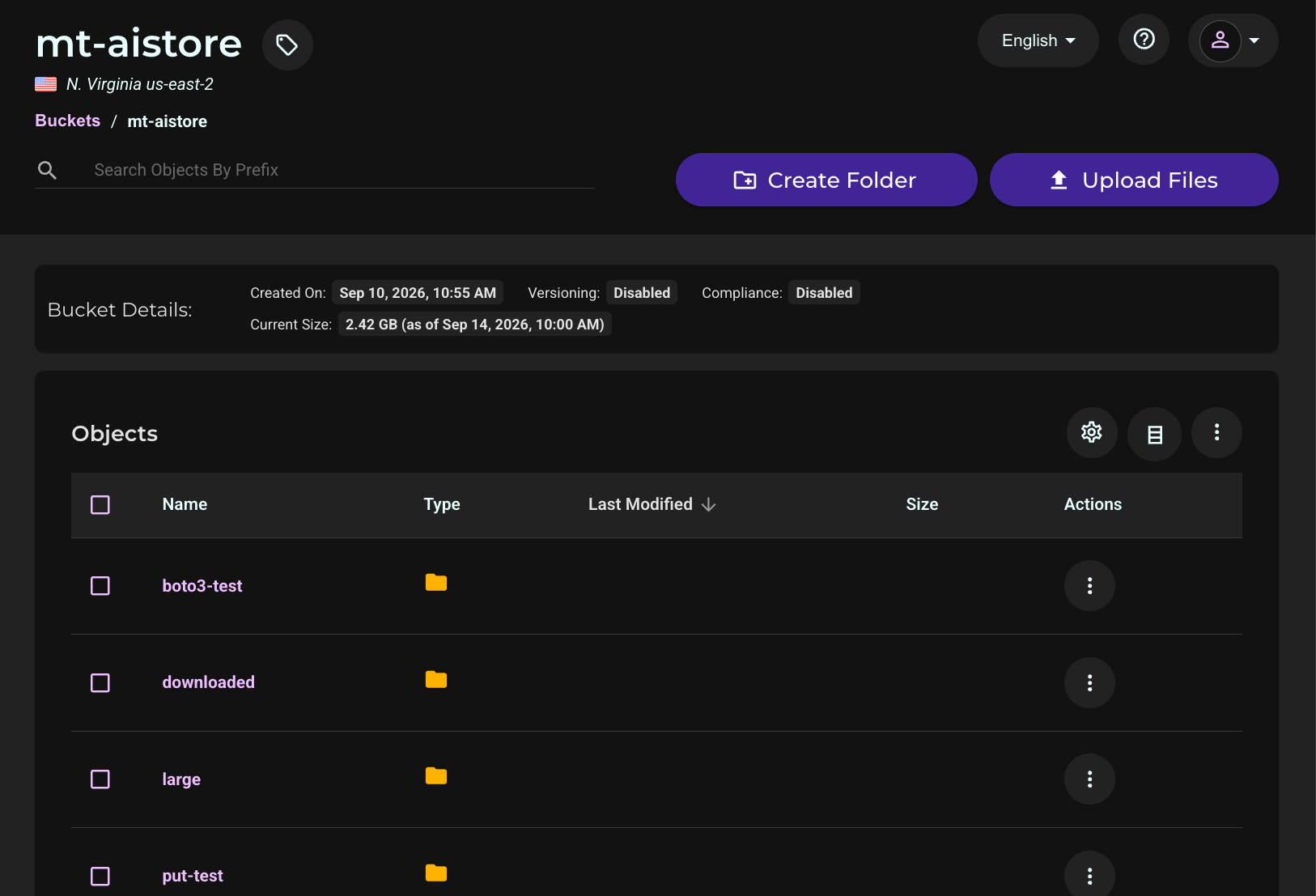
Because AIStore forwards writes through to Wasabi immediately, you can confirm that data uploaded through AIStore is genuinely stored in Wasabi—not just cached locally—by browsing the bucket directly in the Wasabi Console.
Log in to the Wasabi Console.
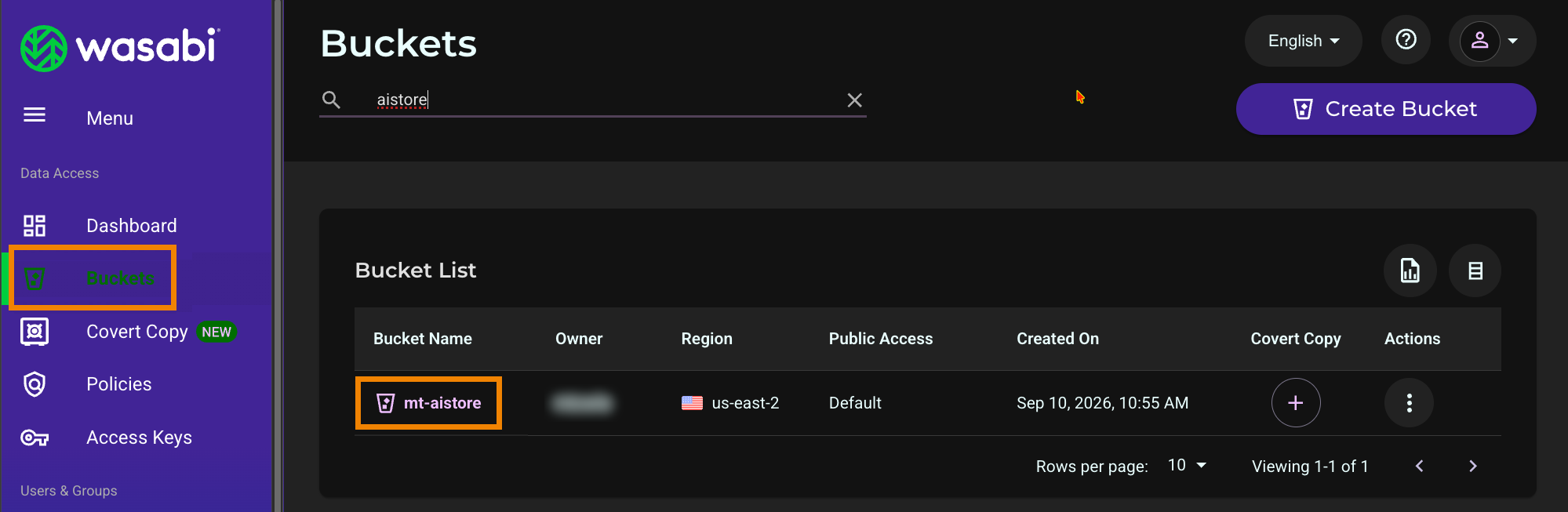
Click Buckets in the left navigation, then click the name of your bucket.
Browse the folder structure and confirm that the objects written through AIStore are present.
Additional AIStore Features
The following AIStore features were verified against a Wasabi bucket during testing for this article. They are optional but may be useful depending on your workflow.
Copying an Entire Bucket
AIStore can copy the full contents of a Wasabi bucket into a separate AIStore-native bucket, which can be useful for creating a fully local, working copy of a dataset.
kubectl exec -n ais deployment/ais-client -- ais cp s3://YOUR_WASABI_BUCKET_NAME ais://local-copy --all --progressFor example:
$ kubectl exec -n ais deployment/ais-client -- ais cp s3://mt-aistore ais://wasabi-copy --all --progress
Warning: destination ais://wasabi-copy doesn't exist and will be created with configuration
copied from the source (s3://mt-aistore)
Note: to initialize progress bar, running 'bucket summary' on the source: s3://mt-aistore
Copied objects:           1162/1162 [==================] 100% 8s
Copied size:    4.84 GiB / 4.84 GiB [==================] 100% 8s
Done.
Using --sync alongside --all brings the destination fully in line with the source in a single command. It picks up objects added directly in Wasabi, refreshes objects that were updated, and drops objects that were deleted.
kubectl exec -n ais deployment/ais-client -- ais cp s3://YOUR_WASABI_BUCKET_NAME ais://local-copy --all --sync --progressArchiving Objects Into a Single Shard
Multiple objects can be consolidated into a single .tar or .tgz archive ("shard"), which can be written either to a local AIStore bucket or directly back into the Wasabi bucket.
kubectl exec -n ais deployment/ais-client -- ais archive bucket s3://YOUR_WASABI_BUCKET_NAME \
  s3://YOUR_WASABI_BUCKET_NAME/archive.tar --template "path/to/files-{001..100}.bin" --wait
For example (copied from testing, archiving a range of objects directly into the Wasabi bucket):
$ kubectl exec -n ais deployment/ais-client -- ais archive bucket s3://mt-aistore s3://mt-aistore/archived-test-wasabi.tar --template "small/sample-{004..020}.bin" --wait
Archived s3://mt-aistore/small/sample-{004..020}.bin => s3://mt-aistore/archived-test-wasabi.tar
Archiving creates a new object containing copies of the selected files. It does not delete or modify the original individual objects, which remain in the bucket unchanged.
The contents of an archive can be listed without manually unpacking it yourself.
kubectl exec -n ais deployment/ais-client -- ais ls ais://YOUR_LOCAL_BUCKET_NAME/archive.tar --archiveFor example (listing the contents of an equivalent archive created from the same source files):
$ kubectl exec -n ais deployment/ais-client -- ais ls ais://wasabi-copy/archived-test.tar --archive
NAME                                     SIZE
archived-test.tar                       1.57MiB
    archived-test.tar/small/sample-004.bin  201.00KiB
    archived-test.tar/small/sample-005.bin  33.00KiB
    archived-test.tar/small/sample-006.bin  168.00KiB
    archived-test.tar/small/sample-007.bin  35.00KiB
    archived-test.tar/small/sample-008.bin  34.00KiB
    archived-test.tar/small/sample-009.bin  13.00KiB
    ...
    archived-test.tar/small/sample-020.bin  66.00KiB
Listed 18 names
An individual file can also be retrieved from an archive directly, without extracting the entire file yourself.
kubectl exec -n ais deployment/ais-client -- ais get s3://YOUR_WASABI_BUCKET_NAME/archive.tar /dev/null --archpath path/to/fileTo demonstrate this against a genuinely cold archive, it was evicted first (forcing the next request to be a cold GET of the whole archive).
For example:
$ kubectl exec -n ais deployment/ais-client -- ais evict s3://mt-aistore/archived-test-wasabi.tar
evict-objects[T6Gec0hICx]: [archived-test-wasabi.tar] evict from s3://mt-aistore. To monitor the progress, run 'ais show job T6Gec0hICx'
$ kubectl exec -n ais deployment/ais-client -- ais get s3://mt-aistore/archived-test-wasabi.tar /dev/null --archpath small/sample-010.bin
GET and discard small/sample-010.bin from s3://mt-aistore/archived-test-wasabi.tar (25.00KiB)
On its own, Wasabi cannot extract a single file from inside an archive. An archive is just a regular object to Wasabi. The first time a file is requested from an archive that is not yet cached locally, AIStore retrieves the entire archive from Wasabi (the same cold GET behavior described earlier), caches it locally, and then extracts the requested file from that local copy.
S3 API and Boto3 Compatibility
ais-proxy.ais.svc.cluster.local:51080 is the in-cluster Kubernetes Service DNS name and port for the AIStore proxy used throughout this article. If your namespace or proxy service name differs, adjust accordingly. In the examples in this section, replace YOUR_WASABI_BUCKET_NAME with your own bucket name from the examples above. Leave aws_access_key_id and aws_secret_access_key set to "dummy.” Do not replace these with real Wasabi credentials, since they are not used when cluster authentication is disabled. See Security Considerations in this article.
Install the required packages:
pip install boto3 wrapt aistoreAIStore uses HTTP redirects for internal load balancing, which botocore does not follow by default. Importing aistore.botocore_patch.botocore once, before creating any boto3 client, patches this.
Run this script from a host that can reach both the AIStore proxy and every target pod (for example, from inside the cluster itself, such as the ais-client pod used elsewhere in this article). This is required because AIStore’s proxy answers bucket-level calls (such as list_objects_v2) directly, but redirects object-level calls (get_object, put_object) to the target that holds the data. A client that can only reach the proxy will see listings succeed while GET and PUT fail or hang.
import wrapt
from aistore.botocore_patch import botocore  # patches redirect handling
import boto3

client = boto3.client(
    "s3",
    endpoint_url="http://ais-proxy.ais.svc.cluster.local:51080/s3",
    aws_access_key_id="dummy",
    aws_secret_access_key="dummy",
)

# List objects
resp = client.list_objects_v2(Bucket="YOUR_WASABI_BUCKET_NAME")
for obj in resp.get("Contents", []):
    print(obj["Key"], obj["Size"])

# Get an object
resp = client.get_object(Bucket="YOUR_WASABI_BUCKET_NAME", Key="path/to/object.bin")
data = resp["Body"].read()

# Put an object
client.put_object(Bucket="YOUR_WASABI_BUCKET_NAME", Key="path/to/new-object.txt", Body=b"some data")
For example:
kubectl exec -n ais deployment/ais-client -- sh -c 'cat > /tmp/test_boto3.py << EOF
import wrapt
from aistore.botocore_patch import botocore  # patches redirect handling
import boto3

client = boto3.client(
    "s3",
    endpoint_url="http://ais-proxy.ais.svc.cluster.local:51080/s3",
    aws_access_key_id="dummy",
    aws_secret_access_key="dummy",
)

print("=== list_objects_v2 ===")
resp = client.list_objects_v2(Bucket="mt-aistore")
for obj in resp.get("Contents", []):
    print(obj["Key"], obj["Size"])

print("=== get_object ===")
resp = client.get_object(Bucket="mt-aistore", Key="small/sample-010.bin")
data = resp["Body"].read()
print(f"Got {len(data)} bytes")

print("=== put_object ===")
client.put_object(Bucket="mt-aistore", Key="boto3-test/retest.txt", Body=b"hello from boto3 retest")
print("Put succeeded")

print("=== verify put ===")
resp = client.get_object(Bucket="mt-aistore", Key="boto3-test/retest.txt")
print(resp["Body"].read())
EOF
python3 /tmp/test_boto3.py'
Example output:
=== list_objects_v2 ===
archived-test-wasabi.tar 1649152
archived-test-wasabi.tgz 1649305
boto3-test/hello.txt 16
cksum-test.txt 22
control-test.txt 31
... (bucket listing continues; truncated here for length) ...
=== get_object ===
Got 25600 bytes
=== put_object ===
Put succeeded
=== verify put ===
b'hello from boto3 retest'
Downloading Data From External URLs Directly Into Wasabi
AIStore’s built-in Downloader can pull objects from arbitrary HTTP(S) URLs directly into a Wasabi bucket, without staging the data anywhere else first.
kubectl exec -n ais deployment/ais-client -- ais download https://example.com/path/to/file \
  s3://YOUR_WASABI_BUCKET_NAME/downloaded/file
For example:
$ kubectl exec -n ais deployment/ais-client -- ais download https://raw.githubusercontent.com/NVIDIA/aistore/main/LICENSE s3://mt-aistore/downloaded/LICENSE.txt
Started download job dnl-wNXASgICx
kubectl exec -n ais deployment/ais-client -- ais show job download --progress
File successfully downloaded
A brace-range template can be used to queue up multiple files in a single download job.
kubectl exec -n ais deployment/ais-client -- ais download "https://example.com/data/{001..100}.bin" \
  s3://YOUR_WASABI_BUCKET_NAME/downloaded/
For example:
$ kubectl exec -n ais deployment/ais-client -- ais download "https://httpbin.org/range/{1024..1028}" s3://mt-aistore/downloaded/range-test/ --wait
Started download job dnl-eq4OHgTLx

download[dnl-eq4OHgTLx] finished
All 5 files successfully downloaded
Concurrent (Parallel) Uploads and Downloads
AIStore correctly handles many simultaneous GET and PUT operations against a Wasabi bucket. ais put accepts an entire local directory as its source, and --num-workers N controls how many files (N) are uploaded in parallel:
kubectl exec -n ais deployment/ais-client -- ais put /path/to/local/directory s3://YOUR_WASABI_BUCKET_NAME/prefix/ --num-workers N -y-y assumes “yes” to the confirmation prompt ais put normally shows before a multi-file upload. This is required when running non-interactively (as with kubectl exec), since there is no terminal attached to answer the prompt.
For example:
$ kubectl exec -n ais deployment/ais-client -- ais put /tmp/put-test2 s3://mt-aistore/put-test2/ --num-workers 20 -y
Files to upload:
EXTENSION        COUNT   SIZE
.bin             50      500.00KiB
TOTAL            50      500.00KiB

PUT 50 files (one directory, non-recursive) => s3://mt-aistore/put-test2/
Verifying the objects landed:
$ kubectl exec -n ais deployment/ais-client -- ais ls s3://mt-aistore/put-test2 --all
NAME                       SIZE       CACHED  STATUS
put-test2/testobj-01.bin   10.00KiB   yes     ok
put-test2/testobj-02.bin   10.00KiB   yes     ok
...
put-test2/testobj-50.bin   10.00KiB   yes     ok
Listed 50 names
For a bulk GET, ais get accepts a --prefix parameter to fetch every object matching that prefix in a single command, letting AIStore fan the retrieval out across targets instead of you looping over individual ais get calls yourself.
kubectl exec -n ais deployment/ais-client -- ais get s3://YOUR_WASABI_BUCKET_NAME /path/to/local/dir --prefix your-prefix/ --progress -yAs with PUT, -y avoids a confirmation prompt that nothing can answer under kubectl exec.
Setup (evicting a prefix so the retrieval below is a genuine bulk cold GET, and creating a directory):
$ kubectl exec -n ais deployment/ais-client -- ais evict s3://mt-aistore --template "small/sample-{001..500}.bin"
evict-objects[XfkaaqILX]: evict "small/sample-{001..500}.bin" from s3://mt-aistore. To monitor the progress, run 'ais show job XfkaaqILX'

$ kubectl exec -n ais deployment/ais-client -- mkdir -p /tmp/get-test
For example:
$ kubectl exec -n ais deployment/ais-client -- ais get s3://mt-aistore /tmp/get-test --prefix small/ --progress -y
GET 497 objects from s3://mt-aistore/tmp/get-test (total size 48.49MiB)
Objects:                   497/497 [==================] 100% 16s
Total size:  48.49 MiB / 48.49 MiB [==================] 100% 16s