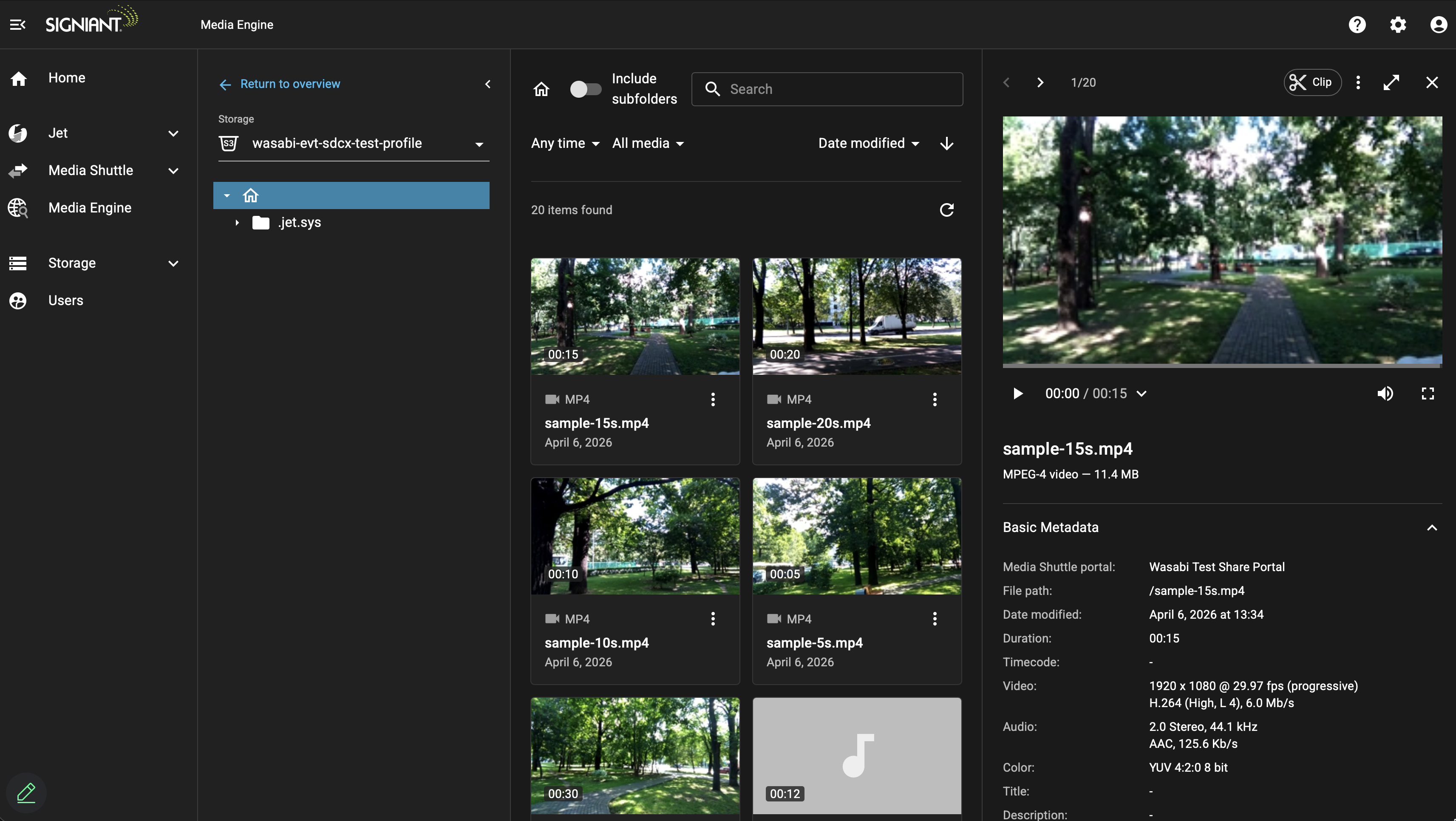
Signiant Media Engine and the SDCX server have been validated for use with Wasabi. Media Engine allows you to manage, index, find, and preview media across your entire project.
Requirements
Wasabi Hot Cloud Storage account
Wasabi bucket (see Creating a Bucket)
Signiant SDCX Server - See SDCX Installation
Paid Signiant Cloud Account (see Signiant Pricing & Packaging)
A Media Shuttle Portal or a Jet Job Associated with Your Storage Profile
Adding a Wasabi Storage Profile to Signiant Console
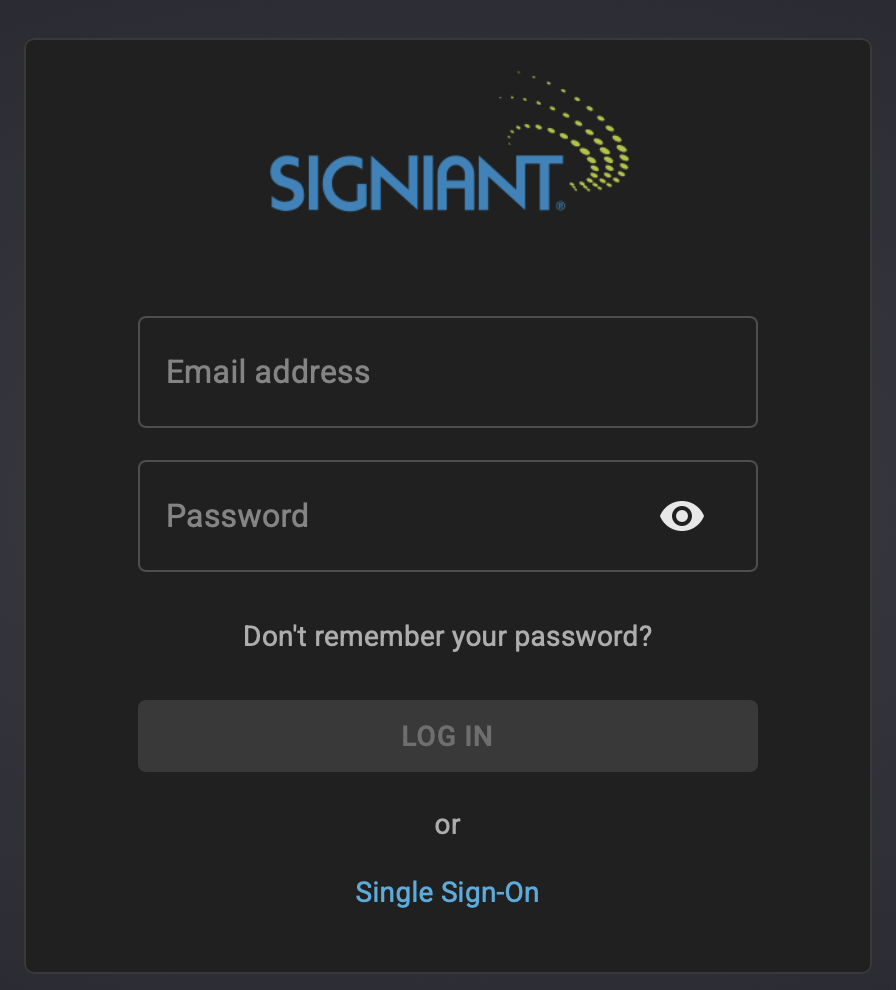
Log in to your Signiant Cloud Console at https://console.signiant.com/login.
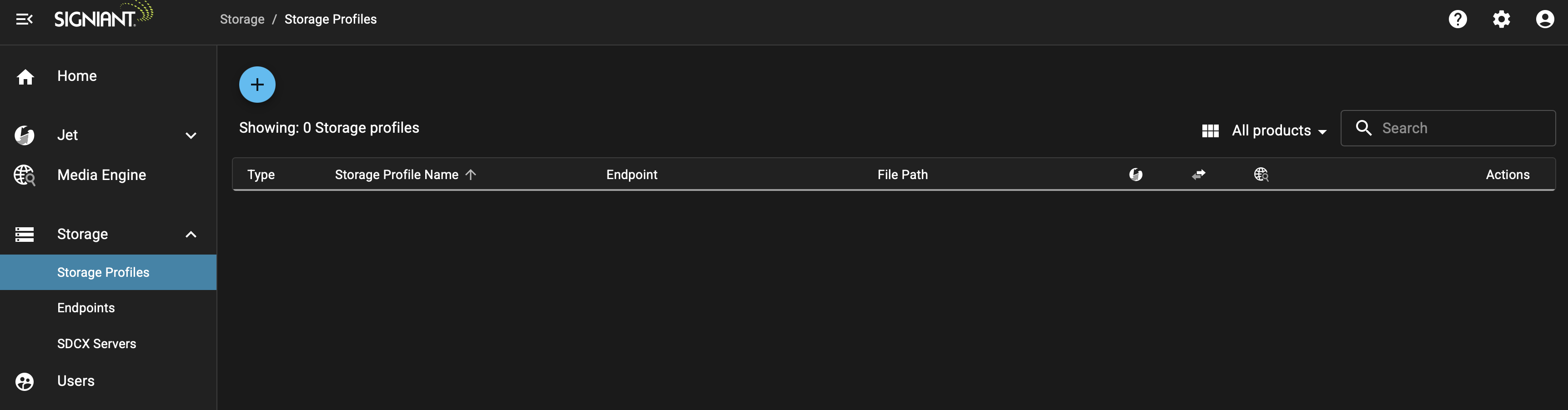
Navigate to the Storage Profiles tab. Click the blue + icon.
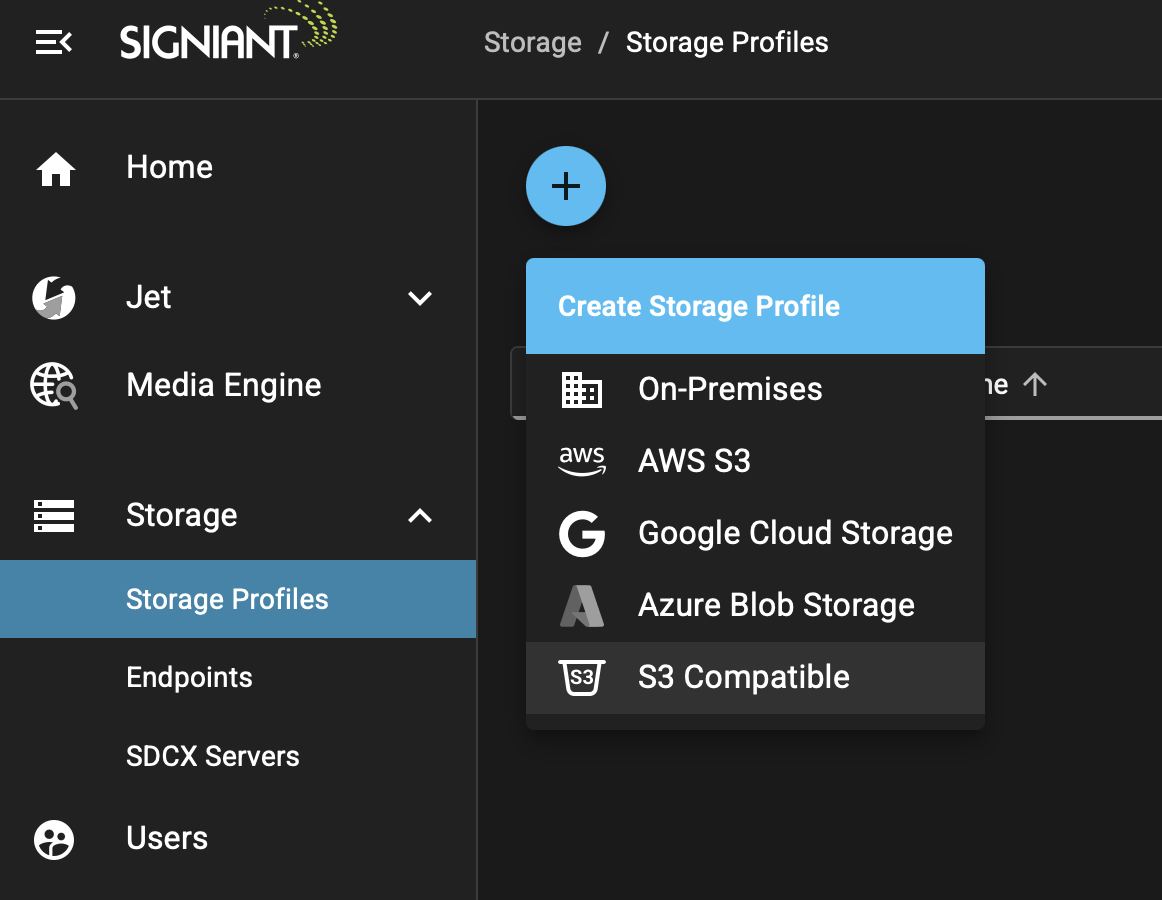
Choose S3 Compatible from the drop-down.
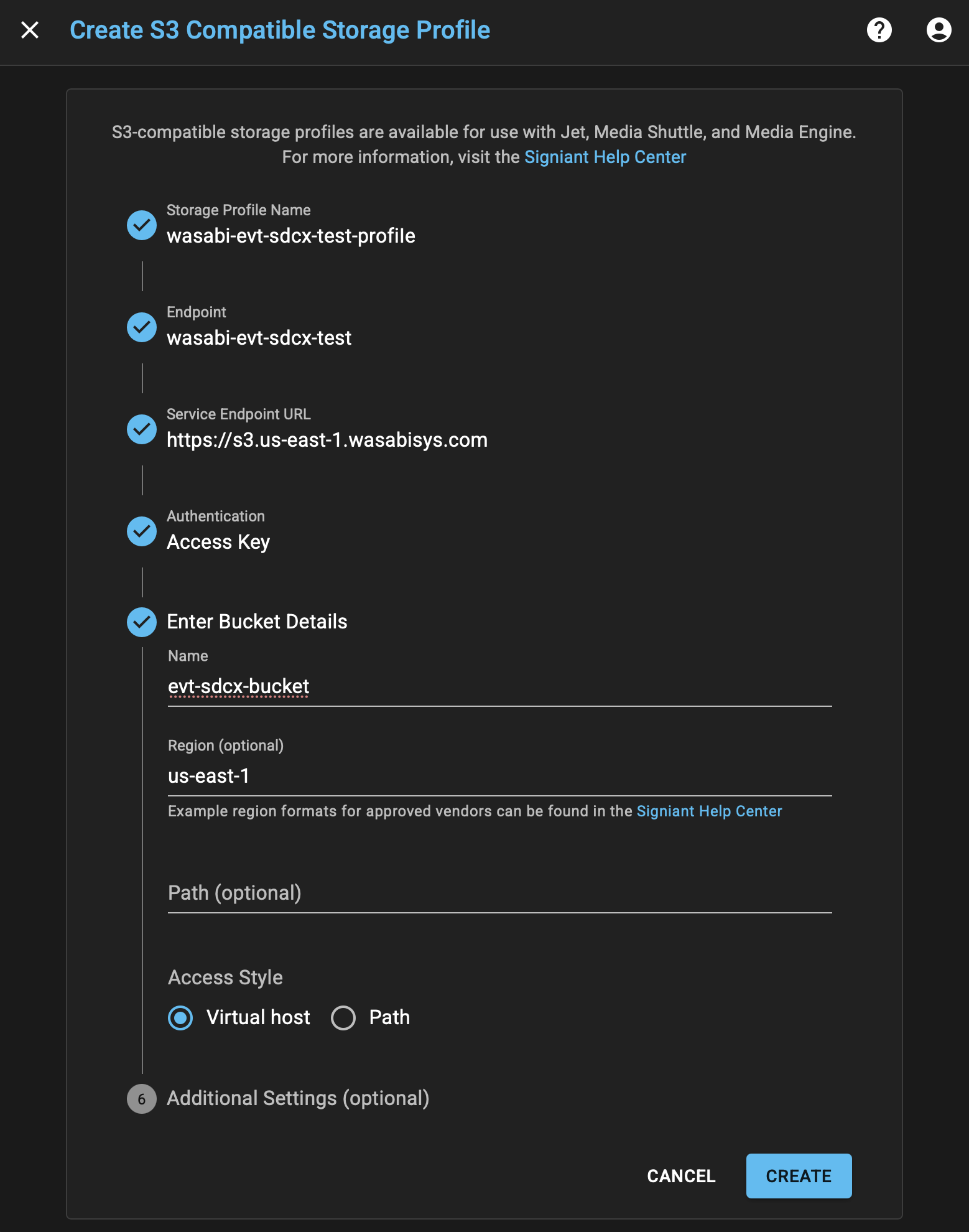
Configure the Storage Profile.
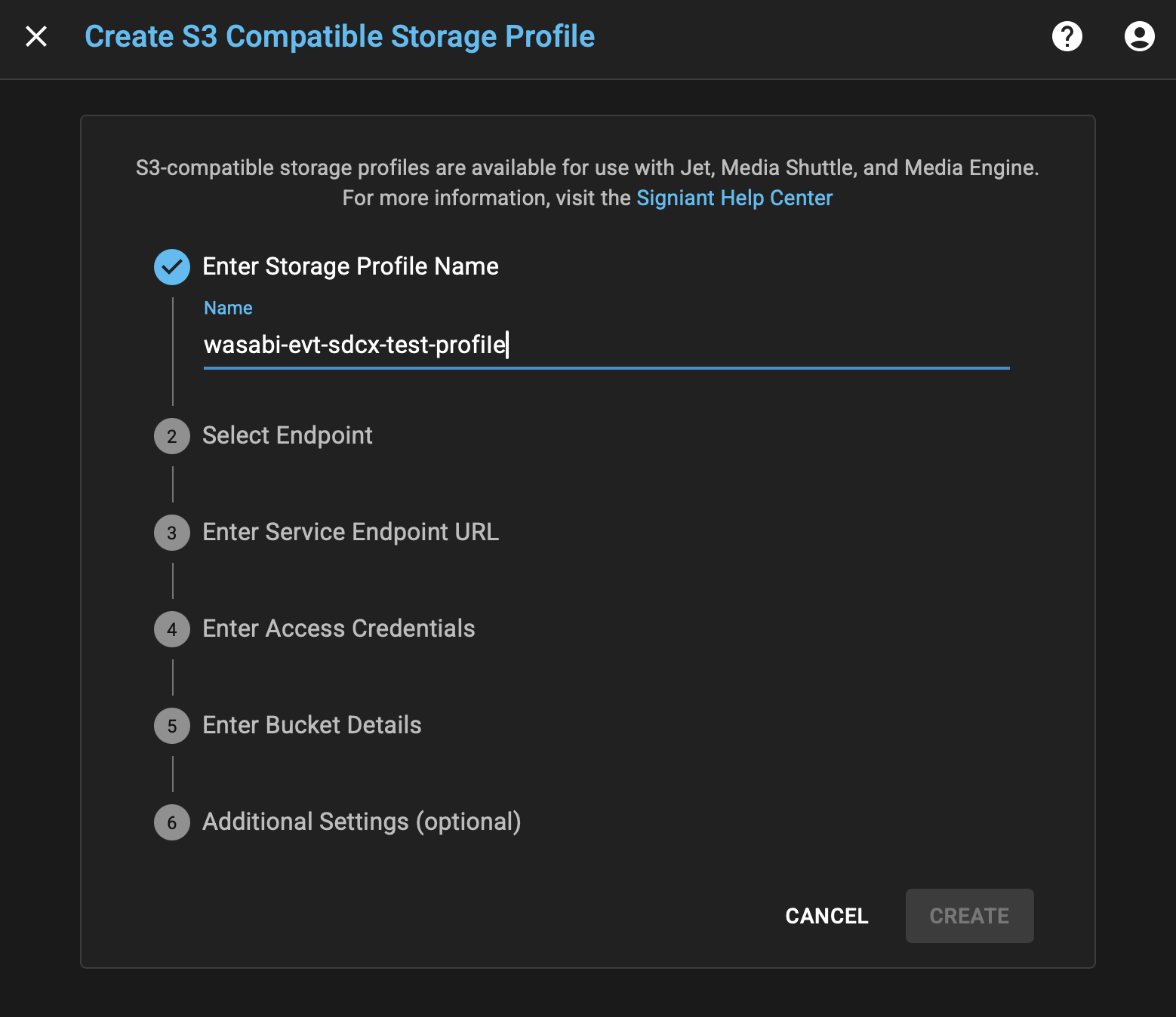
Input the descriptive name for your Storage Profile.
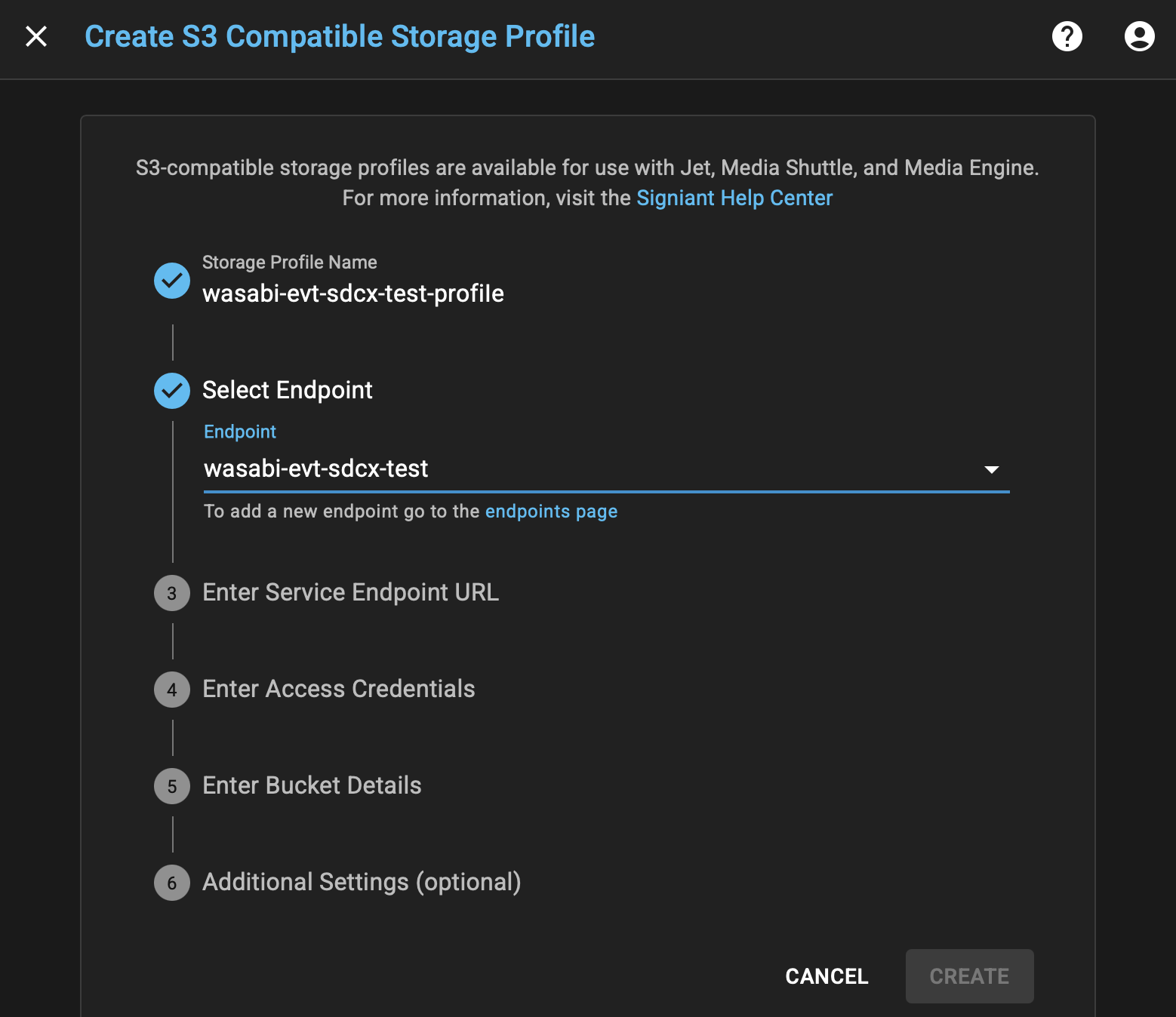
Select your SDCX Endpoint.
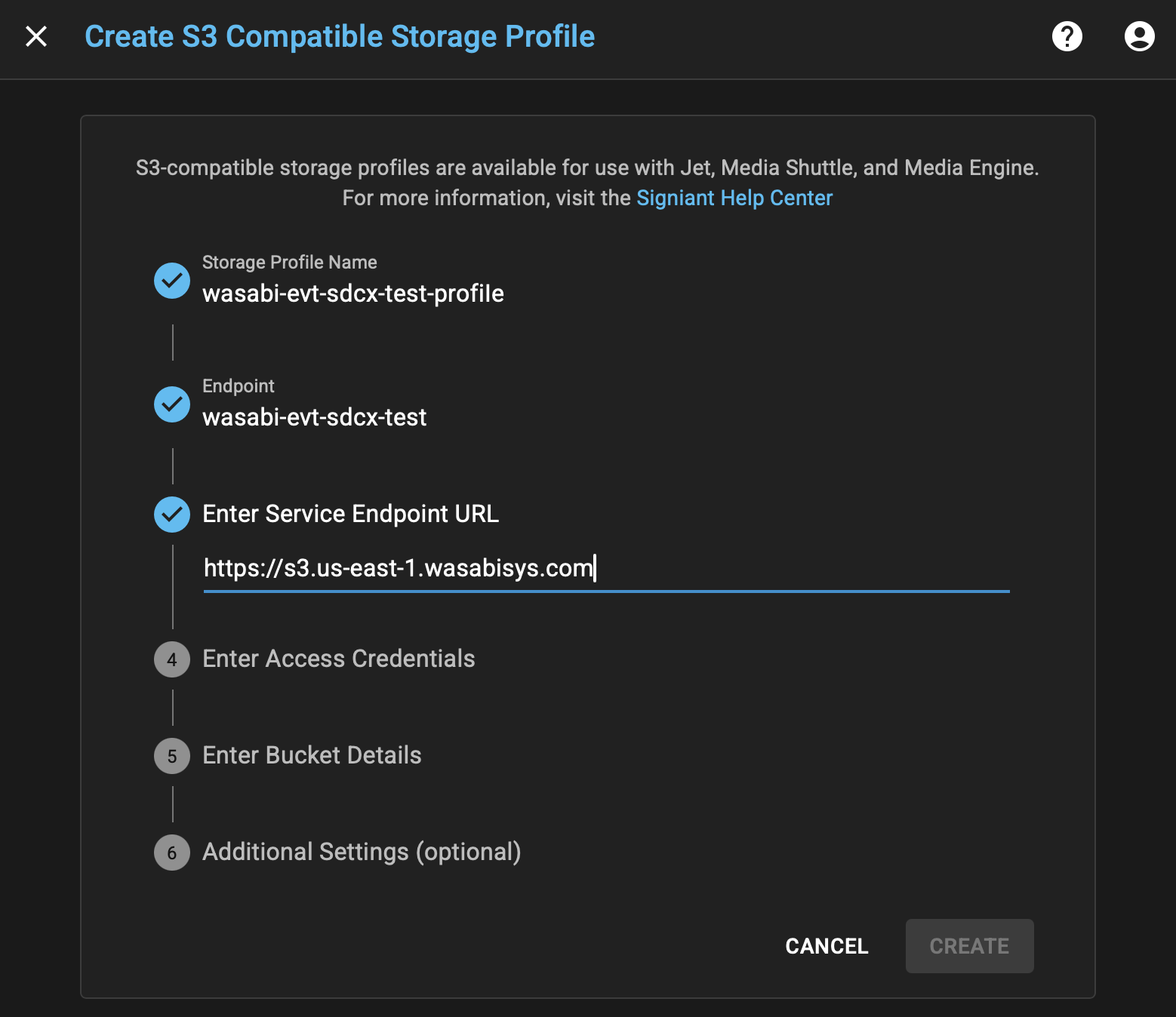
Input the Wasabi service URL for the bucket.
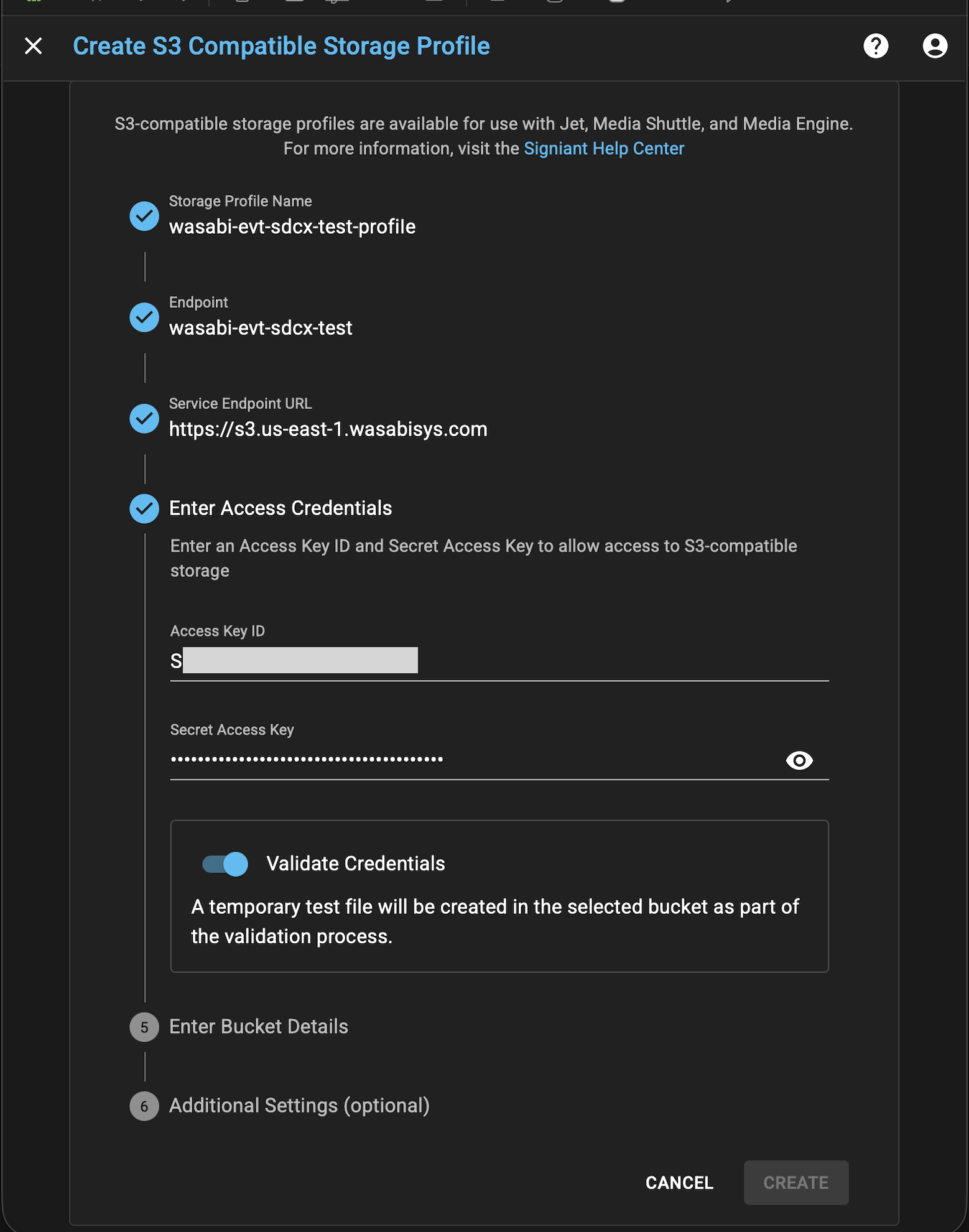
Input your Wasabi access and secret key.
Input your Bucket Name, Service Region, and optionally a Path.
Under Additional Settings, enable Index with Media Engine.
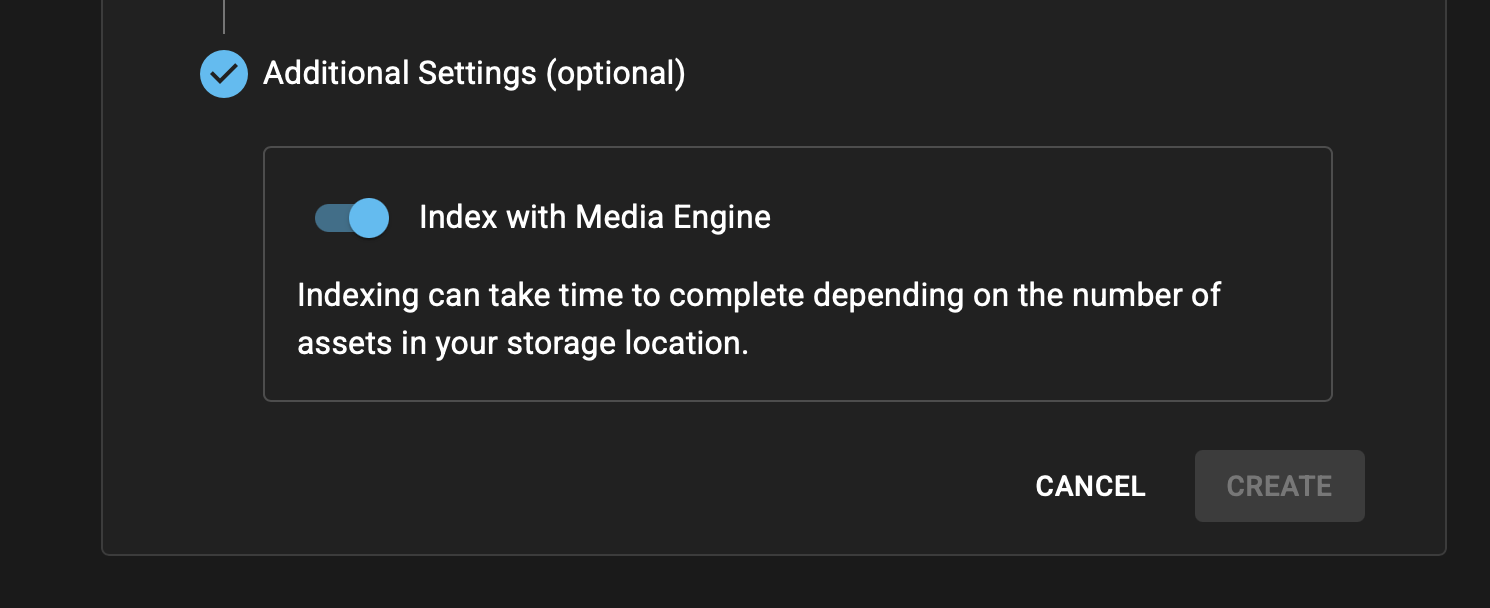
Click Create.
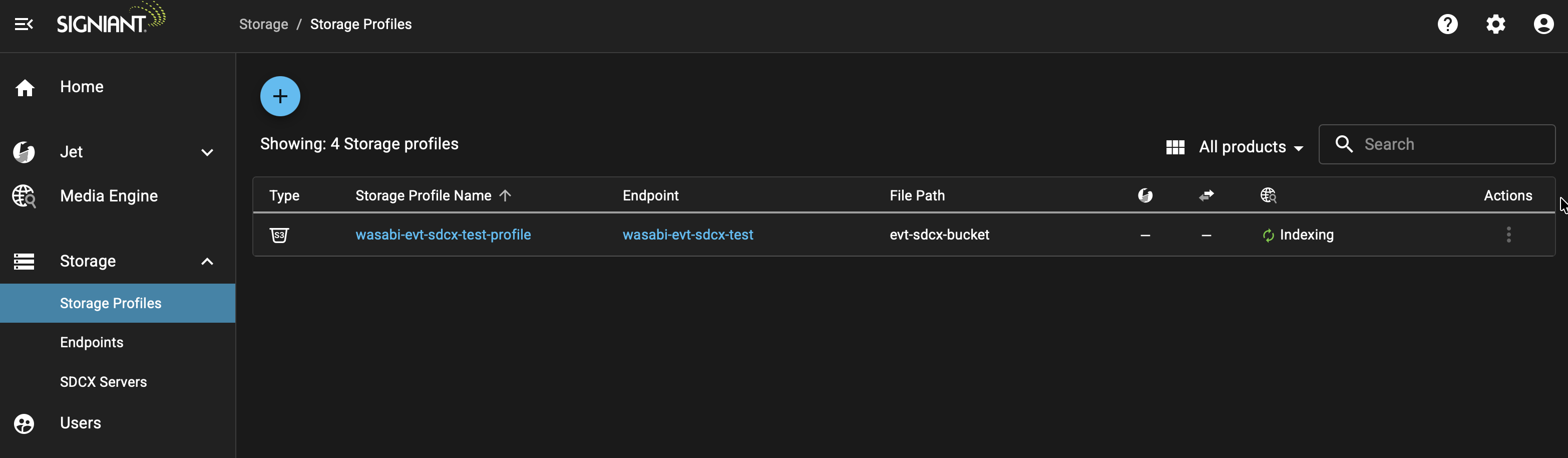
Your Storage Profile will now appear on the Storage Profiles page. If media is present, it will begin indexing automatically. Otherwise, you can now upload data to your Wasabi Bucket, and Media Engine will automatically index it.
Once your data has been indexed, you will see it under your Media Engine dashboard.