If the replicated status icon is not appearing on data subject to automatic policies or manual tasks, you may need to change the display icon mode, clear the icon cache, and fix the status icons. To do so, follow the steps below.
Requirements
Be sure to run the tray application as an administrator, as described below. If you are already running the application as an administrator, continue to Changing the Display Icon Mode.
Running the Tray Application as an Administrator
Right-click the Wasabi tray icon on your desktop.
Select Exit.
Navigate to File Explorer.
Click This PC.
Select the server.
Select Program Files.
Select Wasabi.
Click Wasabi Cloud NAS.
Scroll down and right-click tier_tray.

Select Run as Administrator.
Changing the Display Icon Mode
The WCN Explorer tray application uses two modes to display icons: default and legacy. The default mode assumes that a replicated state is the default for folders and files and no icon modifier is displayed on replicated data. If a file is a stub, archived, or in transit, icon modifiers are displayed for each respective state.
You must run the tray application as an administrator before changing the display icon mode.
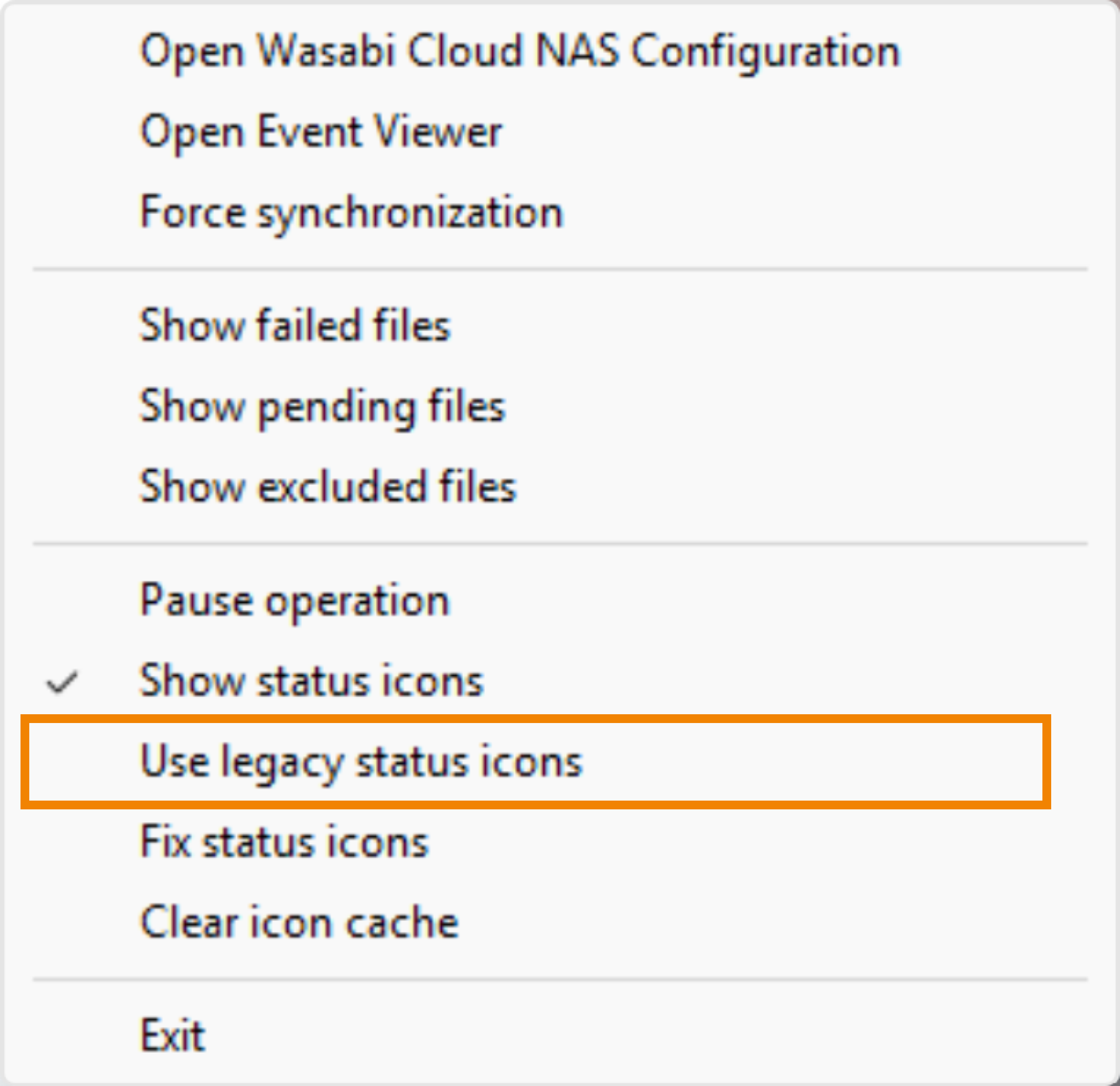
Change the display icon mode to legacy status icons to display icons on replicated files. To do so:
Right-click the Wasabi icon on your tray.
Select Use legacy status icons.
Continue to Clearing the Icon Cache.
Clearing the Icon Cache
If the last application installed on your machine requires special icons (such as OneDrive, Google Drive, and so on), updates to the application can either break the icons needed for WCN or display incorrect icons on synced objects. Wasabi recommends performing the clear icon cache command and the fix status icons command.
You must run the tray application as an administrator before clearing the icon cache.
Right-click the Wasabi tray icon.
Click Clear icon cache.
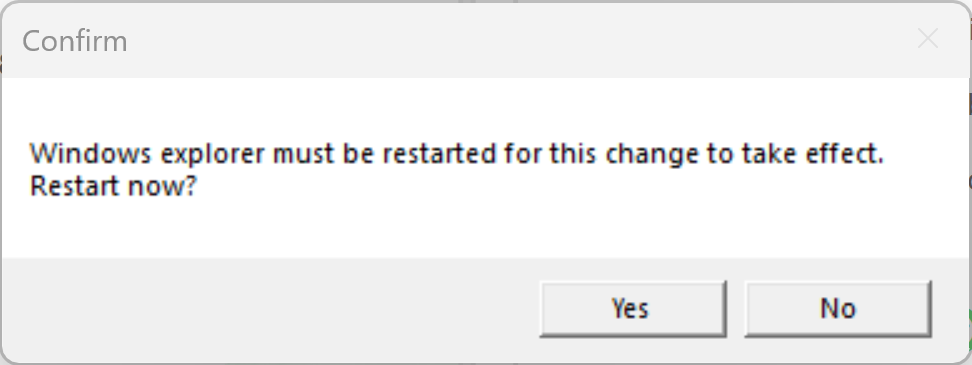
Windows Explorer must be restarted. A message will request that you confirm the restart. Click Yes.
If WCN Explorer notifications are enabled, a tray notification will report when the job has successfully completed.
Continue to Fixing the Status Icons.
Fixing the Status Icons
You must run the tray application as an administrator before fixing the status icons.
Right-click the Wasabi tray icon.
Select Fix status icons.
Windows Explorer must be restarted. A message will request that you confirm the restart. Click Yes.
If WCN Explorer notifications are enabled, a tray notification will report when the job has successfully completed.
To verify the changes, navigate to a source paired with a bucket. All replicated data is indicated by
 .
.