The Account page displays account information and settings for the selected Sub-Account when signed in as Channel Account Admin.
Depending on how you signed in to WACM, as either a Control Account or a Channel Account user, the available Sub-Account settings and components on the Account Information page may vary.
Select a Sub-Account from the list to open the Details page. Select the Account tab to view and manage Account Information Settings.
Account Information Settings
From the Account page, you can manage the following account information:
Account Details—Displays account status and details.
Sub-Account Tracking—Displays storage usage and quota type.
Contact Information—Enables you to add or change the address, phone, contact, or billing email.
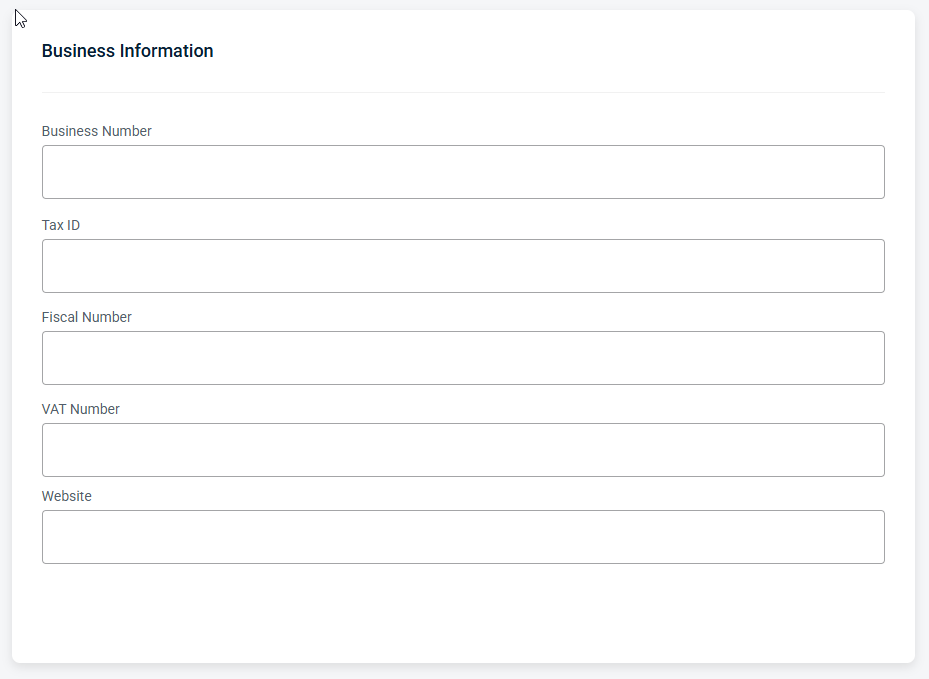
Business Information—Enables you to add or change business and tax information, as well as the website.
Sub-Account Information—Enables you to manage the password, email, and access key, and to suspend or delete the account.
Carbon Footprint—View and manage emissions from Wasabi storage.
Be sure to click Update (in the upper-right corner) to apply any changes made on this page.
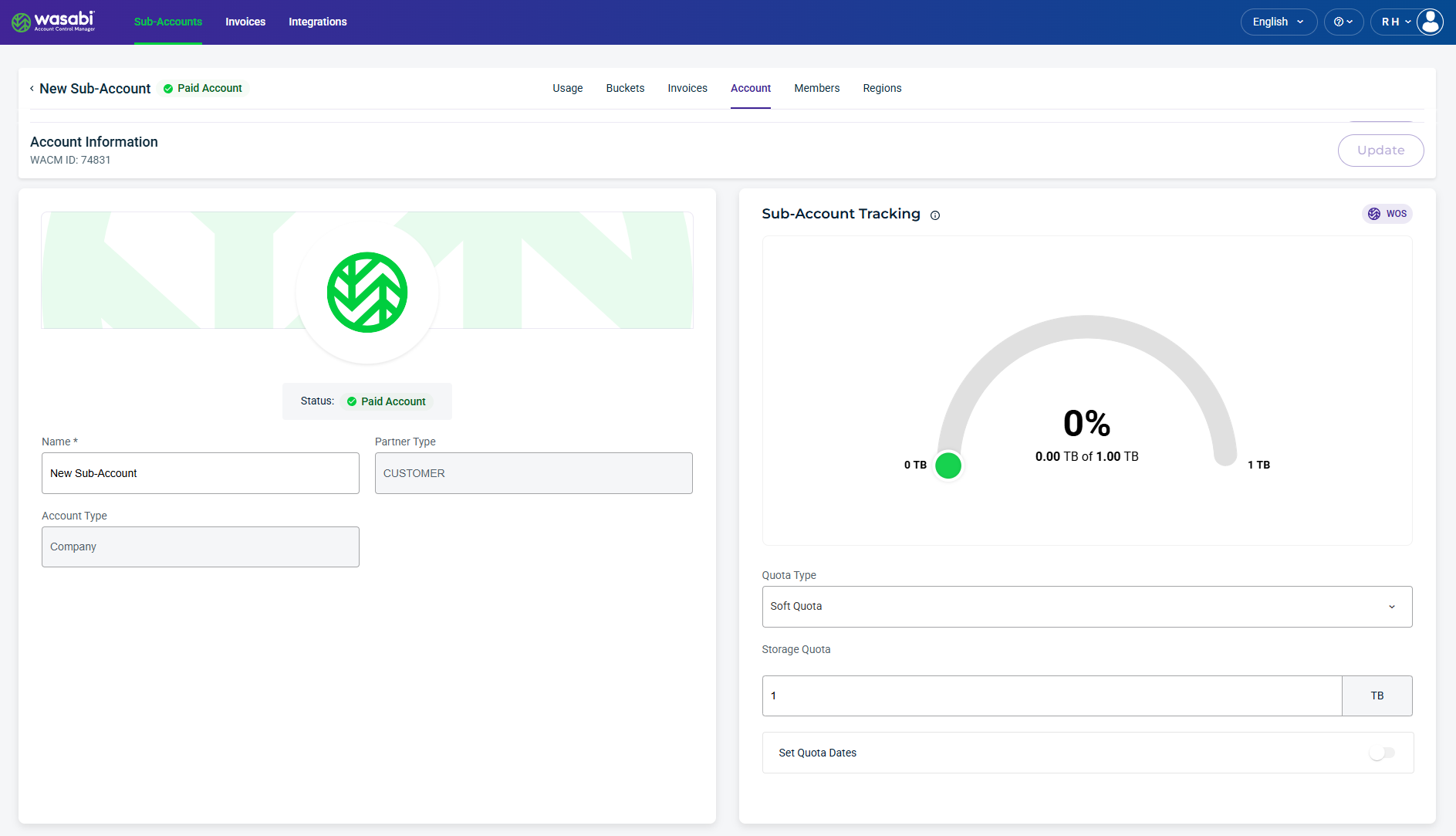
Account Details
The Account Details section provides the following Sub-Account information:
Status—Account status, such as Paid Account.
Name—Name of the Sub-Account (can be changed).
Partner Type—The selected Partner type, such as Customer.
Account Type—The selected Account type, such as Company.
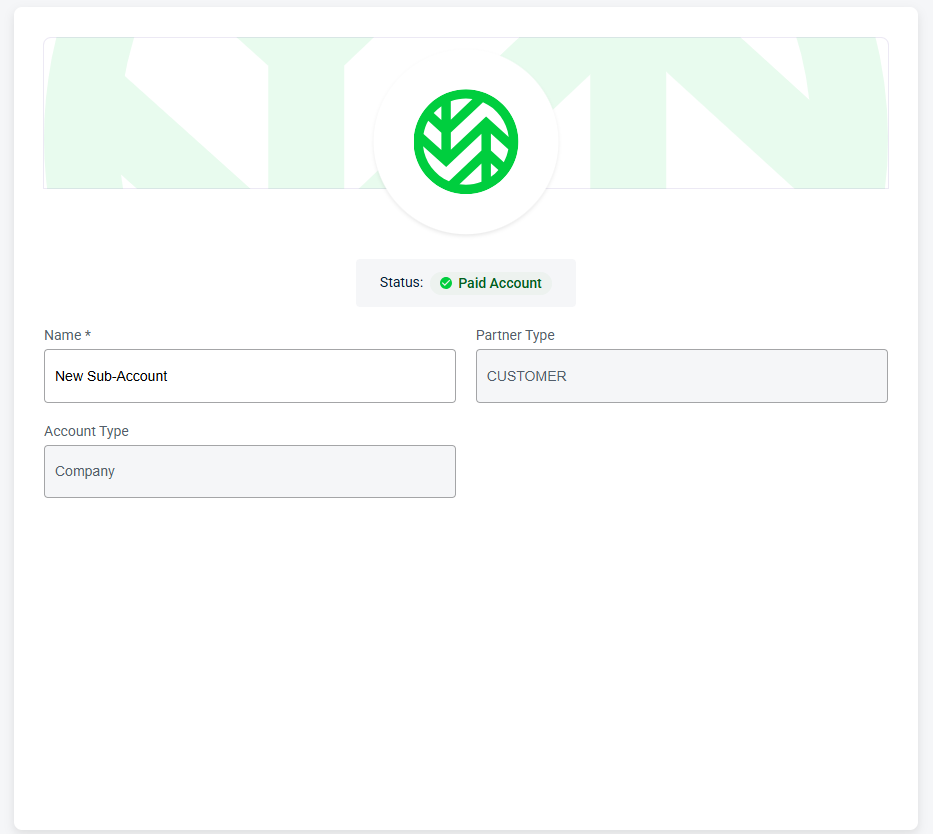
Sub-Account Tracking
The Sub-Account Tracking section displays storage usage relative to the assigned quota. In this section, you can change the quota type, set the storage quota amount, and set quota start and end dates. The product storage type for the account is identified by the icon in the top-right corner.
Quota Type
The Quota Type field indicates:
Hard Quota—Enforces the storage quota limit and prevents further use once the limit is reached or exceeded. A block will be placed on all future uploads to that account, causing any uploads in progress or scheduled to fail. The storage quota must be increased or the limit removed to lift the block.
Soft Quota—Does not enforce storage quota limits. It sends a notification when the storage quota limit is reached or exceeded.
Storage Quota
The Storage Quota field indicates the amount of storage purchased or allocated for this Sub-Account. You can update this option at any time.
Set Quota Dates
Enable Set Quota Dates to specify the time period for tracking Sub-Account storage usage. Select the start and end dates from the dropdown menus.
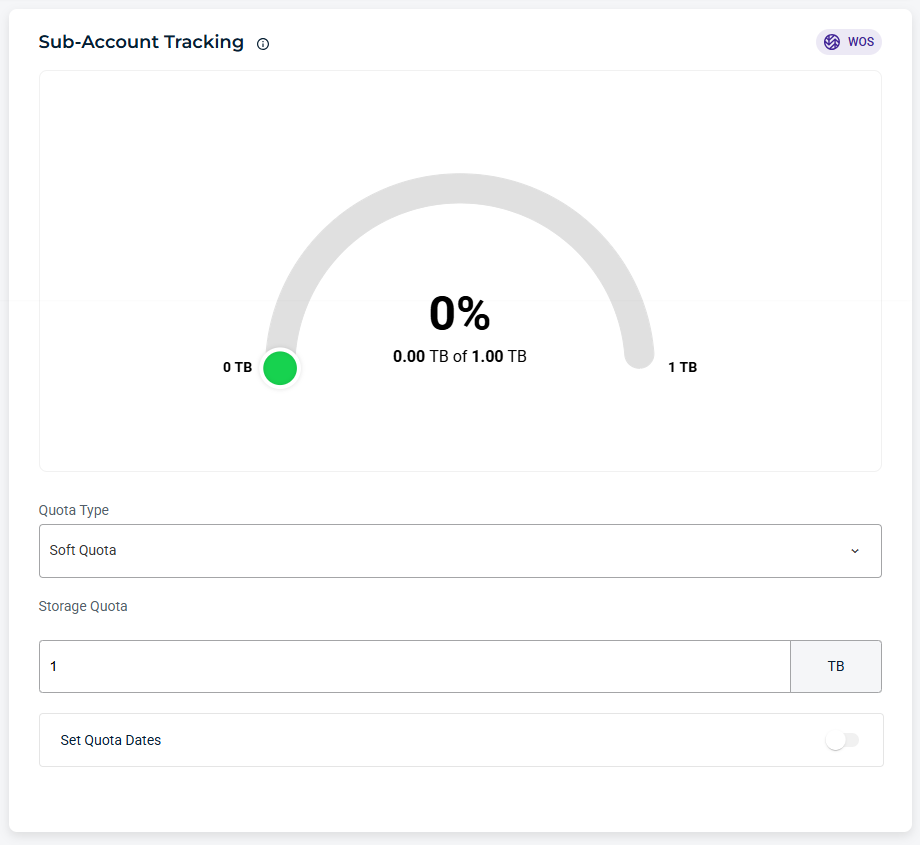
Contact Information
The Contact Information section provides editable fields for contact and billing details for this account, including address, phone numbers, and email addresses.
Business Information
The Business Information section provides editable fields for billing and tax identifiers for this account, including business number, tax ID, fiscal number, VAT number, and website URL.
Sub-Account Information
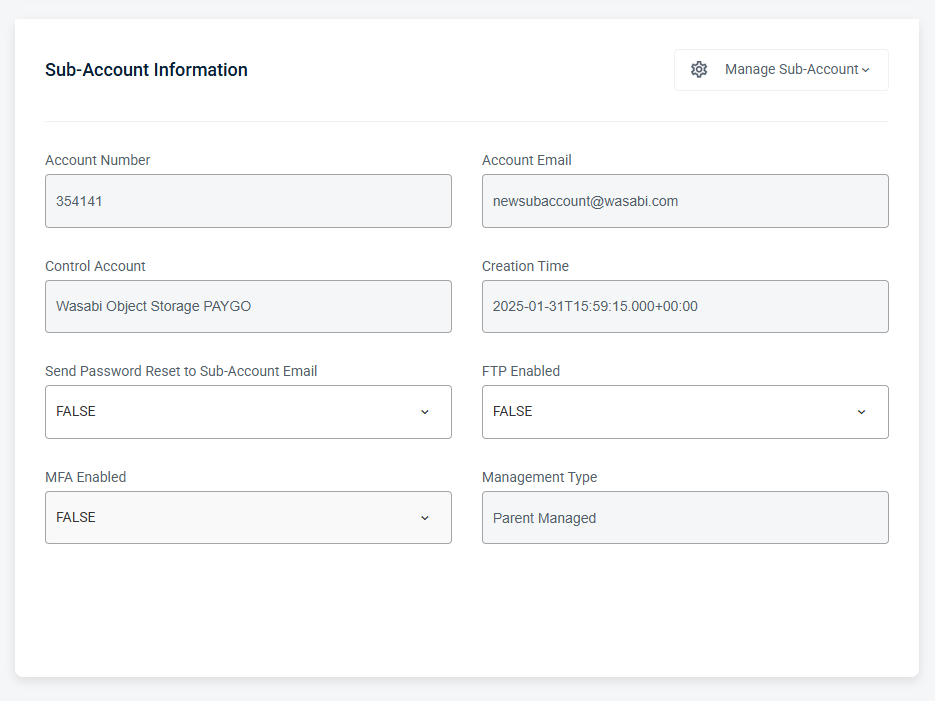
The Sub-Account Information section provides key details and settings for this Sub-Account, including account identifiers, ownership, security settings, and management type. Additional access settings are available from the Manage Sub-Account dropdown menu.
Management Type
Displays the management type assigned to the Sub-Account by the administrator.
End-User Managed—The Sub-Account user sets their own password.
Parent Managed—The parent account administrator sets the Sub-Account password.
Manage Sub-Account Settings
The Manage Sub-Account dropdown menu allows you to manage Sub-Account access and lifecycle settings, including updating credentials, modifying account details, resetting access keys, and suspending, restoring, or deleting the account.
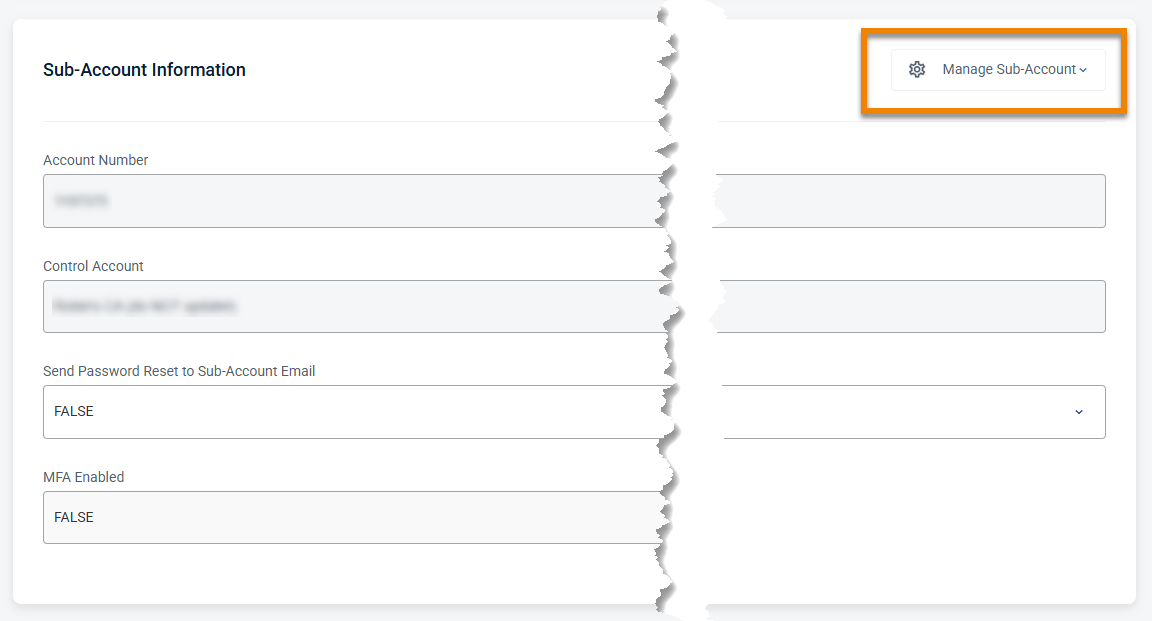
You can manage the following options:
Change Password
Change Account Email
Reset Access Key
Reset MFA—Clears the MFA setting for the Sub-Account, allowing them to reconfigure MFA.
Suspend Account
Delete Account
Carbon Footprint
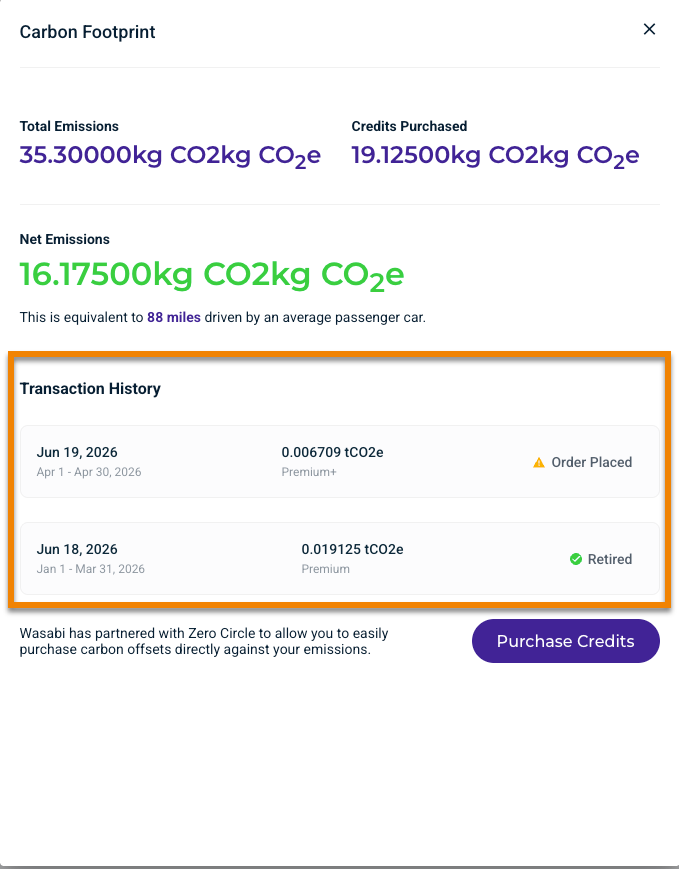
With Carbon Footprint, you can view emissions from Wasabi storage you manage directly in WACM. These values are calculated at the regional level and updated monthly. You can also purchase additional credits using the Purchase Credits button. Use the Date Range filter to limit and analyze usage data for a specific time period.
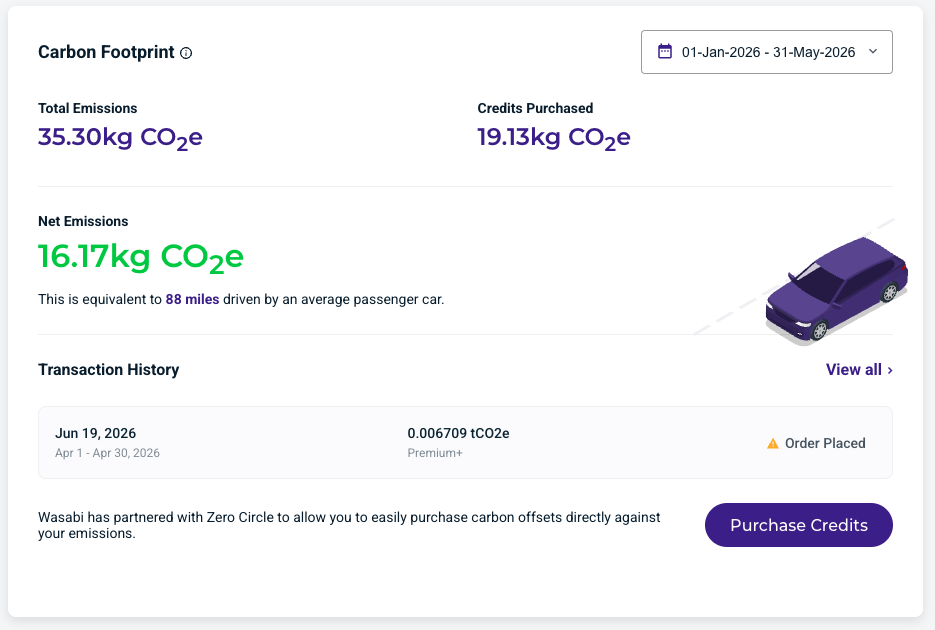
Carbon footprint provides the following details and metrics:
Total Emissions—The total emissions generated from storage under your management for the selected date range.
Credits Purchased—The credits, or emissions offsets, you have purchased from our partner to offset your total emissions for the selected date range.
Net Emissions—Total emissions generated for the selected date range, minus the credits you purchased to offset them, leaving your net emissions.
Transaction History—Displays the latest transaction history. Click View All to see the status of the last three transactions, such as Order Placed, Retirement in Progress, or Retired.
Wasabi Impact Circle
Wasabi Impact Circle is our commitment to making cloud storage genuinely sustainable. The carbon offset program, delivered through our partnership with Zero Circle, puts that commitment into practice. The program offsets the carbon footprint of the data customers store with Wasabi by funding verified environmental projects worldwide. The program is available exclusively in the Wasabi Account Control Manager console for Wasabi partners and serves as a free strategic differentiator for sustainability-focused organizations. For more information, see Wasabi Carbon Footprint (https://cust.zerocircle.eco/wasabi).