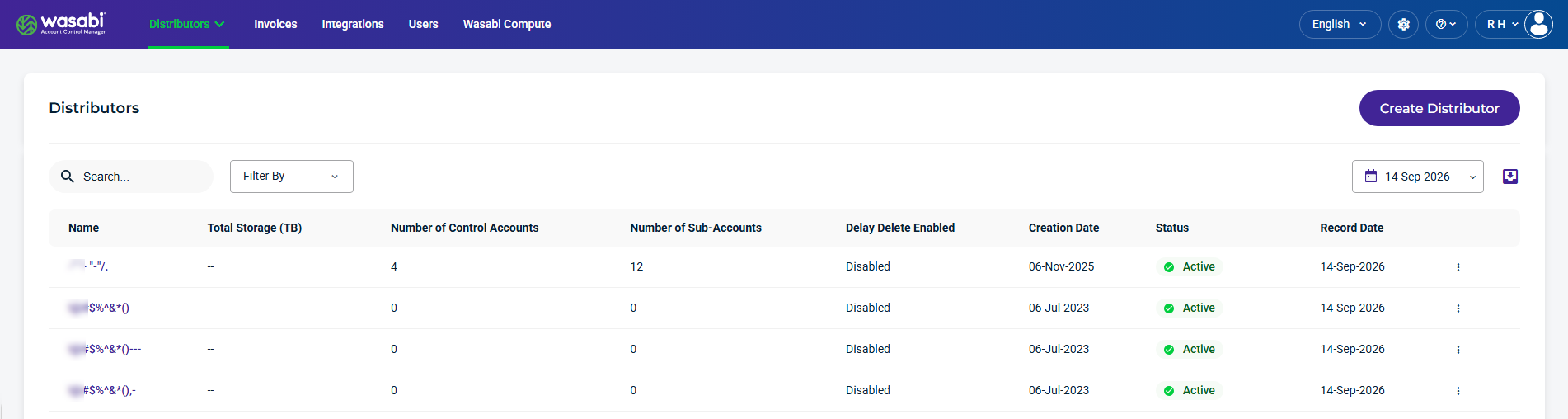
The Distributors Account information page lets you configure and manage the details of a WACM Distributor account.
Select a Distributor account from the list. The Account page is displayed.
Account Information Settings
From the Account page, you can manage the following account information:
Account Overview—Update the account name.
WACM Connect API Key-— Allows you to access the WACM Connect API.
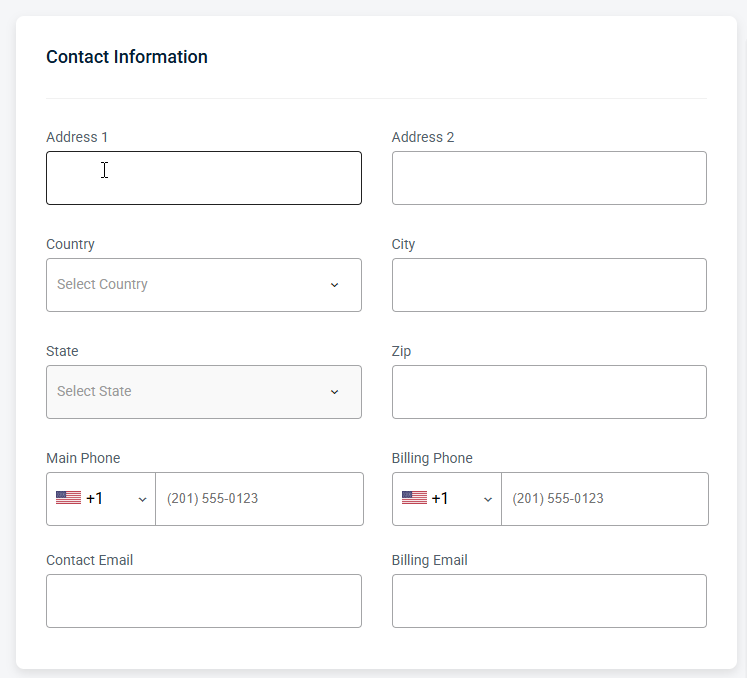
Contact Information—Add or update the address, phone number, contact, or billing email.
Business Information—Add or update the business, tax, and website information.
Account Settings—Enable Bucket Management and Standalone account creation.
Be sure to click Update (in the upper-right corner) to apply any changes made on this page.
Account Profile
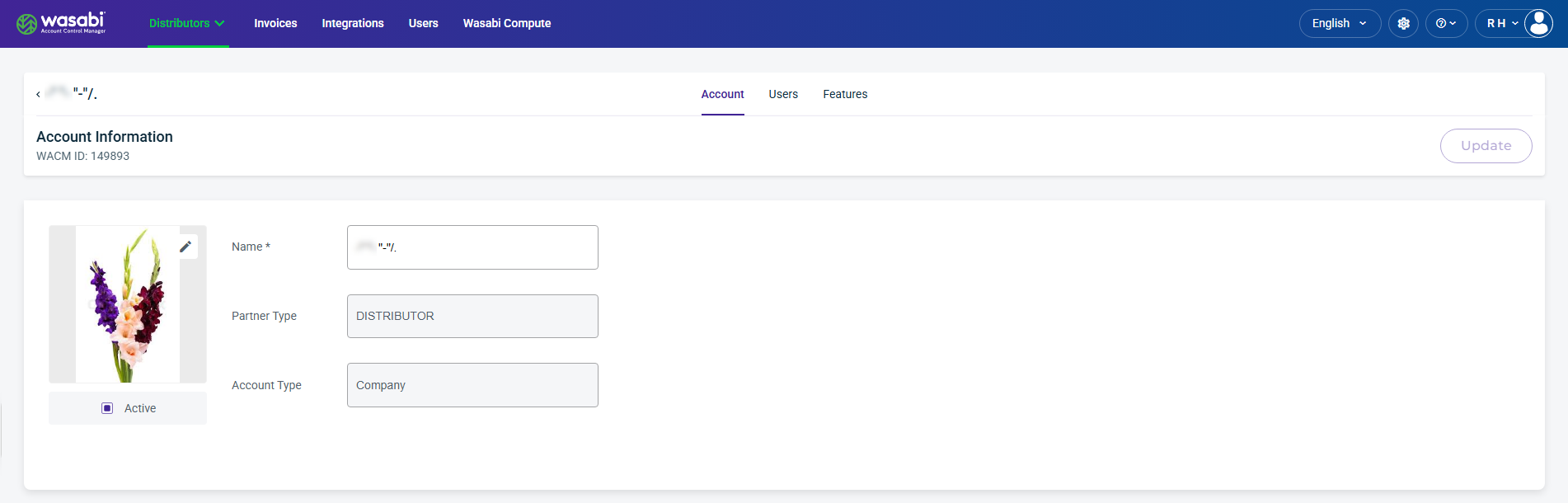
The Account Profile section provides essential details about the account, including its name, status, partner type, and account type. You can update the account name.
WACM Connect API Key
The WACM Connect API key lets you access WACM data for automation. The API key can be rotated or deleted as needed for security purposes.

Contact Information
Provides editable fields for the user’s contact details, including the email address and other associated contact information.
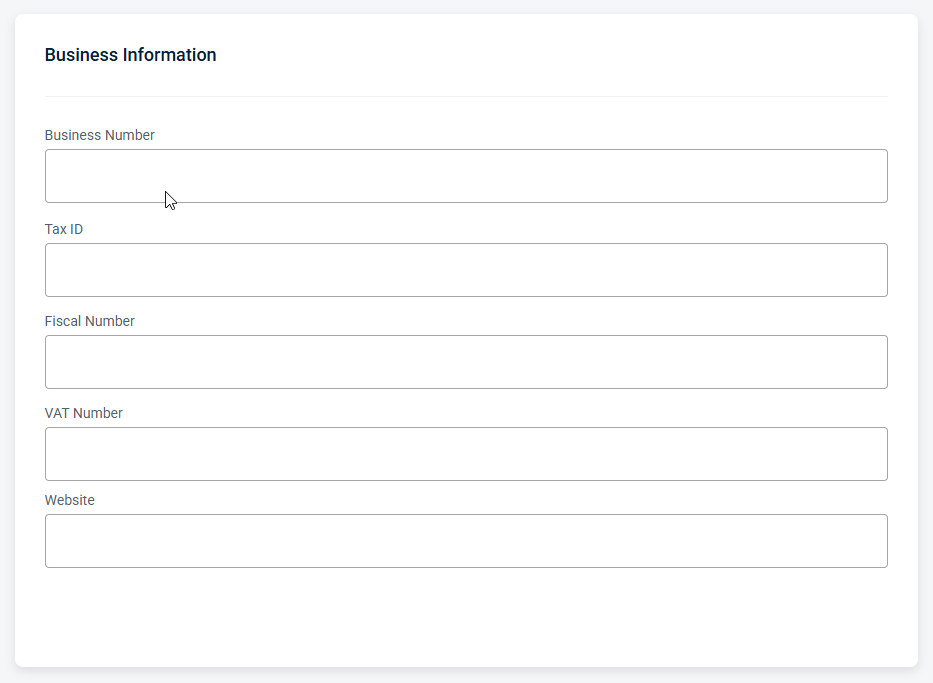
Business Information
Provides editable fields with your organization’s registered business details, including business number, tax ID, fiscal number, VAT number, and company website. This information is used for billing, compliance, and official account records.
Account Settings
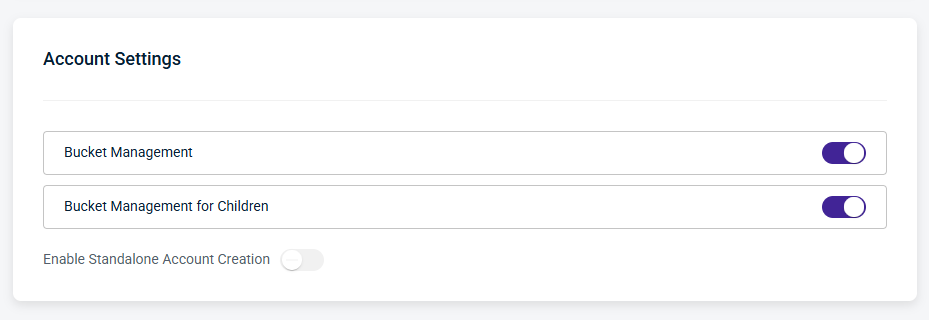
You can enable the following account settings:
Bucket Management—Enable this setting to create and manage buckets.
Bucket Management for Children—Enable this setting to create and manage buckets for child accounts of Control Accounts and Channel Accounts under the Distributor account.
Enable Standalone Account Creation—This feature allows Distributors to enable a standalone account.
Enabling a Standalone Account
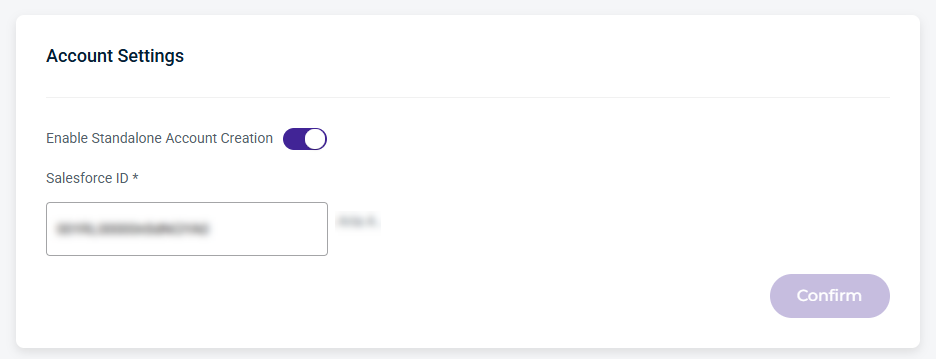
To enable the creation of a Standalone Account, use the toggle, enter the Salesforce ID for the account, then click Confirm.
Security Settings
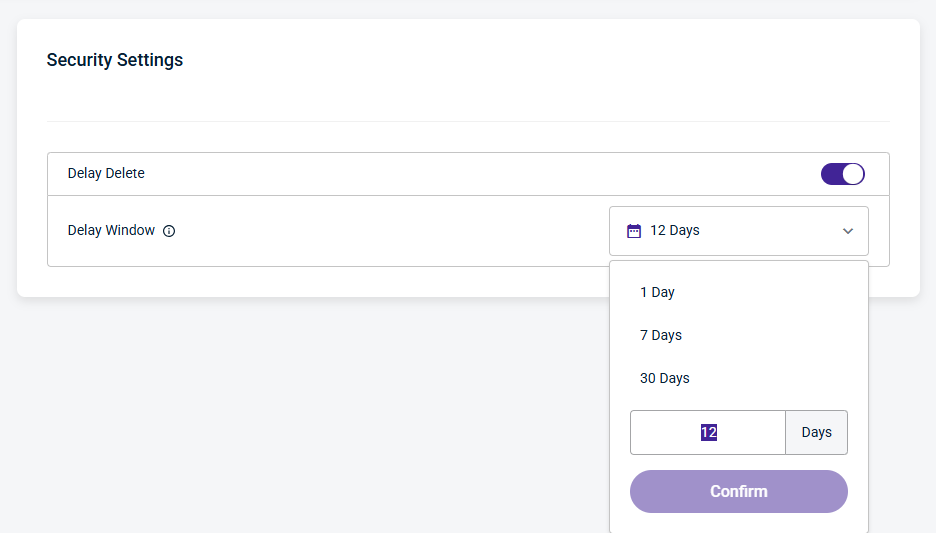
Delay Delete provides a window of time after a deletion is scheduled during which a user can cancel the deletion of a Sub-Account before it is processed. It also provides notifications when an account deletion is initiated, canceled, or completed, enhancing visibility and security.
While a Sub-Account is in the Pending Delete status, it will remain active for use and billed as normal. If you wish to restrict access during this time, you can suspend the account before scheduling the deletion.
Security Settings allows Admin users (Governance, Control, and Channel Account) to enable or disable Delay Delete for Sub-Accounts. When enabled, this setting does not inherit between Admin user accounts and must be configured individually for each account.
When Delay Delete is enabled, the Sub-Account deletion delay defaults to 1 day (24 hours) and can be configured up to 30 days. When a Sub-Account is scheduled for deletion, it remains active until the configured delay period expires. During this delay window, the deletion can be canceled. Once the delay window expires, the Sub-Account is permanently deleted.
Use the Delay Window dropdown to select the number of days to wait before a scheduled deletion is completed. You can update the Delay Window setting at any time.
Admin users can also enable Sub-Account Deletion Notification emails on the Profile page. Notifications are sent when:
A Sub-Account is scheduled for deletion.
A user cancels a Sub-Account scheduled for deletion within the Delay Window.
A Sub-Account is deleted once the delay window has elapsed.