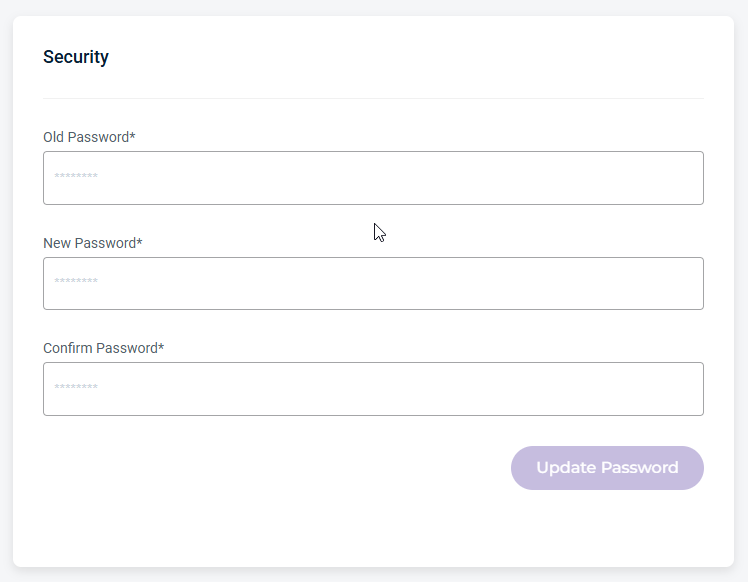
The Users page displays user accounts. From this page, users can view and manage their account information, update contact details, configure notification preferences, generate and manage API keys, and review security settings. Administrators can also manage user access and create new users.
Select a Distributor account in the list to manage user settings. The Account page is displayed by default. Select the Users tab.
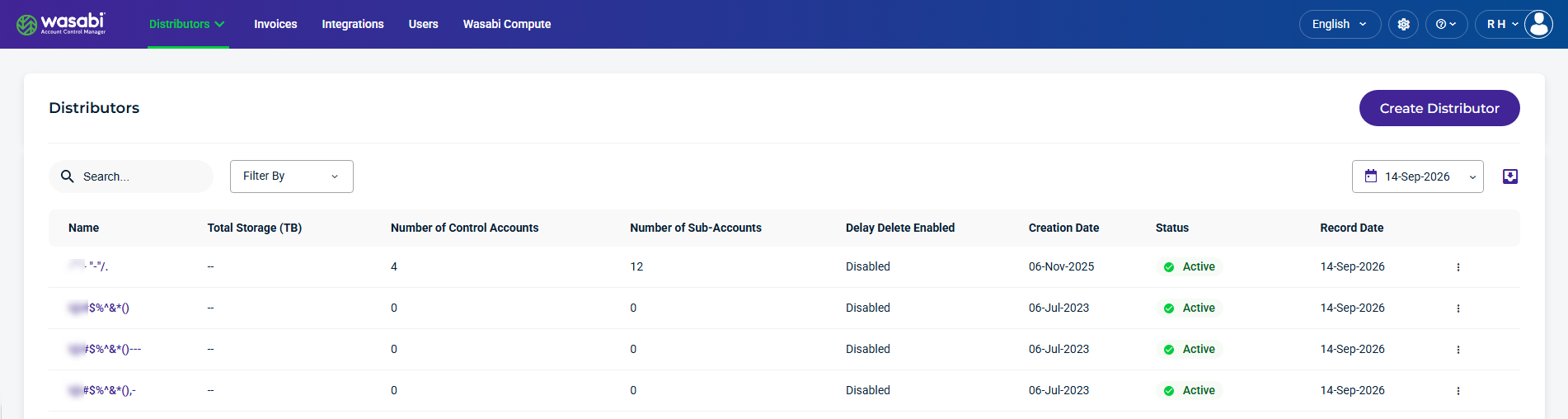
Manage User Access
The Users page provides details and metrics for the selected account. From the Users page, you can manage user access.
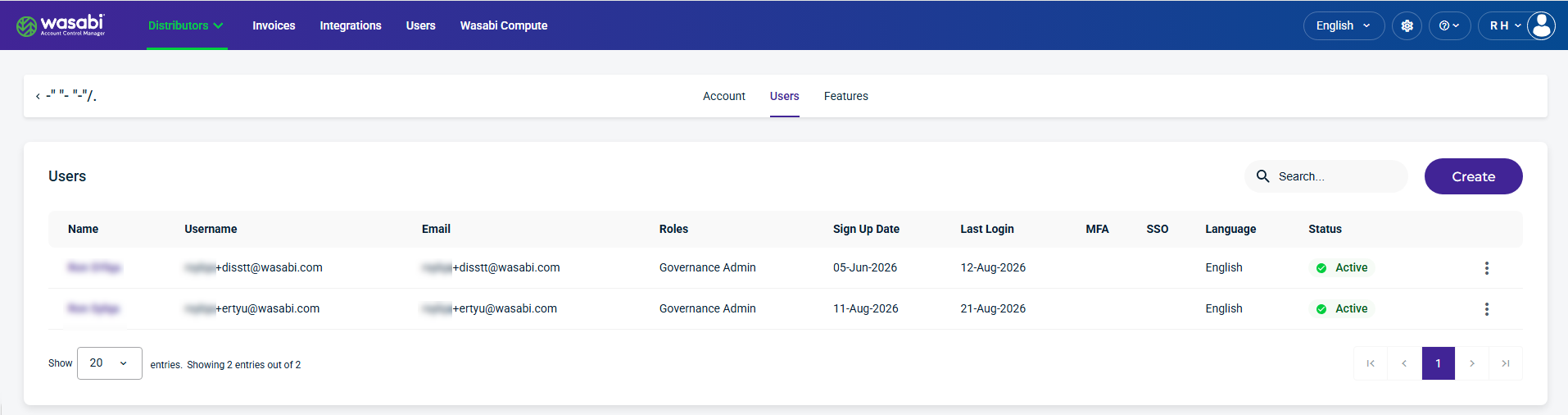
Users Details and Metrics
The Users page displays the following information for each user:
Name—The user’s name associated with the account.
Username—The unique name (single string) not associated with the user’s identity, used for the account.
Email—The email used for the account.
Roles—The role assigned to the user.
Sign Up Date—The date the user profile was created.
Last Login—The last time the user logged in.
MFA (multi-factor authentication)—The MFA status active
 icon, if enabled.
SSO (Single Sign On)—The SSO status is Yes if enabled.
Language—The language selected by the user.
Status—The user status: Active, Deactivated, Locked, or Pending.
Kebab menu—Select from the list of management settings.
Management Settings
You can manage a user’s access from the kebab menu, which, when selected, lets you perform actions on the selected user account.
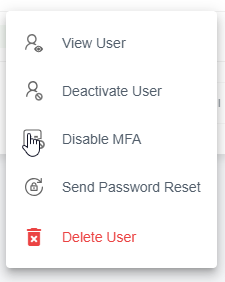
View User—Provides user information, contact, and security information.
Deactivate User—Deactivates the selected user.
Disable MFA—If MFA is enabled for this account, you can Disable MFA.
Send Password Reset—Sends a password reset to the user.
Delete User—Deletes the selected user.
Create a New User
Create a new Governance Account user. Click Create to display the form. Enter the required information and select a Governance Account role. The new user will receive a Welcome email from Wasabi. Each Governance role has specific permissions based on the user type.
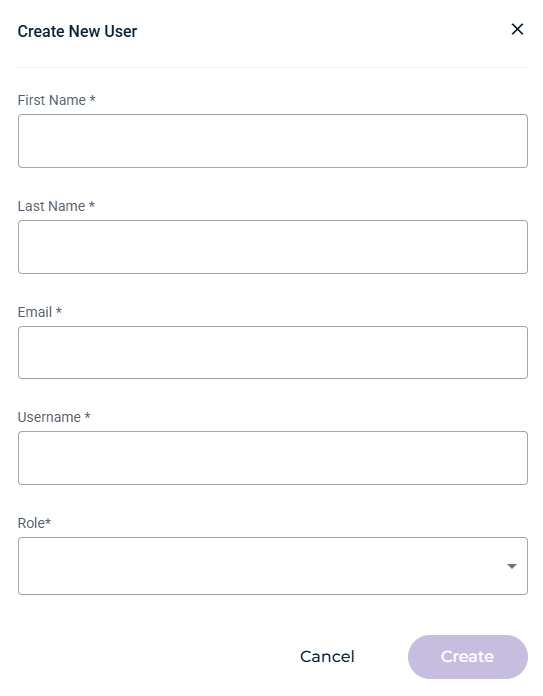
The following Governance roles are available when creating a new user:
Governance Admin
Governance Plus Admin, Governance Plus Staff, Governance Plus Staff (Lite), Governance Plus Viewer
Governance Staff, Governance Viewer
User Information Settings
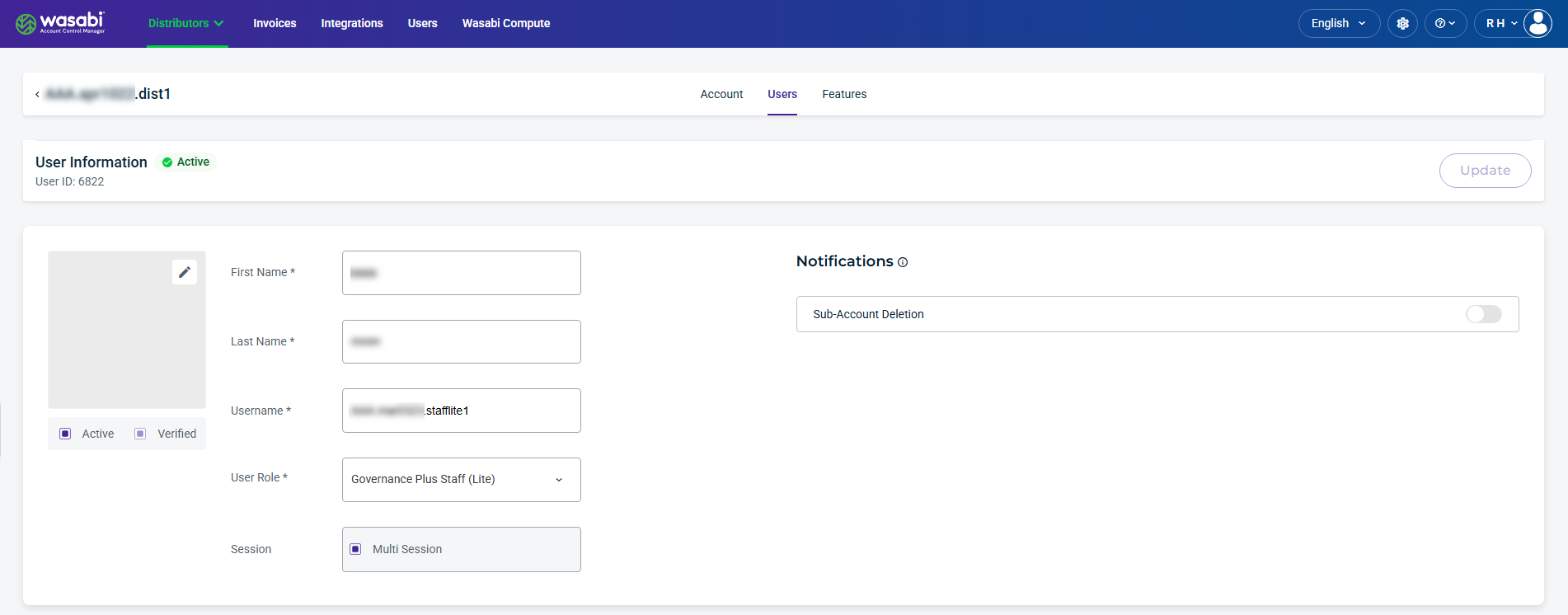
Select a user from the list to view their information and settings. From this page, you can update the name and email fields and change the user role. When Sub-Accounts are enabled in Notifications, notifications will be sent to your user email.
Be sure to click Update (in the upper-right corner) to apply any changes made on this page.
WACM Connect API Key
When the WACM Connect API key is present, you can access WACM data for automation. The key can be rotated or deleted as needed for security purposes.

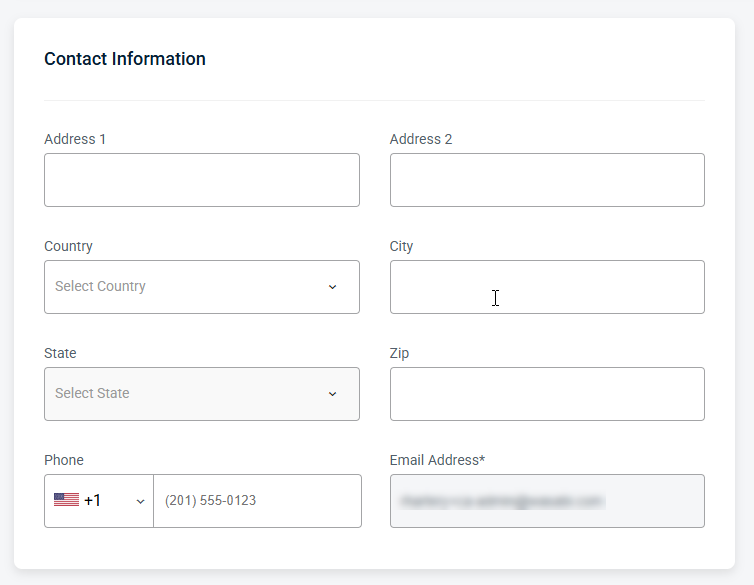
Contact Information
Provides editable fields for the user’s contact details, including the email address and other associated contact information.
Security Information
Manage password settings, including resets.