The Account page in Account Governance provides a centralized view of your account settings and configuration. From here, you can view account details, generate a WACM Connect API key, manage contact and business information, configure SSO and SCIM, and enable Sub-Account deletion delay.
Be sure to click Update (in the upper-right corner) to apply any changes made on this page.
Account Information
Provides basic account information, including account status, partner, and account type. In this section, you can only update the name.
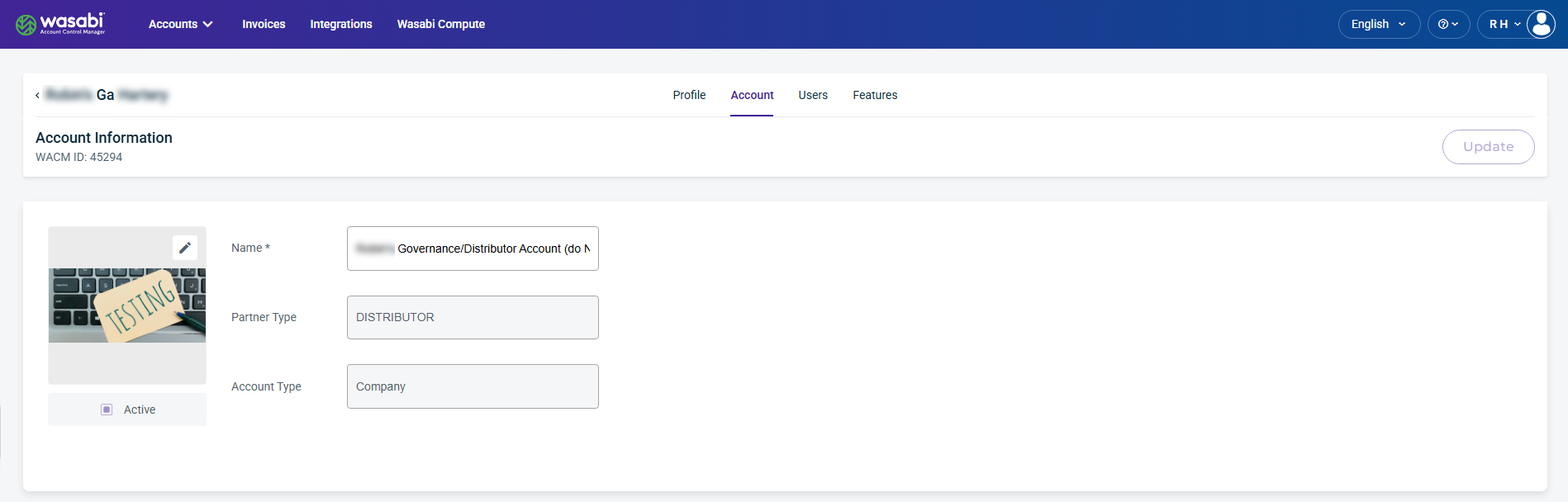
The Account page displays the following information:
Account Information—The account status, account name, partner type, and account type.
WACM Connect API Key—Allows you to generate an API key for accessing the WACM Connect API.
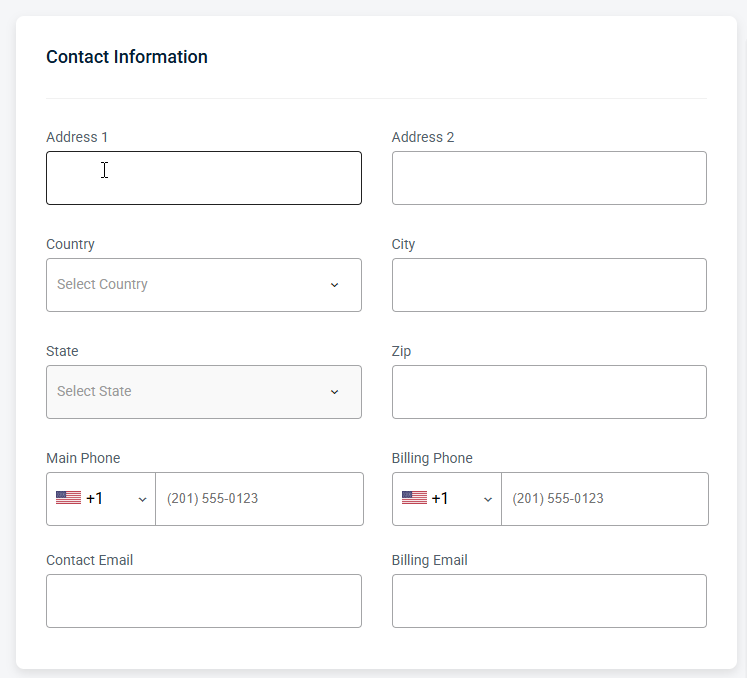
Contact Information—The address and contact information for the account.
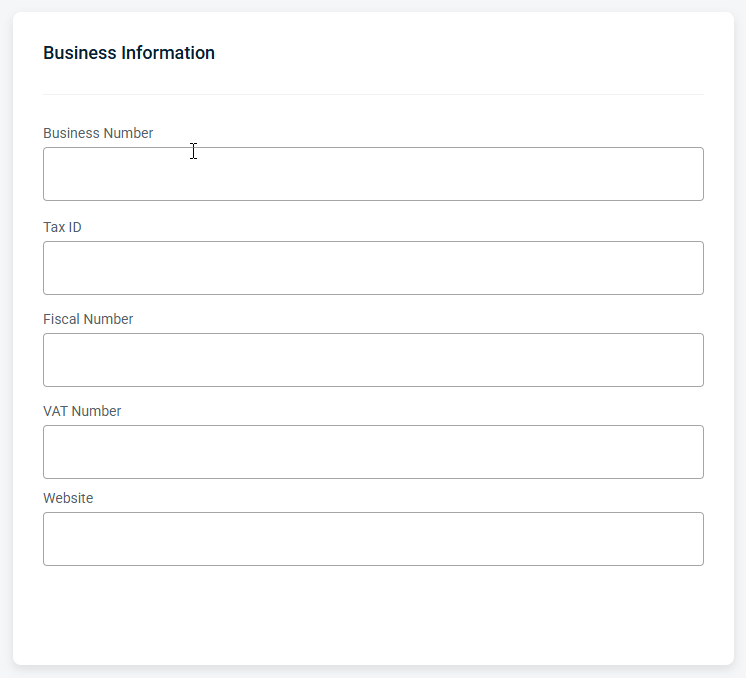
Business Information—The tax information for the company.
SSO (Single Sign On)—Allows you to enable authentication for this account.
SCIM Token—Allows you to generate a unique bearer token for an Identity Provider (IdP).
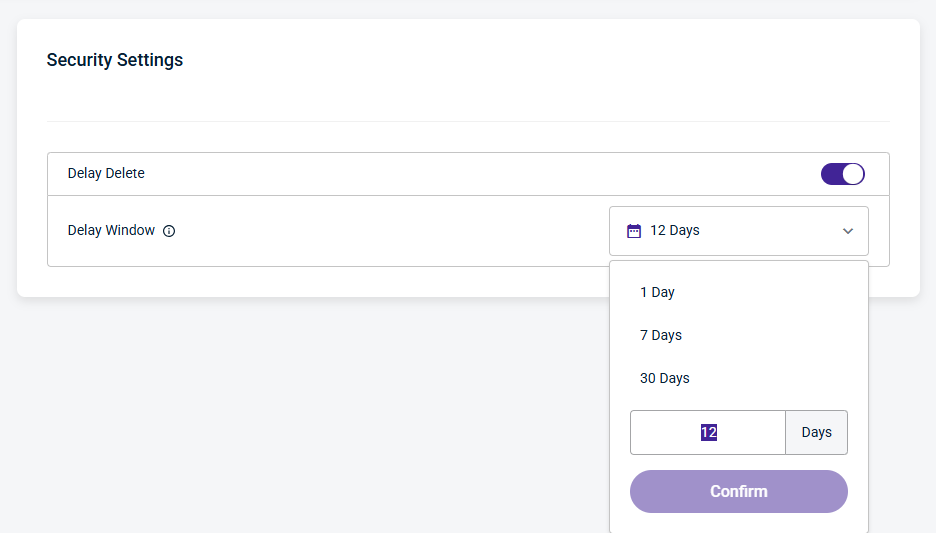
Security Settings—Schedule Delay Delete of a Sub-Account.
WACM Connect API Key
The WACM Connect API key lets you access WACM data for automation and can be rotated or deleted as needed for security purposes.

Contact Information
Provides editable fields for the user’s contact details, including the email address and other associated contact information.
Business Information
Provides editable fields with your organization’s registered business details, including business number, tax ID, fiscal number, VAT number, and company website. This information is used for billing, compliance, and official account records.
Single Sign On (SSO)
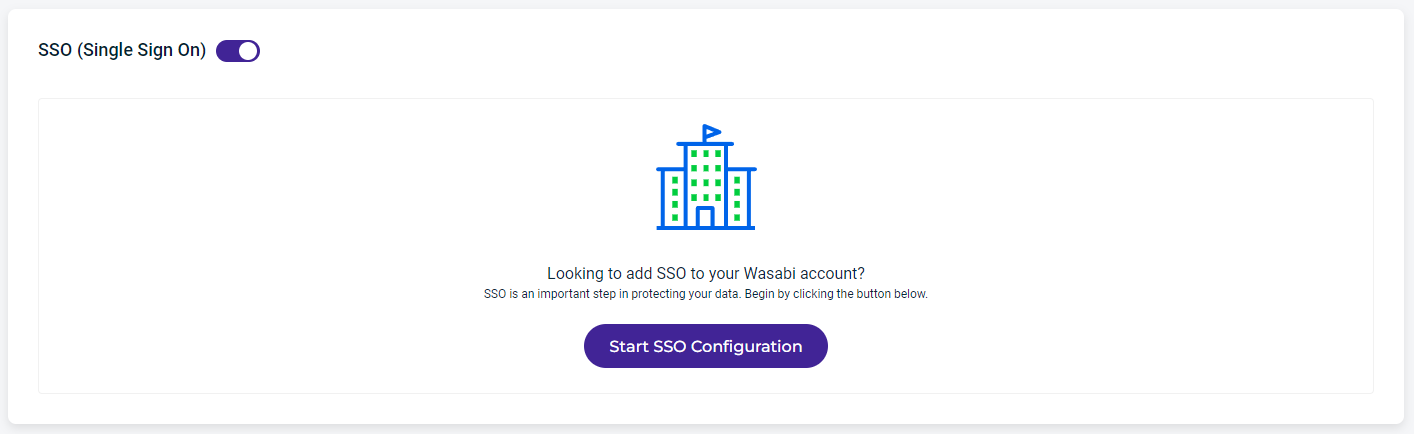
Click Start SSO Configuration.
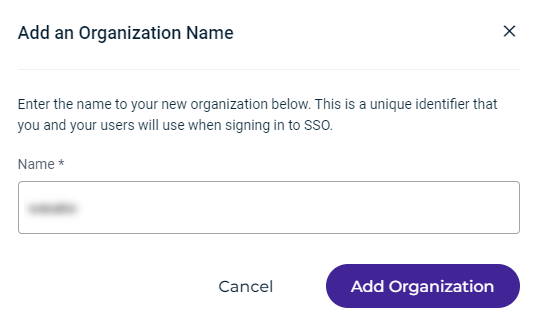
Enter your organization’s name, which is a unique identifier that you and your users will use when signing in to Wasabi using SSO.
Click Add Organization. The organization name is displayed along with a drop-down menu to select the SSO connection:
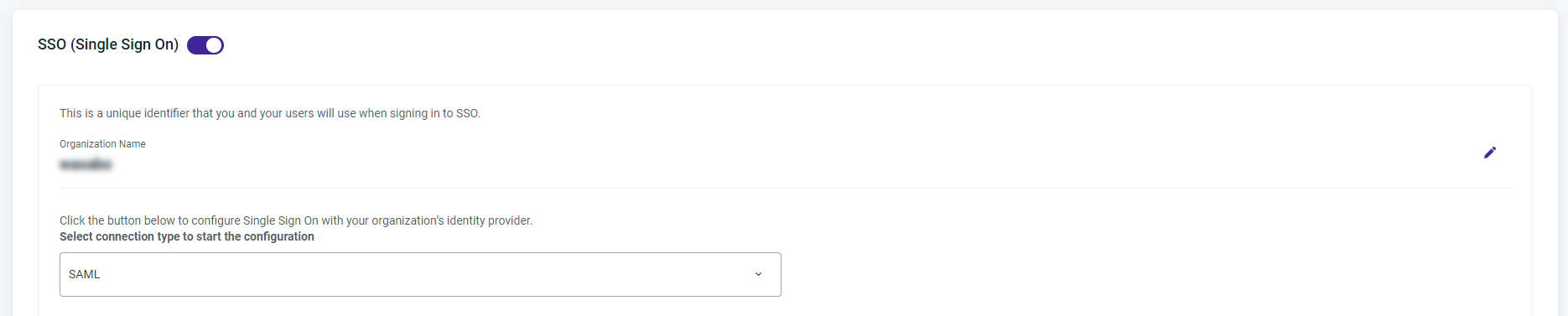
Click the SSO Connection drop-down to select the connection type. You can select one of these protocols:
SAML
OPEN ID
SAML Connection
If you select SAML, a screen similar to the one shown below is displayed. Work through the instructions on the screen.
Enter the Sign In URL (Callback URL) and Sign Out URL (optional). Then click Browse File and select the X509 Signing Certificate.pem file.
Complete the IDP configuration.
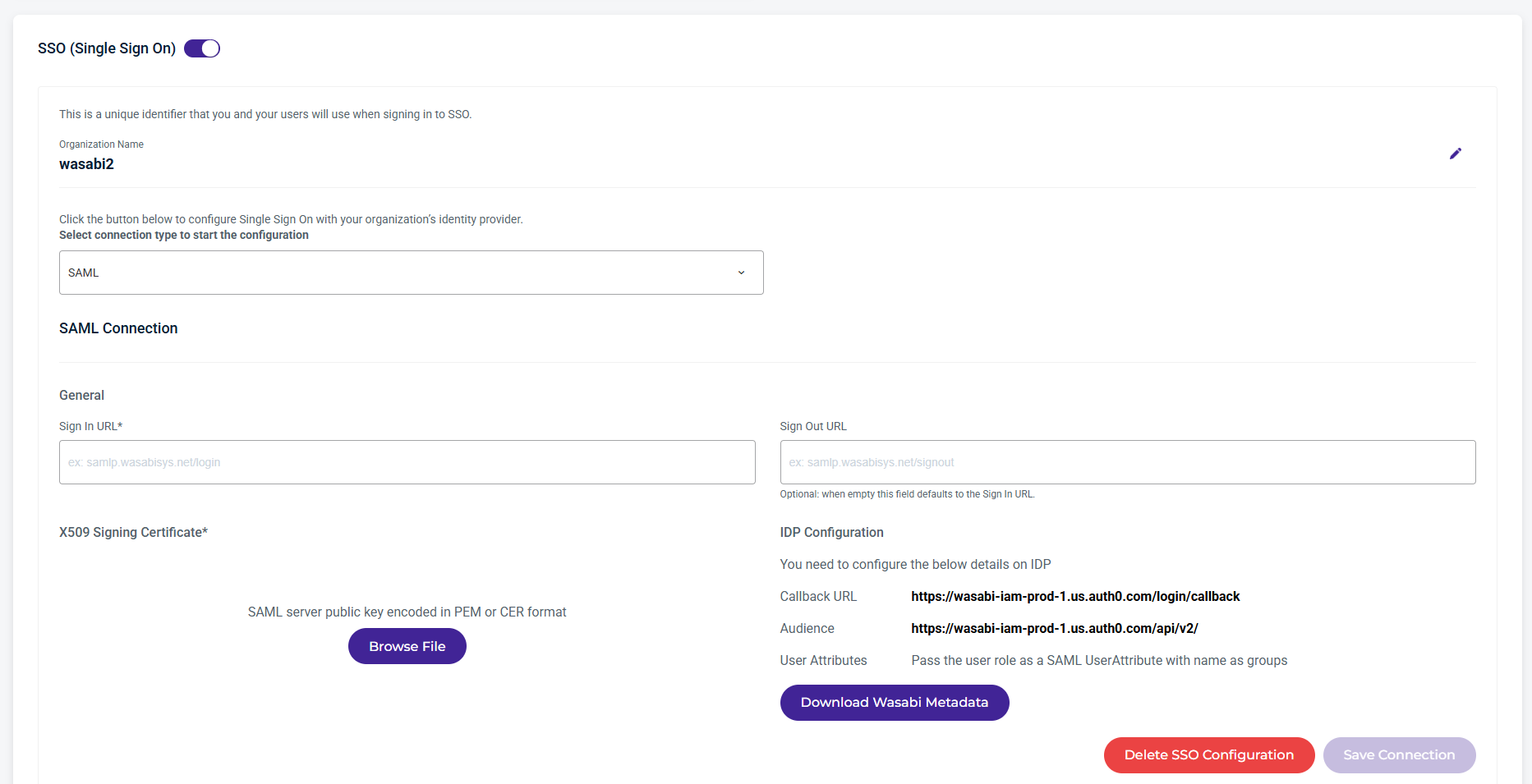
Click Save Connection.
Open ID Connection
If you select OPEN ID, a screen similar to the one shown below is displayed. Work through the instructions on the screen.
Enter the Discovery Endpoint and Client ID information.
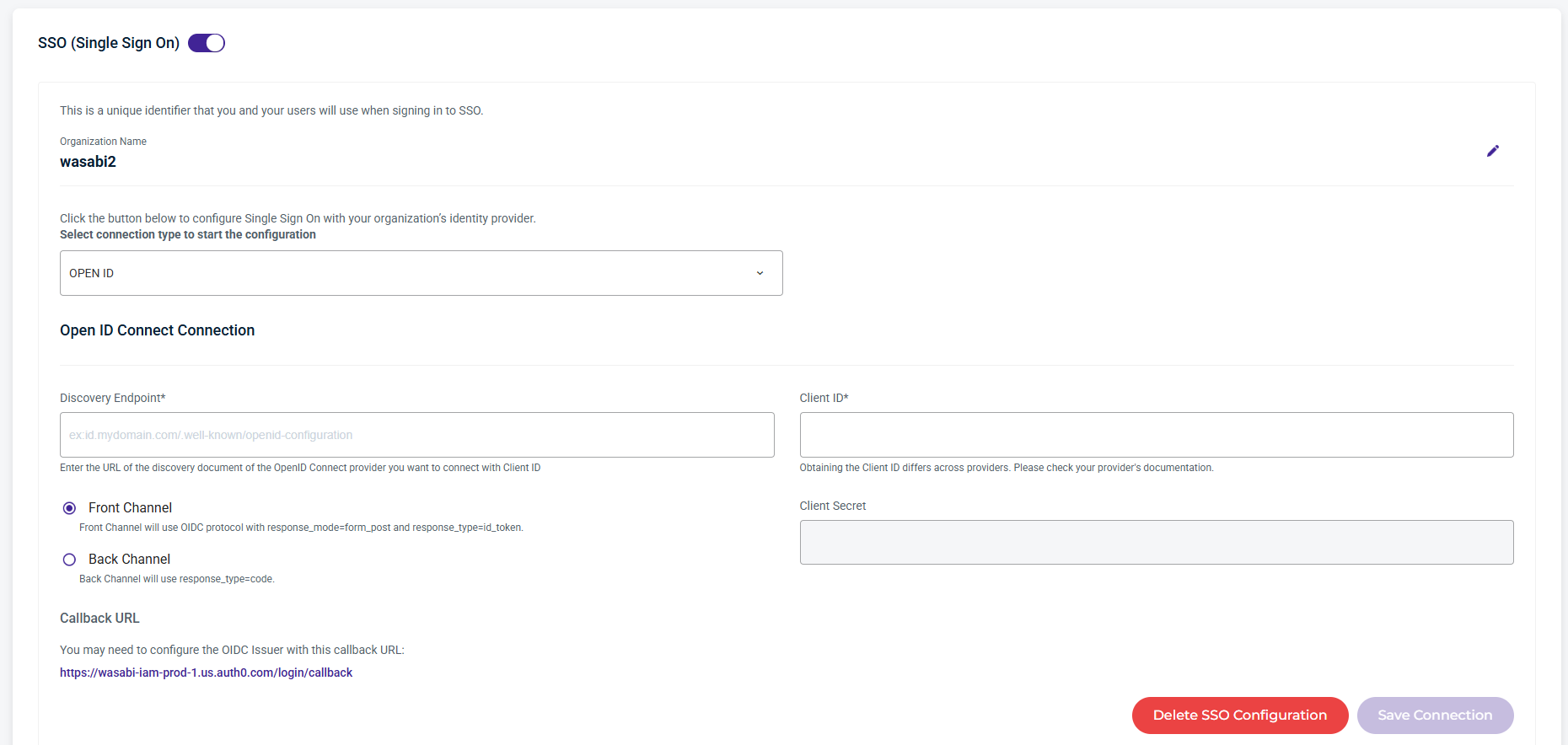
Click Save Connection.
Sign In With SSO
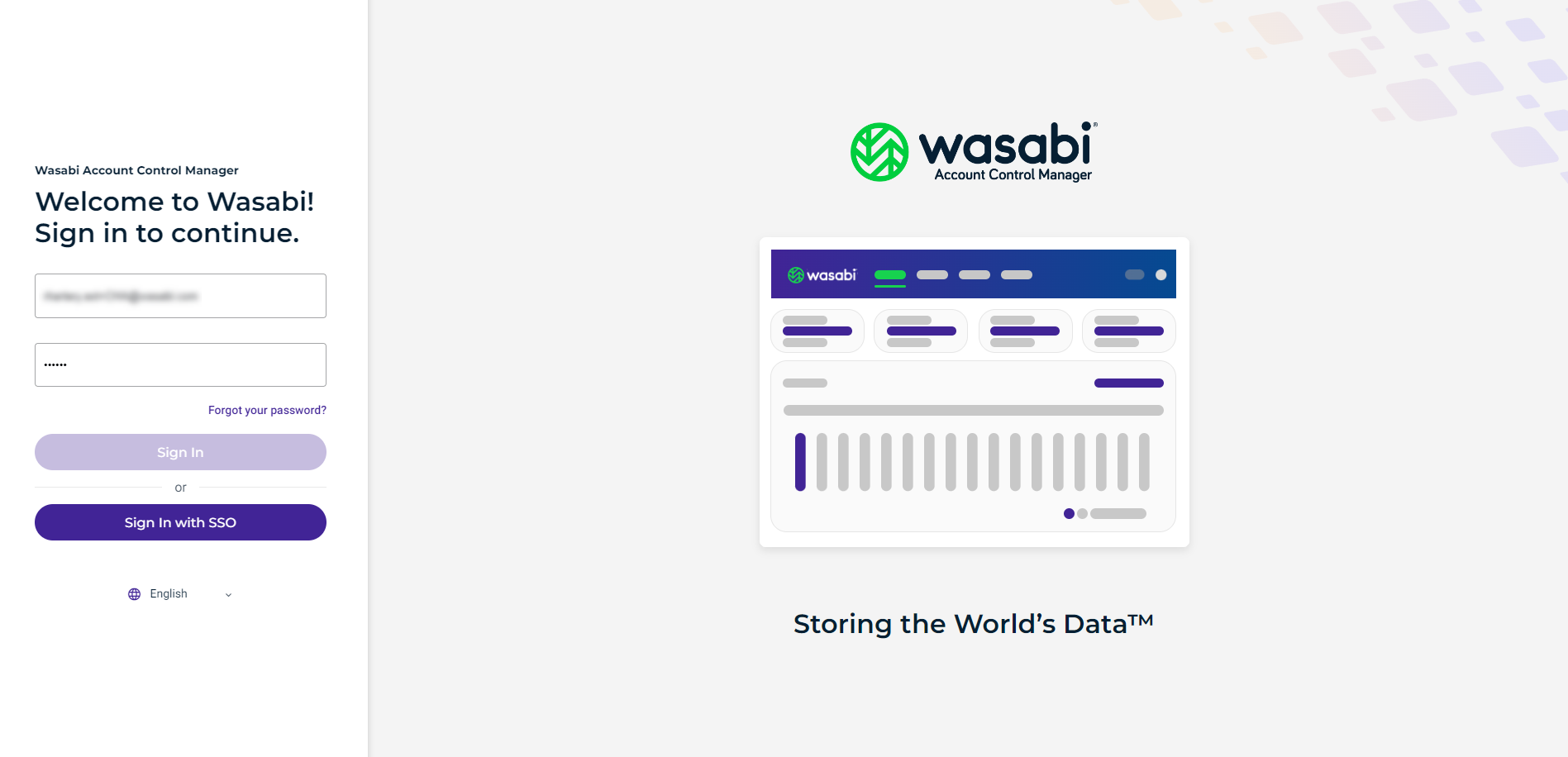
When SSO is configured, a user can sign in with SSO on the Welcome screen:
SCIM Token
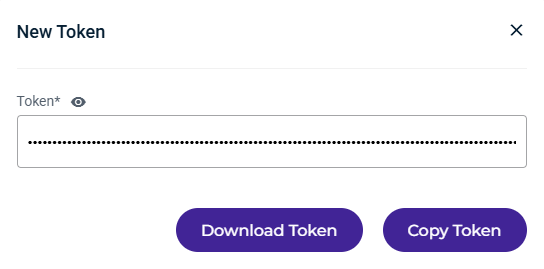
When configuring SCIM, you will need a token to enable SCIM provisioning.
Click Generate Token.

Click Download Token or Copy Token to the clipboard.
Security Settings
Delay Delete provides a window of time after a deletion is scheduled during which a user can cancel the deletion of a Sub-Account before it is processed. It also provides notifications when an account deletion is initiated, canceled, or completed, enhancing visibility and security.
While a Sub-Account is in the Pending Delete status, it will remain active for use and billed as normal. If you wish to restrict access during this time, you can suspend the account before scheduling the deletion.
Security Settings allows Admin users (Governance, Control, and Channel Account) to enable or disable Delay Delete for Sub-Accounts. When enabled, this setting does not inherit to other accounts and must be configured individually for each account.
When Delay Delete is enabled, the Sub-Account deletion delay defaults to 1 day (24 hours) and can be configured up to 30 days. When a Sub-Account is scheduled for deletion, it remains active until the configured delay period expires. During this delay window, the deletion can be canceled. Once the delay window expires, the Sub-Account is permanently deleted.
Use the Delay Window dropdown to select the number of days to wait before a scheduled deletion is completed. You can update the Delay Window setting at any time.
By default, Admin users have notifications enabled. All other users can optionally enable them on their Profile page. Notifications are sent when:
A Sub-Account is scheduled for deletion.
A user cancels a Sub-Account scheduled for deletion within the Delay Window.
A Sub-Account is deleted once the delay window has elapsed.