A user represents an individual identity within an account used to assign roles, permissions, and access.
Users Page
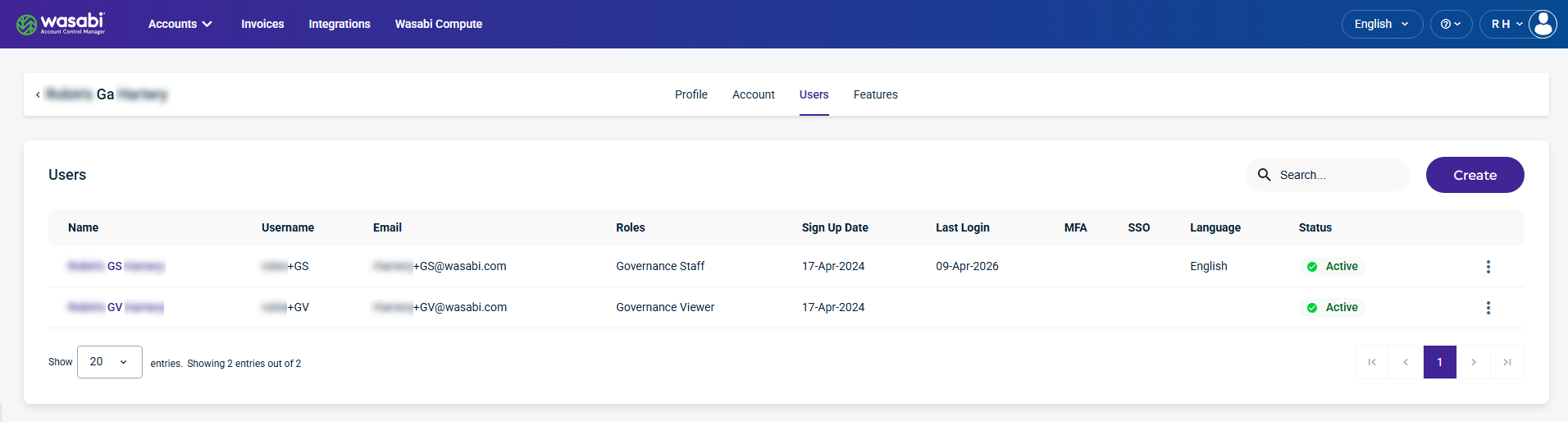
The Users page under My Profile provides a view of Account Governance user accounts. From this page, users can view and manage their account information, update contact details, configure notification preferences, generate and manage API keys, and review security settings. Administrators can also manage user access and create new users from this page.
Users Details and Metrics
The Users page displays the following information for each user:
Name—The user’s name associated with the account.
Username—The unique name (single string) not associated with the user’s identity, used for the account.
Email—The email used for the account.
Roles—The role assigned to the user.
Sign Up Date—The date the user profile was created.
Last Login—The last time the user logged in.
MFA (multi-factor authentication)—The MFA status active
 icon, if enabled.
SSO (Single Sign On)—The SSO status is Yes if enabled.
Language—The language selected by the user.
Status—The user status: Active, Deactivated, Locked, or Pending.
Kebab menu—Select an option on a user account.
Manage User Access
You can manage a user’s access from the kebab menu, which lets you perform actions on the selected user account, for example:
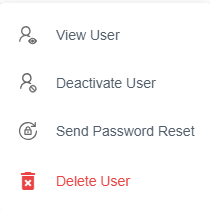
An Account Governance Admin can perform the following actions on a user account:
View User—Provides user information, contact, and security information.
Deactivate User—Deactivates the selected user.
Send Password Reset—Sends a password reset to the user.
Resend Verification Email—Resends the verification email after it has expired.
Disable MFA—Disables MFA for the selected user.
Delete User—Deletes the selected user.
Create a New User
For information on creating a user from the Create button, see Creating a User.
User Information Settings
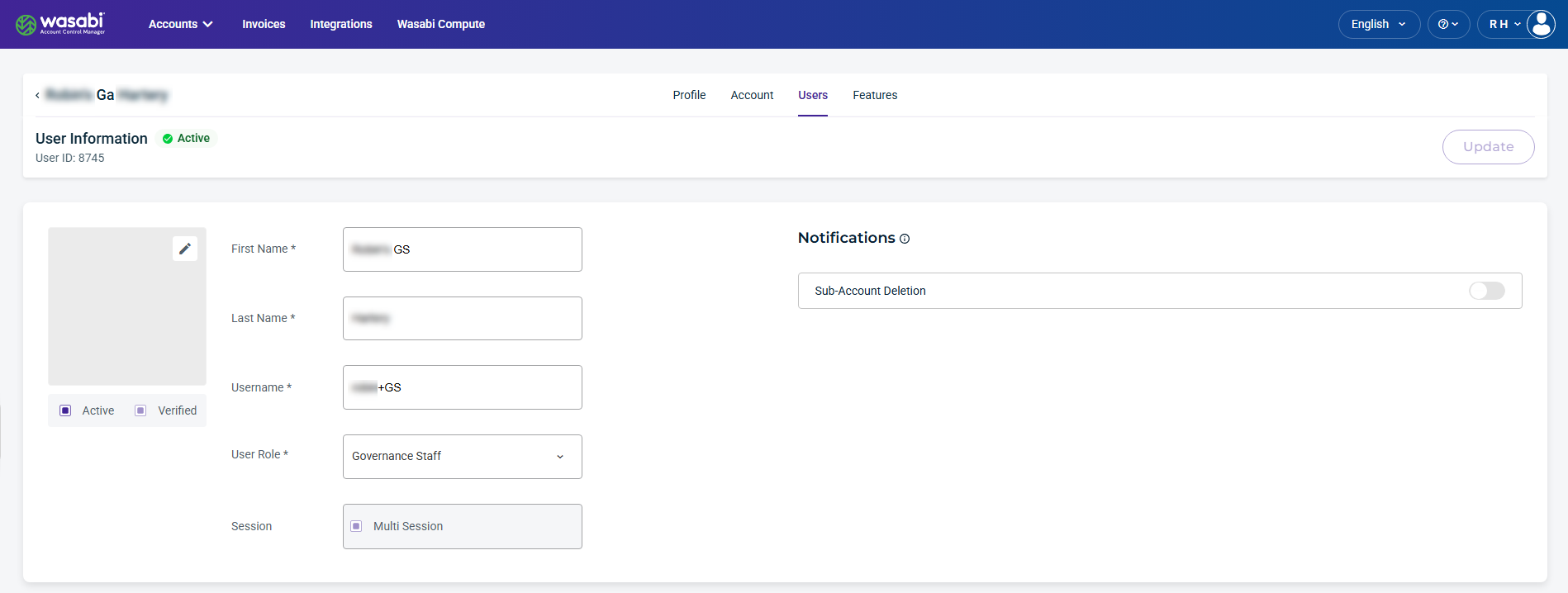
Select a user from the list to view their information.
When you select a user from the list on the Users page, the user’s information and user role is displayed. From this page, you can update the name and email fields and change the user role.
Be sure to click Update (in the upper-right corner) to apply any changes made on this page.
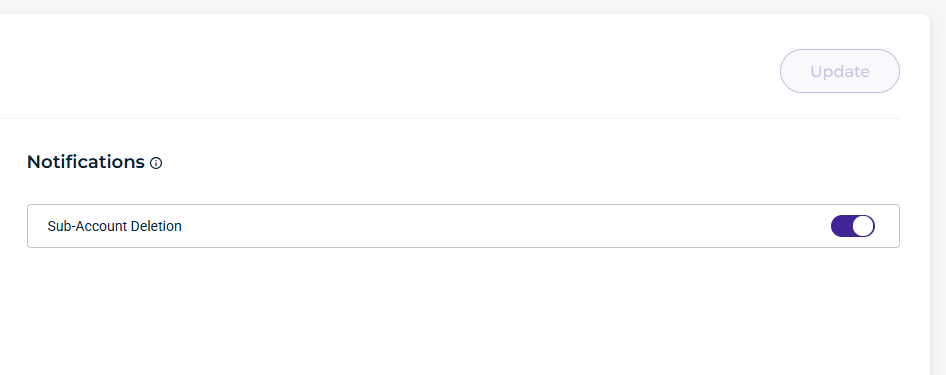
Notifications
Admins have notifications enabled by default. Important account activity and usage are sent to your email. All other users can optionally enable them.
Sub-Account Deletion
Enable Sub-Account Deletion to receive email notifications related to Sub-Account deletion. Notifications are sent when:
A Sub-Account is scheduled for deletion.
A user cancels a Sub-Account scheduled for deletion within the Delay Window.
A Sub-Account is deleted once the delay window has elapsed.
WACM Connect API Key
The WACM Connect API lets you access WACM data for automation and can be rotated or deleted as needed for security purposes.

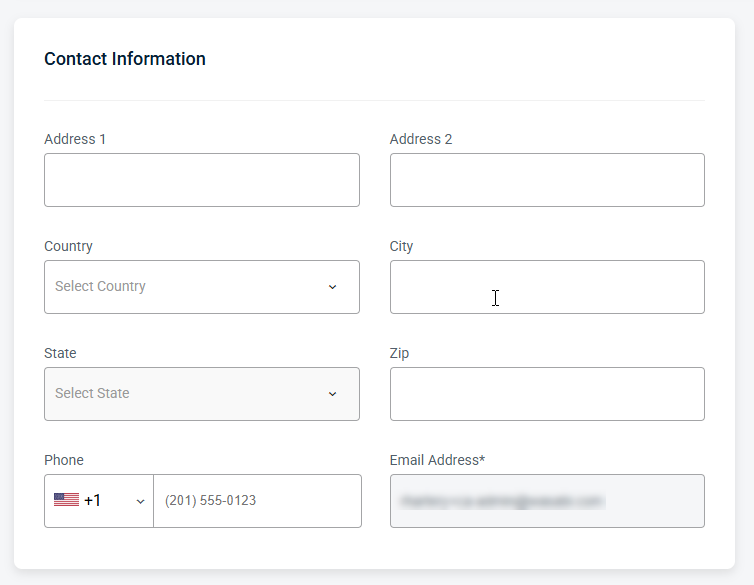
Contact Information
Provides editable fields for the user’s contact details, including the email address and other associated contact information.
Security Information
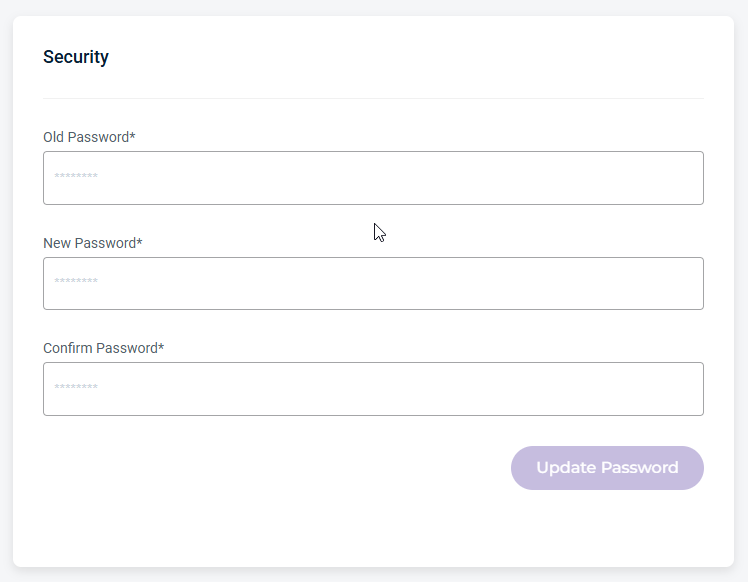
Manage password settings, including resets.