This guide explains how to configure Apache Spark with Apache Iceberg to use Wasabi Hot Cloud Storage as an S3-compatible object storage backend. Apache Iceberg is an open table format for large analytic datasets.
Requirements
This solution was tested on Ubuntu Server 26.04 LTS with Java 21 (OpenJDK 21.0.11) and Apache Spark 4.1.2.
A Wasabi account with a bucket created (see Creating a Bucket for details on this procedure).
Wasabi access key and secret key (see 3—Creating a User Account and Access Key for further information).
Find Your Bundled Versions
Spark ships with a bundled Hadoop client. The hadoop-aws package version must exactly match it. Find the version by checking the JAR filename along with the Scala and Spark versions.
ls $SPARK_HOME/jars/hadoop-client-*.jar
ls $SPARK_HOME/jars/scala-library-*.jar
ls $SPARK_HOME/jars/spark-core_*.jar
The Hadoop filename (for example, hadoop-client-runtime-3.4.2.jar) tells you the version to use in the next step with the Scala and Spark versions as well.
Configuring spark-defaults.conf
Use your favorite Linux text editor such as vi or nano to edit the Spark configuration file.
vi /opt/spark/conf/spark-defaults.confAdd the following lines with the following information.
Wasabi access and secret keys. Replace YOUR_WASABI_ACCESS_KEY and YOUR_WASABI_SECRET_KEY with your keys.
Bucket name (replace “mt-iceberg” with your bucket name).
Wasabi region endpoint.
The Hadoop version found above. Replace 3.4.2 in hadoop-aws in the last line with the version found above.
The iceberg-spark-runtime version (4.1_2.13:1.11.0) in the last line must match your Spark version (4.1.x) and Scala version (2.13) found above.
spark.hadoop.fs.s3a.endpoint                    https://s3.us-east-2.wasabisys.com
spark.hadoop.fs.s3a.access.key                  YOUR_WASABI_ACCESS_KEY
spark.hadoop.fs.s3a.secret.key                  YOUR_WASABI_SECRET_KEY
spark.hadoop.fs.s3a.aws.credentials.provider    org.apache.hadoop.fs.s3a.SimpleAWSCredentialsProvider
spark.hadoop.fs.s3a.path.style.access           true
spark.sql.extensions                            org.apache.iceberg.spark.extensions.IcebergSparkSessionExtensions
spark.sql.catalog.iceberg_catalog               org.apache.iceberg.spark.SparkCatalog
spark.sql.catalog.iceberg_catalog.type          hadoop
spark.sql.catalog.iceberg_catalog.warehouse     s3a://mt-iceberg/
spark.jars.packages                             org.apache.hadoop:hadoop-aws:3.4.2,org.apache.iceberg:iceberg-spark-runtime-4.1_2.13:1.11.0
This example uses Wasabi’s us-east-2 storage region. Use the endpoint URL for the region where your bucket is located. For a list of regions and their endpoint URLs, see Service URLs for Wasabi’s Storage Regions.
Starting spark-shell
Start the Spark shell. The packages defined in spark-defaults.conf will be downloaded automatically on first launch.
spark-shellCreating a Database and Table
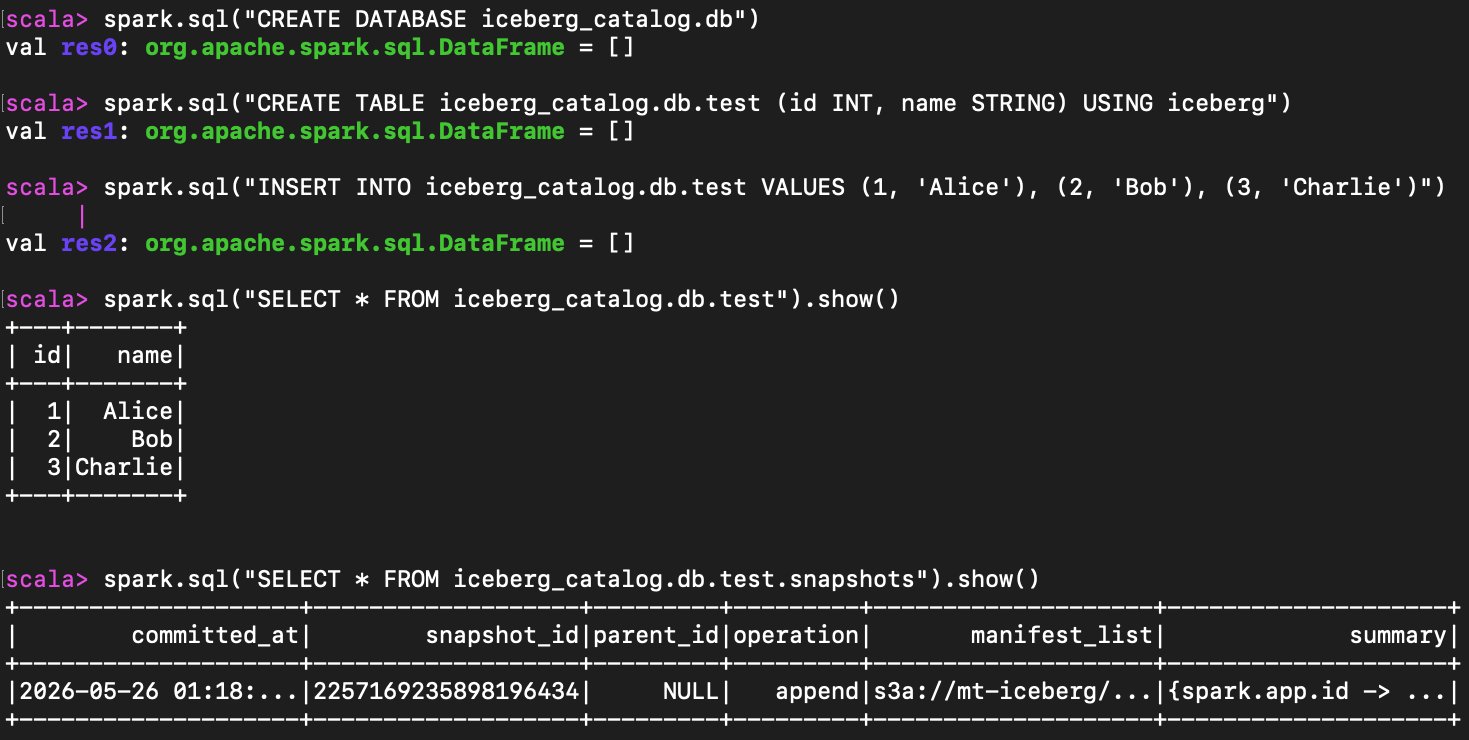
Once inside the Spark shell, create a database (namespace) and an Iceberg table.
spark.sql("CREATE DATABASE iceberg_catalog.db")

spark.sql("CREATE TABLE iceberg_catalog.db.test (id INT, name STRING) USING iceberg")
Inserting and Querying Data
Insert some rows and query them back.
spark.sql("INSERT INTO iceberg_catalog.db.test VALUES (1, 'Alice'), (2, 'Bob'), (3, 'Charlie')")

spark.sql("SELECT * FROM iceberg_catalog.db.test").show()
Verifying Iceberg Metadata
Query the Iceberg snapshots table to confirm that metadata is being stored in your Wasabi bucket.
spark.sql("SELECT * FROM iceberg_catalog.db.test.snapshots").show()The output will show a snapshot with a manifest_list path beginning with s3a://mt-iceberg/, confirming that Iceberg is managing the table and storing all data and metadata in Wasabi.
Verifying Your Bucket Data
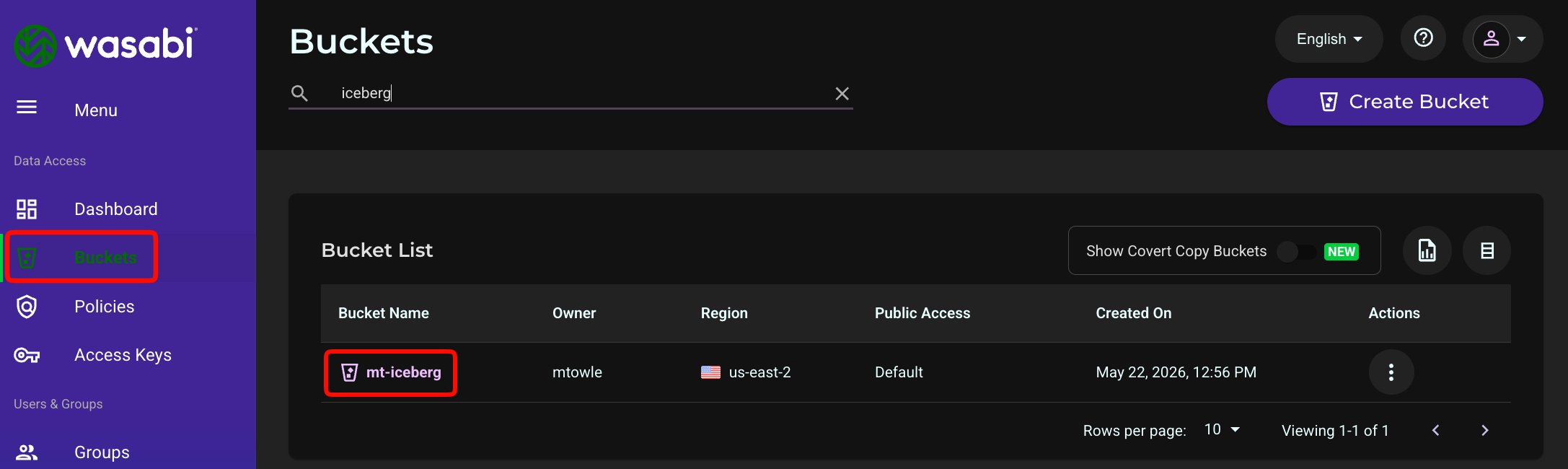
Verify that Iceberg has written data and metadata to your Wasabi bucket using the Wasabi Console.
Log in to the Console.
Click Buckets in the left navigation.
Select the name of your bucket (mt-iceberg in this example).
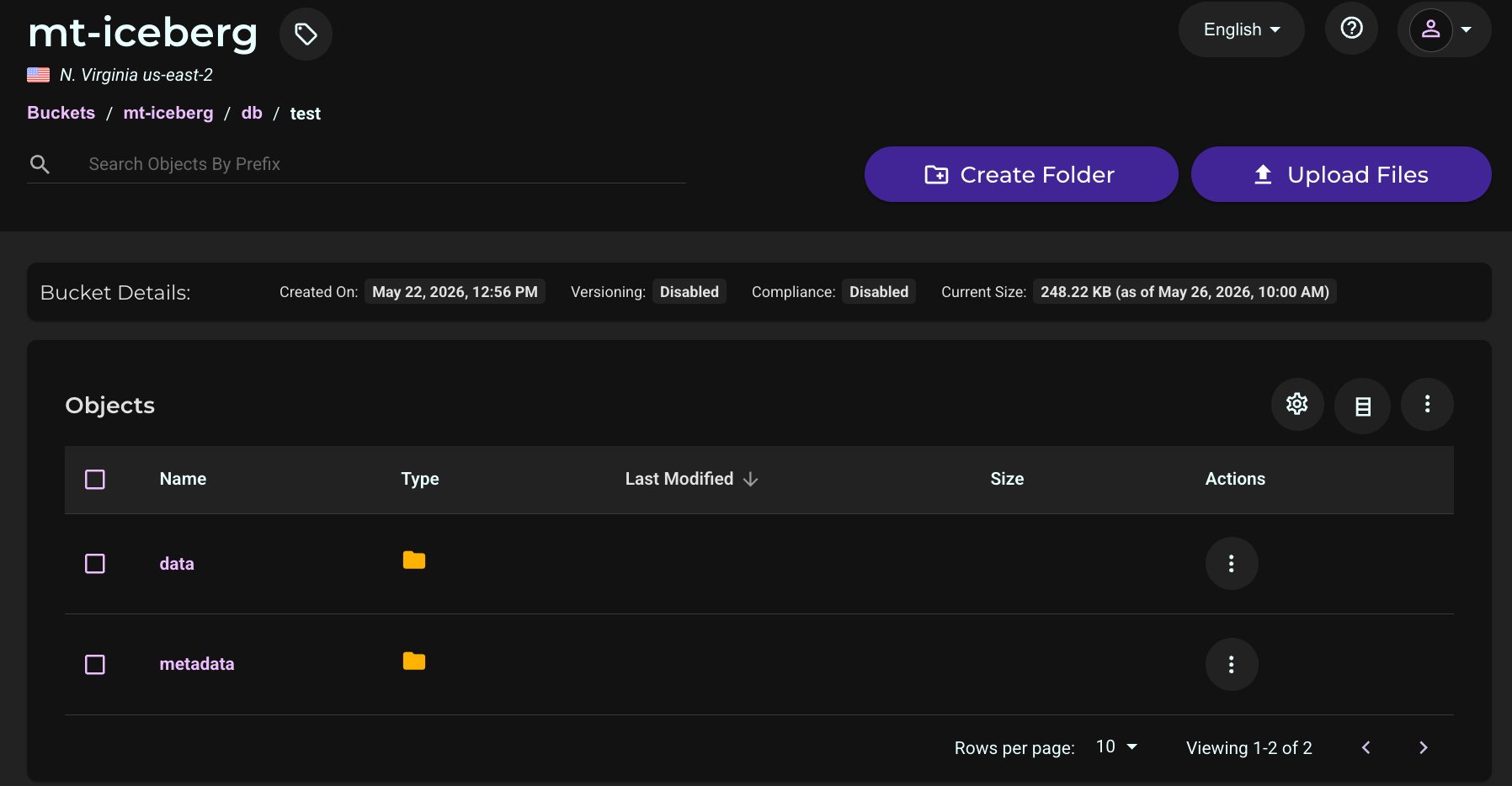
Drill down through the folder structure to see your data in the bucket.
Navigate to db/test to see the data and metadata folders created by Iceberg.
Catalog Structure
The fully qualified name for any Iceberg table follows this hierarchy.
catalog.database.table
In the example above:
iceberg_catalogis the catalog, defined inspark-defaults.confand pointing to your Wasabi bucket.dbis the database (also called a namespace).testis the table.
You can create multiple databases under the same catalog without any additional configuration.
spark.sql("CREATE DATABASE iceberg_catalog.project1")

spark.sql("CREATE DATABASE iceberg_catalog.project2")
Apache Polaris (Optional—Out of Scope)
The setup described in this article uses a Hadoop-based catalog, which stores Iceberg metadata directly in your Wasabi bucket. This is simple to configure and works well in single-engine environments where only Spark reads and writes tables.
For more advanced use cases, Apache Polaris is an open-source REST catalog for Apache Iceberg that acts as a central metadata service. Rather than each engine connecting directly to object storage to find table metadata, all engines connect to Polaris over a standard REST API. This enables:
Multi-engine access—Spark, Trino, Flink, and other engines can all read and write the same Iceberg tables simultaneously through a single catalog
Centralized access control—Role-based permissions managed in one place rather than through storage bucket policies
Credential vending—Polaris issues short-lived, scoped credentials to engines rather than requiring each engine to hold long-lived storage keys
Audit and governance—All catalog operations are logged through a single service
Apache Polaris became a top-level Apache Software Foundation project in February 2026. It supports S3-compatible storage, including Wasabi, and can use PostgreSQL as a persistent metastore backend.
Configuring Polaris is significantly more involved than the Hadoop catalog approach and is outside the scope of this article. For more information, see:
Apache Polaris documentation—https://polaris.apache.org
Polaris quickstart guide—https://polaris.apache.org/guides/quickstart/
Creating a catalog on S3-compatible storage—https://polaris.apache.org/in-dev/unreleased/getting-started/creating-a-catalog/s3/