CloudCasa provides an option to define your own S3 compliant object storage buckets as a Kubernetes backup repository. Wasabi has been validated for use as a storage destination, as an alternative to CloudCasa’s managed backup storage. To use CloudCasa with Wasabi, follow the instructions below.
Requirements
Active Wasabi Cloud storage account (see Create a Wasabi Account)
Wasabi Bucket (See Working With Buckets and Objects)
Access & Secret Key Pair (See Creating a User Account and Access Key)
Active CloudCasa Account (see Sign Up for CloudCasa SaaS)
Configuring CloudCasa
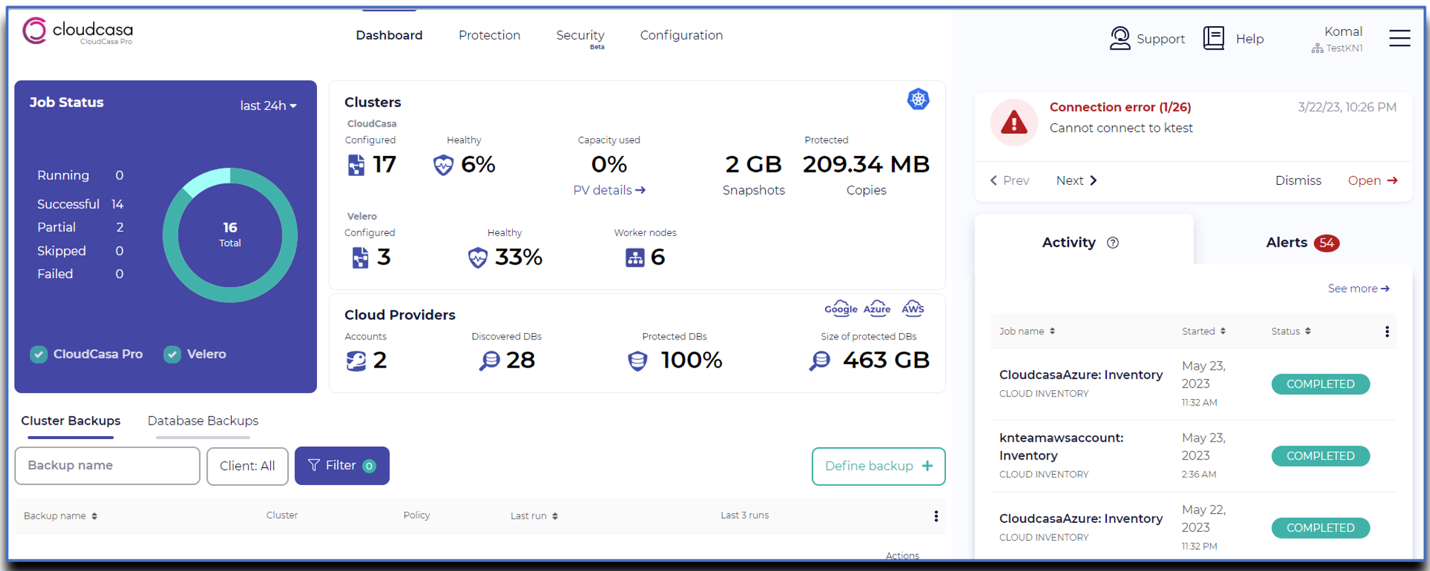
Log in to the CloudCasa user interface.
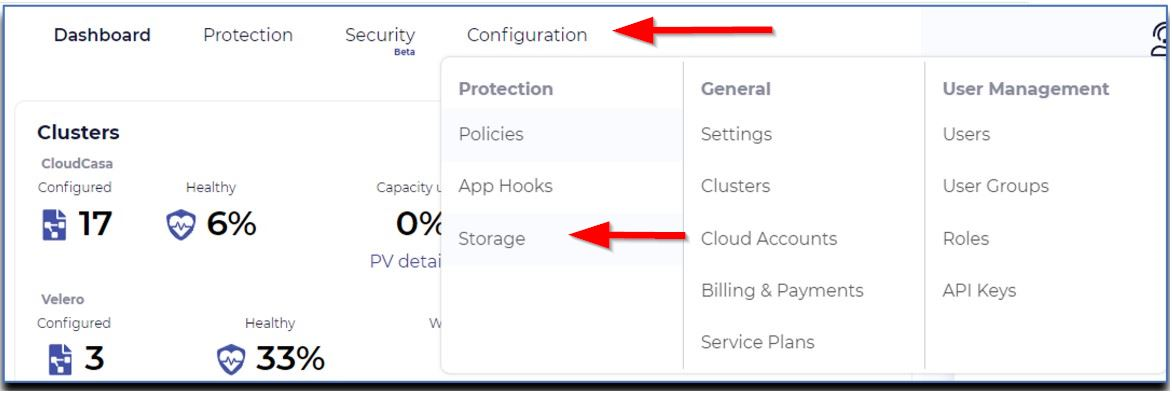
From the menu bar, click Configuration and then click Storage under the Protection column.
On this page, you can add the Wasabi storage endpoints.
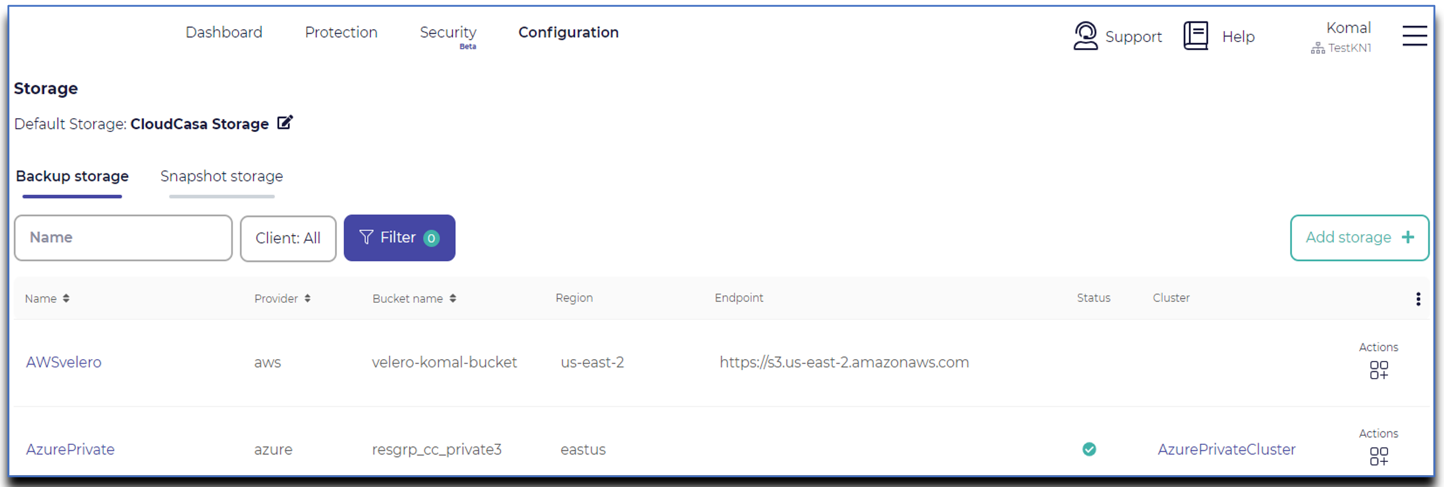
For CloudCasa Pro service, it is only necessary to define storage endpoints here if you want to use user-supplied storage. For CloudCasa for Velero service, at least one separate storage location must be defined for each cluster running Velero.
Wasabi Storage for CloudCasa Pro
For CloudCasa Pro backups, storage locations are global and can be shared across multiple clusters. Many clusters can back up to the same storage, and CloudCasa automatically separates data across these clusters.
To use your own object storage, you must define its endpoints here.
On the Storage page, select the Backup storage tab, then click Add storage +.
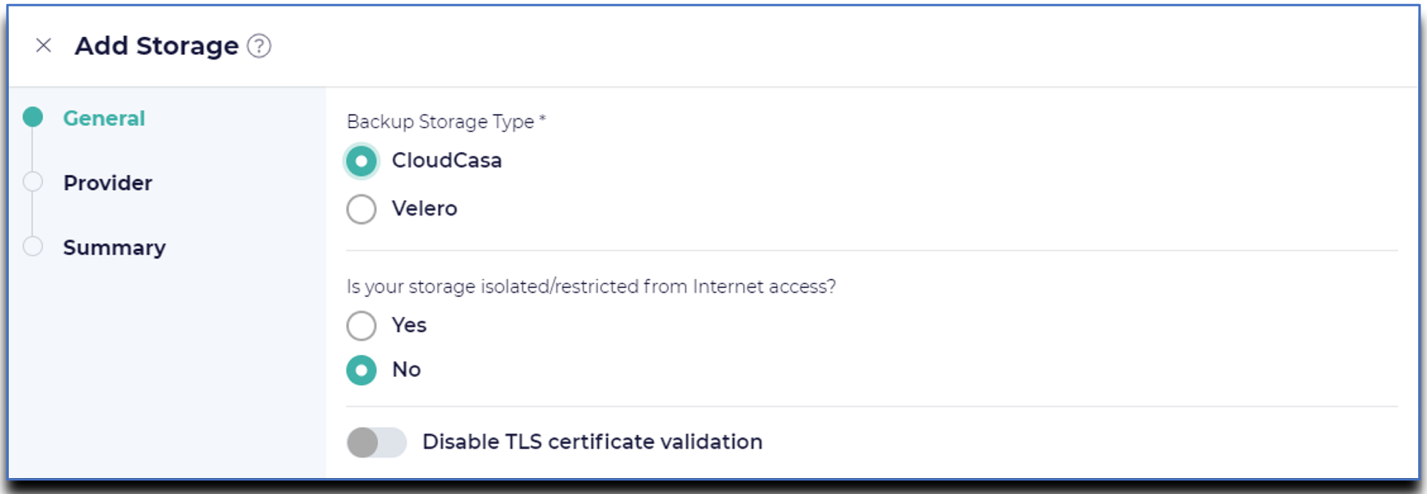
In the General section.
Set Backup Storage Type to CloudCasa.
Is your storage isolated/restricted from Internet access?
Choose Yes if your storage is not reachable via the public Internet. For Wasabi or other cloud storage, leave this set to No.
Disable TLS certificate validation.
This allows connections to the storage endpoint even if the server certificate is self-signed or expired, or if the domain name does not match the host. Enabling it should not be necessary for Wasabi storage.
In the Provider section, the following information is required.
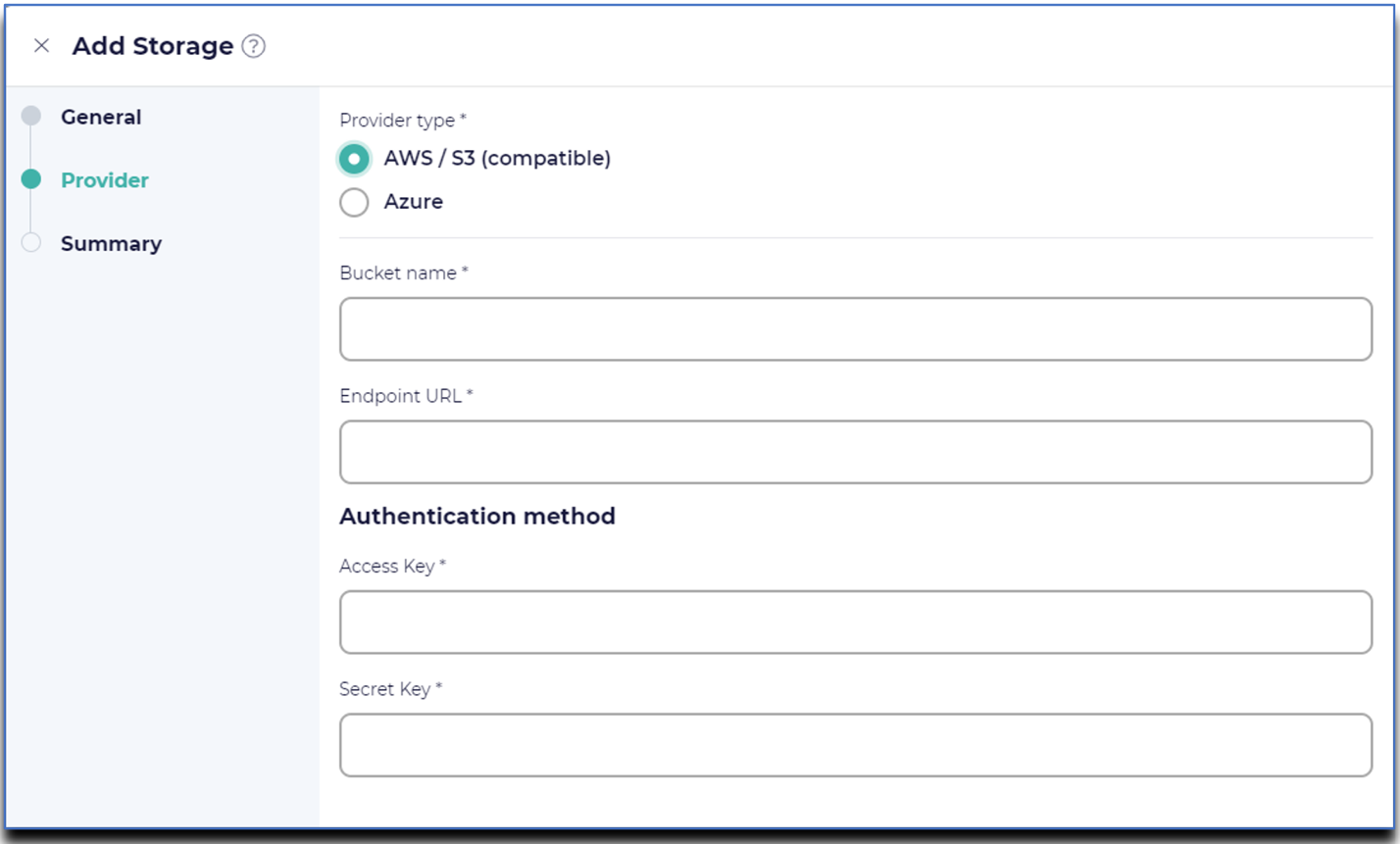
Provider type—AWS /S3 compatible.
Bucket name—Enter the bucket name of the Wasabi storage.
Endpoint—Enter the regional endpoint URL of the Wasabi storage (Use Wasabi Service URLs for reference).
Access Key—Enter the Wasabi storage access key.
Secret Key—Enter the secret key of the Wasabi storage.
In the Summary section:
Name—Provide the display name for the Storage location.
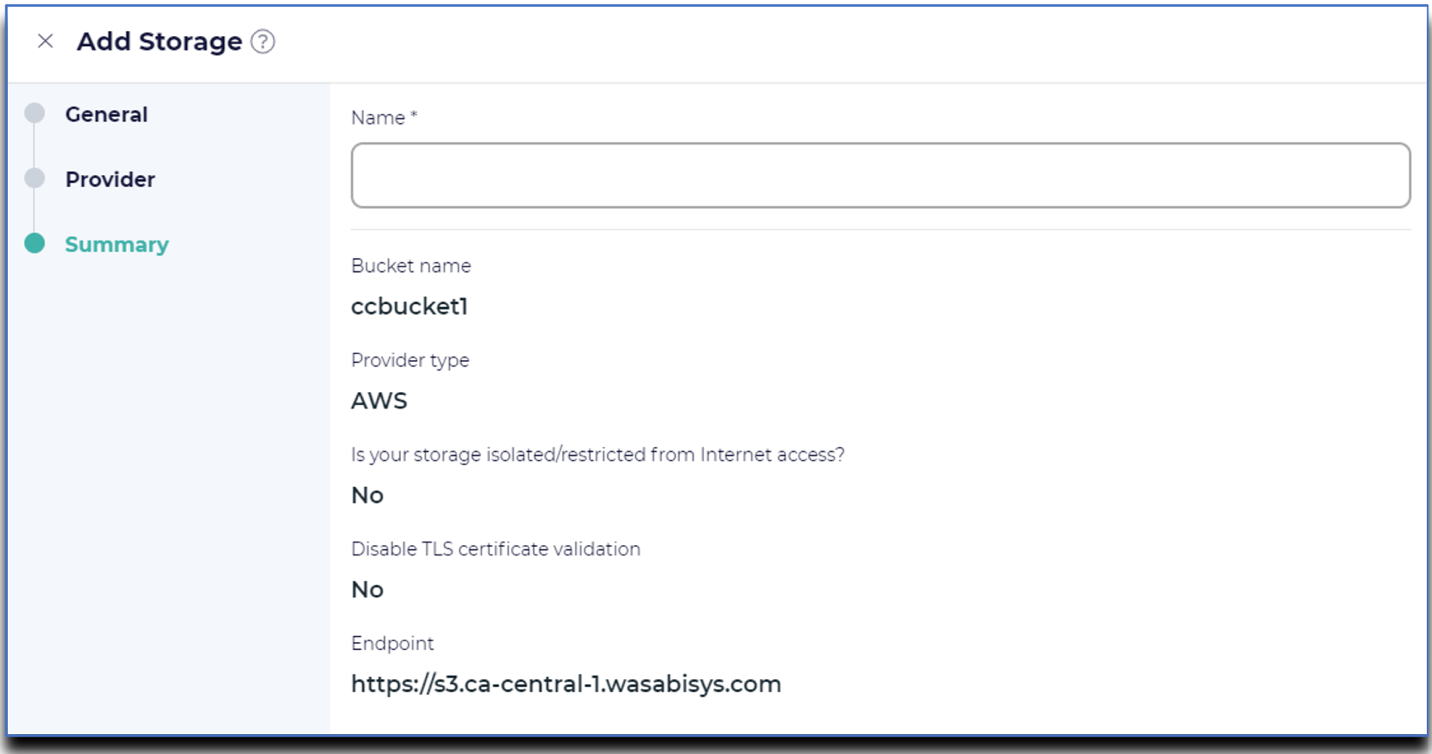
Click Create.
The Wasabi bucket has been added successfully and is listed.
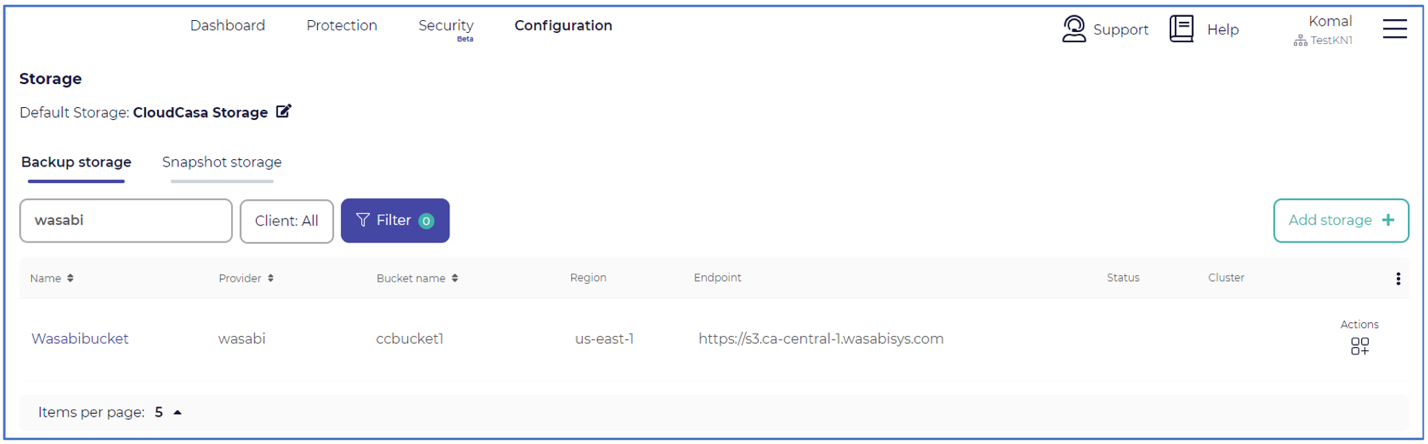
A global “Default storage” location for your organization can be set at the top of the page. The default is inherited by all clusters and backup jobs unless explicitly overridden.
To set Default Storage:
Click Configuration in the left-hand pane. Click General and then select Settings.
Organization Display Name—Establish the name you wish to use.
Default Storage—Select User-provided storage.
Dropdown Box—Choose the Wasabi storage endpoint added earlier.
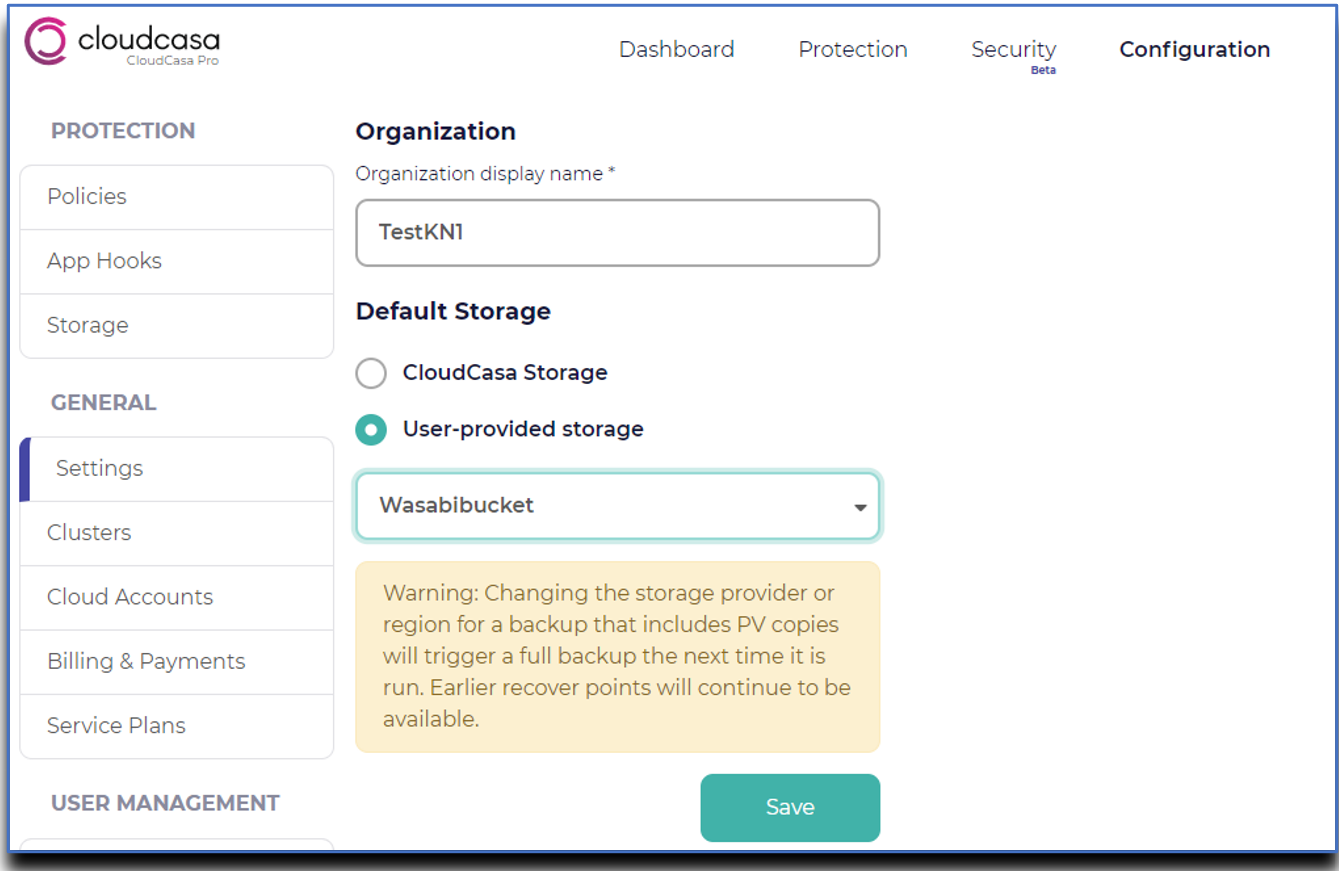
Click Save.
Wasabi Storage for Velero Backups
For Velero, one must create a separate Backup Storage Location (BSL) for each cluster. Sharing the same BSL across multiple clusters could lead to data loss. One can use the same S3 bucket for different BSLs, provided the user sets a unique prefix for each cluster during configuration. CloudCasa for Velero will automatically detect duplicate BSLs and alert users about potential data loss.
Follow the steps below to set up storage for Velero backups. These can be:
Backup Storage Locations—Any S3-compatible object storage service, such as Wasabi, is used to store backup data.
Volume Snapshot Locations—Used only for offloading volume snapshot data.
A prerequisite is that the Velero cluster should be registered with CloudCasa.
Adding Velero Backup Storage Location
In the Storage page, select the Backup storage tab and click Add storage +.
In the General section, provide the following information.
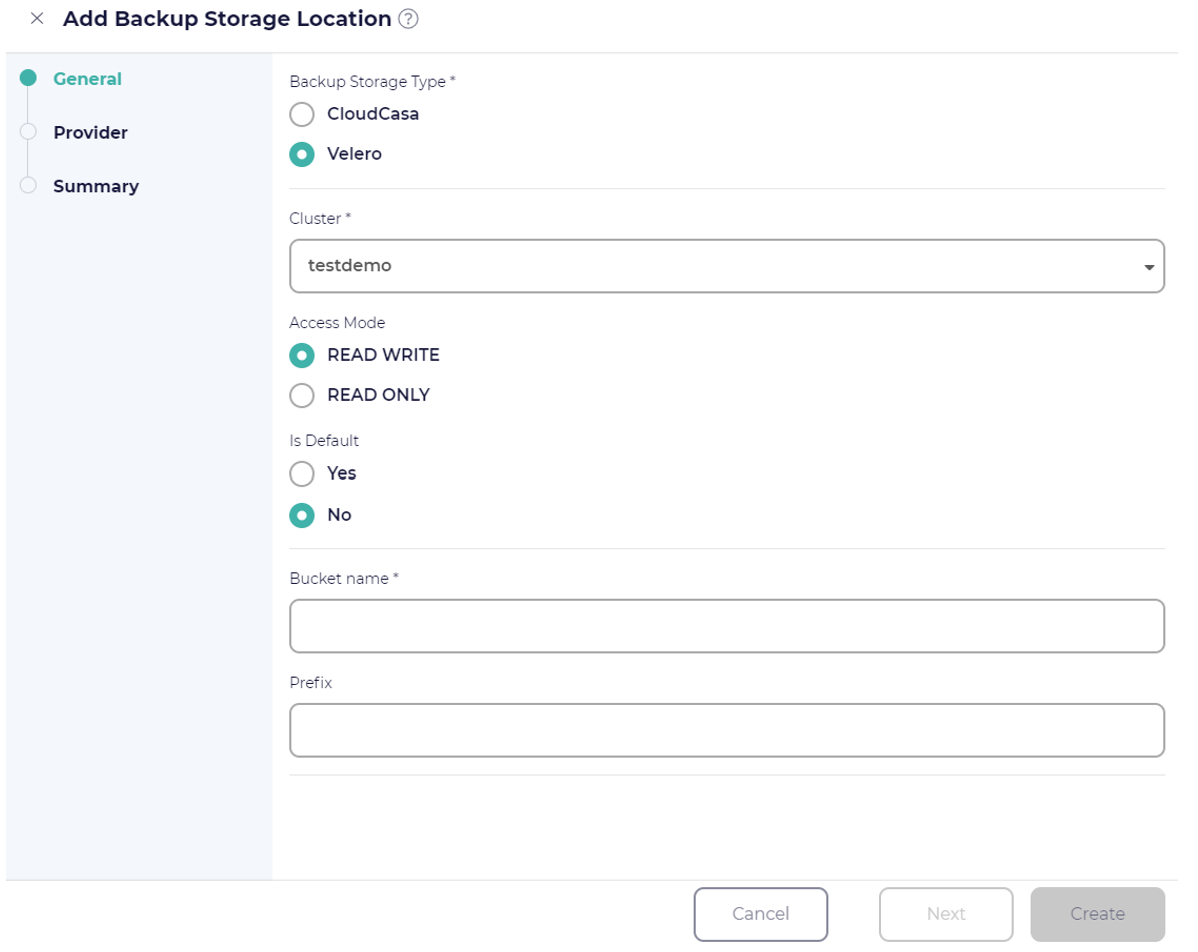
Backup Storage Type—Select Velero.
Cluster Dropdown—Name of the Velero cluster the BSL is configured in. Note: Remember, Velero storage is configured locally for each cluster.
Access Mode—Read Write — implies that the BSL is configured for backup and recovery on a cluster. Read-only implies the BSL is mapped for recovery purposes alone on a cluster. If CloudCasa for Velero identifies identical BSLs mapped in more than one cluster as Read/Write, it will alert users about potential data loss
Is Default—Velero allows you to set a BSL as the default storage for backups. If multiple BSLs are defined as default in the same cluster, Velero randomly rotates among these default storage options. Note - Default BSL can be overridden by the Backup Specifications.
Bucket Name—Name of the S3 bucket.
Prefix—Prefix is set when the same bucket is shared across multiple clusters. The Bucket Name + Prefix combination for BSLs must be unique, unless a BSL is being mapped in Read Only / Access Mode.
In the Provider section, provide the following information.
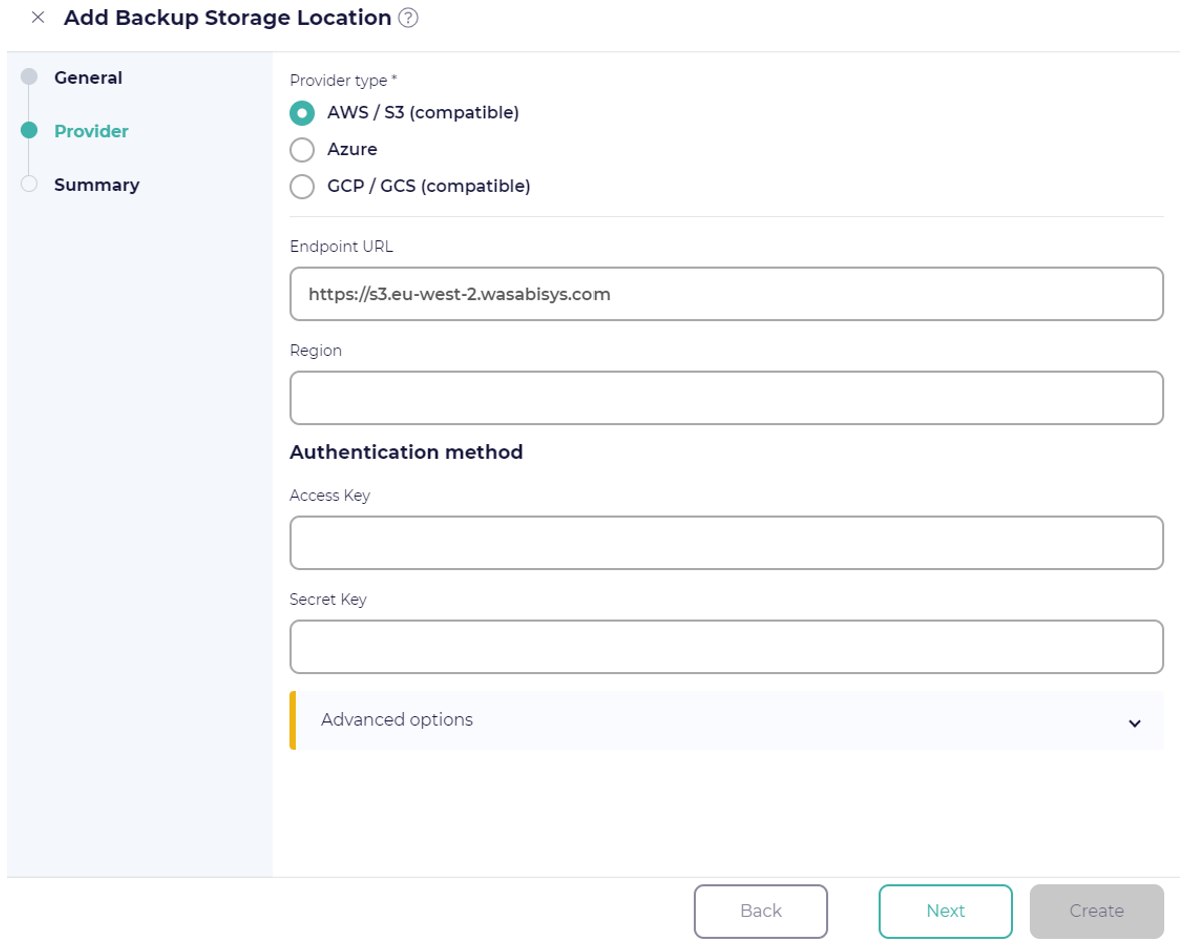
Provider Type—Select AWS/S3 (compatible).
Endpoint URL—Enter the regional endpoint URL of the Wasabi storage (Use Wasabi Service URLs for reference).
Region—Enter the region under which the bucket is created.
Access Key—Enter the Wasabi storage access key.
Secret Key—Enter the secret key of the Wasabi storage.
Click Next.
In the Summary section:
Name—Provide the display name for the Storage location.
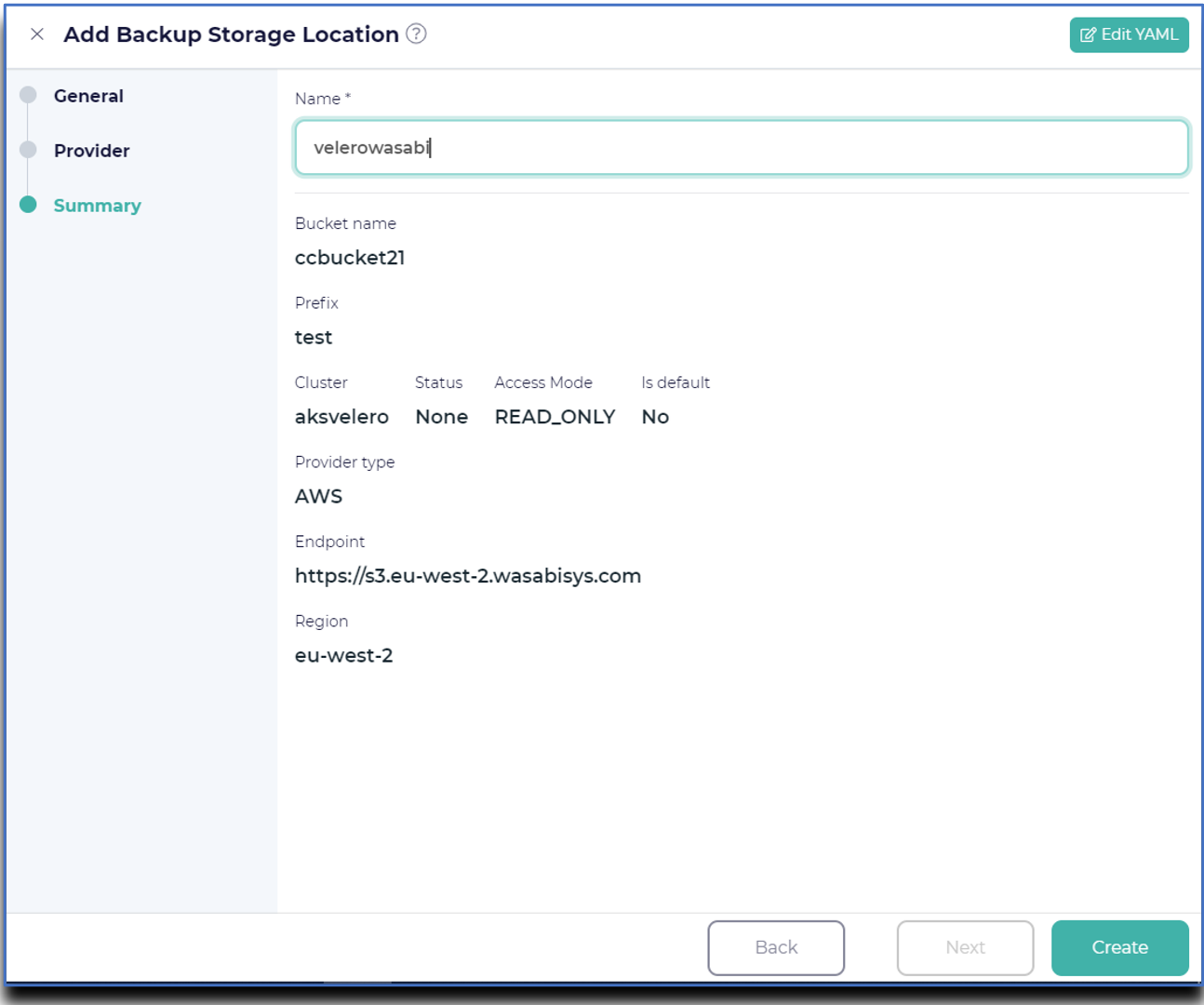
Click Create.
Adding Velero Volume Storage Location (Optional)
In the Storage page, select the Snapshot Storage tab and click Add storage +.
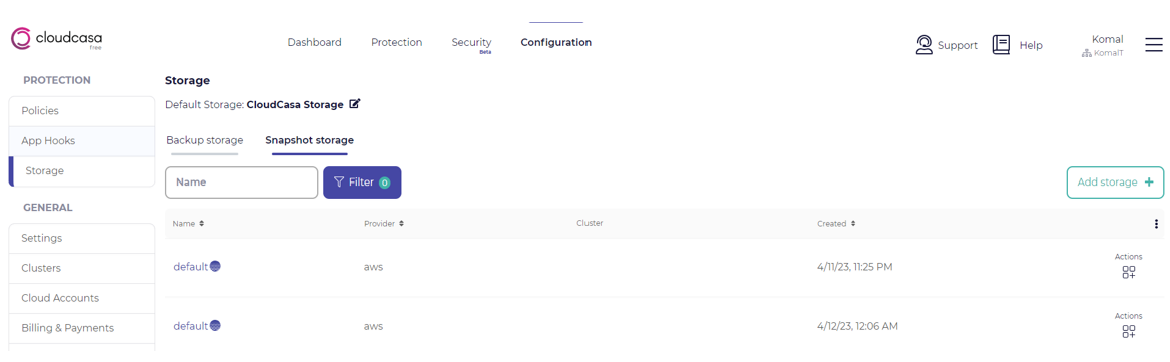
In the General section, provide the following information.
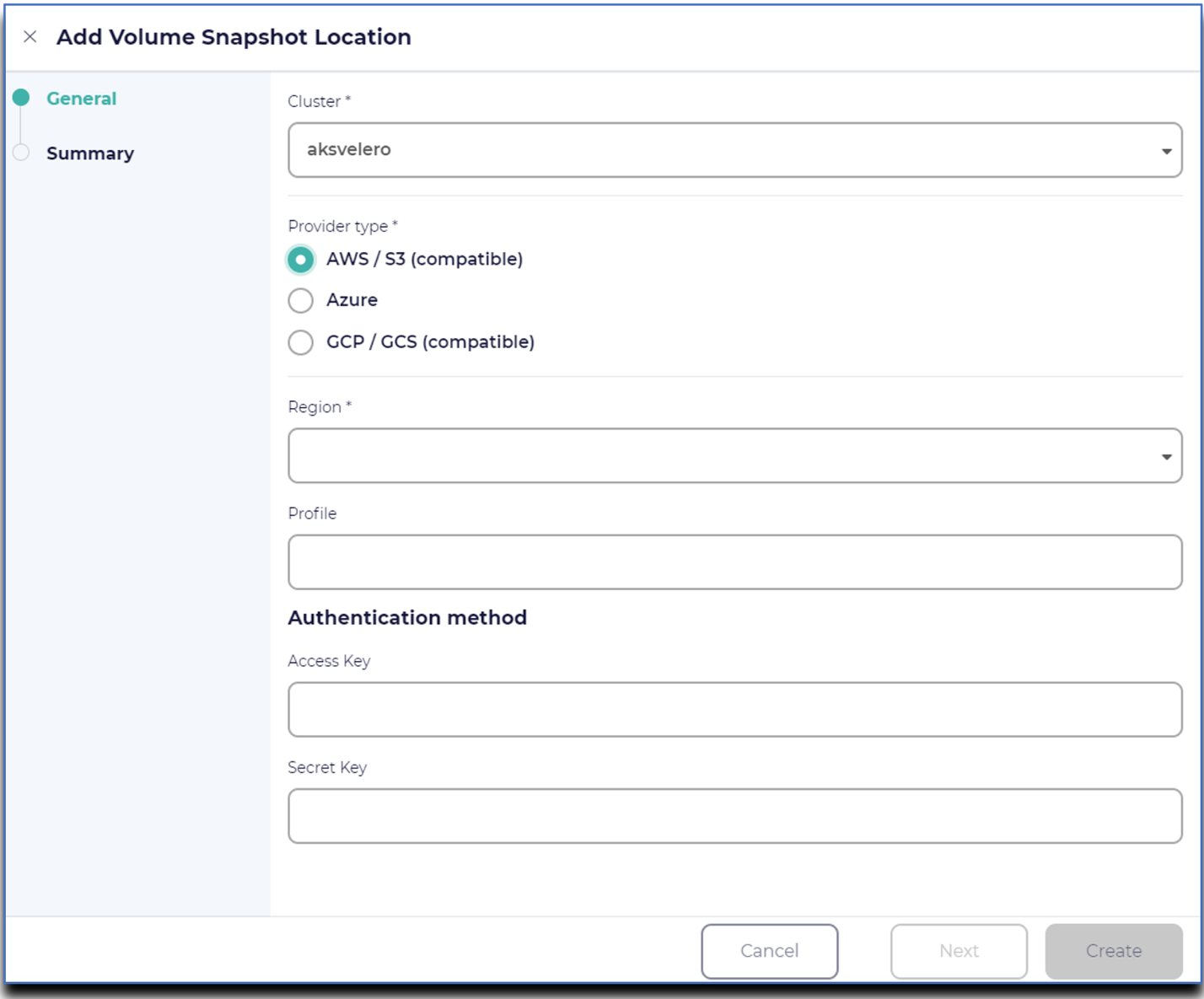
Cluster—Name of the Velero Cluster the VSL is configured in.
Provider Type—Select AWS/S3 (compatible).
Region—Enter the region under which the bucket is created.
Profile—Enter the profile name, for example, testvsl.
Access Key—Enter the Wasabi storage access key.
Secret Key—Enter the secret key of the Wasabi storage.
In the Summary section provide the following information.
Name—Provide the display name for the Storage location.
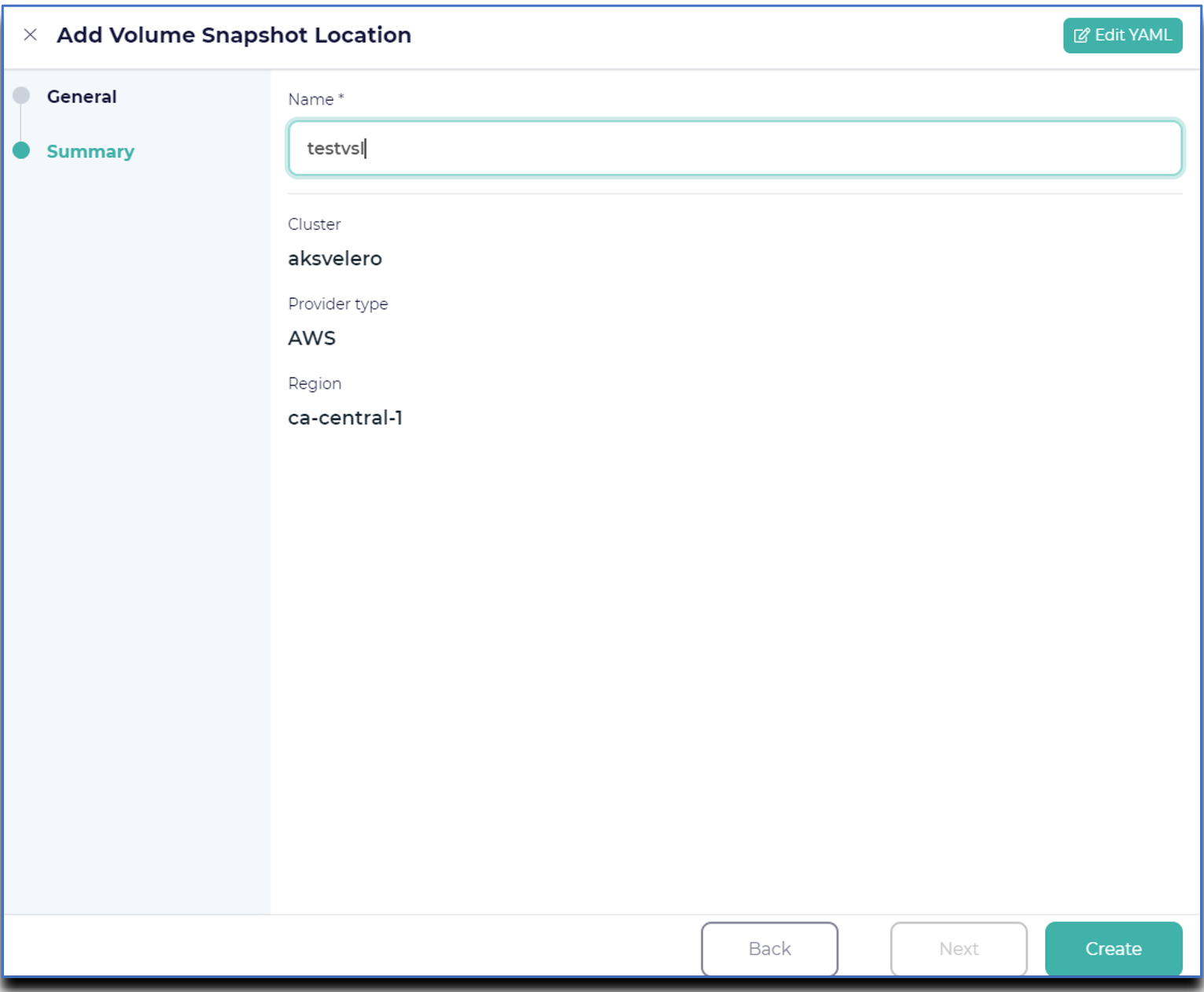
Click Create.
Logs - Activities
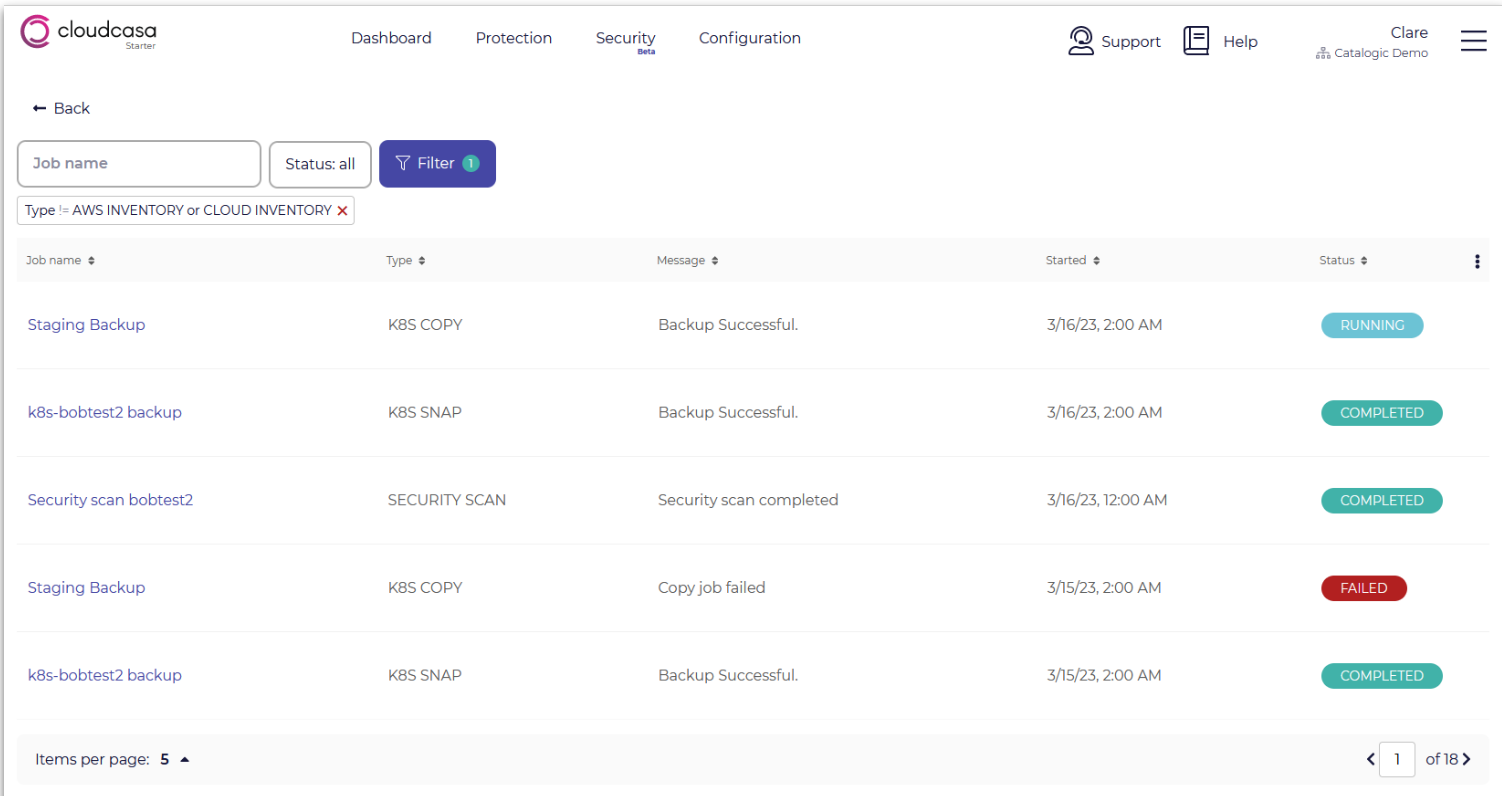
The Activity page provides important information about currently running and completed jobs.
You can view your activities by clicking on "See More" in the dashboard Activity tab or by drilling down on a category in the dashboard Job Status summary.
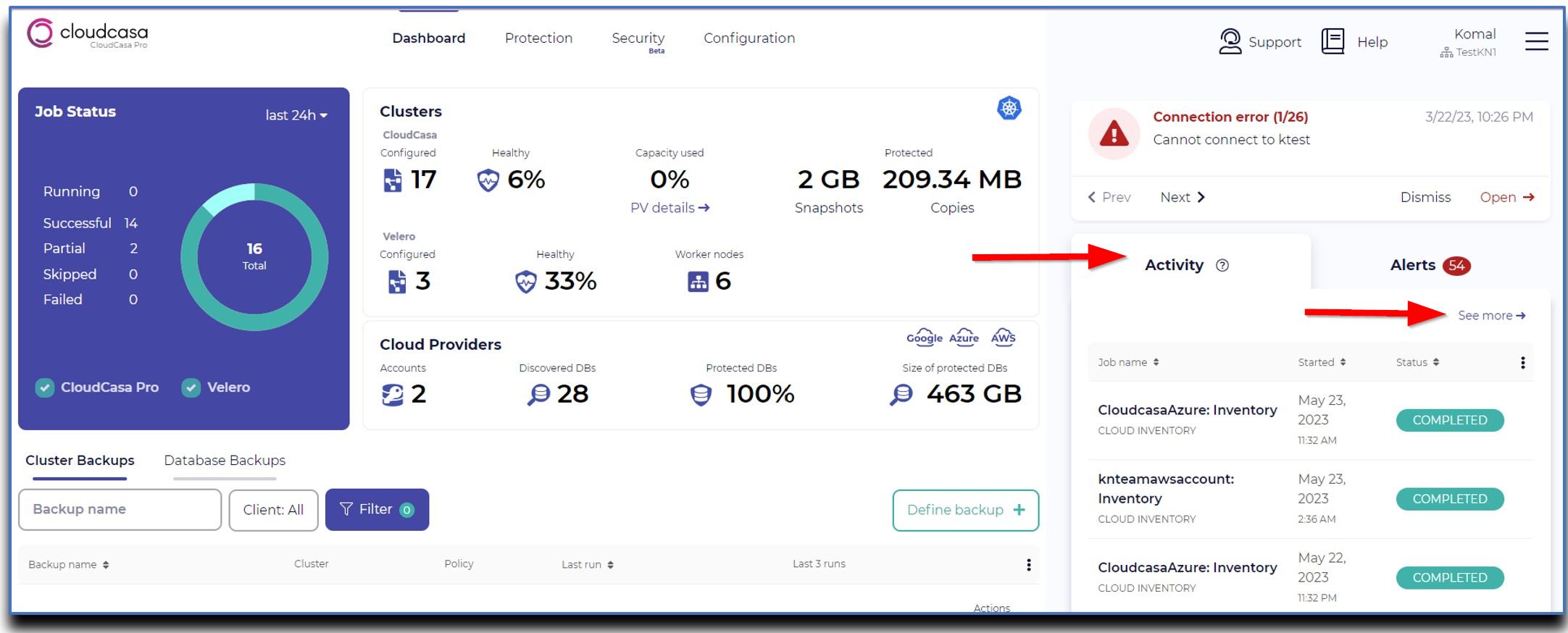
Click any item in the activity list to open the activity details pane. Depending on the job type, several tabs might be available.
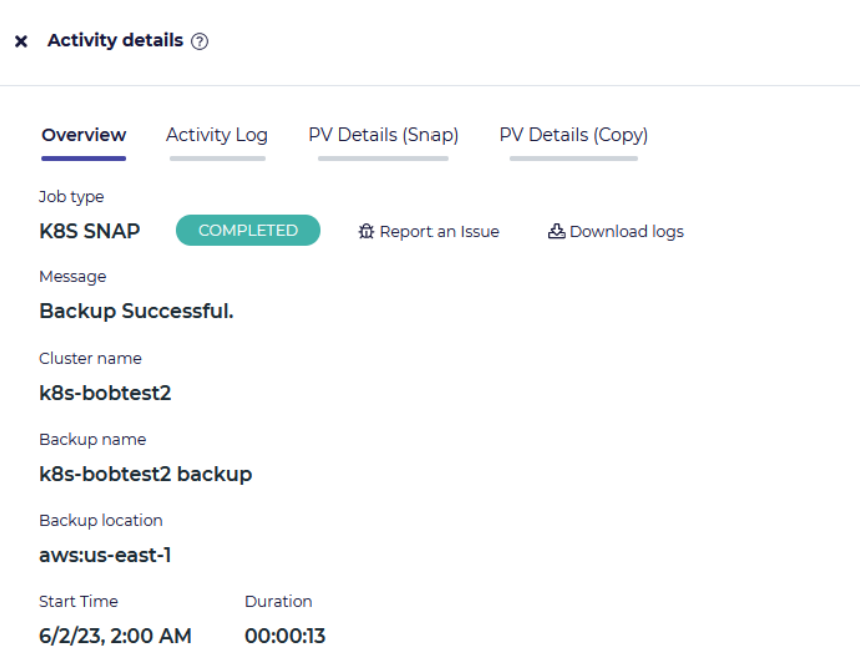
In the Overview tab, you will see summary information about the job. This information will be updated in real time for running jobs. For some jobs, a Download logs link is available that lets you download relevant logs from the agent for debugging. A Report an issue link is also available. This will send a message to CloudCasa support containing information about the job to assist in troubleshooting.