ExacqVisionis a video management system (VMS) validated for use with Wasabi with Dell ObjectScale. exacqVision is a powerful software platform for managing and monitoring video surveillance cameras, organizing and reviewing video footage from analog and IP cameras, and controlling multiple security systems from a single interface. exacqVision software provides redundancy and failover tools to maximize reliability, as well as tools to organize, analyze, and search through recorded video footage for specific people and events.
Requirements
Active Wasabi with Dell ObjectScale Storage account •Wasabi with Dell ObjectScale bucket (see 2—Creating a Bucket for Wasabi With Dell ObjectScale)
Access and secret key pair (provided in your Wasabi with Dell ObjectScale Welcome email)
exacqVision Server and Client version 24.09
exacqVision Enterprise license •Port 9021 open for outbound traffic to Wasabi with Dell ObjectScale URLs (see Wasabi With Dell ObjectScale Service URL Endpoints)
Configuring Archiving
exacqVision Archiving enables you to store recorded video and audio data for quick access and retrieval.
Open the exacqVision Client desktop application and navigate to the Archiving configuration page.
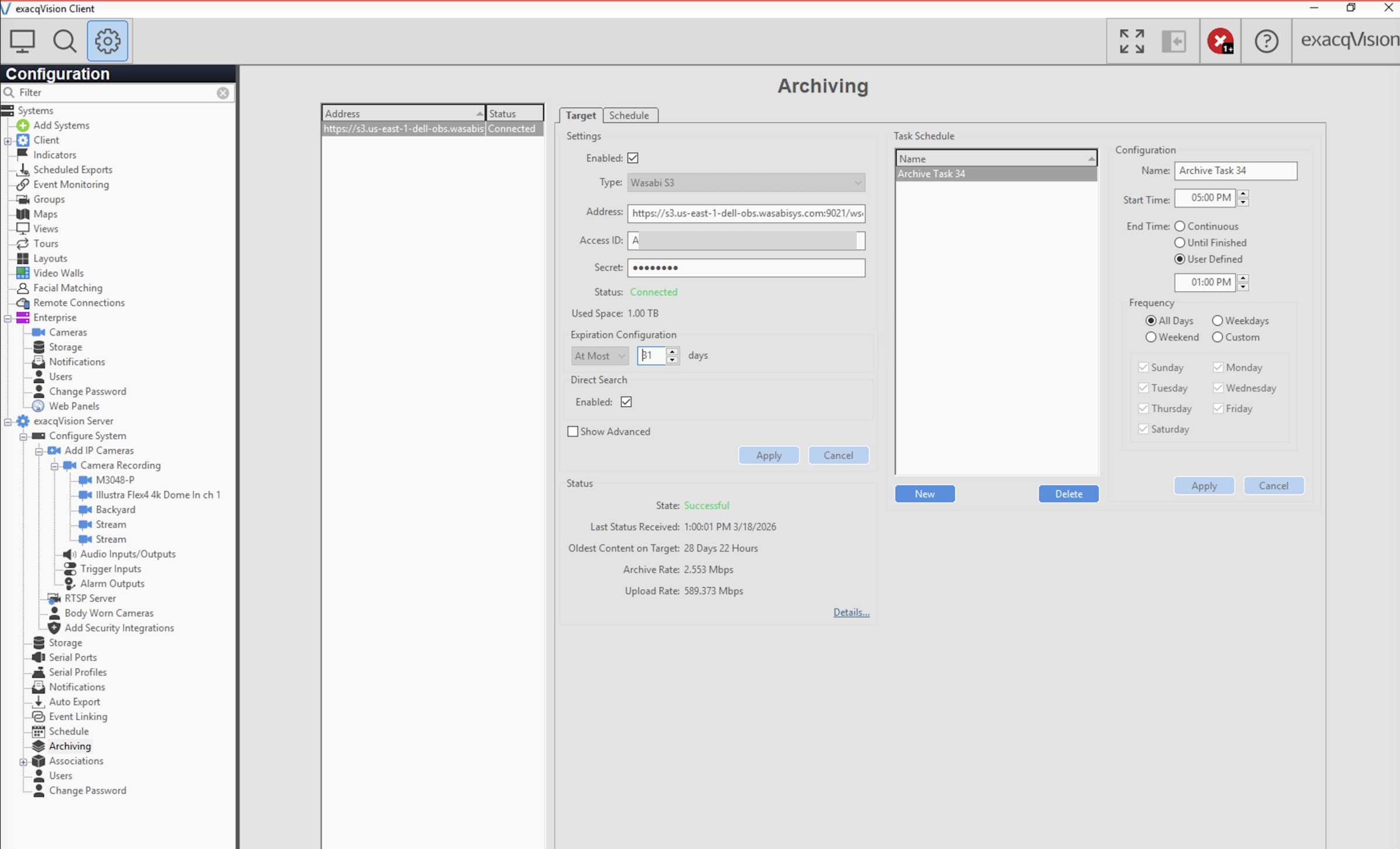
Click New.
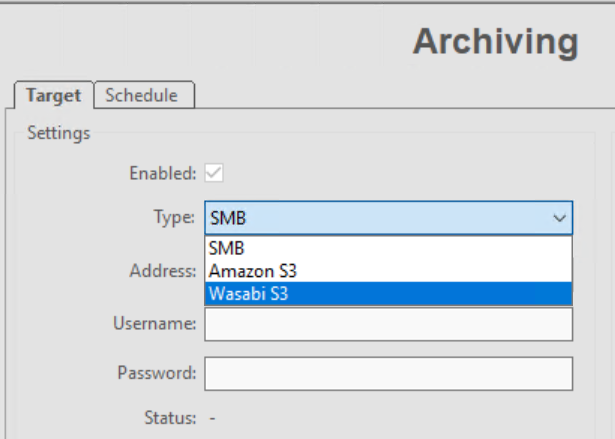
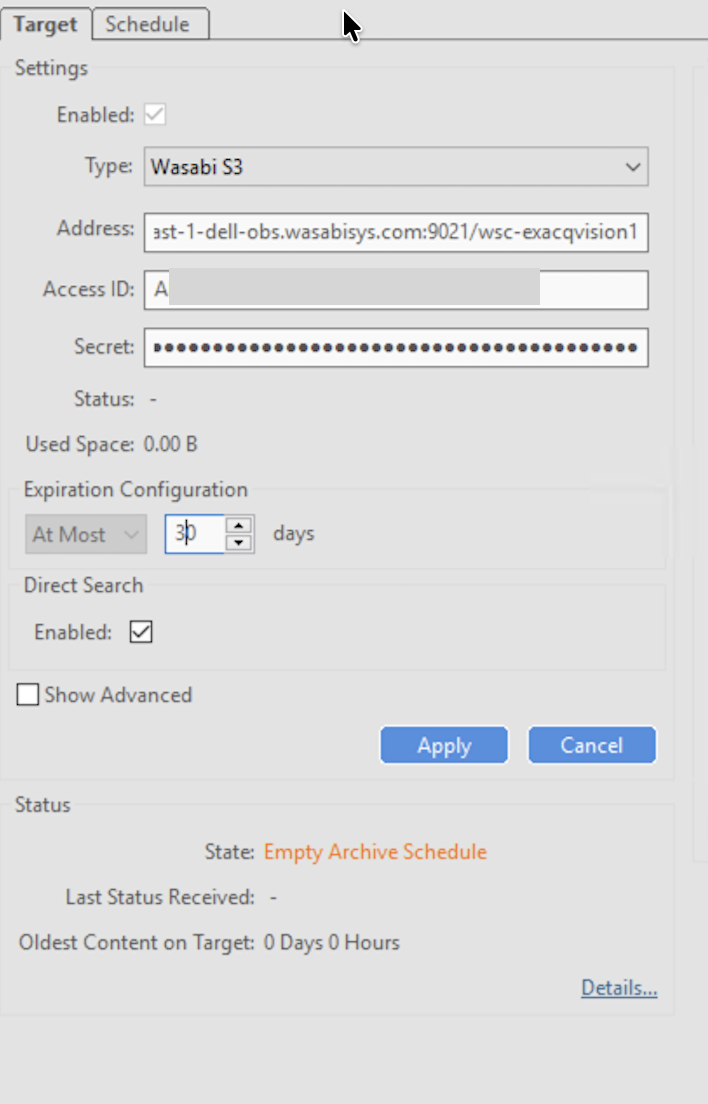
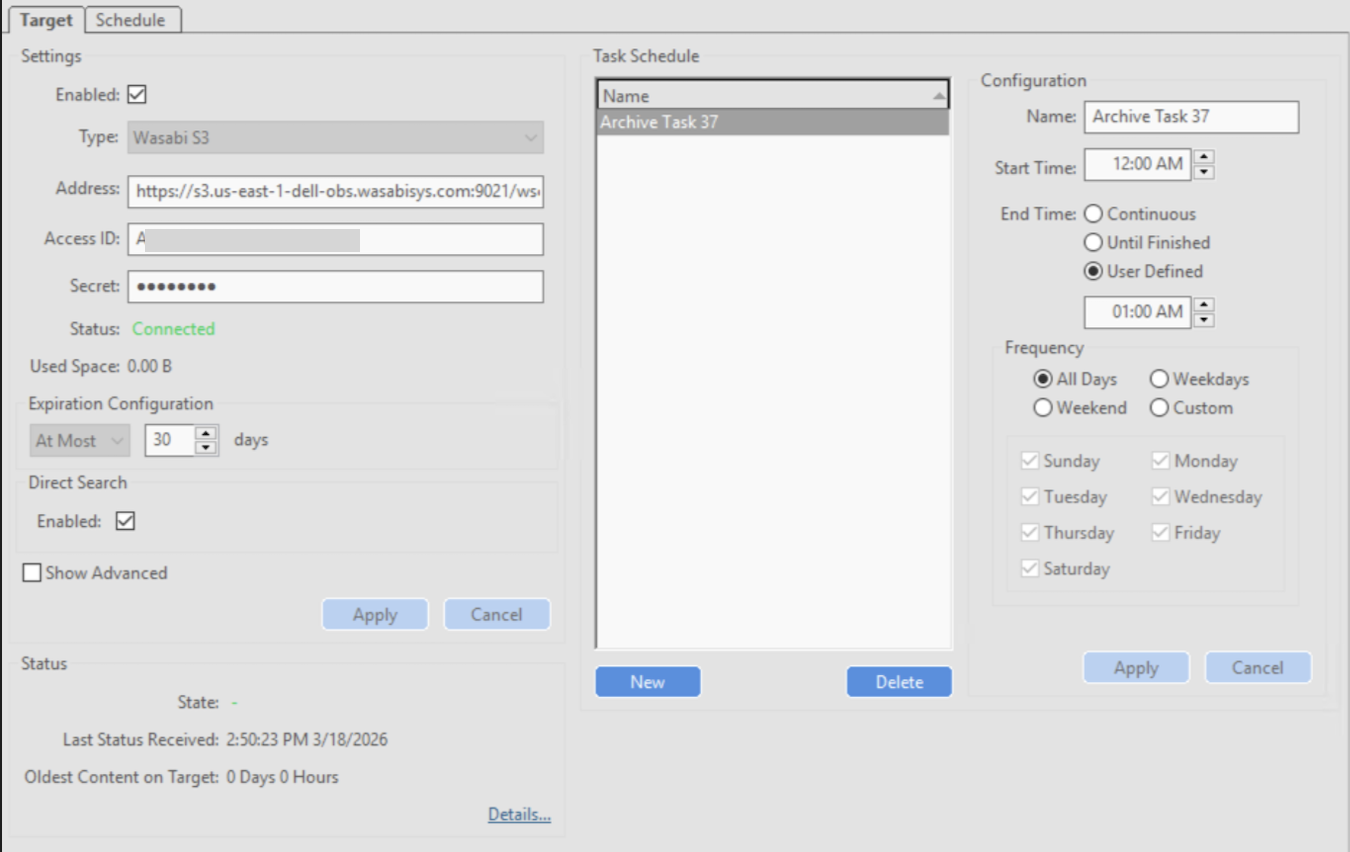
From the Type drop-down, select Wasabi S3.
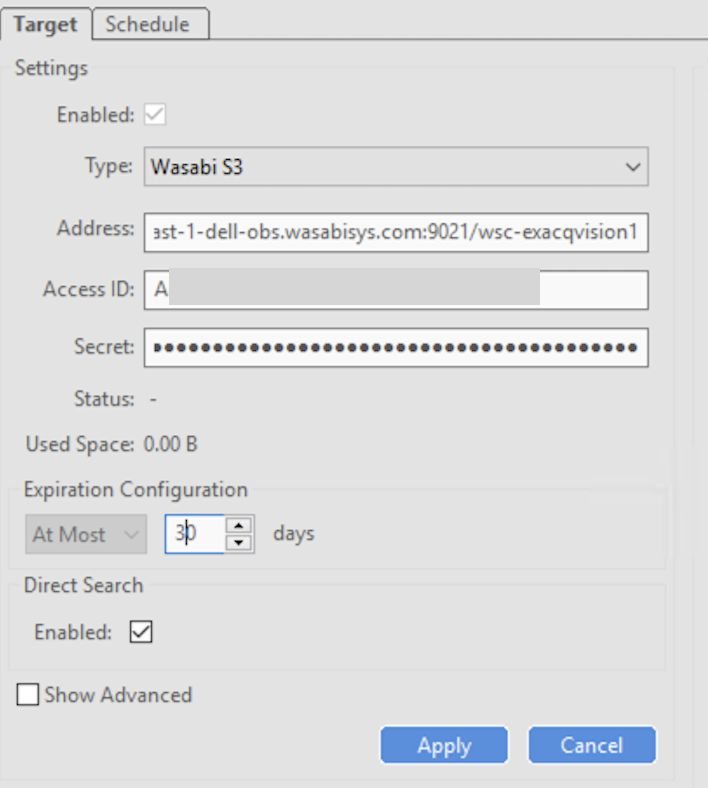
Enter the following information.
Address—Wasabi with Dell ObjectScale Region URL followed by a slash (/) and the Dell ObjectScale bucket name.
Access ID—Your Access key.
Secret—Your Secret key.
Expiration Configuration—When you want the data to be deleted.
Click Apply.
This configuration example discusses using Wasabi with the Dell ObjectScale us-east-1-dell-obs storage region. Use the region in which your bucket is located. For a list of regions, see Wasabi With Dell ObjectScale Service URL Endpoints.
The port is required in the URL for Wasabi when using the Dell ObjectScale Service URL integration. In this example, we are using https://s3.us-east-1-dell-obs.wasabisys.com:9021.
The Status and State will change, indicating you need to create a schedule before your bucket can officially connect.
Click the Schedule tab.
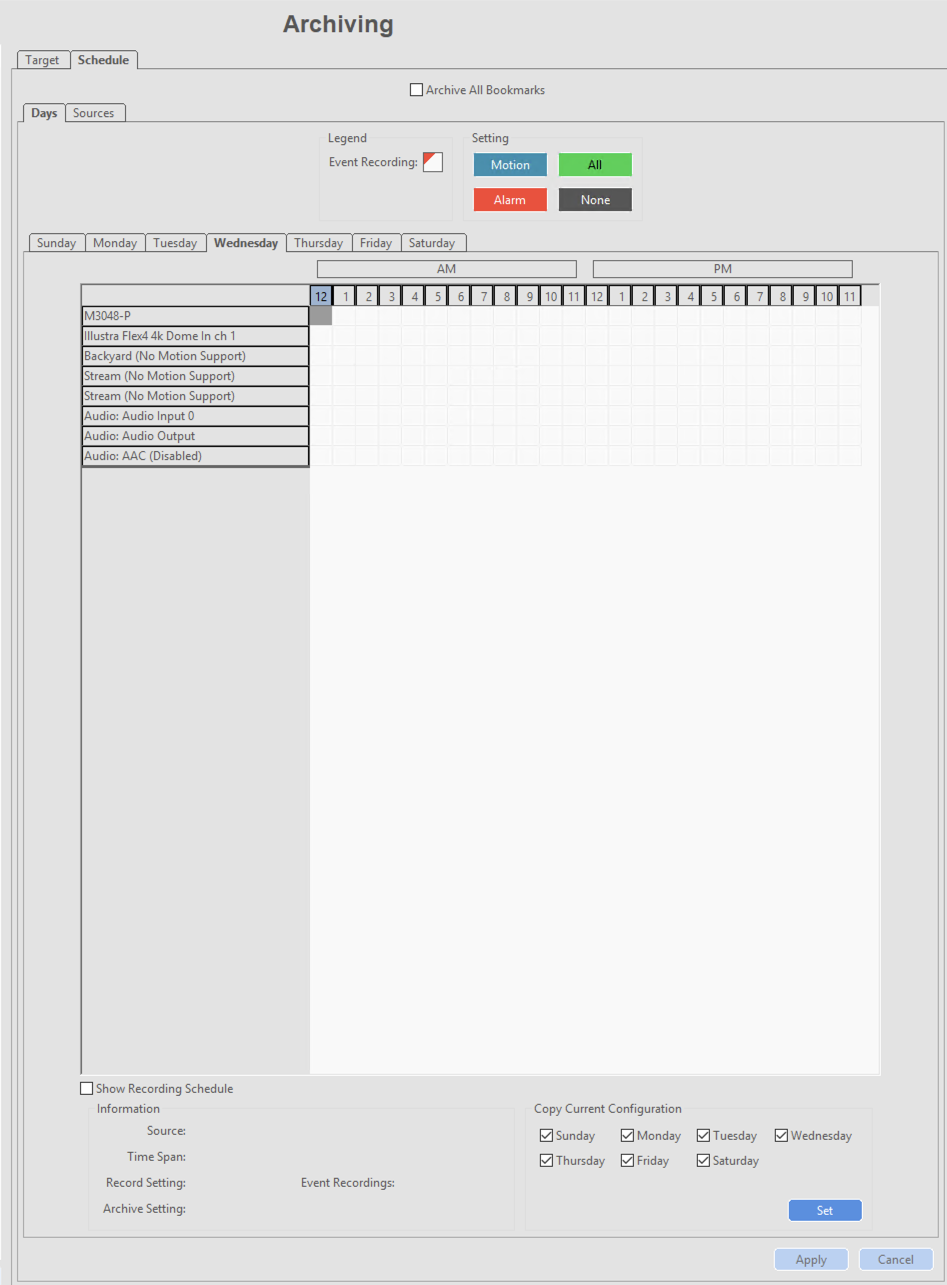
Select the event(s) to Archivelick.
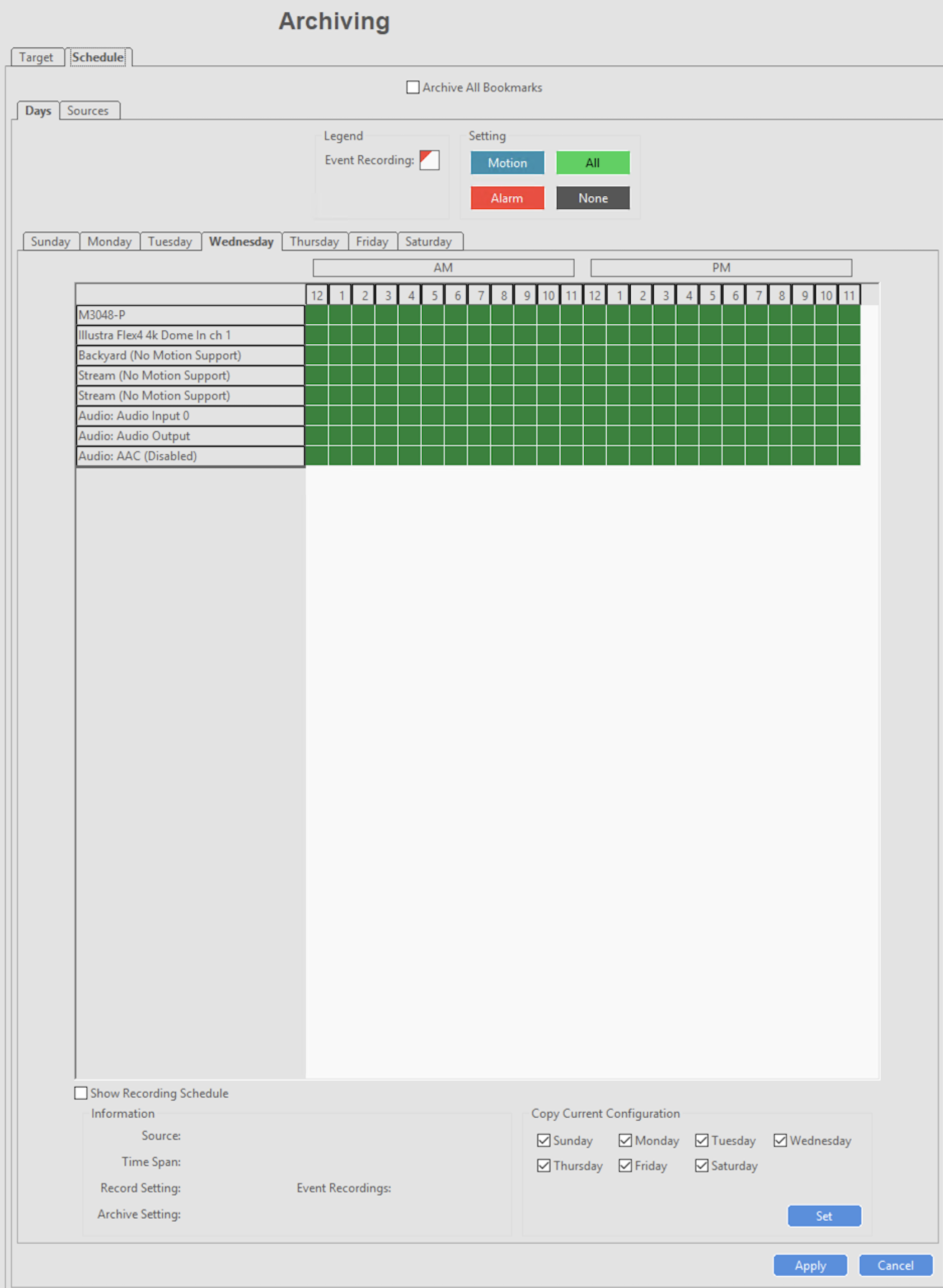
Click Apply.
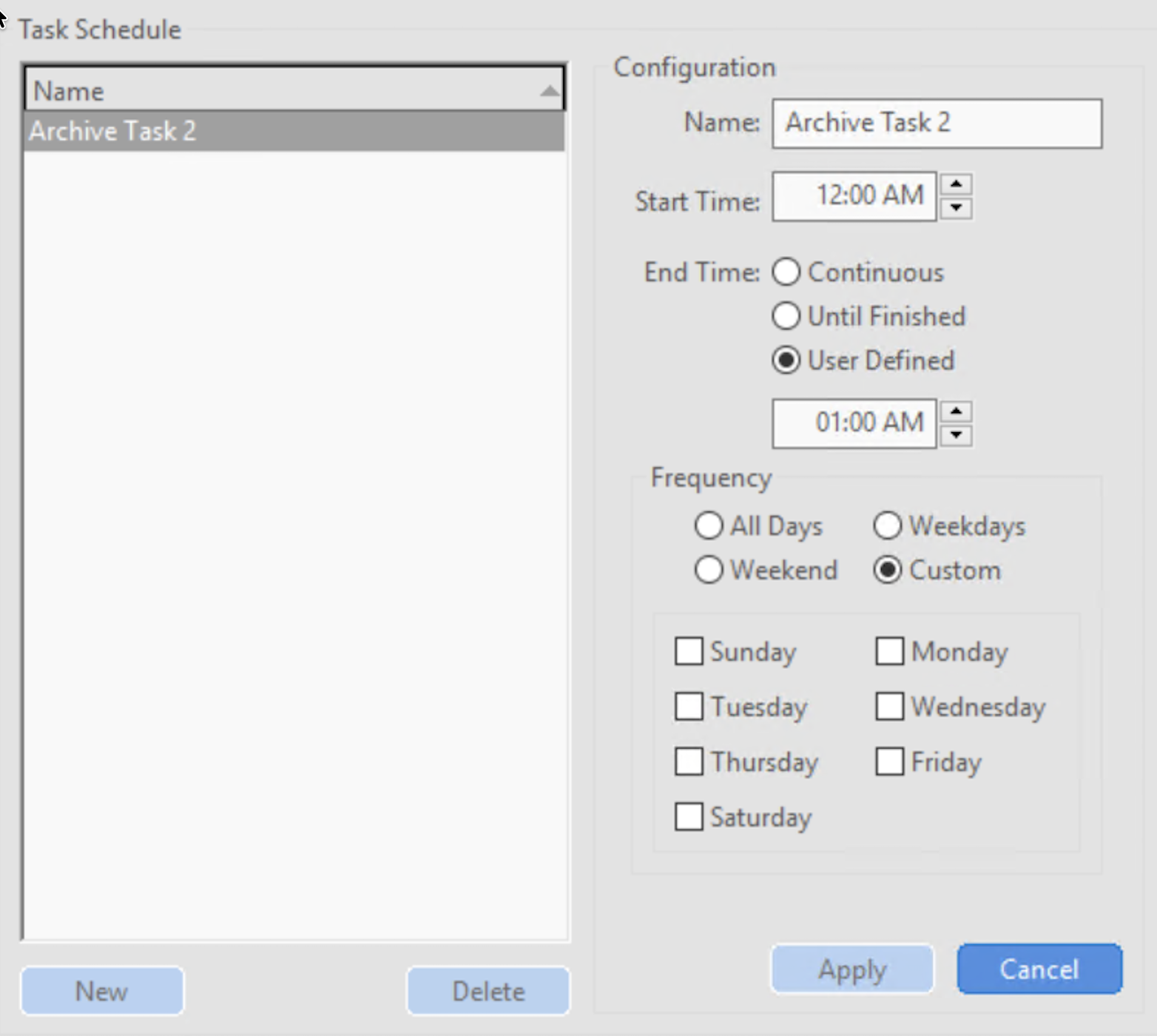
Click the Target tab to create a Task.
Click New.
Enter a unique name for the task. Specify a start and end time. Indicate the days you want it to run. Click Apply.
The status will change to Connected, and it will start copying data to your Wasabi bucket with Dell ObjectScale.
Using the Search Window
Once your on-premises storage has removed the video locally, you can use the Direct Search feature to search for the video in your Wasabi account using the Dell ObjectScale bucket.
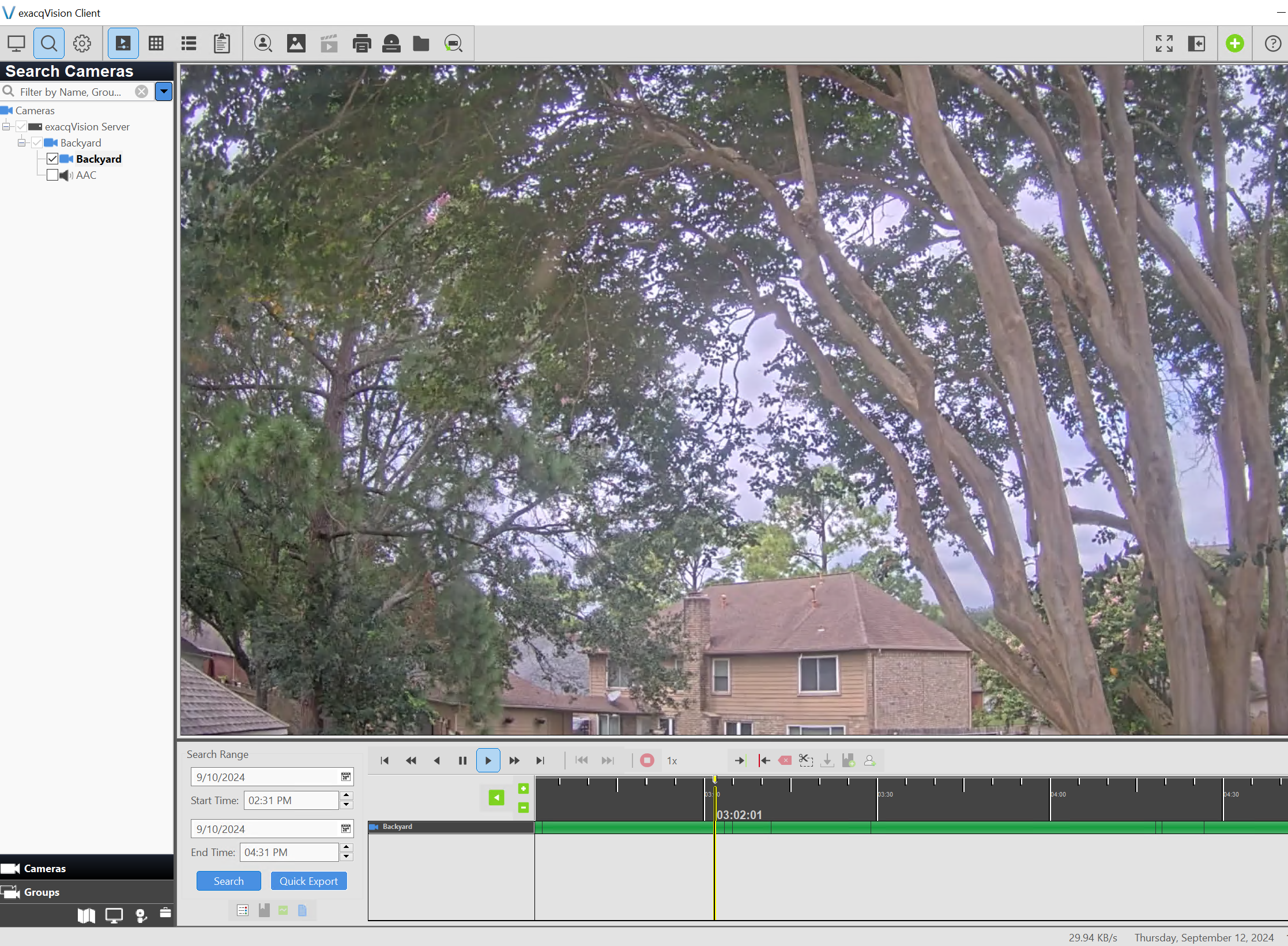
Click the Search tool (magnifier icon) at the top left of the client.
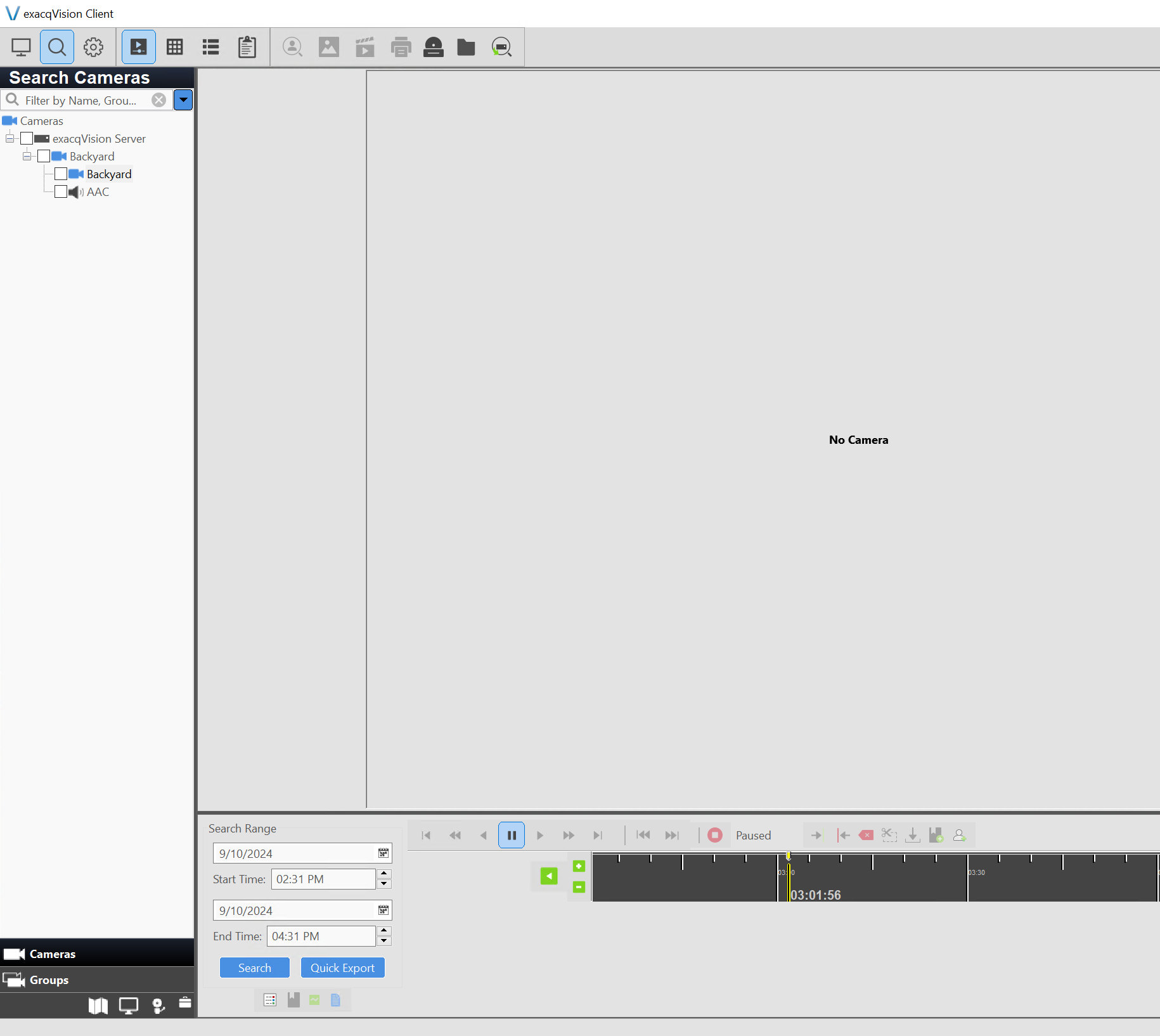
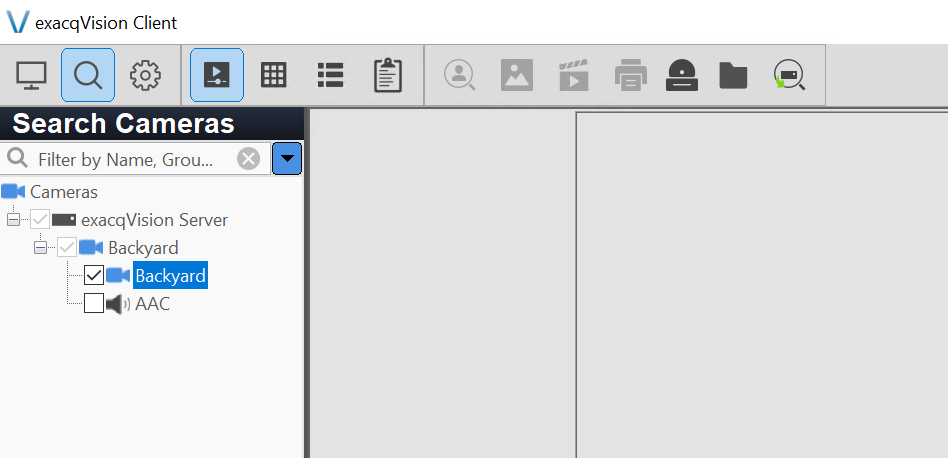
Select the camera that you want to search by checking the box next to it. In this example, the Backyard camera is selected.
Select the timeframe for the period to search the recorded video.
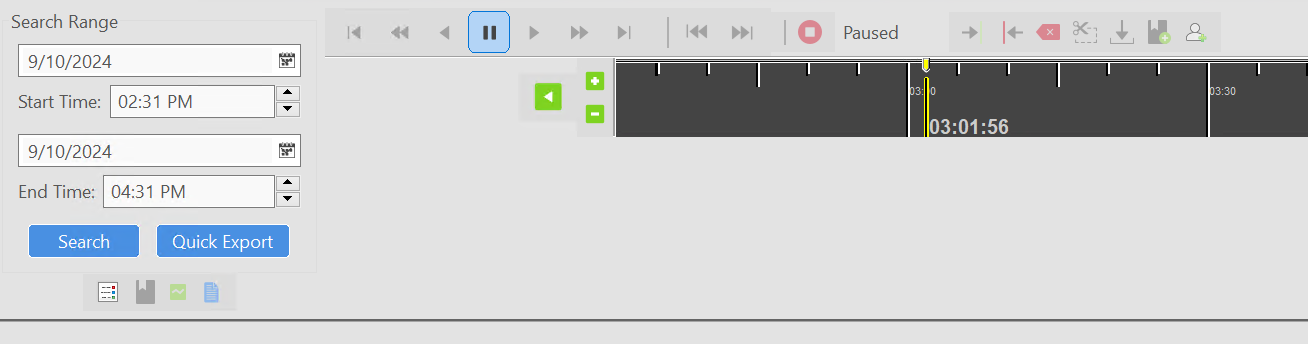
Click Search.
The video will automatically load. Click Play and scroll through the time period presented.