Wasabi has certified CrossFTP for use with Wasabi. CrossFTP is a free storage transfer client for Linux, Mac, and Windows systems that supports transferring local files to S3 Cloud storage.
Requirements
Active Wasabi Cloud Storage Account
Wasabi Bucket - See our Bucket Creation Guide
Access & Secret Key Pair - See our Access Keys Guide
CrossFTP Software 1.99.9 - Free, Pro or Enterprise
Configuration
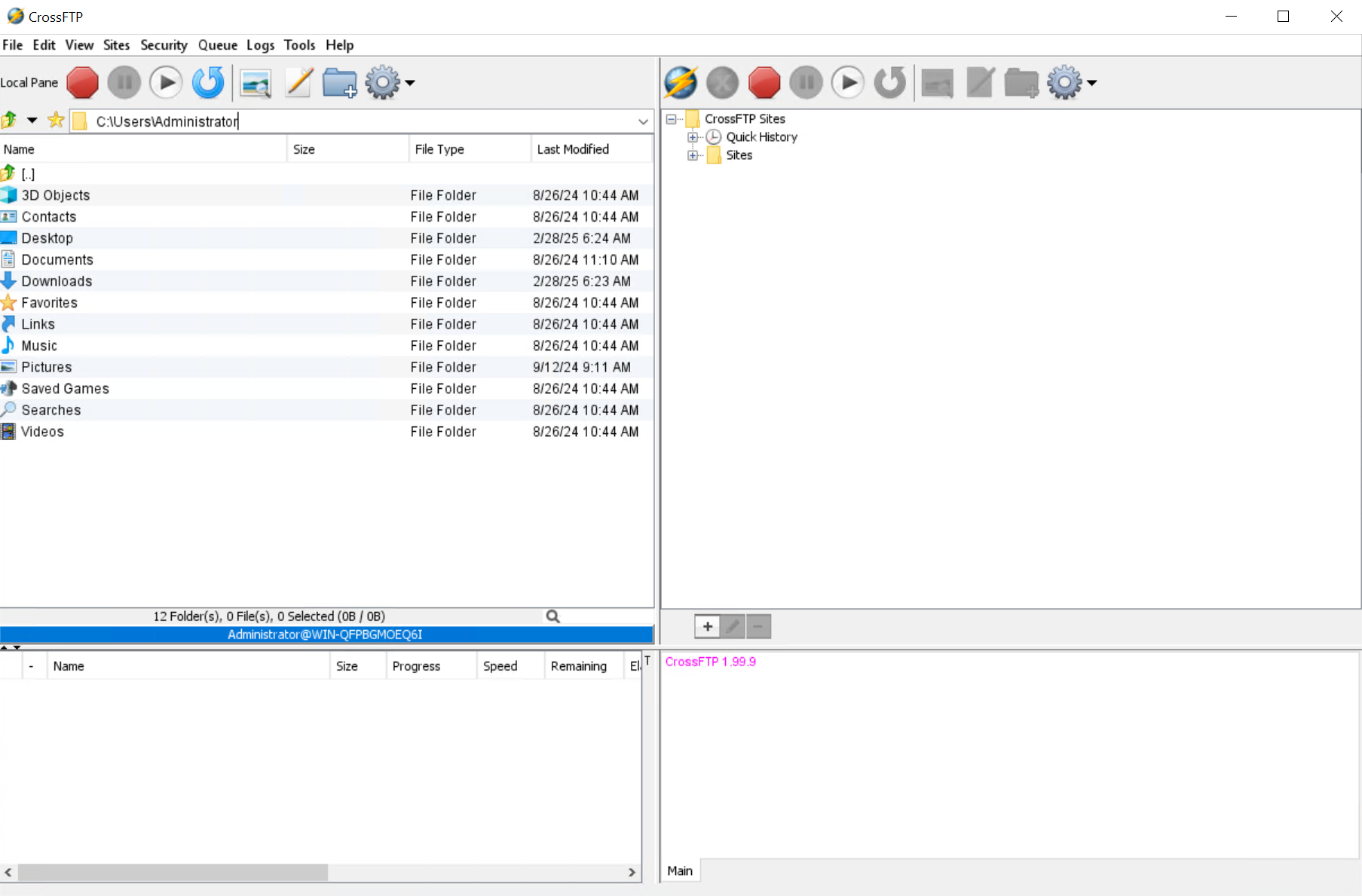
After installing the software. Open up your CrossFTP client.
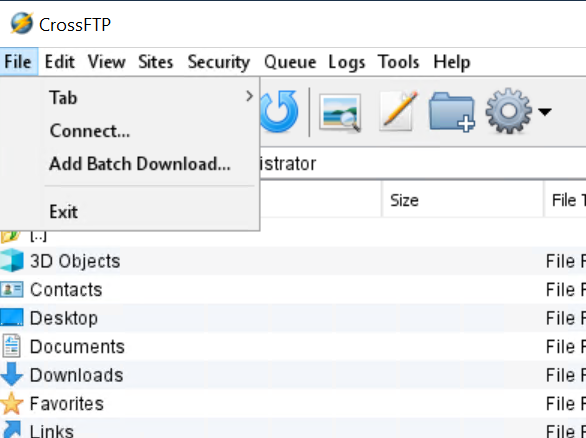
Click File. Click Connect.
Click on Default under Sites. Click on New Site.
Click on the Protocol drop down. Select S3/HTTPS.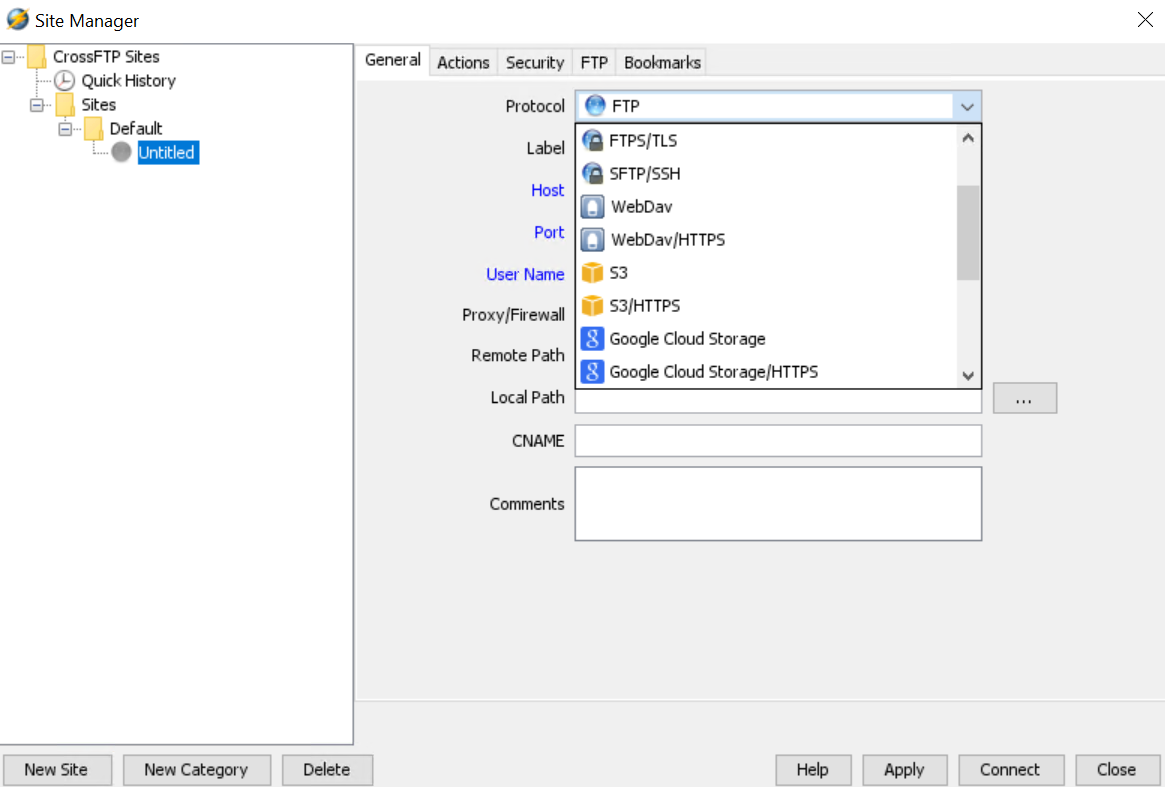
Input the following Information:
Label - Give the site a name like Wasabi
Host - Input the appropriate Wasabi Data Center URL
Port - Ensure it is set to 443
Access Key - Input your Wasabi Access Key
Secret Key - Input your Wasabi Secret Key
Remote Path - If you leave blank, it will list all buckets, or if you input a /bucketname, it will only show the specific bucket
Click Connect.
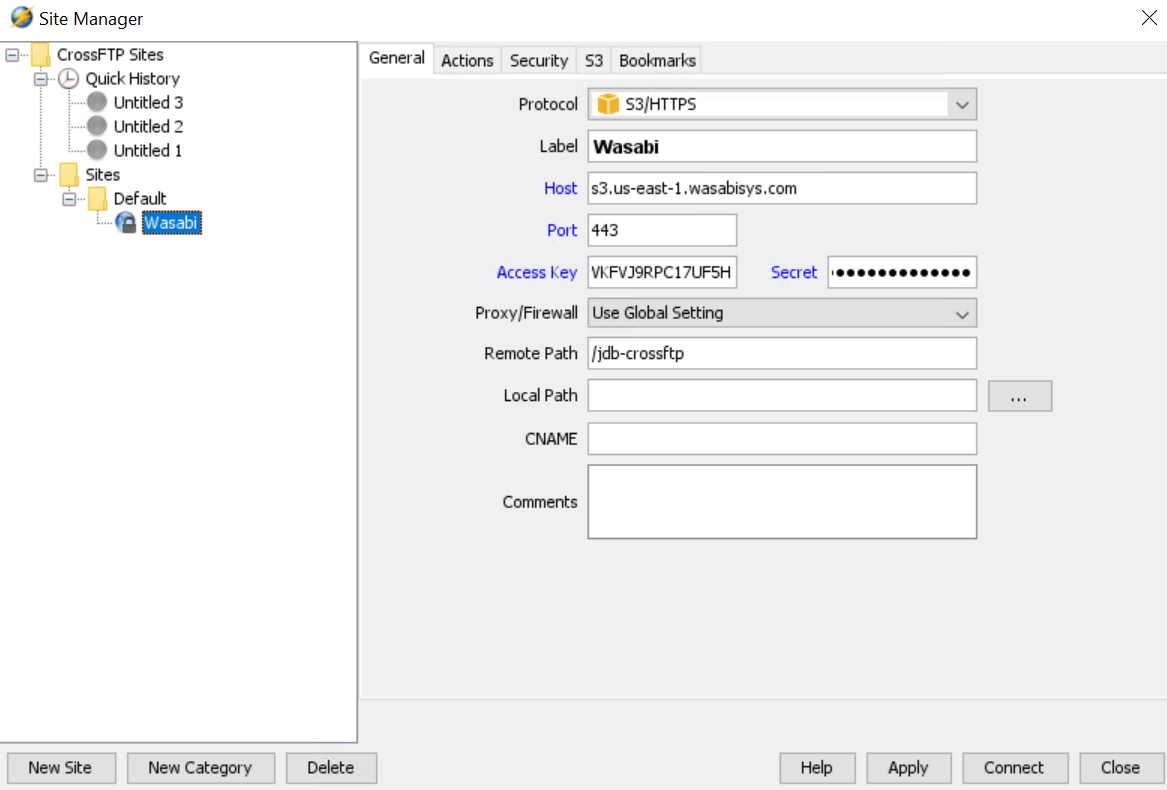
Note that this example uses Wasabi’s us-east-1 storage region. To use other Wasabi storage regions, use the appropriate Wasabi service URL as described in this article.
You will see your bucket is listed.
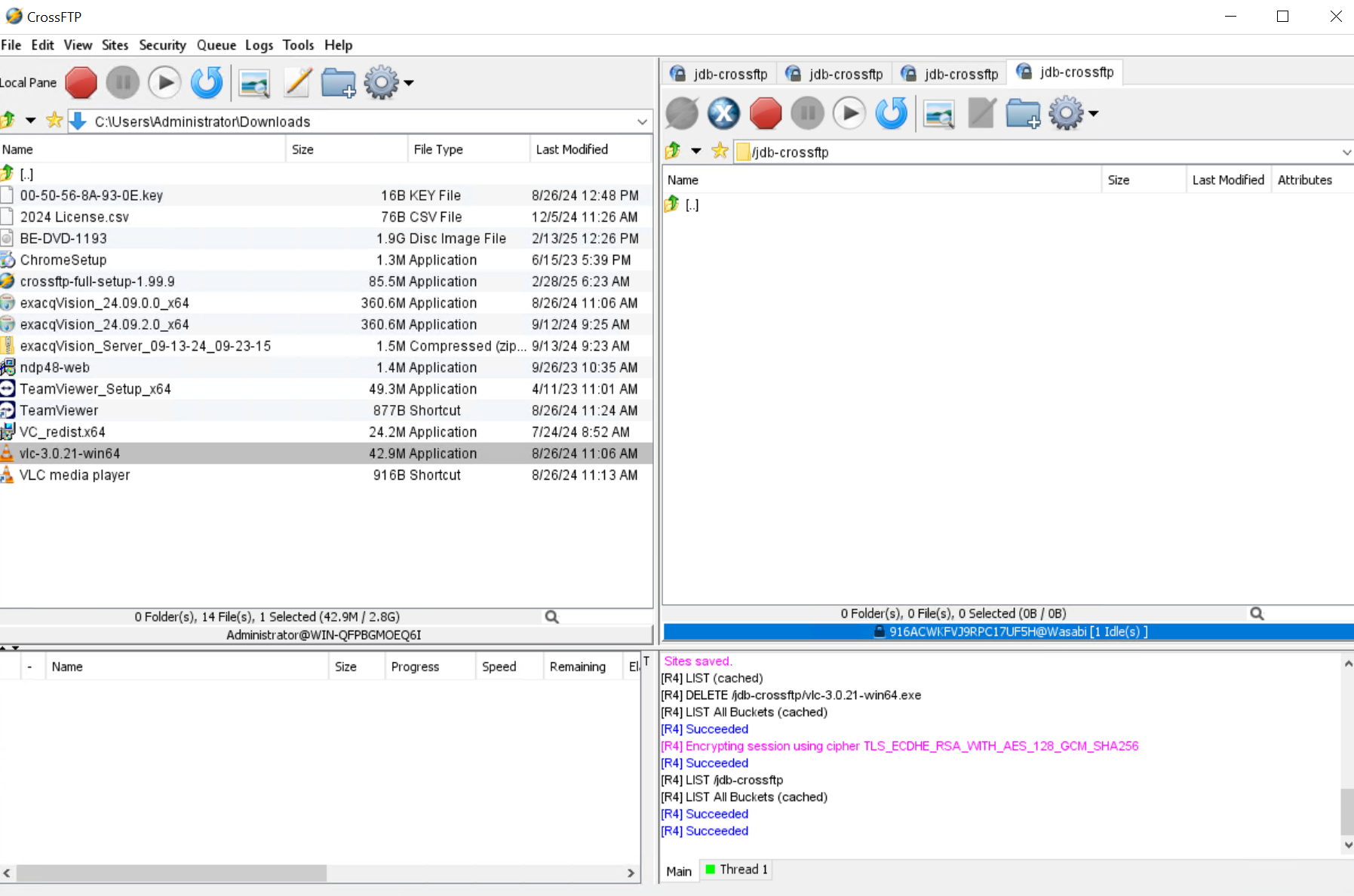
To transfer data from your local machine to the bucket click on the file(s) that you want to upload.
Note - Multi-part upload for files larger than 5 GB is available only in Pro/Enterprise versions.
You can either right-click on the file and select Transfer
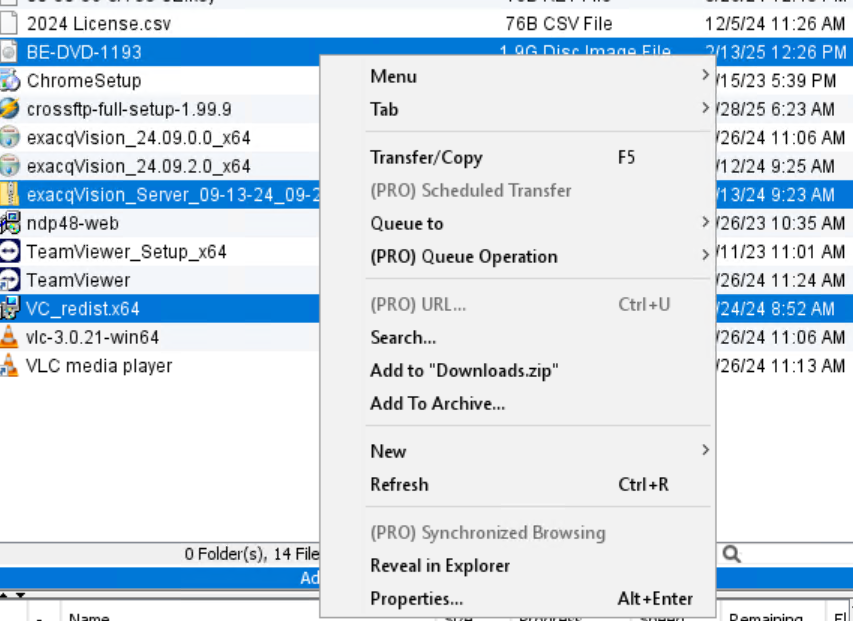
Or you can select Queue, select your bucket name, and the files will appear in the queue below waiting for transfer. When ready, you can click the Play button to start the transfer.
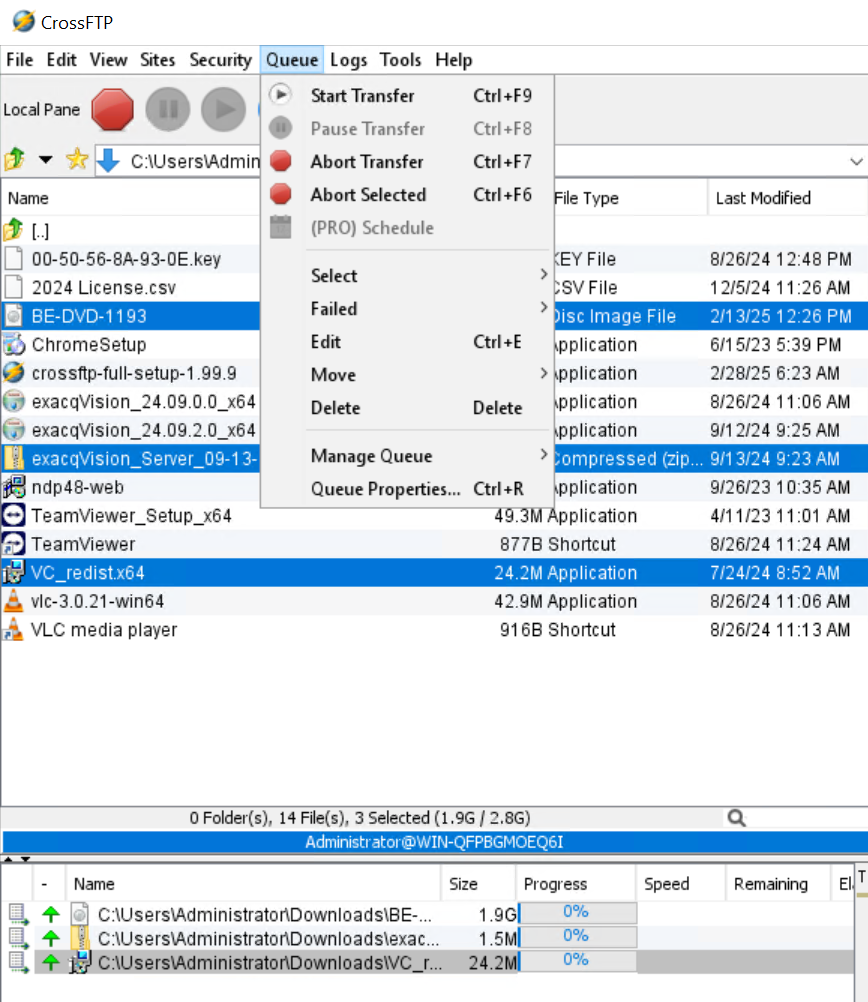
Once the upload has completed, you will now see the items listed in your bucket.
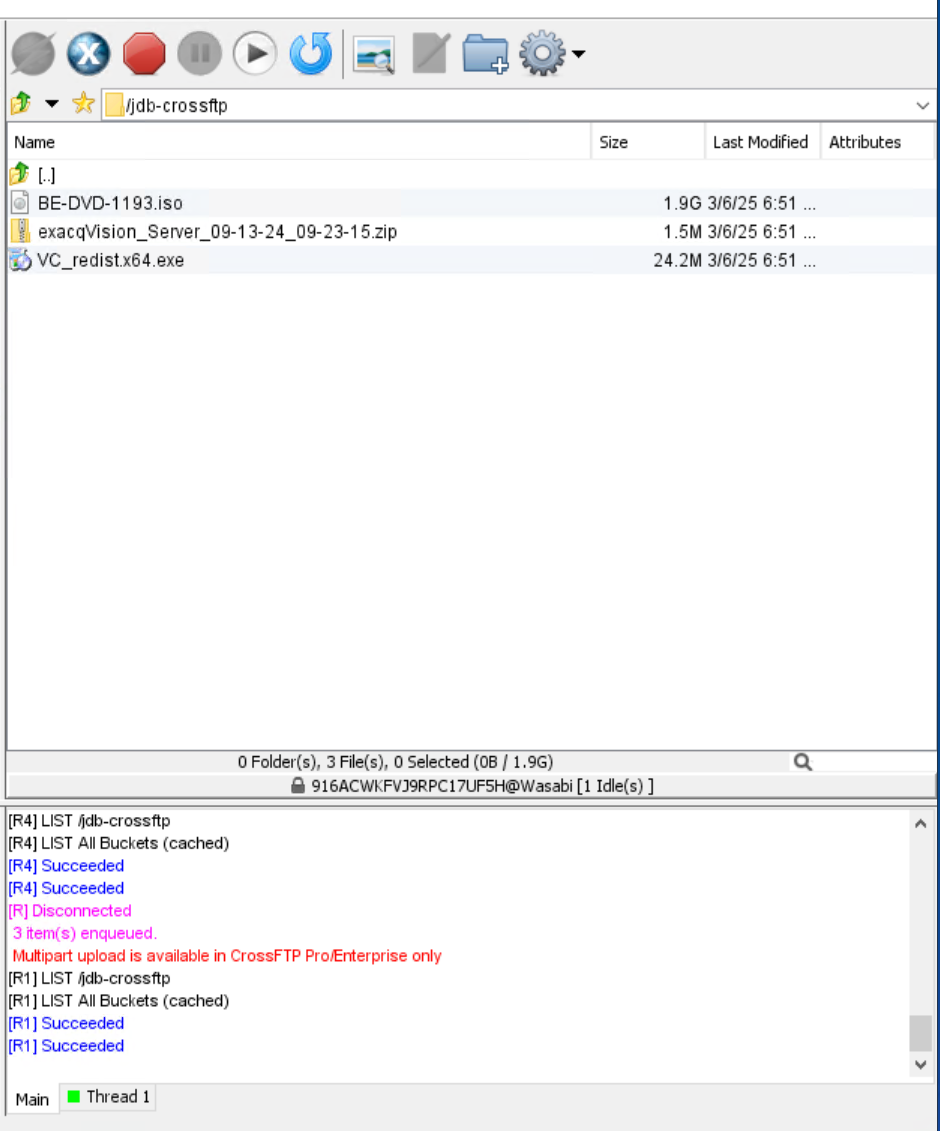
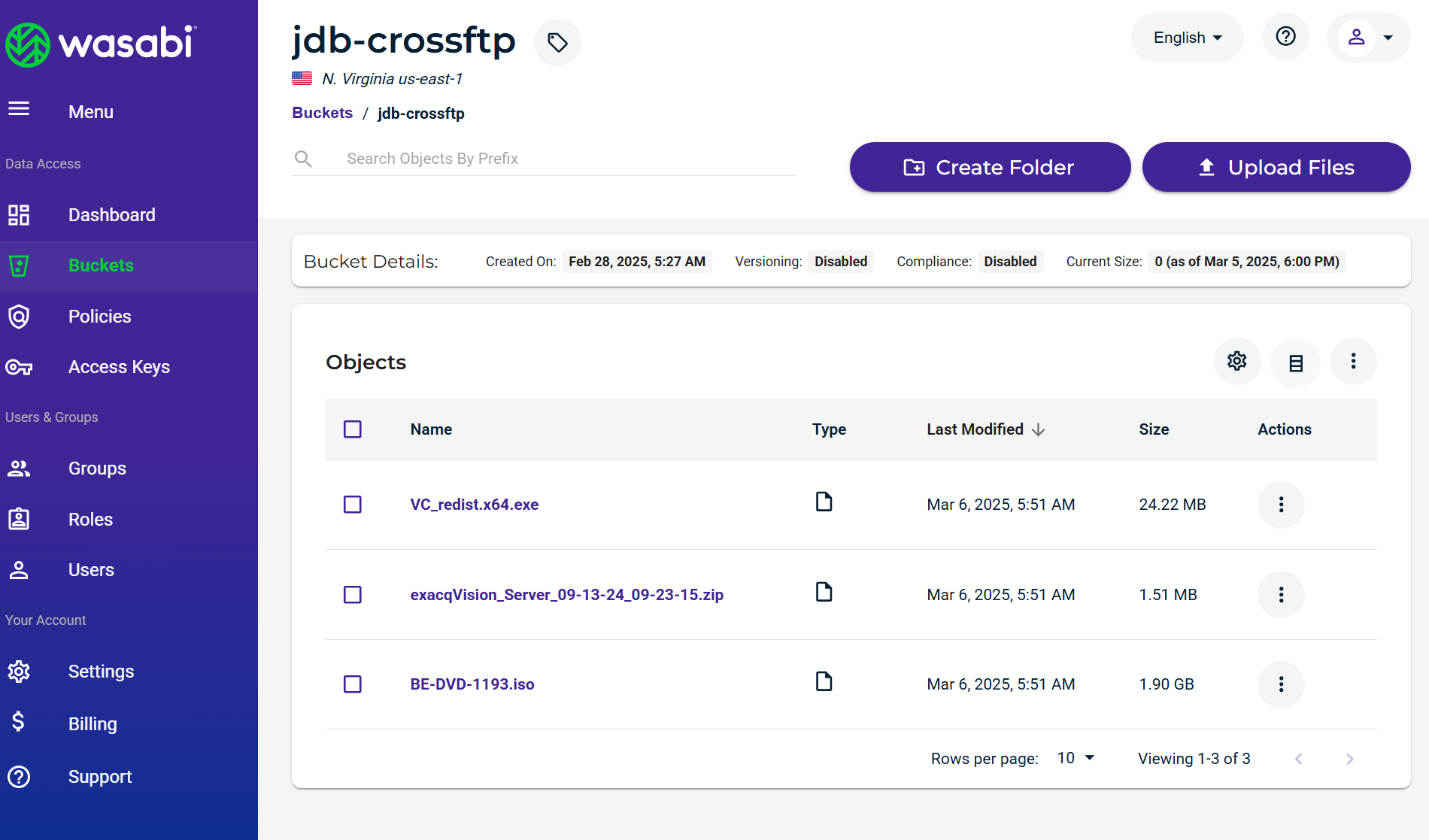
You can also validate this by logging into the Wasabi Console and going to your bucket.