Macrium has been validated for use with Wasabi. SiteBackup gives users full control over the backup and restoration of every connected workstation in your network. To use this product with Wasabi, follow the instructions below.
Requirements
Wasabi Hot Cloud Storage account
Wasabi Access/Secret Key (see Creating a User Account and Access Key)
Wasabi bucket (see Creating a Bucket)
Macrium SiteManager Platform 10.0.XXXX
A license for SiteBackup Agents (For more information, refer to SiteBackup Licensing.)
Sample IAM Policy for use With Macrium SiteBackup
The example IAM Policy below represents a minimum default permission set to use when setting up SiteBackup with Wasabi. Be sure to replace instances of BUCKET_NAME with the name of your actual bucket.
For information about creating a policy, see:
{
  "Version": "2012-10-17",
  "Statement": [
    {
      "Effect": "Allow",
      "Action": [
        "s3:ListAllMyBuckets",
        "s3:ListBucket",
        "s3:ListBucketMultipartUploads",
        "s3:ListBucketVersions",
        "s3:ListMultipartUploadParts",
        "s3:GetObject",
        "s3:AbortMultipartUpload",
        "s3:DeleteObject",
        "s3:DeleteObjectVersion",
        "s3:PutObject"
      ],
      "Resource": [
        "arn:aws:s3:::BUCKET_NAME",
        "arn:aws:s3:::BUCKET_NAME/*"
      ]
    }
  ]
}
Configuring SiteBackup With Wasabi
Remote Sync is configured on a per-repository basis. Remote Sync configurations, that share a single bucket, must use unique pathing to prevent conflicts.
The repositories must be created before configuring a synchronization. For instructions on creating a repository, refer to Viewing and Managing Repositories.
Using the left menu panel, navigate to the Scheduled Activity page.
Using the left hand menu, select Active Backups under the Backups drop-down.
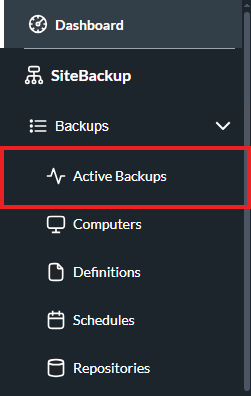
At the top of the Active Backups page, select Remote Sync.

In the window that opens, select the repository that will be synchronized to Wasabi.
Click Next.
Select Amazon S3 for the synchronization type.
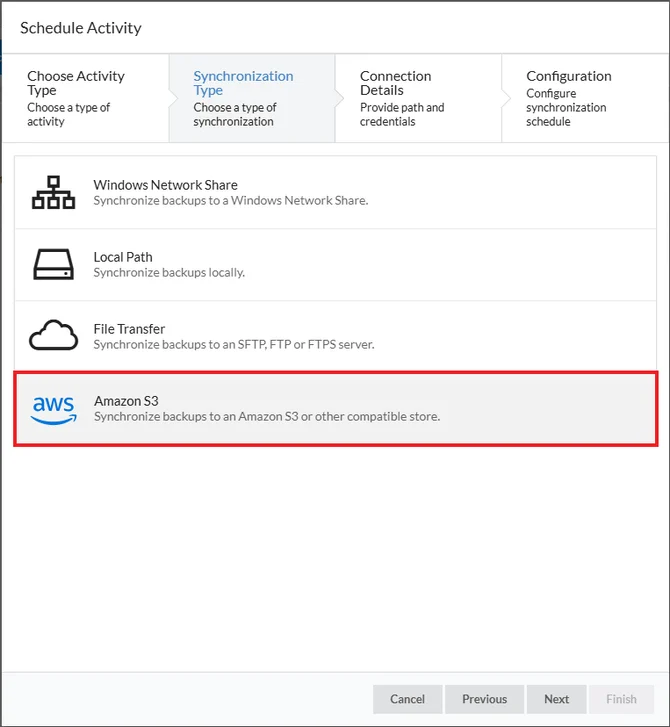
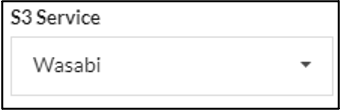
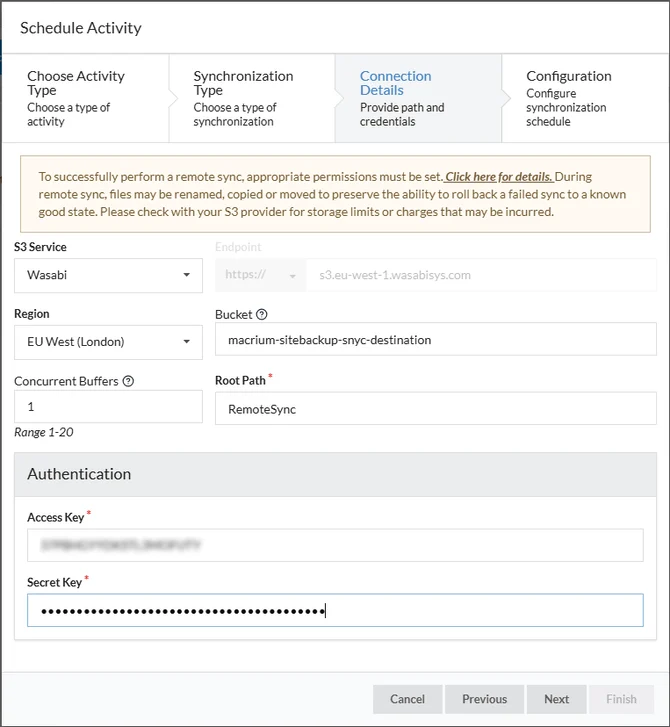
Click the S3 Service drop-down to select Wasabi.
Click the Region drop-down to select your bucket region.
This configuration example discusses the use of Wasabi's eu-central-1 storage region. Use the region in which your bucket is located. For a list of regions, see Service URLs for Wasabi's Storage Regions.

Set the Bucket field to match your bucket name.
Optionally, set the Root Path field with the path to place repository data within the bucket.

Enter the Access Key and Secret Key (provided by Wasabi).
Click Next.
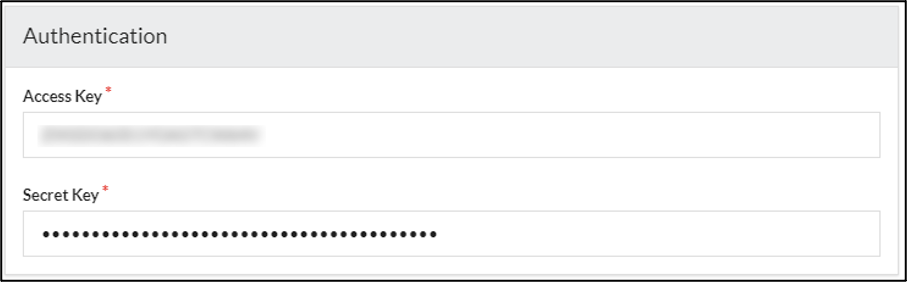
Once the information has been entered, this will look similar to the example below.
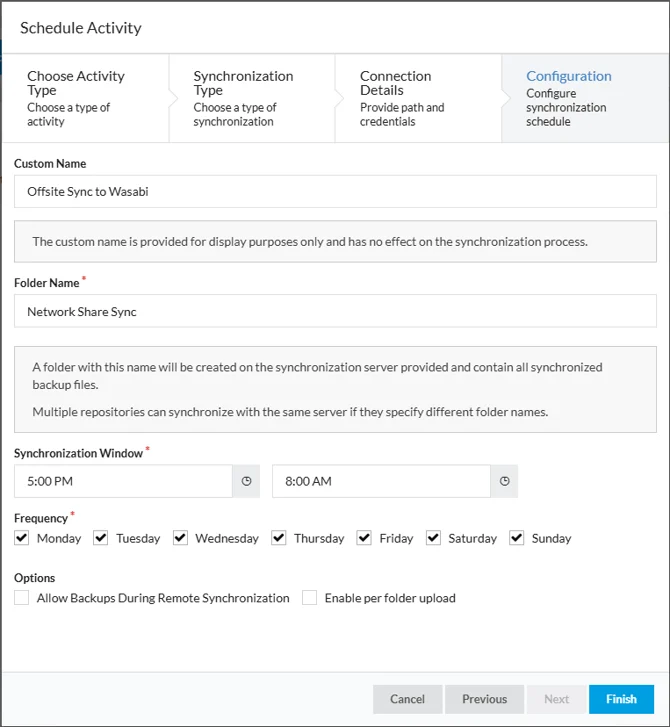
On the Configuration tab, set the required details to configure the synchronization schedule.
Custom Name—(optional) Used for display purposes within SiteBackup.
Folder Name—(required) Set the Folder Name that will contain the backup data. The folder will be added after the Root Path.
Synchronization Window—(required) Set the Synchronization Window times. Remote Sync will run between this time block. Syncs still running by the end time will be abandoned until the following day. This feature can prevent high internet bandwidth usage during known peak times.
Frequency—(required) Set the Synchronization Window Frequency. Remote Sync will only run on the selected days.
Allow Backups During Remote Synchronization—(optional) Enable Allow Backups During Remote Synchronization under Options as preferred. If active, SiteBackup will attempt to run backups and remote syncs simultaneously (when possible).
Click Finish. The wizard will perform a connection test to Wasabi.
Monitoring Remote Synchronization
Viewing Remote Sync Status
The Wasabi Remote Sync details are accessible through the Active Backups page. The page displays a general status, configuration information, and a breakdown of the last run Remote Sync result, including whether it succeeded, any error messages, the amount of data uploaded, and which files were affected.
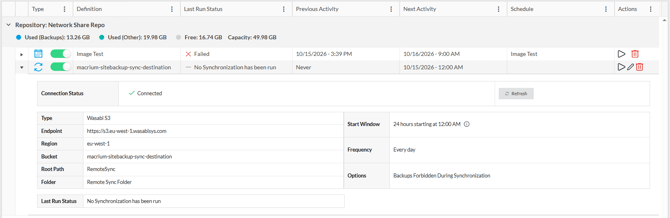
The Run Now option allows a sync to be started manually. This manually started sync will wait for any active backups in the repository to finish before starting and will prevent any backups from starting until the sync is completed.
Viewing Remote Sync Forecast
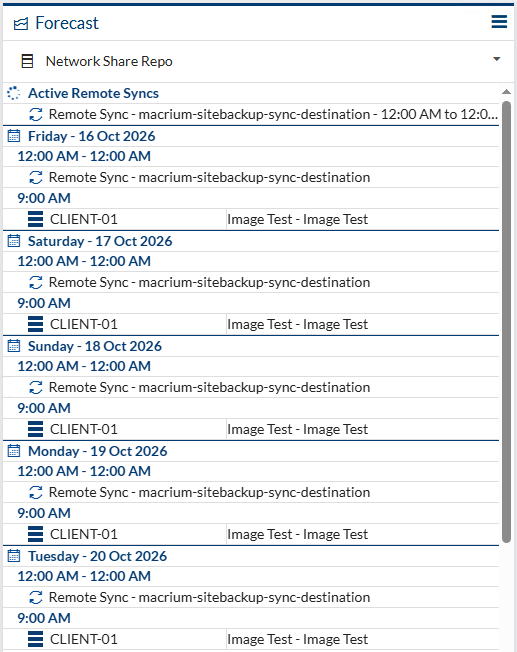
The upcoming forecast for a remote sync can be found on the Dashboard page under the Forecast widget (or on the Repositories page).
Viewing an In-Progress Remote Sync
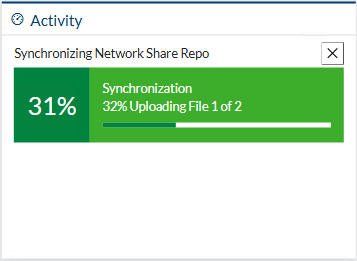
The in-progress details for a remote sync are available on the Dashboard page under the Activity widget.