Couchdrop is a fully managed service that enables Secure File Transfer Protocol (SFTP) access to your Wasabi data. This guide demonstrates how to connect your Wasabi bucket to Couchdrop, enabling secure file transfer and automation capabilities.
Requirements
An active Wasabi Cloud Storage account.
Access to the Wasabi Console.
Wasabi access and secret keys. It is recommended to create a sub-user with their own set of keys for this purpose rather than using your root keys. See Creating a User for more details. You may also restrict the sub-user’s access, such as to a specific bucket, using IAM policies. See Policies in Wasabi Hot Cloud Storage for details.
An active Couchdrop subscription.
Access to the Couchdrop portal.
Adding Wasabi Connection in Couchdrop
Log in to your Couchdrop account at my.couchdrop.io and navigate to Connections.
Click Add Connection and search for Wasabi in the connection list.

Select Wasabi from the list. Click Continue.
Enter the following details.
Name for this integration: Enter a descriptive name (for example, Wasabi Production)
Name for new Couchdrop folder: Specify how this connection will appear in your file browser (for example, Wasabi)
Wasabi Cloud Region: Select the region where your bucket is located (for example, us-east-1)
This configuration example uses Wasabi’s us-east-1 storage region. Use the region where your bucket is located. For a list of regions, see Available Storage Regions.
Wasabi Bucket: Enter your bucket name
Wasabi Access Key: Enter your Access Key ID
Wasabi Access Key Secret: Enter your Secret Key

Click Save and Test to verify the connection.
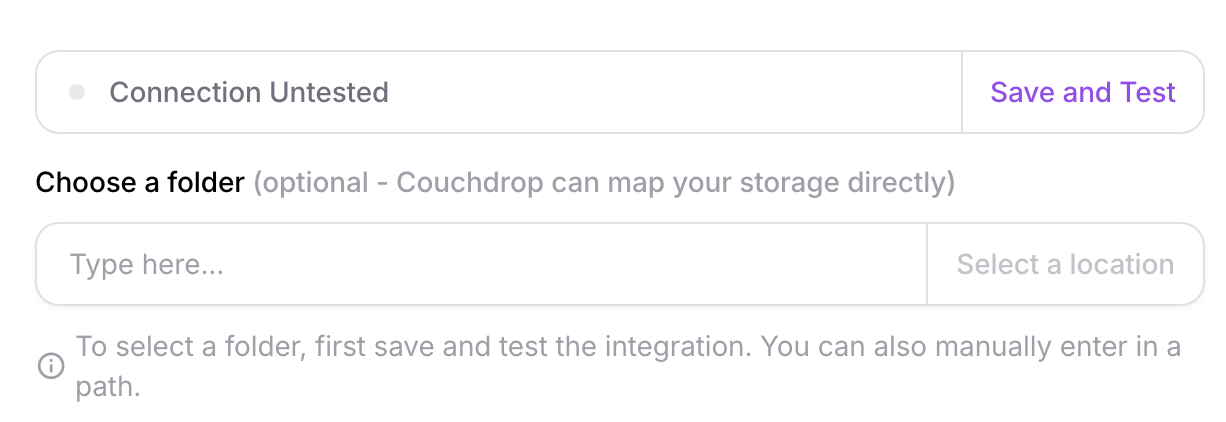
After a successful connection, you can optionally select a specific folder within your bucket as the root directory. Click Select a location, then click Select Root Directory to use the bucket root, or navigate to a specific folder and select it.
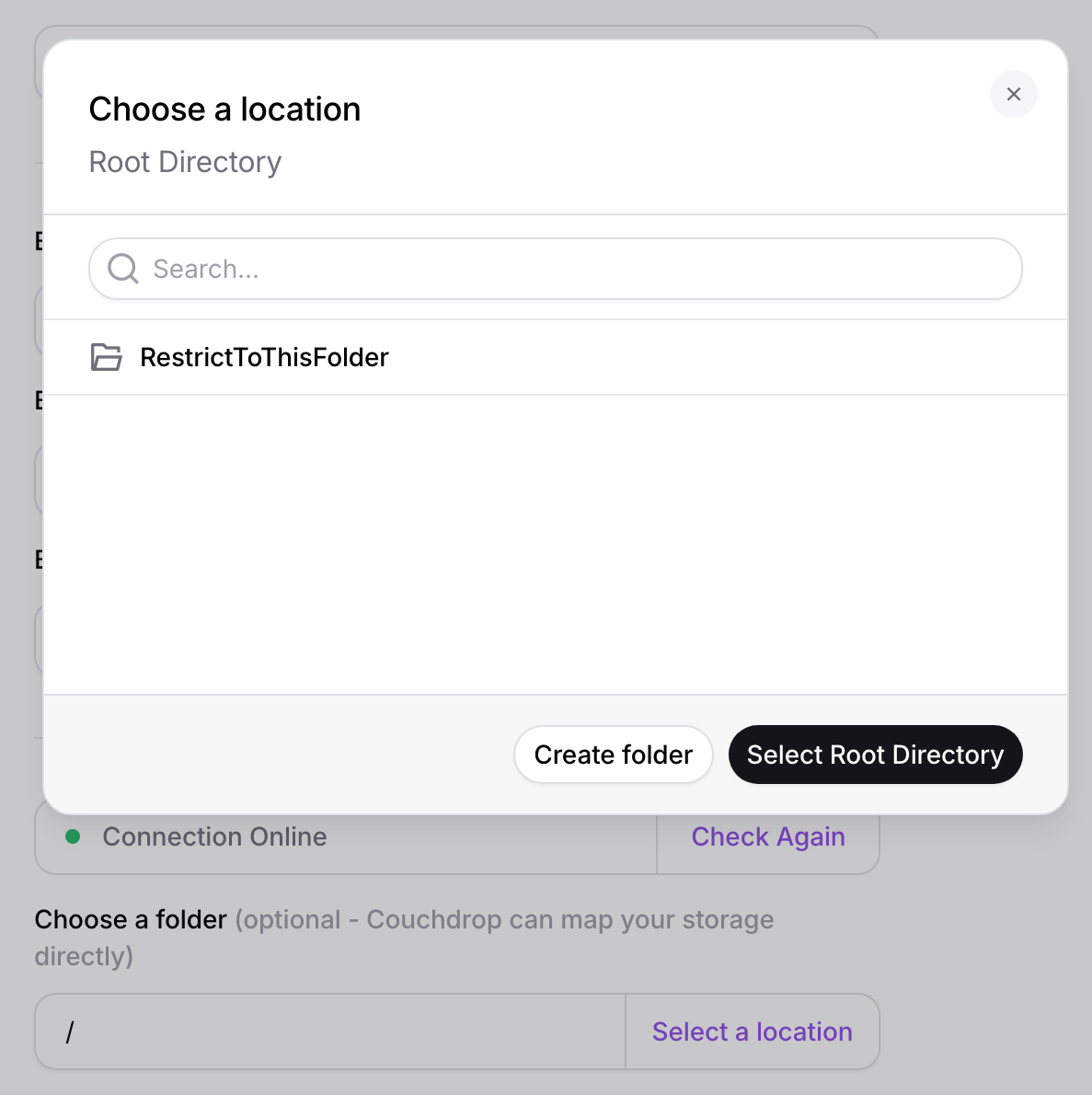
Click Add Integration to complete the setup. Your Wasabi bucket is now connected to Couchdrop and will appear as a folder in your file browser.
Enabling SFTP Access
Log in to your Couchdrop account at my.couchdrop.io and navigate to SFTP & FTPs. Click Create in the top navigation.
Select SFTP User from the dropdown menu.

Configure the following fields.
Username: Enter a unique username (for example, wasabi_upload).
Set the home/root directory: Click Select a location and choose your Wasabi folder.

Under Password, select either:
Autogenerated Password: Couchdrop generates a secure password
Custom Password: Enter your own password.
Optionally, check Public and Automatic RSA Key creation to enable key-based authentication.
Click Create user to save the configuration.
After creating the user, you will see the connection details.
SFTP Endpoint
Username
Password
SFTP Private Key (if key authentication was enabled)
Click Download Credentials or Copy to save these details. These credentials will not be shown again.
Testing SFTP Connection
You can now connect to your Wasabi bucket via SFTP using any SFTP client with the credentials from the previous section.
Connection details are as follows.
Host: <^>your_company<^>.couchdrop.io
Port: 22
Username: <^>your_generated_username<^>
Password: <^>your_generated_password<^>
Upload a file via SFTP to your Wasabi bucket. Verify the file is in your bucket by logging into the Wasabi Console, clicking Buckets, then clicking your bucket name. You should see the file you uploaded.
