Wasabi Account Control Manager (WACM) supports Single Sign-On (SSO) for enterprise and educational accounts, using miniOrange as the Identity Provider (IdP) and SAML2 (Security Assertion Markup Language).
This article provides instructions for the miniOrange administrator and the SSO user to properly configure and complete a WACM login with the miniOrange IdP for your organization.
Configuring the SAML App in miniOrange (IdP Side)
Log in to your miniOrange Admin Console.
Navigate to Apps.
Click Add Application to create a new application.
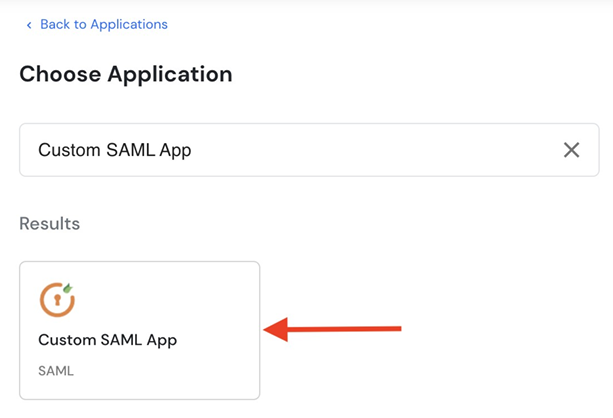
Search for and then select the Custom SAML App.
On the Basic tab, configure the WACM Service Provider (SP).
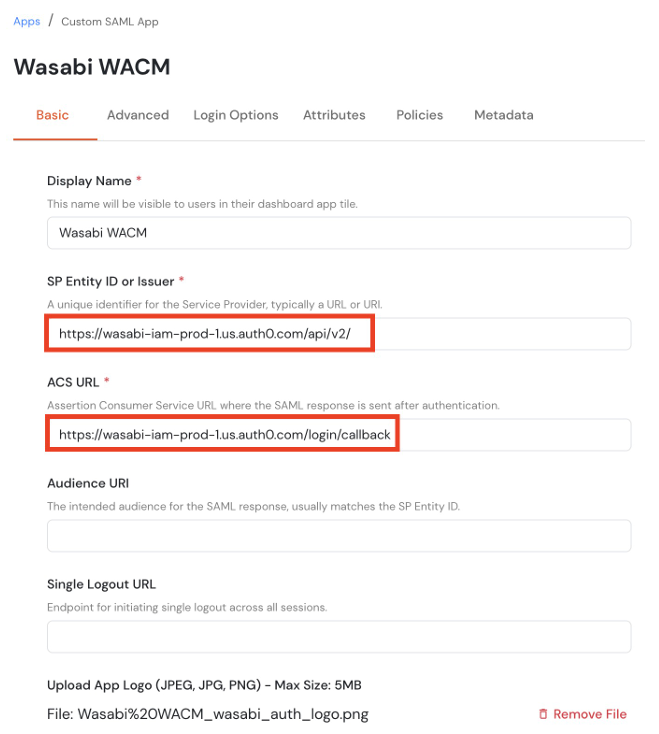
Use the following settings:
Display Name—Wasabi WACM.
SP Entity ID or Issuer—
https://wasabi-iam-prod-1.us.auth0.com/api/v2/ACS URL—
https://wasabi-iam-prod-1.us.auth0.com/login/callbackAudience URI—Leave blank. WACM uses the SP Entity ID as the audience.
Single Logout URL—Leave blank unless your deployment requires a specific logout endpoint.
Verify the values, then click Next to proceed to the Advanced configuration tab.
On the Advanced tab, configure the SAML signing settings.
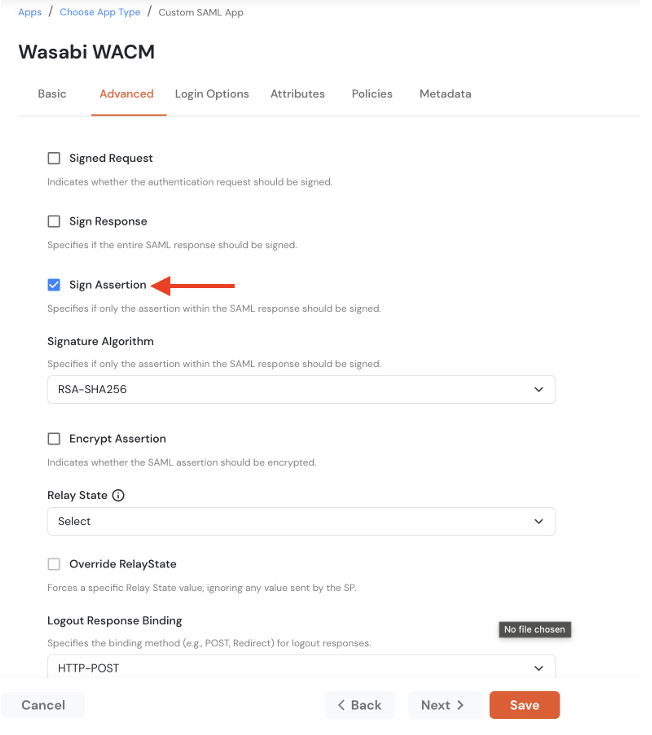
Use the following settings:
Signed Request—Leave unchecked.
Sign Response—Leave unchecked.
Sign Assertion—Select this checkbox.
Signature Algorithm—Use RSA-SHA256.
Encrypt Assertion—Leave unchecked.
Relay State—Use the default setting.
Override Relay State—Leave unchecked.
Keep the remaining settings at their default values.
Click Next to proceed to the Login Options tab.
On the Login Options tab, configure login information.
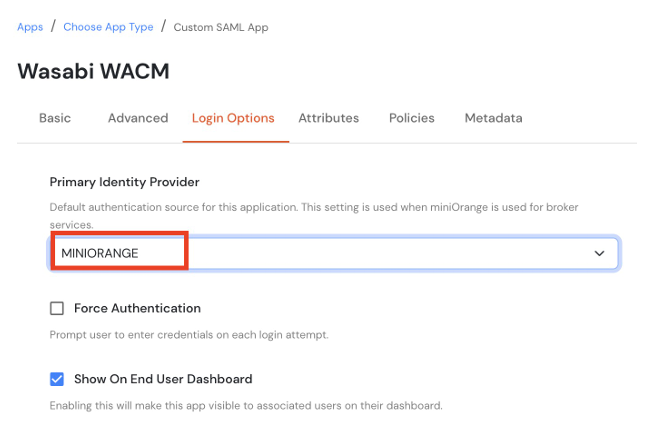
Use the following settings:
Primary Identity Provider—Use MINIORANGE.
Force Authentication—Leave unchecked.
Show On End User Dashboard—Select the checkbox to enable the WACM application for assigned users.
Click Next to proceed to the Attributes configuration tab.
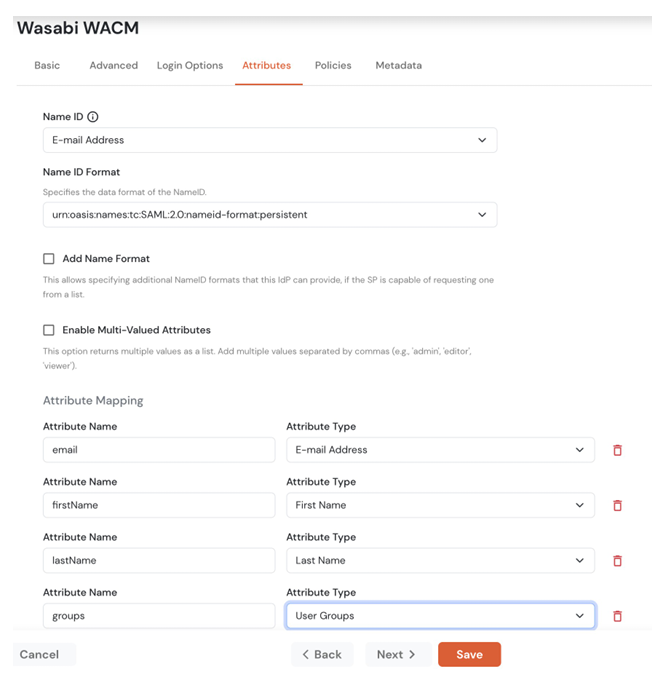
Use the following settings:
Name ID—Use E-mail Address.
Name ID Format—Use urn:oasis:names:tc:SAML:2.0:nameid-format:persistent.
Add Name Format—Leave unchecked.
Enable Multi-Valued Attributes—Leave unchecked.
In the Attributes Mapping section, add the attributes. WACM requires these exact attribute names for authentication:
Attribute Name—Use email and Attribute Type—Use E-mail Address.
Attribute Name—Use firstName and Attribute Type—Use First Name.
Attribute Name—Use lastName and Attribute Type—Use Last Name.
Attribute Name—Use groups and Attribute Type—Use User Groups.
Click Save to complete the SAML configuration.
Attribute names are case-sensitive and must match what WACM expects. For more information, review the WACM Metadata file in the WACM Console. The groups attribute is used by WACM for role assignment, so the group value in the SAML assertion must correspond to the intended WACM role.
Create and Assign a WACM Group in miniOrange
In the miniOrange Admin Console, navigate to Groups, select Manage Groups, then click Add Group.
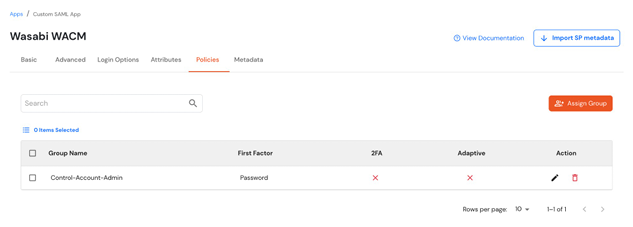
In Group Name, enter the name of the WACM role you want to assign. The group name must match the WACM role name, using dashes (-) instead of spaces. For example, for the Control Account Admin role, enter Control-Account-Admin.
Click Save to create the group.
Locate the newly created group, click the three dots, then select Edit.
Click Assign Users, then select the user(s) who should have access to the WACM Console and save the assignment.
Navigate to Apps, select the Wasabi WACM application, then select the Policies tab.
Click Assign Group, then select the WACM group you created, for example, Control-Account-Admin.
Set First Factor to Password. Leave 2FA and Adaptive Authentication disabled unless required by your organization.
Save the policy.
WACM SSO matches the WACM role names to the value in the groups SAML attribute. Any user in the Control Account-Admin group is assigned the Control Account Admin role in WACM. You can create additional groups for the other WACM roles (for example, Control Account Staff or Control Account Viewer) and assign users to them in the same way.
Configure the Identity Provider Metadata in WACM
In the miniOrange application, open the Metadata tab. Use the IdP details from miniOrange to configure the SAML connection in WACM.
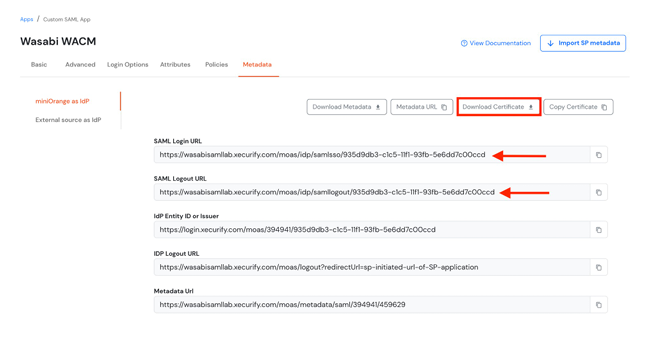
Use the following IdP details:
SAML Login URL—Enter the SAML sign-in URL provided by miniOrange.
SAML Logout URL (optional)—Enter the SAML sign-out URL provided by miniOrange, if applicable.
X.509 Signing Certificate—In miniOrange, click Download Certificate to download the IdP signing certificate. Upload the certificate to WACM in PEM or CER format.
The certificate downloaded from miniOrange is in .crt format, but WACM accepts only .pem or .cer files. Instead of using the downloaded file, click Copy Certificate, paste the certificate into a text editor, and save it as Wasabi_WACM.pem. Upload this .pem file as the X.509 Signing Certificate in WACM.
Configuring SAML Settings in WACM Console (SP / Client Side)
Log in to the WACM Console as a Control Account administrator.
Click your name in the upper-right corner and select My Profile.
Select the Account tab.
On the Account Information page, scroll down and enable SSO (Single Sign On).
Click Start SSO Configuration.
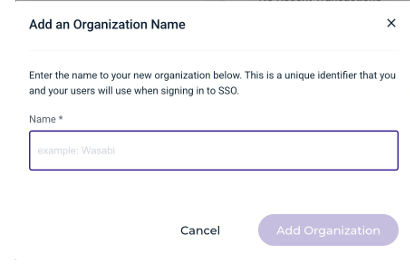
In the Add an Organization Name dialog, enter a unique organization name, then click Add Organization. This organization name is used whenever you sign in with WACM SSO.
Configure SSO connection settings.
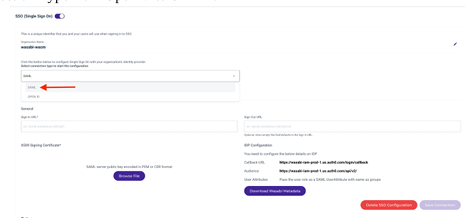
Use the following settings:
SAML Connection—Select the connection type SAML, instead of OPEN ID.
Sign-In URL—Enter the miniOrange SAML login URL.
Sign-Out URL (optional)—Enter the miniOrange SAML logout URL.
X.509 Signing Certificate—Select Browse File and upload the miniOrange IdP signing certificate in PEM or CER format.
Verify that the WACM IdP configuration displays the following values and that the same values are used in the miniOrange SAML application:
Callback URL—
https://wasabi-iam-prod-1.us.auth0.com/login/callbackAudience—
https://wasabi-iam-prod-1.us.auth0.com/api/v2/User Attributes—Pass the user role as a SAML user attribute with the name groups.
Click Save Connection.
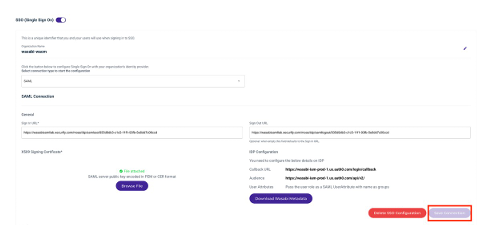
To include your organization's name in the login URL, add the organization parameter, where orgname is your Organization Name. For example:
• WACM—https://wacm.wasabisys.com/en/wasabi/auth/login?organization=orgname
• CCC—https://yourconsole.poweredbywasabi.com/login?organization=orgname
Testing the Integration
To test the SSO login, sign in to the WACM Console at
https://wacm.wasabisys.com/with your credentials, then click Sign in with SSO.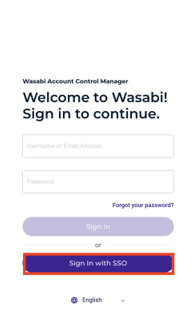
In the Enter Your Organization Name panel, enter the name created earlier, then click Continue. You are redirected to the miniOrange login page.
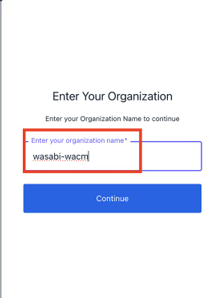
Sign in to miniOrange using an account assigned to the appropriate WACM user group.
After successful authentication, you are redirected back to the WACM Console.
Verify that the user is successfully logged in and can perform the necessary functions based on the permissions of the corresponding WACM role.