Manage Sub-Accounts by viewing account details and metrics, monitoring storage usage, filtering account information, and creating new Sub-Accounts.
Navigating to Sub-Accounts
When you sign in to WACM as a Wasabi Admin, the Distributors tab is displayed by default. In the navigation bar, select Sub-Accounts from the dropdown. The Sub-Accounts page is displayed.
Understand Sub-Account Summary Data
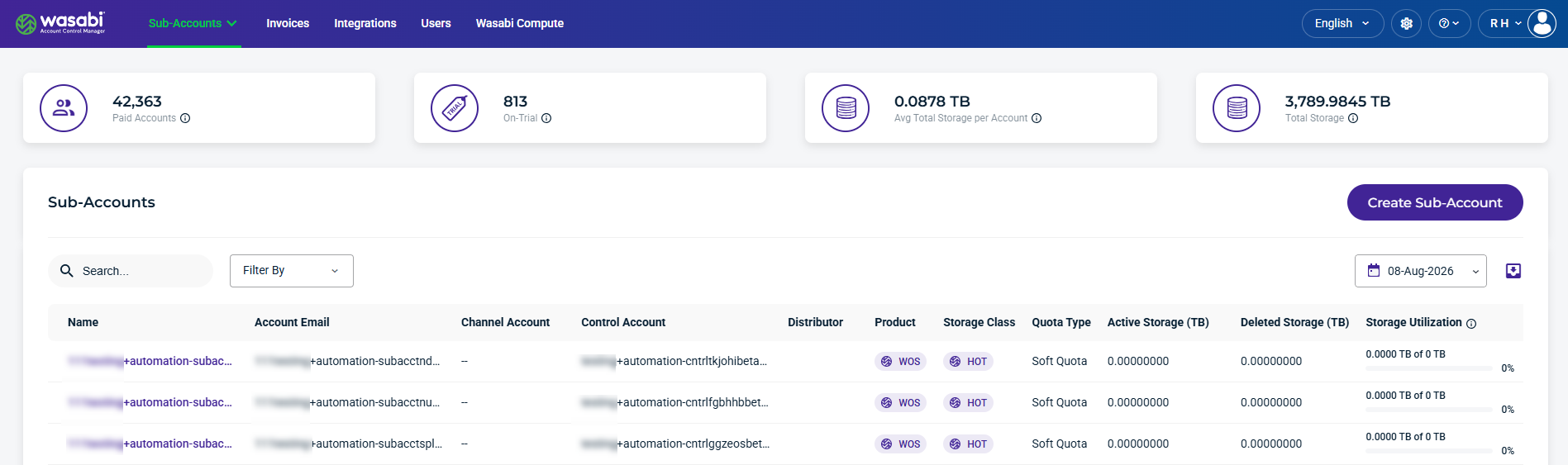
The top section of the dashboard summarizes account and storage information.

Paid Sub-Accounts—The number of paying Sub-Accounts, including suspended paid accounts.
On-Trial—The number of Sub-Accounts in a trial period, including suspended trial accounts.
Average Total Storage per Account—The average amount of storage used per Sub-Account.
Total Storage—The total amount of storage used for active and deleted Sub-Accounts.
Sub-Account Details and Metrics
This section lists the details and metrics for each Sub-Account:
Name—The Sub-Account’s name. This is based on the name entered when the Sub-Account was created.
Account Email—A unique email used for the Sub-Account.
Channel Account—Associated with the Sub-Account, if applicable.
Control Account—Associated with the Sub-Account, if applicable.
Distributor—Associated with the Sub-Account, if applicable.
Product—The product storage type for the account, such as Wasabi Cloud NAS (WCN), Wasabi Object Storage (WOS), or Wasabi Surveillance Cloud (WSC).
Quota Type—The quota type policy for the Sub-Account, either Hard Quota or Soft Quota.
Active Storage (TB)—The amount of currently active storage for the account.
Deleted Storage—The amount of deleted storage for the account.
Storage Utilization—Percentage of storage amount used, based on the configured storage quota value. (Sub-Account Active + Deleted Storage) / Storage Quota.
Creation Date—The date that the Sub-Account was created.
Quota Start Date—The selected start date to begin tracking the object storage used.
Quota End Date—The selected end date to stop tracking object storage used.
Quota Days Remaining—The number of days remaining for the time period selected to track the object storage used.
Quota Date Status—Indicates whether the object tracking period is set or expired.
Deletion Date—The date the Sub-Account was deleted.
Trial Expiration—The date the trial account is set to expire.
MFA—Indicates whether MFA is enabled for the account.
Status—Indicates the sub-account status as Deleted, Denied, On Trial, Paid Account, Password Pending, or Suspended. If the account is On Trial, you will see a colored countdown.
Record Date—The date the Sub-Account usage was recorded.
Find and Refine Sub-Accounts
Use the Search, Filter By, and Calendar tools to find and refine the Sub-Account data displayed on the page. You can also use the Export tool to export Sub-Account data for reporting or further analysis.

Search and Filter By
Use the Search field to find specific Sub-Accounts, and use the Filter By menu to filter specific account details and metrics.
The following Filter By menu options are available:
Control Account—Filter Sub-Accounts by their associated Control Account, if applicable.
Distributor—Filter Sub-Accounts by the assigned Distributor, if applicable.
Product—Filter by the storage product assigned to the Sub-Account, such as WCN, WOS, or WSC.
Quota Type—Filter by the quota policy, select Hard Quota or Soft Quota.
MFA—Filter based on whether multi-factor authentication (MFA) is enabled.
Status—Filter by the current status of the Sub-Account.
Channel Account—Filter by the associated channel account.
Quota Date Status—Filter sub-accounts based on the status of their quota dates.
Has quota start date—Show only sub-accounts that have a configured quota start date.
Has quota end date—Show only sub-accounts that have a configured quota end date.
Show Deleted Accounts—Include deleted sub-accounts in the results. By default, deleted accounts are hidden.
Calendar Tool
The calendar dropdown lets you select a specific Record Date to filter account data.
Export Tool
The Export tool lets you filter results and export data to CSV, JSON, or Excel formats.

Create a Sub-Account
To create a Sub-Account, see Creating a Sub-Account.