AWS Mountpoint for Amazon S3 is an open-source file client that mounts an S3-compatible bucket as a local filesystem, allowing applications to read and write objects using standard file operations. This article describes how to configure AWS Mountpoint to work with Wasabi Hot Cloud Storage.
Requirements
Before proceeding, ensure that you have the following:
AWS Mountpoint for Amazon S3 installed. See the official installation guide for instructions. This solution was tested with version 1.22.2
An active Wasabi account with a bucket created in your desired region. See Creating a Bucket for details on this procedure.
A Wasabi access key and secret key with appropriate permissions for the bucket. See 3—Creating a User Account and Access Key for further information.
Configuration
Configure a Wasabi Profile
AWS Mountpoint reads credentials from the standard AWS CLI configuration files (~/.aws/credentials and ~/.aws/config). You can create these files using the AWS CLI or a text editor such as vi or nano — the AWS CLI is not required for Mountpoint itself.
To create a named profile using the AWS CLI, run the following command and provide your Wasabi access key and secret key when prompted. Change the default region to your preferred region. See Available Storage Regions for details.
$ aws configure --profile wasabi
AWS Access Key ID [None]: YOUR_WASABI_ACCESS_KEY
AWS Secret Access Key [None]: YOUR_WASABI_SECRET_KEY
Default region name [None]: us-east-2
Default output format [None]: json
Alternatively, you may create or edit the files directly with a text editor. Add the following to ~/.aws/credentials:
$ cat ~/.aws/credentials
[wasabi]
aws_access_key_id = YOUR_WASABI_ACCESS_KEY
aws_secret_access_key = YOUR_WASABI_SECRET_KEY
Create a Mount Point Directory
Create a local directory to serve as the mount point for your Wasabi bucket:
mkdir ~/aws-mountpoint-testMounting the Bucket
Basic Mount (Read/Write, No Delete)
To mount a Wasabi bucket, run the
mount-s3command, specifying your bucket name, mount directory, named profile, and the Wasabi endpoint URL for your bucket’s region. The--upload-checksums=offflag is required for compatibility with Wasabi.
$ mount-s3 <bucket-name> ~/aws-mountpoint-test/ \
    --profile wasabi \
    --endpoint-url=https://s3.us-east-2.wasabisys.com \
    --upload-checksums=off
An example of running this command is shown.

Note: This example uses Wasabi’s us-east-2 storage region. Use the endpoint URL for the region where your bucket is located. For a list of regions and their endpoint URLs, see Service URLs for Wasabi’s Storage Regions.
Once mounted, you can copy files into the bucket using standard file operations. The example below copies a file into the mounted directory:
$ cp test4.txt ~/aws-mountpoint-test/Note: By default, AWS Mountpoint does not permit deletion of objects through the mounted filesystem. Attempting to remove a file without the --allow-delete option will result in an “Operation not permitted” error.
An example of an attempted deletion is shown.

Mount with Delete Enabled
To enable object deletion through the mounted filesystem, unmount the bucket and remount it with the
--allow-deleteflag.
$ umount ~/aws-mountpoint-test

$ mount-s3 <bucket-name> ~/aws-mountpoint-test/ \
    --profile wasabi \
    --endpoint-url=https://s3.us-east-2.wasabisys.com \
    --upload-checksums=off \
    --allow-delete
An example of a successful delete is shown.
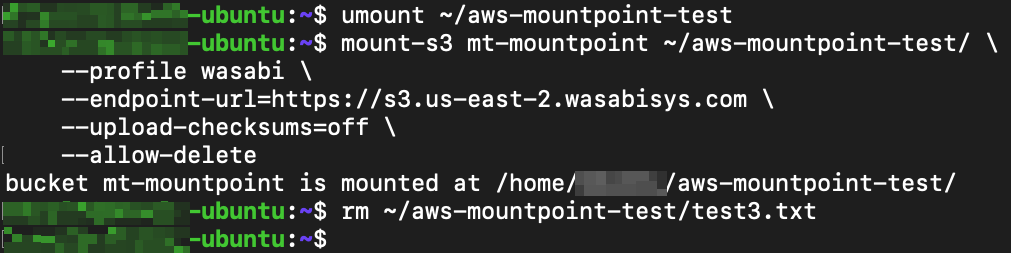
With --allow-delete specified, the rm command completes successfully and the object is removed from the Wasabi bucket.