Cohesity DataProtect is a high-performance, secure backup and recovery solution. Wasabi is validated to be used as an External Target for Cohesity DataProtect. To learn more about the Cohesity + Wasabi solution, refer to our solution brief.
This article describes the procedure for using Wasabi Covert Copy to protect a Golden Copy of Cohesity backups in the event of a disaster that affects other backup copies.
In the case of a disaster, a second, licensed Cohesity DataProtect cluster will be required to recover from your Covert Copy bucket.
Covert Copy's incremental support functionality works with Cohesity DataProtect. For more information about how Covert Copy supports incremental backups, refer to Covert Copy: Using Incremental Support.
The data restoration process is handled by your specific backup software application. As many variables can affect your unique environment, Wasabi strongly recommends that you seek guidance from your backup software’s technical support team if you encounter difficulties or have application-specific inquiries.
Requirements
Cohesity DataProtect is installed and licensed. This solution was tested with 7.3_release-20251021_a422614d.
A second, licensed Cohesity DataProtect cluster.
An active Wasabi Hot Cloud Storage account.
An active Cohesity DataProtect external target pointing to a Wasabi bucket.
Existing backups reside in a Wasabi Object Locked (immutable) bucket or a bucket with Versioning-only. The Versioning and Object Lock features must have been enabled on the bucket previously.
Multi-Factor Authentication (MFA) is enabled for the Wasabi account root user. See MFA (Multi-Factor Authentication) for details on how to enable and use MFA on your account.
High-Level Steps
Follow the high-level steps below to implement Covert Copy for your Cohesity backups. Specific details can be found in the sections listed below.
Enable Multi-User Authorization (MUA) on your account and configure Covert Copy activities that your security contacts approve.
Pause Cohesity backup activities by disabling the protection group backup jobs pointing to Wasabi.
Enable Covert Copy on the bucket that contains Cohesity backups.
Wait for your Cohesity backups to be copied to the Covert Copy bucket.
Resume Cohesity backup activities by enabling protection backup jobs pointing to Wasabi.
In the case of a disaster, a second Cohesity DataProtect cluster will be required. On this second cluster, a Cohesity external target pointing to the Covert Copy bucket may be created and a restore performed. This will require creating a Wasabi Support ticket to place the Covert Copy bucket in Restore Mode and make it visible to Cohesity.
Enabling Multi-User Authorization (MUA) on Your Account
Log in to the Wasabi Console.
Click Security in the navigation panel. Click MUA.
.png)
If you have existing security contact(s), follow this step. If you do not have existing security contact(s), follow Step 4.
Click the three vertical dots under Action. Click Edit Activities.
.png)
Click the down arrow under Activities.
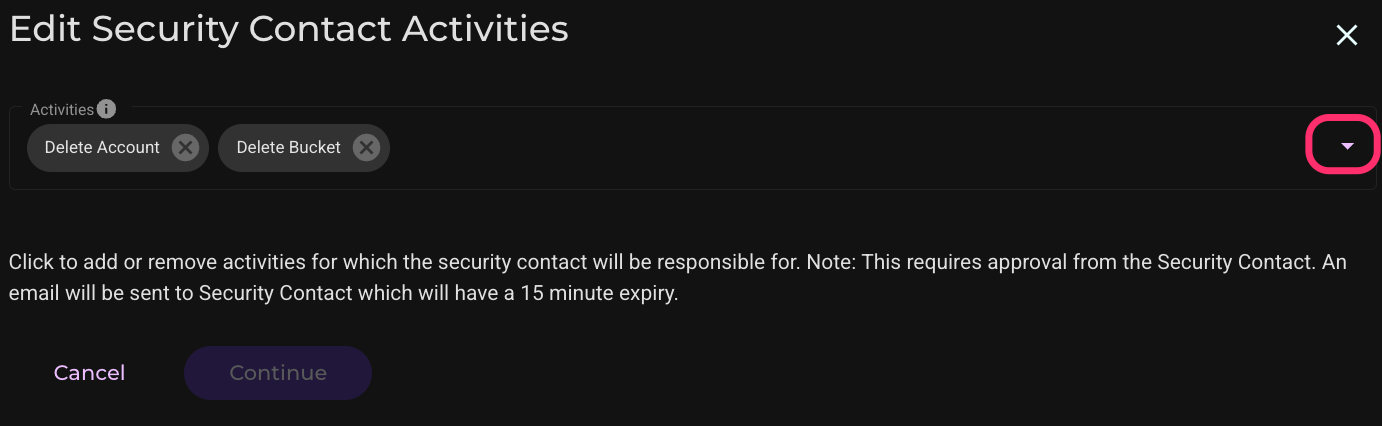
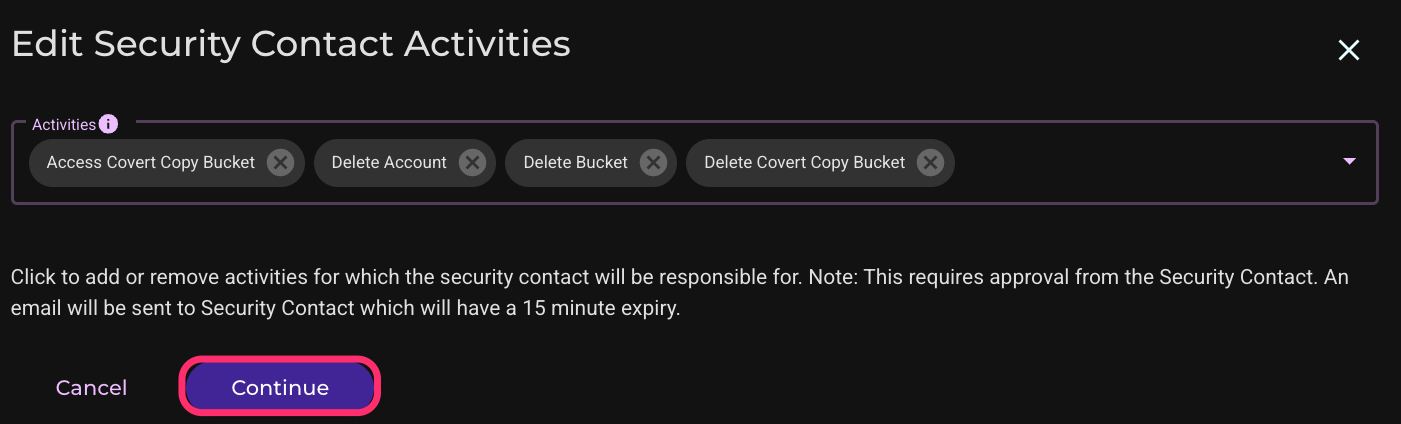
Check to select the Delete Covert Copy Bucket and Access Covert Copy Bucket options.
.png)
Click Continue.
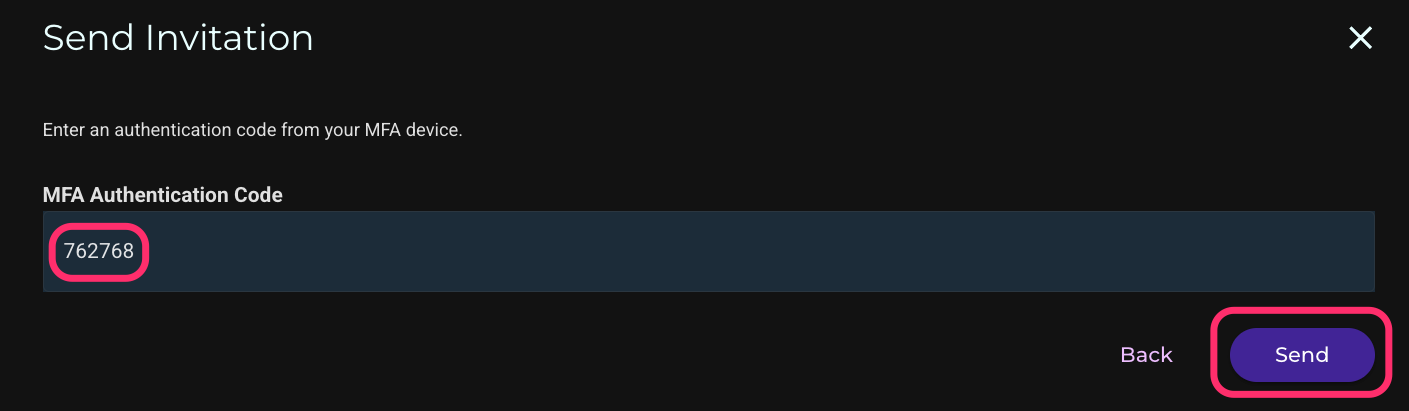
Enter your Multi-Factor Authentication (MFA) code. Click Send. This will send an invitation to your security contact, who must approve within 15 minutes for the changes to take effect.
Repeat Step 3 for your other security contact(s).
If you do not have any security contacts:
Click Add Security Contact.
.png)
Enter the security contact’s email address and select all activities.
.png)
Click Continue.
.png)
Enter your Multi-Factor Authentication (MFA) code and click Send. This will send an invitation to your security contact, who must approve within 15 minutes for the changes to take effect.
.png)
Repeat Step 4 for your other security contact(s).
Enabling Covert Copy Email Notifications
In the Wasabi Console, click Settings, then click Notifications. Enable the Email Notification slider next to Covert Copy, enter your MFA code, then click Save Changes.

Click Save Changes on the pop-up window.

Pausing Cohesity Backup Activities
Log in to your Cohesity DataProtect console.
Pause the protection group(s) pointing to Wasabi. Go to Data Protection, then Protection. Select the protection group(s) pointed to Wasabi. Click the Pause button with two vertical lines.

Click Confirm.

The protection group will be paused.

Wait for current backup jobs to complete.
Enabling Covert Copy
Log in to the Wasabi Console.
Click Buckets, then click the three vertical dots next to the bucket containing your Cohesity backups.

Click Covert Copy.

Enter the region for the Covert Copy bucket. For the other settings, it is recommended to keep the default values as shown in the screenshot below. Click Next.
.png)
This configuration example discusses using Wasabi’s us-west-2 storage region for the Covert Copy bucket. For a list of regions, see Available Storage Regions. The region must be on the same continent as the primary bucket.
Enter your MFA code on the next screen. Then, click Create Bucket.

Move the slider to enable Show Covert Copy Buckets on your list of buckets. The Covert Copy Status will show In Progress until all objects in the source bucket have been copied to the Covert Copy bucket.

There is no estimated time for the Covert Copy process, as many variables affect it, such as the number of objects in the source bucket. It may take a significant amount of time. When the process is complete, the Covert Copy Status will show Covert Copy Completed. You will also receive an email letting you know the process has completed.

Optionally, to see the data in the Covert Copy bucket, click the three vertical dots next to the bucket on the right side of the Wasabi console. Click Request Access.

Click Send Request to request permission from your security contact(s) to view the Covert Copy bucket contents.

The security contact(s) have 15 minutes to approve the request. After the security contacts approve the request, you may view the bucket contents for 24 hours. Go to Buckets and enable Show Covert Copy Buckets. Click the name of the Covert Copy bucket.

Resuming Cohesity Backup Activities
Log in to your Cohesity console.
Enable the protection group(s) pointing to Wasabi. Choose Data Protection, click Protection. Select the checkbox next to the protection group(s) pointing to Wasabi. Click the Play button (small triangle).
.png)
The protection group(s) will be enabled.

In Case of Disaster
The example below shows how to recover a Virtual Machine (VM) from a Covert Copy bucket.
In the case of a disaster, the root user may submit a Wasabi Support ticket by emailing Wasabi Support (support@wasabi.com). In the email, request Restore Mode and include the name of your Covert Copy bucket. After Support enables Restore Mode, the Covert Copy bucket will be visible to Cohesity and will allow restores from backups in the bucket.
A second licensed Cohesity DataProtect cluster must be made available for the restoration.
On the second cluster, click Infrastructure, then click External Targets. Click Add External Target.

Configure the following for the Covert Copy target, then scroll down.
Select the radio button next to Archival.
Select S3Compatible from the drop-down Storage Type menu.
Select Regular from the Storage Class drop-down menu.
Enter your Covert Copy bucket name.
Enter your Wasabi access key.
Enter your Wasabi secret key.
Enter the endpoint associated with your Covert Copy bucket.
Configure port 443.
Leave the Region blank.
Select Storage Optimized.
Ensure the slider next to Secure Connection (HTTPS) is enabled.
Select AWS Signature Version 4.

Give the external target a name. If Object Lock was enabled originally (on the original Wasabi bucket), enable Archive Object Lock here. Be sure to leave encryption disabled even if it was used on the original target. We tested both non-encrypted and encrypted backups using a manually managed key. We did not test with the Cohesity built-in KMS service. Click Register.
.png)
You will now see the registered external target.

Click Data Protection then Cloud Retrieve. Click Start Search.

Select the Covert Copy external target from the drop-down menu. Set the appropriate date range, and attach a manually managed key file if encryption was used originally. Click Search.

The search will be running. Refresh the page to get an updated view.

When the Status shows Success, click the checkbox next to the recovered protection group. Select the Storage Domain (we selected the Default Storage Domain). Click Download.

Click OK.

After the Protection Group Meta-Data and Snapshot both show Success, proceed to the next step.

Click Data Protection, then Recoveries. Click Recover.

Click Virtual Machines, then click VMs.

Enter an asterisk (wildcard) in the search field and click Enter. Select the VM(s) you wish to recover and click Next: Recover Options.
.png)
Configure the options appropriate for your restore. In the example, we used a Registered Source we previously configured and a New Location. Scroll down.
.png)
Continue configuring the options. We left the network as Unattached to avoid IP address conflicts with the original server. Click Recover.

Click Start Recovery.

You will see the Status show Succeeded when the recovery is finished. You may have to refresh the page to update the results.
