Xen Orchestra has been validated for use with Wasabi. Xen Orchestra is a management tool dashboard for the XCP-ng hypervisor which allows you to manage your virtual machine deployments, lifecycle, and backups. For more information, refer to Xen Orchestra in a nutshell.
This article describes the procedure for using Wasabi Covert Copy to protect a Golden Copy of Xen Orchestra backups in the event of a disaster that affects other backup copies. Wasabi Covert Copy is an effortless way to safeguard your data by creating a locked copy of your S3 bucket. Covert Copy is easy to implement, with no configuration requirements or technical knowledge required.
Covert Copy is a static, one-time copy and not an ongoing replication.
The data restoration process is handled by your specific backup software application. As many variables can affect your unique environment, Wasabi strongly recommends that you seek guidance from your backup software’s technical support team if you encounter difficulties or have application-specific inquiries.
Requirements
Wasabi Hot Cloud Storage account
Wasabi Multi-User Authorization enabled—See MUA (Multi-User Authorization).
Wasabi Bucket—See Creating a Bucket.
Be sure to note your bucket name, storage region URL, and Access & Secret Key, as you will need these for later steps.
XCP-ng & Xen Orchestra environment
XCP-ng Installed (8.3 LTS as of this documentation)—See Install XCP-ng.
Xen Orchestra Installed (Version 6.0.3 as of this documentation)—See Installing XOA.
Xen Orchestra Essential Edition License or better—See the Vates Pricing & Support.
Existing Backup of a Xen Orchestra VM—See our Xen Orchestra With Wasabi for setting up your initial backups before proceeding.
High Level Steps
Follow the high-level steps (described in more detail below) to implement Covert Copy: Setting Up and Creating a Covert Copy for your Xen Orchestra backups.
Enable Multi-User Authorization (MUA) on your account and configure Covert Copy activities that your security contacts approve. For more detail, review MUA (Multi-User Authorization)
Pause Xen Orchestra backup activities by temporarily disabling backup jobs.
Enable Covert Copy on your bucket containing Xen Orchestra backups.
Wait for your Xen Orchestra backups to be copied to the Covert Copy bucket.
Resume Xen Orchestra backup activities by re-enabling backup jobs.
Pausing Xen Orchestra Backups
Visit your Xen Orchestra Dashboard and select the Backups tab.
Click Enabled next to the relevant backup job.

Your Backup Job is disabled.

Enabling Covert Copy
Log in to your Wasabi Console.
Select the Buckets tab and search for your Xen Orchestra Backup bucket.
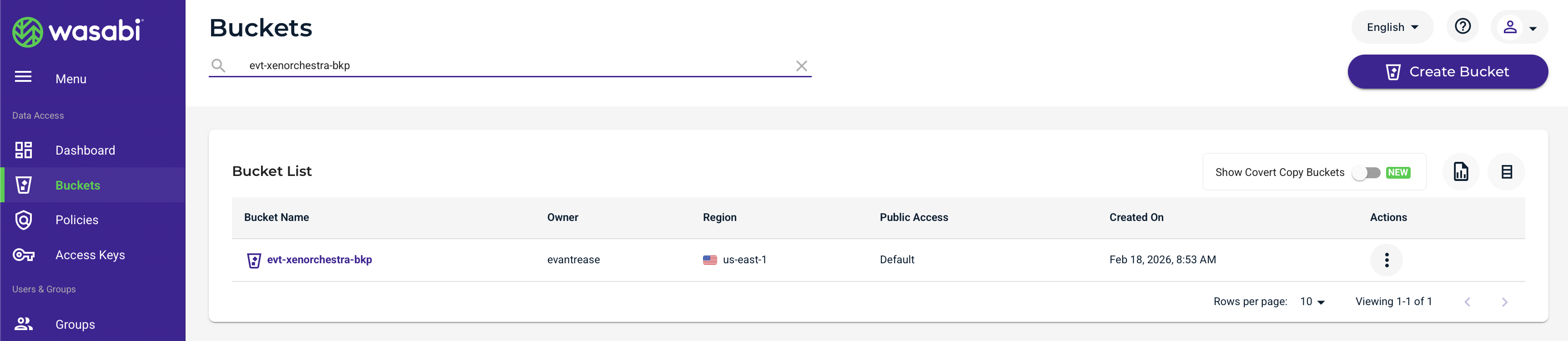
Click the three dots icon under Actions.
Click Covert Copy.
Verify settings on the next screen. Click Next.
This configuration example discusses the use of Wasabi’s us-east-1 storage region for the Covert Copy bucket. For a list of regions, see Service URLs for Wasabi's Storage Regions. The region must be on the same continent as the primary bucket.
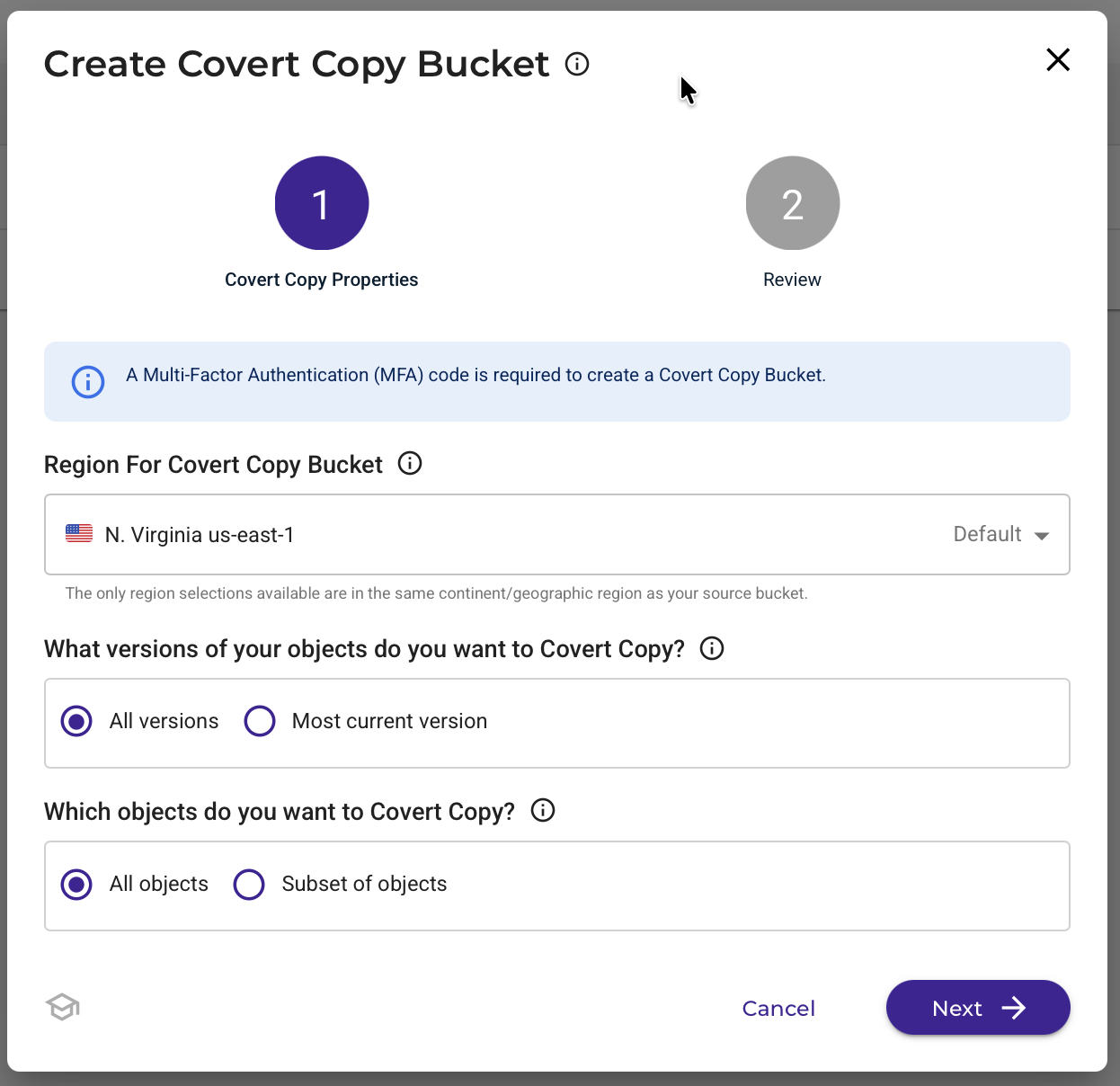
Enter your MFA code.
Click Create Bucket.
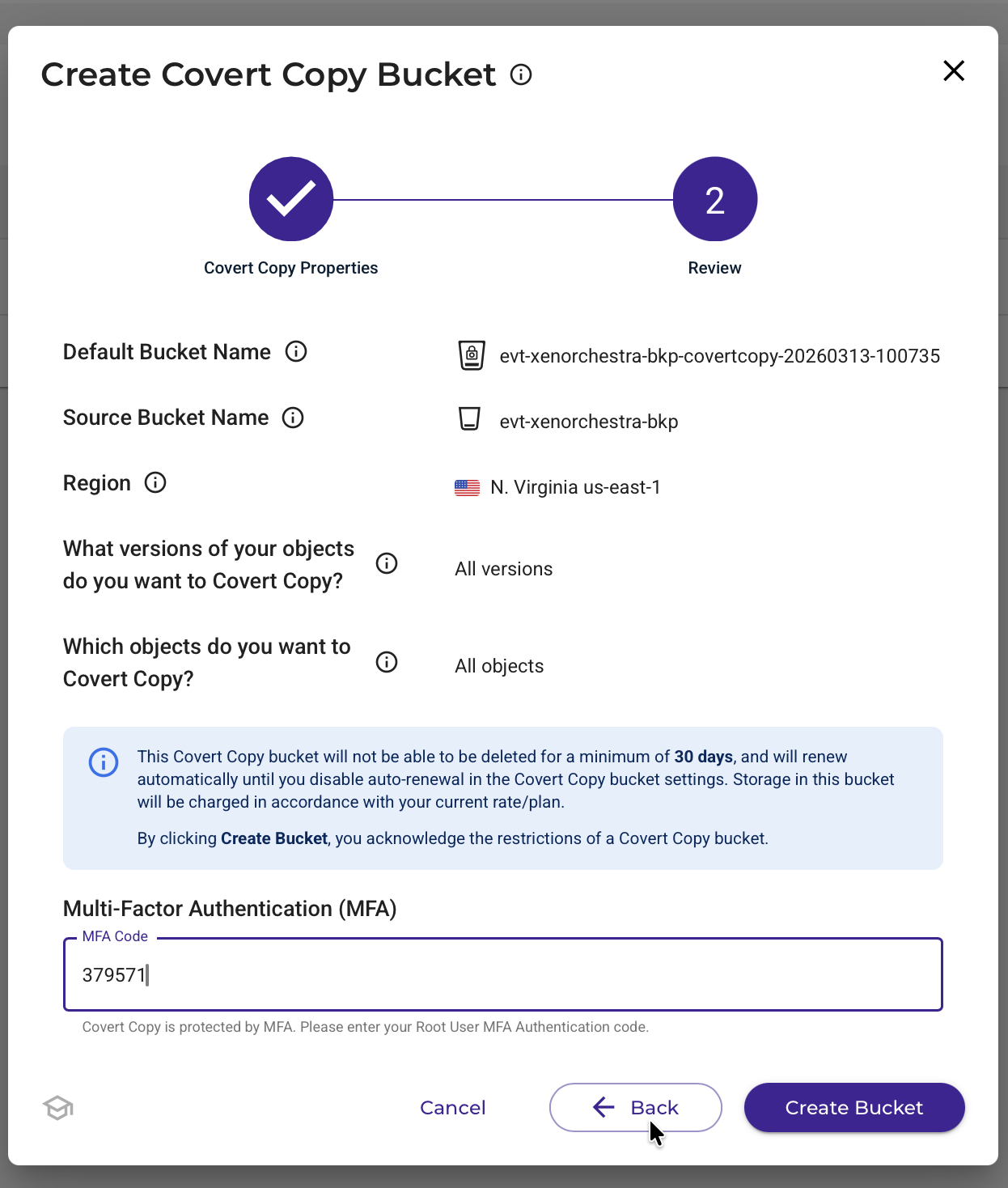
Click the toggle to Show Covert Copy Buckets. Your Covert Copy will show as in progress until the data is copied to the Covert Copy bucket. This process will take varying amounts of time depending on how much data is in the source bucket.
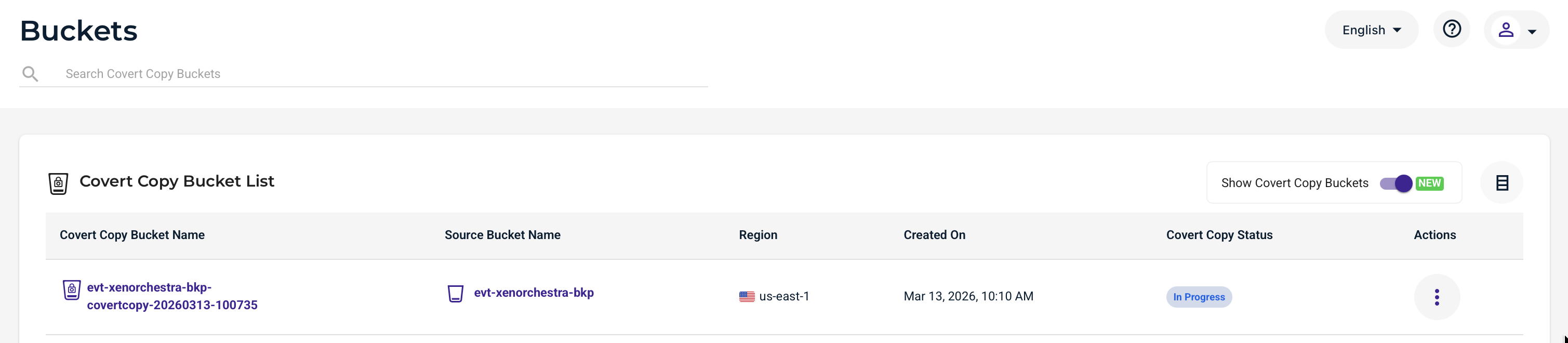
Once the Covert Copy operation has completed, the status will show as Covert Copy Completed.
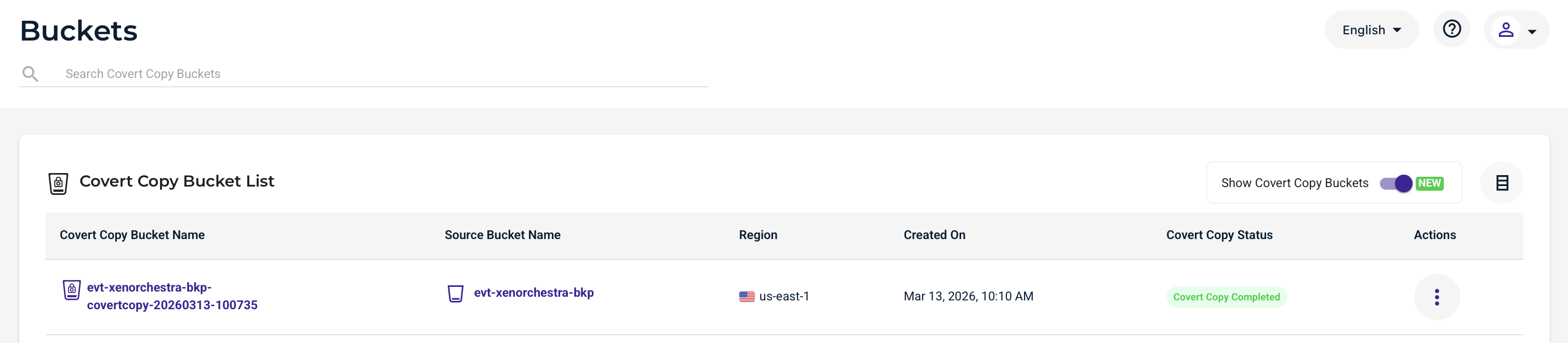
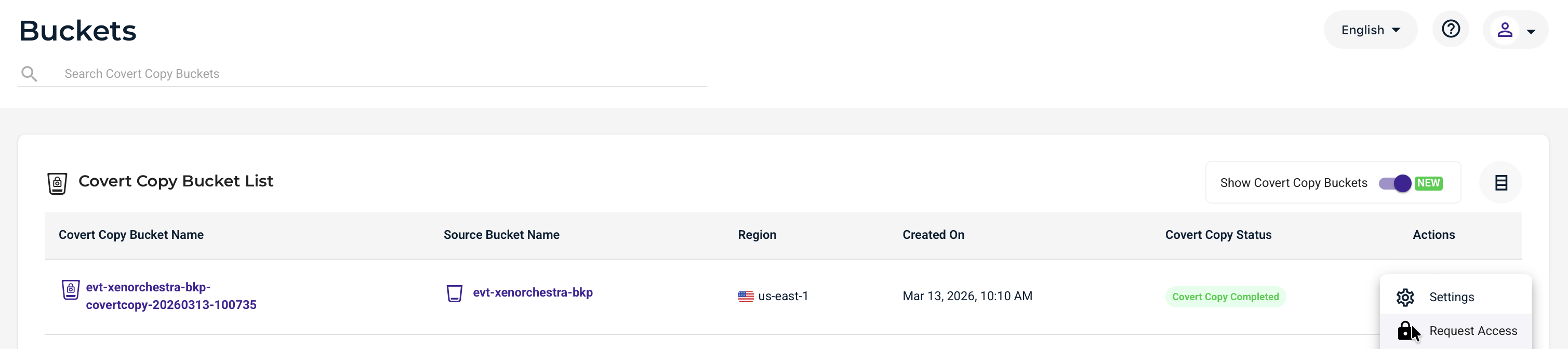
Optionally, to see the contents of the Covert Copy bucket, click the three dots icon under Actions.
Click Request Access.
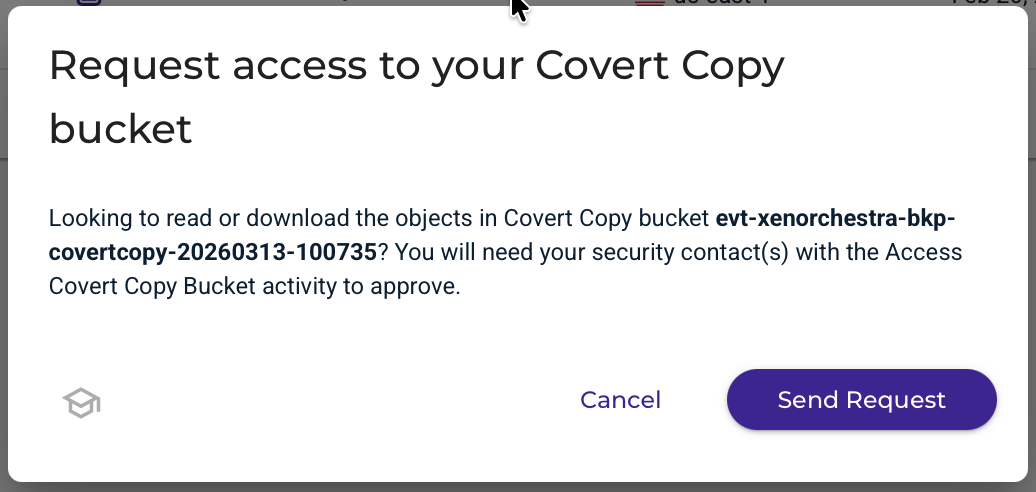
On the pop-up, click Send Request. Your MUA security contact will need to approve this request.
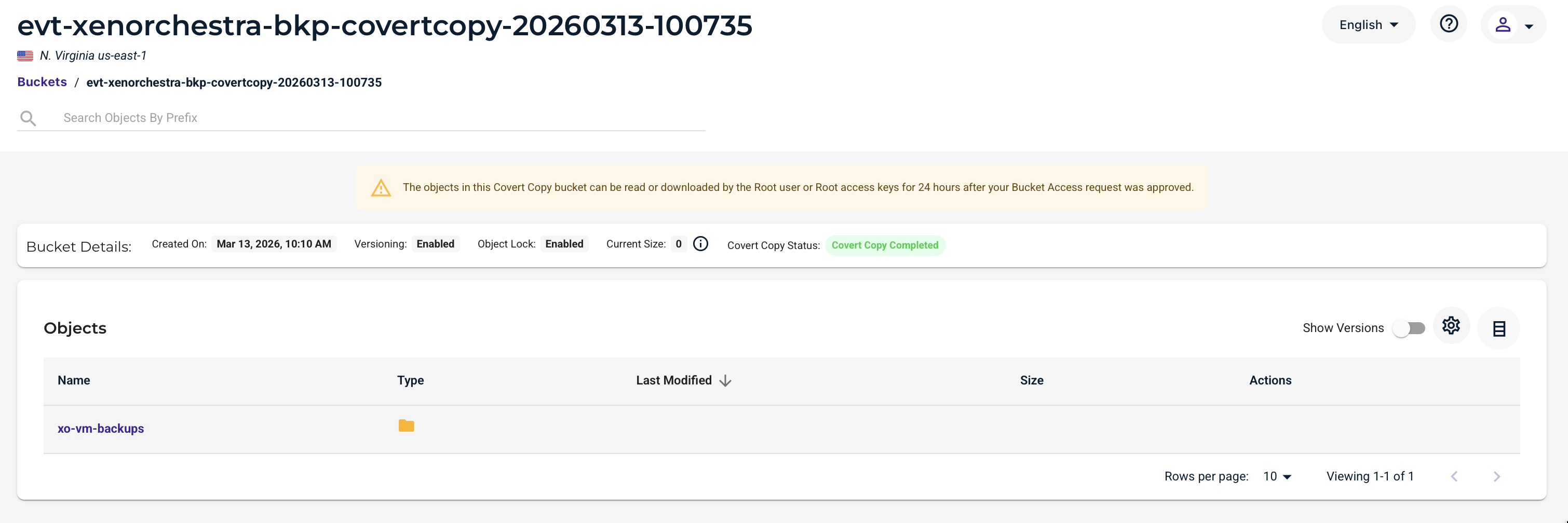
After your Multi-User Authentication security contact has approved the request, you will be able to browse the contents of the Covert Copy bucket.
Resuming Xen Orchestra Backups
Visit your Xen Orchestra Dashboard and select the Backups tab.
Click Disabled next to the relevant backup job.
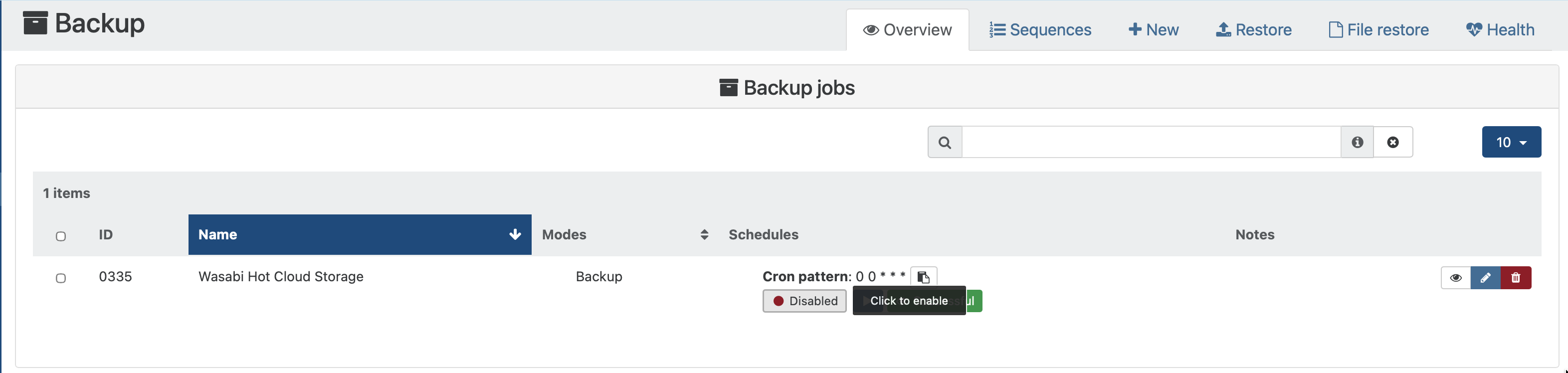
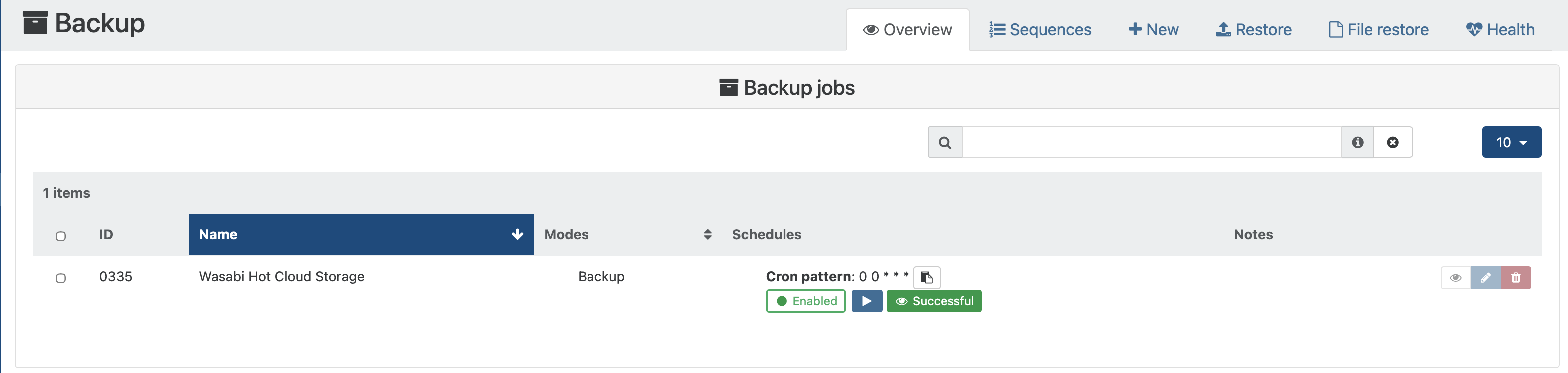
Now your backup job is Enabled.
In Case of Disaster - Adding Your Covert Copy Bucket as a Xen Orchestra Remote
In the case of a disaster, the root user use this email address to submit a ticket to Wasabi Support: support@wasabi.com. In the email, request Restore Mode and include the name of your Covert Copy bucket. After Support enables Restore Mode, the Covert Copy bucket will be visible to Xen Orchestra and will allow a restore to be performed from backups in the bucket.
Once your restore has completed, use this email address to contact Wasabi Support (support@wasabi.com) to disable Restore Mode on your Covert Copy bucket.
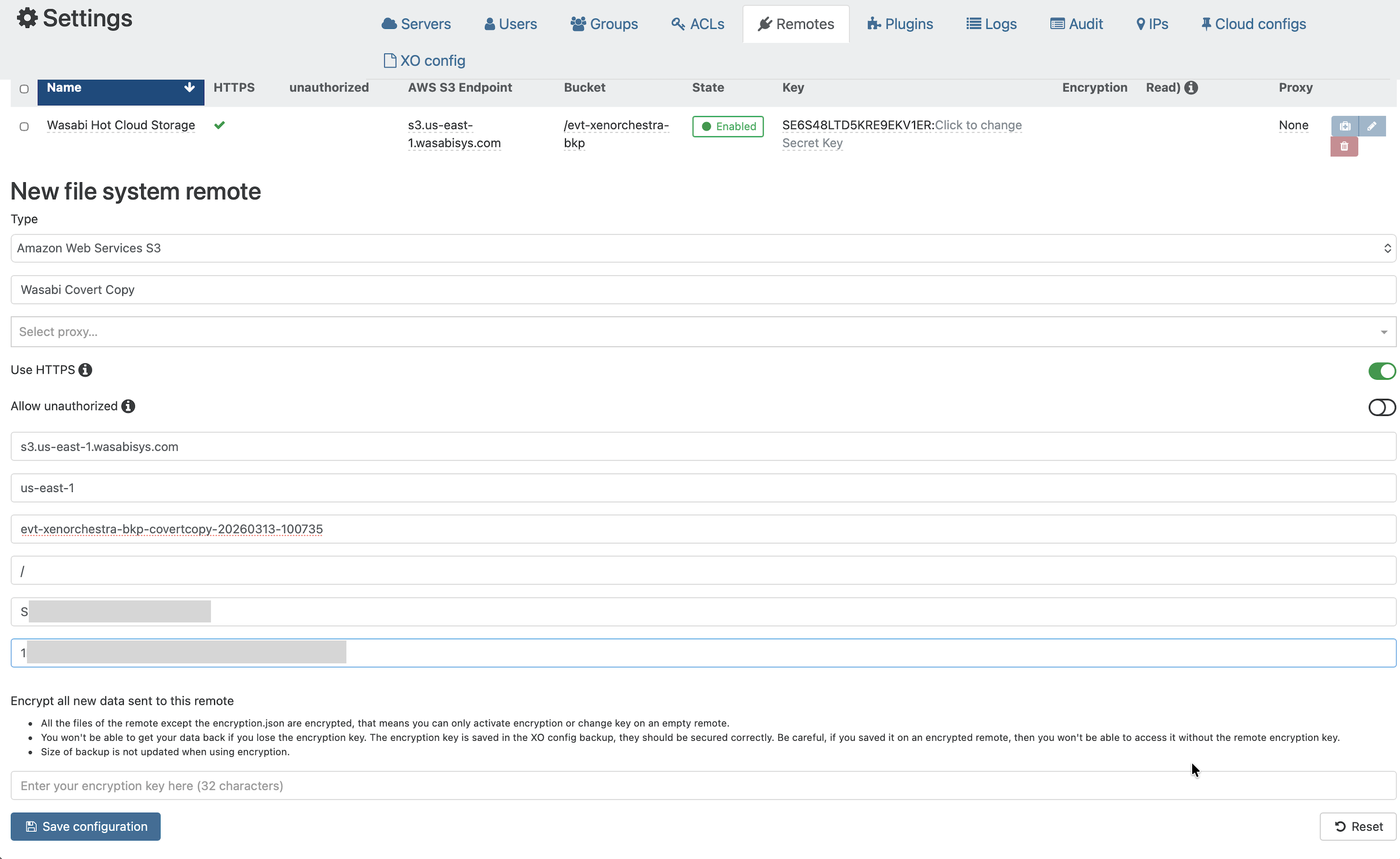
Add your Covert Copy bucket as another Remote in the Xen Orchestra dashboard (Log in to your Xen Orchestra dashboard and navigate to Settings, then to Remotes.)
For Type, choose Amazon Web Services S3 from the drop-down.
Enter a friendly name for your Remote (for example, Wasabi Covert Copy).
Ensure Use HTTPS is toggled on (default).
Enter the Service URL for the bucket (for example, s3.us-east-1.wasabisys.com).
Enter the region (for example, us-east-1).
Enter the name of your Covert Copy bucket.
Enter a / or your custom directory for the backups.
Enter your Access Key.
Enter your Secret Key.
Click Save Configuration.
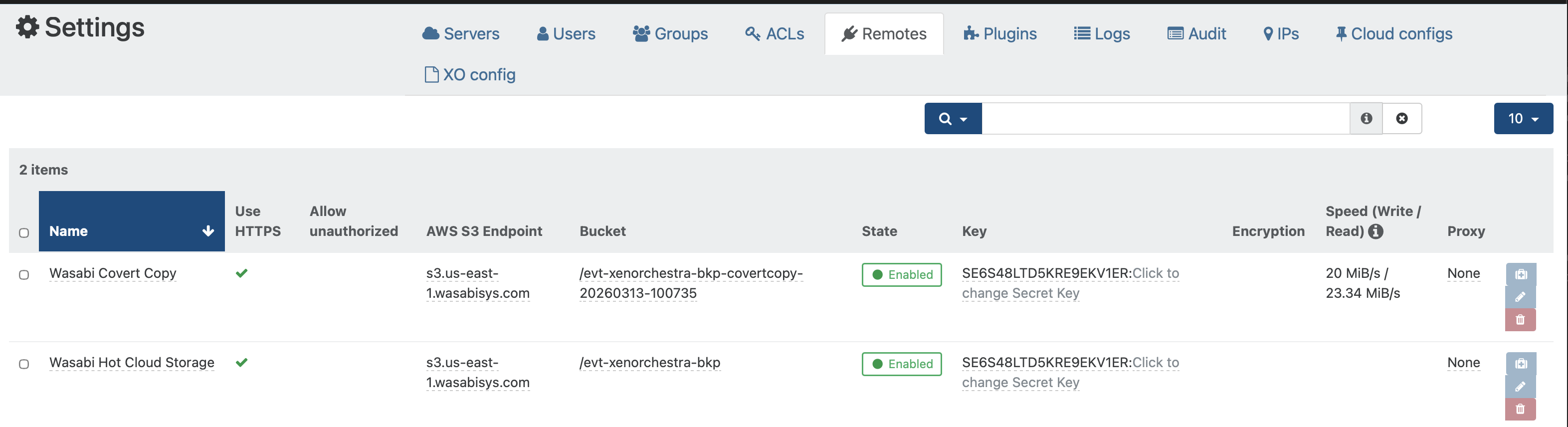
Your Covert Copy bucket will now show up as a new Remote.
Restoring From Your Covert Copy Remote
Visit the Restore page of your Xen Orchestra dashboard (Navigate to Backups, then to Restore).
Click Restore next to the relevant VM.
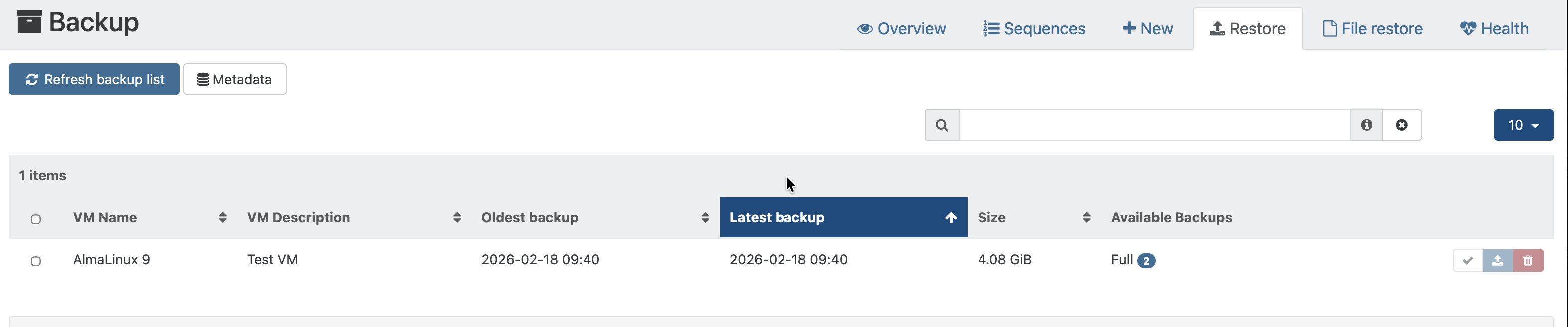
Xen Orchestra will automatically index the backups in your Covert Copy bucket. You can choose the replicated Remote in the Restore options.
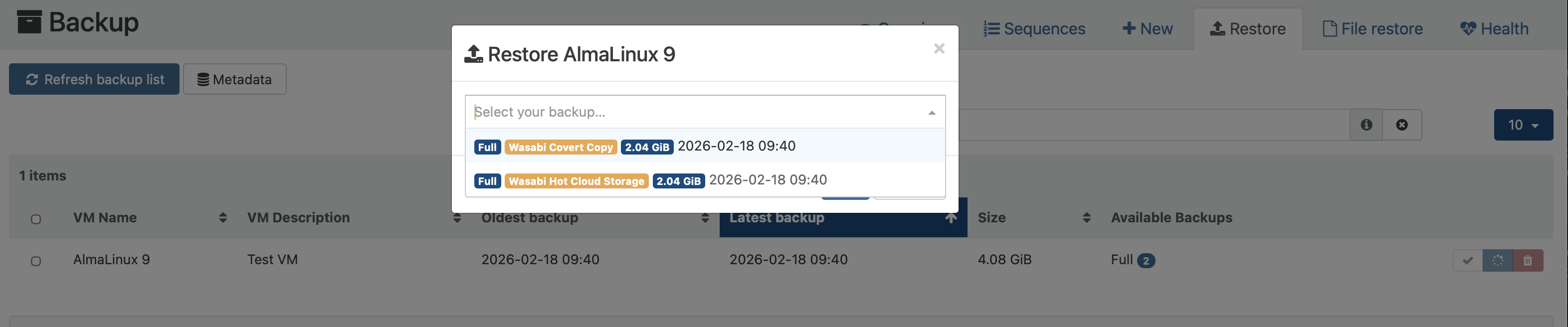
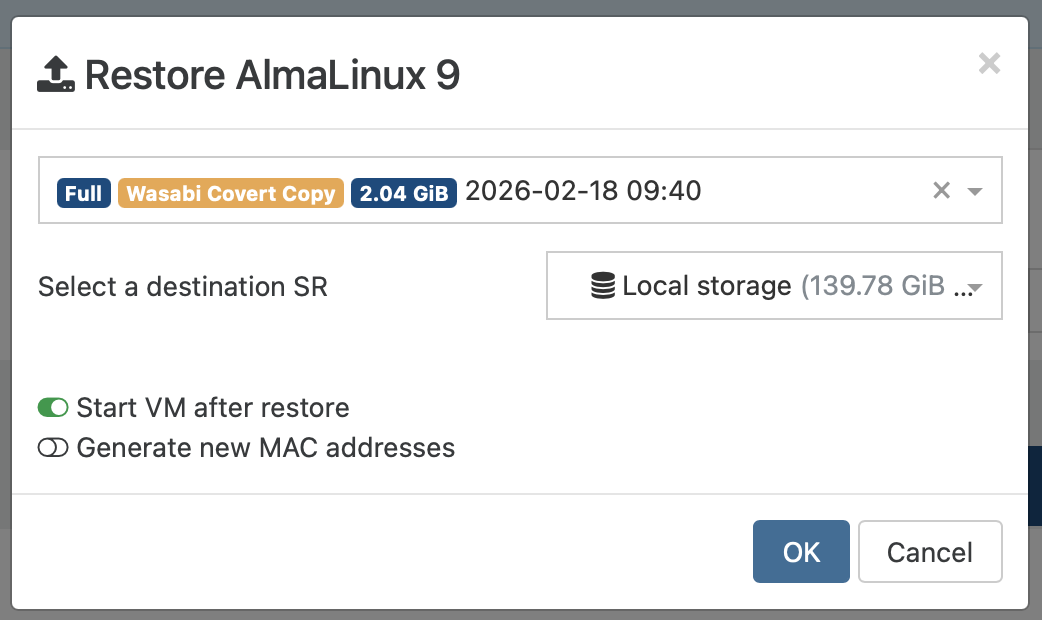
Once you have selected your Covert Copy backup from the drop-down, verify optional settings. Click OK.
Your Restore progress will then be shown on the Tasks tab of your Xen Orchestra Dashboard.

Once the restore completes. You will see the newly restored VM on the Home Tab of your Xen Orchestra dashboard.

After a successful restore, use this email address to contact Wasabi Support (support@wasabi.com) to request that Restore Mode be disabled for your Covert Copy bucket.