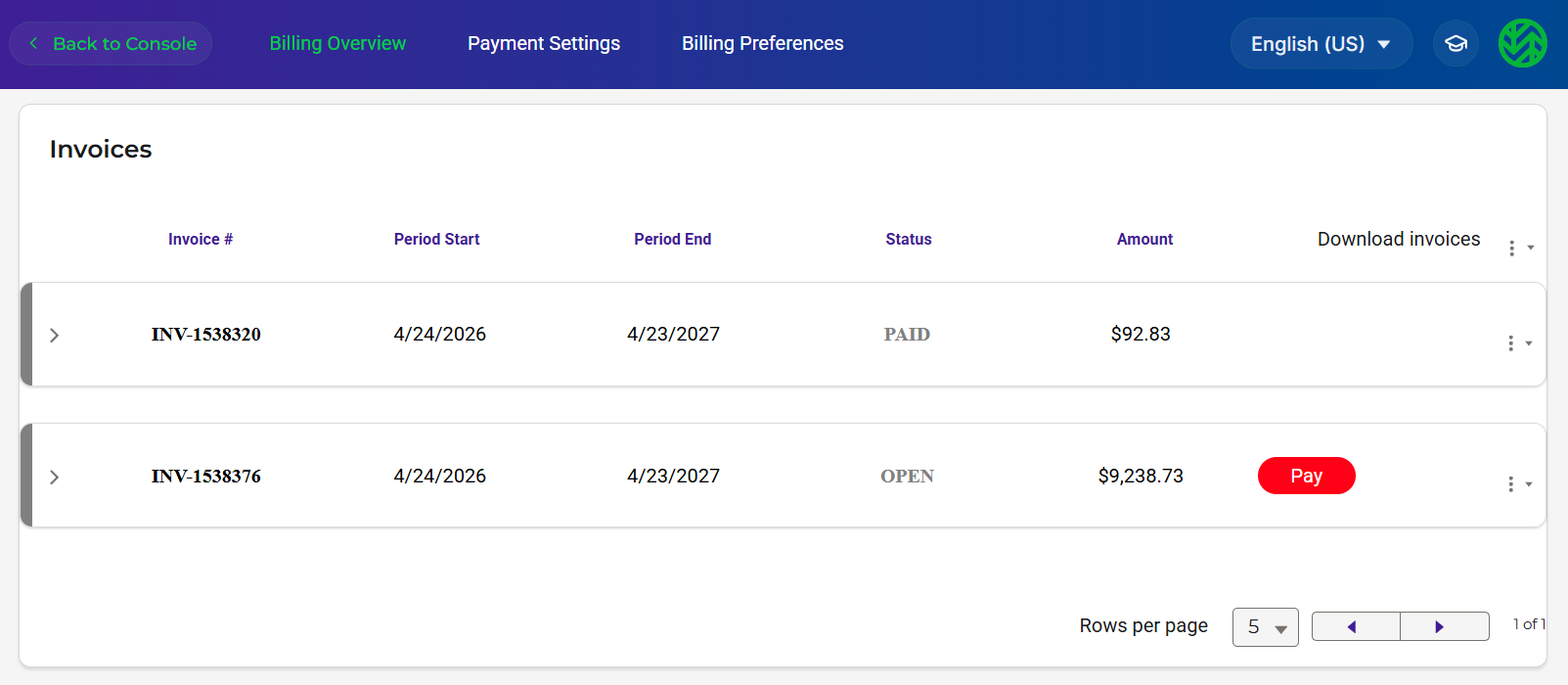
The Billing Overview tab lists all invoices with:
Invoice number
Period start and end dates
Status of the invoice
Amount of the invoice
If you have a Trial account, you will not see the Billing Overview, but rather a Trial Upgrade option. You can click this option and refer to Upgrading to a Paid Plan.

If you are an RCS customer, you will see a Billing portal such as:
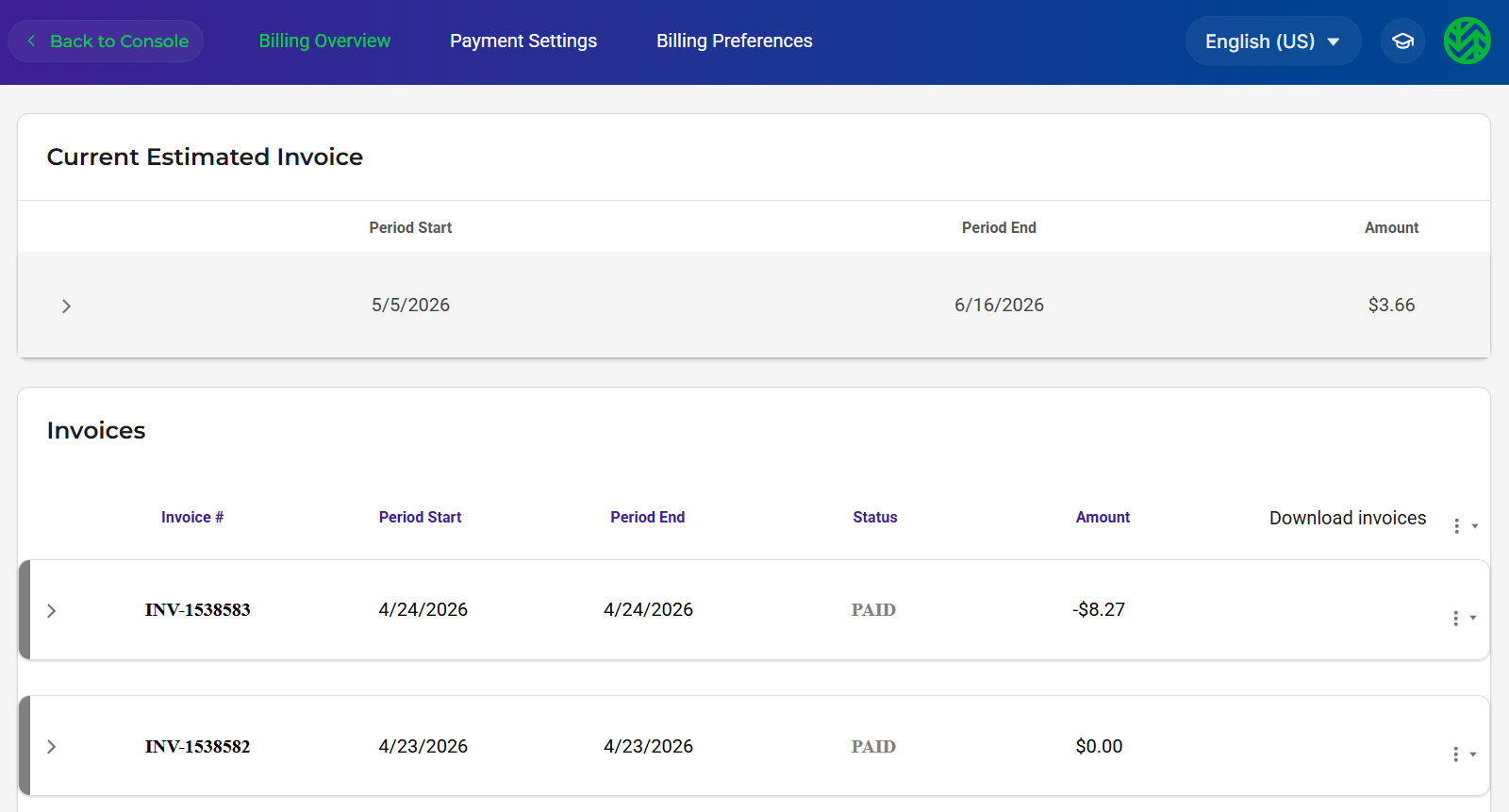
If you are a Pay-Go customer, you will see an additional area estimating your next invoice. This is a projected billing amount based on current utilization. For example:
Reviewing Invoice Details
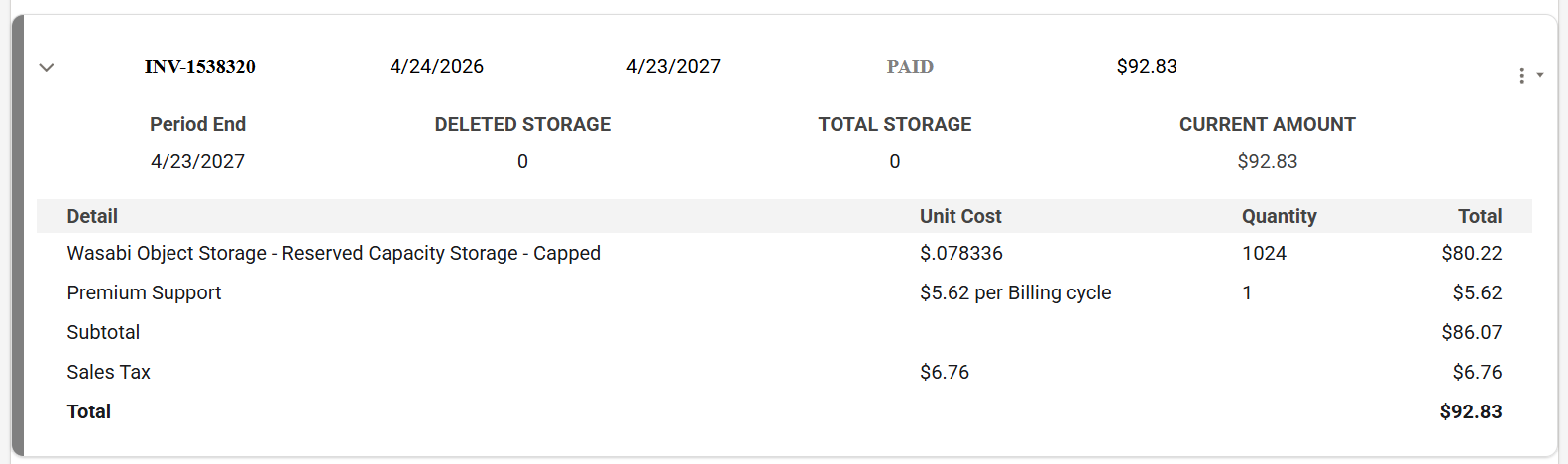
Click anywhere on the invoice line to display invoice details. This shows current usage as of the date specified, including the amount of deleted storage, total storage, and billing amount due. For example:
Paying an Open or Past Due Invoice
When the red  button appears on an invoice line, you can:
Click the button and proceed to make a payment.
Click Pay to confirm that you want to make the payment using your default payment method.
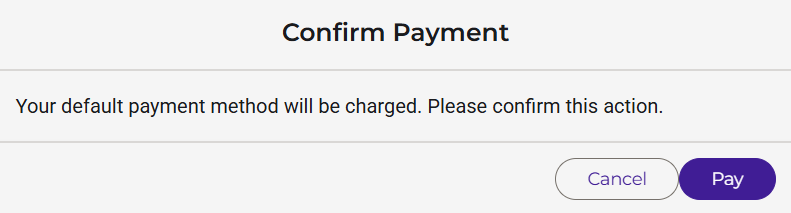
A message at the top of the screen will indicate that your payment was successful.

Downloading a PDF of an Invoice
Click
 to the right of a specific invoice to download.
Select Download Invoice.
Downloading Multiple Invoices
You can download all invoices, invoices for the current year, or invoices for a previous year.
Click
to the right of the invoice headings: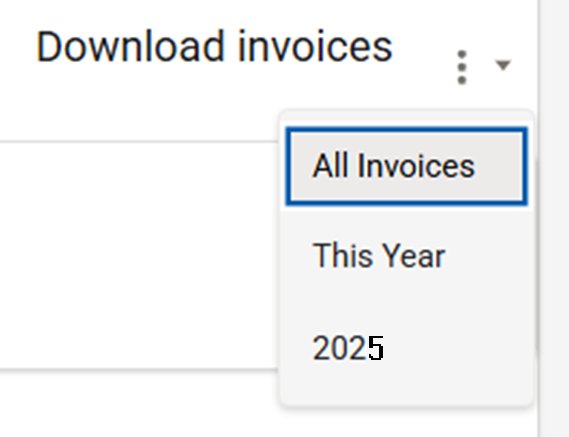
Select an option for the download.
The invoices are downloaded as individual PDF files that are zipped.
Downloading Utilization Information
You can download a summary of bucket utilization in a CSV file.
Click
to the right of an invoice.Select Download Utilization.
When you download billable utilization statistics in a CSV file, information will be similar to the example below. Each row of the table represents a different bucket. Previously deleted buckets are also listed in this CSV file (the example has duplicate bucket names for that reason). It will take up to 24 hours for a new bucket to be listed. (A billing cycle that runs every 24 hours needs to be completed at least once for the bucket to be available in the CSV.)
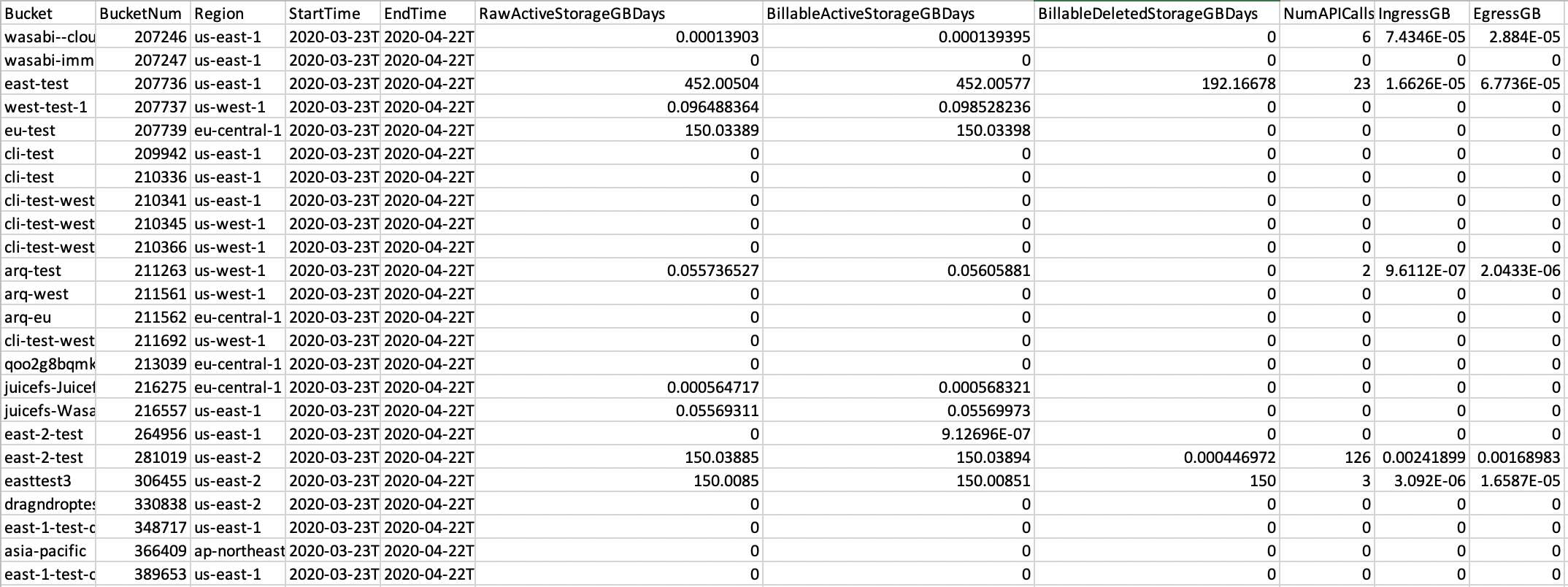
Each row includes:
Bucket—Bucket name.
BucketNum—System-wide internal bucket number.
StartTime—Start of the measurement period (in UTC time).
EndTime—End of the measurement period (in UTC time).
RawActiveStorageGBDays—Sum of the number of gibibyte-days (GiB) of the objects during the invoice period. Wasabi invoices in units of GiB-days to account for the passage of time because storage, which will fluctuate over time, is measured daily during the 30-day monthly period.
BillableActiveStorageGBDays—Total number of storage gibibyte-days and associated metadata consumed by all Active Storage objects in the bucket during the invoice period.
BillableDeletedStorageGBDays—Total number of storage gibibyte-days and associated metadata consumed by all Deleted Storage objects in the bucket during the invoice period (storage that has not yet met the 90-day minimum storage period).
NumAPICalls—Number of API calls against the bucket.
IngressGB—Number of ingress (upload) gibibytes against the bucket.
EgressGB—Number of egress (download) gibibytes against the bucket.
For more information, refer to a description of how Wasabi uses GiB (gibibyte) for billing calculations.
Reviewing More Details
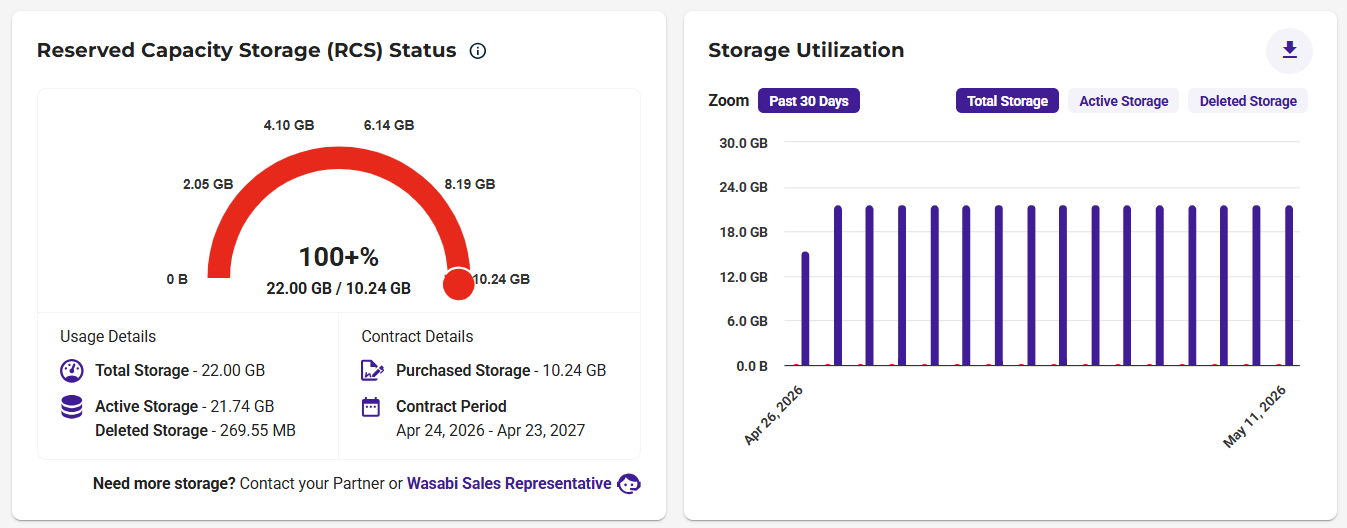
If you are a Pay-Go customer, Storage Utilization is displayed on your dashboard. If you are an RCS customer, RCS Status and Storage Utilization details are shown on your dashboard. For example: