Wasabi has been validated for use with HornetSecurity's VM Backup. VM Backup (formerly Altaro VM Backup) is a fast, affordable, high-performance backup and replication solution. To use this product with Wasabi, follow the instructions below.
The data restoration process is handled by your specific backup software application. As there are many potential variables that will affect your unique environment, it is strongly recommended that you seek the guidance of your backup software’s technical support team in the event that you encounter difficulty or have application-specific inquiries.
Requirements
VM backup (Altaro VM backup) software release 8.5.17 or higher installed and licensed
An active Wasabi account
Wasabi bucket (see Working With Buckets and Objects)
Access & Secret Key Pair (see Creating a User Account and Access Key)
Configuring Wasabi as an Offsite Location
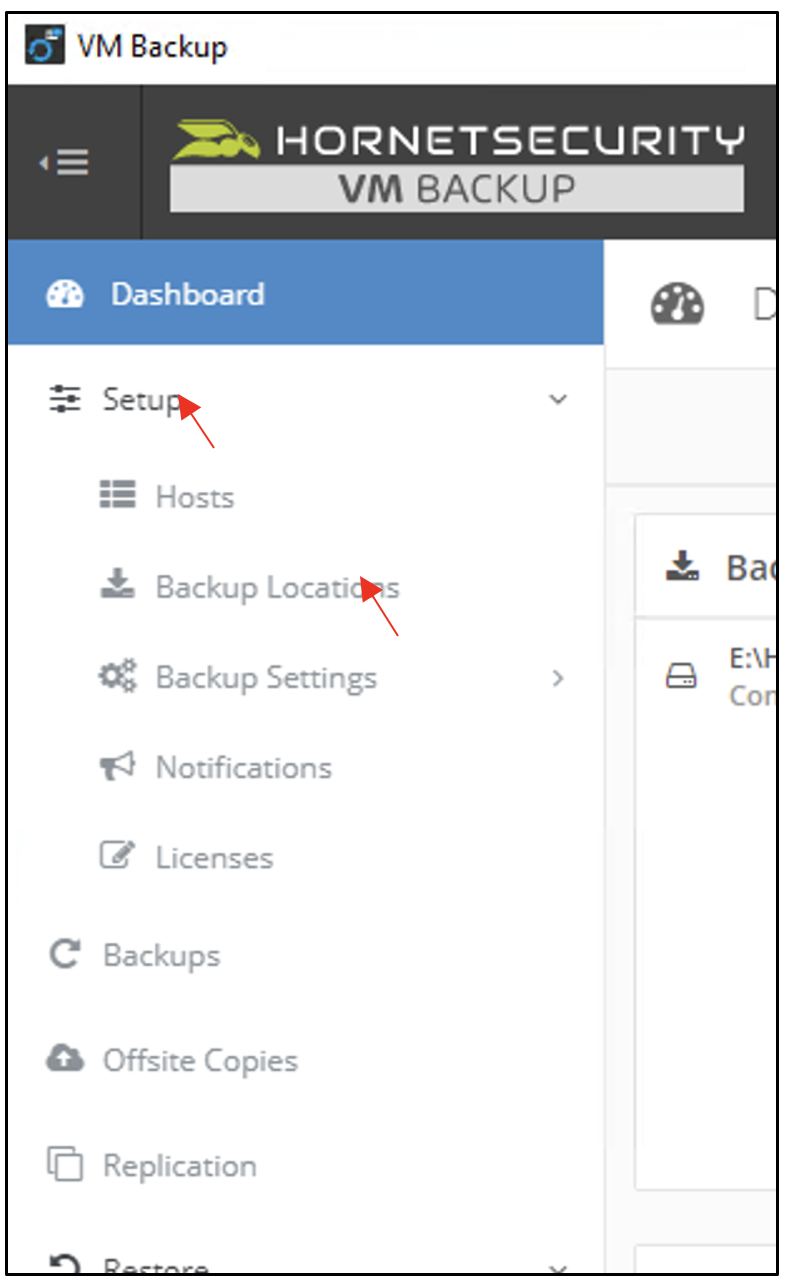
Open the HornetSecurity VM Backup management console.
Click Setup.
Click Backup Location.
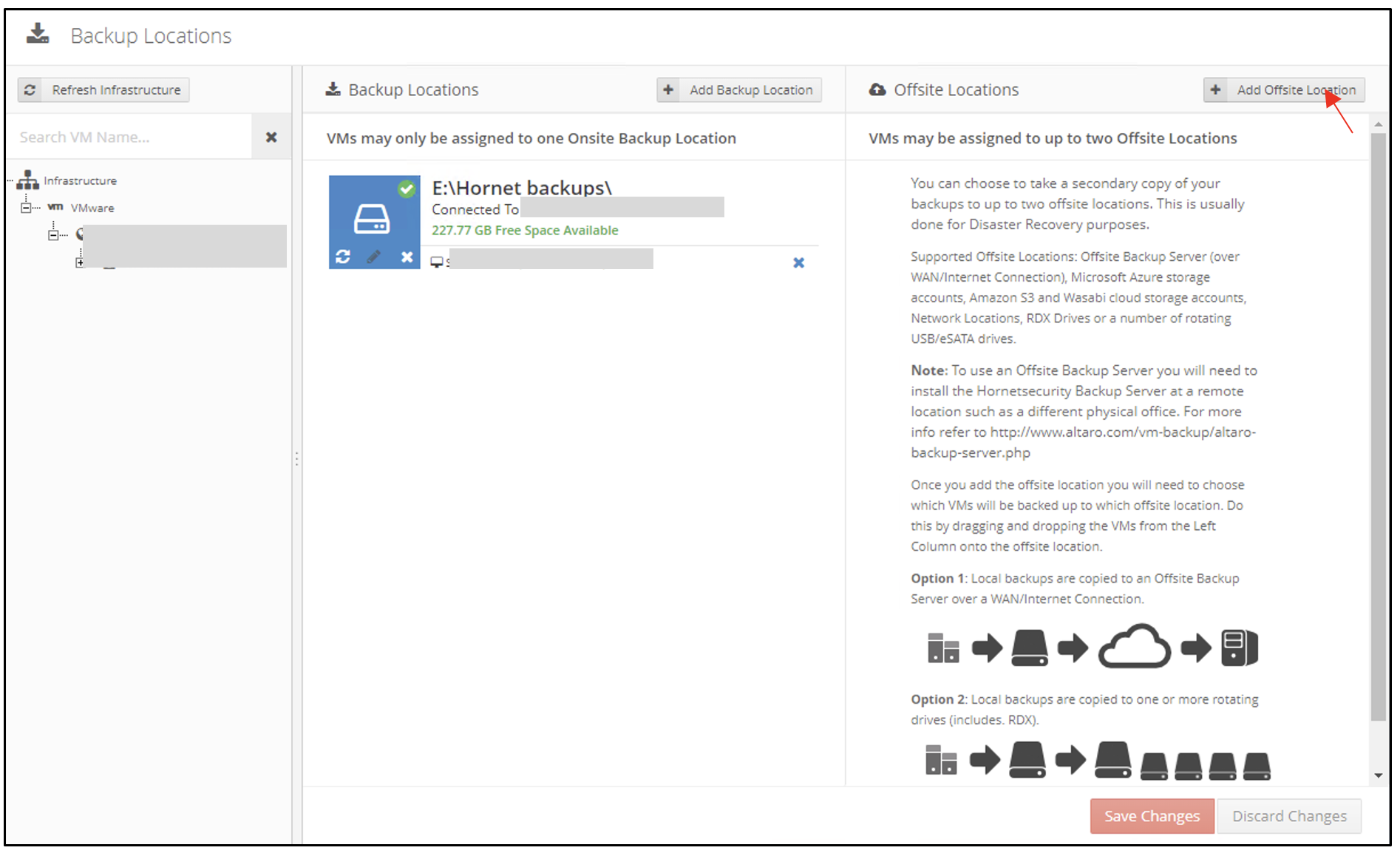
In the Backup Locations tab, click Add Offsite Location.
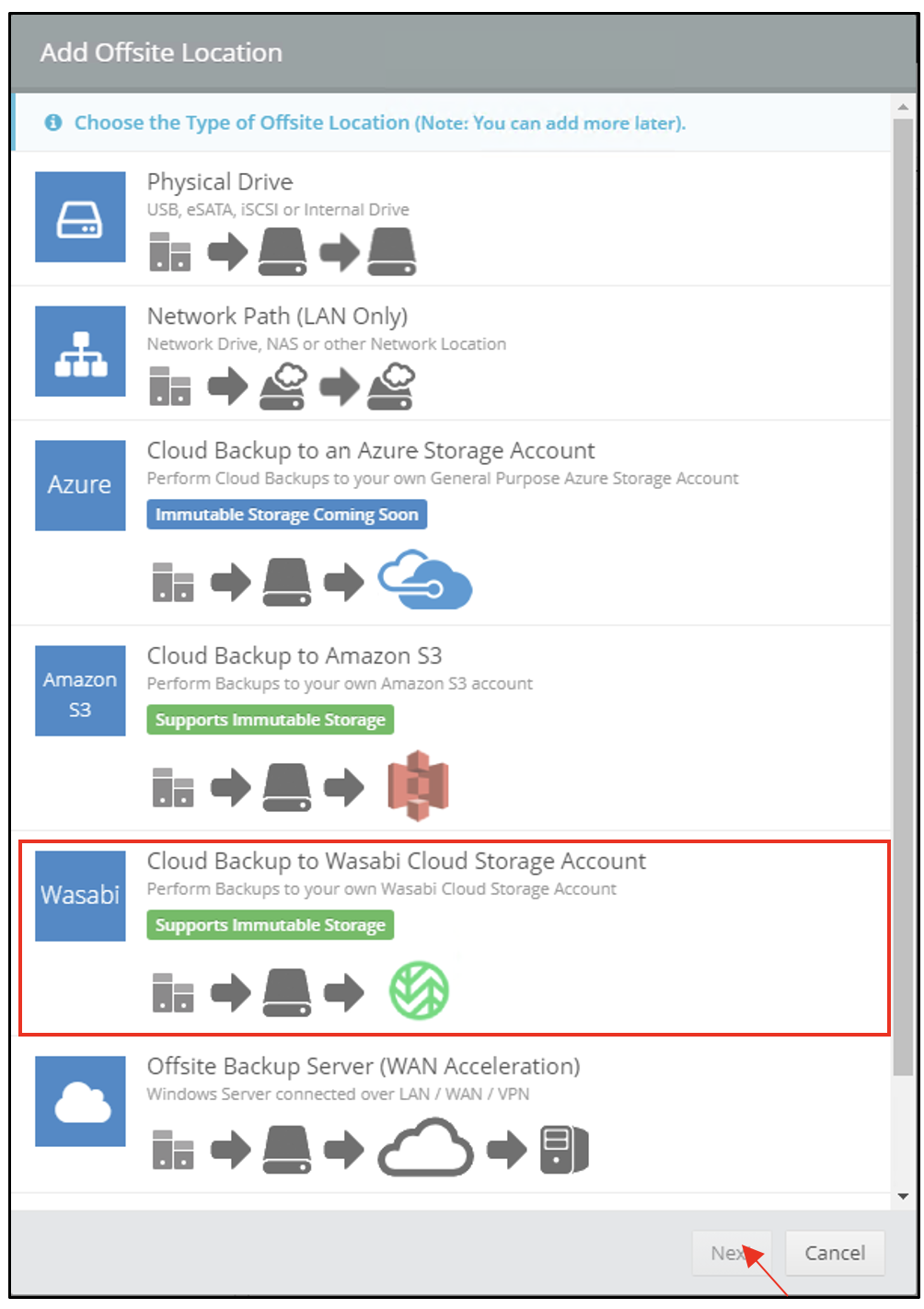
In the Add Offsite Location dialog box, select Cloud Backup to Wasabi Storage Account.
Click Next.
In the Add Wasabi Backup Location dialog box, provide the following details.
Region—Select the region where the bucket is located
Access Key—Wasabi access key
Secret Access Key—Wasabi Secret key
Bucket Name—Wasabi bucket name
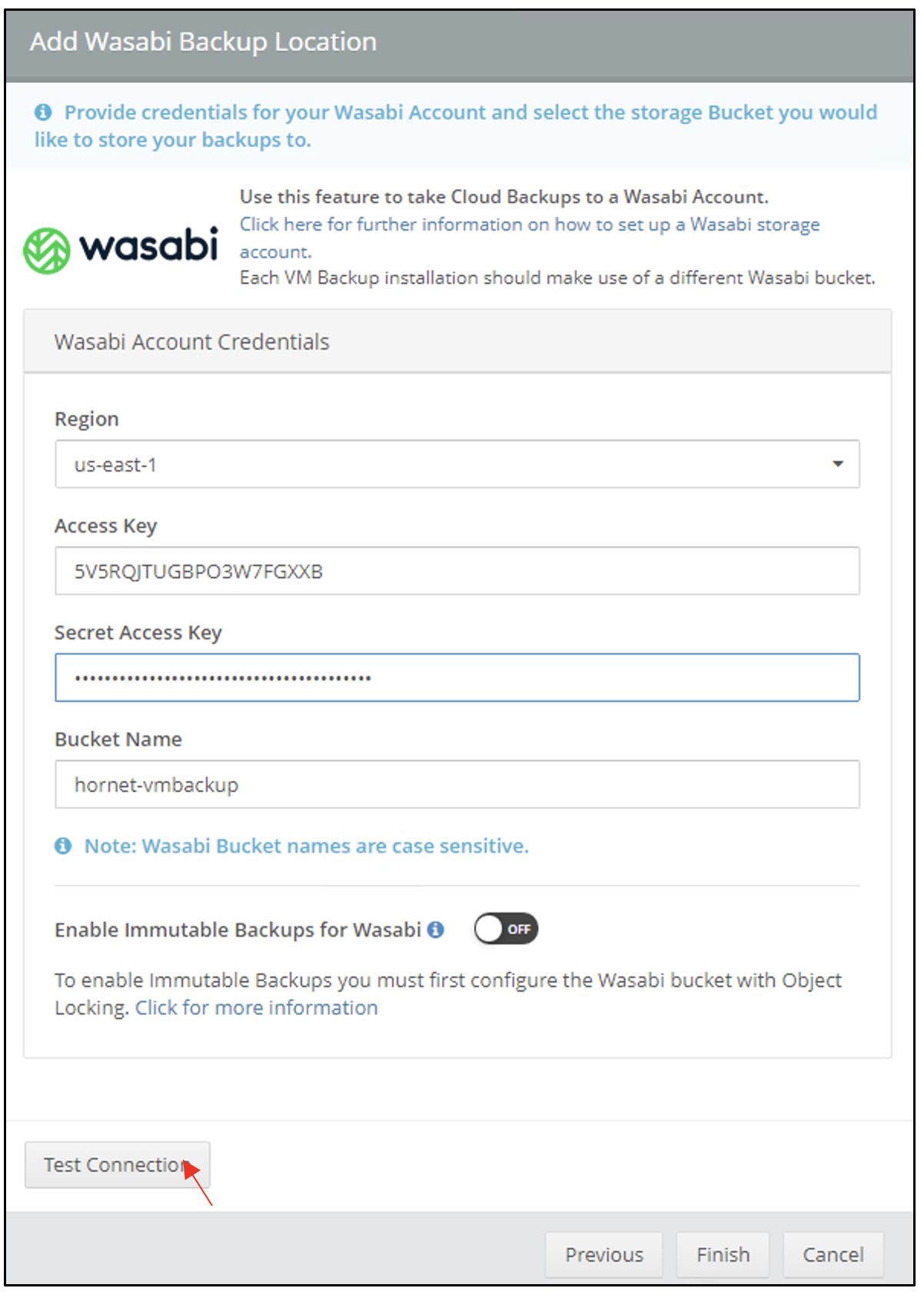
This configuration example uses Wasabi’s us-east-1 storage region. Be sure to select the appropriate region where your bucket is located.
Click Test Connection.
Once the connection is successful, click Finish.
The Wasabi offsite location will be displayed in the Offsite Locations tab.
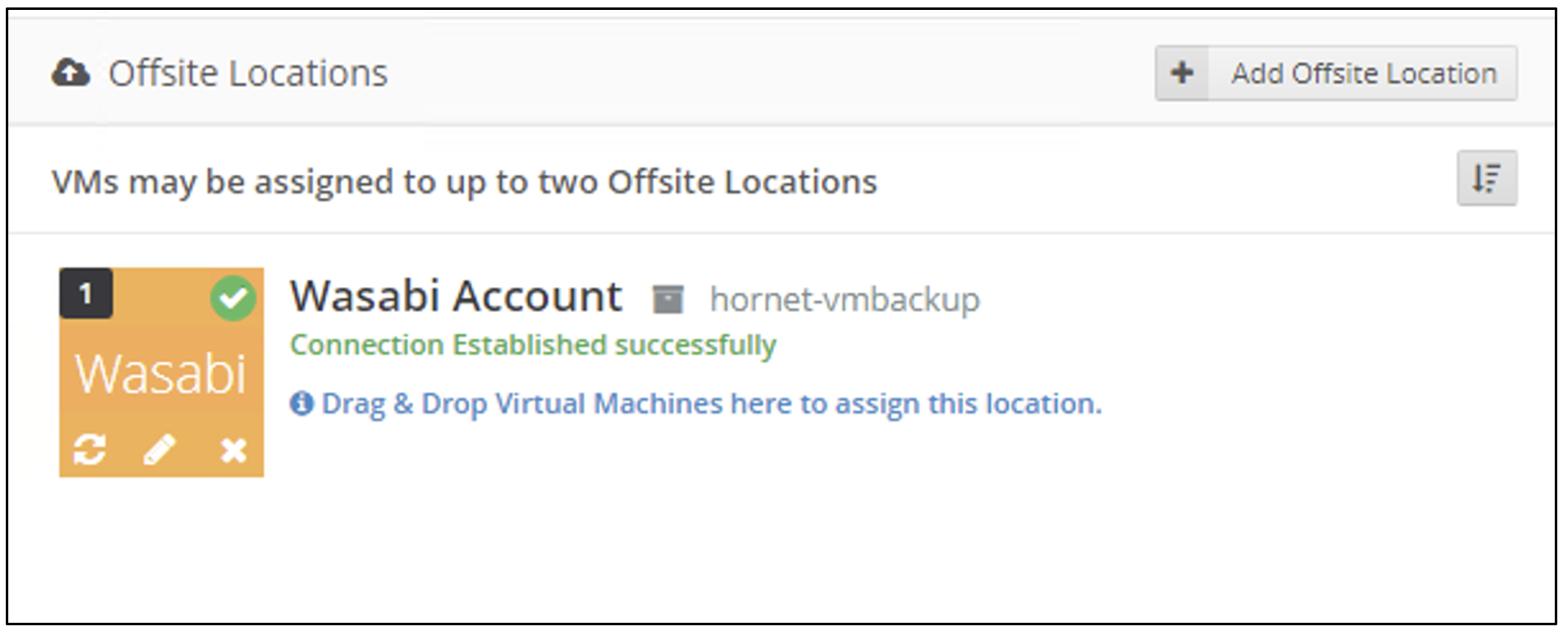
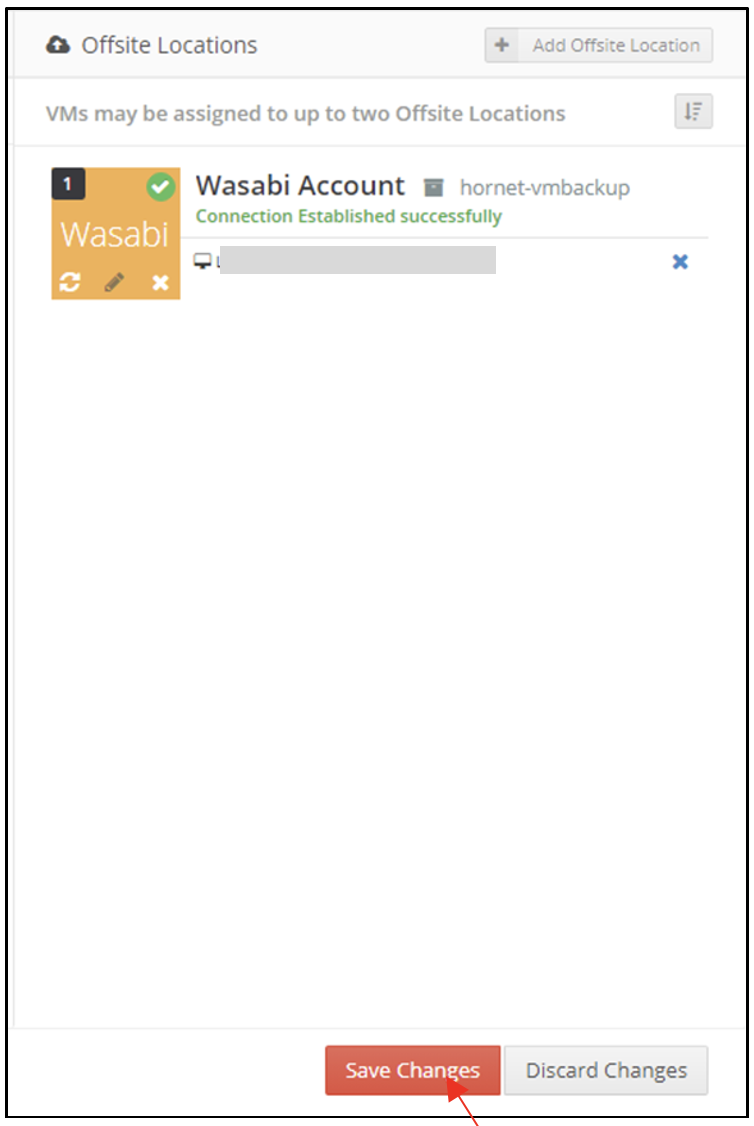
Select the VMs to assign to this rotation. Drag and drop them from the VM list on the left into the newly created Wasabi location. Click Save Changes.
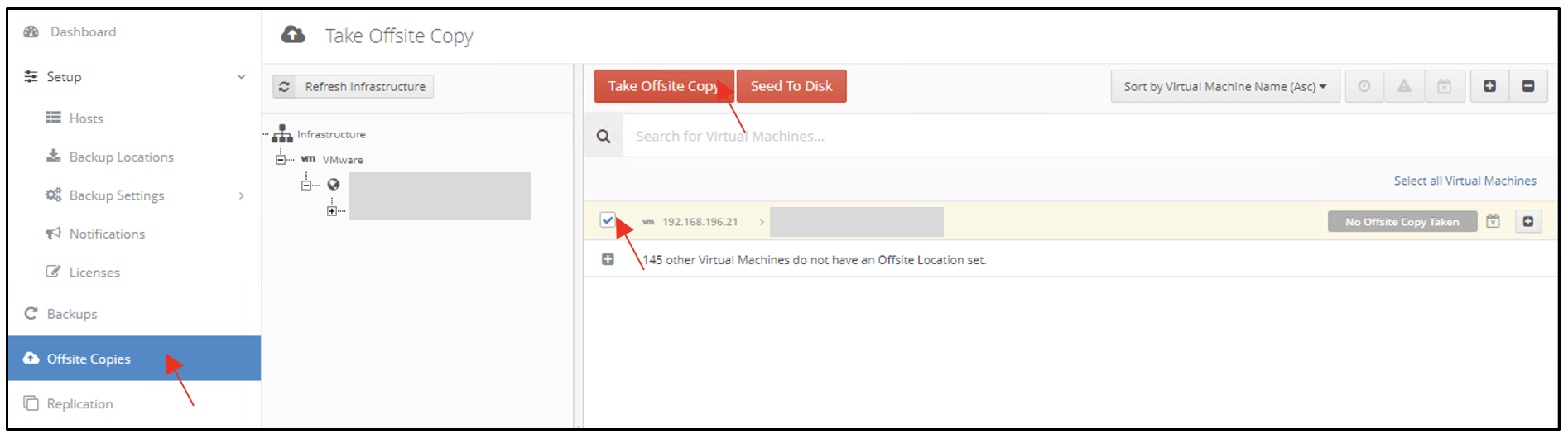
Once complete, you have the option to either start an Offsite Copy manually from the Offsite Copies menu or wait for your next Scheduled Offsite Copy job.
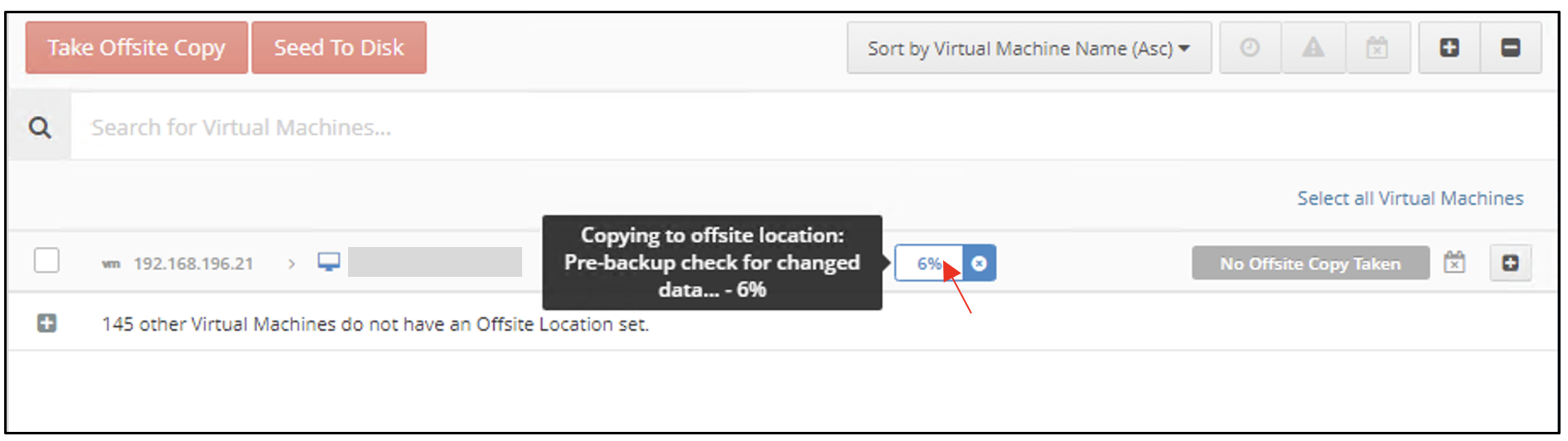
The status bar will show the progress of the offsite copy job.
Restore Process
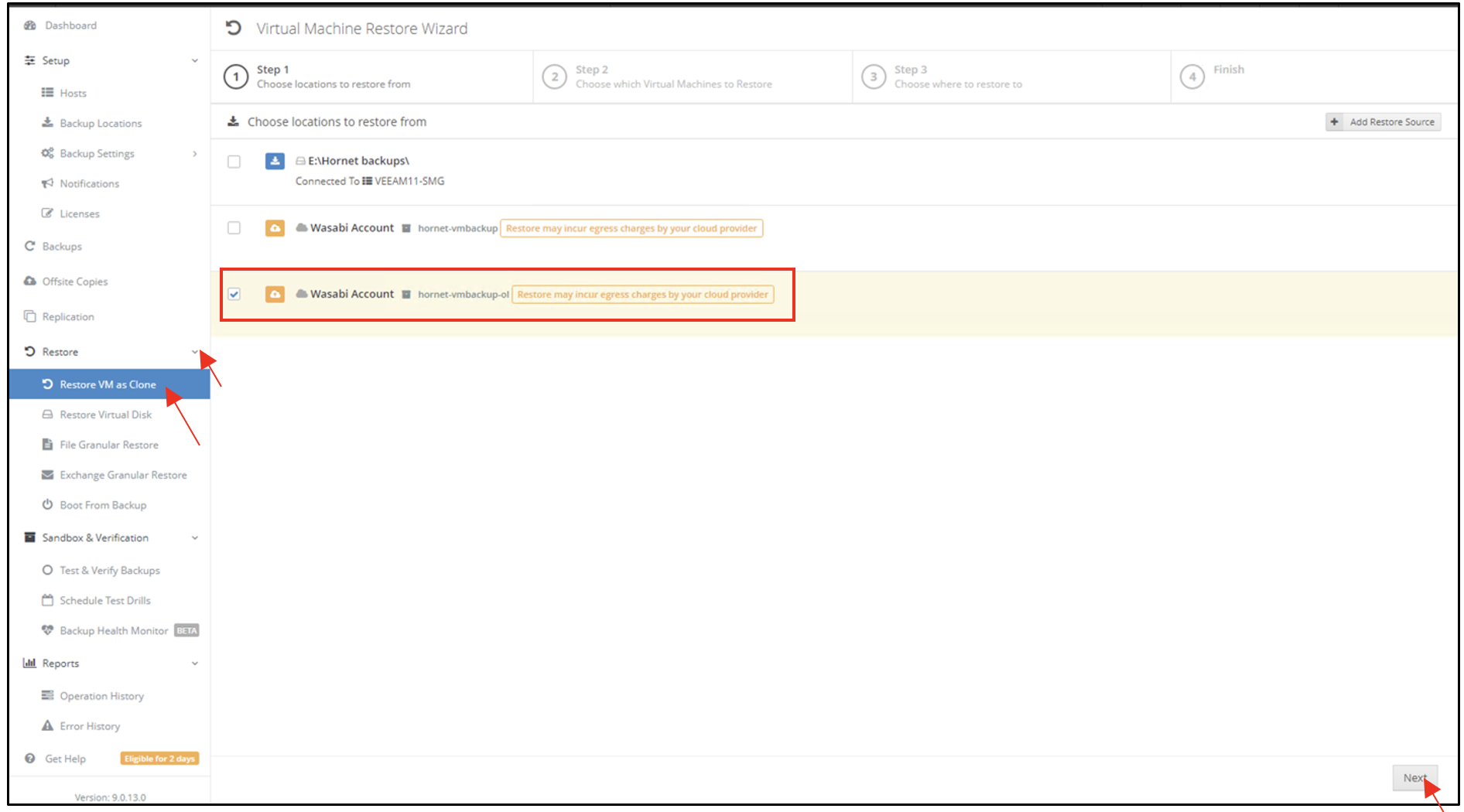
To restore a VM, navigate to Restore.
Click Restore VM as Clone.
In the Virtual Machine Restore Wizard under Step 1, select the desired Restore Source. Click Next.
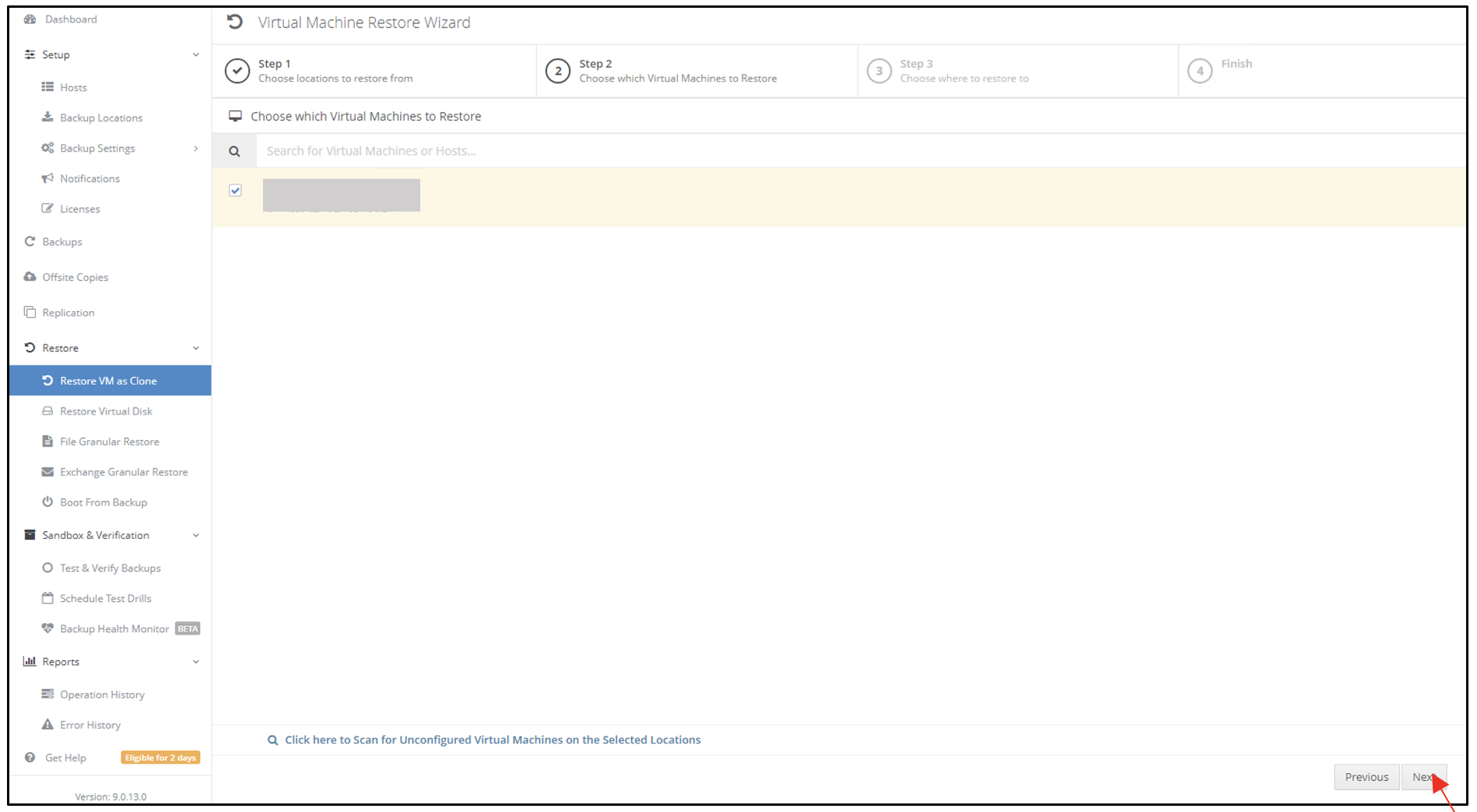
In Step 2, choose the virtual machines you would like to restore. Click Next.
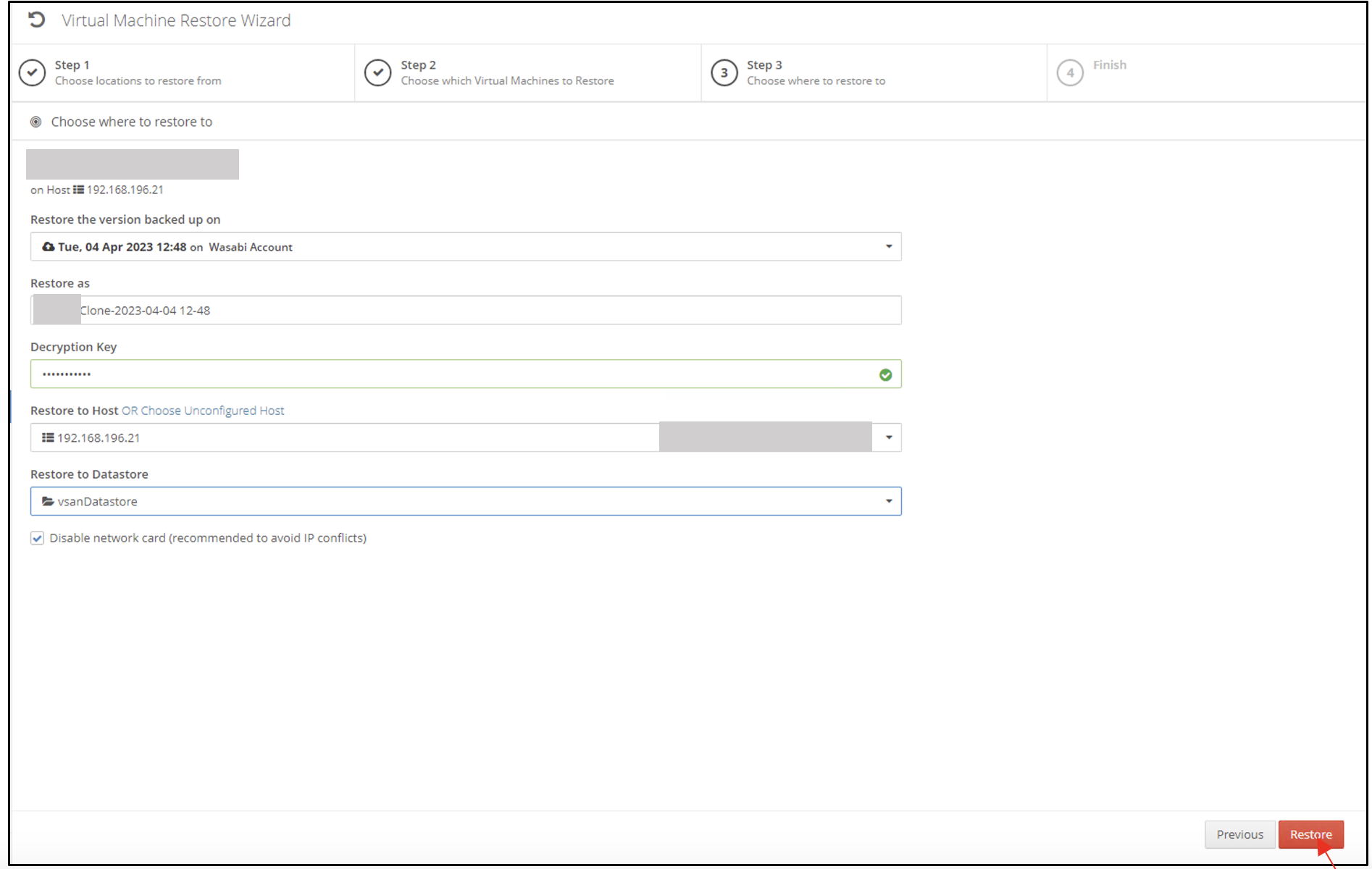
In Step 3, choose where you would like to restore the VM. Click Restore.
Configuring Immutability
You can now use Wasabi’s Object Lock feature with HornetSecurity VM Backup v9 and above to make your backups immutable.
VM Backup supports the Compliance mode of Object Lock. For more information on Wasabi Object Lock, review Object Lock: Setting for a Bucket or Object.
Follow the steps below to configure immutable backups to Wasabi.
Create an object lock-enabled bucket. (For more information, review Object Lock: Enabling.)
You can enable immutable backups when creating the Offsite location. Follow Steps 1–6 in Configuring Wasabi as Offsite Location to add an offsite location.
In the Add Wasabi Backup Location dialog box, provide the following details.
Region—Select the region where the bucket is located
Access Key—Wasabi access key
Secret Access Key—Wasabi Secret key
Bucket Name—Wasabi bucket name
To enable immutability, click the toggle to enabled Enable Immutable Backups for Wasabi.
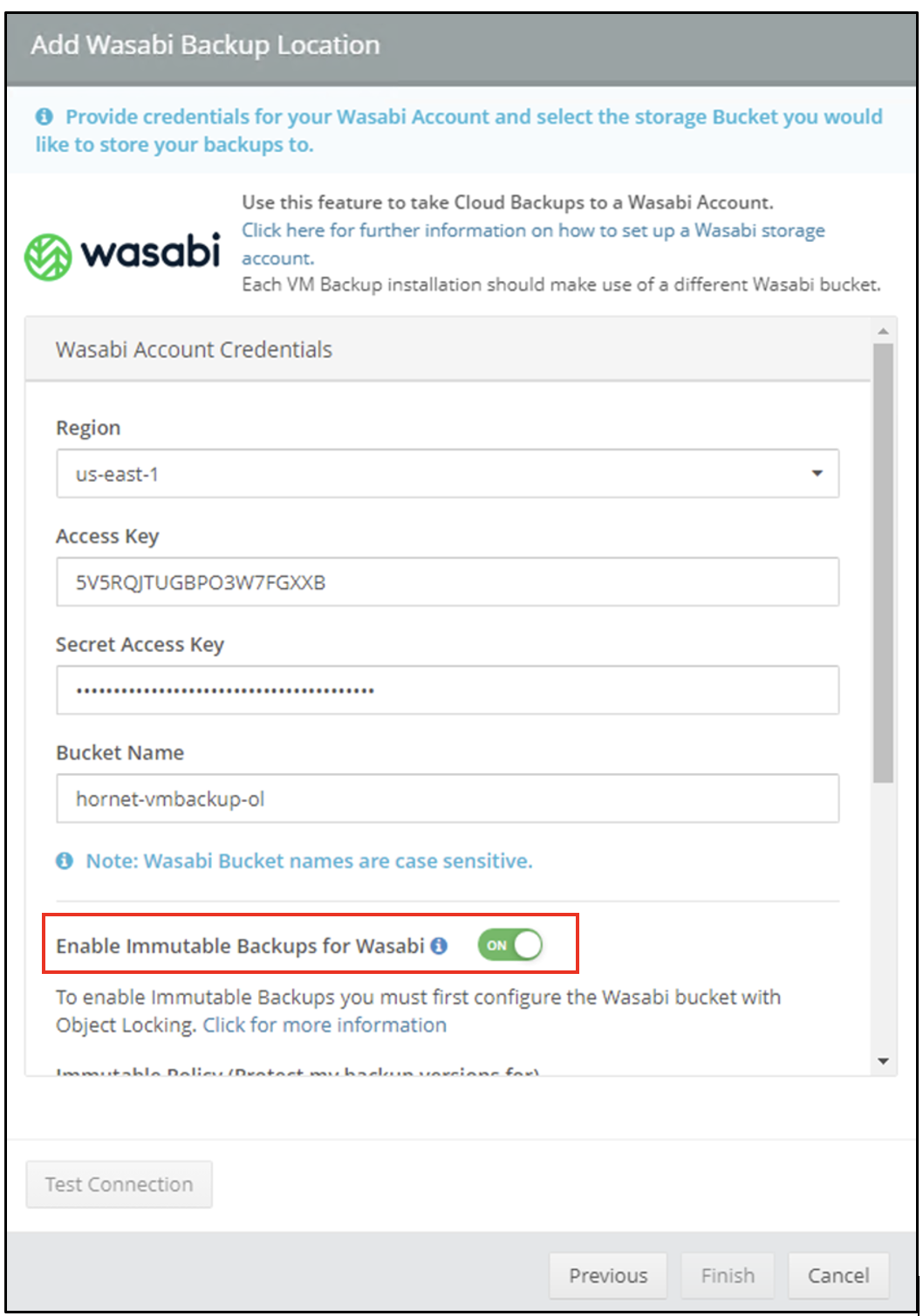
This configuration example discusses the use of Wasabi’s us-east-1 storage region. Be sure to select the appropriate region where your bucket is located.
Scroll down to configure the retention period under Immutable Policy.
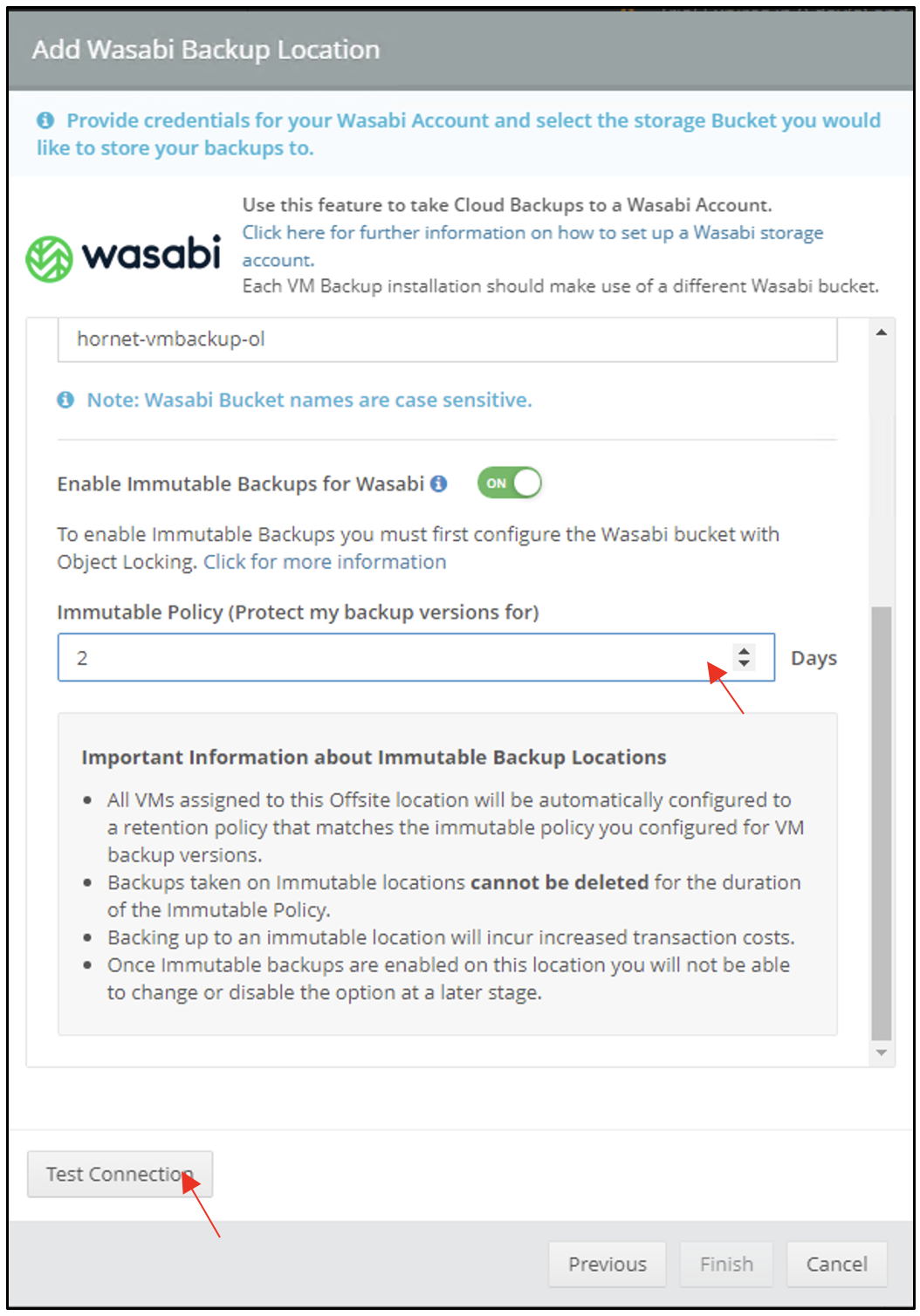
Click Test Connection.
Once the connection is successful, click Finish.
The immutable offsite location is now ready to use. You can add VMs to this location and run backups following Steps 11–13 in Configuring Wasabi as Offsite Location.