To manage your active storage objects in WCSM, you can disable or ignore the storage object. Disabling an inactive storage object prevents the UI from scanning the active storage, which may incur fees associated with API calls made to your hyperscaler. By ignoring a storage object, you can ensure that specific objects or file paths are neither scanned nor transferred by a job or policy.
Enabling and Disabling a Storage Object
Users cannot disable or delete a storage object once a migration is complete, as WCSM disables the Write capabilities for the storage object.
Click Storage.
Select a storage object.
Click
 .
.Click Disable.
Optionally, to enable a storage object, click Enable.
Once disabled, the storage object icon will be greyed out.
Editing a Storage Object
You must disable the storage object before editing the storage details.
Click
.Click Edit.
You have the option to edit the following details.
Name
Bucket
Prefix
Region
Credentials
Once complete, click Update Storage.

Ignoring Storage
Click
.Click Ignore.
Click Add Ignore.
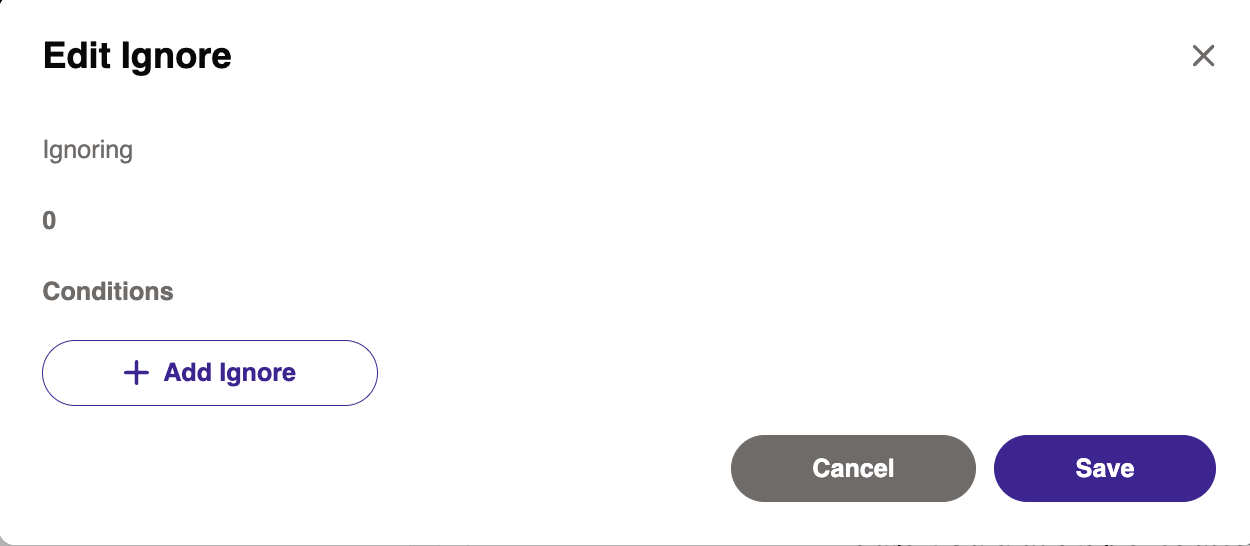
To add a condition based on file path, enter a prefix into the type field.
Optionally, to add a condition based on file name, click the drop-down to select File name.
To define the condition, you have the option to select one of the following.
Ends with
Equals
Once complete, enter the definition into the type field.
Click Save.
Deleting a Storage Object
Wasabi recommends that you do not delete a storage object in WCSM. For questions or concerns, contact your WCSM migration team.
Before deleting a storage object, you must first disable the storage. To do so, refer to Enabling and Disabling a Storage Object.
Click Storage.
Select a storage object.
Click
.Click Delete.
In the Delete Storage window, review the warning message. To confirm the deletion, enter the storage object name into the type field.
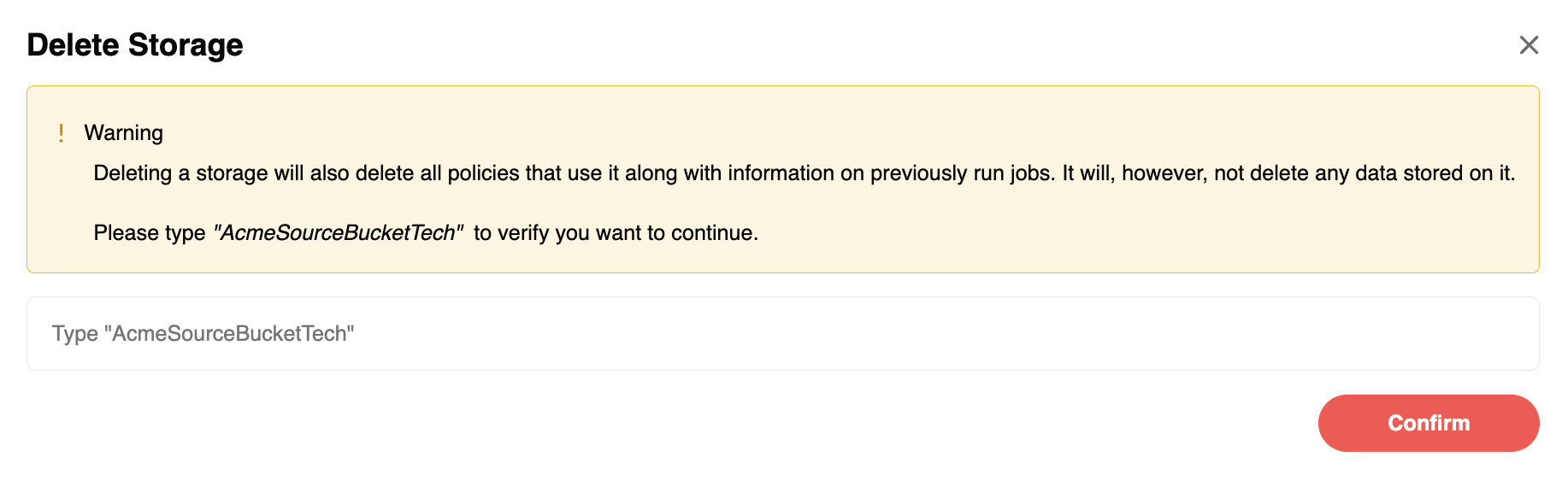
Click Confirm.