The Account page displays account information and settings for the selected Control Account. You can view and manage account details, Sub-Account storage tracking and quotas, contact and business information, and Sub-Account credentials and access. You can also suspend or delete the account.
Depending on how you signed in to WACM, as a Control Account or a Channel Account user, determines which Sub-Account settings and components are available in the Account Information module.
In the Navigation bar, select Control Accounts. From the Control Accounts list, select a Control Account to manage. The Account page displays Account Information for the selected Control Account.
Account Information Settings
From the Account page, you can manage the following account information:
Account Details—Displays account details and status.
WACM Connect API Key—Provides access to WACM data for automation.
Integration API Keys—Enables third-party integrations.
Contact Information—Enables you to add or update the address, phone number, contact, or billing email.
Business Information—Enables you to add or change business and tax information, as well as the website.
Account Management API—Provides access to the API keys used to authenticate and authorize programmatic access to your account.
Control Account Information—Displays key details for your Control Account.
Defaults—Lets you set a storage quota for all Sub-Accounts.
Account Settings—Lets you set a storage quota for all Sub-Accounts.
Carbon Footprint—Lets you view emissions from Wasabi storage under your management directly in WACM.
Wasabi Compute—Lets you view detailed compute utilization data.
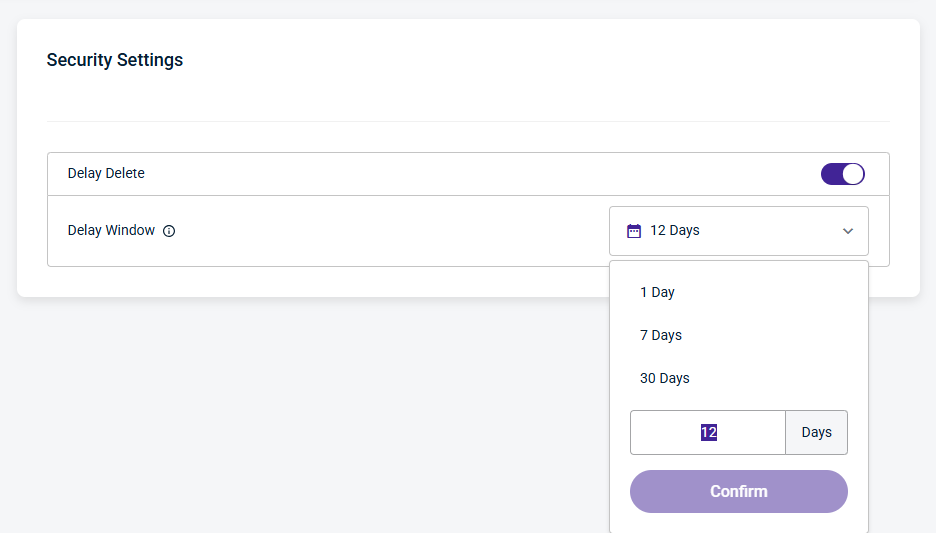
Security Settings—Enable the Delay Delete setting to select the number of days to wait before a Sub-A’s scheduled deletion is completed.
Be sure to click Update (in the upper-right corner) to apply any changes made on this page.
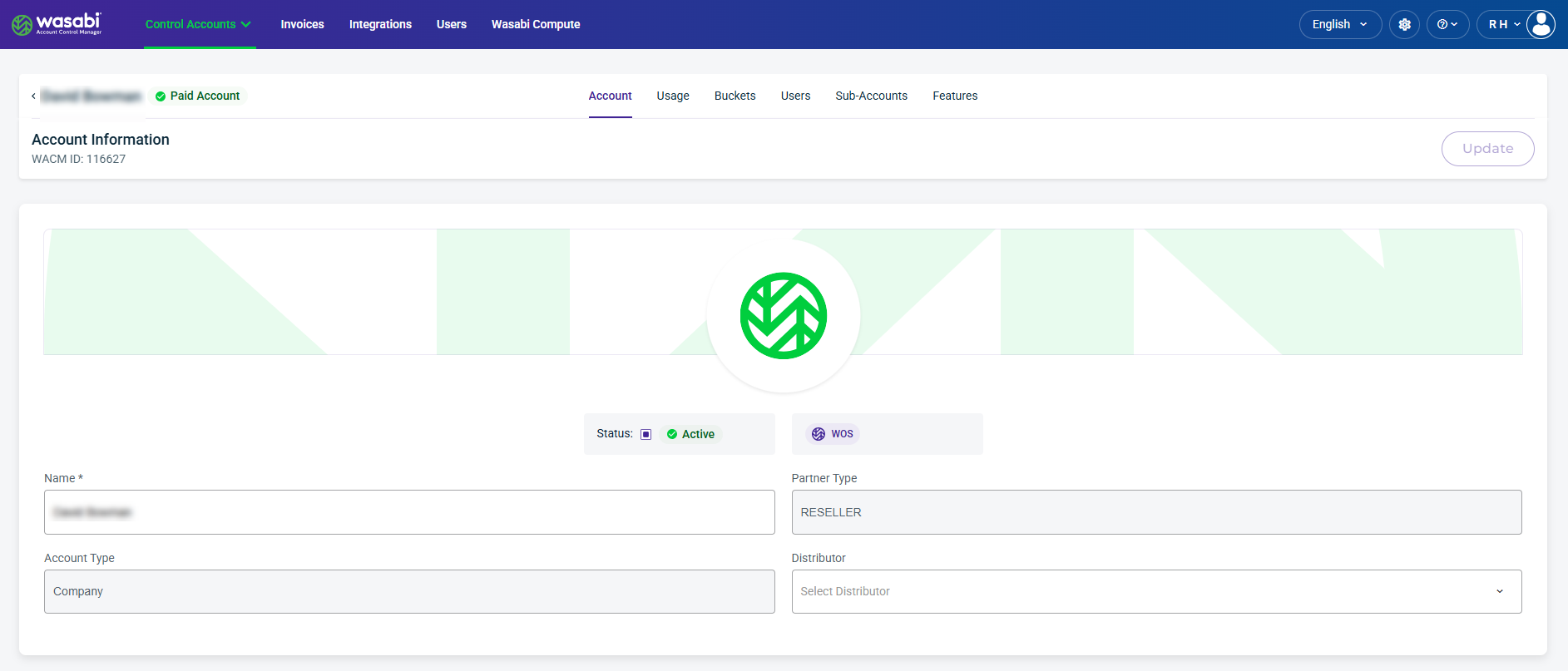
Account Details
View or manage the following account details for the Control Account:
Status—Account status is Active, Deactivated, or Deleted.
Product—The product storage type for the account, such as Wasabi Cloud NAS (WCN), Wasabi Object Storage (WOS), or Wasabi Surveillance Cloud (WSC).
Name—The name of the Control Account (can be changed).
Partner Type—The selected Partner type, such as Reseller.
Account Type—The selected Account type, such as Company.
Distributor—The name of the Distributor, which can be changed using the dropdown or deleted using the X symbol.
WACM Connect API Key
The WACM Connect API key lets you access WACM data for automation and can be rotated or deleted as needed for security purposes.

Integration API Keys
Integration API keys enable secure communications with third-party services. WACM Integrations provides details to enable partner integrations.

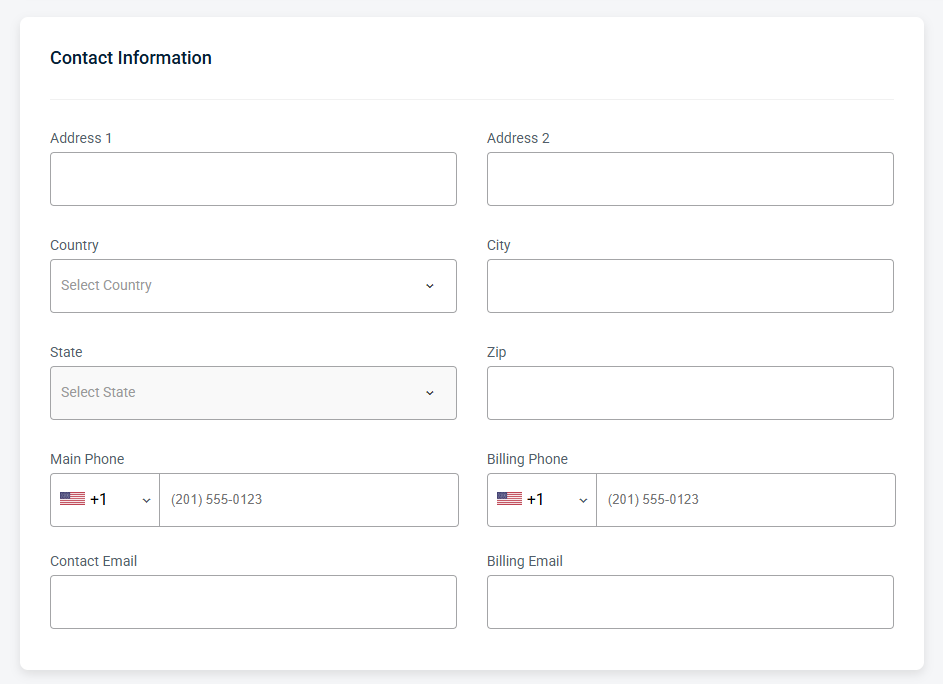
Contact Information
The Contact Information section provides editable fields for contact and billing details for this account, including address, phone numbers, and email addresses.
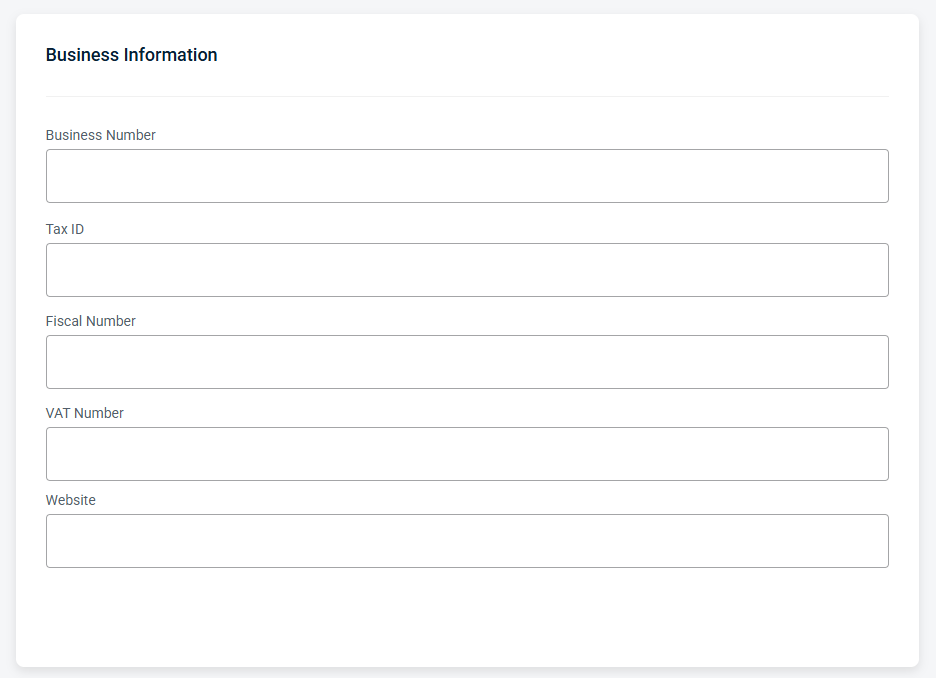
Business Information
The Business Information section provides editable fields for billing and tax identifiers for this account, including business number, tax ID, fiscal number, VAT number, and website URL.
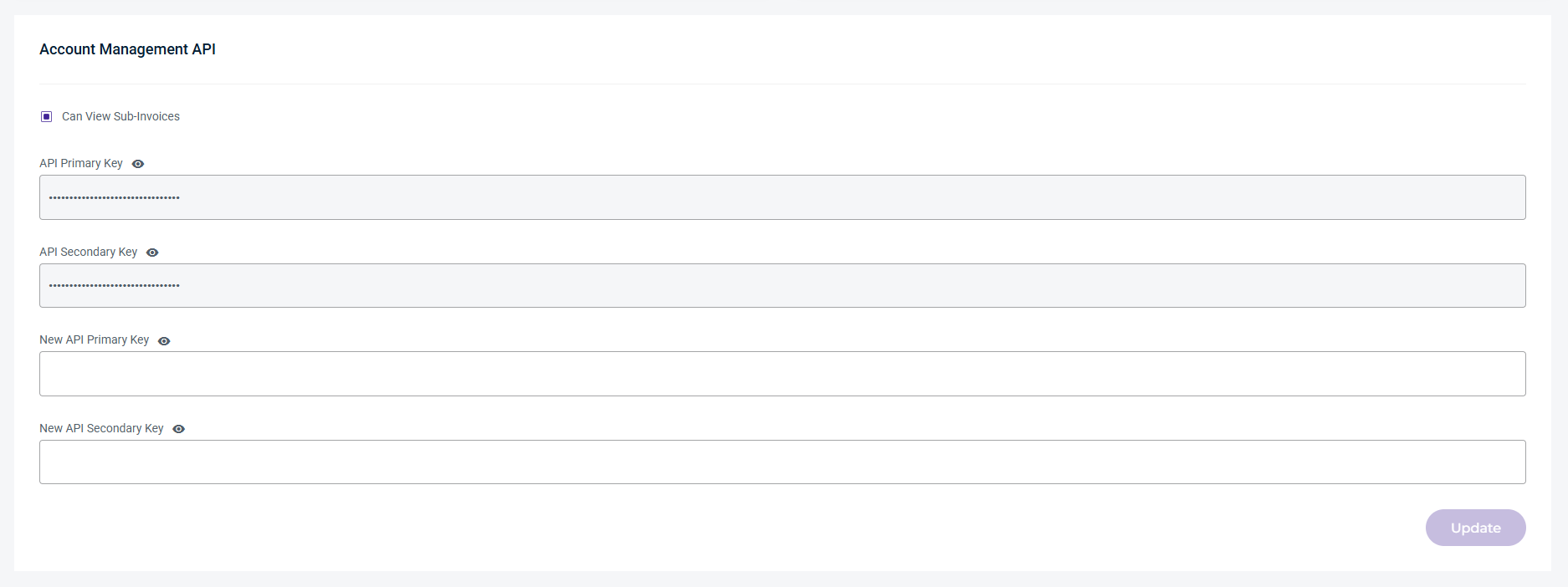
Account Management API
The Account Management API section provides access to the API keys used to authenticate and authorize programmatic access to your account. These keys are required for API calls that manage your account and sub-accounts.
The required API keys grant access to your account.
Can View Sub-Invoices—Select the checkbox to view Sub-Invoices associated with the Control Account.
API Primary Key—The primary API key for your account. Use this key as the default credential for API authentication.
API Secondary Key—A secondary API key for your account. This key can serve as a backup credential or for key rotation.
New API Primary Key—Generates a new primary API key for your account. Once generated, the new key replaces the existing primary key.
New API Secondary Key—Generates a new secondary API key for your account. Once generated, the new key replaces the existing secondary key.
Control Account Information
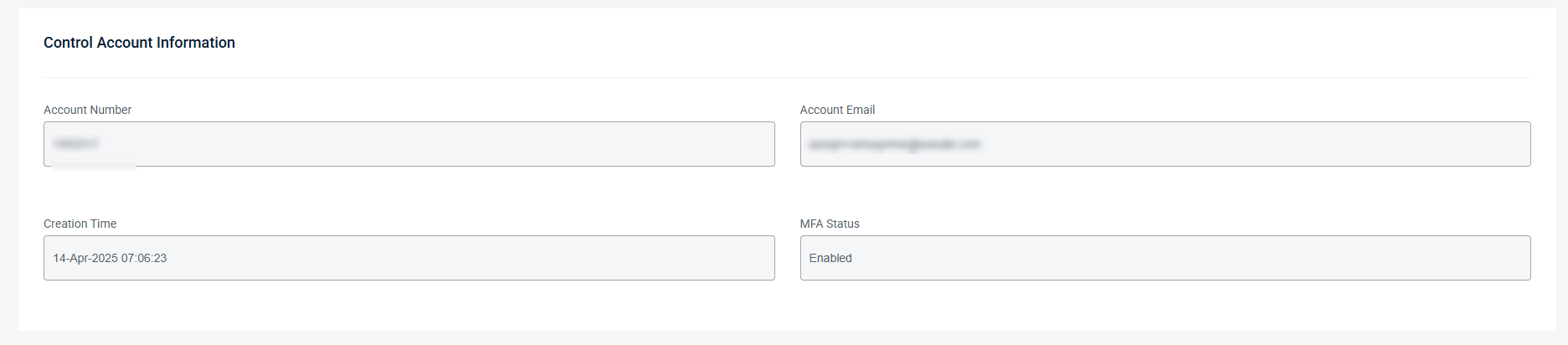
The Control Account Information section displays key details for your Control Account. This information is read-only and reflects the selected account's current configuration.
The Control Account Information fields in this section are read-only.
Account Number—The unique identifier for your Control Account. Use this number when referencing your account in support requests or API calls.
Account Email—The email address associated with your Control Account. This address is used for account notifications and correspondence.
Creation Time—The date and time the Control Account was created.
MFA Status—Indicates whether Multi-Factor Authentication (MFA) is enabled or disabled for the Control Account.
Defaults
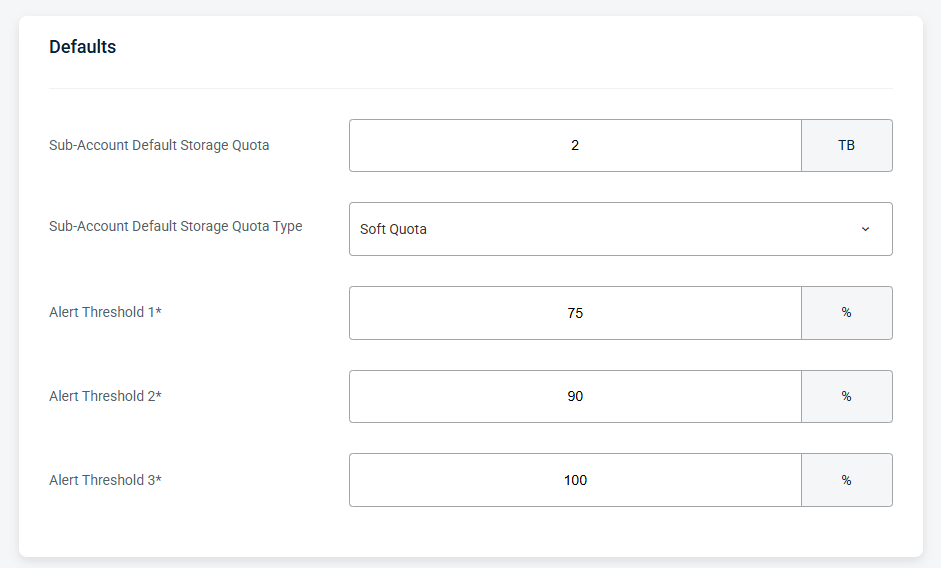
The Defaults section lets you set a storage quota for all Sub-Accounts simultaneously.
The storage quota defaults for Sub-Accounts are:
Sub-Account Default Storage Quota—Allows users to assign a set amount of purchased storage to each sub-account, except for those that have already been modified. This amount can be changed at any time, and all sub-accounts that have not been modified previously will be updated to the new value.
Sun-Account Default Storage Quota Type— Soft Quota or Hard Quota.
Soft Quota (default)—A flexible limit that allows the sub-account to exceed the set storage amount, but may trigger alerts, reporting flags, or overage considerations.
Hard Quota—A limit that prevents the sub-account from using more storage once the defined threshold is reached. You can enable Sub-Account hard quota storage limits in the Account Settings section.
Alert Thresholds—Predefined usage levels that trigger notifications as a sub-account approaches its storage quota.
Account Settings
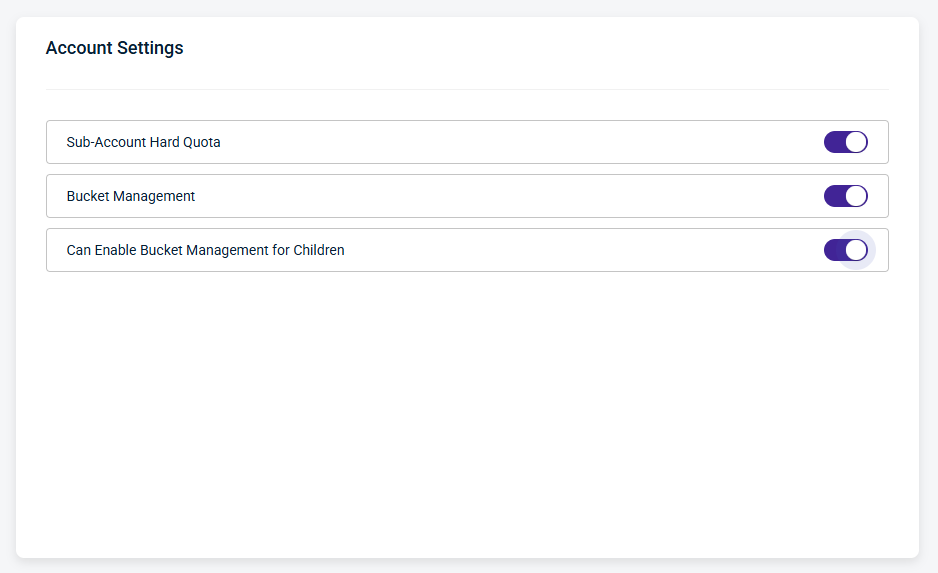
Use the Account Settings section to configure Sub-Account storage quotas and bucket management permissions. Enable or disable the following settings using the corresponding toggles:
Sub-Account Hard Quota
This setting lets you enable or disable a Sub-Account hard quota, which enforces storage limits and prevents continued use once the limit is reached. Disabling the hard quota setting will revert to soft quota, which is a disruptive action.
Bucket Management
This setting lets you enable or disable bucket management functionality for the account.
Enable Bucket Management for Children
This setting allows the account administrator to enable or disable bucket management for child accounts.
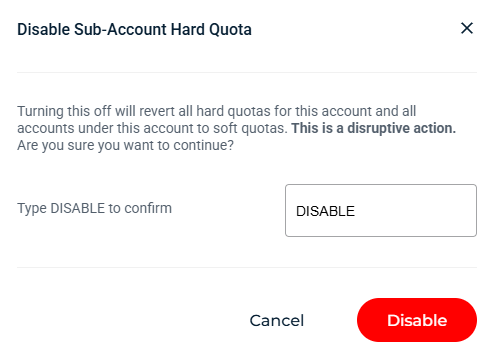
Disabling a Sub-Account Hard Quota
You can disable hard quota limits and revert to soft quotas using the Disable button. Soft quotas do not enforce storage quota limits; they trigger a notification when the storage quota limit is reached or exceeded.
Carbon Footprint
With Carbon Footprint, you can view emissions from Wasabi storage under your management directly in WACM. These values are calculated at the regional level and updated monthly. You can also purchase additional credits using the Purchase Credits button. Use the Date Range filter to limit and analyze usage data for a specific time period.
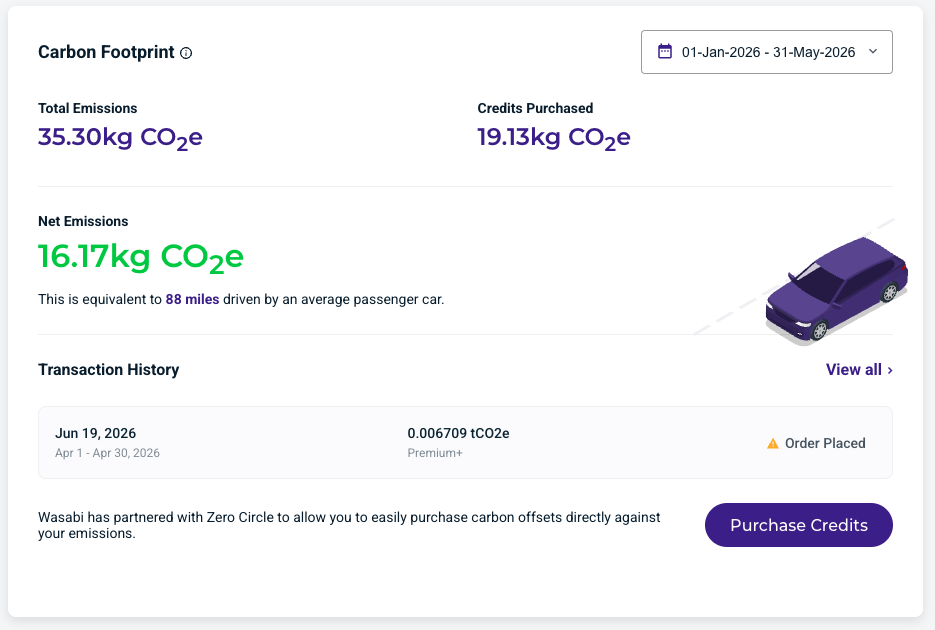
Carbon footprint provides the following details and metrics:
Total Emissions—The total emissions generated from storage under your management for the selected date range.
Credits Purchased—The credits, or emissions offsets, you have purchased from our partner to offset your total emissions for the selected date range.
Net Emissions—The total emissions generated for the selected date range, less the credits purchased to offset those emissions, leaving your net emissions.
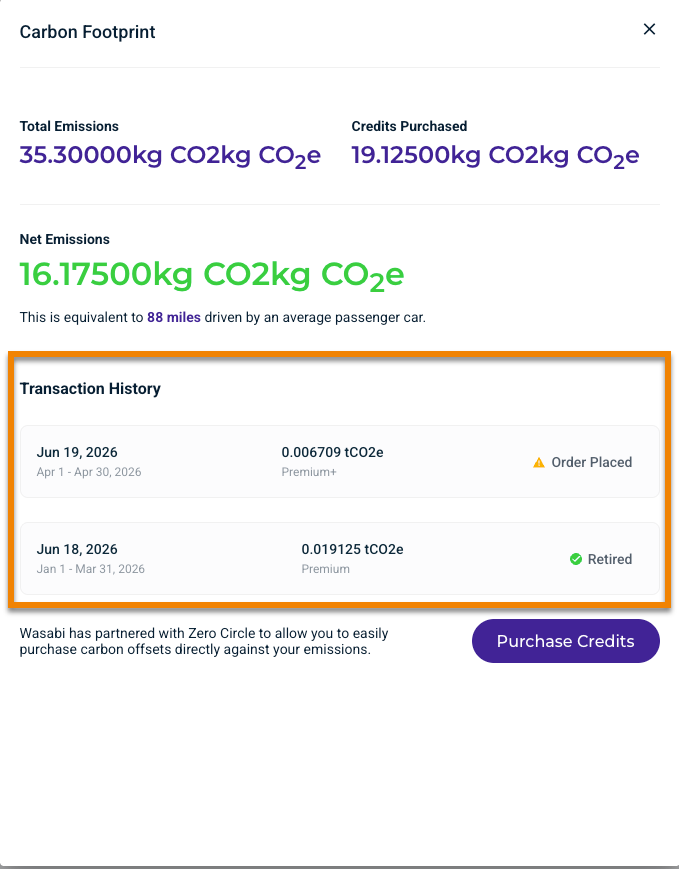
Transaction History—Displays the latest transaction history. Click View All to see the status of the last three transactions, such as Order Placed, Retirement in Progress, or Retired.
Wasabi Impact Circle
Wasabi Impact Circle is our commitment to making cloud storage genuinely sustainable, and the carbon offset program, delivered through our partnership with Zero Circle, is how we put that commitment into practice. The program offsets the carbon footprint tied to the data customers store with Wasabi by funding verified environmental projects worldwide. This program is available exclusively in the Wasabi Account Control Manager console for Wasabi partners as a free strategic differentiator for sustainable-focused organizations. For more information, refer to Wasabi Carbon Footprint (https://cust.zerocircle.eco/wasabi).
Wasabi Compute
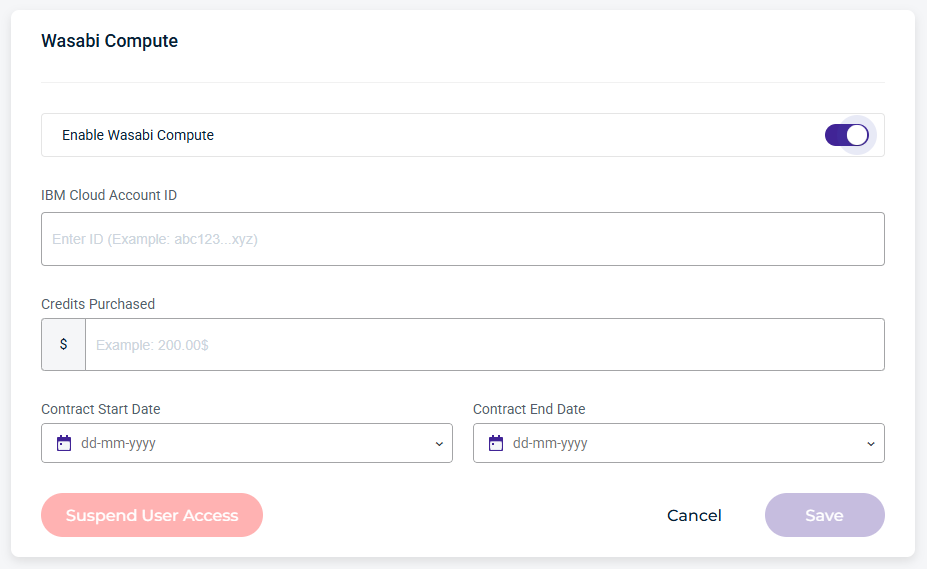
Wasabi Compute enables you to view detailed compute utilization data, helping you quickly see how compute account resources are used over time and where utilization is concentrated. Editable fields include the IBM Cloud account ID, purchased credits, and the contract start and end dates. User access can also be suspended. For more information, see Wasabi Compute Utilization and Alerting.
Security Settings
Delay Delete provides a window after a Sub-Account deletion is scheduled during which a user can cancel the deletion before it is processed. It also sends notifications when an account deletion is initiated, canceled, or completed, enhancing visibility and security.
While a Sub-Account is in the Pending Delete status, it will remain active for use and billed as normal. If you wish to restrict access during this time, you can suspend the account before scheduling the deletion.
Security Settings allow Admin users (Governance, Control, and Channel Account) to enable or disable Delay Delete for Sub-Accounts. When enabled, this setting does not inherit to other accounts and must be configured individually for each account.
When Delay Delete is enabled, the Sub-Account deletion delay defaults to 1 day (24 hours) and can be configured up to 30 days. When a Sub-Account is scheduled for deletion, it remains active until the configured delay period expires. During this delay window, the deletion can be canceled. Once the delay window expires, the Sub-Account is permanently deleted.
Use the Delay Window dropdown to select the number of days to wait before a scheduled deletion is completed. You can update the Delay Window setting at any time.
By default, Admin users have notifications enabled. All other users can optionally enable them on their Profile page. Notifications are sent when:
A Sub-Account is scheduled for deletion.
A user cancels a Sub-Account scheduled for deletion within the Delay Window.
A Sub-Account is deleted after the configured delay period expires.